
Propose Compensation Change
Overview
The
Propose Compensation Change
is a subprocess in the Change Job
business process. Workday evaluates and displays current and proposed compensation. Through the change job event, the employee may have an increase or decrease in pay.Objectives
By the end of this chapter, you will be able to:
- Identify transactions that can trigger compensation changes.
- Correct out of order compensation events.
Initiating a Propose Compensation Change
If the job change includes a change in organization, country, or position, there could be a major impact on compensation. There could be changes to the compensation package, compensation grade, or grade profiles. Therefore, we recommend including the
Propose Compensation Change
subprocess in the overall Change Job
business process.Reviewing the Propose Compensation Change
The
Propose Compensation Change
subprocess is not available as an ad hoc task. This subprocess only occurs when a worker has a change to their current job or position. This change could potentially involve a change to compensation. By including the Propose Compensation Change
subprocess in the Change Job
business process, you can evaluate eligibility.When proposing compensation changes, you may remove compensation the employee is not eligible for and add newly eligible compensation components. If you intentionally assign an employee to a plan they are not eligible for, the system will remove the plan. When this occurs, you will need to restore the plan manually. Use the comment box to document reasons for adding new compensation plans.
Note
: As compensation eligibility rules changes, unless there is a compensation transaction, the employee's current compensation assignments will remain the same.Moving into a Position With Default Compensation
If you use the
Change Job
business process to move an employee from one position to another, Workday re-evaluates eligibility rules, which may affect all compensation components.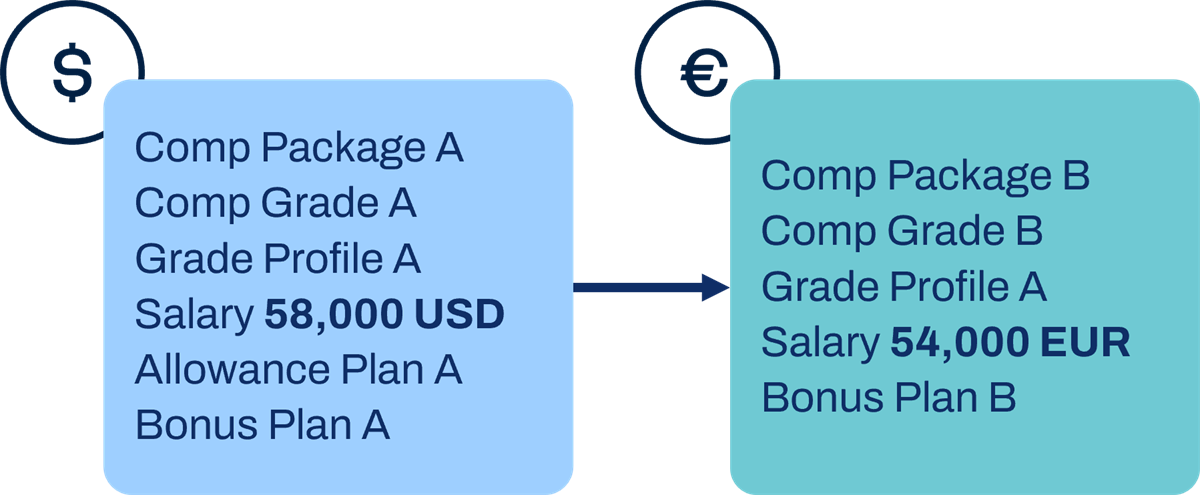
When an employee moves into a position that has position compensation or requisition compensation, the default compensation will replace the employee's current compensation, including their salary.
Note
: If the Create Requisition Compensation
subprocess is not included in the Create Job Requisition
business process, and you try to add requisition compensation as a standalone business process, no defaulting from position or eligibility rules will occur.Currency Conversion Rates
Base pay currency is based on the employee's compensation grade or grade profile. Therefore, you must have a compensation change as part of a job change that moves employees from one country to another.
There are several steps to set up your currencies, both system wide and as a preference.
- Set up the default currency on theEdit Tenant Setup - Systemtask.
- Define different currency rate types, such as current, average, or historic, and select one as the default using theEdit Tenant Setup - Systemtask. These will also be the rate type used during currency conversions.
- Identify currencies that should be available in prompt lists on theEdit Tenant Setup - Globaltask. This will provide a shorter list than all currencies in Workday.
- Countries' currencies and location currencies can have defaults.
- Employees can override their location currency by selecting a preferred currency.
Use the Currency Rate Type prompt to select a rate type configured on the
Maintain Currency Rate Types
task. This new type rather than the Default Currency Conversion Rate.Important
: If you are manually entering the rates for the currencies you support, they will need regular updates with an effective date. Use the Maintain Currency Conversion Rates
task to enter a new effective date and time, or to edit existing conversion rates.Embedded Analytics and Configuring Related Worklets
Embedded analytics functionality displays information you need to make the right decisions. In compensation events, you may want to display the compa-ratio or last pay increase. You can equip decision-makers by embedding a report with relevant data directly into the transaction. There are several compensation business processes that allow you to include embedded analytics, some of which have preconfigured worklets.
Embedded analytics includes the following processes:
- Propose Compensation Hire
- Propose Compensation Change
- Request Compensation Change
- Propose Compensation Offer/Employment Agreement
- Request Compensation Change for Leave of Absence
- Request One-Time Payment and One-Time Payment for Referral
- Initiate Compensation Review Process
- Requisition Compensation
- Severance Worksheet
There are a few basic rules regarding the maintenance and configuration of embedded analytics:
- To configure a related worklet or modify an existing worklet, use the Related Actions of the default definition of the business process.
- You need to create custom reports and enable them as worklets.
- On the custom report output setting, enable the reports as worklets. In the Available On field, select Embedded on Tasks.
- You can include up to five worklets per step within the business process.
- The worklet can default to open, allowing the user to manually close it. It can also default to closed and allow the user to manually open it.
- Each worklet is expandable.
- You can hide the worklet if it does not return values.
- Configure security to allow the security groups assigned to complete the task access to the worklet. If not, the worklet will not display.
Prompts are part of the worklet. When including the worklet as a related worklet, you can add additional prompt fields. For example, if you run a report that shows an employee's employment history outside of a business process. When you run that same report as a related worklet, the worker targeted by the business process will default in the prompt automatically.
Correcting Compensation Changes
Many Workday business objects allow you to specify an effective date when you create or edit them. This allows you to define changes as taking effect on a date or time other than when the data entry actually takes place. This is useful when you need to hire a worker retroactively to the first day of this week, or to change an employee's base salary as of the first of next month. You are never prompted for an entry date when editing, but an entry date is always stored in the system. These two types of dates, used in combination, allow for various types of reporting.
Out-of-Order Correction
Effective dating in compensation and staffing events gives you the flexibility to insert and correct events out of order. Keep in mind that staffing events may include compensation changes as part of your business process. Additionally, corrections to HR data could have an impact on compensation defaults. A correction to hire date will flow through to the effective date of the compensation data. A correction to the HR data will not have an impact on compensation defaulting.
You can correct the following compensation events out of order:
Compensation Business Processes | |
|---|---|
Request Compensation Change | Propose Compensation Hire |
Propose Compensation Change | Propose Compensation Offer/Employment Contract |
Request Stock Grant | Request Stock Grant Offer/Employment Agreement |
Change Default Compensation | Requisition Compensation |
Propose Reimbursable Allowance Plan Assignments | Request Compensation Change for Leave of Absence |
Request One-Time Payment | Request One-Time Payment Offer/Employment Agreement |
Request Post Termination Compensation | Severance Worksheet |
If you correct a completed event, Workday does not validate your changes against the hiring restrictions for the worker's job or position. Keep all staffing events, moves, and reorganizations in the same order.
Note
: Workday does not apply corrections to later events for you. Anyone who has security permission to correct a compensation change can make an out of order correction. Workday strongly recommends that you restrict corrections to administrators.