
Compensation Plans and Packages
Overview
Compensation plans are the building blocks of the compensation structure. The complexity of the structure depends on your business requirements. At a minimum, there must be one compensation package, one compensation grade, and one salary plan. Additionally, there are other components to configure, such as hourly, allowance, one-time payments, and commission plans.
In this chapter, we will cover all the compensation plans and examine configuration options. We will focus on the use of compensation eligibility rules to create various targets or default values in a compensation plan.
Objectives
By the end of this chapter, you will be able to:
- Create salary, hourly, and allowance plans.
- Use the Setup Compensation Plan Adjustment process.
- Identify business cases for using calculated plans.
- Describe the facets of a compensation package.
Base Pay Plans
Hourly, salary, period salary, and unit salary plans are associated with an employee's base earnings and appear on their pay slips. It is not common for an employee to be associated with more than one type of plan. Workers typically receive an hourly, salary, or period salary plan. There are only a few reasons to have more than one of each type of plan. For example, you may manage currency in the compensation grade and not the hourly, salary, or unit salary plans. In addition, only create plans your compensation structure requires. If you have no hourly employees, then do not create hourly plans. The configuration requirements should be minimal.
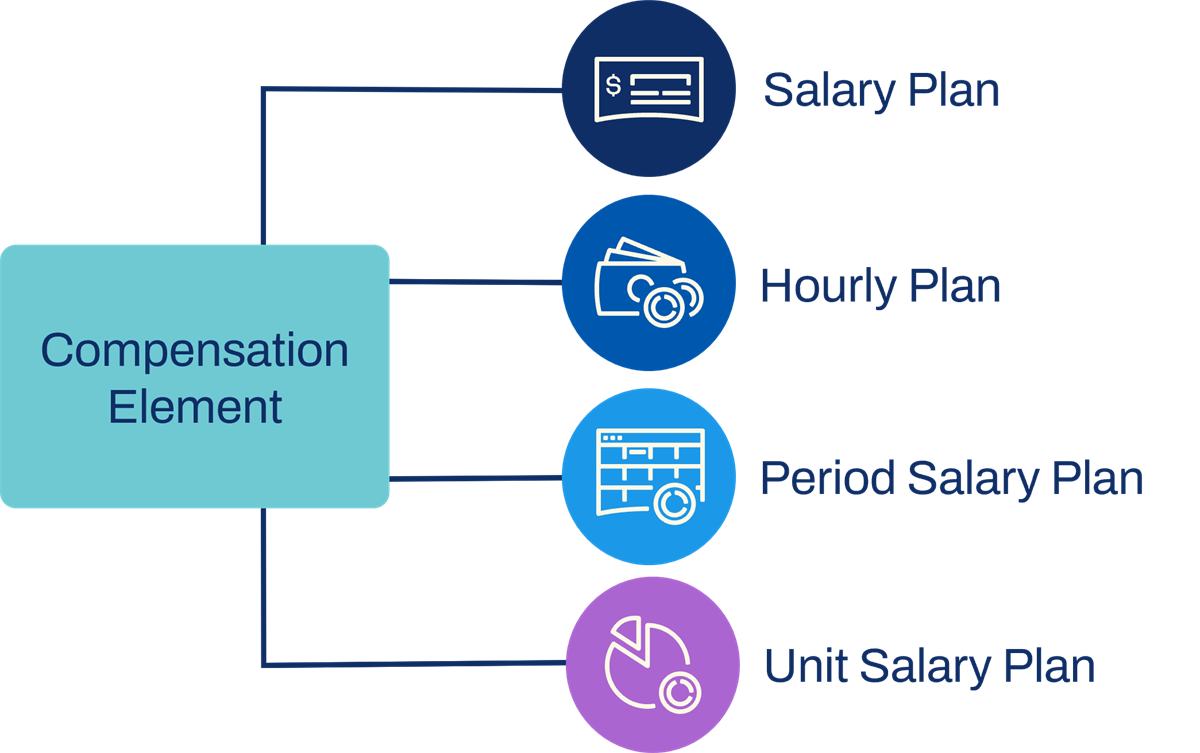
Salary Plans
The
Hire
or Compensation Change
business processes gather most salary and compensation data. However, when setting up an hourly plan, you have the option to enter details such as an exact hourly amount.When you create an eligibility rule for a compensation component as popular as salary, consider your global population. Configuration allows you to default to the salary plan even if there is no pay rate type.
Touchpoint
: You can add a pay rate type to the job profile. This relationship ensures a pay rate type will populate for each worker hired, and your eligibility rule will work. When using worker data in an eligibility rule, be sure it populates correctly.The table below provides a definition for some of the fields you select or populate on a salary plan.
Field | Definition |
|---|---|
Eligibility Rules | Eligibility rules determine which employees are eligible for this salary plan. |
Apply FTE% | The FTE percent option allows you to determine how to prorate compensation based on employees full-time equivalent hours percentage. There are three options to select from:
|
Compensation Element | Compensation elements tie compensation components to pay components, allowing Payroll to process the earnings. You can tie one or more compensation elements to the Base Pay Element field on the compensation grade to define Total Base Pay. |
Exclude from Merit | Select this checkbox if you do not want a salary plan included in the compensation review process. Exclude from merit if an employee has more than one salary plan, and only one plan should receive a merit increase. |
The period salary plan supports additional months, weeks, or days of pay. Period salary plans are common in certain areas of the world. For example, in India, there are requirements to pay an additional month of work each year, otherwise known as the 13th month. The period salary plan allows the payout to be a multiple of the employee's regular pay. The pay schedule associated with the earnings will determine how often the period salary plan pays out.
Below are the unique fields of the period salary plan:
Field | Definition |
|---|---|
Compensation Period Multiplier | Enter the multiplier for the period. For example, if the 13th month pays at 1.5 times salary, enter that value as the multiplier. |
Compensation Period | Select one of the defined compensation periods to determine the length of a pay period. |
Compensation Basis | Select a compensation basis to associate with a percent based plan. This basis will determine the target amount for this plan. If you select a compensation basis that includes this period salary plan, Workday will exclude this plan to calculate the employee's target amount. However, if an employee has an MBT compensation basis or has more than one period salary plan, Workday will produce an error. To prevent this error, you will need to use a custom compensation basis to include the salary plan, but excludes the period salary plan. |
Period Salary Plan Profiles | Allows you to create one period salary plan with profiles that can have different compensation period multipliers and compensation bases. |
Full-Time Equivalent Employees
Workday provides flexibility for managing Full Time Equivalent (FTE) percentage for salary plans, amount or unit-based allowance plans, and amount-based bonus plans.
You can prorate salary plans using an employee's FTE percent, which allows you to compare a part-time employee's salary correctly against a full-time salary range and full-time employees.
The FTE percent setting is at the compensation plan level. There are a few options to consider in the FTE section of a salary plan.
- First, the Apply FTE option on a salary plan informs Workday to prorate the plan amount for employees based on their FTE percent equivalent.
- Alternatively, you can select the Use Assigned Value in 100% Calculations option. This option informs Workday to use the assigned value in all calculations, and does not apply the FTE percent assigned to the employee. This configuration allows you to prorate a salary plan for an employee's FTE percent, but assign the same employee a full allowance plan amount.
- You can select the None of the above option in the FTE section on a salary plan if you do not require Workday to apply FTE percent and not use the assigned plan value in 100% calculations.
If you enable the Paid FTE option in the Staffing section of the
Maintain Localization Setting
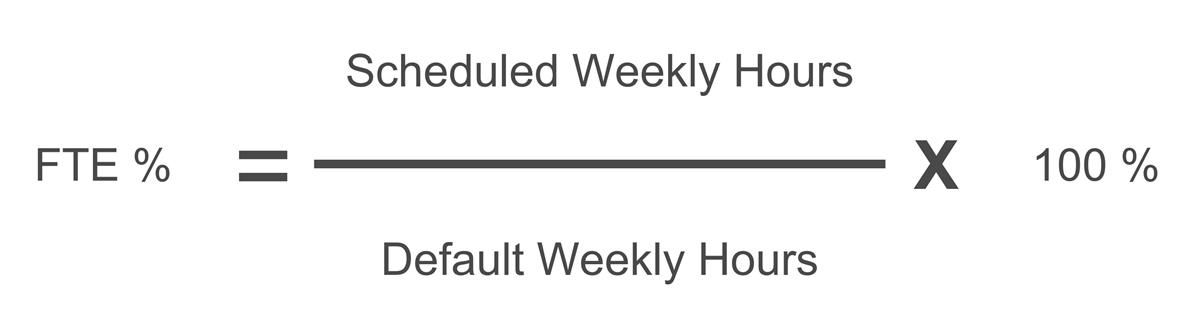
s task, Workday prorates using the paid FTE override on the position. If you do not enable this option, Workday calculates FTE by dividing scheduled weekly hours by the default weekly hours of the employee.The graphic below provides an example calculation: the FTE percent equals the scheduled weekly hours divided by the default weekly hours multiplied by 100 percent.
Note
: You can set up an additional salary plan if you are using the severance functionality. This plan links to a compensation element that links to the appropriate earnings.Resource
: For additional information on Full Time Equivalent (FTE) settings that affect calculations, refer to Workday Documentation. Search for Reference:
Full Time Equivalent in Compensation
Unit Salary Plan
The unit salary plan defines a salary based on units of work. Units of measurement include yards, pounds, cases, days, or months. When setting up the unit salary plan, a value for each unit and define a currency. This plan tracks participation, as well as unit value. Alternatively, you can use this plan to track participation and store production targets.
The following fields in a unit salary plan:
Field | Definition |
|---|---|
Unit | Select the unit, which measures the work performed. |
Per Unit Amount | Enter the amount paid for each unit of work performed. |
Default Units | Enter an estimate for the number of units an employee expects to work. Units x Per Unit Amount = Employee Pay |
The
Maintain Units of Measure
task to create a unit salary plan. This task may only be accessible to your financial team since it resides in the Set Up: Unit of Measure domain within the Common Workday Financial Management functional area.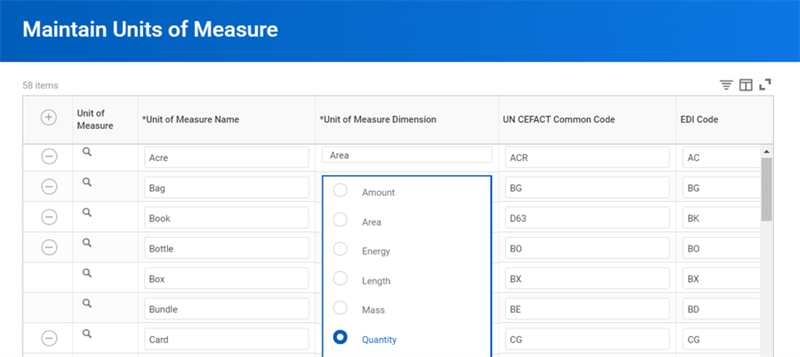
Field | Definition |
|---|---|
UN CEFACT Common Code | The United Nations Center for Trade Facilitation and Electronic Business defines common codes for units of measure. |
EDI Code | Electronic Data Interchange codes that correspond to business documents such as purchase orders and invoices. The codes in our GMS tenant are from the ANSI ASC X12 EDI transaction set. |
Period Salary Plan
The period salary plan supports additional months, weeks, or days of pay. Period salary plans are common in certain areas of the world. For example, in India, there are requirements to pay an additional month of work each year, otherwise known as the 13th month. The period salary plan allows the payout to be a multiple of the employee's regular pay. The pay schedule associated with the earnings will determine how often the period salary plan pays out.
Below are the unique fields of the period salary plan:
Field | Definition |
|---|---|
Compensation Period Multiplier | Enter the multiplier for the period. For example, if the 13th month pays at 1.5 times salary, enter that value as the multiplier. |
Compensation Period | Select one of the defined compensation periods to determine the length of a pay period. |
Compensation Basis | Select a compensation basis to associate with a percent based plan. This basis will determine the target amount for this plan. If you select a compensation basis that includes this period salary plan, Workday will exclude this plan to calculate the employee's target amount. However, if an employee has an MBT compensation basis or has more than one period salary plan, Workday will produce an error. To prevent this error, you will need to use a custom compensation basis to include the salary plan, but excludes the period salary plan. |
Period Salary Plan Profiles | Allows you to create one period salary plan with profiles that can have different compensation period multipliers and compensation bases. |
Hourly Plan
An hourly plan defines certain characteristics of an hourly compensation plan. It includes an hourly rate amount, currency, and frequency. Optionally, you can enter minimum wage by choosing from the Minimum Wage options.
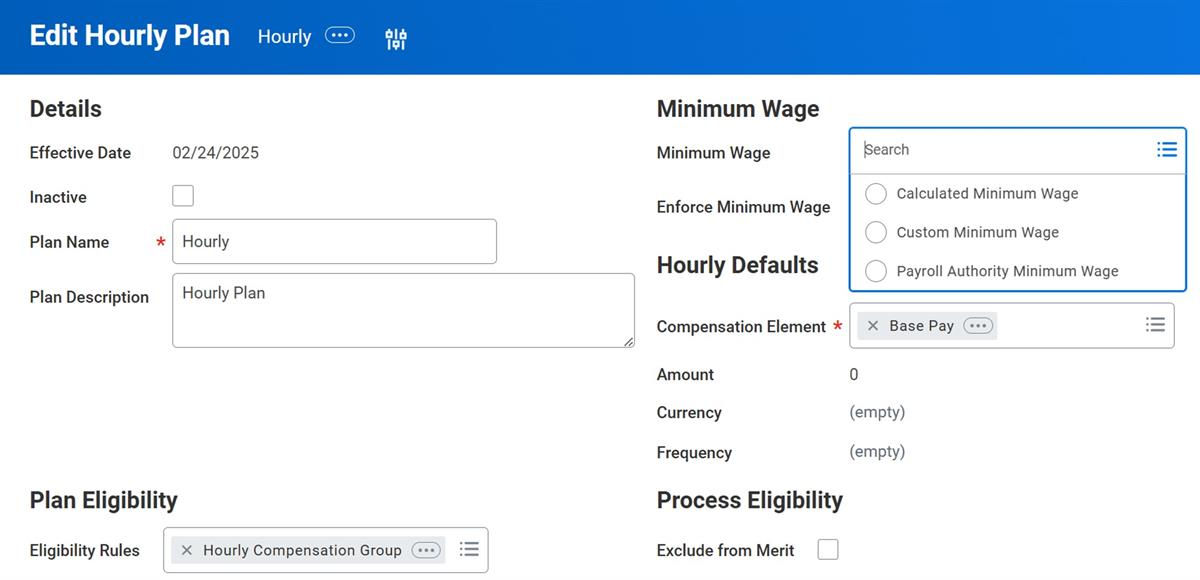
Like a salary plan, Workday requires only one hourly plan. Remember, the local currency determines the compensation grade and grade profile currency. You can create more than one salary plan or hourly plan to meet your business needs. If you want to define minimum wage for each regulatory region, you would need separate plans.
The following are some of the unique fields in the hourly plan:
Field | Definition |
|---|---|
Amount | Optional field to enter the hourly rate. The value determines the minimum wage. The employee's hourly rate can display up to six decimal points. |
Frequency | Always select Hourly. |
Minimum Wage | Payroll Authority Minimum Wage : This option auto selects the Enforce checkbox and removes the Amount field. The amount is determined through payroll.
Calculated Minimum Wage : Requires an Amount Calculation that you creating using the Calculation Engine.
Custom Minimum Wage : Allows you to optionally enter an Amount to define as the minimum wage. |
Enforce Minimum Wage | Selecting this checkbox enables Workday to validate that the amount entered is not less than the minimum wage. Leaving this checkbox clear will not enable the validation during compensation transactions. |
The
Maintain Frequencies
task manages pay calculations for employees using the employee's scheduled weekly hours. Clear the checkbox to have Workday calculate the annual equivalent using the worker's full year's hours.Allowance Plans
Allowance plans define additional pay that contributes to employee's overall pay. Allowance plans include something as common as a car or cell phone allowance, or something as unique as vouchers for movie tickets. There are three types of allowance plans:
- Amount-Based: Enter an exact amount, currency, and frequency.
- Percent-Based: Enter a percent and frequency.
- Unit-Based: Enter a number of units, frequency, value per unit, and currency.
The following is a list of common fields for the three types of allowance plans:
Field | Definition |
|---|---|
Apply FTE | For amount and unit-based plans, there are three options you can select. The selection determines how to prorate compensation for assigned employees based on their full-time equivalent hours percentage. The three options are:
|
Compensation Element | The compensation element maps the compensation plan to earnings in payroll. If you select Base Pay as the compensation element, then the allowance is part of the employee's base pay calculation. |
Frequency | Identifies how often the employees receive the allowance. |
Ceiling Amount | For Percent allowance plans, the ceiling amount determines the upper limit for the plan. |
Ceiling Currency | Ceiling currency determines the upper limit of the percent allowance plan. |
No Override | Prevents changing the default values for amount, percent, or unit-based allowance plans. |
Exclude from Merit | Select this checkbox if you do not want this plan available when you initiate the compensation review process. |
When initially creating an amount or unit allowance plan, you can select the Reimbursable checkbox. To use this feature, you must enable Workday Expenses. The checkbox indicates that the allowance is paid using an expense report. The allowance plan provides the ability to track the reimbursement in compensation as part of the compensation package. When using this feature, you will have additional fields to complete:
Field | Definition |
|---|---|
Expense Item | Expense items are part of the Workday Financial Management and must link to an allowance plan. |
Expense Accumulator | The expense accumulation factors Workday supports are: Year-to-Date, Year with Custom Start Date, Month-to-Date, and Month with Custom Start Date. |
Allow Overage | A view-only field. It is automatically selected if the expense item allows for overages. Use for expense items based on allowance plans or when there is a maximum amount defined. |
Touchpoint
: Reimbursable allowance plans link to an expense item, which allows the employee to create a transaction against the allowance plan. This requires communication between the compensation and expense teams. Once the expense item exists, the compensation team needs to be sure the allowance is associated with the expense item and assigned to the worker.Allowance plan profiles can provide localizations. You can have one cell phone allowance with different values and currency profiles.
Any changes or edits to an allowance plan will only impact new employees assigned to the plans. For example, if a default amount changes on the plan, this change will not affect any currently participating employees. To change the amount at this employee level, access either the
Set Up Allowance Plan Adjustment
or Set Up Unit Allowance Plan Adjustment
task.Note
: You can run a plan adjustment for allowances, compensation grades, job profiles, hourly, and unit allowances.Compensation Plan Adjustment Process
Over time, compensation plans change. A change to the compensation plan target will not have an impact on existing employees' individual targets. For any employees going through a staffing event or ad hoc compensation change, Workday will assign the updated plan targets as defaults.
The adjustment process allows you to adjust existing employees assigned to the plan, either in mass or individually. Not everyone who has a compensation plan, such as an allowance, has the same amount or percent for that allowance. Often, this default information changes at the individual employee level. Just because you are adjusting an allowance does not mean that the adjustment should apply to all workers.
Before running the adjustment process, confirm there is an appropriate reason in the
Request Compensation Change
task. If needed, use the Maintain Event Categories and Reasons
task to add a reason. Run the View Allowance Plan Usage
and View Hourly Plan Usage
reports before running adjustment processes for these plans. These reports will display employees using defaults, plan profiles, employees using overrides, and excluded employees.Regardless of the allowance plan type, this process can automate the adjustment for all employees in the plan. There are four steps to this process.
First, select the task for the type of plan you wish to adjust. You can choose from:
- Allowance Plan Adjustment (run theView Allowance Plan Usagereport to view the impacted employees).
- Commission Plan Adjustment
- Compensation Basis Adjustment (only used for a comp basis using manage basis total or (MBT).
- Compensation Grade Job Profile Adjustment (run theView Compensation Grade Usagereport to view the impacted employees).
- Compensation Step Adjustment (run theView Compensation Step Usagereport to view the impacted employees).
- Hourly Plan Adjustment (run theView Hourly Plan Usagereport to view the impacted employees).
- Unit Allowance Plan Adjustment
- Unit Salary Plan Adjustment
Then, enter the date when the adjustment goes into effect and enter the adjusted compensation plan.
The third step is to select how to manage employees participating in the plan. Determine employees receiving the default and employees with an overridden value.
Finally, configure the fields in the adjustment task.
Field | Description |
|---|---|
Event Name | Use a unique event name each time. |
Reason | Select a reason from the list. Configure reasons using the Maintain Event Categories and Reasons task. |
Retain Basis Total for MBT Employees | For allowance plans, this option enables Workday to reallocate the compensation basis but retain the basis total. This option affects MBT employees assigned to an allowance plan on a compensation basis using Retain Basis Total. |
Employees Using Defaults - Allowed Actions | The employees using default values have two options for allowed actions:
|
Employees Using Override - Allowed Actions | There are three options for allowed actions:
|
New Defaults | Enter the new default value for the compensation plan. You can include a new amount, percent or number of units, a new currency or select/clear No Override. |
Once the process is complete, the employee's compensation will update. The compensation plan definition will also reflect the new defaults so that future plan assignments have the new values.
Commission Plans
Commission plans track participation and target commission amounts. Similar to other plans, commission plans use plan profiles. Using commission plan profiles reduces the overall number of commission plans needed. The profiles allow unique amounts, draws, and currency. The same frequency defaults for all profiles.
The following is a list of common fields for the three types of commission plans:
Field | Definition |
|---|---|
Compensation Element | The payroll system does not use this element. Alternatively, the compensation element identifies the target amount for the compensation basis or total compensation calculations, integrations, and reporting. |
Amount | This field defines an estimate of commission for the frequency. |
Currency | Identifies the currency of the award. |
Frequency | Identifies how to pay the commission. |
Draw Amount (and related fields) | This field is for informational purposes or for a third-party commission system. |
Remember that associating employees with a commission plan alone will not affect their compensation.
The commission plan provides a target for calculations such as total compensation and compensation basis. It also defines eligibility, tracks participation, and draws information into a third-party commission information system. Workday is not a complete system to support commission-based employment.
Enter the actual commission amounts using the
Add Payroll Input by Worker
task or populated using an EIB web service.Calculated Plans
The calculation engine is a powerful tool used by many functional areas in Workday, such as Compensation, Payroll, Student, Absence, and others. Calculations perform specific logical operations by taking complex business rules and turning them into systemized logic, organized into simple building blocks.
Workday Compensation uses the calculation engine to solve compensation-related use cases and to create compensation plans.
Resource/Glossary
: For additional information on the calculation engine, refer to Workday Administrator Documentation, Contributed Solutions, and Next Level presenetations on Workday Community.Search Reference:
Concept: Calculated Fields and Calculations; Setup Considerations: Calculations; Calculations in Core and Advanced Compensation
A calculated plan is a compensation plan that uses custom calculations to determine plan amounts. Calculated plans allow you to automate calculations, decrease manual entries, and run up to date calculated reports. They also have a straightforward structure.
You can include calculated plans in any compensation basis. Like other compensation plans, you can use them to calculate an employee's compensation basis.
There are two types of calculated plans:
- Dynamiccalculated plans are executed each time the plan appears in a report or is sent to an integration.
- Event drivencalculated plans are only updated during a compensation event such asRequest Compensation Change,Change Job,Hire, or theMass Operations Management (MOM)task.
Both dynamic and event driven calculated plans assign individual amounts to workers. However, it is important to understand the differences between each calculated plan type.
- Events and Transaction Behavior:
- For dynamic calculated plans, Workday does not generate compensation events when values are updated.
- For event driven calculated plans, Workday updates assignment values when a compensation event occurs, or when you use theMass Operation Management (MOM)task and the Calculated Plan Assignment Updates by Position operation type.
- Payroll Implications:
- For dynamic plans, the value of the plan assignment is not available for retro Payroll calculations or proration calculations.
- For event driven plans, the value of the plan assignment is available for retro Payroll calculations and proration calculations.
- Manage by Basis Total Considerations:
- Workday does not support calculated plans as dependents of other calculated plans in a non-Manage by Basis Total context.
- Effective Date Considerations:
- Use event driven calculated plans for required effective dated events.
The following are business cases to use calculated merit plans with the calculation engine:
- Capping salaries at the pay range amount.
- Entry amount over maximum sent to Lump Sum Plan.
The following are business cases to use calculated bonus plans with the calculation engine:
- Guaranteed annual bonus of $2,000.
- Paid a year employee reaches 6 years of service.
- Want employee to see amount as soon as they achieve 6 years of service.
In some cases, you may want to use a calculated plan rather than an allowance plan. This is because the calculation engine is more robust than the compensation eligibility framework. Workday only processes eligibility for changes in allowance tiers during compensation events, such as
Change Job
. However, for event-driven calculated plans, the Mass Operations Management
task can run as scheduled and update calculated plan assignment amounts frequently.Configure Calculated Plans
To configure a calculated plan, use the following steps.
First, create a calculation in the Compensation category using one of the following tasks:
- Create Aggregate Calculation
- Create Constant Value Calculation
- Create Lookup Calculation
Next, use the
Create Calculated Plan
task and configure the plan as required.Then, use the
Mass Operation Management
task and select the Calculated Plan Assignment Updates for the Operation Type option. Use the operation type to update the calculated plan regularly for employees using a manage by basis total compensation basis. There are three options:- Update Selected Calculated Plans Only
- Update Selected Calculated Plans and Dependent Plans
- Update All Compensation Plans
Mass Operations Management Task
The
Mass Operation Management
(MOM) task is designed to quickly and efficiently update all calculated plan amounts at once. You can schedule the Mass Operations Management
task to run and update selected calculated plans. When run ad hoc, the Calculation As Of Date and Effective Date are required. There are additional options for calculated plans with MBT compensation basis.The MOM task runs using custom reports created with positions on the HCM Reporting Data Source.
Compensation Package
A compensation package is a grouping of grades and plans. A compensation package provides a quick view of the eligible plans for a particular job, group of jobs, or a population of employees defined using compensation eligibility rules. The combination of compensation components in a package also enables the system to default compensation into an employee's compensation transaction.
Compensation packages should have a meaningful name applied to them. Most customers find it logical to align their compensation packages and compensation structure with a combination of job profiles, job families, locations, and management levels.
Always assign a compensation grade to compensation packages, even if you configured compensation grades on your job profiles. It is crucial to have the grades in the package because of analytics and reporting functionality. Let us review two examples for how the compensation package and compensation eligibility rules can work together:
- If an eligibility rule makes an employee eligible for two different bonus plans, and both bonus plans in the compensation package for which the employee is eligible. In this case, both bonus plans will default into the employee's compensation.
- If an eligibility rule makes an employee eligible for two different bonus plans, and the two bonus plans are NOT in the compensation package. In this case, neither will default into the employee's compensation. However, bonus plans will be available when completing thePropose Compensationtask.
Compensation Analytics
On the compensation package, there is a compensation analytics section. This section is View Only and controls what displays. For example, total base pay ranges and range segments could display instead of, or in addition to, a compensation basis range or range segments. This section also controls what appears, such as the pay range analytics, the compa-ratio, and the Position in Range.
To configure this section after the package is in use, search for the
Edit Compensation Package Analytics
task or use the compensation package's Related Actions.These options will control information displays on the following reports and tasks:
- Request Grade Change
- Request Compensation Change
- View Compensation
- My Team View
- Direct Report Compensation Summary
Compensation Analytics controls the warnings that appear when you enter an amount that is outside of the total base pay range or the compensation base pay range.
Field | Definition |
|---|---|
Based on Total Base Pay - Pay Range | Select this option to display a warning message when an amount entered is above or below the compensation grade pay range for the employee's total base pay. |
Based on Primary Compensation Basis Pay Range | Select this option to have a warning message display when values entered are above or below the compensation grade pay range for the employee's primary compensation basis. |
Inactivation
You can inactivate any compensation plan or package. Use inactivation when a component is obsolete, or temporarily inactivated with a specific future date. You cannot delete a compensation component if there is historical data using that component.
The system will warn you if any compensation components you are attempting to inactivate are in use. If they are, you will need to initiate the
Remove Compensation Plan from Employees
task. This task will remove the compensation plan so no employees will be participating in the inactive compensation component. You can use the Employee Compensation Audit
report to find employees assigned to an inactive compensation component.