
Compensation Elements and Grades
Overview
Compensation elements are a bridge between compensation and payroll. When a compensation element is attached to a plan and an employee is participating in the plan, then payroll earnings can drive employee pay.
Grades define the standard compensation range for a job or job level. Grade profiles allow you to establish localization for grades, eliminating the need to set up multiple grades to account for geographic or currency differences. Workday requires grades, but grade profiles are optional.
Objectives
By the end of this chapter, you will be able to:
- Explain compensation elements and compensation element groups.
- Identify the compensation components that use compensation elements.
- Configure compensation grades, grade profiles, and grade steps.
Element and Element Groups
The compensation administrator is responsible for mapping and maintaining the compensation elements and element groups. Depending on the type of compensation plan, you may need to create a unique compensation element for each plan. For example, bonus plans may share the same earnings element, but an allowance may be different from one allowance plan profile plan to another.
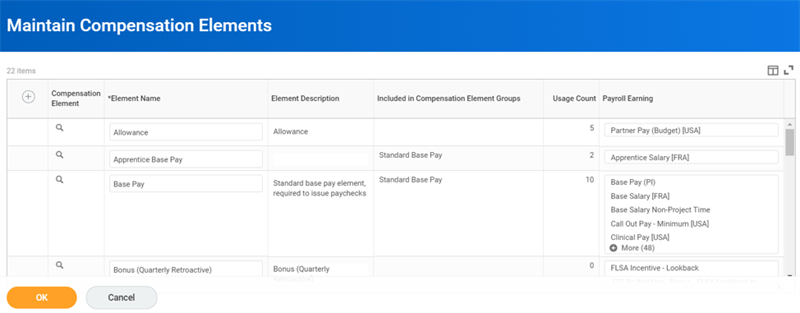
In payroll, earnings control tax calculations, ability to gross up, and scheduling payments. The payroll group will create the earnings.
Note
: Workday does not require the Earnings field. Compensation plans are setup using a compensation element and tracked in compensation, but not sent to payroll.How you map compensation to payroll is crucial, because it controls pay calculations and determines what appears on a paycheck. The following illustration demonstrates a simple example depicting mapping two plans to one element, results in two earnings and two payments.
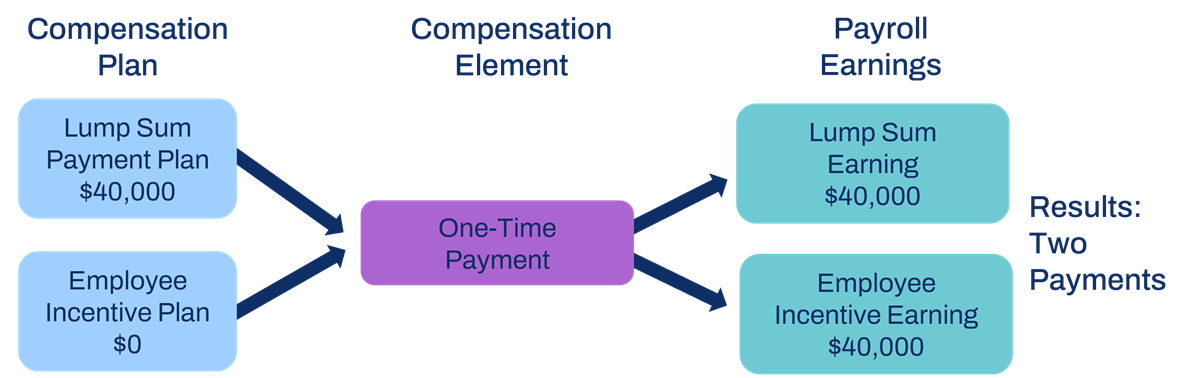
The reason the system will make a payment twice is because it does not matter which one-time payment plan generates the award. Each earning maps to both compensation plans. If either plan pays out, both earnings will generate a payment, as the illustration below depicts. Mapping two plans to two elements and linking to two earnings will result in one payment.
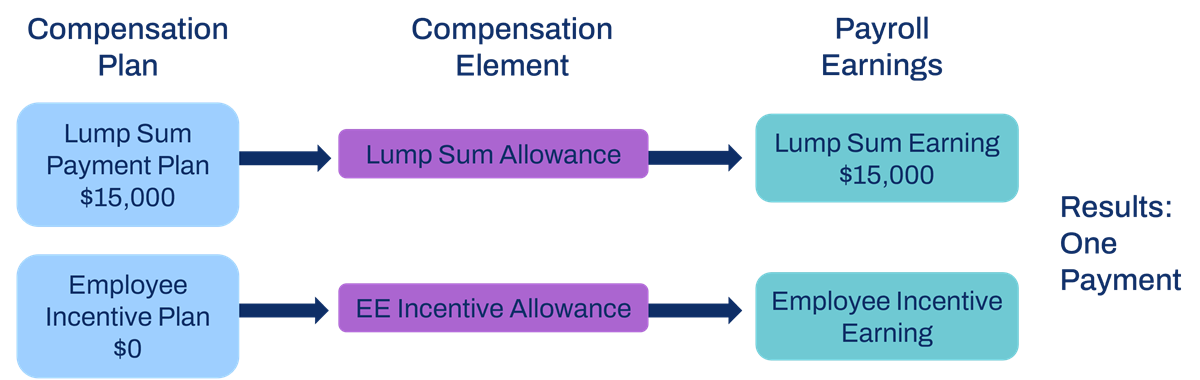
Another option is to have multiple one-time payment plans mapped to one compensation element, and the other compensation element mapped to one earning. Using this setup, all one-time payments would display on the employee's paycheck as a generic one-time payment. If multiple payments of the same type occur during the year, then they will display into one total. The best practice is to have unique compensation plans tied to a unique compensation element, and have the element tied to the appropriate earnings.
Note
: From both a payroll and compensation perspective, we recommended having a one-to-one relationship between the compensation element and earnings.Compensation Element Groups
A compensation element group allows you to define Total Base Pay. You associate that element group with compensation grades and grade profiles with different countries or populations. Compensation element groups are optional.
Compensation Grades and Grade Profiles
A grade is a standard compensation range for a given job or job level. Compensation grades give guidance when entering salary or hourly pay rates by defining a minimum, midpoint, and three, four, or five segments. These segments then provide tertiles, quartiles, or quintiles during data entry. Then, segments can appear in reports. These reports can provide guidance during a compensation change process or compensation review. They can also be helpful when calculating the compa-ratio.
For the Total Base Pay compensation basis, Workday requires a compensation range. You can set up more than one compensation basis and range for a grade. If you enter a salary outside of the pay range, the system generates a warning message but not an error message.
The fields are as follows:
Action | Definition |
|---|---|
Pay Range Segments | Select 3, 4, or 5 to designate the number of pay range segments. |
Base Pay Elements | Select the compensation elements or element groups you want to associate with this grade. |
Eligibility Rules | One or more rules determines who is eligible for the compensation grade. Remember, if the eligibility rule field is blank, you need to associate the compensation grade with a job profile. |
Compensation Basis | A compensation basis can have unique pay ranges. Only two compensation bases will display for an employee: Total Base Pay and the highest ranked basis for which the employee is eligible. Enable the Compensation Basis on the Compensation Package Analytics to view this information on reports and worker profiles. |
Calculate Segments | Select this checkbox to have the system calculate or recalculate each segment. |
Minimum | Enter the minimum of the pay range. |
Compensation Grade Profiles
A compensation grade allows you to define one default pay range for the eligible population. For some deployments, a single population may have variations based on location or some other business-related criteria. The compensation grade profiles define localizations and allow you to assign more granular compensation ranges to employees.
Additionally, these ranges can also have different currencies, allowing one compensation grade for a global population. The illustration below provides a global example of the relationship between a Compensation Grade and Grade Profiles using alternative ranges for USD and GBP currencies.
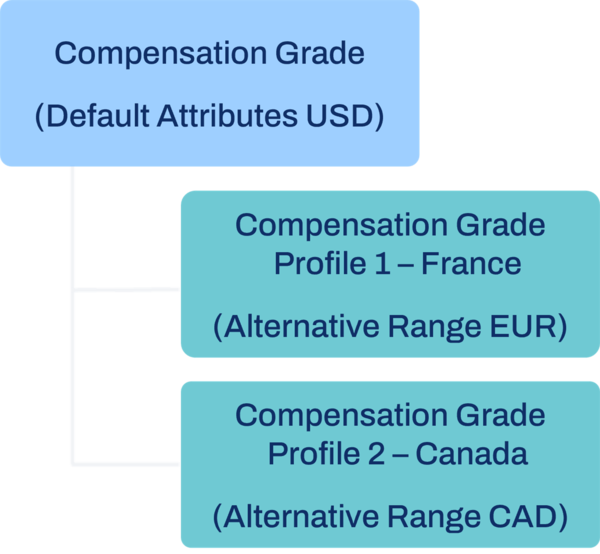
If an employee is eligible for the compensation grade, the default range will provide guidance to enter their salary or hourly rate. If an employee is eligible for the compensation grade and a grade profile, the range of the grade profile will display instead of the default grade.
Tip
: When creating compensation grades with grade profiles, it is common practice to leave the default range at the grade level set as zero to zero. Then, you define salary ranges on each grade profile level to localize the ranges.For example, if Grade 10 has salary ranges for the U.S., Canada, and the UK in their respective currencies. You would create three grade profiles and the default compensation pay range for Grade 10 would use Total Base Pay with all zeros.
Base Pay Elements and Total Base Pay
The Base Pay Element field is critical to understanding what Workday defines as Total Base Pay. Compensation components link directly to a compensation element. That compensation element links to a payroll earning. If there are multiple compensation elements in the Base Pay Element field, Workday will calculate the sum of the elements for Total Base Pay.
Currency and Frequency
When setting up a currency and frequency on a compensation grade or grade profile, consider how you want to view compensation data. Configuration will control what displays when viewing an employee's compensation data.
For example, in the compensation section of an employee's profile, the currency and frequency is determined by the employee's compensation grade or grade profile.
Compensation Grade Hierarchies
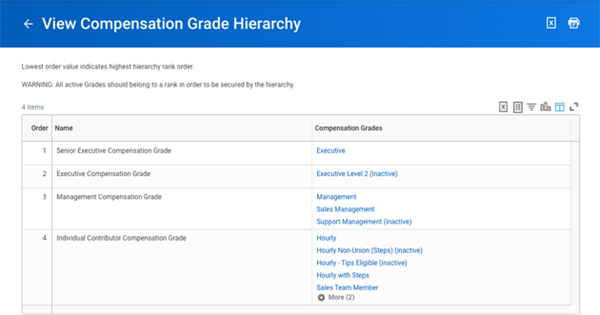
The grade hierarchy provides visibility of the compensation grade relationships by assigning a level order to each grade. The lowest order value indicates the highest rank order. Compensation eligibility rules, business process condition rules, or level-based security groups can use compensation grade hierarchies. For example, you could use a level-based security group to enable workers in Grade 6 to view workers in Grade 7-10.
Job Profiles
You can associate grade and grade profiles to a job profile. Associating a grade to a job profile overrides eligibility rules on the grade when defaulting compensation components during a staffing transaction.
This is a Workday recommended approach, but may not be appropriate for all customers. For example, for countries that require collective agreements, eligibility for a compensation grade may be a combination of criteria, such as the collective agreement and job profile. In this case, use an eligibility rule framework.
Touchpoint
: As you create new compensation grades or job profiles, you will need to update the framework.Creating Steps Within Compensation Grades
A step occurs within a compensation grade or grade profile salary range. Steps assign a specific amount to a worker's salary or hourly plan. Based on the time in a step, the amount increases. You can apply a progression rule to a step with an additional factor. Additional factors include age, length of service, job profile, or collective agreements. The
Schedule Automatic Step Progression
process drives the amount increase process.First, create the compensation grade. Then, build the compensation steps. This feature is common for compensation grades with an hourly frequency, but can you can use it for salary workers too. After this configuration, you must assign the step to a worker using a staffing event such as
Hire
. Then, you can schedule progressions periodically using the automatic step progression process.The table below outlines primary fields for step configuration:
Action | Definition |
|---|---|
Assign 1st
Step During Compensation Proposal | Allows the system to automatically assign an employee to the first compensation step of their grade or grade profile. |
Sequence | Determines the step progression order for employees assigned to the grade or grade profile. |
Interval | Defines the length of time an employee must remain in the step before progressing to the next step. |
Period | Use with the interval to define how long an employee must be in the step before progressing to the next step. |
Progression Rule | Optionally, select an eligibility rule to define how long a worker should stay in the step before progressing to the next. A few examples of criteria that would stop step progression are poor performance review, job profile, length of service, leave status, or collective agreement. If only using a progression rule, you can leave the interval and period blank. |
Note
: Progression rules define when to move out of a step, not when to move into a step. Therefore, make sure you are attaching your rule to the correct step with the correct logic.Inactivate Compensation Steps
The
Maintain Compensation Steps
task allows you to inactivate individual compensation steps by selecting the Inactivate checkbox in the Steps grid. You will specify an effective date when inactivating a step.Inactivating steps prevents accidental selection and improves data accuracy by removing the inactive steps as selectable options. This also reduces the need for complex workarounds, such as creating new grade profiles or adjusting worker assignments.
The system excludes inactive steps from automatic step progression and compensation events. When a worker is assigned to an inactive step, the system excludes them from automatic step progression. Additionally, the Next Step Progression Target Date field remains blank on both the worker's Compensation page and the
View Compensation
task.Resource
: For US Federal, State, and Government agencies who require additional information about steps and step increases, refer to the Administrator Documentation. Use search terms such as: Locality Pay, Within Grade Increase, Quality Step Increase, and Time Off and Leave Impact on Step Progression
.Running the Step Progression Process
You can create compensation grades with steps within the grade that an employee would progress through based on the preset intervals. For example, an employee can get their hourly rate increased after six months of service, and another increase after a year.
The progression process scans all employees with compensation steps. Then, Workday evaluates today's date with their next step start date. If today's date is greater than the next step start date, the process progresses these eligible employees to the next step in their grade. Upon completion, the process updates compensation history for these employees and sends an email notification to personnel that support the employee. The process moves employees to the next step on the appropriate effective as of date in their assigned compensation step, not the processing date. If today's evaluation date is greater than the Next Step End Date, then the step progression will occur.

If an employee is participating in a parallel compensation event at run time, the process does not progress them until the next run. For example, if an employee has a step end date of July 1, but participates in a compensation process on July 2, the automatic step process will ignore that employee. The employee will populate on the
Step Progression Audit
report. During each subsequent run, the process will again attempt to progress that employee to the next step until successful. The date of step change will be July 1, no matter when the process finally succeeds.To view a list of employees involved in the step progression, run the
Employee Compensation Step Progression
report or Employees Eligible for Next Compensation Step Audit
report. Workday recommends that you schedule to run related step and grade progression reports while you run this process. The Employee Compensation Step Progression
report will list all step progressions within a defined period.If you would like to automate these reports to run, use the
Schedule a Report
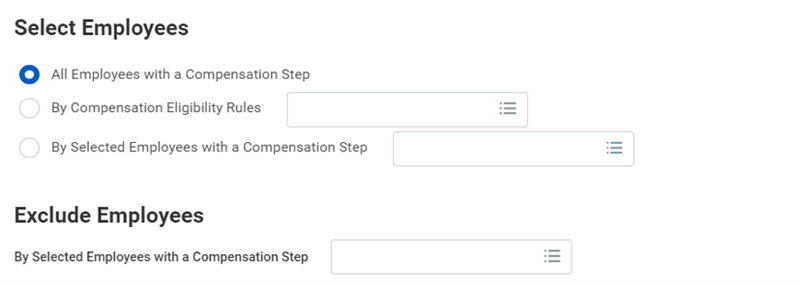
task:- For all employees with a compensation step.
- By compensation eligibility rule.
- By specific employees with a compensation step.
If you select either the All Employees with a Compensation Step or based on an eligibility rule, there may be a need to create exceptions. Use the Exclude Employees option to select individual employees to exclude. The screenshot below displays the Employee Compensation Step Progression report prompts.
When setting up a schedule, there is a Start Date and End Date. The schedule uses these dates, along with any recurrence criteria, to determine the actual first and last processing run dates. The process can be on a schedule or run on demand:
- Once in the future
- As a daily recurrence
- As a weekly recurrence
- As a monthly recurrence
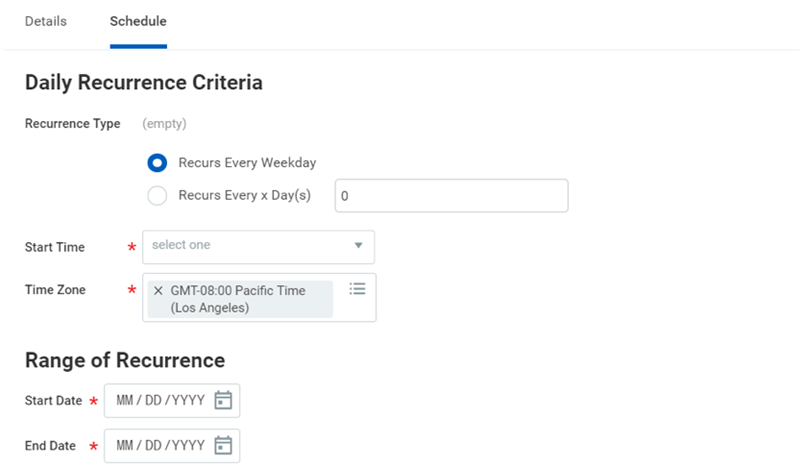
Daily Recurrence Criteria for Automatic Step Progressions.
The following are a few examples of how you can set up schedules for the automatic step progression process for each run frequency:
- Run Now: Use to run this process immediately and not as part of an ongoing schedule.
- Daily Recurrence: If you use the daily recurrence option, you must run the process daily. Instead, you can configure it to run on specific days.
- To schedule a recurrence for every Monday through Friday, select Recurs Every Weekday.
- To schedule a recurrence for every day of the week, including weekends, select Recurs Every x Day(s),and enter 1.
- Weekly Recurrence: If you use the weekly recurrence option, you can configure it several ways:
- To schedule a recurrence every week, enter 1 in the Recurs Every x Week(s) field.
- To schedule a recurrence every other week, enter 2. The number must be between 1 and 52.
- To schedule a weekly recurrence for every Monday, select Monday in the Day(s) of the Week field. To schedule a weekly recurrence for every Monday, Wednesday, and Friday, select those days of the week.
- Monthly Recurrence: If you opted to use the monthly recurrence, here are a few examples of possible configurations:
- To schedule a monthly recurrence on the third day of a month, select Day(s) of the Month,and select 3rd.
- To schedule a monthly recurrence on the first and 15th day of a month, select Day of the Month and select 1st and 15th.
- To schedule a quarterly, select every third month.
Note: The End Date cannot be greater than the end of the next calendar year, plus five runs of the process. For example, with a daily recurring schedule created on 07/02/2016, the end date cannot be greater than 01/06/2018.
The Employee Compensation Step Progression report will list all step progressions within a defined period.
Maintain Compensation Steps
Create steps using the
Maintain Compensation Steps
task for a specific compensation grade. You can also build grade profiles and steps within each profile to allow variations across a population of employees.Use the following list of reports to view employee information regarding step and grade progression. For each report, this table describes the purpose and next steps:
Report Name | Purpose |
|---|---|
Employee Compensation Step Progression | This report lists, by compensation event, the employees who have had a compensation step change within the specified period. The report captures:
Select the various links on a compensation change to drill into details. For Hire compensation events, the old step value remains blank because it is their first step. |
Employees Eligible for Next Grade | The report lists relevant details about employees who have:
|
Employees Eligible for Next Compensation Step | The report lists relevant details about employees who have satisfied time requirements for their compensation step and are eligible to progress to the next step in their grade. |
Step Progression Date Override
You can use the Step Progression Date Override option to override a worker's Workday-calculated next step progression target date with a different future date. This features gives you more flexibility when managing worker step progressions.
To enable this, configure the
Request Step Progression Date Override
business process security policy that is secured to the Compensation functional area. Then, configure the Request Step Progression Date Override
default business process definition.Use the
Request Step Progression Date Override
task as an initiating action for the Request Step Progression Date Override
business process. Within this process, you can review and revise the step progression date override.If you do not configure the security policy and business process, then the workers' Next Step Progression Target Date will calculate based on the Step Progression Effective Date field option that you configure in the
Edit Step Progression Configuration
task.