
Advanced Compensation Plans and Process Overview
Overview
The compensation structure divided into two functional areas: core compensation and advanced compensation. Advanced compensation includes merit, bonus, and stock plans, as well as the process to complete awards. The
Initiate Compensation Review Process
business process conducts a compensation review. The compensation review is an inclusive process that includes administrators, managers, planners, and reviewers to propose employee awards.Objectives
By the end of this chapter, you will be able to:
- Discuss merit, bonus, and stock plans.
- Describe the Compensation Review Process.
- Propose awards in a Compensation Review Process.
Advanced Compensation Plans Overview
The three primary plans used in advanced compensation are:
Plan | Definition |
|---|---|
Merit | Merit is an award for an increase to an employee's base pay. Merit is typically an annual process that can include promotions, additional adjustments, and lump sums. |
Bonus | When including bonus in a compensation review, review eligible employees for a payment in addition to their base pay. Bonuses occur monthly or quarterly. |
Stock | When including stock in a compensation review, review eligible employees for a stock award or options. Workday does not process stock vesting and grant data. |
Merit Plans
When creating a merit plan, you can include eligibility rules, individual targets, employee review data, proration, rounding rules, and waiting periods. When creating the merit plan, you can set default percentages or amount increase. You can also define merit plan profiles, which assign different merit targets to a population defined by compensation eligibility rules. The target percent is calculated using the employee's total base pay.
The Subject to Statutory Minimum checkbox on a merit plan indicates that it is subject to statutory increases. This enables workers associated with the plan to receive a minimum increase during a merit process. You can override the statutory minimum manually at the time of configuring the merit pool during the compensation review process. This override allows the entry of an amount less than the statutory minimum.
Merit plans can include a compensation matrix. A compensation matrix allows you to tie an employee's overall performance to their merit increase. The compensation matrix provides the person responsible for entering the award with guidance based on the employee's performance. A compensation matrix can be used for merit, bonus, and stock plans.
When you set up a merit plan, there are several configuration options:
Configuration Option | Definition |
|---|---|
Use as Reference Only | Available when you include a compensation matrix. Select if you do not want the individual target or the pool amount calculated using the matrix. If selected, Workday only displays the guidelines when proposing the award. |
Allow Target Override | Permit the entry of a target percent for an individual employee assigned to this plan. This makes the individual target field available for entry during compensation staffing events. |
Hide Target | Hide target from specific security groups (e.g. employees or managers). |
Time Proration Rule | Prorate the merit increase based on the proration rule. The rule can include one type of proration or a combination of proration options. |
Rounding Rule | Allows a merit award to be rounded up or down based on the rule you configure. |
Waiting Period | A waiting period unit can be in days, weeks, months, or years and can be calculated based on many options. A commonly used wait period is based on time since the employee's hire date. |
Include Active Employees Assigned Plan During Process Period | Select this checkbox to pull employees into the merit process if they are assigned to the merit plan during the process period. The process period is defined based on the process period end date entered when initiating compensation review, and the start date of the process period defined by the plan's reference frequency. |
Include Active Employees in Waiting Period | Select this checkbox if you want to include employees who are not eligible to participate due to a wait period. Their targets will default to zero, but managers would have discretion to award them a pay increase. |
Bonus Plans
Bonus plans are either amount or percent plans. Within a bonus plan, you can define targets using plan profiles.
When setting up a bonus, there are a number of configurable fields:
Field | Definition |
|---|---|
Compensation Basis | When calculating a percent award, you can select Eligible Earning Override, Total Base Pay, or any configured compensation basis. |
Company Funding Scorecard | If you run a bonus process, you can use a compensation scorecard to assist in adjusting the overall bonus pool based on company metrics and results you define. |
Plan Modifier Scorecard | The plan, individual performance, and scorecards can have modifiers. |
Time Proration Rule | There are many types of proration that you can select. A proration rule can include one type of proration, or more than one in combination. |
Rounding Rule | Rounding rules round the final calculation of an employee's bonus award amount. |
Bonus Plan Profiles
A bonus plan profile allows you to vary the bonus target based on an additional compensation target rule. Below are a few examples of bonus plan profiles:
Target Amount | Currency | Eligibility Rule |
|---|---|---|
5000 | EUR | Current Business Site - Paris AND Non-Management |
8000 | USD | Current Business Site - Dallas AND Non-Management |
10000 | USD | Current JFJP - Management |
Plan and Process Eligibility
An employee's participation in the compensation review is dependent on two factors:
- Is the plan in the employee's compensation?
- Is the employee in a waiting period?
Note
: An eligibility rule will determine who is eligible, and will allow a bonus plan to default during a staffing event. If the bonus plan defaults and then manually removed, the employee is technically still eligible. However, they are not participating and will not be in the compensation review.Field | Definition |
|---|---|
Waiting Period | A period in which you may have a bonus plan included in your compensation, but you may not be eligible to participate in the process. For example, a new hire of two weeks ago and should not be eligible until six months after the hire date. |
Include Active Employees Assigned Plan during Process Period | If selected, an employee in a bonus plan for a portion of the process period, they are not in the plan, but they are in the process. |
Include Active Employees in Waiting Period | Select this option if employees are in a waiting period, but you still want them in the process. No budget allocations are available. This option is only available if using waiting periods. |
Stock Plans
There are three types of stock plans:
- Amount-Based: Defines a target currency amount, which is then converts to shares based on the strike price or price per share. Rounding rules may be necessary to calculate the exact number of shares.
- Percent-Based: Defines a percent of the designated compensation basis. Rounding rules may be necessary to calculate the exact number of shares.
- Unit-Based: Sets a number of shares as the target. When using the override feature, this target changes for individual employees.
The following is a list of critical fields for a stock plan:
Field | Definition |
|---|---|
Use as Reference Only | Available when you include a compensation matrix. Select this checkbox if you do not want the individual target or the pool amount calculated using the matrix. If selected, Workday only displays the guidelines when proposing the award. |
Rounding Rule | Only available for amount-based and percent-based plans. When Workday calculates the number of shares, the result may not be an even number. Rounding rules dictate how to round the number. |
Use Target Currency for Grant | Only available for amount-based plans only. Selecting this checkbox will cause stock grants to display in the currency of the employee's plan target in business processes. |
Target Amount/ Percent/ Shares | This is the default target for the stock plan, and editable for an employee using the Allow Target Override checkbox. |
Frequency | This only frequency option for stock is Annual. |
Vesting Schedule | Select the rule that will determine the vesting date for the stock grant. Before using the Maintain Stock Vesting Schedules task, you must create the rule. |
Grant Type | Enter multiple stock grant types. Before using the Maintain Stock Vesting Schedules task, you must create the grant types. |
Expiration Date Rule | Select the rule that defines when the grant type expires. |
Percent of Target | This value must equal 100, so if you have more than one grant type together, they must equal 100%. |
Workday delivers Long-Term Cash, Options, and Stock Grant categories. The Long-Term Cash grant category uses an alternative for long-term incentive outside of equity. Use the
Maintain Stock Grant Types
task to add grant types that meet your requirements.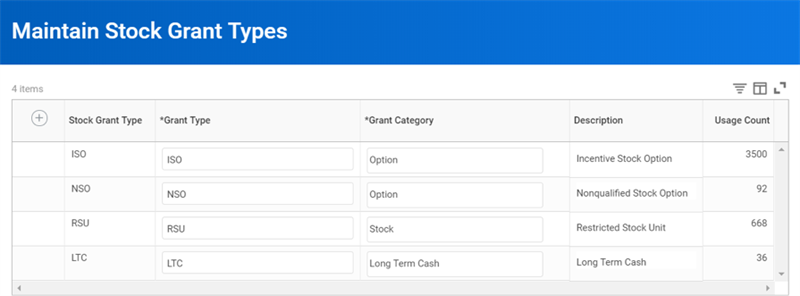
Once stock grants are in Workday, you can view the date using the
Stock Grants Summary
report, which pulls this information using:- Board Approval Status
- Overall Process Status
- Stock Plans (multiselect)
- Employee(s) (multiselect)
Compensation Review Process
The process of awarding merit, bonus, and stock is the compensation review process. The compensation review process allows you to:
- Schedule and plan for compensation milestones.
- Configure the organization type and roles with authority to create, edit, or review awards.
- Continue to make staffing changes during the compensation review.
- Manage pool budgets.
- Use eligibility rules to target employee populations.
- Provide transparency and identification of people responsible for planning, approving, and review awards.
An illustration below provides an example of the Compensation Review Process workflow.
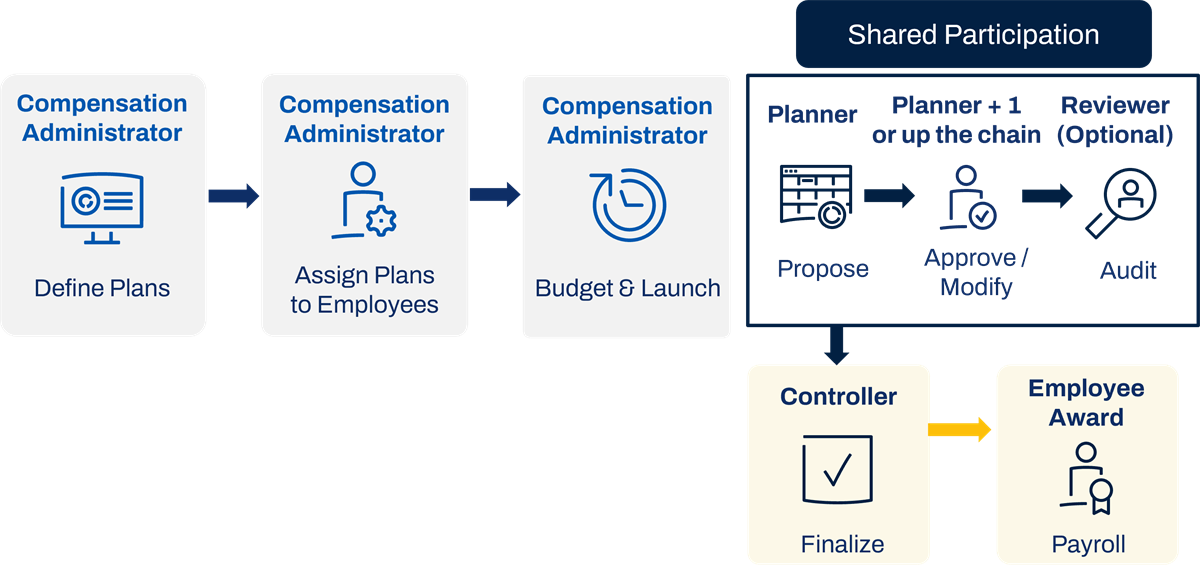
You will use the
Initiate Compensation Review Process
business process definition to conduct the compensation review. You can plan and schedule regular compensation reviews for:- Annual reviews for merit, bonus, and stock.
- Semiannual or quarterly bonus reviews.
- Periodic reviews for stock to better align with the company's fiscal cycle.
Compensation Review Statements
You can generate and make compensation review statements available to administrators, managers, and employees before, on, or after the effective date of a compensation review process.
Workday provides three compensation review statement formats that you can locate on Workday Community. You can also create custom statements by defining a business form layout using Workday tasks and Report Designer (BIRT) in Workday Studio.
Resource/Glossary
: Review the Workday Administrator Guide documentation for information about setting up Workday-delivered or customized compensation review statements. Search Reference: Compensation Review Statement;
Steps: Create Custom Compensation Review Statements
You can also use Workday Docs for Layouts in addition to managing designs using Report Designer (BIRT).
Workday Docs for Layouts is a visual editing tool you can use to create and manage customized document layouts. A document layout is a specific design for a PDF that uses data from a Workday custom advanced report.
Docs for Layouts is available for advanced custom reports for the Compensation Review Employee Adjustment for Statements supported data source.
To use Docs for Layouts you must:
- Use a single, advanced custom report that contains the data you want to include in the document layout.
- Enable the report for Web Services by selecting the Enable for Web Services option in the Advanced tab of the custom report.
- Give security group access to users so they can see the relevant data sources, fields, and tasks related to the document layouts they work on.
- Share the report with users who will create document layouts based on the report.
- Use theCreate Document Layouttask to design and publish your document layout.
Publish the template, then use the
Create Compensation Review Statement Rule
task to select the business form layout that you want to use to print your documents within the Release Compensation Review Statement step of the process.Resource/Glossary
: Review the Workday Administrator Guide documentation to learn more about Workday Docs for Layouts. Search Reference: Workday Docs for Layouts; Setup Considerations: Docs for Layouts
Sample Compensation Review Statements
The following is one example of a Workday delivered compensation review statement layout.
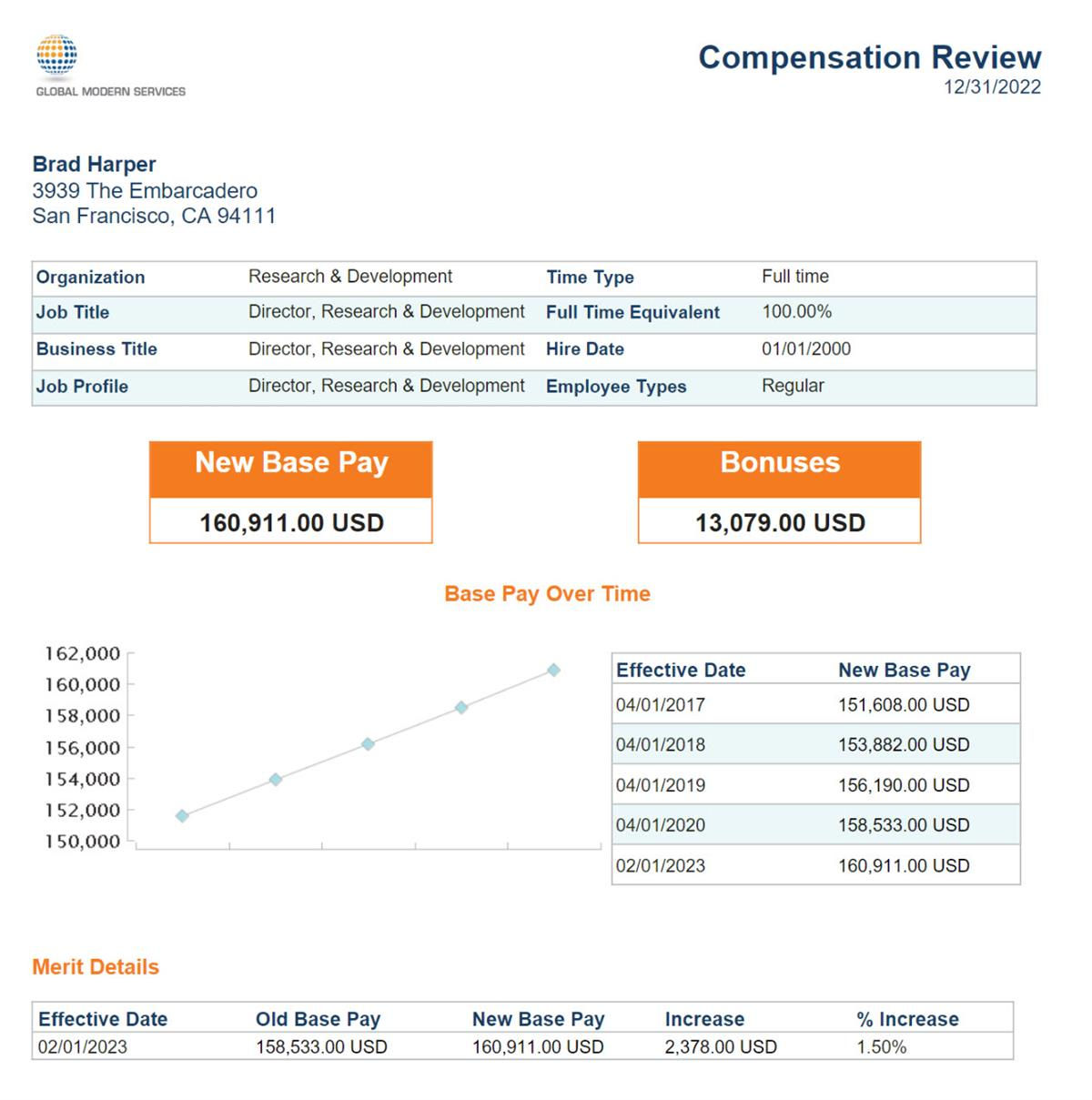
To access this report, from the employee's
Related Actions
, select Compensation
> View Compensation Review History
. In the Actions column, choose the Create New Statement
option, then once the report generates, you can open and view it.Use the
Create Compensation Review Statement Rule
task to define a default layout and different statement layouts to use for specific employee populations.Release Compensation Review Statements
Administrators and managers can easily make compensation review statements visible to their employees using the
Release Compensation Review Statement
task. This task provides greater control over when statements are available to employees. The Release Compensation Review Statement
task can be part of a compensation review, a standalone task, or a report. It generates a PDF version of the compensation review statements. Once you select the Generate Statement PDF checkbox, you can schedule the statement to run and print.For each compensation review process with a future-dated effective date or future-dated employee visibility date, use the
Set Compensation Review Statement Visibility
task to set the statement visibility date. After running Release Compensation Review Statement
, or before either the effective date or employee visibility date on the compensation review, you can run Set Compensation Review Statement Visibility
. This is only if the effective date or employee visibility date are in the future. You will not need to or be able to run the Set Compensation Review Statement Visibility
task if the effective date or employee visibility date has passed. Running this optional task allows for the statement to be visible to employees immediately. If you do not run the Set Compensation Review Statement Visibility
task, the statements become visible to employees on the latest of either the effective date or the employee visibility date on the compensation review process.You can configure these options using the
Edit Tenant Setup - HCM
task. Select the Hide Create New Compensation Review Statement button for Employee on View Merit Statement History to prevent employees from creating their own compensation review statement. Below is an example of the Release Review Statement task using a standard merit statement layout.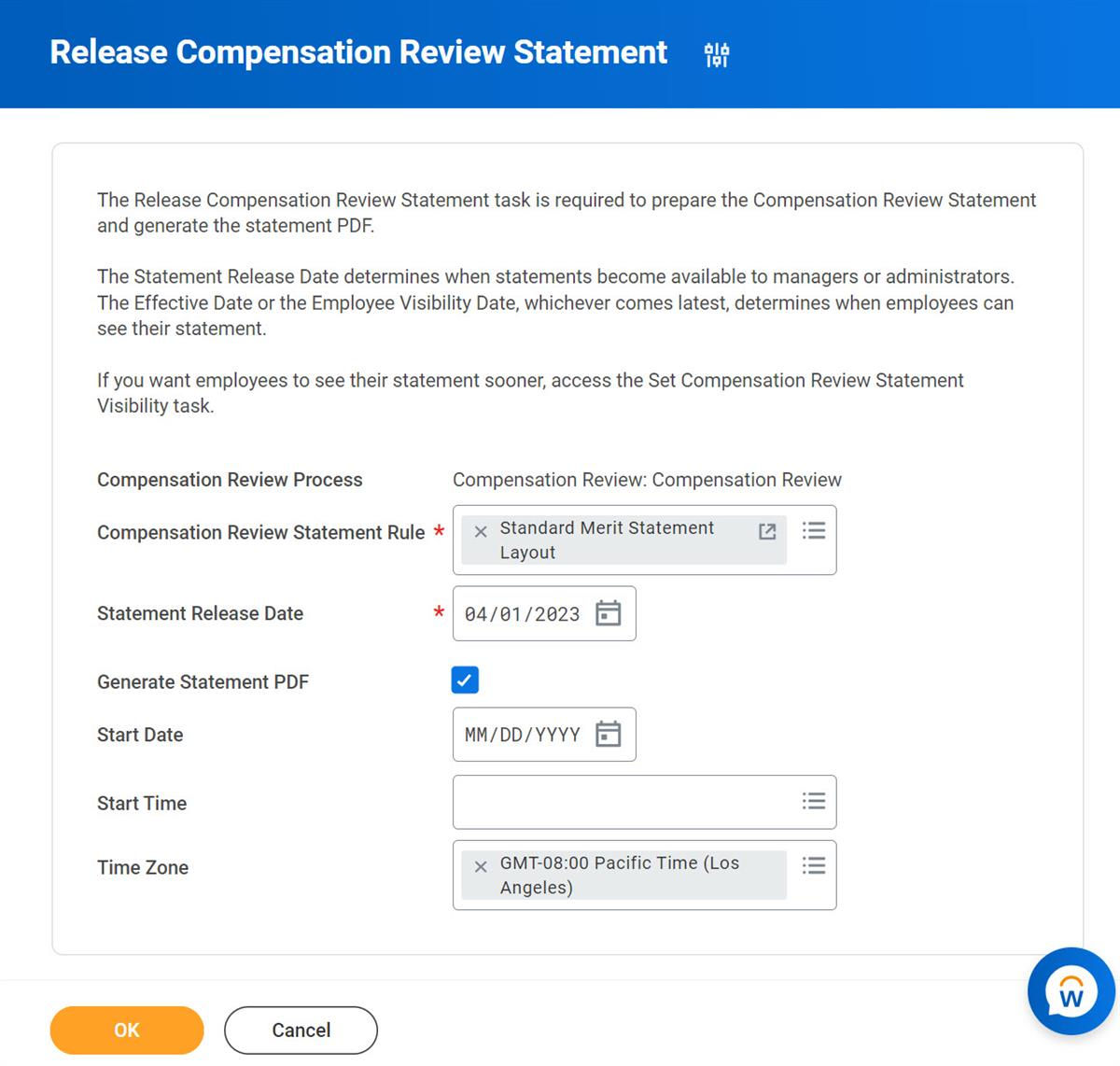
The
View Compensation Review Statements
report allows you to access, generate, and print statements for multiple employees.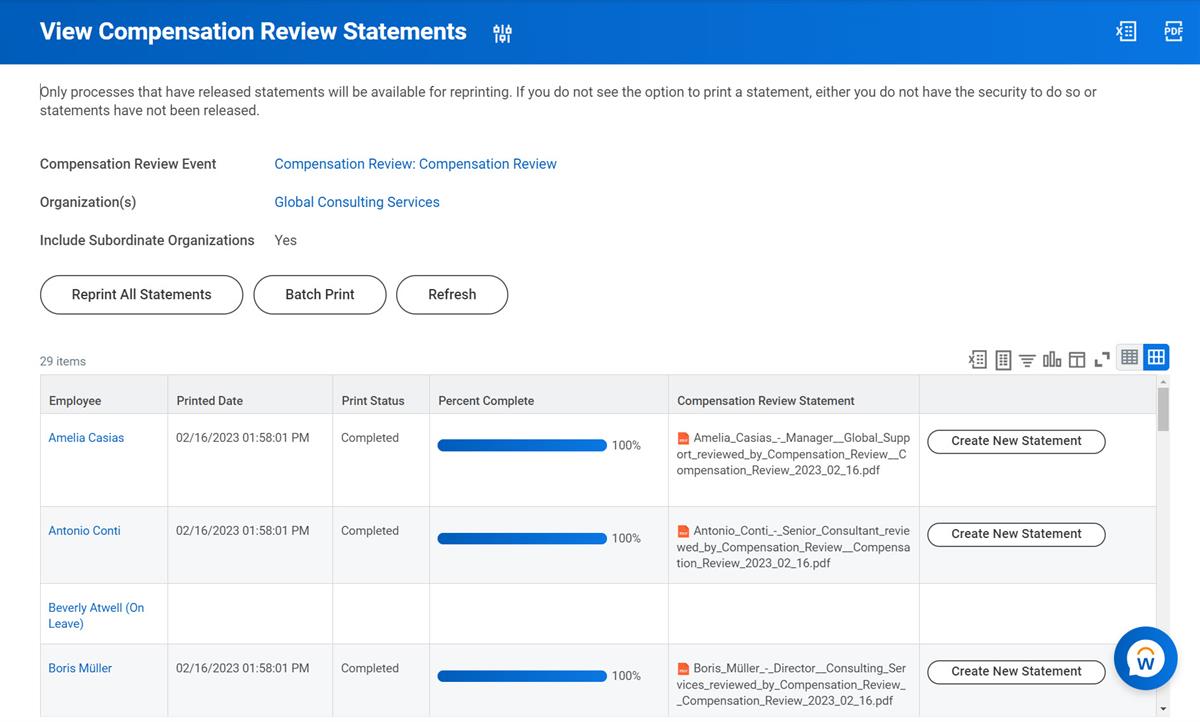
Additional Training
: For additional training on how to create custom Compensation Review Statement layouts, enroll in the Workday Report Designer (BIRT) Learn Virtual training.Resource/Glossary
: Navigate to the Steps: Create Custom Compensation Review Statements
topic in the Workday Administrator Documentation for additional information on creating and managing custom compensation review statements.Additional Training
: For additional learning on the Compensation Review Process, Release Statements, and Merit, Bonus, and Stock plans, enroll in the Advanced Compensation for Administrators training.