
Passive Events
Overview
Use passive events to identify employees, or an employee's dependents, who will either gain or lose benefit plan eligibility because of the passage of time. You can configure whatever passive events suit your business needs for the milestones that occur.
Because a milestone only happens once, Workday will only process employees through this type of event one time. For example, if a passive event defines an employee as eligible for an LTD plan after 24 months of service, Workday will pick up employees by the passive event once.
The Is Rerunnable checkbox allows a passive event to rerun and trigger another passive event for a worker if the conditions are met again.
Objectives
By the end of this chapter, you will be able to:
- Explain and demonstrate passive event processing.
- Create plans, eligibility rules, and event types to support passive events.
- Configure the enrollment event rule to include the new passive event type.
- Create a passive event rule and schedule it to run.
Processing Passive Events
Scheduled passive events automatically detect, and can automatically add or remove benefit enrollments, based on configuration. The flow chart below provides a visual of the components that drive what passive events process.
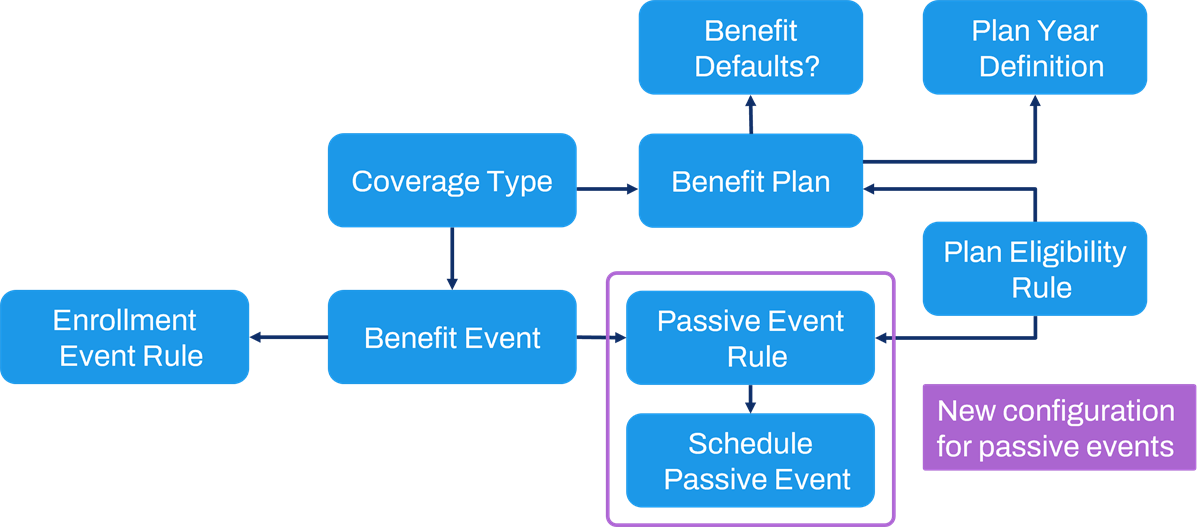
A passive event can identify:
- A dependent who, at the age of 26 years, is no longer eligible for coverage.
- An employee is eligible for a benefit because they reach a certain age.
- An employee eligible for a benefit due to years of service achievement.
Benefit administrators configure the passive event rule and then set a schedule to determine how often the passive event will run. Once run, the enrollment event routes to the defined security group and submits the election change. Then, the passive event is complete.
Benefit Plan or Dependent Eligibility Rules
Passive event rules identify employees to evaluate against eligibility criteria associated with specific benefit plans. A passive event rule must have a dependent or benefit plan eligibility rule to capture the eligible population.
You can use passive event rules to automate plan changes when an employee meets the eligibility rule criteria. For example, you can associate a dependent eligibility rule with the benefit plan that states if the dependent child is less than or equal to 26 years, then they are eligible. You can also automate plan changes for when an employee no longer meets eligibility rules. For example, you can associate a dependent eligibility rule with the passive event rule that states when the dependent child is greater than 26 years, then they are no longer eligible. This rule will find all enrolled dependents over the age limit, so the passive event can allow the coverage to end.
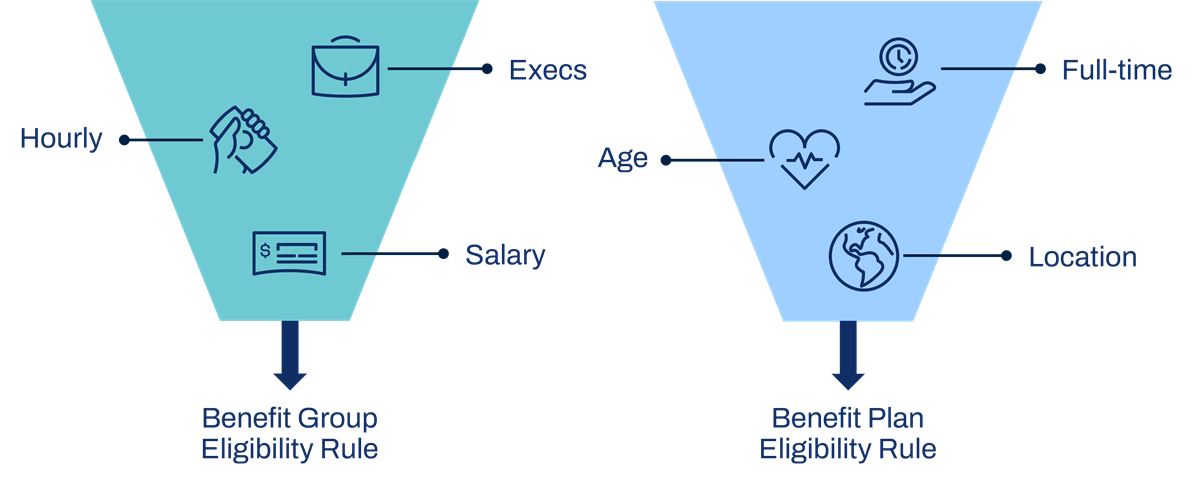
The passive event rules does not need to duplicate the complexity of eligibility criteria associated with the plans themselves. If the benefit group eligibility rule filters out nonactive and hourly employees, then the benefit plan eligibility rule only needs additional criteria, such as identifying if the employees are full-time or in a management level. The image below illustrates how eligibility is determined. In this example, the Benefit Group eligibility rule identifies hourly and salaried executives. If the employees meet this criteria, then, the Benefit Plan eligibility rule further filters on full-time employees, of a certain age, and in a specific location.
Benefit Event Types
All enrollment opportunities require a benefit event type, whether the event is to enroll a new hire into benefits or change existing enrollments.
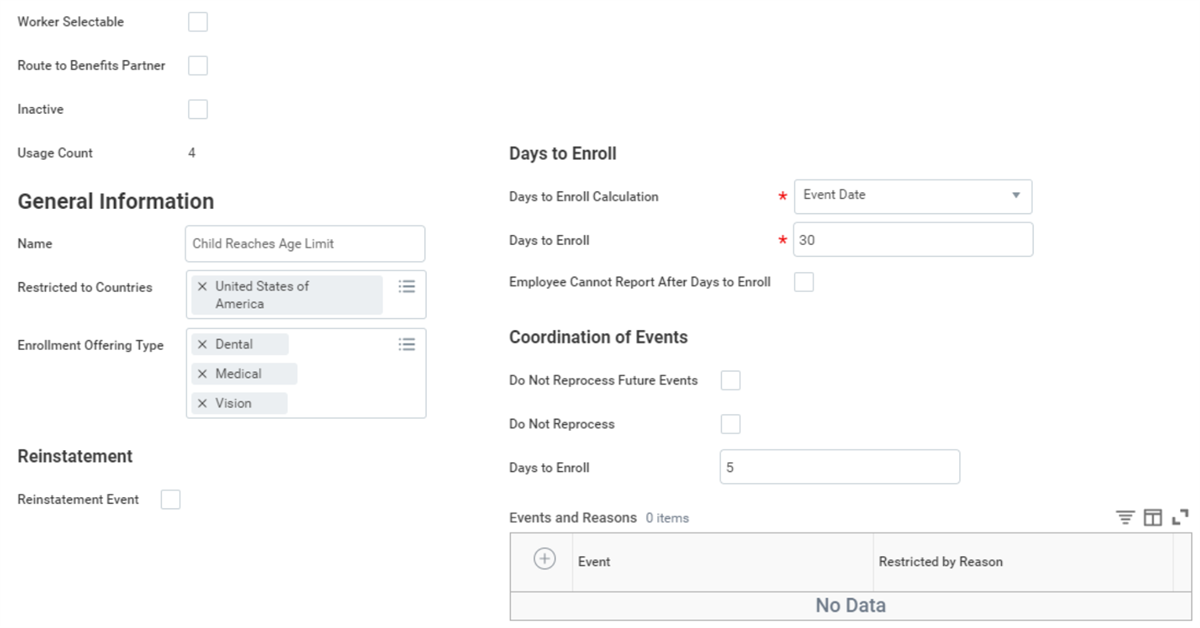
Configure the benefit event type in the enrollment event rule to further define how to process passive events. The benefit event type determines included plans and if the process routes to the benefit partner.
Enrollment Event Rule
After you create the benefit event type to use in the passive event rule, you need to tell the system how to handle that event. In other words, you need to inform Workday when the benefit coverage change should begin and what type of changes can occur during the event.
The multitab component of the enrollment event rule includes information on when benefit coverage should begin or end.

Use the Levels of Change tabs for insurance plans to control how many levels of coverage an employee can increase. For example, the passive event of a child reaching an age limit affects only health care, so the Levels of Change tabs are not required.
Use the Coverage Rules tab to determine which election changes can occur and if the employee will default into coverage or waive coverage if they do not make an election. The configuration options of No Changes Allowed and May Remove Dependents are common with passive events.
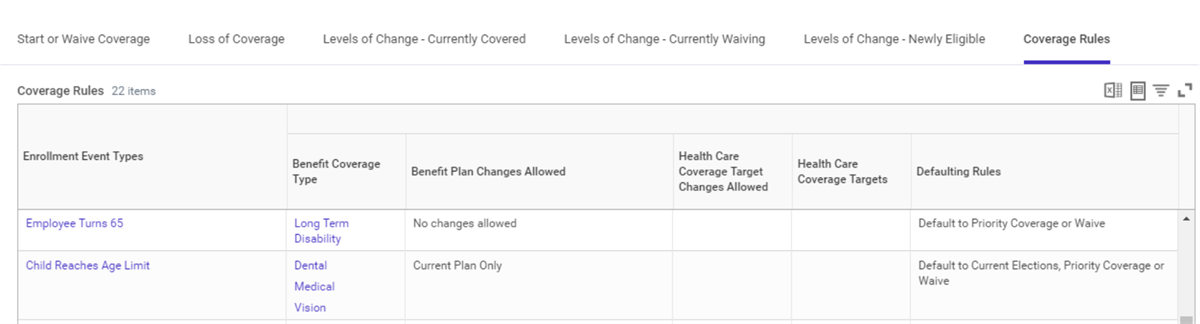
If you use the No Changes Allowed option, the system will open and immediately close the event. The elections in the event will default based on the defaulting logic set up on the coverage rules tab. Be sure to select the Default Rule of Default to Current Elections, Priority Coverage, or Waive.
Business Process for Passive Event
When you configure the
Passive Event
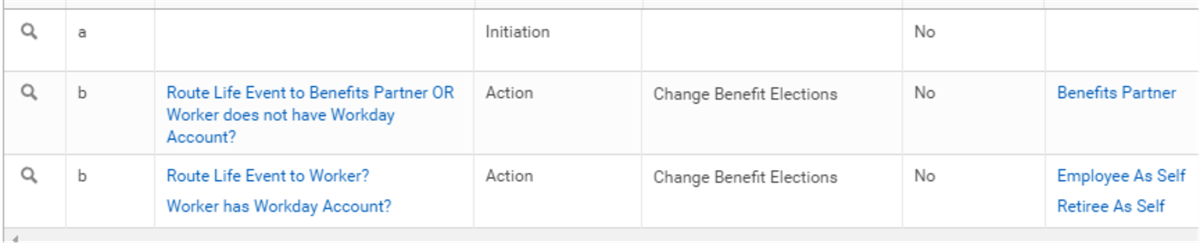
business process, consider whether passive events route to a benefits partner or to the employee.The
Passive Event
business process can automatically route the enrollment task to either the employee or benefits partner.You can select the Route to Benefits Partner checkbox for the Benefit Event Type. You also need to configure this as a step condition on the business process definition.
Passive Event Rule
The passive event rules pull together all necessary components to define the event. To determine what is necessary, consider the following questions:
- Who gains or loses eligibility?
- What plans are available for election changes?
- Will the employee enter an election because they can choose to participate or not, or will the benefit partner enter the change?
- Is it necessary to enter an election or can the employee automatically default into coverage?
- How often should the passive event run to make sure changes are made in a timely manner?
The screenshot below displays the Edit Passive Event Rule with an example of when a child reaches age limits. The Passive Event Rule is linked to a Benefit Event Type.
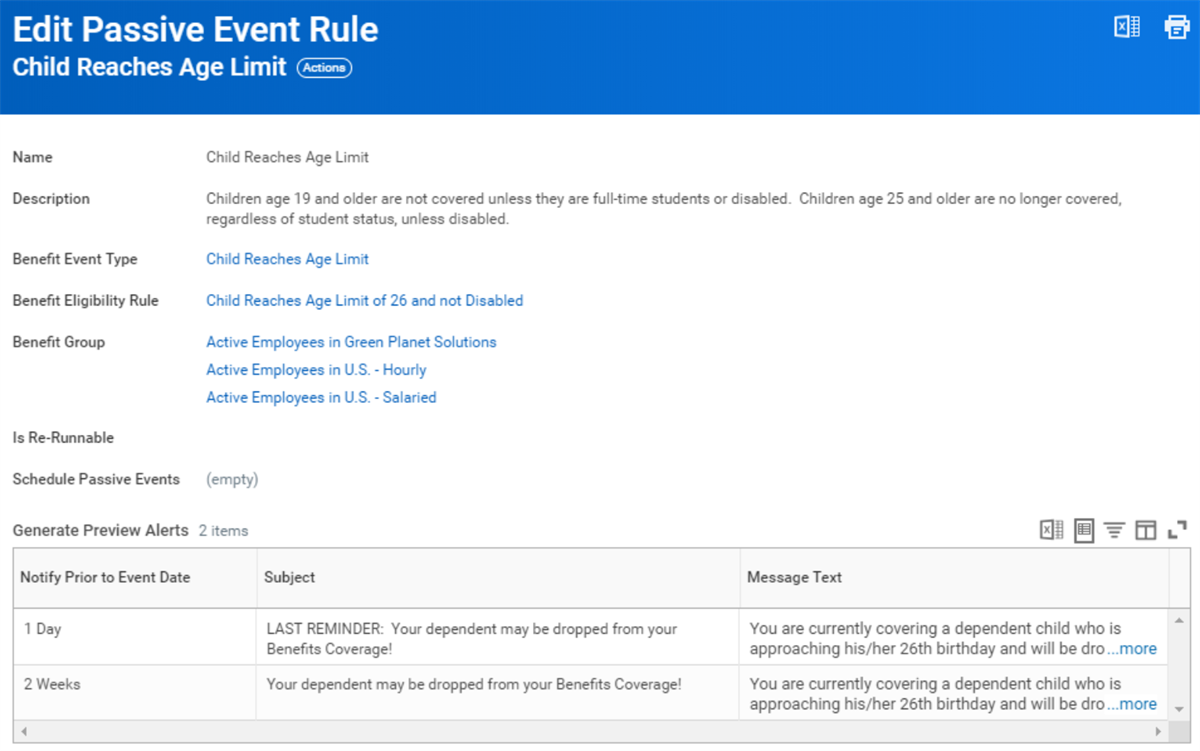
When creating a passive event rule, there are some required fields that you must populate, including:
Field | Description |
|---|---|
Benefit Event Type | Use the Maintain Enrollment Event Types task to create a benefit event to process the passive event. |
Benefit Plan or Dependent Eligibility Rule | The rule identifies which employees to pull into the passive event processing. |
Benefit Group | By associating the passive event to certain benefit groups, you can run the event for segments of the employee population. |
Is Re-Runnable | Select to indicate that the passive event process should evaluate the employee more than once. Use this for child overage processing, since the employee may have more than one child. You do not need it for an event triggered due to an employee's eligibility change due to the passage of time (for example, service date). |
Schedule Passive Event | Passive events scheduled for a future date or to recur periodically will display. |
Notify Prior to Event Date | Select the number of days, weeks, or months before the event date that you want the system to send a preview alert. |
Passive events allow you to automatically notify employees about current or upcoming passive events and changes to their benefits. The passive event can also send alerts to employees before the actual passive event triggers. You can configure the frequency of the alerts based on calculated dates. To preview who will receive a benefit event the next time the passive event runs, select the passive event rule's Related Actions, then select Passive Event Rule > View Workers.
Scheduling Passive Events
You can schedule passive events to generate a passive event, an alert, or both. An alert will inform employees that their over-age dependents require removal from coverage or a new benefit offering.
Passive events can run on regular intervals and on demand. Schedule the passive event to run once in the future, or to recur daily, weekly, or monthly.
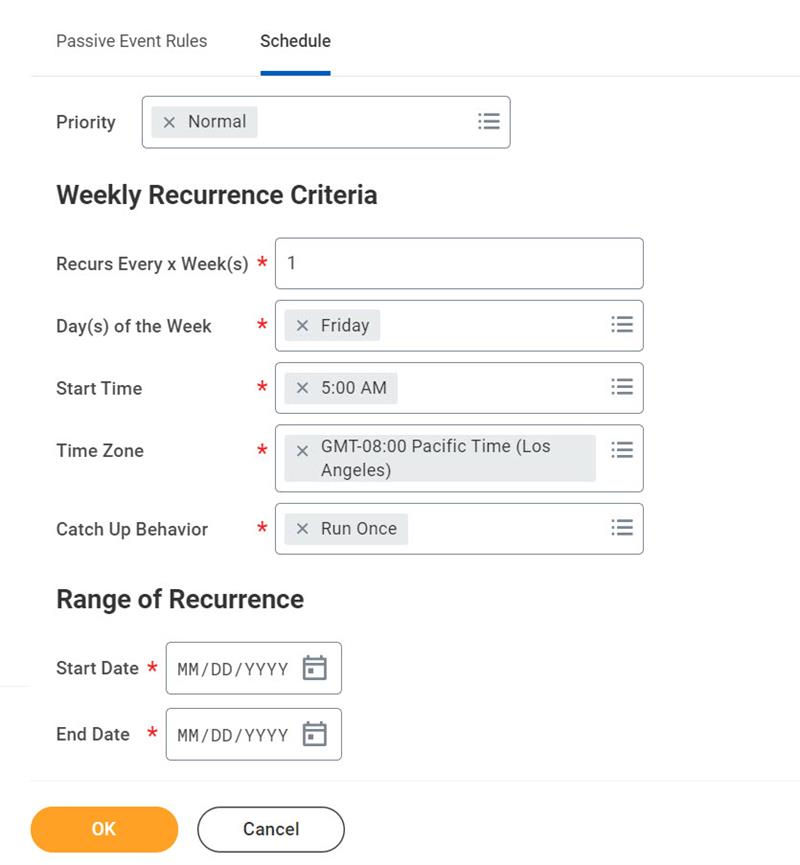
When scheduling a passive event or any schedule you set up, you need to coordinate the start date with the recurrence criteria. For example, if you want the process to run once a week on Monday at 1:30 AM, the start date will need to reflect that.