
Managing Dependents and Beneficiaries
Overview
Once you enroll dependents and designate beneficiaries, you can continue to manage dependents and beneficiaries. Periodically, you may need to inactivate dependents, add court orders, and create a dependent or beneficiary objects without initiating an event.
Objectives
By the end of this chapter, you will be able to:
- Describe methods to add dependents and beneficiaries.
- Inactivate dependents and beneficiaries.
- Add a court order to require benefit coverage.
Managing Dependents and Beneficiaries
While enrolling in benefits, you will identify dependents and beneficiaries for an employee so they enroll in benefit plans or designate beneficiaries for insurance or savings plans.
Adding Dependents and Beneficiaries
Workday maintains a list of dependents and beneficiaries. Adding a dependent or beneficiary are both configurable business processes. When you add someone as a dependent or beneficiary person to the list, the system does not automatically enroll them in plans or designate them as beneficiary. An employee can select who to designate as their beneficiary and include their dependents on plans when enrolling in benefits. A benefit event has to process to enroll dependents on the plan or designate beneficiaries.
When adding a beneficiary, you can use an existing dependent or emergency contacts, or add either a person or a trust as beneficiary. If you add a trust as a beneficiary, you do not need to enter contact information, such as a phone number or address. If entering a person as a beneficiary, then at least an address is required.
Configuring the Business Process: Dependent Event
From the Dependent profile page, the Add button allows an employee to add new dependents through the
Dependent Event
business process. This allows you to include approval steps, as well as the Change Benefit Elections action. Whether the employee initiates a dependent change through the Benefit Change
business process or through the Dependent Event
business process, you may request supporting documentation and ensure employees make required changes to their elections.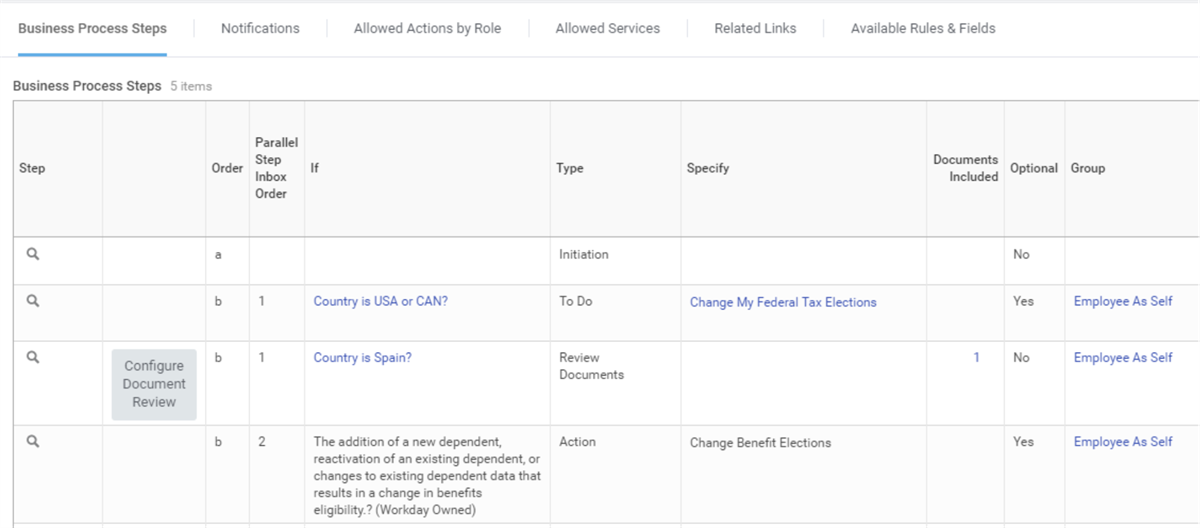
If you include the Change Benefit Elections step, you will need to set up reasons and categories for why the dependent is being added, removed, or changed. These reasons are then linked to a Benefit Event Type. If the reason is not linked to a benefit event type, the
Change Benefit Elections
step will not trigger.When initiating the
Dependent Event
, you are required to enter an effective date that should reflect the date of change, such as a child's birth date.Workers can correct the effective date associated with a dependent if the originally selected date is incorrect. Rather than canceling the entire dependent event, a benefits administrator or partner can send the event back to the worker from the Approval or Verify Dependent Eligibility step. The worker can then update the effective date using the
Revise Dependent Event
task and resubmit it for review and approval. Dependent information is maintained as effective-dated data, allowing dependents to be added and reported on as of a specified date.Dependent Verification
The Verify Dependent Eligibility action step in business processes notifies you of dependents that need review for verification when employees create new dependents or enroll their dependents into benefit plans. This step elimintaes the need for you to manually locate dependents and update their status individually. You can include the Verify Dependent Eligibility step on the following business processes:
- Dependent Event
- Change Benefits for Life Event
- Change Benefits for Open Enrollment
When you configure the Verify Dependent Eligibility action step on the
Dependent Event
business process, the benefits partner or administrator's My Tasks displays the new dependent to review and assign a verification status to. When you configure the Verify Dependent Eligibility action step on the Change Benefits for Open Enrollment
business process, the action step will not trigger a second time if the employee changes the elections and re-submits the event previously submitted.Note
: If you configure the Verify Dependent Eligibility step is on the Change Benefits for Life Event and Change Benefits for Open Enrollment business process, the My Task action includes any dependent enrolled into benefit plans in the event regardless of being new or existing.Workday also delivers a
Dependent Verification
task, which enables you to search for dependents and update their verification status in bulk rather than one at a time. Use the optional Manage Dependent Verification Status
task to mass update the status for multiple dependents. From this task, you select a status, then individually select, or select all that display in the list to mass update the dependent status. This task improves efficiency and reduces manual efforts for benefits administrators.Linking Dependents, Beneficiaries, and Emergency Contacts
Workday allows employees to create a new dependent or beneficiary from an existing emergency contact. This is useful to quickly add a new dependent or beneficiary during an enrollment event. If a worker changes an emergency contact from a spouse to a sibling, and the object was previously linked to a dependent record, the sibling would replace the spouse as the covered dependent.
From the
Edit Tenant Setup - HCM
task, select the Disable Emergency Contact, Dependent, and Beneficiary Linking checkbox to disable the linking between dependents, beneficiaries, and emergency contacts. After you disable the link, an employee will no longer be able to create a new dependent or beneficiary from an existing contact.Note
: This feature is currently not available retroactively. Use validation rules on the Change Emergency Contacts
business process to prevent an employee from editing existing emergency contacts if the emergency contact is linked to a dependent or beneficiary. Inactivating Dependents and Beneficiaries
If you add a dependent or beneficiary to Workday, but never enroll them in coverage or identify them as a beneficiary for a specific plan, you can delete them from the system. If there is an enrollment or beneficiary designation, then you cannot inactivate them. Remove any coverage or beneficiary designation before you can inactivate a dependent. These types of changes occur due to marital status changes or deaths.
With enrollments:
- Edit
- Inactivate
Without enrollments:
- Edit
- Delete
To inactivate, navigate to the Dependent or Beneficiary page, then use the person's
Related Actions
and select Dependent
> Inactivate
or Beneficiary
> Inactivate
.Once inactivated, a dependent or beneficiary can be reactivated. The task of inactivating and activating is done by a benefits partner, benefits administrator, or any other security group that has access to initiate the
Dependent Event
business process. This is not something workers can do through self-service, unless the business process's security policy gives them access to do so.When initiating the
Dependent Event
business process, an effective date is required and should reflect the date of change, such as a child's birth date.Court Ordered Benefits for Dependents
A court order can require healthcare or insurance coverage. Track this information and maintain benefit coverage as necessary. To enter this information, navigate to the Dependent or Beneficiary page. Select the Edit task and select the Dependent Court Order Details tab. This is not available when adding a new dependent or beneficiary.
Fields | Description |
|---|---|
Coverage Required | Enter the coverage type required to provide for the dependent or beneficiary. |
Start Date | Enter the court order date that requires coverage to begin. |
End Date | Enter the court order date that requires coverage to end. |
Once you enter the court order, enroll the dependents in the coverage through an enrollment event. You can use a generic event, such as Administrative Correction, to enroll dependents for court orders or you can create an event specifically for court orders.
Note
: If an employee tries to remove a dependent from court-ordered coverage, they will receive the following error message that will not allow them to continue: "The following dependents(s) have active court orders and must be enrolled in the related coverage types: Angela Morales (Dental, Medical), Serena Morales (Dental, Medical)."Use the
Active Court Orders
report to view a list of employees with beneficiaries or dependents that have active court orders as of a specific date. Run this report by benefit group to display which workers have dependents with court orders and whether the court orders are satisfied.Useful Reports for Dependents
Below are some useful reports to help manage court orders, dependents, and beneficiaries:
- Active Court Orders
- Dependents Audit
- All Dependents with Same National ID
- Dependents and Workers with Matching National IDs