
Enrollment Event Processing
Overview
After you define benefit groups, create benefit plans, and configure events, you can begin processing events. Whether you process open enrollment or a benefits event for a single employee, you must initiate all of these events. An event initiation can be manual, automatic, initiated from a change in HR data, or through a mass process such as open enrollment.
With many different types of events, it is common to have more than one event in the system for the same employee. Workday can automatically coordinate multiple events and ensure each event processes in order based on the event date.
Objectives
By the end of this chapter, you will be able to:
- Initiate and process enrollment events.
- Complete benefit elections.
- Finalize open benefit events.
- Explain how Workday processes multiple events, including hybrid events.
Enrollment Event Processing
Workday can create benefit events during bigger processes, such as hires, family status changes, and open enrollment events. Bigger processes will include additional steps in the transaction like reviewing documents, or additional approvals. For example, new Gym Membership changes may not need an approval, while enrolling a new dependent may.
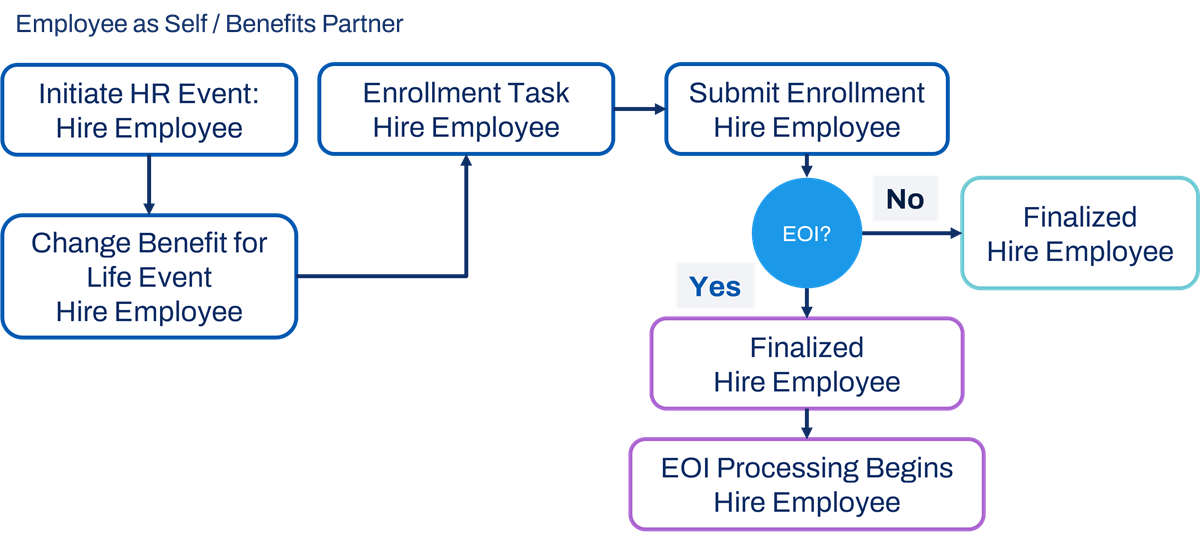
The steps for processing a benefit event include:
- Employee or benefits partner manually initiates a life change event, or an HR transaction initiates the event automatically.
- Employee or benefits partner completes and submits new elections.
- Benefits partner or other security group can approve elections.
- EOI evaluates automatically and the EOI process initiates, if required.
- Enter individual rates when appropriate.
- Use theCorrect Benefitstask if elections are complete but require a correction.
The diagram below provides an illustration of the enrollment event process when initiating an HR event, such as Hire Employee.
Before processing a benefit event, there are required benefit components that support the process and benefit plans. These configuration elements include:
- Benefit Event Type
- Enrollment Event Rule
- Benefit Defaults
- Cross Plan Dependencies
Create a benefit event using the
Change Benefits
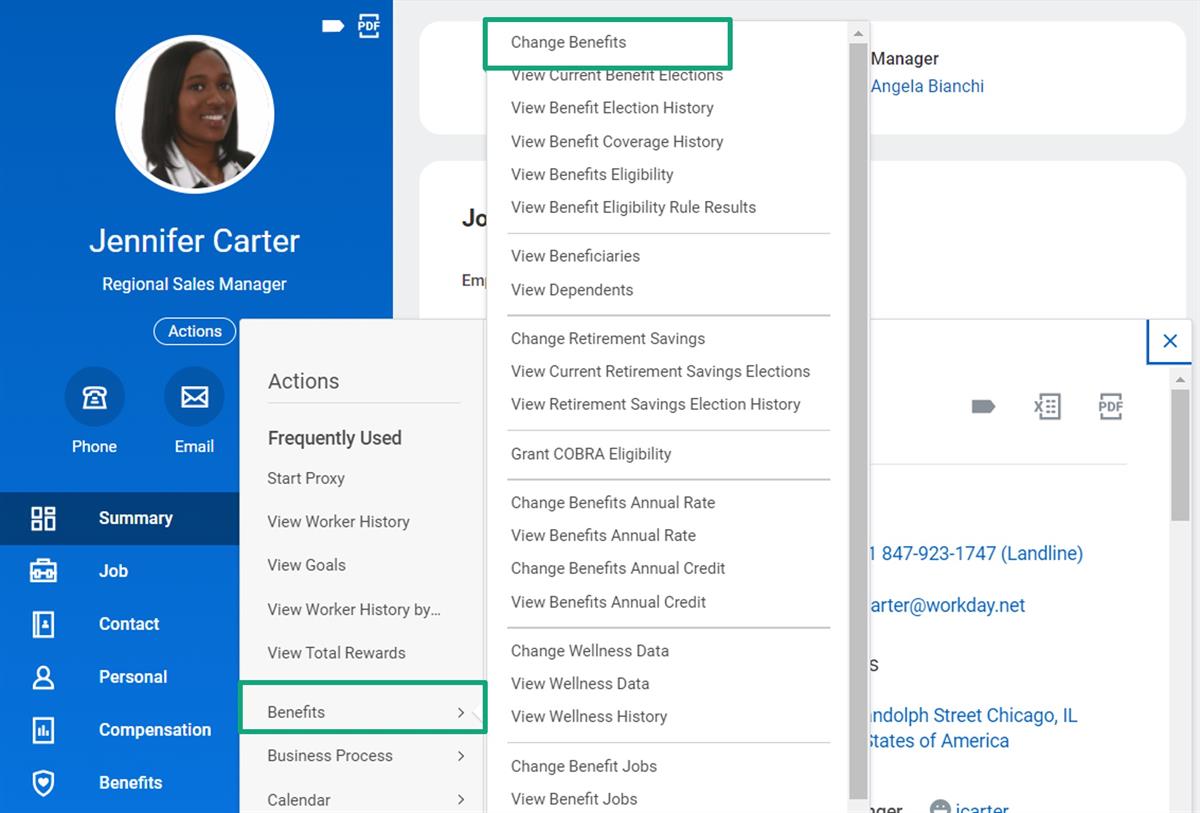
business process. The benefits partner, administrator, or employee can initiate the Change Benefits
process. Employees can find the Change Benefits
task on the worker profile or from their Related Actions icon.Using the employee's Related Actions to initiate the Change Benefits task from the Benefits menu.
When a benefit event initiates, Workday calculates a Submit Elections By date based on the Days to Enroll that is defined on the benefit event in the
Maintain Enrollment Types
task. If the benefits partner receives a review step for the benefit event request, they can edit the Submit Elections By date, if needed. The benefits partner can also edit the Change Reason and the Benefit Event Date. If the benefits partner receives an approval step for the benefit event request, then they can not edit the Submit Elections By date. The date is view-only for the employee.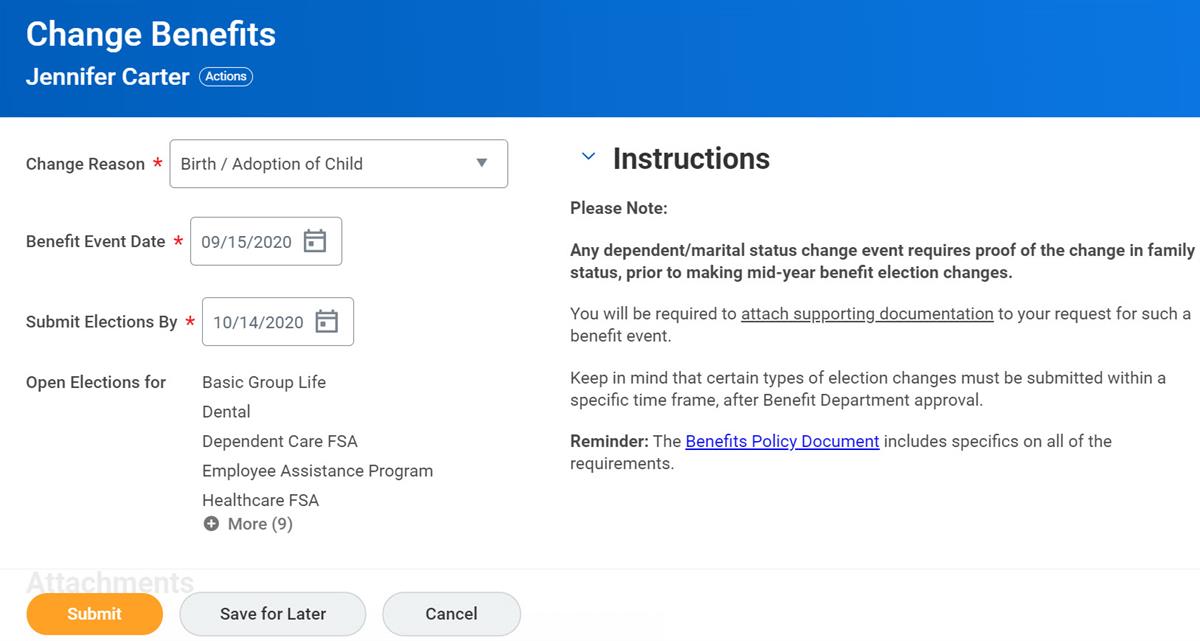
Finalize Open Benefit Events
The
Finalize Open Benefit Events
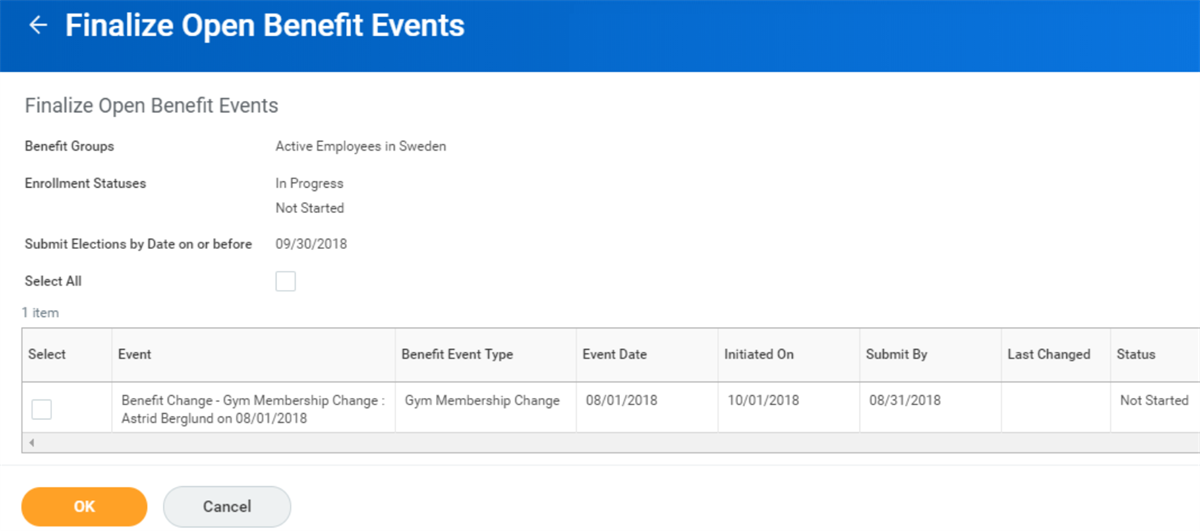
task finalizes benefit events that are open as of the Submit Elections By date. If the employee has not submitted benefit elections by this date, it may be your policy to close the event without elections and apply defaults.When you run the task, select a Run Frequency. Run Now allows you to manually finalize overdue events. Daily Recurrence or Weekly Recurrence allows you to define a run schedule to automatically close events.
The task can run for one or more benefit groups, specifying either the status of In Progress, or Not Started. Additionally, you can include one or more benefit event types in the report. If you do not select any benefit event types, Workday will evaluate all open events.
When you run the task manually, the
Finalize Open Benefit Events Now
report lists all open events that you need to finalize. Select all or individual events to finalize them manually. Your defaulting rules will determine which benefit elections to finalize. For example:- Default to Waive
- Default to Current Elections
- Priority Coverage or Waive
- Default to Current Provider/Classification or Waive
- Reinstate Previous Elections or Waive
- Default to Priority Coverage or Waive
When scheduling the task to Run Daily or Run Monthly, enter a Request Name, determine the job run time, and enter a Start Date and End Date. The
Process Monitor
report shows all benefit events finalized during the background process.The screenshot below displays the Finalize Open Benefit Events task, Schedule page. For tenant performance, schedule the background process to run overnight for the Benefit Group(s) specified.
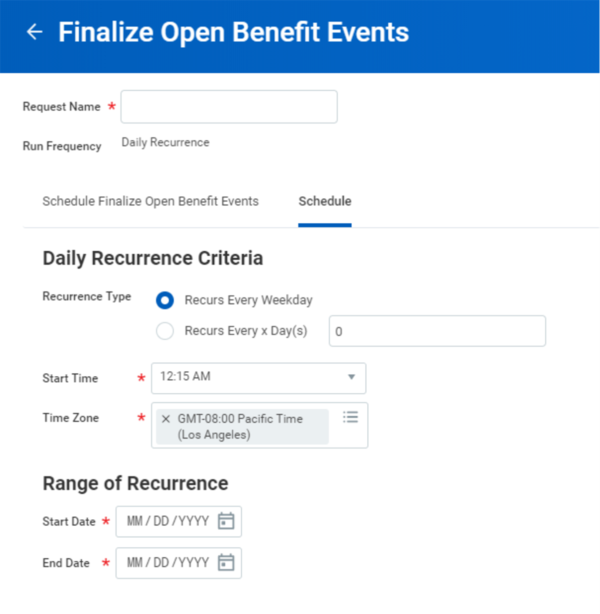
Note
: You cannot schedule the Finalize Open Benefit Events
task to run more than five times after the end of the next calendar year. You can edit the End Date field over time to ensure your background process continues to run.To view a list of all delivered reports, search for the
Workday Standard Reports
report. You can run this report by category to view all benefits reports.A few reports to take special note of are:
- Benefit Events Status Report
- Benefit Corrections in Progress Audit
- Enrollment Count
- Benefits Eligibility by Benefit Group
- Benefit Changes
- Benefits Census
- Terminated Employees with Benefits
Benefits: Coordination of Events
Coordination of Events manages multiple overlapping benefits events for the same employee. This feature allows the employee to enroll in benefit events in the order they occur, based on event date.
Multiple Events for the Employee
All benefit events should be processed in order. If an employee or benefits partner enters more than one event at the same time, the earliest event processes first. The system will place all of the following events temporarily on hold or they will remain in a finalized status. Once you finalize the first open event, the system will cancel the on-hold event and create it again. This ensures the new event recognizes the benefit elections from the previous events as current elections, so defaults correctly populate.
If an employee or benefits partner enters multiple events, but these events have no similar coverage types, they can both be open simultaneously.
For example, when open enrollment launches, it is likely that other types of events are open. Since open enrollment usually has a future effective date, it is likely other events will need to process before the open enrollment. The
Open Enrollment Status Report
has a column to show all employees who have open enrollment events on- hold due to earlier events. Select the number link to review a list of the on hold events.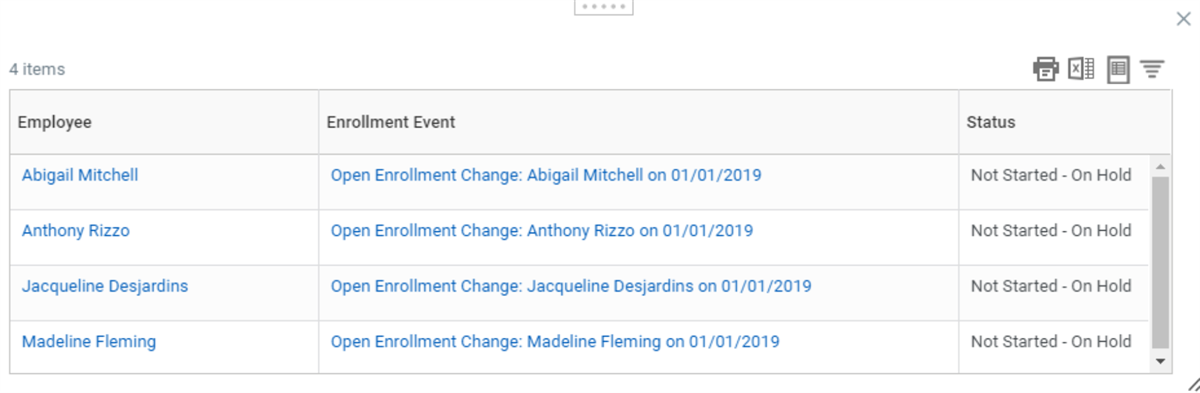
Use any of these employees' Related Actions to view their Benefit Election History. This shows the Dependent Change event that is in progress, as well as the Open Enrollment event that is Not Started - On Hold.
If the employee started the enrollment process for a benefit event that is placed on hold, they will lose the elections they entered when the system cancels the on hold event and creates it again.
The following diagram illustrates how Workday coordinates benefit events. The system compares two events at a time:
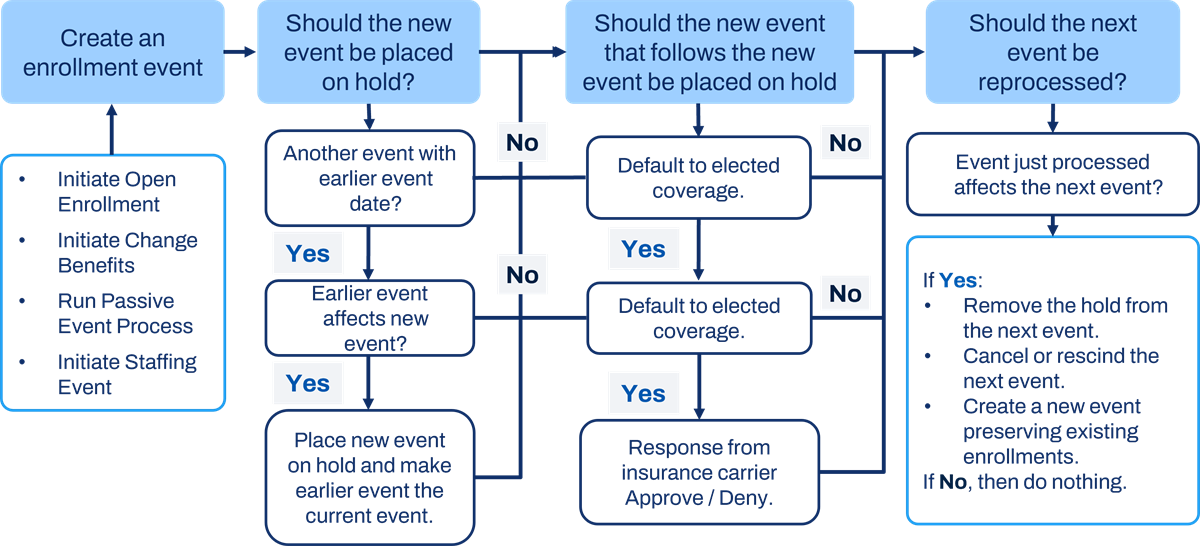
For an event to affect another event, one of the following must occur:
- There is a change in eligibility, such as a loss or gain in coverage or change in benefit group. The event rules for the event determine this. Events always reprocess when there is a change in eligibility.
- There is an overlap in coverage types between the two events.
- If Event A has medical, dental, and vision, and Event B has medical and insurance, there is an overlap in medical. Events do not reprocess if there is no overlap in coverage types.
- The Do Not Reprocess flag is selected for the enrollment event. Consider this example: Workday compares a newly created event to an earlier event date, and the newly created event has the Do Not Reprocess flag selected. The newly created event is not placed on hold, and Workday processes both events at the same time. However, if Workday compares a newly created event to an event with a later event date, and the later event has the Do Not Reprocess flag selected, then Workday leaves the next event.
- The Do Not Reprocess Future Event flag for the enrollment event is selected. If Workday compares a newly created event to an earlier event date, and the earlier event has the Do Not Reprocess Future Event flag selected, then Workday places the newly created event on hold and processes both events at the same time. If Workday compares an event that was processed to an event with a later event date, and the newly processed event has the Do Not Reprocess Future Event flag selected, then Workday leaves the next event alone.
Multiple Events for the Employee
If an employee has two or more events with the same effective date, this will create a hybrid event. A hybrid event combines the multiple events into one. Here are a few examples:
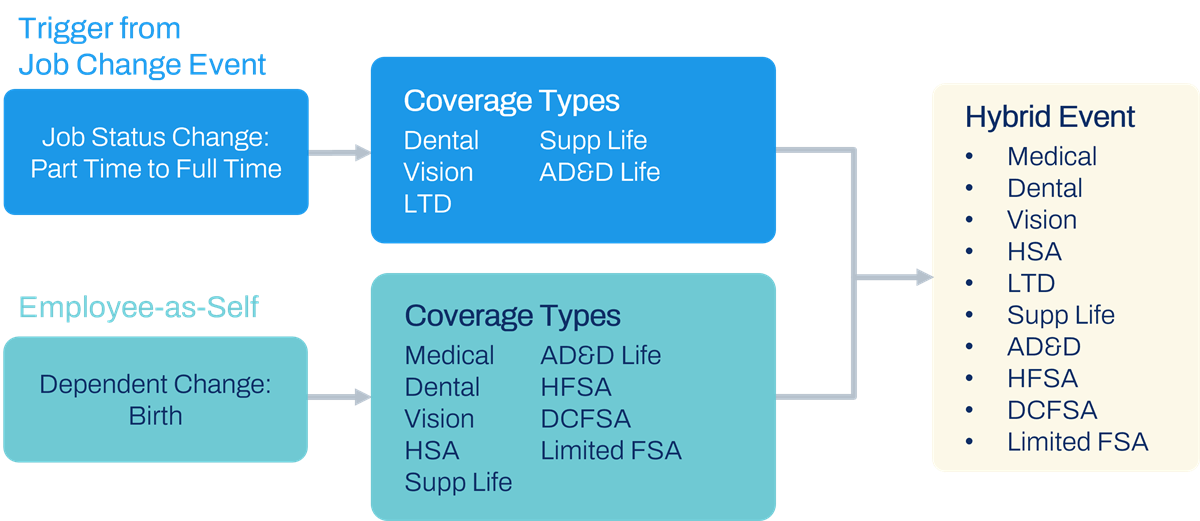
- Creating a Hybrid: For example, a promotion from part time to full-time and a birth event occur on March 5. Workday sends both events to the employee.Result:These two events consolidate into one hybrid event that includes all the coverage types that should open for each event, and uses the processing rules that are the highest priority. Workday sends all tasks to the employee's Inbox.
- Hybrid Assignment: For example, a Dependent Change and an Administrative Correction occur on March 5. Workday assigns the Dependent Change event to the employee, but the Administrative correction event routes to the benefit partner.Result:Workday creates a hybrid event and sends it to the benefit partner's Inbox.
- Why Hybrid is Not Created: For example, a Job Status Change and an Address Change occur on March 5. The Job Status Change event includes the Dental, Vision, LTD, Supplemental Life, and AD&D Life coverage types, but the Address Change event includes only the Medical coverage type.Result:Workday does not create a hybrid event, since both events include different coverage types. The events remain separate and process in the order entered.
Multiple Events on the Same Day
The following table lists the priority Workday uses to provide the most generous options when creating the consolidated enrollment event:
Task | Option | Priority | Description |
|---|---|---|---|
Maintain Enrollment Event Types | Routing Rule | 1 | Benefit Partner or Administrator |
2 | Employee | ||
Create or Edit Benefit Event Rule - Start or Waive | Coverage Begin Date | 1 | On the event date |
2 | First of the month on or after the event date | ||
3 | First of the month following the event date | ||
Waiting Period | Always honor the waiting period, unless Ignore Waiting Periods is selected. | ||
Create or Edit Benefit Event Rule - Loss of Coverage | Coverage End Date | 1 | Last day of the month |
2 | On the half month | ||
3 | On the event date | ||
Create or Edit Benefit Event Rule - Levels of Change | Coverage End Date and Grace Period | Same priority as Coverage End Date, but also using the least number of days as the grace period | |
Maximum Level of Change Allowed | Always take the highest level across all events. | ||
Maximum Levels of Change Allowed without EOI Guaranteed Issue (EOI required above this level) | Always take the highest GI amount across all events. | ||
Maximum Amount of Change Allowed without EOI Guaranteed Issue (EOI required above this amount of coverage) | Always take the highest GI amount across all events. | ||
Default Coverage if Pending EOI | 1 | Elected Coverage Amount | |
2 | Current Coverage Amount | ||
3 | Guaranteed Issue Amount | ||
Task | Option | Priority | Description |
|---|---|---|---|
Create or Edit Benefit Event Rule - Coverage Rules | Benefit Plan Changes Allowed | 1 | Can select any plan |
2 | Current plan or option to waive | ||
3 | Current plan only | ||
4 | Current plan or option to increase | ||
5 | Current plan or option to decrease | ||
6 | Only on eligibility change | ||
7 | Only beneficiary changes allowed | ||
8 | No changes allowed | ||
Coverage Target Changes Allowed | 1 | Additional dependents allowed | |
2 | May remove dependent | ||
3 | Continue with current dependents | ||
Coverage Targets | Include all coverage targets across all events. | ||
Defaulting Rules | 1 | Default to current elections, priority coverage, or waive | |
2 | Default to current elections or waive | ||
3 | Default to priority coverage or waive | ||
4 | Default to waive | ||
Multiple Events for the Employee
There are several reports to manage multiple benefit events that are open or on hold. There are four primary supporting reports:
- Benefit Event Status Report
- Open Enrollment Status Report
- Workers with Multiple Enrollment Event
- Workers with Enrollment Events On Hold
The
Workers with Multiple Enrollment Event
and Workers with Enrollment Events On Hold
reports help you manage multiple benefit events or events on hold. There are times when each report returns the same data because an employee with multiple events must have one or more on hold. Additionally, the reports can return different results when you manually put an event on hold.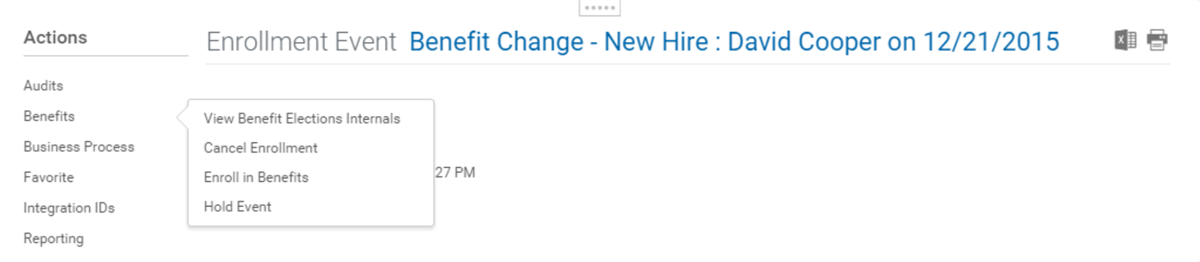
You could use the
Hold Event
task to avoid an employee entering elections in an open event before you initiate open enrollment. This may reduce the risk of losing elections when the event is canceled or rescinded and created again.Benefits: Reinstatement of Benefits
Many employers reinstate an employee's previous benefit elections when they return to work after a break in service. In Workday, you can reinstate benefit coverage for rehires and employees returning from a leave of absence within an eligibility period. Workday reinstates the benefit elections the employee was enrolled in when coverage was lost.
Configuring the Benefit Event
The Rehire and Return from Leave benefit events are commonly configured as reinstatement events. Use the
Reinstatement Event
checkbox on the benefit event to indicate if the event is used for reinstatement.Workday considers the most recent event that was a loss of coverage event within the specified reinstatement time frame. You can specify the reinstatement period in days, months, or years.
- If you specify zero months as the reinstatement period, Workday refers back to the first of the current month.
- If you specify one month, Workday refers back to the first of the previous calendar month.
In the events and reasons section, you can map reinstatement events to the same business process as other benefit events. The
Hire
or Onboarding
business processes can trigger both the hire and rehire benefit events.Touchpoint
: On the Leave Reinstatement event, in the events and reasons section, specify the leave types Workday considers for reinstatement.Configuring the Enrollment Event Rule
Add the reinstatement event to the enrollment event rule. On the coverage rules tab, specify a default option of 'Reinstate Previous Elections or Waive' or 'Reinstate Previous Elections, Priority Coverage or Waive'.
COBRA Business Process (U.S. Functionality)
When a termination occurs, Workday can automatically populate the COBRA Eligibility information depending on the level of automation configurations in your system. If you would like to review this information as part of the business process, then you will need to include the
Review COBRA Eligibility
subprocess. You can use Review COBRA Eligibility
as a subprocess in three business processes:- Request Leave of Absence
- Termination
- Change Benefits for Life Event
This is a semiautomated type of setup. By not including this
Review COBRA
subprocess, your setup will be fully automated.Whether you use fully automated, semiautomated, or a manual process, you can use three tasks to maintain COBRA eligibility data:
- Grant COBRA Eligibility
- Correct COBRA Eligibility
- View COBRA Eligibility
Resource
: For additional information about how to setup and use COBRA, refer to the Workday Community and Administrator Guide documentation. Use the search term: COBRA
. You can also search for Steps: Setup COBRA Automation
.