
Other Configuration Options
Overview
Once you configure the benefit groups, benefit plans, and enrollment events, there are other configurations remaining. Some configuration elements are optional, while others are required.
Objectives
By the end of this chapter, you will be able to:
- Update enrollment instructions, including tobacco text.
- Define cross plan dependency rules.
- Identify benefit-related business processes and steps.
Maintain Enrollment Instructions
Display custom enrollment instructions to assist employees during the enrollment process to set up your organization for a successful enrollment. When you add enrollment instructions, consider the General Enrollment Sections and determine what questions display and default for the Tobacco Use Section.
Enter unique text for each benefit group, enrollment event type, and benefit coverage types. The Enrollment Instructional Text appears at the top of the page. If instructional text exists, it displays when an employee views the page selected. If there is a benefit group that should view different text, you can enter the group and the alternative text in the section below the default text.
Example
: If an employee selects the Health Care Elections section and the Enrollment Instructional Text field is blank, no text will display. There is an instructional text for the Active Employees in Green Planet Solutions benefit group. So, if an employee in this benefit group has a benefit event, they will view this text when viewing the Health Care Elections page.Text for a specific event type will overwrite text for a benefit group. For example, the healthcare text for the New Hire event will display instead of the text for Active Employees in Green Planet Solutions benefit group. If you use a benefit group and event type together, the combination will override a specified event type or benefit group.
Default Text | Benefit Group | Event Type | Benefit Coverage Type | Result |
|---|---|---|---|---|
Health Care Text A | None | None | Health Care Text A for:
| |
Health Care Text A | Health Care Text B | None | Health Care Text B for:
| |
Health Care Text A | None | Health Care Text C | Health Care Text C for:
| |
Health Care Text A | Health Care Text B | Health Care Text C | Health Care Text C for:
| |
Health Care Text A | Health Care Text D - Benefit Group and Event Type specified | Health Care Text D for:
| ||
For example, in the Add Dependent section, write configured text to display when an employee adds a dependent within the enrollment event.
Additionally, under Maintain Enrollment Instructions, you can configure specific text for the questions around tobacco use for employees and dependents.
Important
: Changes to enrollment instructions are not effective dated. Therefore, any changes will take effect immediately.Enrollment Tobacco Use
Enrollment Tobacco Use is related to the employee tobacco use. In the following example, the Tobacco Use Question Text shows the configured tobacco use statement. If tobacco is used as a demographic in the benefit rate, or there is a tobacco surcharge, you can specifically configure the question according to benefit group or enrollment event type.
You can create the following:
- Instructional Text for answering tobacco questions.
- Question Text for the tobacco question.
- Text for up to three answers and the display order.
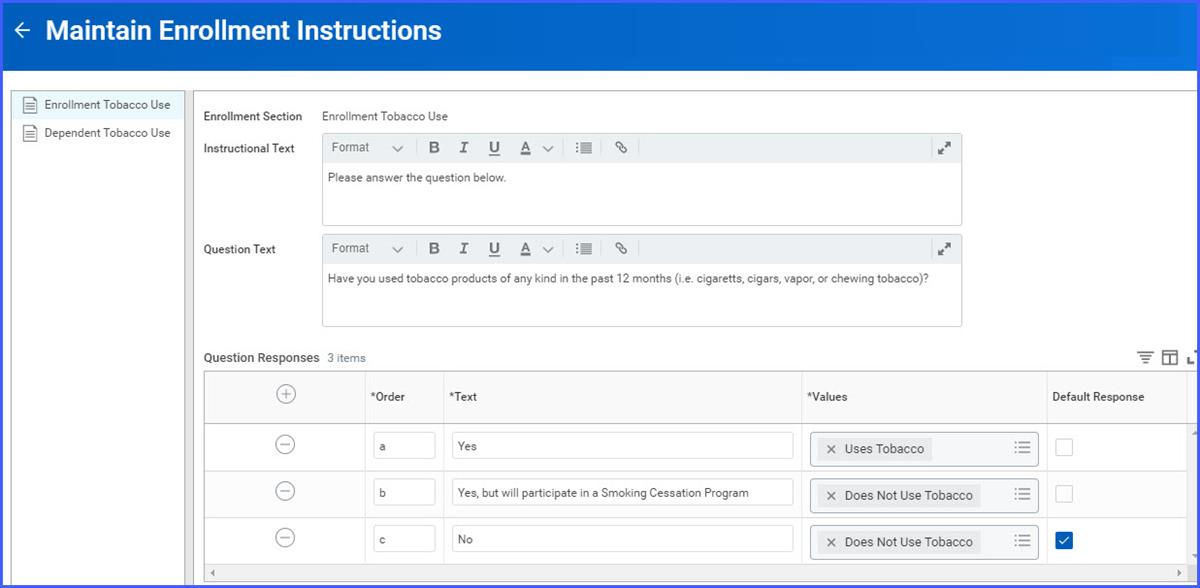
Map each answer text to Uses Tobacco or Does Not Use Tobacco. For answers that incur a surcharge, assign Uses Tobacco in the Values field. For answers that do not incur a surcharge, assign Does No Use Tobacco. Designate which answer is the default response. You can override answer text and default response according to benefit group or enrollment event.
Dependent Tobacco Use
The Dependent Tobacco Use provides the same options available on the Enrollment Tobacco Use section. However, keep these differences in mind:
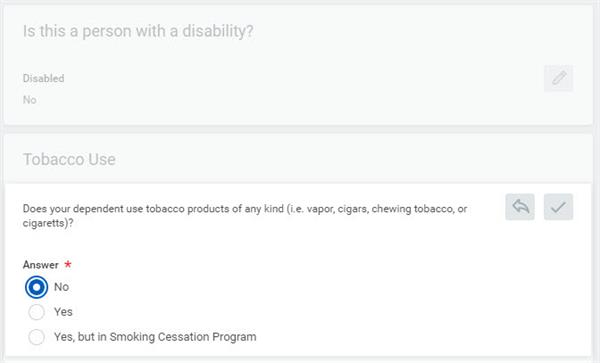
- The default question appears when a dependent is added through the Dependent Event and when entering enrollments.
- The default response is only applicable when a dependent is added for the first time.
- Once the employee answers this question, it is not reset and the question is not asked again.
- To change the dependent's tobacco use status, use Edit on the dependent record.
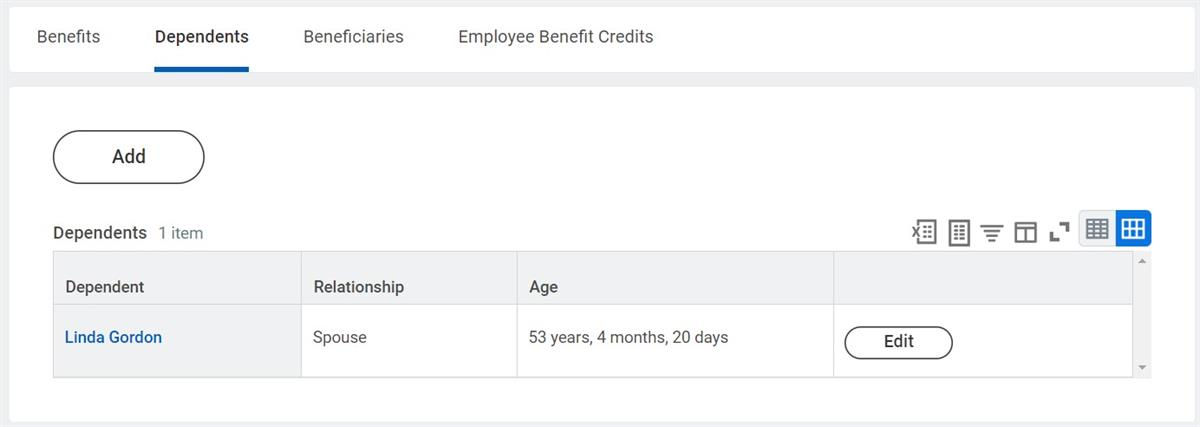
The screenshot below displays an example of how you can Add or Edit dependents on the Worker Profile, in the Benefits section group. Then, the second screenshot displays the end user's output to select from the answer options.
Tobacco Surcharge
Workday allows you to apply different surcharges based on the number of covered tobacco users. To create a tobacco surcharge, use the
Create Benefit Surcharge
task and indicate the Benefit Surcharge Type is Tobacco Surcharge.You can designate surcharge amounts for each person or group of persons to apply a surcharge if they use tobacco. In the following example, different surcharge amounts would apply if the covered employee was a tobacco user, the spouse, or both employee and spouse.
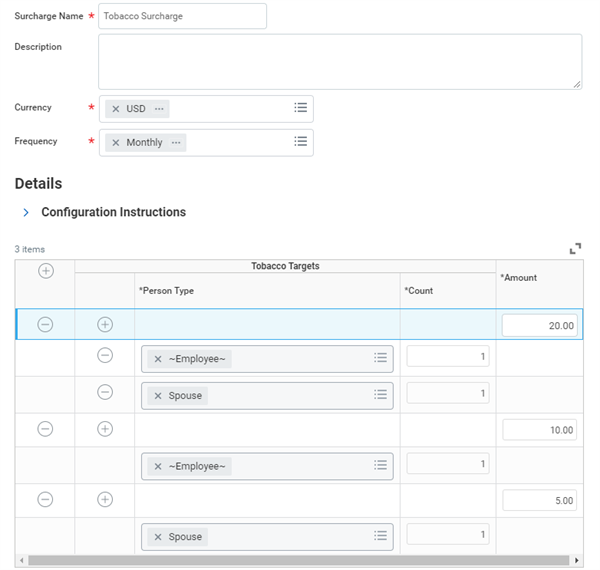
Keep the currency and frequency of the surcharge consistent with the currency and frequency of the healthcare plan rates. Add the surcharge to health care rate tiers using the
Edit Benefit Plan
or the Edit Healthcare Rate
tasks.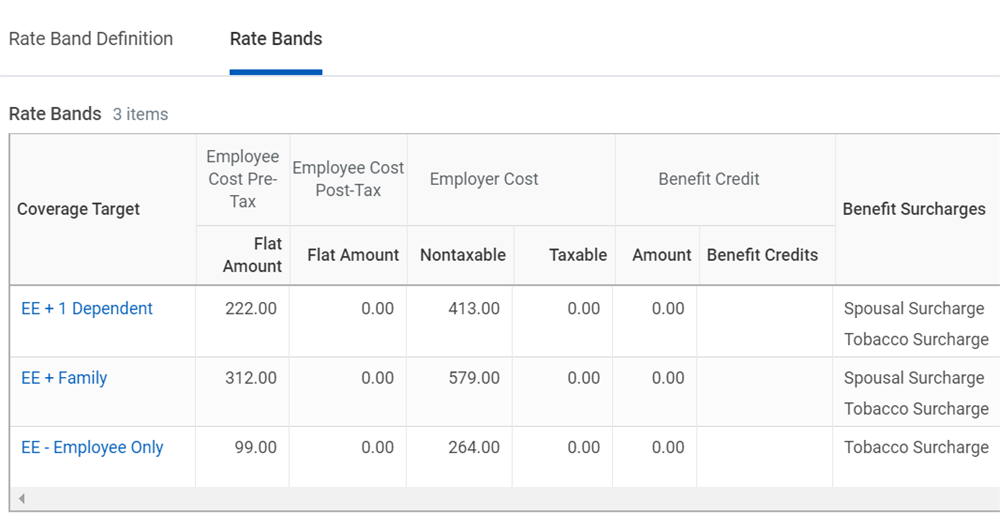
Cross Plan Dependencies
Workday supports four types of cross plan dependencies. Any combination of the four can work together to validate a single benefit plan. A violation of a cross plan dependency rule will generate a hard error when enrolling. Correct it to continue entering elections.
Label | Description |
|---|---|
Cross Plan Insurance Coverage Maximum | Defines maximum life insurance coverage amounts based on the combined total of multiple plans. |
Cross Plan Insurance Percentage Maximum | Limits coverage in one or more insurance plans to a percentage of the coverage in another insurance plan or plans. |
Cross Plan Enrollment Prerequisite | Defines a relationship between a primary and secondary benefit plan. The secondary plan is available only if a worker elects the primary plan or the worker can elect either the primary or secondary plan. |
Cross Plan Retirement Savings Contribution Maximum | Creates a combined maximum contribution for more than one retirement savings plan. |
Insurance Coverage Maximum
The Cross Plan Insurance Coverage Maximum places a coverage limit on the combined total of two or more insurance plans. You can configure the order the limit calculates.
For example, you can set a combined limit of $1,000,000 of coverage for an employee's elections for Basic Life and Supplemental Life. If the employee elects $300,000 for Basic Life and $750,000 for Supplemental Life, the system will generate an error message. Then the employee must reduce one of their elections so their total coverage is less than or equal to $1,000,000.
Insurance Percentage Maximum
The Cross Plan Insurance Percentage Maximum places a coverage limit on specific plans to a percentage of the total coverage for one or more insurance plans.
For example, an enrollment in Spouse Life coverage is limited to 50% of the employee's Supplemental Life coverage level. An employee with $500,000 of Supplemental Life coverage can have no more than $250,000 of Spouse Life coverage.
For plans with a calculated coverage amount, such as multiples of salary, Workday will round the new coverage amount up to the next $1,000 when you reach the cross plan maximum.
Retirement Savings Contribution Maximum
The Cross Plan Retirement Savings Contribution Maximum places a coverage limit of a percentage or amount of the total coverage in one or more savings plans during the enrollment process. There is a separate payroll limit to make sure deductions stop once limits are reached.
For example, a contribution in a Roth 401(k) and a traditional 401(k) is limited to either a percentage or amount of contribution across both plans. If an employee tries to elect over the limits, an error message will display.
Enrollment Prerequisite
The Secondary Plan Rule allows you to further define the prerequisite relationship by specifying the following:
- Must elect at least one secondary plan.
- May elect one or more secondary plans.
- Elect only one primary or secondary plan.
If you offer an HSA plan and an HCFSA plan, you need to set up a cross plan enrollment prerequisite using the secondary plan rule. Only one primary or secondary plan can be elected. This will ensure an employee can only elect one of these plans.
If you need to have the same coverage targets for both the primary and secondary benefits, select the Require the same Coverage Targets on all Health Care plans checkbox. This will enforce the same coverage target and enroll dependents.
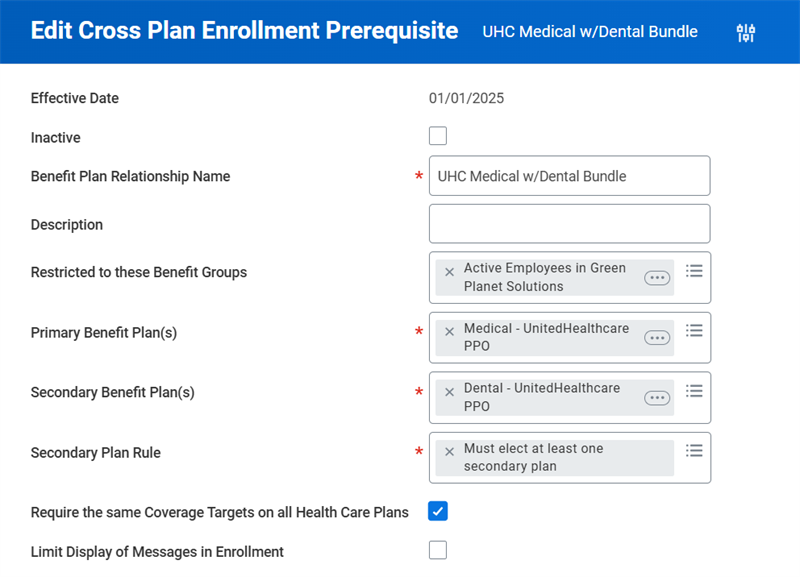
You can select the Limit Display of Messages in Enrollment checkbox to hide Workday-delivered messages under the Important Information section during plan selection. This will minimize the number of messages the worker and administrator need to read.
Business Process Configurations
The business process framework lets you define and deploy configurable business processes. Choose the tasks that compose a business process and define the order they will execute. You can create different versions of the same business process for different organizations. The business process logic inherits down to subordinate organizations automatically.
The business process framework uses roles to control who supports that organization's business processes. Tasks are associated with specific roles, and not with specific people. Workers can move into and out of those roles without disrupting the business process logic.
Business process definitions determine:
- Who approves or denies something that happened.
- Who needs to complete additional tasks.
- Who needs to know something happened.
- Any additional system events that need to initiate.
Create business processes using a combination of actions, approvals, approval chains, to-dos, or checklists. An action can be a single task or subprocess, to-dos, or checklists. Within the process, define conditions that determine if a step initiates, is required, or optional. Use notifications to notify a user when a step has initiated, completed, or if the task is approved or denied.
The difference between actions, approvals, and to-dos includes:
- Action: Tasks or events within Workday.
- Approvals: Approval of a task or event within Workday.
- To Do: Reminder to do something that happens outside of Workday.
Benefits and HR Business Process
There are many different Benefits business processes, including:
- Change Benefits
- Change Benefits for Life Event (subprocess)
- Change Benefits for Open Enrollment
- Reopen Open Enrollment
- Change Retirement Savings
- Passive Event
- Dependent Event
- Change Beneficiary
- Review COBRA Eligibility Event
- Change Benefit Jobs
- Manage Medicare Information
- Benefits Billing Event
Benefits business processes control the workflow of benefit enrollments and any related actions. For example the
Change Benefits
business process handles worker requests a benefit changes due to life events like a birth or marriage. This process typically includes an initiation, a Benefits Partner review, and an employee election step. You can modify this, or any business process, to fit your needs.The
Change Benefits for Life Event
is another important configurable business process to be familiar with. The Change Benefits for Life Event
is always a subprocess of the Change Benefits
business process. It can also be triggered from the Passive Event
, Dependent Event
, or other Staffing and HR processes. Including Change Benefits for Life Event as a subprocess on staffing processes such as Hire, Onboarding, Change Job, or Termination allows the system to initiate benefit events for workers automatically when benefits eligibility changes. The Change Benefits for Life Event
process drives the benefits elections and controls the page that displays what plans are elected and waived to workers. If you require an approval of the worker's elections by a Benefits Partner or Administrator, you can include an approval step on the Change Benefits for Life Event
business process definition.You can configure the
Change Benefits for Life Event
subprocess as a step that triggers within applicable HR business processes. Include these HR business processes in the scope of configuring your benefit events. The following is a list of these business processes:Business Processes | |||
|---|---|---|---|
Change Benefits* | Hire | Edit Position | Add Additional Job |
Change Benefit Jobs | Onboarding | Change Job | End Additional Job |
Dependent Event | Change Organization Assignment for Worker | Terminate Employee | End International Assignment |
Passive Event* | Contact Change | Request Leave of Absence | Start International Assignment |
Change Primary Address | Request Compensation Change | Request Return from Leave of Absence | Manage Medicare Information |
Business Process Conditions and Custom Validations
A business process definition may have condition rules that allow different processing for the same step depending on if the condition is met.
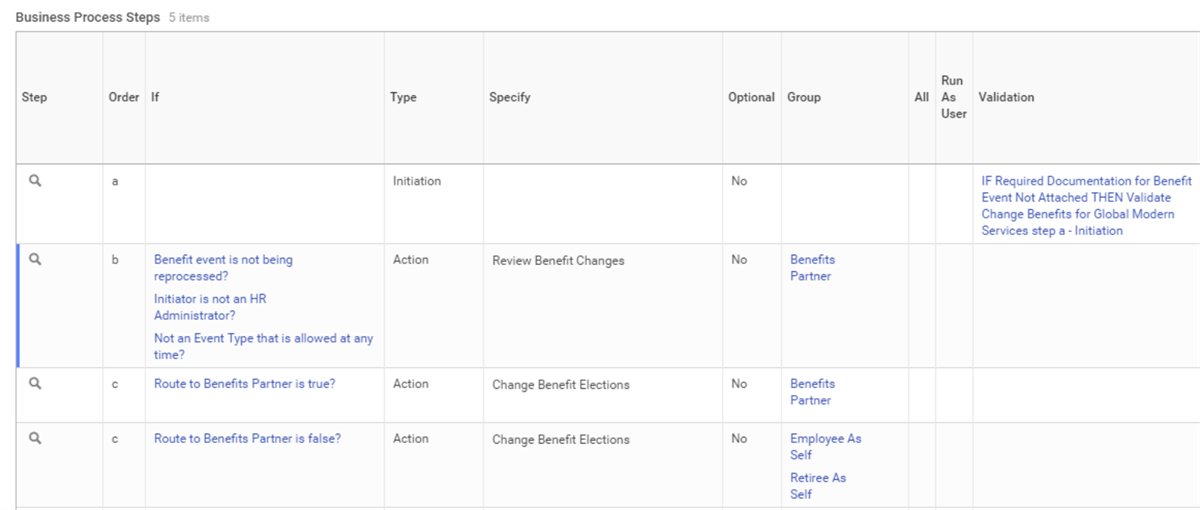
In the example above, a Review Benefit Changes step that routes to the Benefits Partner is conditional. The two conditions shown are common:
- Benefit event is not being reprocessed?If approved, and then reprocessed due to coordination of events, the workflow will ignore the approval step.
- Not an Event Type that is allowed at any time?Identify events such as Commuter Check Enrollment or Pet Insurance Enrollment that do not require approvals.
The Change Benefit Elections step repeats because there is a condition rule attached. The condition rule states that if the Route to Benefits Partner is not enabled for the Benefit Event Type, then route the enrollment task to the employee. If the Route to Benefits Partner is on, then the system will route the enrollment task to the Benefits Partner.
There are some common condition rules that help control whether the
Change Benefit Elections
step occurs, and under what condition it routes to a benefits partner or employee. The table below displays a few examples:Condition Rules | Description |
|---|---|
If there is an effect on employee benefits? (Workday-Owned) | Mandatory entry condition on all HR business processes (not included on benefit business processes such as Change Benefits and Passive Event ). |
If the employee is (country) based? | Only create events for employees in certain countries. |
Worker has Workday Account | Use if there are employees in your population who will not use self-service and other conditional rules do not exclude them from the step. |
Route to Benefit Partner is True? Route to Benefit Partner is False? | 
Route Enrollment to Benefits Partner (CRF) returns true if the Route to Benefits Partner checkbox is selected for the benefit event type. |
Enrollment Type Route to Benefit Partner | 
Enrollment Type (CRF) - Use the report field for Open Enrollment, Life Change Enrollment Event, Benefit Election, or Passive Event business objects. |
Custom Validations for Benefits
In addition to using condition rules on business processes, you can also create custom validations for benefits open enrollment and life events. You can configure custom validation messages to display to users when a warning or critical error triggers. Some examples for why you might use custom validations for benefits events include:
- Requiring attachments for new dependents.
- Enforcing entry of whole numbers on beneficiaries and retirement plan percentages.
- Preventing employees from waiving a plan under certain conditions.
- Preventing the enrollment of multiple spouses or domestic partners.
- Ensuring information is not invalid or incomplete.
You can configure custom validations for these types of election options:
- Benefit Coverage Type
- Benefit Election
- Benefit Employee Enrollment Event
To configure custom validations, use the
Maintain Custom Validations
task, then select one of the benefit categories. You can create or maintain existing validations for the Critical or Warning severity levels. From an existing validation's Related Actions, you can configure a custom message to display to the user.Benefits and Compensation Changes
You can initiate a benefit event from a a compensation change event. This allows you to track insurance coverage calculation and rate changes as a result of a compensation change. For example, after a merit increase, a calculated benefit coverage of two times the salary will increase.
Note
: Triggering a benefit event as a result of a salary change may be necessary for a third-party payroll integration.Below are the compensation business processes that can trigger benefit events:
- Propose Compensation Change
- Propose Compensation Hire
- Initiate Compensation Review Process
- Request Compensation Change
- Request Employee Merit Adjustment
To trigger an event following a compensation change:
- Create a benefit event type and include offerings that change in coverage calculation or rate as a result of a compensation change.
- Map the event to compensation business processes in the Events and Reasons section of the event type.
- Include your event type in the Coverage Rules tab of the Enrollment Event Rule.Note: Ensure the event autocompletes by indicating No changes allowed.
- Add theChange Benefit Elections for Compensation Changesubprocess to the overall compensation business processes. This step calls on theChange Benefits for Life Eventbusiness process as a separate initiating action than theChange Benefits Electionsbusiness process.
Important
: Configure a Step Delay on the Change Benefit Elections for Compensation Change
step. This ensures an employee does not find out about their compensation change from their Benefits History.Manage Medicare Information Business Process (U.S. Functionality)
You can coordinate benefits coverage in Workday for employees who receive coverage through the Centers for Medicare and Medicaid Services (CMS). The
Manage Medicare Information
business process allows you to track Medicare details for employees, retirees, and dependents.To update Medicare information for a worker, search for the
Manage Medicare Information
task, or use the worker's Related Actions and select Benefits > Change Medicare Data.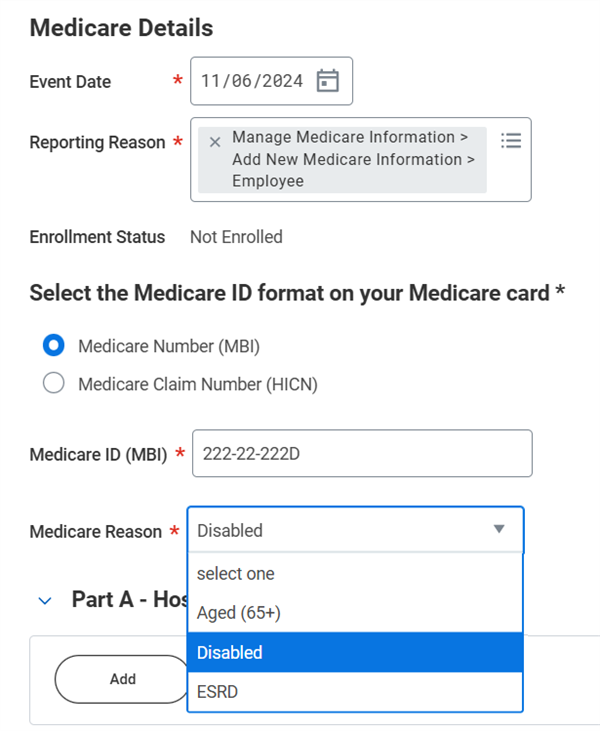
You can configure the reporting reason displayed above in
Maintain Medicare Reporting Reasons
. CMS defines the Medicare reasons of Age (65+), Disabled, and ESRD.Workday currently tracks Medicare details for the following:
- Medicare Part A - Hospital
- Medicare Part B - Medical
- Medicare Part D - Prescription
- End Stage Renal Disease
You can include employee Medicare coverage in benefit plan eligibility rules. By adding Change Benefits for Life Event as a subprocess of
Manage Medicare Information
, benefit events will trigger automatically if eligibility changes.