
Foundation Setup
Overview
Before you set up a benefit plan, you must create several foundational components. These foundations drive the creation of the six types of benefit plans.
Objectives
By the end of this chapter, you will be able to:
- Create providers and electronic signatures.
- Explain health care, insurance, and additional benefit targets.
- Maintain health care classifications.
- Set up and maintain benefit coverage types and related person relationships.
- Create benefit groups and eligibility rules.
Providers and Electronic Signatures
A benefit plan requires an assigned benefit provider. When you set up the provider in Workday, you can enter a provider identification number, external URLs, and the option of an electronic signature.
The electronic signature informs employees that by selecting a box at the end of the election process, they will electronically sign and finalize their elections. You can create unique electronic signature text for each provider or benefit group so that the employees only view the appropriate text.
Use the
Maintain Benefit Electronic Signatures
task to add new, make changes to, and configure electronic signature text and text translations. Select the double arrow icon to expand the Rich Text Editor window.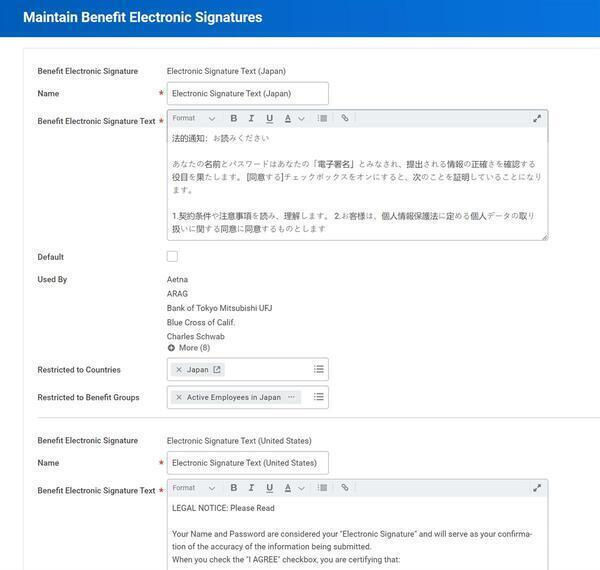
Consider the following:
- Should you restrict the electronic signature to one or more countries?
- Should you restrict the electronic signature to certain benefit groups?
- Can you use the same electronic signature text for all providers, or do providers require a unique electronic signature?
- Do most providers use one electronic signature?
You can configure a default electronic signature that your employees will always view, regardless of the provider.
When you set up the provider in Workday, you must first populate the effective date field. A benefit plan requires an effective date that is earlier or equal to the current date that you create the plan. The effective date of the benefit provider should be equal to or before the effective date of the plan. Enter an appropriate date to avoid problems when creating your benefit plan later. The table below provides three examples, two correct and one incorrect.
Correct or Incorrect | Provider Effective Date: | Benefit Plan Effective Date: |
|---|---|---|
Yes | January 1, 2026 | January 1, 2026 (or any date after January 1, 2026) |
Yes | Today's Date | Today's Date |
No | January 1, 2027 | January 1, 2026 (or any date before January 1, 2027) |
You can populate several optional fields on the benefit provider. These fields include:
Label | Values | Description |
|---|---|---|
Name | Text | The only required field. |
Carrier URL | Name of URL | Select the URL to associate with this provider and include on the enrollment pages for the employee. To create a new URL, select the prompt icon next to the field, then select the Create External URL task. |
Provider ID Type | Name of ID type | The Provider ID Type is an optional value you can create ( Maintain Benefit Provider Identifier Types ). This option will also group providers for reporting purposes. |
Provider ID | Text/numeric | Enter a provider ID. |
Provider Tax Identification Number | Text | Enter a provider tax identification number as needed by you or your provider. |
Electronic Signature | Name | Link the electronic signature to the provider if you wish the employee to view it when electing a provider's benefit plan. |
Contact Information | Phone, Address, Email, Web Address | Optional fields to store provider contact information. |
Related Person Relationships
When entering a dependent, beneficiary, or emergency contact, the employee will select a relationship. An emergency contact or beneficiary's relationship could be parent, sibling, or friend. A dependent, for example, would be a spouse, child, or domestic partner.
Use the
Maintain Related Person Relationships
task to create, restrict, and track related relationships.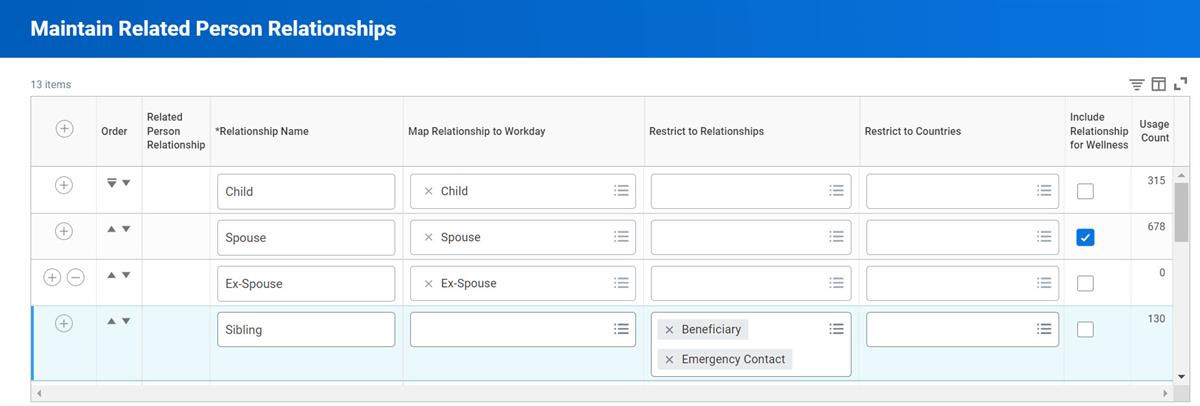
The up and down arrows in the Order column control the order the employee will view them in when selecting from the pull-down menu.
The Map Relationship to Workday field identifies the relationship Workday considers a spouse or domestic partner. This field will also allow a spouse to be an irrevocable beneficiary or a covered dependent for a spousal surcharge.
If your employee's position is in a Quebec location, their spouse beneficiary flags as an irrevocable beneficiary. An irrevocable beneficiary has the following characteristics:
- The system will enforce them as their only eligible primary relationship.
- The employee will not be able to change their primary beneficiary.
- You can only define one spouse beneficiary as irrevocable.
- The irrevocable beneficiary will be the default for all elected insurance or retirement savings plans that allow beneficiaries.
Only the benefits partner or benefits administrator can change an irrevocable beneficiary to revocable.
The Restrict to Relationships field indicates what restrictions should apply to each relationship. For example, the child relationship has no restriction. The child can be a beneficiary, dependent, or emergency contact. All three of these relationships could be restrictions, but would be unnecessary.
For the example of a grandparent relationship, the restriction of beneficiary and emergency contact guarantees that when entering a dependent, the relationship of grandparent will not be available.
Select the Include Relationship for Wellness checkbox to track wellness information, including the participation and wellness score, for that relationship.
Coverage Targets
Workday offers three types of coverage targets:
- Health care
- Insurance
- Additional benefits
The
Maintain Health Care Coverage Targets
task defines a target population for healthcare plans and establishes valid relationships for a legal or corporate-defined dependent. This list is inclusive of all targets used for any country's healthcare plans. When you define healthcare targets, specify the name and order that the targets display for employees while entering their selections. Then, specify the minimum and maximum number of dependents, dependent type, and HSA coverage targets.The HSA Coverage Target ensures that Workday applies the correct contribution limit when an employee elects an HSA plan with a high-deductible healthcare plan. The benefit plan maintains the HSA limits. If no HSA Plan offering is available, this field is optional.
Federal regulations define HSA coverage limits for employee or family targets. Some customers define an additional target to offer a third option with a different employer contribution amount. If you need to use the Other HSA target, go to
Edit Tenant Setup - HCM
, and select the Include an additional HSA Coverage Target Option checkbox. In the Edit Tenant Setup - HCM
task, under the Benefits section, clear or select the Include an additional HSA Coverage Target Option checkbox to meet business requirements.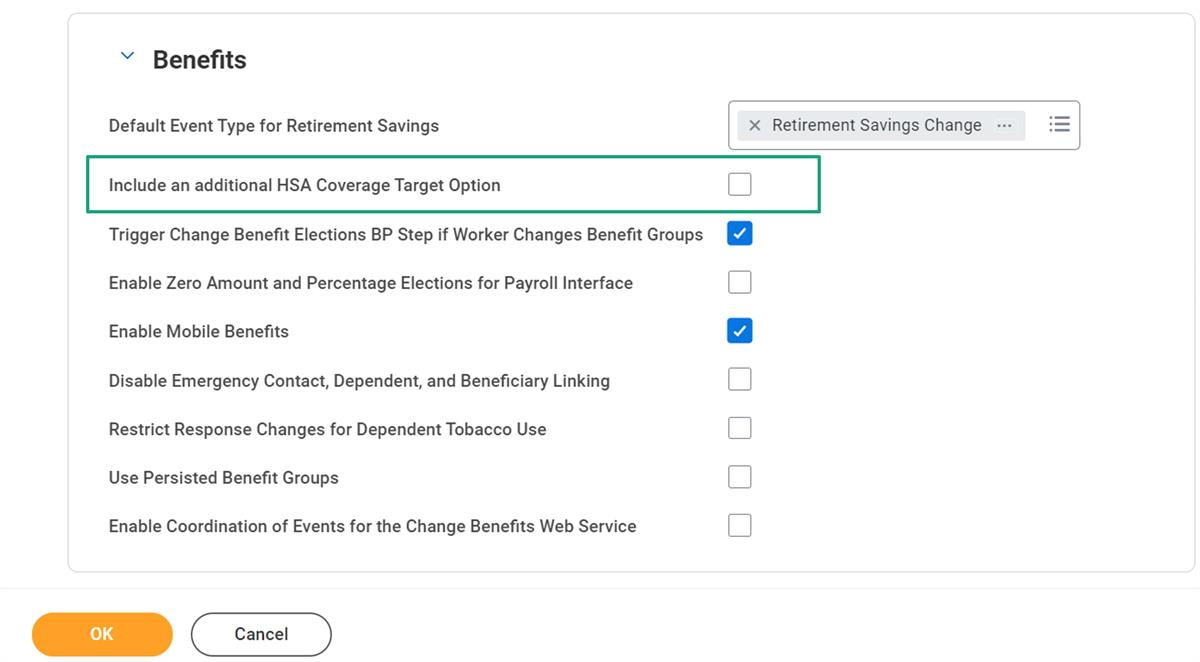
The
Maintain Insurance Coverage Targets
report specifies who the policy insures. Use this task to establish maximum dependent counts and types.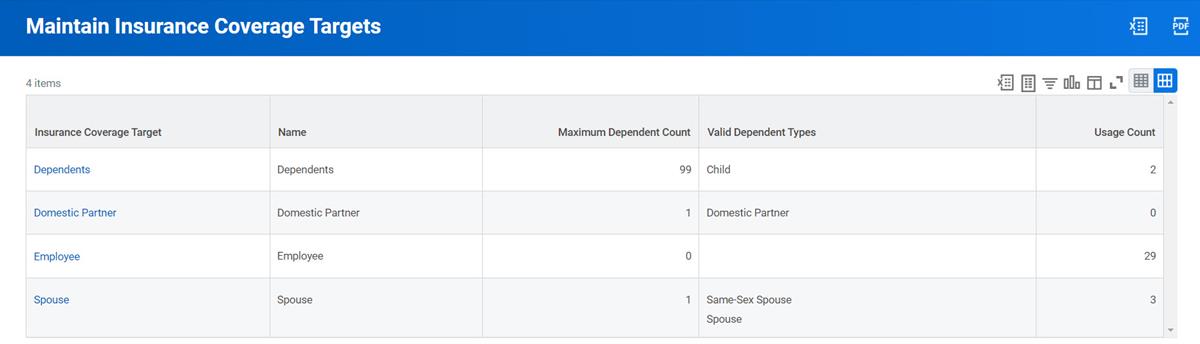
Additional Benefit coverage targets only require a display order and name. When you create an additional benefit plan, select the targets you will use from this list. Use the
Maintain Additional Benefits Coverage Targets
task to set up display order and coverage target names.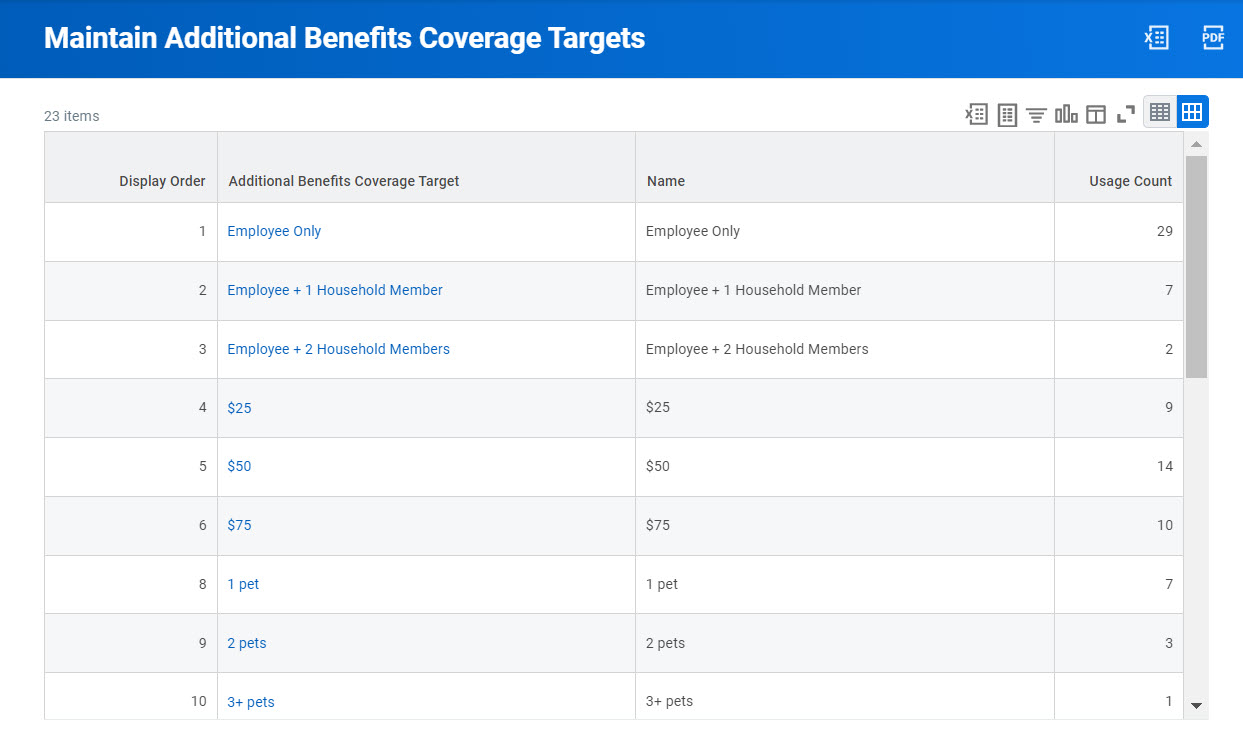
Healthcare Classifications (U.S. Functionality)
Healthcare classifications refer to types of provider organizations, such as Preferred Provider Organizations (PPO) or Health Management Organizations (HMO). Use
Maintain Healthcare Classifications
to define healthcare coverage types on the Maintain Benefit Coverage Types page.When you create a benefit plan, Workday does not require you to complete the healthcare classification field. Treat the healthcare classification field as required for any United States healthcare plans. Most integration files will require this information.
Benefit Coverage Types
What type of benefits do you offer? Do you have medical, dental, or vision? Do your company's insurance offerings include disability, group term life, or supplemental life insurance? For every type of benefit plan you offer, you will create a coverage type in
Maintain Benefit Coverage Types
.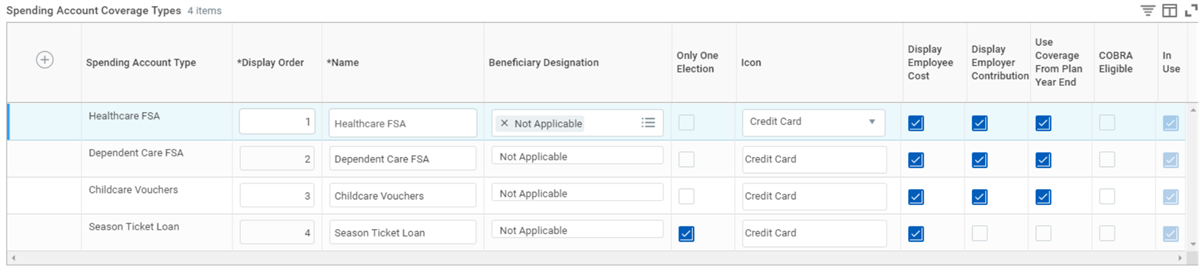
You can take advantage of several key configuration options within this component. Each of the six benefit types has several common columns, such as Display Order and Name, and columns that are unique to a specific benefit type.
The fields include:
Label | Values | Description |
|---|---|---|
Display Order | 1, 2, 3 | Controls the order of the plans within the election pages. |
Name | Medical, Dental | Type of coverage. |
Classification (only applies to Healthcare) | HMO, EPO, PPO | U.S.-specific functionality for healthcare coverage only. Links the appropriate classification with coverage type. |
Icon | Credit Card, Heart, Umbrella | Displays during an open enrollment event in the Workday Mobile application. |
Target (only applies to Insurance) | Employee, Spouse, Dependents, Domestic Partners | Use for insurance coverage and indicate who is covered. |
Use Coverage Target (only applies to Additional Benefits) | Checkbox | Select this checkbox if the coverage type requires the use of coverage targets. For example, an employee assistance plan might only track enrollments for the employee, while a gym membership might be an employee or family membership, requiring a target. |
Plan Behavior (only applies to Additional Benefits) | Rates, Accepts Percents, Accepts Amounts | When you set up an additional benefit plan, this field indicates if the plan uses rates, or if it allows the employee to enter a percent or amount contribution during enrollment. |
Beneficiary Designation (does not apply to Healthcare or Additional Benefits) | Optional, Required, Not Applicable | Used for all coverage types, except healthcare and additional benefits. Select the appropriate value for each coverage type. For example, beneficiaries may not be applicable for Disability coverage, but required for Group Term Life. |
Only One Election | Checkbox | Select this checkbox if you offer more than one plan of the same coverage type and the employee can select only one. For example, there may be multiple medical plans offered, and the system should only allow the employee to elect one. |
Must Elect Coverage | Checkbox | Select this checkbox if employees must elect a healthcare plan belonging to the specified coverage type during benefit enrollment. Employees will not have the option to waive. |
Display Employee Cost | Checkbox | Select this checkbox if you want to display the employee cost on the election pages. |
Display Employer Contribution | Checkbox | Select this checkbox if you want to display the employer cost on the election pages. |
Flex Credits can be Applied | Checkbox | Select this checkbox if flex credits can be applied to this benefit. |
Medical | Checkbox | Select this checkbox to indicate what coverage types you want Workday to consider as medical. This checkbox is used by:
|
Use Coverage from Plan Year End | Checkbox | Select this checkbox if you want benefit rates and coverage calculated to use the plan year end. |
Enable Coverage Begin Date Override | Checkbox | Enable the coverage begin date override to allow administrators and partners to override the Coverage Begin Date On the View Summary page of a benefit election when processing the event through Change Benefits for Life Event and when correcting a benefit election using Correct Benefits. |
COBRA Eligible | Checkbox | Select this checkbox to indicate if an employee or dependent could be COBRA eligible for this coverage type during a qualifying loss of coverage event. This checkbox is the first part of configuring COBRA automation. |
Benefit Groups
Workday has many methods to group workers. Supervisory organizations are the foundation of Workday HCM, while company organizations support Workday Financial Management, and pay groups support Workday Payroll. For Workday Benefits, benefit groups organize employees for benefit purposes.
Benefit groups define a population of workers who qualify for similar benefit plans, rates, and processing. Eligibility rules control which workers are assigned to a benefit group. Groups also control what plans a worker can enroll in and are the prompt filters when running benefit-related reports, such as enrollment status reports.
There are several factors to consider when determining how many benefit groups to create. These factors include:
- Open Enrollment: Open Enrollment runs based on benefit group. If your organization runs open enrollment at different times for different groups of workers, you will need to define separate groups to maintain the correct timing of events.
- Country/Currency: If employees are enrolling in benefits from different countries or with different currencies, then create separate benefit groups. This ensures employees view their benefits costs in the correct currency.
- Benefit Rates: If you apply different insurance or healthcare rates to different populations of workers, you can use different benefit groups to assign different rates in the same benefit plan.
- Frequency: The frequency on the benefit group determines the displayed frequency the employee will view during the election process for each deduction.
- Reporting: Many benefit reports use benefit group as a filter. Consider whether your benefit group definitions conflict with your reporting requirements.
- Cross Plan Dependency: Benefit groups have cross plan dependencies. If the same benefit plans have different dependencies for one population versus another, create more than one benefit group.
- Enrollment Event Rule: If the coverage begin and end dates, waiting periods, and coverage rules differ from one group to another, create separate benefit groups. This rule also applies to evidence of insurability requirements, defaulting rules, and other enrollment event rule options.
- Benefit Credit Structure: Enable the ability to use benefit credits on the benefit group. Once enabled, the credit structure could differ for each benefit group.
- Instructional Text: Add instructions to the enrollment pages and vary them based on benefit group. If one benefit group includes only U.S. employees and another includes Canadian employees, then plan offerings and the instructions for those offerings can differ.
Important
: Employees should only be eligible for one benefit group. Workday provides a Benefit Group Audit
report to determine if there are workers assigned to more than one group.If an employee is associated with more than one group based on group eligibility criteria, the system cannot determine which benefit plans, coverage options, and event rules to apply to that worker during enrollment events.
Note
: Only include workers in a benefit group who are eligible for benefits. If you launch open enrollment, workers in a benefit group who are eligible for benefits will receive an Inbox task to participate in the enrollment event, but will be unable to make elections.Group Rules
Link eligibility and processing rules to the benefit group. The benefit group eligibility rule defines group membership. Workers that meet defined criteria are automatically members of that group.
The following includes available criteria and configurations:
Label | Values | Description |
|---|---|---|
Benefit Group Eligibility Rule | Select an available rule. | This determines membership in the benefit group. A benefit group eligibility rule is unique for each group. |
Enrollment Event Rule | Select an available rule. | A collection of processing rules for every benefit and open enrollment event. Defines how Workday processes changes in coverage for the benefit group. |
Waiting Period Calculation Order | Coverage Begin then apply Waiting Period. Waiting Period then apply Coverage Begin. | Defines the calculation method for the start date for a benefit plan when an enrollment event has a waiting period and a coverage begin date. |
Grace Period Calculation Order | Coverage end then apply Grace Period. Grace Period then apply Coverage End. | Defines the calculation method for when coverage ends for a benefit plan when an enrollment event has a grace period and a coverage end date. |
Frequency | Weekly, Semi-Monthly, Bi-Weekly, Monthly, etc. | Defines the frequency that rates are displayed in during benefit enrollment and when viewing current benefit elections. This configuration may not match the employee's actual pay frequency. |
Currency | USD, EUR, HKD, etc. | Defines the currency to calculate the employee's costs and employer's costs or contributions. Also, this determines the currency the employee will view during the election process. |
Country | Single select of one country | Defines the country the benefit group applies to. to. Workday references the country field for any benefit configuration restricted by country. This includes Benefit Event Types, Open Enrollment Event Types, and Benefit Electronic Signatures. |
Enrollment Signature Line | Checkbox | Select to include an employee signature line on the printable enrollment summary and beneficiary designation page. This box fulfills a Canadian requirement. However, you can use this selection for other benefit groups. |
EOI Takes Effect On Date | Effective on Event Date Effective on Approval/Denial Date | Required if you use Evidence of Insurability (EOI). Indicates whether to make insurance elections that have triggered EOI effective as of the original event date or approval/denial date. |
Calculate Remaining Pay Periods as of Period End Date | Checkbox | Select to calculate the number of remaining pay periods as of the Period End Date. If you leave this checkbox clear, Workday will calculate the number of remaining pay periods as of the Payment Date. |
Include Pay Periods that End Before the Deduction Begin Date | Checkbox | If you leave this clear, Workday calculates the number of HSA and Spending Account deductions remaining in the plan year based on the number of pay periods after the Deduction Begin Date. Select to include pay periods before the Deduction Begin Date. |
Adjust Final Pay Period Deductions in Workday Payroll to Meet Annual Goals | Checkbox | Select to automatically adjust HSA and Spending Account deduction amounts taken by payroll in the final paycheck of the year. Workday uses this option to address minor rounding errors so the employee meets their total annual contribution entered during enrollment. |
Maximum Percent Change from Previous Elections | 1% | Enter the maximum amount of change to automatically apply in Workday Payroll. Entering 1% will limit the change to address minor rounding issues. You can enter a larger amount to address bigger catch-up changes, such as from unpaid leaves. If you select the Adjust Final Pay Period Deductions in Workday Payroll to Meet Annual Goals checkbox, you must complete this field. |
Calculate As Of | Date definition | Designates the date to calculate the employee's age when using Employee Age As Of Class Report Field (CRF). |
Workers are automatically assigned to a benefit group when they meet eligibility rule requirements, but benefit groups are manually associated with benefit plans. Unlike the one-to-one relationship between worker and benefit group, a benefit plan can have more than one benefit group.
The following diagram illustrates how benefit plans link to a benefit group to establish benefit eligibility.
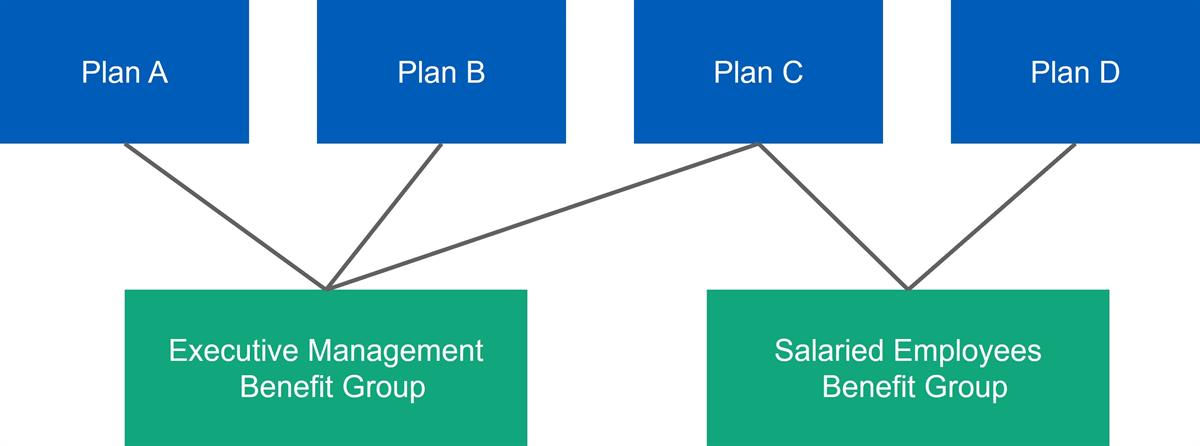
In the example above, Plan C links to the Executive Management and the Salaried Employees benefit groups. Then Plan C enrollment rules are based on benefit group membership.
Benefit Plan Mapping
The Benefit Plan Mappings tab of a benefit group provides the ability to map an employee's current election to another election. When you discontinue a benefit plan and you want to convert employees to a new plan automatically, you can use benefit mapping.
When you run open enrollment, Workday checks if the benefit group has benefit mapping defined. If so, a confirmation page displays the benefit mappings. If an employee goes through a standard enrollment, Workday will automatically map them to the new corresponding plan.
Note
: For Benefit Plan Mapping, both plans need to align and have the same coverage targets. For example, both plans use EE Only, EE + 1, EE + Family.Benefit Credits
Workday delivers a flexible framework for applying benefit credits. You can create benefit credits and apply them to:
- A benefit group.
- Coverage types within a benefit group.
- Healthcare, insurance, or additional benefit plans.
- Healthcare rates and specific coverage targets.
Workday delivers 38 types of flex credits. Create benefit credits based on Workday-delivered benefit credit types. These delivered benefit credit types are based on dependent, employee, and enrollment information. The following list provides the criteria to award employee credits.
Employee Work Data-Based Credits | ||||
|---|---|---|---|---|
Employee Earliest Union Seniority Based Credit (Plan Only) | Employee Work Site Based Credit (primary) | Flat Rate Credit | Benefits Length of Service Based Credit (Plan Only) | Benefit Annual Credit Based Credit |
Employee Active Union Membership Based Credit (specify union and value) | Employee Management Level Based Credit | Employee FTE-Based Credit (ranges of FTE) | Primary Position's Company-Based Credit | Insurance Cost Lookup Credit (Use the value of an insurance coverage, 2x salary, to define credit) |
Employee Last Performance Rating Based Credit (value for each overall rating) | Employee Retention Risk Based Credit | Primary Position's Staffing Organization Based Credit | Primary Position's Supervisory Organization Based Credit | Time in Primary Position Based Credit |
Employee Compensation-Based Credits | ||||
|---|---|---|---|---|
Employee Compensation Plan Based Credit | Employee Compensation Package Based Credit | Employee Compensation Grade Profile Based Credit | Employee Compensation Grade Based Credit | Salary Source Based Credit (Plan Only) |
Dependent Data-Based Credits | |||
|---|---|---|---|
Total Number of Dependents Eligible for Plan (Plan Only, ranges of total number of dependents) | Total Number of Dependents Enrolled in Plan (Plan Only) | Employee's Total Number of Active Dependents Based Credit (ranges of the number of dependents) | Employee's Existing Types of Dependent-Based Credit (e.g., if you have a spouse you get the credit) |
Dependent Full-Time Student Status Based Credit (Plan Only) | Dependent Age Based Credit (All Active Dependents) | Types of Dependents Enrolled in Plan (Plan Only) | Types of Dependents Eligible for Plan (Plan Only) |
Dependent Tobacco User Based Credit | Dependent Wellness Program Participation Based | Dependent Wellness Score Based Credit | |
When creating some types of credits, the system assigns an amount to a status or value. For example, you could define a range of wellness scores and enter a value for each range. Create or edit benefit credits to associate with values. The example below illustrates an employee wellness credit score and the associated values.
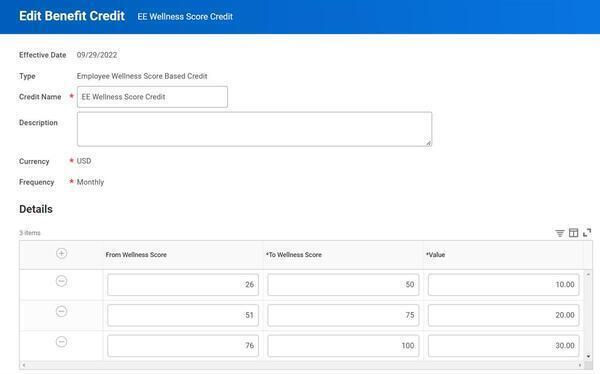
Resource
: To learn more about benefit credits, refer to Workday Community and the Administrator Guide documentation. Search for: Benefits Credits and Surchanges
.Benefit Eligibility Rules
Worker-related data fields and values are available as criteria to define benefit group eligibility rules. The employee is eligible when they meet the eligibility rules specified.
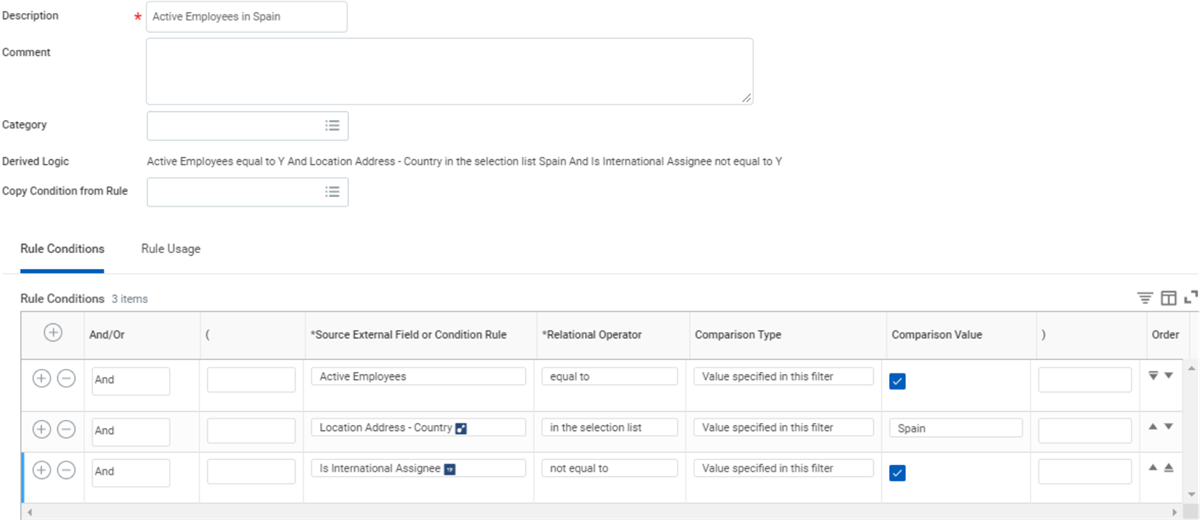
There are three primary components to benefit eligibility rule criteria.
- First is the source external field or existing condition rule. There are many delivered fields and values to choose from, including commonly used values such as active status, job profiles, total FTE, and Base Pay as of December 31.
- Second is the relational operator. This indicates the relationship between the field and the text, number, date, field, or other comparison data value.
- Third is the comparison value. The comparison value is dependent on what source external field is selected.
Since the relational operator and compare values will change dynamically based on what field you select, always enter data from left to right.
Touchpoint
: When you create a benefit eligibility rule and select criteria, it is important to understand what employee data you are tracking. These data points include: what employment dates populate, what organization types you use, and what data needs to be designed to meet unique eligibility drivers. If the data is not in the system, or changed without considering the benefit setup, eligibility will not calculate correctly.When you create a benefit eligibility rule, select one of the six types of rules:
- Benefit Group
- Benefit Plan
- Dependent Benefit
- ACA 1095-C Tuning
- ACA 4980H Safe Harbor
- ACA Measurement Period
Additional Training
: ACA is not in scope for this course. For more hands-on ACA support, the Workday Customer Enablement team provides Office Hours sessions.