
Navigating Benefits
Overview
Navigating Workday is simple with the power of the objects, various search capabilities, and multiple navigation tools. In this chapter, you will practice navigating Workday and discuss methods you can use to find tasks, reports, and business objects.
Objectives
By the end of this chapter, you will be able to:
- Demonstrate basic navigation techniques.
- Describe the responsibilities of the Benefits Administrator and Benefits Partner security groups.
- Complete a benefits event process.
Navigation Basics
Navigating Workday is intuitive once you become familiar with the different tools and techniques available. For basic navigation, you should be familiar with the following:
- Application Header
- Worker Profile
- Business Objects
- Related Actions
- Applications and Worklets
- Dashboards and Hubs
Application Header
The application header includes navigation features that always display for users. The following table lists and describes the basic navigation features.
Navigation
Feature | Description |
|---|---|
Global
Navigation Menu | Displays a selection of applications and shortcuts. |
Workday Logo | Returns you to the Home page. |
Search | Enables you to locate reports, tasks, or Workday objects such as organizations, period schedules, and employees. |
Notifications | Displays a badge count for your unread notifications and takes you to your Notifications page. |
My Tasks | Displays a badge count for your incomplete action items and takes you to your My Tasks. |
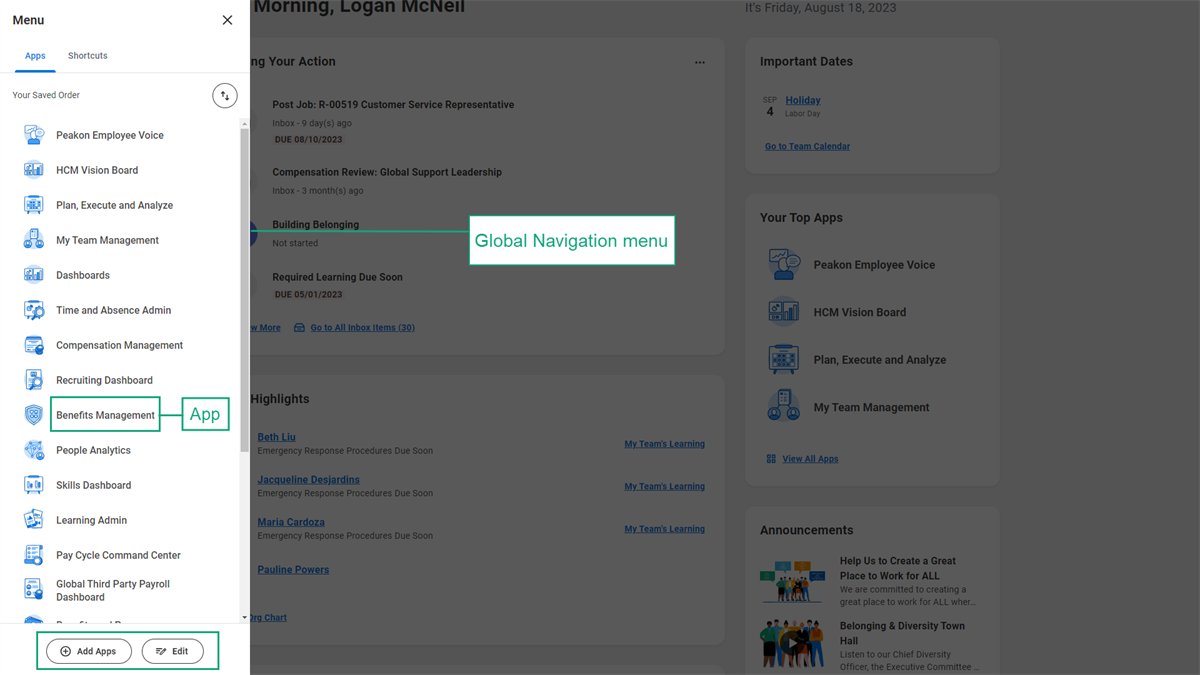
Global Navigation Menu
The Global Navigation menu gives you access to all available Apps. You can also configure your App list and shortcuts to access favorite tasks, reports, and more. This menu is a part of the application header, so it follows you wherever you go in Workday.
Search
Use the Search bar in the application header to search for tasks, reports, business objects, and more. When you perform a search, Workday displays type-ahead results and saves your recent searches.
Predictive Search
Predictive Search functionality provides you best-matched search results with minimal typing. Using the Search bar, enter at least three characters to display predictive suggestions. Workday processes each term or character string separately. So, if you enter two terms separated by a space, the system searches for objects containing both terms regardless of whether the terms are next to each other. Note that search suggestions and results are based on your security permissions.
Predictive Search best practices:
- Keep searches simple.
- Avoid general terms like "find," "edit," "maintain," or "create." Using a general term returns more results, making it harder to find what you are searching for.
- Search for multiple terms to narrow down your search.
Exact Match
Use Exact Match to search for a specific item. Workday returns the exact match first, in addition to any other similar results. Typically, Exact Match is used for employee IDs, emails, and phone numbers. For example, if you search for Gail Bradley's employee ID, 21097, the system returns one result: Gail Bradley's employee object.
Prefixes
Search prefixes restrict search results to a particular type of Workday object, quickly narrowing down results. For example, the "bp" search prefix restricts search results to business process definitions. To view a report of all search prefixes, enter a question mark (?) in the Search box.
Hint
: You can also view a list of all prefixes from the global search by selecting View Search Tips.Here are some common search prefixes to get you started. Make sure you enter a colon (:) after the search prefix, followed by your search term.
Search Prefix | Object Type Returned |
|---|---|
org | Organization |
sup | Supervisory organization |
bp | Business process definition |
loc | Location |
field | Report field |
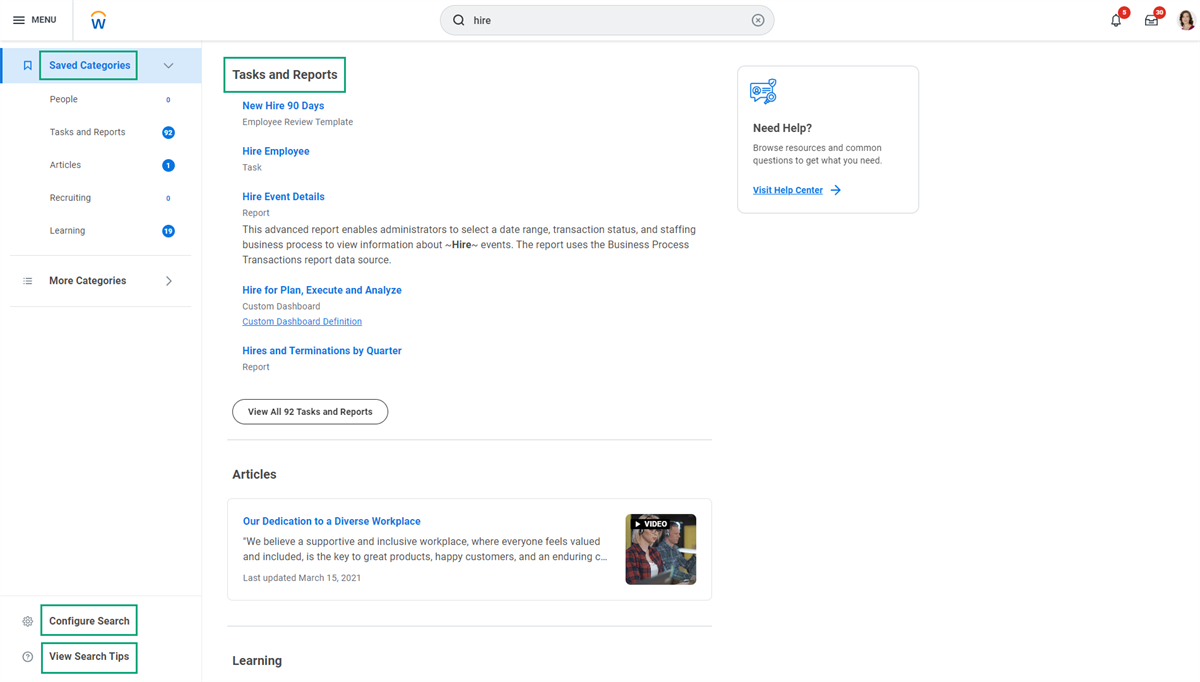
Global Search
Global Search is a core navigation tool in Workday. The Global Search Results page contains key areas:
Term | Definition |
|---|---|
Saved Categories | Saved categories produce faster and more accurate results tailored to a specific area of interest. On the Search Results page, select a search category from the categories panel on the left side of the screen. Workday automatically displays the saved categories: Articles, People, Tasks, and Reports. |
More Categories | Additional categories that users can select to filter the search results. You can add any of the items in More Categories to your Saved Categories. |
Configure Search | You can customize search categories for each user. Drag and drop to reorder your saved and more categories. |
View Search Tips | Tips on better ways to search. This includes information about how to use prefix words and a list of all prefix words. |
Search Results | Suggested results display the most relevant results, based on the categories selected. |
Notifications
From the application header, access your Notifications page to review notifications regarding business processes and rule-driven alerts (e.g., birthdays, time off). From the Notifications page, you can filter, sort, and refresh your notifications. You can also mark all notifications as read.
My Tasks
You can access your My Tasks from the application header or Home landing page. The All Items section is an activity stream that displays tasks and approvals that require action. The Archive section displays past actions and business process statuses completed within the last 90 days.
By default, the My Tasks displays the newest items first. From the All Items section, you can use the search bar. You can also save searches. There is also a Filters section that allows you to filter and sort your My Tasks items. You can use the Manage Filters link to create your own My Tasks filters using condition rules.
Here are a few common filters that you may use:
Filter | Description |
|---|---|
Favorites | My Tasks items you starred. |
Overdue | Business process items past their due date. |
All To Dos | All current to-dos awaiting your attention. |
Bulk Approvals
If you have multiple approvals awaiting action in your My Tasks, you can use the Bulk Approve functionality. From My Tasks, select the Bulk Approve tab, and then you can select the items you want to approve in bulk.
Worker Profile Menu
Elements | Description |
|---|---|
View Profile | Provides quick access to your worker profile. |
Home | Uses one consolidated view to display applications and gives users access to information and commonly used tasks. |
My Account | Allows you to change your password and user account preferences. |
Workbench
| Provides technical administrators and implementers easy access to the tools they need to create and manage custom reports, calculated fields, analytic indicators, and other administrative tasks and reports. |
Sitemap | Displays a list of the standard reports and tasks available to you, sorted by functional category. |
Favorites | Provides access to a configurable list of favorite business objects, reports, and tasks. You can use Favorites when searching in prompts. |
Audit | Displays a list of all the audit reports and tasks available to you, sorted by functional area. |
Drive | Provides a central place to store your Workday files. You can set up Drive to consolidate file management for several file types in Workday. Examples include Worksheets workbooks, plan workbooks, Microsoft® Excel® and Word® files, images, media files, and PDFs. |
My Reports | Includes a virtual drive that can store your generated reports. When a new report is available, a notification will display in the header and in your Inbox. You can also tag reports sent to My Reports to make them easier to locate. |
Documentation | Opens a new browser tab and takes users to the Administrator Guide section of Workday Community. You can use Workday documentation to obtain information on objects, system configuration, or procedures. |
Help | Opens a new browser tab and directs your workers to your training and help documents. Use the Edit Tenant Setup - System task to update the link to this page. To add other links, such as one to your support center, create a Quicklinks application and include the links as required on the Home page. |
Business Objects
Workday uses an object model to drive navigation and reporting. The power of objects means when you locate an object in Workday, you can perform an action on it.
Workday automatically links related business objects together. When you view a page in Workday, most of the items on the screen are links. When you mouse over objects, a Related Actions icon displays. This icon makes reports and pages actionable. The options that display in the Related Actions will vary on the system user's security permissions.
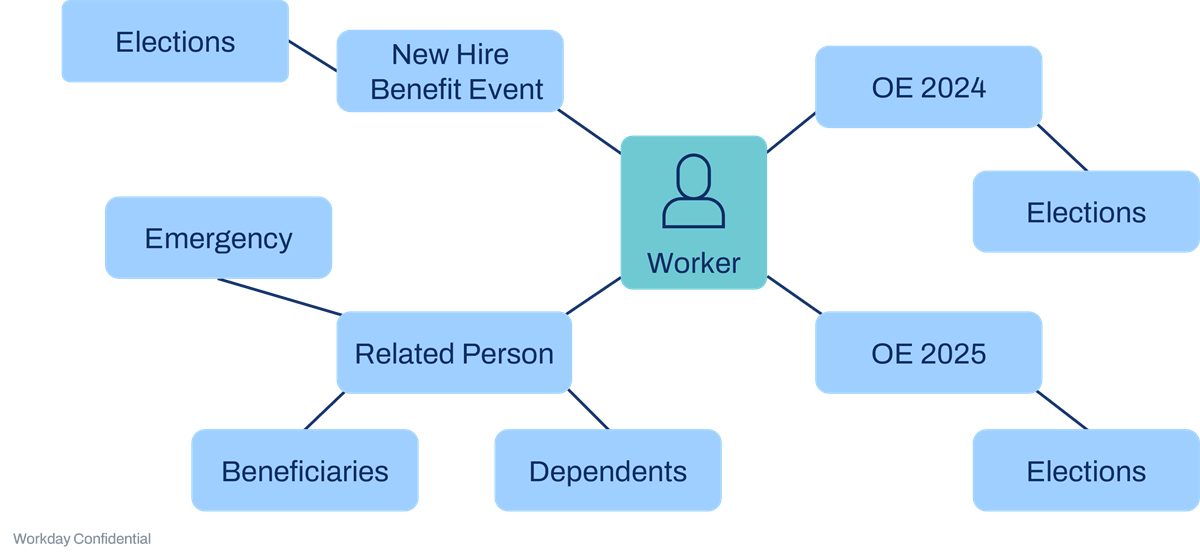
The diagram below illustrates a worker as the primary business object. From the worker object, there are related business objects, such as new hire events or related persons, such as their dependents or beneficiaries. Each related object links to the worker object and creates groupings of object relationships. For example, the worker links to an Open Enrollment (OE) event. That OE event links to benefits elections for that worker.
Related Actions
The Workday object model drives navigation and reporting. For example, when you view a page in Workday, the page often consists of many links, or objects. Some of those objects have a Related Actions icon next to them, which you can use to take action on that object. The actions available to you depend on your security.
You can find the Related Actions:
- By hovering over an object's link.
- In the blue header bar of a task or report.
Applications
Applications display on a Workday landing page. These reports provide quick access to frequently referenced data and tasks. Your security group determines required and optional applications for the group. You cannot remove or rearrange
required
applications. However, you can add or remove optional
applications. Security determines which applications are available. For example, the Personal Information application is available to the Employee-as-Self security group. So, all employees can view the Personal Information application. Alternatively, My Team Management application is only available to managers.Worklets
It may seem the terms Worklet and applications are interchangeable; however, an Application (previously called worklet) is on the Home Screen. A worklet is one of six mini-reports on a dashboard.
Benefits and Pay Hub
Workday delivers a Benefits and Pay Hub to provide a convenient single location for employees to review and maintain benefits, compensation, and payroll information. The Hub also provides access to useful reports to enable employee self-service.
To use the Benefits and Pay Hub, enable and set up the Self-Service: Benefits and Pay Hub and Self-Service: Compensation History security domains to provide employees appropriate access. The configurable hub can also contain announcements, suggested links, and cards with display options that meet your organization's specific needs.
Initiating and Navigating Benefits Events
There are multiple ways to navigate to, and initiate benefits events in Workday. Basic navigation techniques, such as accessing the Benefits and Pay application, using the Related Actions for an employee, or searching for a task make processing Benefits transactions intuitive.
Compensation and Benefits
It is common to refer to allowances and time off plans as benefits to the employee. Below are common definitions for Workday Compensation and Workday Benefits:
Compensation | Benefits |
|---|---|
Financial reward in return for services. | Nonfinancial reward considered a "perk." |
Employee receives cash in their paycheck such as an internet allowance. | Employee does not receive cash such as a pension or healthcare plan. |
Performance-related such as a bonus or merit increase. | Not performance related. |
Regular or ad hoc compensation such as a stock grant or spot bonus. | Regular nonfinancial incentive such as a pension. |
Management negotiates and approves compensation. | Assign, elect, or waive benefits. |
No cost to the employee. | Compulsory benefits are typically free of charge. Optional benefits have a cost to the employee. |
Note
: In Europe, management negotiates and approves benefits that are part of compensation in Workday.Organizations
Workday supports many types of organizational structures. The supervisory organization is the primary organizational structure for Workday HCM. All workers are hired into supervisory organizations, which define reporting relationships.
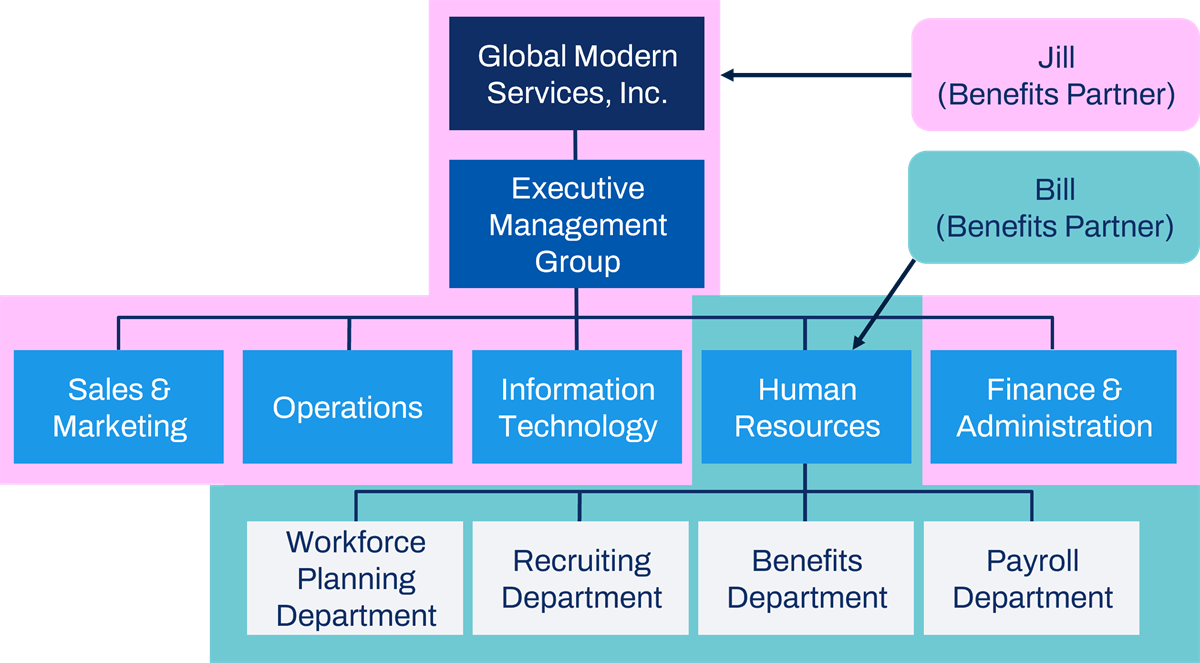
The Benefits Partner role-based security group has view and modify access to employees based on the supervisory organizations or location hierarchies they support.
Security
There are two security groups commonly used to manage and process benefits:
- Benefits Partner
- Benefits Administrator
The Benefits Partner is an organization role assignment associated with the Benefits Partner role-based security group. Most commonly, this role controls access to worker data based on supervisory organizations. You can also enable this role for usage on other organization types such as company hierarchy and location hierarchies depending on your business requirements. A Benefits Partner manages benefit enrollments for the employees who are also members of the organizations they support.
The following table is a partial list of what security access a Benefits Partner may receive:
Operation | Security | Functional Area |
|---|---|---|
View | Set Up: Benefits | Benefits |
Worker Data: Personal Data | Personal Data | |
Worker Data: Home Contact Information | Contact Information | |
Worker Data: Compensation | Core Compensation | |
Job Information | Jobs & Positions | |
Worklet: Benefit Partner Organizations | Benefits | |
View and Modify | Worker Data: Benefit Elections | Benefits |
Worker Data: Insurance Calculated Coverage | Core Compensation | |
Manage: Benefits for Organizations | Benefits | |
Worker Data: Benefits | Benefits | |
Worker Data: Leave of Absence | Time Off and Leave | |
Worker Data: Add Dependent in Benefits Enrollment | Benefits | |
Business Process Permissions (Initiate) | Change Benefits | Benefits |
Change Retirement Savings | Benefits | |
Dependent Event | Benefits | |
Review COBRA Eligibility | Benefits |
The Benefits Administrator is a user-based security group and has tenant-wide access for configuration. The responsibilities of the Benefits Administrator include setting up all benefit components, as well as managing employee enrollments.
Below is a partial list of what security access a Benefits Administrator may receive:
Operation | Security | Functional Area |
|---|---|---|
View | Worker Data: Compensation | Compensation |
Worker Data: Personal Data | Personal Data | |
Worker Data: Staffing | Staffing | |
Job Information | Jobs & Positions | |
View and Modify | Worker Data: Benefits | Benefits |
Worker Data: Benefits Annual Rate | Benefits | |
Worker Data: Dependents | Benefits | |
Affordable Care Act (ACA) Administration | Benefits | |
Process: Open Enrollment | Benefits | |
Set Up: Benefits | Benefits | |
Business Process Permissions (Initiate) | Change Benefits | Benefits |
Change Benefit Jobs | Benefits | |
Passive Event | Benefits | |
Review COBRA Eligibility | Benefits |