
Worker Trending
Overview
Workday offers the capabilities of an HCM data warehouse via the Trended Workers data source. By tapping into this resource, you can report on snapshots of worker data from prior periods and track metrics such as hires and terminations over periods of time. This chapter will cover the features of the Trended Workers data source, requirements for maintaining Trended Workers data, and configuration steps for building Trending reports using Trended Worker data.
Objectives
By the end of this chapter, you will be able to:
- Distinguish the characteristics of Trended Workers data in Workday.
- Outline the trended data creation and update process.
- Use the Maintain Trended Workers task to configure the Trended Workers data source.
- Create custom Trending reports using Trended Workers data.
- Recognize calculate metrics such as turnover rate.
Worker Trending Overview
Worker Trending consists of the Trended Workers data source and business object that provide unique views and insights into worker data. This data includes selected worker data that is optimized for trending and retrieval purposes. The Trended Workers data source is unique in that it acts like an HCM data warehouse, kept up to date by an automatic trickle update process that runs in the background.
Most trending reports use the Trended Workers data source. When using the data source, you can:
- Add up to 15 single instance fields (i.e., Boolean, numeric, etc.) each from the Worker and Worker Business Process business objects.
- Add Workday-delivered fields.
- Create calculated fields.
- Secure fields that you add to additional security domains.
- Select if numeric fields do not sum over multiple periods.
- View field usages in reports.
Trended Workers includes two types of data:
Activity Data
- Staffing events and reorganizations
- Hire, Termination, Promotion, Transfer in and out
- Time is a natural component of these events
Snapshot Data
- Snapshot of active worker data at period end
- Headcount; biographical and compensation data
You can combine activity and snapshot data to calculate additional metrics to use on trending reports.
Record Date
Record Date is a field on the Trended Workers object that tracks the date on which the event or snapshot was recorded.
Workday captures activity data based on the Effective Date of the event. This date is tracked as the Record Date.
Example
: If a Hire has an Effective Date of 10/20/2021, the Trended Workers object tracks that Hire event as having a Record Date of 10/20/2021.Workday calculates snapshot data based on worker data as of the last second of the last day of each period. Thus, all Snapshot data has a Record Date of the last day of the period.
Example
: For the same Hire event that took place on 10/20/2021, the hired worker would have snapshot data (e.g., starting salary) with a Record Date of the last day of the period (e.g., 10/31/2021).When processing events that take place on the last day of the period, Workday processes all activity data for that date first, and then takes the snapshot. Thus, workers terminated on the last day of a period will not be included in the headcount for that period because they are no longer considered active.
Note
: A setting in the Maintain Trended Workers
task allows you to optionally include terminations on the period end date, counting termination events for those workers one day after the Effective Date.Data Source Filters
Trended Workers includes data source filters that can apply to reports built using the Trended Workers data source:
Filter | Description |
|---|---|
Default Filter | Most Workday-delivered trending reports use this filter. It contains the following built-in prompts:
*Required prompts |
Trended Workers for All Organizations | This filter contains the same prompts as the Default Filter, in addition to prompts for Organization and Include Subordinate Organizations. It filters data by organizations that the user can access by roles for the Trended Worker Data domain. Supported organization types include Supervisory Organizations, Company, Cost Center, Location Hierarchy, and Region, as well as Custom organization types configured using the Maintain Trended Workers task. |
Trended Workers for Planning | This filter contains the same prompts as the Default Filter, in addition to prompts for Organization, Include Subordinate Organizations, Plan Structure, and Plan. It filters data by organizations that the user can access by roles for the Trended Worker Data domain. |
Configure Security
Access to Administrator Tasks
Access to two domains is important for creating and maintaining Trended Worker data. Be sure that your administrator has access to the following domains and securable items:
Domain | Securable Items |
|---|---|
Set Up: Tenant Setup - Reporting and Analytics |
Note : This domain also provides access to the Trended Worker Transfer In Count by Organization Type field. |
Custom Report Administration |
|
Access to Trended Worker Data
To access the Trended Workers data source and delivered trending reports, users must belong to a security group with permissions to the Trended Worker Data domain security policy.
First, make sure you have enabled the domain security if necessary and then add the relevant security groups:
- Run theDomain Security Policies for Functional Areareport.
- Select Staffing.
- Select Trended Worker Data.
- Select the Trended Worker Data domain security policy's Related Actions and select Domain Security Policy > Enable.
- Select Edit Permissions to grant "View" access to the relevant security groups. We recommend that you grant access to the HR Administrator first, for development and testing, before rolling out to other security groups.
- Finally, be sure to Activate Pending Security Policy Changes.
While the Trended Workers domain secures the data source, fields on Trended Workers are secured to various worker data and public reporting domains. For business users to view the output of worker trending reports, they require view access to the domains securing the relevant fields. Some examples of domains that secure fields on Trended Workers are:
- Public Reporting Items
- Worker Data: Public Worker Reports
- Worker Data: Organizations
- Worker Data: Current Staffing Information
- Worker Data: Compensation by Organization
Access to Historical Data
Members of unconstrained security groups can view all workers on trending reports. Members of constrained, role-based security groups can view workers for the organizations in which they are assigned the role.
Additionally, when users run reports based on Trended Workers, they view data based on their current security permissions and based on worker data as of the date specified.
Consider two examples that address these points:
Example 1
: If Maria Cardoza took over as HR Administrator and ran a Worker Trending
report that looked back six years, she would have access to the entire 72 months of trended data history, even though she was not the HR Administrator over that full period of time.Example 2
: Managers can view data for workers within the organization they currently support. Let's say it is November 2020 and Jake Lee is promoted to manager of the IT Helpdesk. If a worker was part of that organization from March 2020 - October 2020, Jake would only be able to view data for that worker from that period of time.Set Up Worker Trending
First, you must enable the tenant for Worker Trending. Next, configure the settings for Trended Workers data using the
Maintain Trended Workers
task.- Run theEdit Tenant Setup - Reporting and Analyticstask.
- Select the Enable Worker Trending checkbox.
- Select OK.
- Run the Maintain Trended Workers task.
- Select the Configuration tab.
- Select a Trending Start Date up to 72 months in the past. This determines how far back trending data generate.
- Enter a number from 1 to 6 as the Number of Retroactive Periods. This determines how far back retroactive changes incorporate into the Trended Workers data source on an ongoing basis.
- Select a Trending Period. You may choose to trend data by calendar month or fiscal period, but not both. If you select Fiscal Year-Period, specify the Fiscal Schedule to use to generate the periods.
- Optionally, select the box to Include Terminations on Period End Date if you want workers terminated on the last day of a period to be in the Ending Headcount for that period. By default, Trended Workers calculates Ending Headcount based on active workers as of the last day of the time period, therefore not including workers terminated on the last day of the period. If you select this box, Trended Workers counts termination events for those employees one day after the termination Effective Date, and they will be in the ending headcount for the period.
- Optionally, select the box to Use International Assignments as Primary Position for Trended Workers to include international assignments in headcount reporting.
- Optionally, define Organizations or Additional Fields to include in the Trended Workers data source.
- Select OK.
Create Worker Trending Data
The
Create Worker Trending Data
task creates activity and Snapshot Data for up to six years of history, starting with the most recently completed month. The amount of data generated depends on the Trending Start Date specified in the Maintain Trended Workers
task. After initial data creation is complete, the Trended Workers data source is updated continuously in the background. Steps to create Trended Workers data:- Locate theCreate Worker Trending Datatask.
- Click theConfirmcheckbox.
- ClickOK.
Security Note
: To perform the Create
or Purge Worker Trending Data
tasks you must have access to the Custom Report Administration domain security policy.This task may take some time to complete, depending on the amount of data being generated. Run the
Maintain Trended Workers
task and view the Status tab to see the processing history.Trended Data Update Process
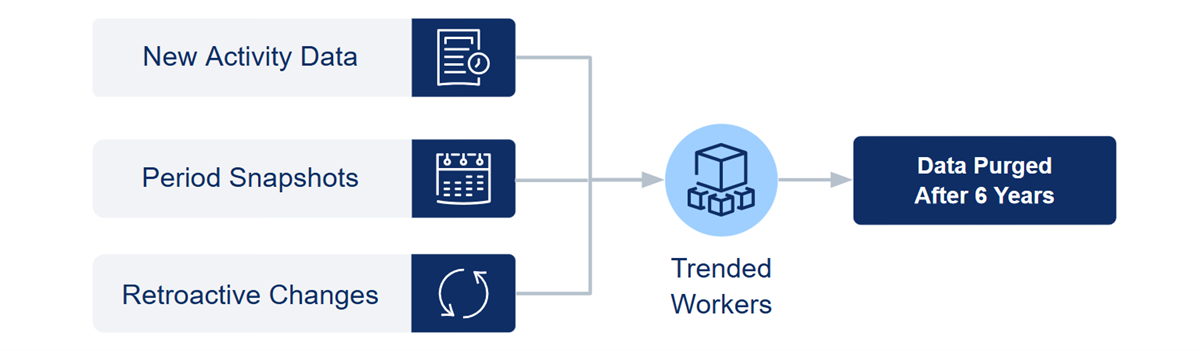
After the initial creation of Trended Data, the data source updates continuously in the background. The following updates will occur:
Trended Workers Data
- New Activity Data: The data source incorporates staffing events and reorganizations as they occur. Future dated activity is included if the Effective Date is within the current month.
- Period Snapshots: The data source incorporates snapshots from prior periods during initial data creation. Data for the current period is available on the first day of the period and updated continuously based on data effective as of the last day of that month.
- Retroactive Changes: The data source incorporates retroactive changes to Trended Worker data occurring up to six periods in the past, depending on the configuration on theMaintain Trended Workerstask.
- Old Data: Data older than six years will automatically be purged from the Trended Workers data source.
Example
: Dorothea has a Hire effective date of 7/21. If you run the Worker Trending Audit
report on 7/15, there will be an Activity row for Dorothea's Hire event with a Record Date of 7/21, and, there will be a Snapshot row for Dorothea with a Record Date of 7/31.Tasks for Updating Trended Worker Data
You can use the following two tasks to update Trended Worker data:
Task | Description |
|---|---|
Create Worker Trending Data | This task creates or recreates trending data up until the Trending Start Date. Use this task anytime fields are added, updated, or deleted from Trended Workers. You can also use it to incorporate retroactive changes more than six periods in the past. |
Purge Worker Trending Data | This task deletes all trending data. Use this task before changing settings on the Configuration tab of Maintain Trended Workers . such as to switch from a monthly to fiscal period or vice versa. Purge the data, change the configuration setting, and then recreate the data. Also use this task if you want to delete all trended data and disable the ongoing collection of trended data. |
Convert from Trending by Month to Fiscal Period
In some cases in which Worker Trending is already enabled for a tenant, you may want to convert from reporting on monthly intervals to fiscal period intervals.
Follow these steps to convert from trending by calendar period to fiscal period:
- Run thePurge Worker Trending Datatask.
- Run theMaintain Trended Workerstask and modify the Trending Period to specify a fiscal schedule.
- Run theCreate Worker Trending Datatask.
- Copy the standard trending reports and any custom trending reports, replacing the existing Group by Time Period field value with the fiscal schedule.
Key Features of Trending Reports
Like the matrix report type, trending reports allow for grouping, aggregation, and interactive drilling across dimensions. The trending report type requires you to define the time period as either the row or column grouping.
Note
: You can use the matrix report type with the Trended Workers data source by defining a lookup date rollup as a grouping.Reporting on Trended Workers Data Source
Delivered Worker Trending reports use the Default data source filter. This filter returns supervisory organizations based on the security of the user running the report. We recommend the Trended Workers for all Organizations filter because there is a built-in prompt for Organization. Users can view results based on organizations defined on Trended Workers and that they can access via domain security.
For improved report performance, we recommend using built -in prompts rather than defining filters on the report:
Prompt | Description |
|---|---|
Time Series Start and End Date | Returns data up to six years in the past. We recommended determining the default value at runtime and specifying a default value for history you would like to view. |
Record Type | Optionally specify snapshot or activity, depending on the fields included in the report. |
Worker Types, Employee Type, and Contingent Worker Type | Use to filter the data by a specific worker population. |
Active | Select to include only currently active workers. |
Remove Exclude from Headcount | Select this option to negate the Exclude from Headcount setting on a position and include workers in those positions. |
Additional Features
Reports that use the Trended Workers data source typically use Sum, Average, or Calculation as the summarization type for metrics.
Since Trended Workers is an indexed data source, you have the option to include facet filters. Most delivered Trended Worker reports include facet filters. Fields you have added to Trended Workers are available as facets because they are indexed fields.
Delivered Trending Reports
Workday delivers several reports built using the Trended Workers data source that you can use as a starting point for your Worker Trending reports. Below are a few examples of the delivered reports.
Report Name | Description |
|---|---|
Average Total Compensation by Country and Quarter | This report returns the average total compensation based on primary compensation basis by country for the current quarter and last 12 quarters. |
Headcount by Supervisory Organization Hierarchy and Month | This report returns the active worker count by supervisory organization hierarchy and month for the time series specified at runtime. |
Hires and Terminations by Quarter | This report returns the number of terminations and hires by quarter for the current quarter and last 12 quarters. |
Quarterly Turnover by Organization | This report charts the percentage of voluntary and involuntary terminations by supervisory organization and calendar quarter. |
Span of Control by Quarter | This report returns the average span of control by quarter for the current quarter and last 12 quarters. |
Terminations by Performance Rating and Quarter | This report returns the count of terminations organized by performance rating for the current quarter and last 12 quarters. |
Trended Turnover Summary | This report returns turnover information for selected organizations in the period specified. |
Worker Trending Audit | This report returns all snapshots and activity that occurred within the last six years. |
Define the Time Period
Group by Time Period Field
You must also group the data into time periods to produce meaningful output. If a monthly Trending Period is specified in the tenant setup, trending by any time interval based on calendar month is supported.
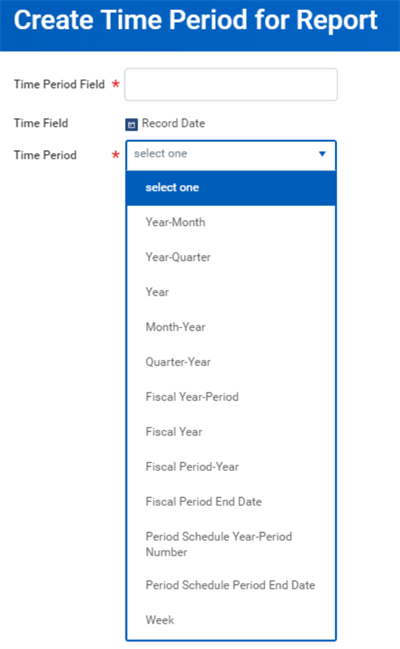
Typically, Workday-delivered trending reports automatically include the fields Year, Year-Month, and Year-Quarter as report-specific time period groupings. To define these or other date formats on your trending reports, you can create a time period to include in the report definition.
- Select the Group by Time Period Field prompt.
- Select Create Time Period for Report.
- Enter a Time Period Field name.
- Select a Time Period from the list.
- Select OK to save.
- This creates a report-specific time period for use as the Group by Time Period field.
Note
: To create a time period grouping for use across Worker Trending reports, create a Format Date calculated field on the Trended Workers object.Trending Start Date Considerations
If you have been in production for greater than six years, set the date back 72 months, if you are looking for a six-year trend. If you are looking at a point in time, your start date should be the first day of the month, quarter, year, etc.
If you have been in production less than six years, select a start date important to your organization. It could be January 1, the first day of a specific quarter or period, the date that corresponds to the age of the data in your tenant, or another date.
If you are debugging or troubleshooting, only go back a few periods (a year at most) for faster processing. Remember to adjust the Trending Start Date and recreate your Trended Worker data when you move to production.
Delivered Trended Workers Metrics
Several metrics are delivered as fields on the Trended Workers object. Some metrics are aggregated numeric values such as Years in Position and Annual Base Pay, while others are count values, unique to the Trended Workers object.
Metrics on Trended Workers are derived from either activity or Snapshot Data. Recall that Activity Data includes staffing events and reorganizations while snapshots capture worker data as of a specific point in time.
Example of Snapshot Metrics
: FTE, Time in Job Profile, Primary Compensation Basis, Compa-ratio, Ending Headcount, Manager CountThe "Count" metrics count the number of instances that are true for a particular Count field; e.g. the Hire Count adds a "1" for every hire that took place during the time period specified on the report. Most of the Count metrics on Trended Workers are derived from Activity Data.
Example of Activity Metrics
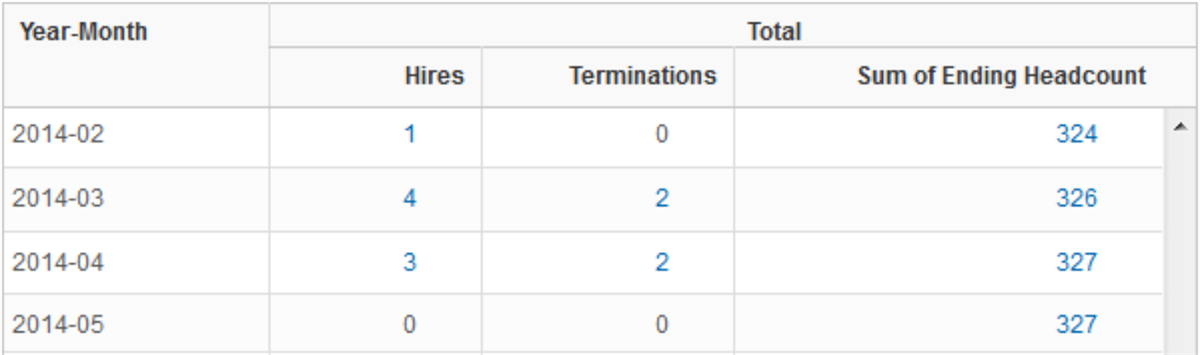
: Hire Count, Transfer In Count, Promotion Count, Termination Count, Involuntary Termination Count, Voluntary Termination CountThe Count values are summarized on Trending reports to provide drillable Summary Calculations within the report output. The report below includes summarization for the Hire Count, Termination Count, and Ending Headcount fields.
Ending Headcount
As delivered, the Ending Headcount metric includes all active workers as of the last day of the time period. In this case, workers terminated on the last day of the period are not counted in the Ending Headcount snapshot for that period.
Alternatively, you can specify that Workday calculate Ending Headcount to include workers terminated on the last day of the period by selecting the Include Terminations on Period End Date check box in the
Maintain Trended Workers
task. Termination events for those employees are counted one day after the termination Effective Date, and Ending Headcount thus includes those employees in the count for that time period.Calculated Metrics: Examples
Turnover Rate
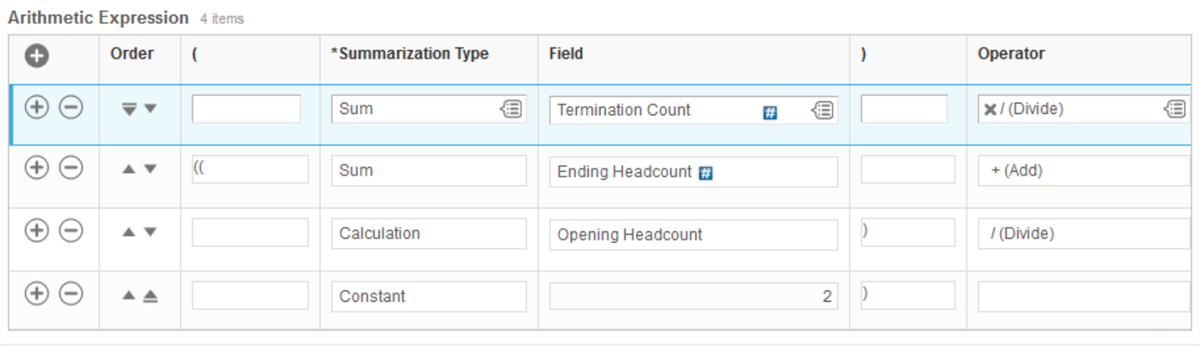
Turnover Rate can be calculated in various ways. The Workday-delivered report,
Turnover Rate by Supervisory Hierarchy and Quarter
, calculates Turnover Rate using the following calculation: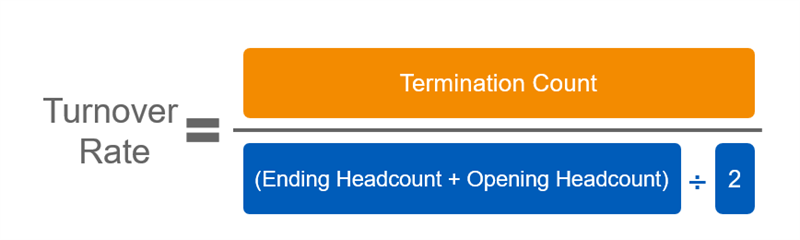
- Delivered Metrics: Termination Count and Ending Headcount
- Calculated Metrics: Opening Headcount
Opening Headcount in Workday-delivered reports is calculated using the Lookup Prior Value function to return the Ending Headcount of the prior period.
- SpecifyCalculationas the Summarization Type.
- Click the prompt for Summarization Field and selectCreate Summary Calculation for Report.
- IndicateLookup Prior Valueas the Function.
- Define the Calculation:Field NameEntry ValueFunctionPrior rollup periodSummarization TypeSumFieldEnding HeadcountPeriod Offset1Return Zero on ErrorYes
- ClickOKto save.
Next, build the calculation for Turnover Rate by creating another Summary Calculation for the report and specifying Summary Calculation as the function:
Rolling Average
Another way to use the Lookup Prior Value function is to calculate a rolling average for a metric, such as Hire Count. Specify
Calculation
as the Summarization Type. To define a Summary Calculation for Rolling Average:- Click the prompt forSummarization Fieldand selectCreate Summary Calculation for Report.
- IndicateLookup Prior Valueas the Function.
- Define the Calculation:Field NameEntry ValueFunctionAverage x time periodSummarization TypeSumFieldMetricNumber of PeriodsNumber of monthsReturn Zero on ErrorYes
- ClickOKto save.
Note
: The "Average x time period" function uses the time period defined for the tenant as the period by which to average. In this training, the tenant is configured to use calendar month as the trending time period.Span of Control
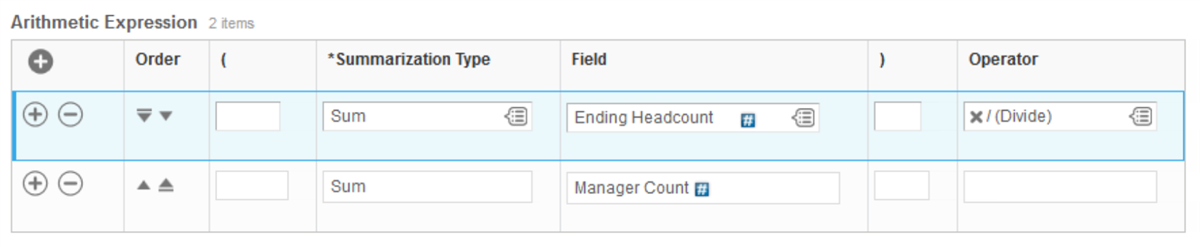
Use the Summary Calculation function to calculate the ratio of workers to managers in the given period. Divide the Ending Headcount by the Manager Count.
Delivered Fields: Ending Headcount and Manager Count
Edit Summary Calculations
To edit the Summary Calculations included in delivered Worker Trending reports you must first copy the report. Use the Report Definition's Related Actions to access the
Maintain Calculated Fields for Report
task. This page allows you to view and edit both regular Calculated Fields included on the report and report-specific Summary Calculations.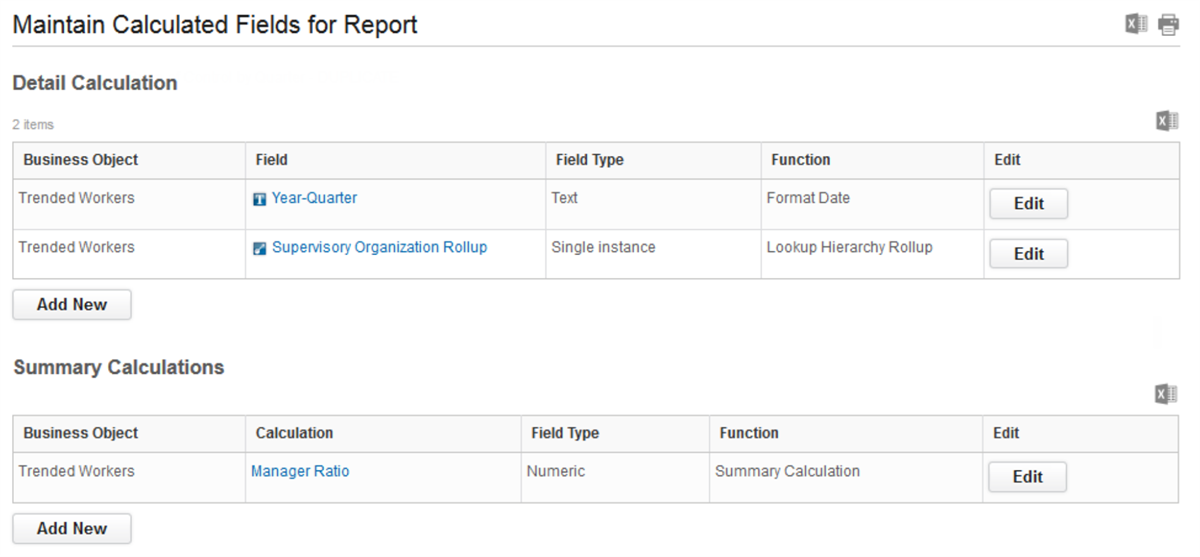
Chapter Summary
Key Takeaways:
- The Trended Workers data source is unique in that it acts like an HCM data warehouse, kept up to date by an automatic update process that runs in the background.
- Configure the settings for Trended Workers data using theMaintain Trended Workerstask.
- Trending reports allow for grouping, aggregation, and interactive drilling across dimensions. They also require you to define the time period as either the row or column grouping.
- Workday delivers several reports built using the Trended Workers data source that you can use as a starting point for your Worker Trending reports.
- You must define the Time Field for Trending reports because it will be referenced to determine what data to include in the report definition.
- Several metrics are delivered as fields on the Trended Workers object. Some metrics are aggregated numeric values such as Years in Position and Annual Base Pay, while others are count values, unique to the Trended Workers object.
- Calculated metrics that reference metrics delivered in the data source are built directly into the report definition using the Create Summary Calculation for Report task.