
Prompt Configuration
Overview
Workday reports often require manual entry of prompt criteria at runtime. You can create default prompts and prompt sets to facilitate ease of use and speed up the population of reports containing multiple prompt fields. In this chapter, you will configure prompts on a report using a single data source and a report using multiple data sources. You will also configure dynamic prompting to allow the user to decide which level of the hierarchy node to repeat on.
Objectives
By the end of this chapter, you will be able to:
- Explain the use and benefits of using prompts and prompt sets within composite reports.
- Use a prompt set and configure a field to prompt at runtime.
- Use prompts to provide dynamic repeating column groups.
Prompt Configuration
Prompts in Workday allow you to specify certain criteria before you even run a report. In composite reports, prompts determine the selection criteria for running a report. You can configure prompts in the Prompts tab. Prepopulate prompts with a value or set to no default value. In addition, you can have a user enter a value when they run the report. You can also opt to identify each prompt as Required, Do Not Prompt at Runtime, or Do Not Include in Subtitle.
Prompt configuration starts with the subreport, where you determine which prompts appear for a composite report user and if a value should prepopulate in the field.
Reminder
: If any subreport prompt has a selection of Do Not Prompt at Runtime, those prompts will not be available to configure in a composite report. Additionally, subreport prompts within the composite report cannot be deleted.When you pull a subreport into a composite report, you can modify the prompt values that used at runtime. You can also change the prompt settings from running with the default values to prompting the user to input a value.
Settings in Subreport | Behavior in Subreport | Behavior in Composite Report |
|---|---|---|
No Default Value Do Not Prompt at Runtime | No prompt displays when the report runs. | No prompt displays in the report configuration. |
No Default Value Prompt at Runtime | Prompt displays with no value when the report runs. | The prompt displays in the report configuration and you must set it before you can save the column settings. |
Specify Value Do Not Prompt at Runtime | Prompt runs with a preset value when the report runs (no prompt displays). | Prompt does not display in the report configuration (runs with the default setting in the subreport). |
Specify Value Prompt at Runtime | The prompt displays with a preset value that you can modify when the report runs. | The prompt displays in the report configuration screen. If you do not make changes, no prompt appears when the composite report runs (uses the default value specified in the configuration). |
To access the prompt settings for the composite report:
- Select the Report Settings icon.
- Select the Prompts tab. The fields that you marked as "Prompt User for Value at Runtime" in your Column configuration will appear here.
- From here, you can add the default values, select the Do Not Prompt at Runtime checkbox, or choose for it not to appear in the report results, among other options.
If the prompts do not display, remember to select the Populate Undefined Prompt Defaults checkbox.
Workday-Delivered Prompt Sets
Workday delivers several prompt sets, including Financial Composite Reports for Company and Financial Composite Reports for Organization. When you use prompts sets, the Prompts tab must also include the prompt fields defined in the prompt grid. In your column configuration, set the Value Type prompt field to Use Value From Prompt Set. You can map the fields in the composite column to a field in a prompt set or leave them as specific values.
Prompt Set | Prompt Fields |
|---|---|
Financial Composite Reports for Company |
|
Financial Composite Reports for Organization |
|
Tenanted Prompt Sets
You can use tenanted prompt sets to tailor what fields you use in a prompt set. For example, if you have a set of organization reports that never use translations, a tenanted prompt set could include the following: Organization, Company, and Period.
You can create a new prompt set using the
Create Prompt Set
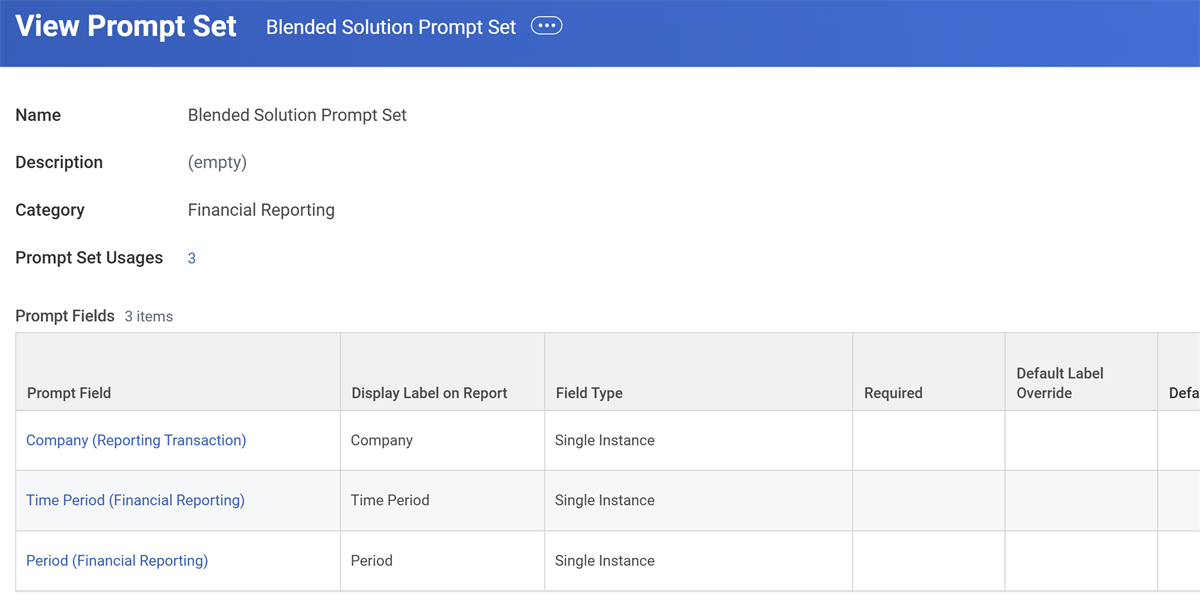
task. You need to name the prompt set, define a category, and define the prompt fields.For example, below is a tenanted prompt set for our blended solution, which also includes Time Period in the prompts.
For both Workday-delivered and tenanted prompt sets, you can use the Prompt Set Usages link to determine where the system uses a prompt set, as seen in the image below.
Region Hierarchy Option
We already reviewed the default for repeating on region. Now, we cover how to use calculated fields to navigate the object model in our subreports and repeat on a specific designated node of the hierarchy. Here we use the calculation field to retrieve the second level on the hierarchy node. We do this by creating a calculated field. Then we update our repeating column group to repeat by the repeating field that uses the calculated field.
Note
: Without the calculated field, we get the lowest leaf node (detail values) of the cost center instance, which might be too much detail.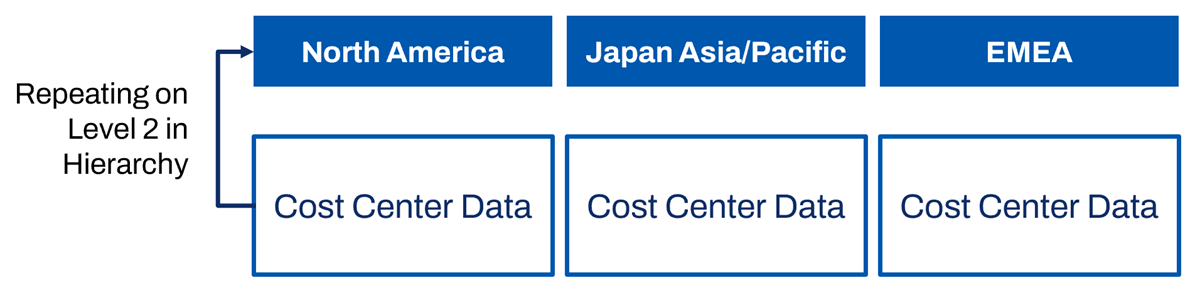
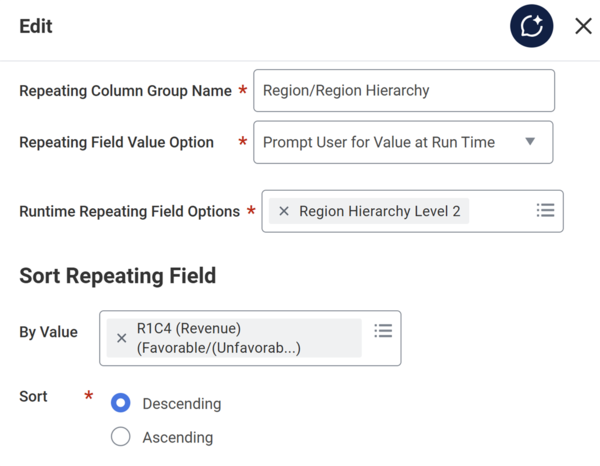
When we edit our Repeating Column Group, we map where the data and configuration options come from. The image below shows the edit screen of selecting a repeating column group. In the image below, the option to repeat on Region Hierarchy Level 2 is selected. The Sort Repeating Field section allows you to select a value to sort by in a specific order.
Lookup Hierarchy Calculated Fields
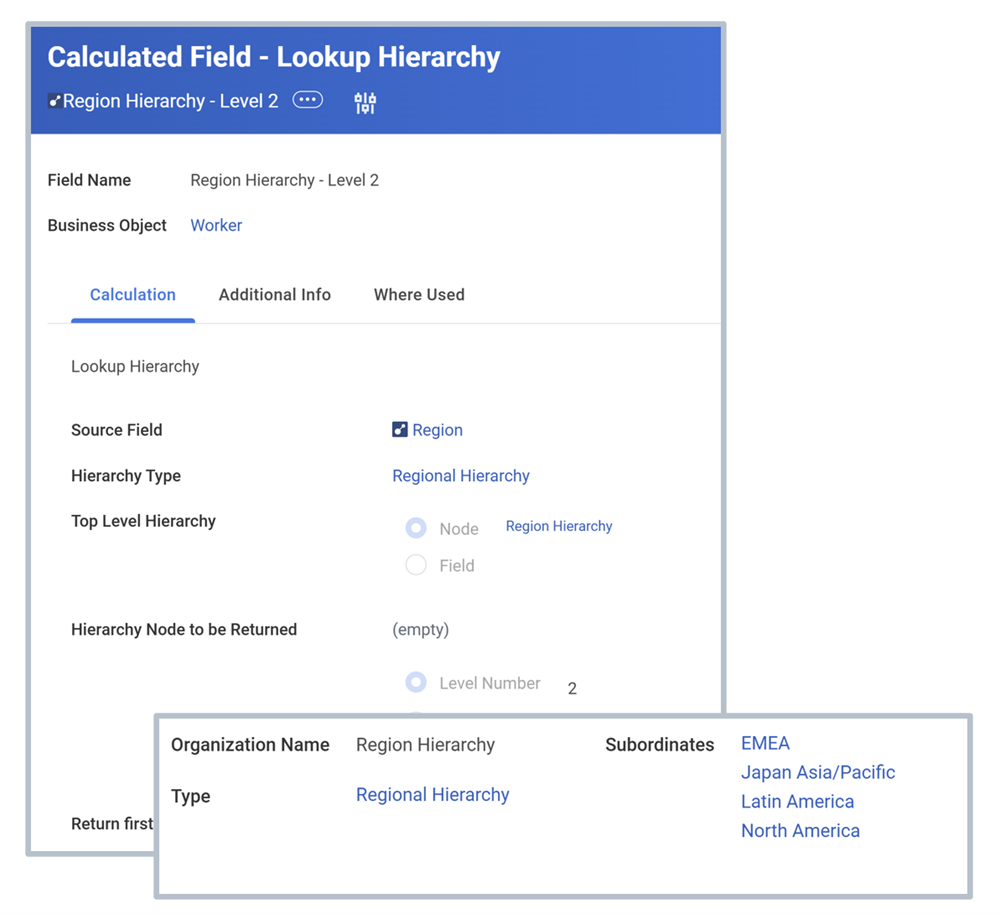
Now, we need calculated fields to look up the region hierarchy at the second level for both Plan Entry Line and Journal Line subreports. We use the Lookup Hierarchy calculated fields to pull this data into our reports. Lookup hierarchy retrieves data from Workday objects with a hierarchical structure and returns a single instance field containing the hierarchy node.
Lookup Hierarchy
The Lookup Hierarchy calculated field reports on hierarchical data in Workday (including custom hierarchies and financial data). Lookup Hierarchy determines a hierarchy node:
- Based on a level number.
- Associated with a level name.
- Related to a field in a hierarchy.
For example, if you provide a cost center name, it returns the associated cost center hierarchy node. Lookup Hierarchy dynamically retrieves data by node from any Workday object that has an associated hierarchical structure. Lookup Hierarchy supports both delivered and custom hierarchies.
Lookup Hierarchy Rollup
Matrix reports use the Lookup Hierarchy Rollup function. This function supports any Workday-delivered or custom structure. It displays matrix report data, stepping through levels of a hierarchy as users drill down. Use defined hierarchies to roll up and drill through summarizations. This feature respects the configured security access control that you have to an organization. When you drill down into the Lookup Hierarchy Rollup field, you start at the highest level that you have security access to in the hierarchy. A blank value returns for data that you do not have security access to.
Process
There are three steps to using a Lookup Hierarchy Rollup field in a matrix report:
- Create Lookup Hierarchy Rollup calculated field and hierarchy type.
- Include Lookup Hierarchy Rollup field as a drillable field in a matrix report.
- Drill through summarization in the report.
Dynamic Repeating Column Group
Use dynamic prompting to allow the user to decide which level of the hierarchy node to repeat on. This is helpful for users with different reporting needs. A user may want the option to select the level at runtime, based on the specific way they want to view the data. For instance, Steve Morgan, the Chief Executive Officer at Global Modern Services, may want to run the report once for the data on Region. He may then want to run it again to get more insight on the second level of the hierarchy to investigate trends he is interested in.
Note
: Dynamic repeating column groups enable the prompt field as required by default. This checkbox however is optional and you can clear it on the Prompts tab to run the report without a repeating column group.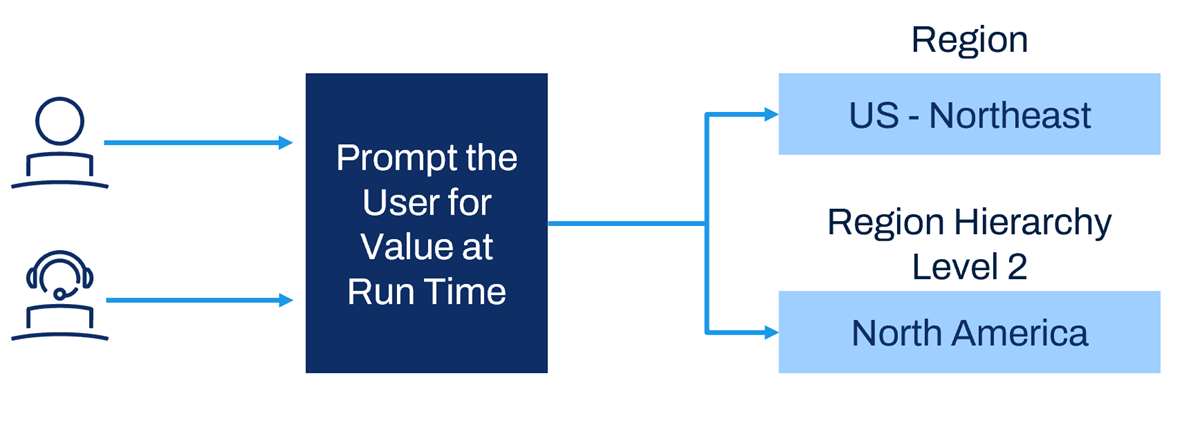
Chapter Summary
- You can configure prompts to determine their behavior at runtime.
- You can set default prompts, have them populate at runtime, or prevent them from running.
- You can use prompt sets in composite reports for managing the prompts coming from their subreports.
- Dynamic repeating column groups allow the report user to pick the value to repeat on at run time.