
Additional Column Configuration
Overview
In this chapter, you will perform additional configuration on your report columns. You can use subreports across multiple reports, making report management more efficient. With a composite report, you can use column filters, multiple control fields, and repeating column groups to refine the information, making the report unique.
Objectives
By the end of this chapter, you will be able to:
- Explain the benefits of using column filters, multiple control fields, and repeating column groups within composite reports.
- Create a column filter to further refine the data in your report.
- Create a repeating column group in a composite report.
- Include multiple control fields in your report.
Column Filters
Column filters allow users to easily compare data across columns instead of rows.
Additional Filter Criteria
Column filters are associated with Data column types. You can find them in the Edit Column window of your composite report data columns.

Use the Additional Filter Criteria section to further refine the data from a subreport. For example, if your subreport is based on ledger accounts, use the Additional Filter Criteria section to specify which specific ledger accounts or hierarchy nodes to include.
Text | Description |
|---|---|
Field | The field that further defines data from the subreport. For example, Ledger Account allows you to select general ledger account numbers to filter and Cost Center allows you to filter the different cost centers. |
Value Type | You can select a Value Type of Field or Hierarchy Node. If you select field, you fill out the Value. If you select Hierarchy Node, you fill out the Hierarchy. |
Hierarchy | The field you select determines the specific values. If you select Ledger Account, you can select nodes in the ledger account summary hierarchy. |
Value | The field you select determines the specific values. If you select Ledger Account, the value of the ledger account appears, i.e., 6000: Revenue. |
Filter Data in Subreport
You create a filter in the Filter Data in Sub Report grid. If you filter at the subreport level, only those filter options appear in the composite report. You can add filtering at the composite report level as well. However, you cannot access items filtered at the subreport level unless you set up the filter as a prompt.
Repeating Column Group
You can set up a Repeating Column Group to set a column or a series of contiguous columns to repeat based on a value. For example, Plan and Actuals columns can repeat for each company or cost center. Workday supports repeating column groups for all column types except control fields.
Repeating column groups enable you to:
- Map subreport dimensions for data cells and columns.
- Reference calculation cells and columns in repeating column groups.
- Sort a cell value in ascending or descending order.
- Use column outlining to expand and collapse various levels of data when the report results display.
As you configure the Repeating Column Group option, consider the following options:
Option | Definition |
|---|---|
Repeating Field | Select a value from the prompt that is a valid dimension in all subreports referenced by the data columns. |
Sort Repeating Field | Select a value from the By Value prompt to sort a cell value in ascending or descending order. |
Outline Data | Select an option from the prompt to enable column outlining. You can expand and collapse various levels of data when the report results display. |
Note
: To use a field as a repeating column group, it must be a row or column grouping in the subreport.Setting up a Repeating Column Group
The process of creating a new repeating column group is easy. At a high level, this is the structure:
- Select the pull-down for the column you want to include in the repeating column group. Select the Repeating Column Group action.
- Identify a name for the group. This does not appear on the report. This name allows you to pick the appropriate group for other columns.
- Identify what the Repeating Field is. Which field do you want to repeat? Cost Center? Region? Or you can prompt for the repeating field at runtime.
- Optionally, set up Sorting Options.
- Optionally, set up Outline Data.
- Select OK.
- For any other columns that you want to include in this group, edit the column, and select the Repeating Column Group name from step 3.
Note
: When creating a Repeating Column Group, the field must exist in a subreport. Also, when combining two columns with two different data sources, the field must exist on both subreports.However, you do not need to reference the repeating field as a business object in the report settings of the composite report. Reference the field as a row or column grouping in the subreports.
Copy and Delete Subreports with Composite Report
Deep Copy
When copying a composite report you have the option to also copy the subreports by selecting the
Copy Subreports
checkbox. This will make a copy of the subreports rather than using the same subreports as in the main composite report. These new subreports automatically:- Get updated.
- Get named to include new composite report name.
Deep Delete
When deleting a composite report in Workday, the
Delete Subreports
checkbox provides the option to simultaneously delete all the subreports that are referenced within that composite report.
This action performs a "deep delete," meaning it removes both the main composite report and its constituent subreports in a single step.However, there are conditions that can prevent deletion:
- You cannot delete composite reports or their subreports if they are scheduled to run as a future process. You must first delete or suspend the scheduled process before attempting to delete the report.
- To delete custom reports, you must have the necessary security permissions. This typically requires access to the Custom Report Management and Manage: All Custom Reports domains within the System functional area.
Multiple Control Field Columns
You can include additional report data sources to add data complexity to your composite report. In addition, you can also have multiple control field columns. In the screenshot below there are three control fields on the report, ledger account, region, and cost center.
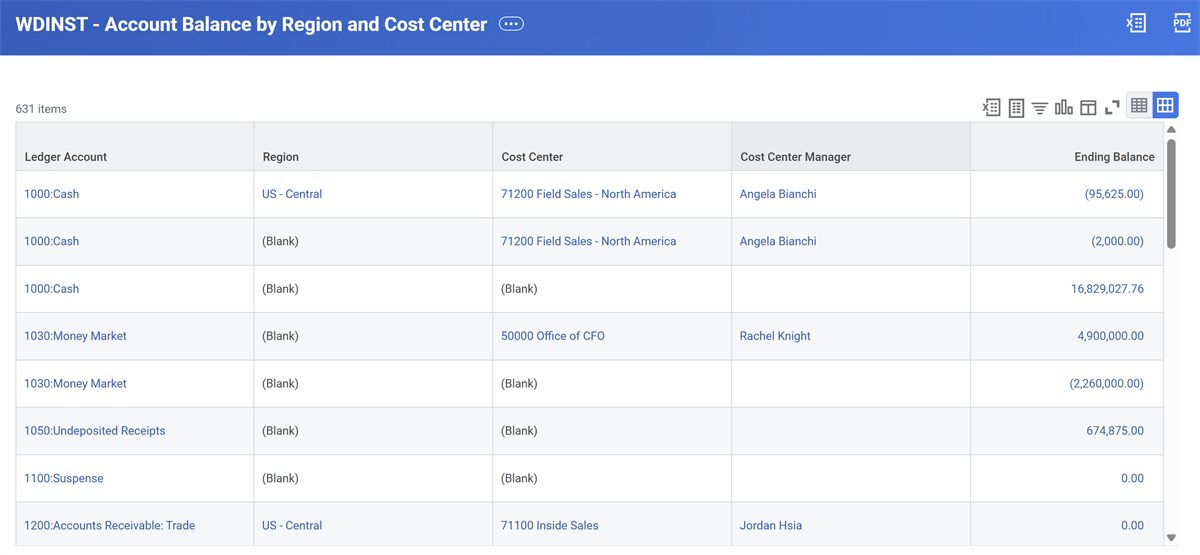
You use a control field with a lookup data row to determine the corresponding filter criteria in the composite report. Each of the subreports for the composite report must contain the control field. Our rows reflect totals across the columns.
A report can contain up to 10 control field columns. You can use the multiple control fields in the filter to further add to the amount of detail you can report on. Examples of using multiple control fields may include:
- Cost Center and Region
- Ledger Account and Cost Center and Region
- Location and Supervisory Organization
Note
: You can only use one control field column with row outlining. You cannot use row outlining if there are multiple control field columns.You can also define a custom organization as a control field column.
Chapter Summary
- You can use column filters to refine data in your report.
- You can use multiple control field columns to include additional report data sources.
- You can use repeating column groups to repeat one or more columns based on a set of values.