
Stock Plans
Overview
Workday tracks stock option awards, process reviews, and approvals of the stock awards.
Update Stock Grants
is a manual standalone task for board member approvals. It is important to note that Workday is not a stock administration tool, but does provide the ability to maintain stock plans and issue grants.Objectives
By the end of this chapter, you will be able to:
- Create a stock plan.
- Create a stock participation rate table.
- Explain how to award stock.
- Run theUpdate Stock Granttask.
Create a Stock Plan
There are three types of stock plans:
- Amount-based plans: Defines a target currency amount then converts that amount to shares. Rounding rules may be necessary to calculate the exact number of shares.
- Percent-based plans: Defines the target as a percent of a compensation basis. Rounding rules may be necessary to calculate the exact number of shares.
- Unit-based plan: Defines a number of shares as the target. Because there are no calculations, you do not need rounding rules.
Below is a list of configuration options for stock plans.
Field | Definition |
|---|---|
Rounding Rule | When Workday calculates the number of shares, it uses the currency amount or percent of salary and divides that by the grant price. The result may not be an even number. Rounding rules tell Workday how to round that number. |
Use Target Currency for Grant | Selecting this checkbox will cause stock grants to display in the currency of the employee's plan target. Only available for amount-based plans. |
Frequency | Only frequency for stock is annual. |
Vesting Schedule | Select the rule that will determine the vesting date for the stock grant. |
Expiration Date Rule | Select the rule that defines when this grant type expires. Use the Maintain Stock Date Rules task to maintain these dates and rules. |
You can also configure percent-based stock plans to use the Workday delivered Eligible Earnings Override (EEO) compensation basis. Also configure one or more EEO periods, then enter or load the values for employees assigned to the stock plan. Include the stock plans and the EEO period at the time of initiating a compensation review and Workday will calculate the stock awards using the EEO.
Important
: Before you edit or create a stock plan, create the stock components you need.Maintain Stock Vesting Schedule
Select the rule that will determine the vesting date for the stock grant.
Maintain Stock Date Rules
The stock date rules allow you to automatically populate an expiration date and a vest from date. The expiration rule is directly on the stock plan. The vest from rule updates the stock awards in the
Update Stock Grants
task.Maintain Stock Grant Types
Workday delivers stock grant categories.
- Long-term cash: The long-term cash grant category is an alternative for long-term incentives outside of equity.
- Options: Stock options give employees the right to buy a number of shares at a price fixed at grant for a defined number of years into the future.
- Stock: Restricted stock and restricted stock units give employees the right to acquire or receive shares by gift or purchase.
Stock Participation Rate Table
The
Create Stock Participation Rate Table
task grants stock to a large population of workers and controls how much each employee contributes to the pool. If an employee is eligible for multiple percentage rates, Workday will use the first one. The stock participation rate table calculates the stock pool instead of the target. During the Initiate Compensation Review Process
, assign the stock participation rate table. Autofill and prefill are not available when using a stock participation rate table.The employee's stock participation rate is viewable during the compensation review process. You will need to add the Employee Stock Participate Rate field to the configurable grid in order to view the rate. The
Stock Participation Rate Table Audit
report displays the employees and the assigned participation rate.Business Case
:
An organization has a total of six employees with an original proposed pool of 500 shares per employee, for a total of 3000 shares. They are using a stock participation rate table with a percentage rate of 80. Therefore, the actual pool is 2400 shares or 80% of each employee's proposed pool.Award Stock
When initiating stock awards, the system will evaluate each employee to determine who is participating in the stock plan. You can grant stock at any time.
Granting Stock
The
Initiate Compensation Review Process
contains various dates and ability to use review ratings. You can enter a stock reason such as performance, tie stock awards to a compensation matrix, and choose to use a stock participation rate table. If you select a stock participation rate table when you initiate a compensation review, a warning message will trigger. This is a reminder that autofill and prefill functionality are not available with this feature.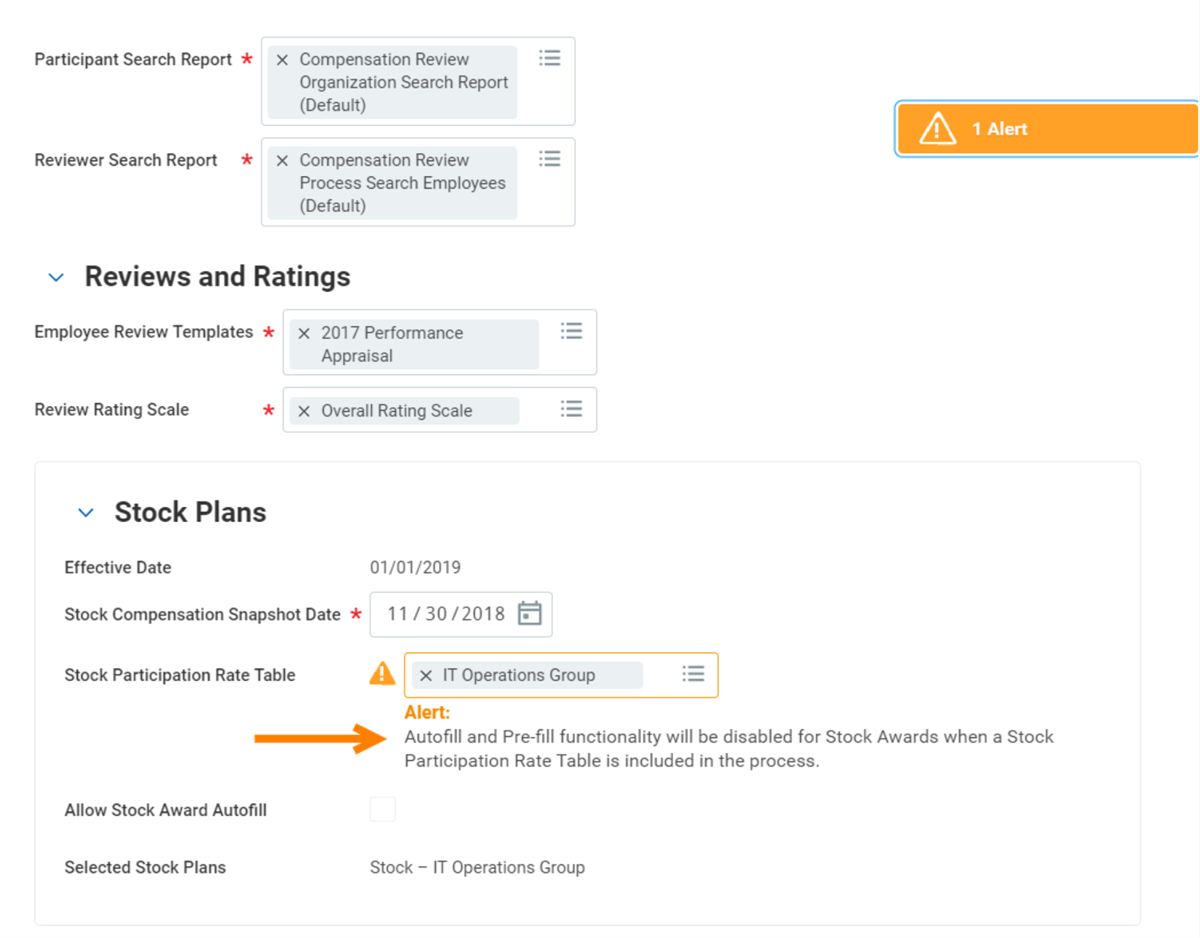
The following process dates impact stock grants:
Options | Description |
|---|---|
Employee Visibility Date | If selected, the date must be after the Effective Date. If not selected, employees can view their pay-related compensation details as of the Effective Date. Displays only if you:
|
Process Period End Date | Workday uses eligibility rules with effective dates to determine:
For example, if an employee is eligible for a plan on 6/1, but the Process Period End Date is 5/31, the employee will not be in the process. |
Organization Snapshot Date | This date determines:
Workday calculates this only once when you initiate the compensation review. After launch, Workday manages in-process organization events according to participation rules. |
Compensation Snapshot Date: Stock Compensation Snapshot Date | Workday uses compensation data as of this date for eligible employees in pool and award calculations. The greater the difference between the Effective Date and the Compensation Snapshot Date, the higher potential there is for a compensation event to create a conflict. |
Deferred Bonus Compensation
Deferred compensation is an arrangement in which a portion of an employee's income pays out at a later date. Deferred bonus compensation is a long-term incentive (LTI) that defers part of an employee's award into long-term cash or equity. A long-term cash stock plan will hold the deferral amounts and associate them to the corresponding bonus plan. During a compensation review process, the nondeferred amount awards as a bonus payment. The deferred amount is a long-term cash (LTC) transaction.
Compensation Review Audit Report
Use the
Compensation Review Stock Award Audit
report to track changes made during the process and who performed the change.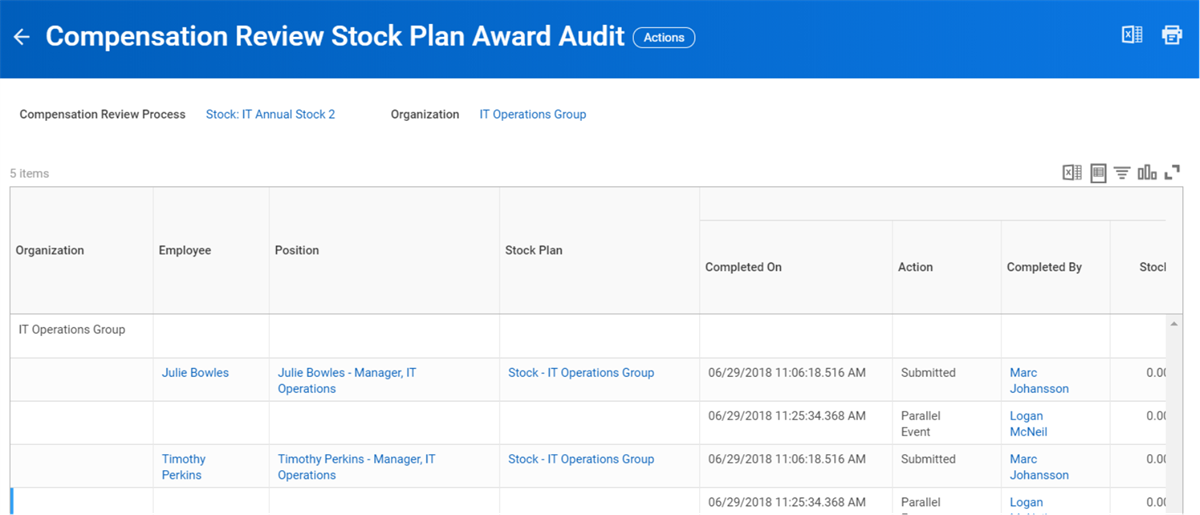
Update Stock Grant
After completing the compensation review, you can use the
Update Stock Grant
task to make changes to stock data. You can initiate this task for one employee or update the data for all employees included in a stock process. The information you can update includes:- Grant Date
- Grant Price
- Currency
- Vest From Date
- Expiration Date Override
- Options Pricing Factor
- Board Approved? Checkbox
You can use the
Update Stock Grant
web service or the Update Stock Grant Events operation type on the Mass Operation Management
task to process multiple employee stock grants at once.Resource
: For additional information on the web service and Mass Operation Management task, refer to Workday Documentation. Search for: Steps: Update Approved Stock Grants
, Set Up
Mass Operation Management
(MOM) task
, or Setup Considerations: Mass Operations on Business Processes
.Board Approval
As part of awarding stock, you can indicate if grants are board-approved. By going from the board approval status of Pending to Approved, Workday makes the award visible to the employee's worker profile.
Additionally, there are two reports you can use to track this information:
- Stock Grants Pending Board Approval
- Employees with Board Approved Stock Grants
These reports reference the Board Approved checkbox to identify employees with boar-approved stock grants.
Chapter Summary
You can grant stock awards to an individual or in a compensation review. You can configure stock award approvals by board members. The
Create Stock Participation Rate Table
task allows you to grant stock to a large population of workers and controls how much each employee contributes to the pool. When initiating a compensation review, the system will evaluate all employees to determine who is participating in the stock plan.