
Merit Plans
Overview
A merit plan can be either amount- or percent-based. When setting up the merit plan, you can specify a default percent or amount increase. You can define merit plan profiles to assign a different percent or amount increase to a targeted population of eligible employees. Workday calculates the target percent using the employee's total base pay. The
Initiate Compensation Review Process
is the business process that awards merit.Objectives
By the end of this chapter, you will be able to:
- Describe the components of a merit plan.
- Conduct a rollout for a merit plan to eligible participants.
- Process compensation awards for employees.
- Define the budgets for additional adjustments, lump sums, and promotions.
- Generate a compensation review statement.
Merit Plan
A merit plan can be amount- or percent -based, and the basic setup includes eligibility rules, rounding rules, and the option to allow individual targets and hide targets. When setting up the merit plan, you can specify a default percent or amount increase. You can also define merit plan profiles that assign a different percent or amount increase to a population of eligible employees as defined by a compensation eligibility rule. The target percent calculates using the employee's total base pay.
Merit Plan Configuration
Merit plan profiles enable you to create a single plan with multiple targets. If Workday does not find a unique target, it uses the default target on the plan. Workday calculates the merit pool based on the target. The appropriate target percentage displays on the compensation section of the employee's worker profile.
When setting up a merit plan, there are several optional configurations that you can include:
Configuration Options | Description |
|---|---|
Allow Target Override | Permits the entry of a target percent for an individual employee participating in the plan. This override makes the Individual Target field editable during compensation assignments. |
Hide Target | Hide targets from specific security groups (e.g., employees or managers) on profiles and business processes. |
Target Percent | Available for percent-based plans only. This requires a target for all merit plans that use a compensation matrix or multiple targets. Workday uses this value if it can find no other target increase percent for the employee. The default becomes the target when employees are:
|
Reference Currency | This enables you to manage a merit plan in a single currency, but still accommodate employees who use a variety of currencies. |
Reference Frequency | Available for percent-based plans only. Workday uses this frequency to calculate the actual cost of the merit, plus or minus any currency fluctuations. |
Subject to Statutory Minimum | The Subject to Statutory Minimum checkbox in the Create Merit Plan and the Edit Merit Plan tasks indicates when a plan is subject to statutory increases. This enables workers associated with the plan to receive a minimum increase during a compensation review. |
Compensation Matrix | Merit plans can include a compensation matrix, which allows you to tie an employee's overall performance rating to their compa-ratio or talent ratings to determine targets. |
Use as Reference Only | Available if you select a compensation matrix. Select if you do not want an employee's individual target amount or pool amount, to calculate using the selected compensation matrix. It will only display the percentage on the propose employee award step of the compensation process. |
Time Proration Rule | Select a rule to prorate employees' target compensation in a compensation event for this plan according to time-based criteria, such as leave of absence or time since hire. Time proration rules work use the dates defined in the process and plan frequency. |
Rounding Rule | You can use the Create Compensation Rounding Rule task to round the employee's proposed award amount, adjustment, or promotion. Round to Currency Precision will default the amount to the standard decimal precision for a currency. For example, USD rounds to two decimals. |
Waiting Period | Restricts employee eligibility for the merit plan until after the employee has satisfied the waiting period criteria. Workday will exclude employees in the waiting period from the process or set their target to zero. You can exclude certain criteria from the waiting period. |
Include Active Employees Assigned Plan During Process Period | Select this to include active employees who are not in the merit plan as of the process end date, but were in the plan at any time during the process period. |
Include Active Employees in Waiting Period | Select this checkbox if you want to include employees who are not eligible to participate due to a waiting period. The targets will default to zero, but managers have discretion to edit the award. |
Compensation Plans – Rollout and Removal
When you create a new compensation plan, you need to assign employees into the plan. Even though an employee may be eligible for a plan, a transaction runs to assign the employee to the plan. Alternatively, you can use a rollout along with compensation eligibility rules to assign the plan to a population.
Follow these steps to complete a compensation plan rollout:
- Create Compensation Plantask.
- Create Compensation Eligibility Rulestask.
- Rollout Compensation to Employeestask.
- Run theView Compensation Rollout Processreport.
- For excluded employees, run again as needed.
Roll out Compensation Plans
The
Rollout Compensation Plans to Employees
task allows you to add a compensation plan to an employee's compensation. This process uses the existing Request Compensation Change
business process, but since it automatically generates, no approvals are necessary. The View Compensation Plan Rollout Process page includes information on the number of employees impacted and employees who have other in progress transactions.Removing Compensation Plans
As you manage your compensation framework, you may have existing compensation plans that you no longer need. First, use a compensation eligibility rule to identify all employees who may have a specific plan in their compensation assignments. Then, you may want to run the
Employees Assigned Multiple Merit Plans
report to find all employees with two or more merit plans. Next, use the Remove Compensation Plan from Employees
task to remove the plan from all employees the rule identifies.Creating a Compensation Review Process Template
The
Create Compensation Review Process Template
task is an optional step to configure a recurring process. Templates will reduce the time it takes to set up the process for future runs. Visually, the setup of a compensation process template is similar to the initiation of a process. Keep in mind, when you initiate the process, you can edit the areas you configured in the process template.Initiating a Compensation Review Process
The first step of the compensation review process is to determine the plans that will be in the process. The basic compensation event process will include the following steps:
- First, the compensation administrator initiates the event and includes an effective date for when the merit increase will begin. They will also include a process period end date that defines the date used to determine the merit period for eligibility and time proration purposes.
- Then, add and remove employees manually from the process if they have other business processes in flight that could impact this process, such as a compensation or job change.
- Next, configure the pools in a three-step process:
- Calculate the merit pool and define remaining pools.
- A second distribution step is sent to a level of management, allowing them an opportunity to modify the pool that distributes to their direct reports. They also have the option of creating holdbacks.
- One last administrative review before the compensation review launches to managers.
- Then, managers enter award information. ThePropose Employee Awardtask can have validation rules for individual employees' exceptions.
- Finally, make adjustments and complete approvals as the business process definition permits.
Awarding Merit
Once you complete modifications to the budget pool and any open review steps, the next step is to launch the award process. Which steps occur after launch is dependent on the security group assigned to the Complete Employee Awards shared participation step.
When using the Complete Employee Awards step, participants can view the process through a delivered Inbox task. This includes the controller who needs to understand and manage the overall status of the process, the planner who needs to propose awards, and participants who will support planners in the process. You may also have superior planners who need to propose awards, approve the awards, and push through awards that need to be submitted.
Managing Pool Awards for Compensation Review
Workday uses the Manage Impacted Employees step to calculate the target amounts for each award type. Workday adds the individual employee target amounts to determine the estimated cost and the initial pool amounts. Once you initiate the compensation review process, make sure you add or remove workers from the process and pool before calculating the pool.
Initiate the compensation review process and then finalize the Manage Impacted Employees step. Next, the pool control task automatically displays in your Inbox. These options are available for merit, bonus, and stock pools. Each plan type included in the compensation review will have its own calculated pool. For options such as additional adjustments and changes to bonus target, you can enter a budget during this step in the process.

You can enable Pool Control options on the Configure Pools tab of the Create Compensation Review Template task, as illustrated above, or as part of the Initiate Compensation Review Process initiation step.
Option | Description |
|---|---|
Allow Pool Holdbacks | Select this checkbox to enable the distribution of less than 100% of the pool amounts to the organizations. If not selected, an error message displays during the Distribute Pools step when 100 percent of the pool unallocated. |
Allow Pool Overage | Allows managers to spend more than the assigned pool amount. If not selected, an error message displays if awards exceed the pool amount. |
Display Remaining Pools | This checkbox allows managers to view remaining pool amounts when proposing employee awards. |
Override Statutory Minimum | This checkbox allows managers to enter an award that is less than the statutory minimum. If the override statutory minimum checkbox is clear, the manager will receive an error message if they enter an amount less than the statutory minimum. |
Workday automatically calculates pool amounts from the bottom up. You can change the initial pool amounts and adjust the pool amounts by selecting the Top-Down option. You can define default merit calculation options as part of the Initiate Compensation Review Process.
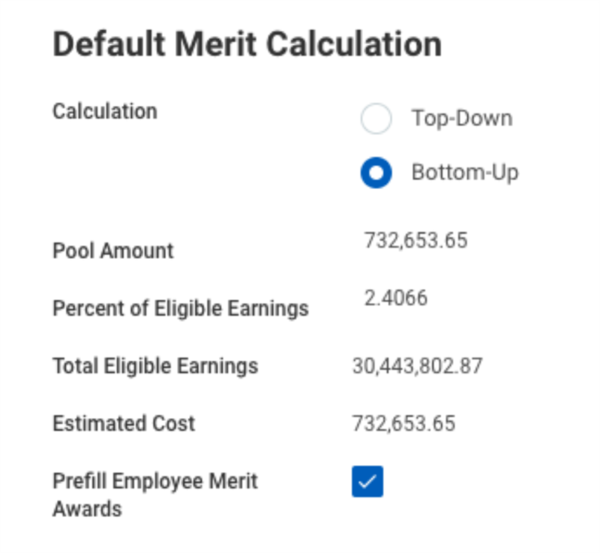
Field | Description |
|---|---|
Top-Down | Sets the pool amounts at the top level of the organization. The changes are proportional between in the supervisory organizations. The Pool Amount and Percent of Total Base Pay fields become available. |
Bottom-Up | Calculates the pool amount and estimated cost based on the employees assigned to the selected merit plans. The Pool Amount and Percent of Total Base Pay fields are view only. This is the default selection. |
Pool Amount | The amount available for distribution to employees. It is editable if using top-down calculation. |
Percent of Eligible Earnings | Percent available for distribution to employees. |
Total Eligible Earnings | The total compensation amount for all employees assigned to the merit plans selected for this process. |
Estimated Cost | Sum of all employee target amounts across all merit plans included in the process. It is equal to the Pool Amount if the Pool Amount is editable. |
Prefill Employee Merit Awards | Populate employee merit awards in the configurable grid. |
If enabled, the last section of the Configure Merit Pools step includes additional adjustments, lump sum payments, and promotions. For each of these award types, you can create an award pool, or deduct the awards from the merit pool. The Process Award Pools options for each award type display within the Initiate Compensation Review Process.
Field | Description |
|---|---|
Deduct From Merit Pool | Deducts the awards made to employees during the process from the merit pool, rather than a separate pool. If selected, the Distribute to Organizations checkbox, Percent of Compensation Basis, and Amount fields are no longer available. If not selected, Workday creates a separate pool for the award. |
Distribute to Organizations | Enables distribution of separate pools for award to supervisory organizations in the process. |
Review Plan Funding
The Review Plan Funding button will adjust specific plan funding amounts. You can adjust pool amounts for individual plans. These changes impact the total pool amount and impact the total pool. Workday will automatically select the top-down option.
Plan Target Changes
Workday allows compensation planners to change the plan targets during the compensation review process for the following plan types:
- Allowance
- Bonus
- Commission
- Stock
In order for the new target to be editable for the planner, the plans must have the following configurations:
- Amount or percent plans, not unit-based plans.
- Allow overrides.
- Assign the employees as of the process period end dates and as of the maximum effective date.
To make plan targets and spend amount editable in the compensation review, the configurable grid should include one of the following editable fields:
- Stock Target Amount (or Percent) - Proposed
- Allowance Target Amount (or Percent) - Proposed
- Bonus Target Amount (or Percent) - Proposed
- Commission Target Amount (or Percent) - Proposed
Review Promotions
During an in-progress Compensation Review, you can use the Review Promotions in Merit task to select employees for further review after the compensation review process completes.
In the task, you can select one or multiple organizations to display. You can also filter the task by specific job profiles. The task also enables you to select from one of three options to drive what promotions display in the page.
Option | Definition |
|---|---|
Only Promotions with Requested Reviews | Select this option to display only previously selected promotions for review. |
Only Promotions without Requested Reviews | Select this option to display only the not previously selected promotions for review. |
None of the Above | Select this option to display all promotions. |
Selecting a checkmark on this task page triggers the
Change Job
business process for that employee once you finalize the Compensation Review.Manage Compensation Review On Hold Events
The Manage Compensation Review On Hold Events task enables you to locate awards that are on hold for employees. Filter on a specific compensation review process or by organizations to refine the results that display. From this task, you can change, cancel, or release the award for employees on leave or with parallel running events.
Compensation Review Statements
You can generate and make compensation review statements available to administrators, managers, and employees before, on, or after the effective date of a compensation review process.
Workday provides three compensation review statement formats that you can locate on Workday Community. You can also create custom statements by defining a business form layout using Workday tasks and Report Designer (BIRT) in Workday Studio.
Resource/Glossary
: Review the Workday Administrator Guide documentation for information about setting up Workday-delivered or customized compensation review statements. Search Reference: Compensation Review Statement,
Steps: Create Custom Compensation Review Statements
You can also use Workday Docs for Layouts in addition to managing designs using Report Designer (BIRT). Workday Docs for Layouts is a visual editing tool you can use to create and manage customized document layouts. A document layout is a specific design for a PDF that uses data from a Workday custom advanced report. Docs for Layouts is available for advanced custom reports for the Compensation Review Employee Adjustment for Statements supported data source.
To use Docs for Layouts you must:
- Use a single, advanced custom report that contains the data you want to include in the document layout.
- Enable the report for Web Services by selecting the Enable for Web Services option in the Advanced tab of the custom report.
- Give security group access to users so they can see the relevant data sources, fields, and tasks related to the document layouts they work on.
- Share the report with users who will create document layouts based on the report.
- Use theCreate Document Layouttask to design and publish your document layout.
Publish the template, then use the
Create Compensation Review Statement Rule
task to select the business form layout that you want to use to print your documents within the Release Compensation Review Statement step of the process.Resource/Glossary
: Review the Workday Administrator Guide documentation to learn more about Workday Docs for Layouts. Search Reference: Workday Docs for Layouts; Setup Considerations: Docs for Layouts
Sample Compensation Review Statements
The following is one example of a Workday delivered compensation review statement layout.
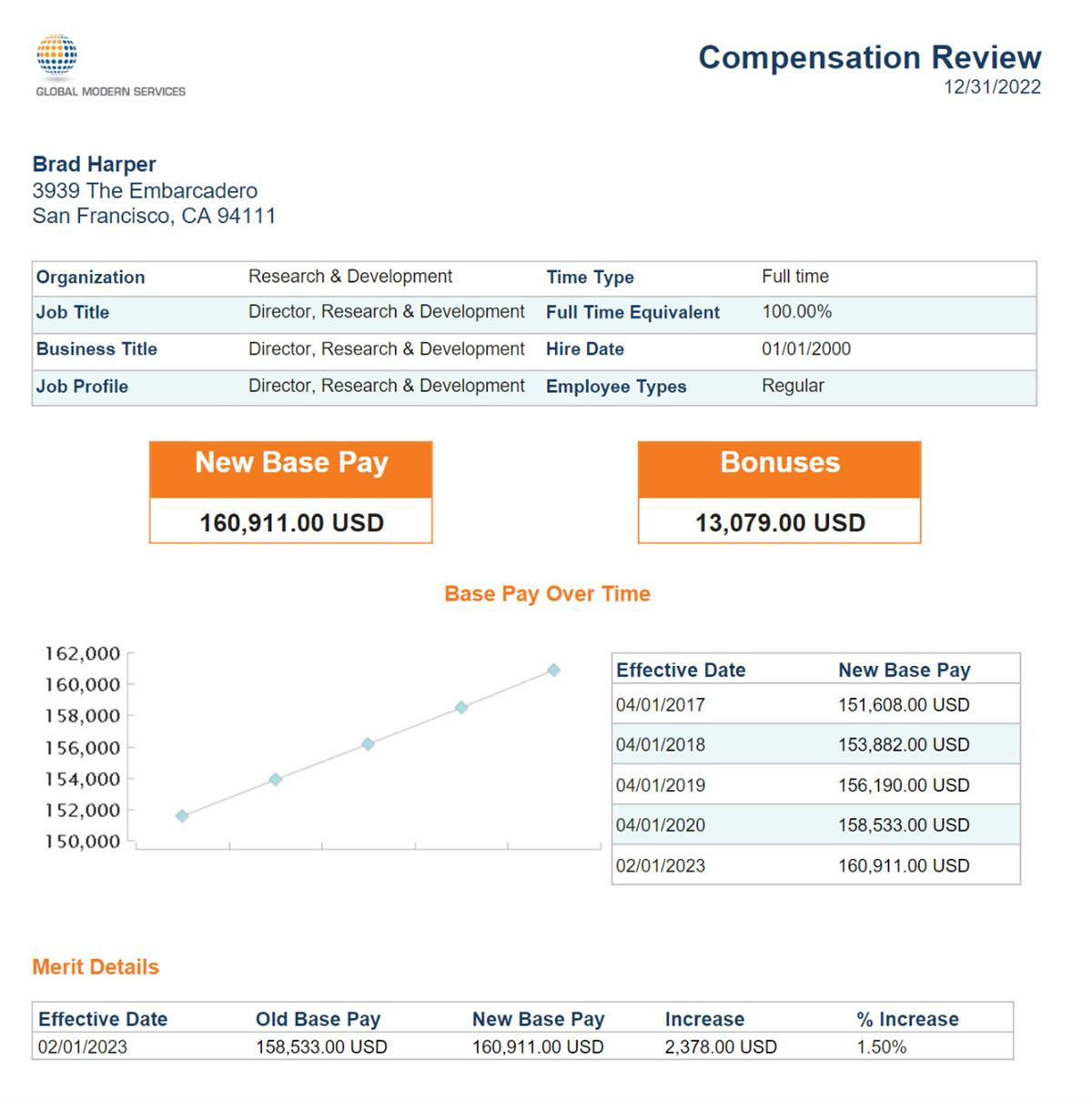
To access this report, from the employee's
Related Actions
, select Compensation
> View Compensation Review History
. In the Actions column, choose the Create New Statement
option, then once the report generates, you can open and view it.Use the
Create Compensation Review Statement Rule
task to define a default layout and different statement layouts to use for specific employee populations.Release Compensation Review Statements
Administrators and managers can easily make compensation review statements visible to their employees using the
Release Compensation Review Statement
task. This task provides greater control over when statements are available to employees. The Release Compensation Review Statement
task can be part of a compensation review, a standalone task, or a report. It generates a PDF version of the compensation review statements. Once you select the Generate Statement PDF checkbox, you can schedule the statement to run and print.For each compensation review process with a future-dated effective date or future-dated employee visibility date, use the
Set Compensation Review Statement Visibility
task to set the statement visibility date. After running Release Compensation Review Statement
, or before either the effective date or employee visibility date on the compensation review, you can run Set Compensation Review Statement Visibility
. This is only if the effective date or employee visibility date are in the future. You will not need to or be able to run the Set Compensation Review Statement Visibility
task if the effective date or employee visibility date has passed. Running this optional task allows for the statement to be visible to employees immediately. If you do not run the Set Compensation Review Statement Visibility
task, the statements become visible to employees on the latest of either the effective date or the employee visibility date on the compensation review process.You can configure these options using the
Edit Tenant Setup - HCM
task. Select the Hide Create New Compensation Review Statement button for Employee on View Merit Statement History to prevent employees from creating their own compensation review statement. Below is an example of the Release Review Statement task using a standard merit statement layout.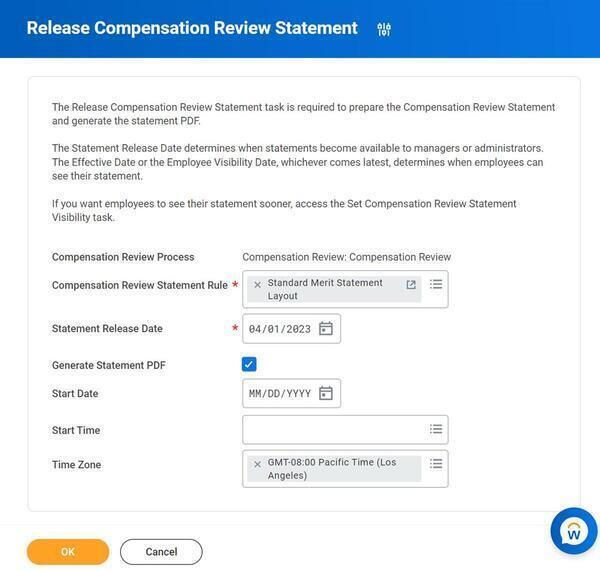
The
View Compensation Review Statements
report allows you to access, generate, and print statements for multiple employees.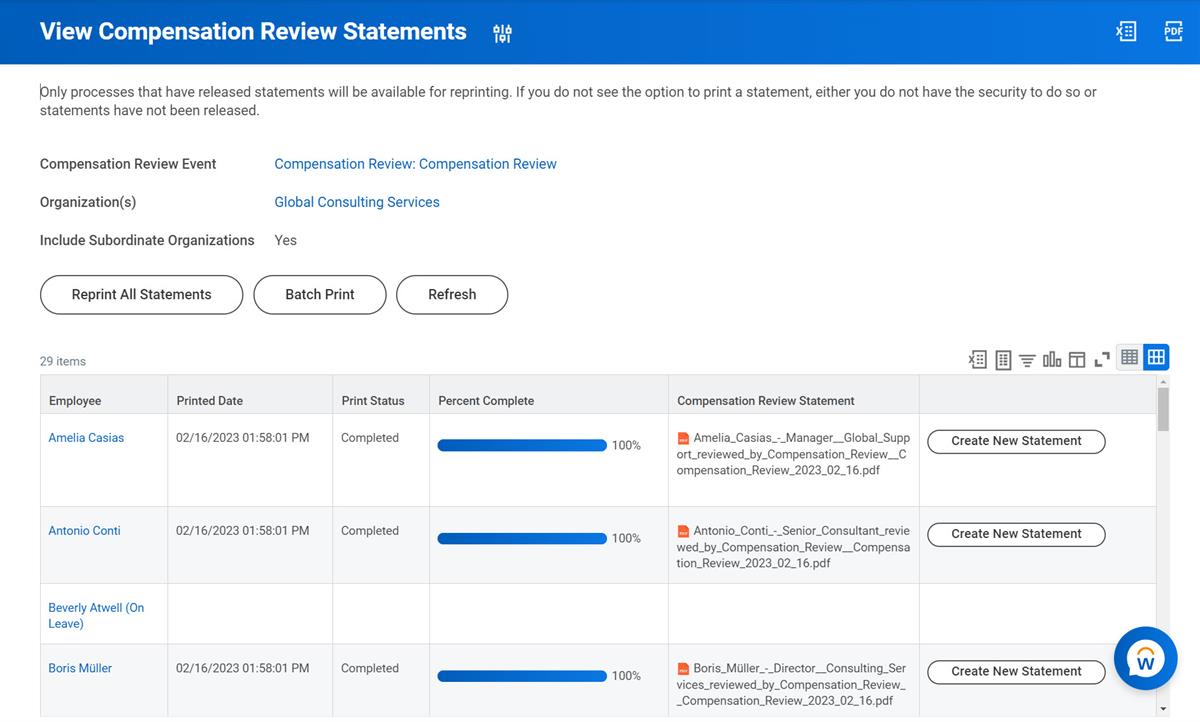
Additional Training
: For additional training on how to create custom Compensation Review Statement layouts, enroll in the Workday Report Designer (BIRT) Learn Virtual training.Resource/Glossary
: Navigate to the Steps: Create Custom Compensation Review Statements
topic in the Workday Administrator Documentation for additional information on creating and managing custom compensation review statements.Additional Training
: For additional learning on the Compensation Review Process, Release Statements, and Merit, Bonus, and Stock plans, enroll in the Advanced Compensation for Administrators training.Compensation Review Audit Report
The compensation review audit reports allow managers and administrators to review the date, time, and responsible party for the important changes in a compensation review. The report displays the last change made for each employee, as well as the different actions taken such as Manually Advanced and Send Back.
The audit uses a compensation review process and organization. You can select more than one process and organization when running the audit. You also have the option of selecting individual employees, which can help limit the report, which can return many rows of data.
The following are the delivered audit reports:
Standard Report | Description |
|---|---|
Compensation Review Merit Award Audit | An audit report based on Adjustment For showing the changes made to merit, additional, lump sum, and promotion fields within a compensation review. Tracks changes made during the process and who performed the change. |
Compensation Review Bonus Payment Audit | An audit report based on Compensation Review Bonus Payment showing the changes made to a bonus award. |
Compensation Review Stock Plan Award Audit | An audit report based on Stock Plan Award showing the changes made to stock awards. |
Compensation Review Talent Audit | An audit report showing the changes made to talent and performance fields within a compensation review. |
There are many additional available audit reports for managing and reporting on the compensation review process. Supporting staff can run these reports, even if they are not a part of the business process.
- Compensation Review Employee Changes Audit
- Compensation Review Employee Participations Audit
- Compensation Review Process View Organization
Chapter Summary
A merit plan can be either amount- or percent -based. You can define merit plan profiles to assign a different percent or amount increase to a population of eligible employees as defined by a compensation eligibility rule. After you create the plan, you will roll it out to eligible employees. Process merit awards by using the
Initiate Compensation Review
business process.