Eligibility Waiting Period and Time Proration Rules
Overview
Time is often a factor for employee inclusion or amount of award. For Merit, you can control participants in the process and calculate award amounts. The eligibility waiting period defines eligible employees and participation guidelines for merit and bonus plans. A time proration rule evaluates the employee's merit or bonus target using time-based criteria such as leave of absence or time since hire for calculations.
Objectives
By the end of this chapter, you will be able to:
- Create an eligibility waiting period.
- Create a time proration rule.
- Test the waiting period and time proration rules in the compensation review process.
- View the impact statutory minimums have on the merit pool and employee awards.
Eligibility Waiting Period
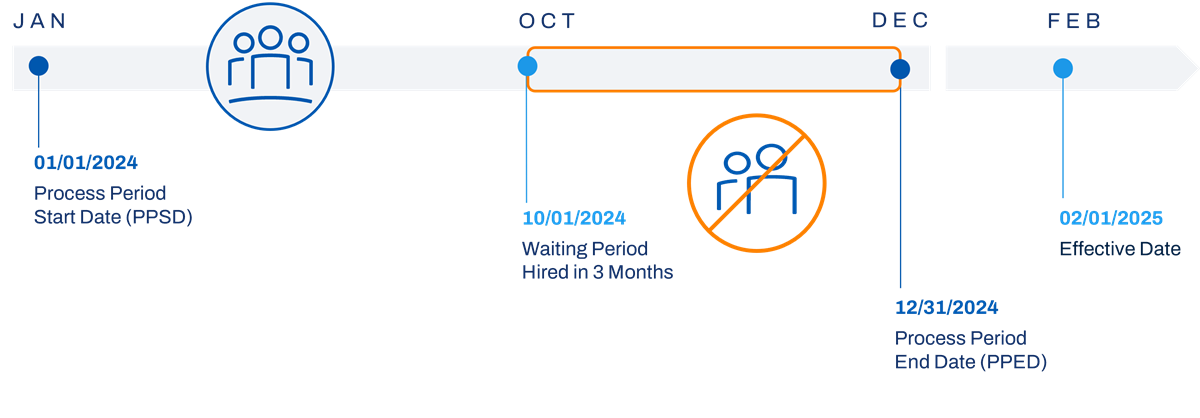
An eligibility waiting period defines the rule for whether employees are eligible for the compensation review. You base the rule on a single value, such as a hire date. Workday will not include any employee in the waiting period when you initiate the process, unless configured to do so. The following are the waiting period configuration options:
From Date Options | Description |
|---|---|
Company Service Date | This date is not populated during a hire. It will be blank, but it is editable. If required, you could use an EIB to populate this date. |
Continuous Service Date | Defaults from hire date. It is editable. |
Date of last Base Pay change | Allows exceptions based on the reason selected when initiating the transaction. |
Date of last Merit Increase | Keeps an employee out of the compensation review process if they have had a recent merit increase. |
Hire Date | Hire date is the most current hire date. If an employee is a rehire, this date will not include continuous service. |
Plan Assignment Date | Uses funded plan participation and time in plan. |
Position Assignment Date | Uses dates from new position assignments, hires, international assignments, and additional jobs. |
Workday provides the option to add the employees in the waiting period as an exception. These employees will have a target of zero.
Time Proration Rule
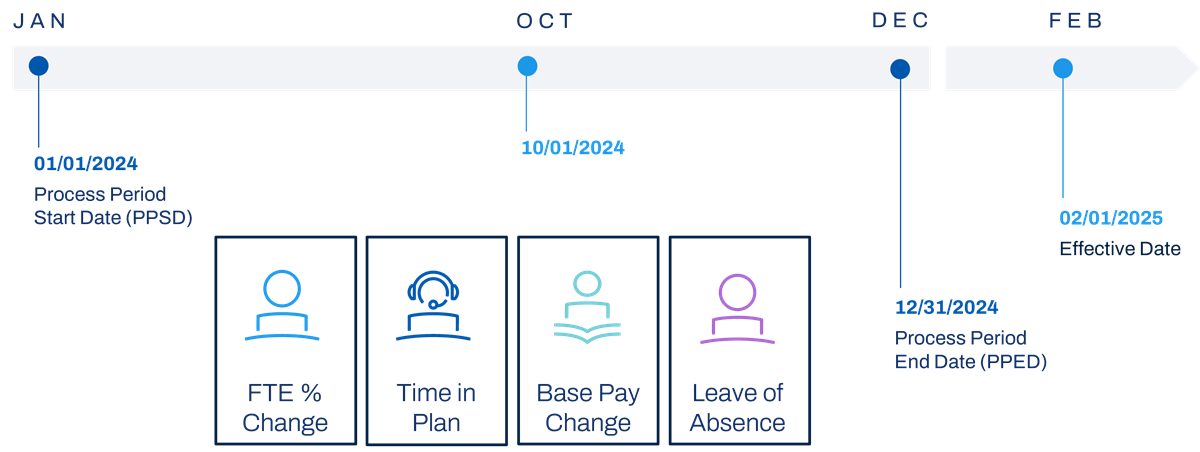
You can use time proration rules for merit and bonus awards. Time proration rules calculate the portion of the target amount the employee receives. Time proration contributes to the award pool calculation during the merit or bonus process period. You can combine the proration criteria to calculate either the target or pool.
You can use more than one proration criteria within a proration rule. You can also define exclusion criteria. The transaction reasons also use exclusion criteria.
Option | Description |
|---|---|
Base Pay Changes in Period | Select if you want to calculate the employee's individual target amount and contribution to the award pool based on different base pay amounts during the process period. To exclude certain types of staffing or compensation events, select Excluded Criteria. For example, for a process period of 1/1 to 6/1 with a salary change on 4/1, Workday will run two calculations. First, the employee's total target amount between 1/1 and 3/31. Then, another for 4/1 and 6/1. |
Leave of Absence | Select if you want to subtract leave of absences from the process period. Then, use that calculation to determine the employee's individual target amount and contribution to the award pool. Additionally, you can configure the Leave of Absence Grace Period Table and add it to the Time Proration rule. Workday will subtract the grace period from the total number of days on leave. |
Target Changes in Period | Select if you want to calculate the employee's individual target award and contribution to the award pool based on different target amounts during the process period. For example, for a process period of 1/1 to 6/1 with a target percent on bonus plan changed from 5% to 10% on 5/1, Workday will run two calculations. First, to determine the employee's total target amount one for the amount between 1/1 and 4/30 at 5%. Then, another for the amount between 5/1 and 6/1 at 10%. |
Time in Plan | Select if you want to use only the time the employee was in the plan to calculate the employee's individual target amount and contribution to the award pool. For example, if an employee participates in Bonus Plan A (5%) on 1/1 and the plans changes to Bonus Plan B (10%) on 5/1. If bonus runs for Plan B, Workday will only calculate the portion contributed to Plan B for time the worker was in Plan B. |
Time in Position | Select if you want to use only the time the employee was assigned to the position to calculate the employee's individual target amount and contribution to the award pool. |
Time Since Last Base Pay Increase | Select if you want to use the date on which the employee had their last pay increase to calculate the employee's individual target amount and contribution to the award pool. For example, for a process period of 1/1 to 6/1, if there is a base pay increase on 5/1, Workday will only calculate the 5/1 to 6/1 portion. |
Scorecard Profile Changes | The period for review defines the Process Period End Date and the plan frequency. For merit of bonus, this rule will evaluate scorecard profile changes for participating employees during this time. |
FTE Changes in Period | The period for review defines the process period end date and the plan frequency. For merit or bonus, this rule will evaluate FTE changes for participating employees during this time and will impact the award. |
Leave of Absence
Leave of Absence is another example of a proration criterion. Several proration criteria allow exceptions based on the reason for a transaction. These include Time Since Last Base Pay Change, Base Pay Changes in Period, and Leave of Absence. It is common to prorate a bonus because an employee is out on leave, but not all leaves require proration. Using the configured leave types, you can specify exception values.
Leave of Absence proration has an additional option to define a Leave of Absence Grace Period Rule. The rule allows you to establish a number of days grace period for a specific leave type and location hierarchy. You can use more than one leave type within a grace period rule. Workday will use the first row that matches the employee's leave type and location hierarchy, at the start of the leave, so order the rows based on priority.
For example, an employee is taking a 6-month paternity leave and the grace period table on the rule indicates that the leave type, Paternity Leave, has a 90-day grace period. This means that for the first 90 days, the employee's bonus/merit would not be prorated. Anytime after that would be prorated.
Note
: Workday evaluates the grace period rules after the exclusion criteria.Statutory Minimum
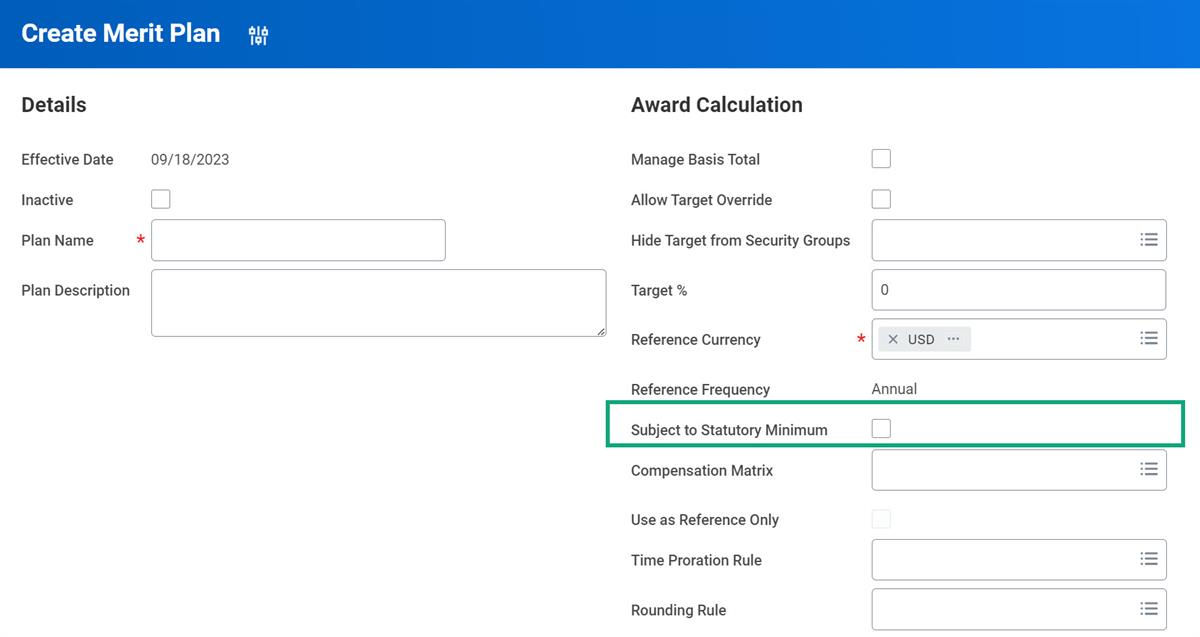
The statutory minimum checkbox on a merit plan indicates that the merit award is subject to a minimum award amount based on a statutory requirement. The statutory minimum is set when initiating the compensation review process. If the statutory minimum is greater than the merit plan target percentage, the statutory minimum will calculate the merit pool instead of the plan target. Additionally, if there are profiles on the merit plan, customers can also enter different statutory minimums for different groups of employees.
Manage Impacted Employees
Workday allows you to manually coordinate multiple compensation events. You can initiate compensation review process with new hires, pay changes, transfers, promotions, and demotions in progress. For in-progress events, use the
Manage Impacted Employees
task. This task identifies workers with multiple compensation events so you can decide whether or not to remove them from the process.Additionally, the
Manage Impacted Employees
report has two tabs: Before Merit Date and After Merit Date. These tabs display employees that have in-progress events that take effect before and after the merit event date and impact the merit increase calculation.Review a list of employees with:
- Concurrent compensation or staffing events with an effective date that is before or after the merit date.
- Completed events.
- Canceled or rescinded events.
The administrator options to:
- Send notifications to the awaiting person in the list.
- Remove employees from the compensation review process.
In addition to the
Manage Impacted Employee Processes
task, you can use the following reports to identify workers with multiple compensation events:- Compensation Review Manage Employee Processes
- Out of Order Compensation Changes
- Maintain Compensation Review Process Employee Participation
Maintain Compensation Review Process Employee Participation
The
Maintain Compensation Review Process Employee Participation
tasks allow you to add or remove employees from the process.Example
: Here are some examples of when you would add or remove employees to the process:- Remove an employee from the process when the conflicting staffing event resolves.
- An employee is in the incorrect plan and should not participate in the process.
- An employee is not in the plan and should participate in the process.
- The employee must be the subject of a request compensation change, transfer, change job, promotion, or termination.
Below are the configuration options and the corresponding tasks available for the options.
Option | Description |
|---|---|
Employees Removed from Process | Add an employee back to the process. |
Newly Eligible to Process | Add an employee that became eligible after initiation. |
Employees in Waiting Period | Add an employee who has always been eligible but was in a waiting period during initiation. Note : These employees are in the initial process if you selected the Include Active Employees in Waiting Period checkbox on the compensation plan. However, they will have a target equal to zero. You need to add them into the process and the employee's target amount will remain equal to zero. |
Remove Employee from Process | Remove an active employee. |
Terminated Employees in Process | Remove a terminated employee. |
When you are adding an employee back into the process, you have many options. You can choose to add back the pool amount removed, enter any amount, or add a new employee pool amount based on data changes. This last option may be appropriate if a parallel process, such as a compensation change with an earlier effective date than the merit change, would change the pool calculation.
Chapter Summary
The eligibility waiting period defines eligible employees for a merit and bonus plan and determines which employees can participate in the process. The time proration rule evaluates and calculates the employee's target using time-based criteria such as leave of absence or time since hire.
Waiting Period Example Illustration
Time Proration Illustration Example