
Configurable Grid
Overview
The configurable grid gives planners and administrators the opportunity to view and edit large amounts of data in one consolidated view. There are many combinations of read only, editable, and advanced fields to act on and grant awards during the compensation review process. After configuring the grid, you can audit it to ensure that there are no missing fields based on the plans in use.
Objectives
By the end of this chapter, you will be able to:
- Identify the options available for the configurable grid.
- Modify a configurable grid.
- Create and test validations on the configurable grid.
Configurable Grid
The
Create Grid Configuration
task enables you to either create a new configuration grid or copy details from an existing configurable grid. After you create the grid, you can use it in the compensation review process. You have the option to include promotion, lump sum, and additional adjustments as part of the consolidated merit process. The illustration below provides an example of a configurable grid as it displays in a planners My Tasks.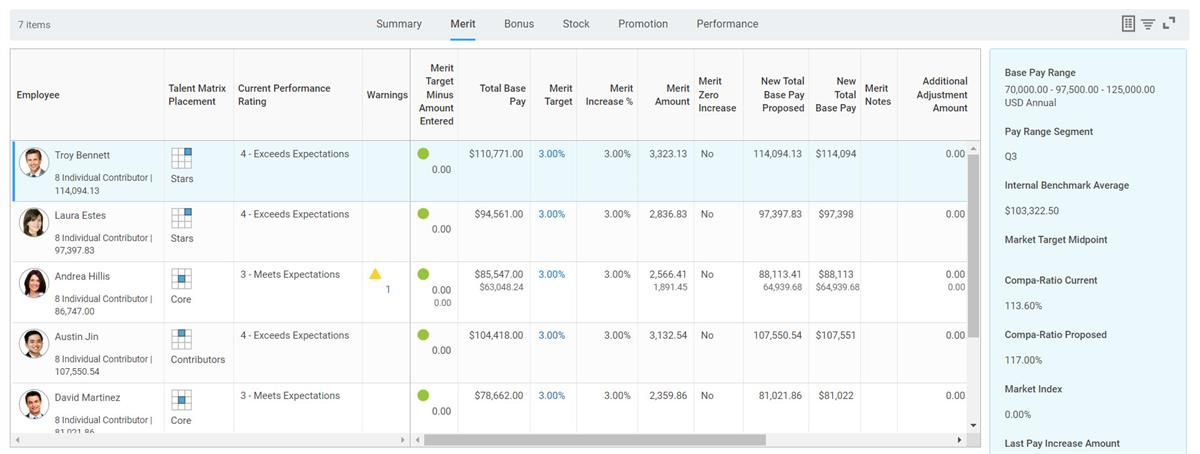
Composite Columns
The composite column provides read-only data about employees. These columns display on the far left of the grid. The following configuration options are available:
Option | Description |
|---|---|
Include Composite Column | Select this option to add a composite column to the grid. |
Title/First Subtitle/Second Subtitle | Select a business object and a related field for each title. |
Image | Add a photo, such as an employee picture. |
Individual Columns
The individual columns display when a manager first opens the grid. The individual column includes current compensation review process details or general employee information, such as their location or job profile.
Options | Description |
|---|---|
Column Type | Read Only : Displays a read-only class report field (CRF) business object and one of its related fields on the grid.Example : Current performance review. |
Label Override | Used for read-only fields. Enter an optional label override. |
Group Columns
Option | Description |
|---|---|
Column Group | Contains merit, bonus, stock, promotion, performance, allowance, and commission data. The column group determines the name of the tab in the grid. You could have a more comprehensive compensation review that uses merit, bonus, stock, promotion, performance, allowance, and commission tabs. |
Column Type | Read Only : Displays a read-only business object and one of its related fields on the grid.Example : Adjustment For - Merit Target Ranges.Editable : Enables users to enter values or select options.Examples : Merit Increase%, Additional Adjustment Amount, Bonus Amount.Advanced : Displays a link that users can drill down on to view or modify detailed data.Examples : Previous Proposal, Merit Target, Total Bonus Amount. |
Label Override | Enter an optional label override for read-only fields. |
Formatting | Use for read-only numerical fields to determine numerical format. For example, adding the $ or % or figuring the decimals to display on certain fields. |
Display Options | Show In Panel : Displays the field in the Smart Panel.Summary View : Displays the field both with the summary view (displays when a manager first opens the Propose step) and with the individual columns. |
Calculated Fields
You can add calculated fields to the grid to display additional information from the compensation review audit report. Calculated fields are associated with business objects, which control available fields for creating the field. Review the following list of available business objects:
Business Object | Related Business Object |
|---|---|
Adjustment For | Compensation Review Employee Award Audit |
Compensation Review Bonus Payment | Compensation Review Bonus Payment Audit |
Stock Plan Award | Stock Plan Award Audit |
Adjustment For | Compensation Review Talent Audit |
The
Create Calculated Field
task lets you create a field and add it to the configurable grid. Select the business object and function to create your field. Once you select the business object, you can pick the related fields. Then, the calculated field becomes an available field on the configurable grid.Summary View
The summary view is the first tab of the grid. The summary view is the first thing that displays to a planner when opening the Inbox task. In the summary view, you can include fields you select as the individual column or as part of a column group.
Smart Panel
The smart panel provides the planner and manager a stable pane to view read-only information, while entering data into editable fields. The fields you select as the Individual Column or as part of any Column Group can display in the Smart Panel. The read-only data is based on data available in the tenant. It is common to include data such as base pay range, compa-ratio, variance pay from market, and last base pay increase.
Tenant Setup – HCM task
In the Compensation section of the
Edit Tenant Setup - HCM
task, you can change the number of rows that display for planners, up to 500. The default is 100. This setting does not apply to direct reports. Direct reports will always display to the direct managers. This limit only applies to all the managers above the direct manager.Example
: If you enter 25, then a manager's manager of 100 indirect workers will only have the first 25 displaying. However, if a manager directly manages 50 people, all 50 reports will display on the grid. Additionally, they will have a filtered search. This same view is available to the controller or a senior planner when they select Search Employee.Grid Profiles for Compensation Reviews
Compensation Review Grid Profiles allow you to use multiple grid configurations for the same compensation review process. Grid profiles drive what displays for a process participant based factors like locale, management level, organization, assigned roles, or security groups.
You can configure grids and their editable, read-only, and advanced fields that display during compensation review processes. Conditional calculations enable different participants in the compensation review process to have different views of the grid. The grid displays relevant data to support their award and review process.
You should configure an all-encompassing compensation review grid configuration to use as a default and one or more targeted grid configurations to use as grid profiles. If a planner or manager enters the compensation review but does not meet any of your grid profiles, the default response grid will display.
Ensure that all award types are visible on the default grid. If you unselect the Allow Pool Overages option when managing compensation review pools and an award type is not visible on the grid, planners might not be able to identify that an award is overspent, edit the awards, or submit the process. Consider and thoroughly test your custom validations and configurations with your grid profiles. Make sure that all planners have access to applicable fields and award types so that they can clear the validations.
Steps to Configure Grid Profiles
- Use theCreate Grid Configurationtask. Set up the composite, individual, and group columns, including any calculated fields that display during a Compensation Review Process. Set up one grid for each target audience and a grid to use as a default.
- Use theCreate Conditional Calculationtask. Order and map specific grid profiles based on conditions.
- Start theInitiate Compensation Review Processtask. Select the conditional calculation from the Grid Configuration Profiles field. You can also select grid configuration profiles on the Create and Edit Compensation Review Template tasks.Note: If you use one grid for all process participants and do not want to enable grid profiles, select an option from the Grid Configuration field instead of the Grid Profile Configuration field.
Custom Calculations on the Compensation Grid
Workday provides custom calculations to add to the grid to allow managers and planners to use live calculations and have validation indicators during a compensation review.
When configuring calculations for compensation review, you can either build your calculated fields first or start with the
Create Compensation Review Calculation Table
task. This task provides an additional task to build your calculations and attach them to the table. Once you have the compensation review calculation table built, it is attached using the Compensation Review Options
task.Business Cases for Calculation on the Grid
There are two common use cases for using calculated fields in the configurable grid:
- Annualized planning in merit, regardless of employee's pay frequency. It is common for a compensation review to include a mixture of workers who have different pay frequencies. One population may be salaried, with an annual salary displayed in the grid. Another population may be hourly with an hourly rate displayed. When analyzing these two populations, it becomes difficult to make comparisons. The resolution is to build a calculation in the grid that allows you to plan for all workers on an annualized basis.
- Use calculated validations and indicators to call attention to amounts over and under minimums and maximums. For example, if a proposed merit increase is above the employee's pay range maximum, increase salary to equal the pay range maximum and generate a lump sum payment with the overage.
There are many different types of custom editable fields available, including:
- Currency
- Numeric
- Percent
- List Value
Resource/Glossary
: For additional information about calculations and to learn about the Calculation Engine, refer to Workday Administrator Documentation. Search for Concept: Calculated Fields and Calculations
.Custom Currency Editable Field
The currency editable field uses the calculation engine to update amounts in a Compensation Review. The editable field is used to:
- Automatically split payments between Merit Amount and Lump Sum based on Pay Range Maximum.
- Annualize New Pay Amount for Hourly Workers.
- Use validations and errors to create a dynamic and user-friendly experience.
Use the
Compensation Review Calculation Table
to determine which calculations are executed when entering into a custom field.Configuration Steps
There are many ways to use calculations to populate fields in compensation reviews.
To configure these calculations, you must complete the following tasks:
- Create one or more required calculations using the Compensation category.
- Use theMaintain Compensation Review Calculation Liststask and configure one or more calculation lists (Optional).
- Create a Compensation Review Calculation Table that references one or more calculations and fields.
- Add a custom calculation field to the Merit or Bonus sections of the grid configuration.
- Add the Compensation Review Calculation Table to theCompensation Review Optionstask.
- Run theInitiate the Compensation Reviewprocess using the grid with calculations and a compensation review options template that includes the calculation table.
Validations for Compensation Review
The
Maintain Compensation Review Validation
report allows you to create validations to trigger warning or critical error messages. These validations are condition rules, based on the report fields for specific areas. Validations include warnings or critical errors triggered by manager proposals and analytics. These messages provide context for employees in the grid and faceted search based on validations triggered.Validations are available in the following areas in a compensation review:
- Merit
- Bonus
- Stock
- Allowance
- Commission
- Organization
There are two types of validations:
- Warning validations do not prevent workflow completion and apply to the entire participation chain.
- Critical validations will prevent submission and send back of organizations. When using Complete on Behalf, Workday allows critical validations when a user manually advances the organization. For example, if someone started planning and created a critical error, a higher-level manager can pull it forward. Once you resolve all critical errors, the higher-level manager can submit awards.
Steps to Maintain Compensation Review Validations
- Ensure security groups can access the required tasks using the Process: Compensation Management Events domain. Once the security group can access the domain, the employee can search for theMaintain Compensation Review Validationtask.
- Create a validation rule using theMaintain Compensation Review Validationsreport.
- Critical: Display as a red indicator.
- Warning: Display as a yellow indicator.Note: You can add advanced fields to the individual columns on the configurable grid to display these warnings and critical validations.
- Once you select New Validation, you can create a new custom validation.Note: If you have an in-progress Compensation Review, you cannot create new validations. The button will not display until you cancel or complete the in progress compensation review event.
- The Maintain Validations button allows you to add or remove conditional rules.
- You can configure a custom validation message. Select the rule's Related Actions and select Validation > Configure Validation Message.
- Enter your custom validation message to display to the user.Important: You cannot add a new validation if the compensation review process is in progress, but you can edit an existing validation.
Grid Configuration Audit
The
Grid Configuration Audit
report verifies that the grid includes read-only or editable fields during the process. The report displays blockers or warnings and suggests fields you can add to the grid.- Blocker: A blocker applies to a field that the stock, merit, bonus plan, lump sum, or additional adjustment indicates is editable for the process step but is missing from the grid.
- Warning: A warning applies to a read-only field that the merit or bonus plan, lump sum, or additional adjustment indicates should display for the process step but is missing from the grid. Promotion fields only display warnings.
Chapter Summary
The compensation configurable grid is one of the most powerful tools of compensation review. It provides guidance and functionality to users entering awards. The
Create Grid Configuration
task enables you to either create a blank configuration grid or copy details from an existing configurable grid.