
Compensation Review Business Process
Overview
The
Initiate Compensation Review
business process is the process that drives all compensation review actions and awards. In this chapter, we will cover how to configure the business process, the importance of step order, and how to configure templates to initiate the process.Objectives
By the end of this chapter, you will be able to:
- Explain theInitiate Compensation Reviewbusiness process.
- Configure the compensation review business process steps.
- Configure the compensation review options.
- Discuss using alternative organizations for the compensation review.
Initiate Compensation Review Business Process
When completing compensation review, Workday uses the
Initiate Compensation Review Process
business process. The Initiate Compensation Review Process
has several steps, starting with the initiation of the process and ending with awarding the employees.The default configuration in Workday assumes that managers or planners will propose awards and the compensation administrator will review and finalize proposals. If managers do not propose awards, you need to configure the security group responsible for planning in the business process.
Workday requires the
Initiate Compensation Review Process
steps to occur in a specific order as illustrated below.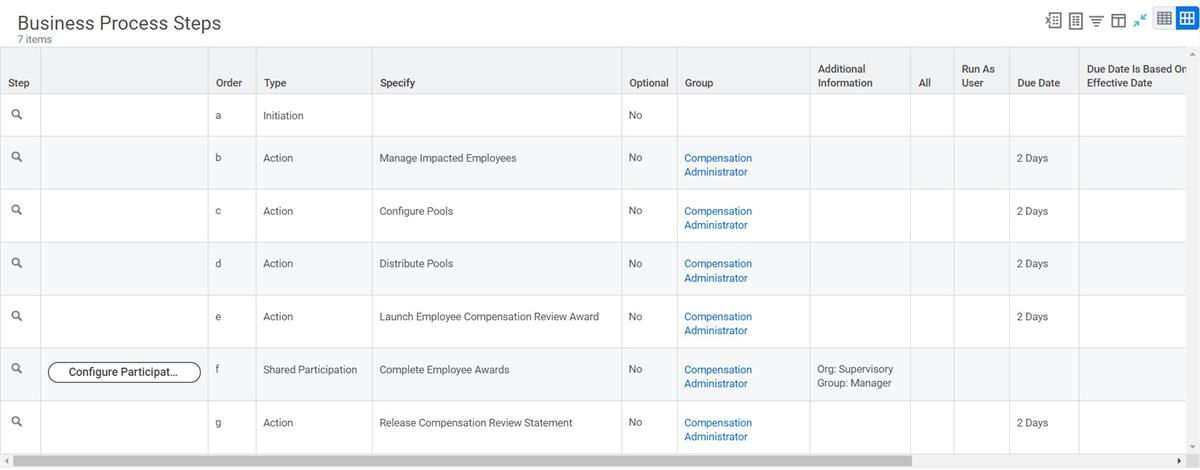
The
Business Process Configuration Options
report contains a list of the allowed and required actions, as well as prerequisite requirements for steps. Of the available steps, four are optional:- Review Pools
- Review Employee Awards
- Manage Bonus Process Funding
- Release Compensation Review Statement
Initiation Step
By including a compensation plan in an employee's compensation package, the system identifies the employee as an eligible participant in the plan. When you initiate a compensation event, the process evaluates all workers in the organization, but only includes workers who are eligible to participate in the process. To set up a compensation event, use the plan's Related Actions, or search for the
Initiate Compensation Review
task. When initiating the event, the Process Period End Date is the primary date for determining the employee eligibility.Tip
: If you are constantly running or testing the Initiate Compensation Review
process, consider adding it to My Shortcuts
on your Home Page.When running the
Initiate Compensation Review
task, you can include several options:- Select the configurable grid the process uses. You may want to run a single process that includes multiple merit plans for multiple organizations.
- Use a process period end date that is different than the effective date of the award.
- Include employees terminated during the process period.
- Run the process by various organization types.
- Limit approvals and visibility.
- Enable/disable autofill and prefill functionality.
- Associate the compensation review event with an employee review template.
- Use rule-based exceptions for reason codes and effective dates.
Compensation Review Business Process Steps
The basic compensation event process includes many steps. The following table maps out the steps and corresponding actions:
Business Process Steps | What Happens on this Step |
|---|---|
Initiate |
|
Manage Impacted Employees |
|
Configure Pools |
|
Review Pools (Optional) | Review step to review the overall budget. |
Distribute Pools |
|
Launch Employee Compensation Review Awards |
|
Shared Participation Options |
|
Manage Process Funding
(Optional) | Final change to overall funding. Applies to bonus only. |
Compensation Review Statement (Optional) | Compensation review statements can be part of the Initiate Compensation Review Process or as a standalone task. |
Distribute Pools and Maintain Pools
In the Distribute Pool step of the compensation review process, Workday estimates organizational-level pools for each award type. Participants can use the budget allocated for their organization, but cannot increase the overall budget amount.
- Holdbacks and remaining pools are initially zero however they change as participants distribute pool amounts. Workday subtracts the distributed amount from the total pool to calculate holdbacks.
- Holdbacks, or remaining pool amounts, display based on the plans you select in the process initiation and if you select the Allow Pool Holdbacks checkbox in the Pool Controls section.
Your role assignment on the organization structure determines if the holdbacks of subordinate organizations, but not those of superior organizations, should display.
The Compensation Review Process Maintain Pools task allows the process administrator to make additional adjustments to awards. The pool reserve allows you to increase the overall pool after launching a review without impacting employee targets. A typical use case is if your compensation administrator learns that there is additional stock available to distribute two weeks after planning begins. When you submit the step in the compensation review business process, Workday recalculates pool distributions and updates the actual pools. Workday accounts for any changes you make in the Distribute Pool step. Organizational pool adjustments, both positive and negative, roll up to the top-level pool. Workday also accounts for any employee pools removed during the Distribute Pool step.
Shared Participation Configuration Options
The shared participation step provides collaboration between process participants. The step enables:
- Planners to participate in a single process to award employees in a single Inbox item.
- Human Resources personnel to support planners.
- The ability to move the planning to the next planner or send it back to the prior planner.
- Increased visibility into all aspects of the process.
- The ability to manage the process across multiple organizations within the planner's hierarchy.
Configure Shared Participation Step
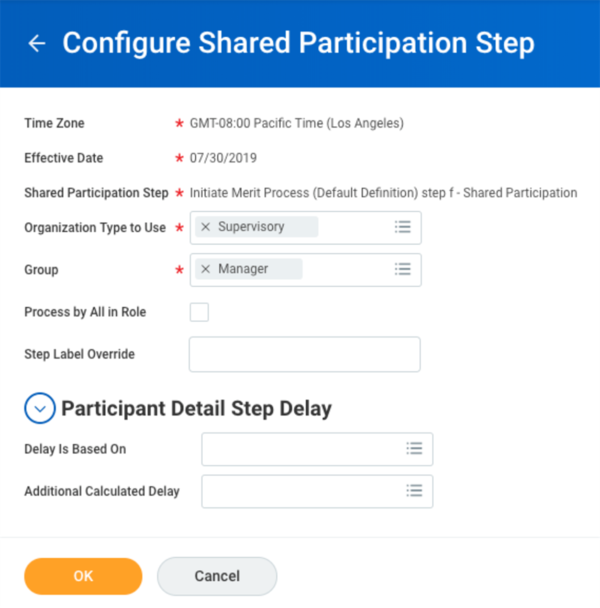
The Configure Participation button allows you to set the following:
- The security group that will enter, review, or complete pay changes.
- The type of organization used in the process.
- The option to configure a label change on the step.
Security Note
: If you have not previously used the shared participation step, then you will need to ensure the proper security policy is in place. Begin by enabling the Process: Compensation Review Process Participant domain. Then you will have the Complete Employee Awards step option on the Initiate Compensation Review Process definition. You typically assign this step to the security group that will act as the planner, support roles that can make recommendations on behalf of the planner, and the controller.There are many configuration options that you can manage when using the Shared Participation Options button on the Shared Participation step of the Initiate Compensation Review Process, as illustrated in the image below.
Compensation Review Options
The
Compensation Review Options
task allows for a preset configuration that you can select when initiating the compensation review process. The task contains three main areas, which include the process options, planning preferences, and participation rules.Within this task, you can define Organization Details, Approvals and Visibility, Autofill / Pre-Fill Value, and Pool and Spend award analytics. You can also establish the planner and reviewer default currency, budgets, and search reports options. Additionally, under the Participation Rules tab within this task, you can allow or restrict other staffing and compensation events from triggering during an in-progress compensation review.
Process Options
Organization Details
The following table is a comprehensive list of fields and options that you can configure when creating a Compensation Review Options Template:
Field | Configuration Description |
|---|---|
Organization Type | Selecting an Organization Type lets you choose what organization type to use for the shared participation step. The Organization Type must match the Initiate Compensation Review Process configuration. |
Top Level | Include the Top Level if the Organization Type is not a supervisory organization. Select an active organization that does not have any superior organizations. The system includes employees assigned to plans targeted for the process and all employees in the organization hierarchy. |
Process Top-Level Organization(s) | This optional field allows you to select one or more child organizations in the top-level organization. This field restricts the employees and participants in the process to the subordinates under this organization. |
Use Manager/Leader Image | Include the picture of the organization's manager or leader in the grid. |
Approvals and Visibility
There are two options for the Approvals and Visibility field:
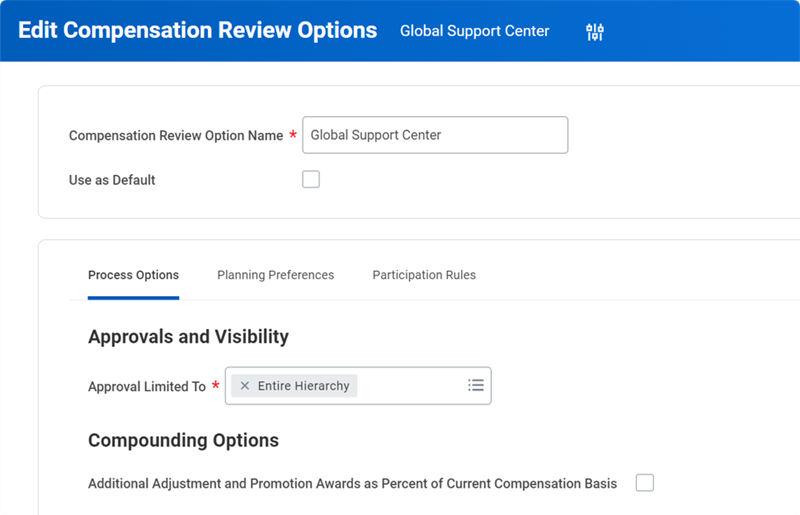
- Entire Hierarchy drives standard behavior where the top-level planner/participant must approve all organizations.
- Next Participant Only changes standard behavior, limits approval to one planning level above, and limits the planner's ability to edit to one level below. This option enables the Submit Directs button, Overall Budget and Spend displays, and the Process Stage column. The Process Stage column displays the following statuses: Awaiting Submission, Awaiting Approval, or Approved.
Autofill / Pre-Fill Value
Autofill will allow planners and controllers to populate awards in the grid using the Autofill button. You can configure autofill for merit, bonus, and stock. Prefill will calculate the awards and already have them loaded in when the user opens the grid. Both options will calculate the awards using the target or compensation matrix midpoint. If someone uses autofill after a manager edits an award, it will overwrite the edit.
When using autofill or prefill, there are two configurations available:
- Compensation Matrix: This option autofill/prefills to the midpoint of the matrix.
- Target: This option autofill/prefills with the funded, prorated target associated with the plans.
Merit Compounding Options
If you configure the compensation review event to include other options available within the process, an individual employee may have:
- A merit increase percentage.
- An additional adjustment percentage.
- A promotion percentage.
Workday provides you with control over how to calculate the primary compensation basis for merit. You can select from one of the two options:
Option 1
Workday will sum all of the employee's awards and calculates the new primary basis. Workday will automatically calculate a percentage of salary or compensation after the merit increase amount is added. These calculations occur in the following order:
- Merit is calculated first. If the base pay was $60,000 with a 2% merit increase, the new salary would be $61,200.
- Additional adjustments are applied to the newly increased salary. If we have an additional adjustment of 3%, using the new salary of $61,200, we now have a salary of $62,424.
- Lastly, calculate promotions with salary increases. Using a 4% promotion adjustment and the adjusted salary, the new and final salary is $64,920.96.
Option 2
Calculate additional adjustment and promotion awards as a percentage of the employee's current salary or primary compensation basis. You will need to configure the Additional Adjustment and Promotion Awards as Percent of Current Primary Compensation Basis checkbox on the
Initiate Compensation Review Process
. If selected, Workday adds awards to the primary compensation basis instead of compounding the award.The Compounding Options selection displays on the Process Options tab in the Edit Compensation Review Options task.
Planning Preferences
Planner / Reviewer Preferences
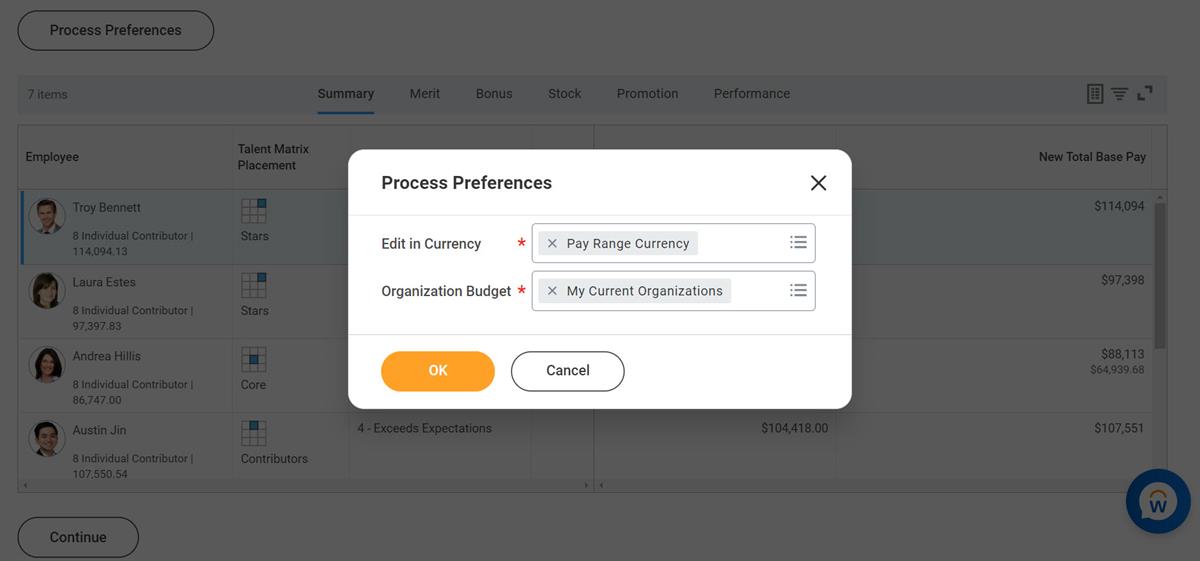
Planners and managers have preferences when making employee awards during compensation reviews. You can configure how Workday displays editable currency values and organization budgets. There are two preferences:
- Edit in Currency and Organization Budgets. Edit in Currency allows for Pay Range Currency or Reference Currency displays. This setting applies only to editable amount fields on the grid configuration. Workday pays awards in the worker's pay range currency, except for stock plans configured with Use Target Currency for Grant enabled, which pays in the target currency.
- Organization Budgets, you may view All My Organizations or My Current Organizations. The default is All My Organizations. The Organization Budgets setting only impacts the display of pool and spend items in a compensation review process.
The illustration below displays an example of the Planner/Reviewer Preferences options on the
Compensation Review Options
task.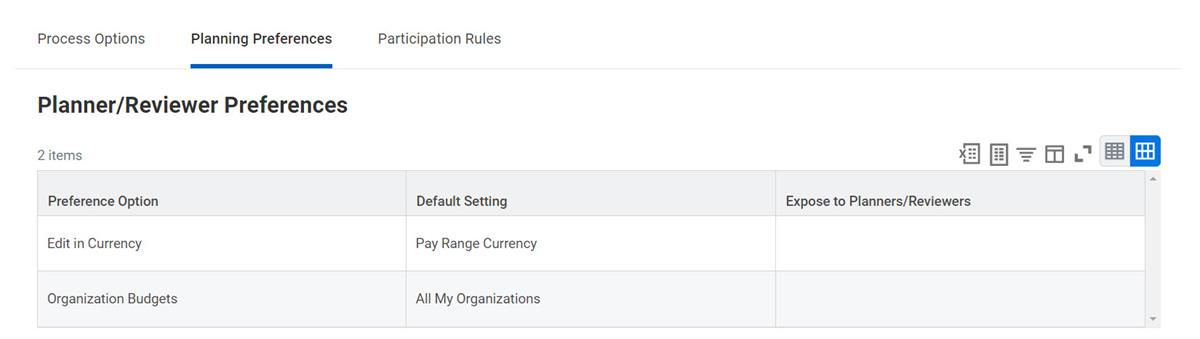
Additionally, planners and reviewers can change the view in their Inbox using the Process Preference button, as shown below.
Search Reports
Workday delivers two search reports to view the compensation review process using a filtered search:
- TheCompensation Review Organization Search Report(Default) is only available through the planner's Inbox task or using an organization's Actions icon.
- TheCompensation Review Process Search Employees(Default) report is a standalone report.
You may want to create a custom report if you wish to limit the number of available filters that select or remove certain data from the report. If you do not create a custom report, you can select the delivered reports when initiating a compensation review process.
When creating a custom participant search report, there are many options. This table outlines the options and configuration of the reports:
Option | Configuration |
|---|---|
Data Source | Select Compensation Review Process Employee Adjustments - Indexed. |
Data Source Filter | If you select the Securing Filter for Participant, Workday uses the report parameters for search criteria when:
|
Report Definition Sharing Options | Select Share with all authorized users. |
Action > View Options | Select Exclude Executing Link from Search for any reports using the Securing Filter for Participant option to prevent running these reports outside the context of the Organization Summary. |
Action > Advanced | Select Compensation Review Organization Summary Mass Action to populate the report from the Organization Summary for participants. Select Compensation Review Process Search Employees Results Mass Action for reviewers. |
Pool and Spend
Using the Pools and Spend section, you can reorder and hide pools. If you hide a pool, you must allow for overages. When you hide the pool, you hid it from the planner, not the controller. The Use as Default checkbox will populate shared participation options whenever the
Initiate Compensation Review Process
launches.Compensation Review Dates
Workday provides several date parameters to control the compensation review process.
Date | Description |
|---|---|
Effective Date | Specifies when the awards will take effect. You can set the bonus and stock effective dates to be different than the default process effective date. Additionally, you can set varying dates for exception populations. |
Process Period Start Date | Available on the initiation step, can override the default start date for each merit and bonus plan. Only available for merit and bonus plans. |
Process Period End Date | This date sets the duration of the process and eligibility period. For example, merit plans are always an annual frequency, so the compensation review process period would be the process period end date minus one year. Alternatively, for a quarterly bonus plan, the process period end date would be minus three months. |
Organization Snapshot Date | The organization snapshot date determines the organizations in the compensation review process and the hierarchical structure, as well as the organization level that stores the pools. |
Compensation Snapshot Dates | Customers can specify different compensation snapshot dates for award types in a single compensation review. If using proration rules with Merit, Workday does not recommend a Compensation Snapshot date different from the Process Period End Date. This can cause calculation conflicts when using proration. |
The dates you configure on the Initiate Compensation Review task are:
- Effective Date
- Compensation Snapshot Date
- Organization Snapshot Date
Alternative Organizations
Organization Type
The Organization Type allows you to choose what organization type to use for shared participation compensation reviews. The Organization Type must match the
Initiate Compensation Review Process
configuration. Field | Description |
|---|---|
Organization Type | The organization type depends on your selections after selecting the Configure Participation button in the Initiate Compensation Review Process. |
Top Level | You will select an active organization that does not have a superior organization. If the top level is not supervisory organization, Workday requires the Top Level field. |
Process Top-Level Organization | This field allows for one or more child organizations in the top-level organization. |
Supervisory organizations are a common type of hierarchy to use for compensation reviews since managers often enter awards. However, this is not always the case. You can use Location Hierarchies and Cost Center/Cost Center Hierarchies. Additionally, you can use a custom organization type.
Chapter Summary
The
Initiate Compensation Review
business process is the process that drives all compensation review actions and awards. Use the Compensation Review Configuration Options to determine corresponding business process actions and autofill behaviors. Consider other step configurations on the business process that drive shared participation processing.