
Compensation Review Process and Participants
Overview
The Workday compensation structure consists of the core compensation and advanced compensation functional areas. Advanced compensation includes merit, bonus, and stock plans and the compensation review business process. When you initiate the compensation review process, the system evaluates all employees tracked in Workday based on specific criteria. When entering an award, the planner can enter a percent increase or amount. The compensation review includes merit increases, bonus and stock awards, assigns allowance and commissions plans, and grants promotions.
Objectives
By the end of this chapter, you will be able to:
- Describe the advanced compensation structure.
- Summarize the compensation review process.
- Identify the responsibilities of all the compensation review process participants.
- Complete compensation review as a manager.
Compensation Core Review
Compensation in Workday tracks compensation for the enterprise and individual worker. When assigning core compensation plans to employees, their compensation assignments map to payroll, which drives what their pay consists of, such as salary or allowance. With advanced compensation plans, the compensation review process pays awards to employees. There are many features and calculations to propose, calculate, and process awards.
This diagram illustrates the overall Workday Core Compensation structure:
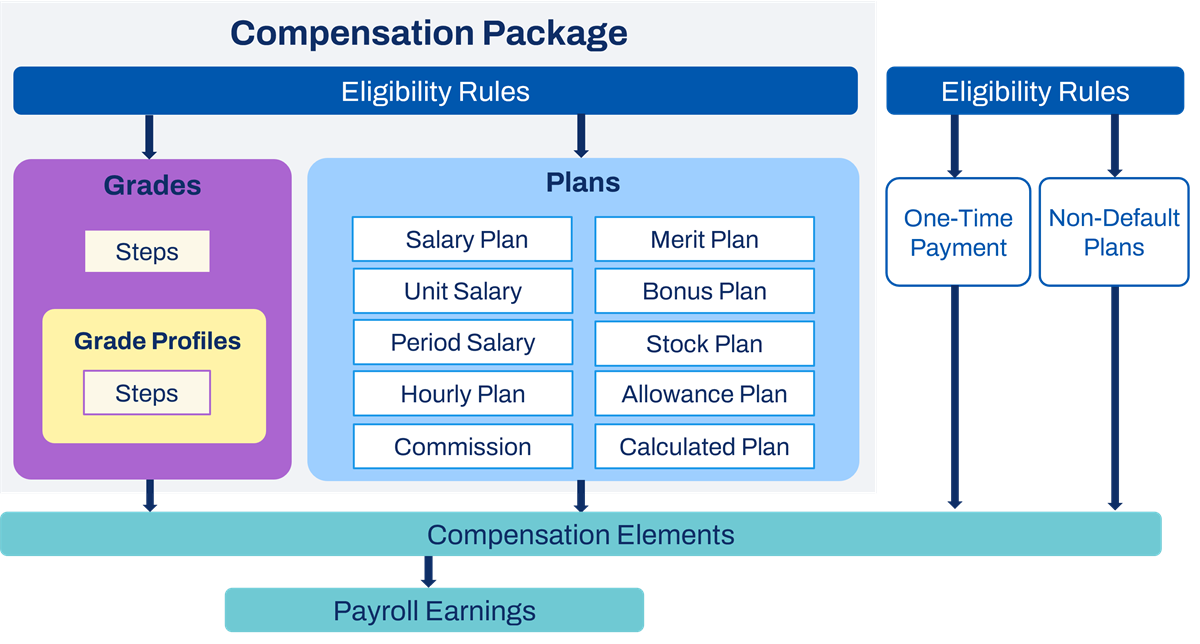
To establish eligibility for compensation components, create compensation eligibility rules. Alternatively, you can directly associate default compensation with a position management or job management supervisory organization. By using compensation eligibility rules, an employee's compensation data defaults during a staffing and compensation-related event.
You can also use rules to identify populations eligible for unique merit or bonus targets.
The Enable Eligibility Rule Performance Enhancement for Compensation Plan Profiles opt-in feature can increase the performance in how Workday evaluates eligibility rules on compensation plan profiles. This option is useful for organizations that have compensation plans with a large number of plan profiles.
Core Compensation Terminology Review
The table below provides a list of common compensation-related terminology and their Workday usage.
Term | Workday Usage |
|---|---|
Compensation Basis | Workday calculates an estimation sum of all an employee's earnings for the year. These calculations can appear in transactions, reports, and on the worker profile. |
Compensation Component | The term refers to any compensation object, including compensation elements, grades, grade profiles, plans, and packages. |
Earning | A detailed definition of a subset of pay. Defining earnings is part of payroll. You can also define external earnings used when you integrate with a non-Workday payroll product. Do not confuse earnings with a compensation basis. |
Element | Represents a portion of compensation. Compensation elements are essential to compensation plans. You can define elements, such as base pay, car allowances, and profit-sharing bonuses. Additionally, you can group elements into element groups. |
Eligibility Rule | Specify a set of criteria to automatically associate a group of employees with compensation components. Use rules to establish who is eligible for specific compensation components. |
Grade | A standard compensation range. You can divide a grade into grade profiles or steps. |
Grade Profile | Optional way to divide the grade into geographical regions or subcategories your organization requires. Grade profiles allow more granular compensation range configurations for employees. |
Package | A collection of grades and compensation plans. For example, a compensation package for sales staff could include both a salary plan and a commission plan. |
Plan | Specifies the type of pay and eligibility rules to define eligible employees. Plans vary greatly in what they define and the type of pay. |
Step | Workday allows step progression options, such as adjusting step values for individual employees or promoting workers from one step to another after a preset time period. |
Advanced Compensation Terminology
Advanced Compensation Plans
Advanced compensation uses three primary plans:
Plan Type | Definition |
|---|---|
Merit | Merit increases an employee's base pay. Merit is typically an annual process and can include promotions, additional adjustments, and lump sums. |
Bonus | Bonus awards are monthly, quarterly, and annually as part of a compensation review process. |
Stock | Stock reviews eligible employees to grant various stock option types. Vesting schedules and grants are processed outside of Workday. |
Advanced Compensation Features
Review the features available in the merit, bonus, and stock infrastructure and process:
Term | Definition |
|---|---|
Compensation Matrix | Used for merit, bonus, and stock plans to determine an employee's pay increase based on performance ratings, retention ratings, eligibility rules, or other criteria. |
Configurable Grid | The planners, compensation administrators, HR partners, and other security groups use the reporting tool to make awards and manage the merit, bonus, and stock processes. |
Consolidated Event | A compensation review event that combines merit, bonus, or stock into a single event. |
Pool | Uses the planner's budget or spend to calculate awards for the employees. Also known as budget or funding available for the compensation review. |
Scorecards | A list of goals and weights used to evaluate company performance or divisional performance as part of the bonus process. |
Shared Participation | The Shared Participation step lets planners and other support persons view, move forward, or complete the merit, bonus, or stock processes. |
Time Proration | A set of rules that determine the portion of the pool or target amount employees receive in merit or bonus processes. |
Waiting Period | Used by the bonus and merit plan to determine when an employee is eligible to participate in the plan. |
Process Period | The period of time to calculate both the pool and the target awards for employees. The frequency of the process dictates whether this period is annual or other. Annual or 12 months are the most common frequencies. |
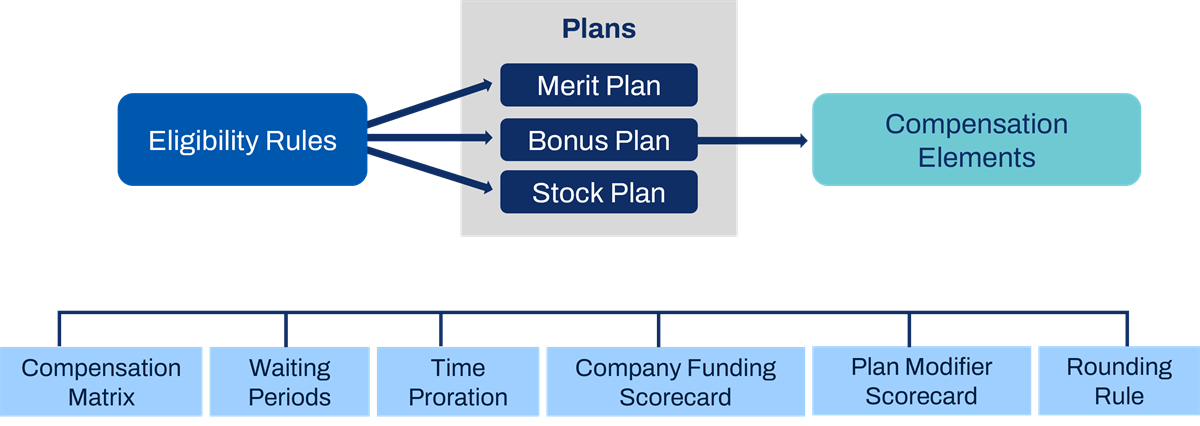
The illustration below demonstrates the relationship between each of the Advanced Compensation components. For example, the illustration maps eligibility rules to the three different plan types-Merit, Bonus, and Stock. It then maps each plan to a compensation element. The features available in the merit, bonus, and stock infrastructure and process are then included below as each option is configurable to meet your business requirements.
Compensation Review Process
The merit, bonus, and stock use the compensation review process to grant awards. The compensation review process allows you to:
- Schedule and plan for compensation milestones.
- Configure the organization type and roles with authority to create, edit, or review awards.
- Continue to make staffing changes during the compensation review.
- Manage pool budgets.
- Use eligibility rules to target employee populations.
- Provide transparency to all participants responsible for planning, approving, and review awards.
Use the
Initiate Compensation Review Process
business process definition to conduct the compensation review and include bonus and stock awards. You can plan and schedule regular compensation reviews for:- Annual reviews for merit, bonus, and stock.
- Semiannual or quarterly bonus reviews.
- Periodic reviews for stock to better align with the company's fiscal cycle.
Compensation Eligibility Rules
Compensation eligibility rules are the foundation for compensation. A compensation component must have an eligibility rule and link it to a compensation package for accurate defaulting to occur. Compensation eligibility rules define:
- Defaulting behavior of compensation components during staffing events.
- Selection of compensation components based on eligibility.
- Profile assignment when used with any compensation components that use profiles.
- Target population when rolling out or removing compensation plans.
During compensation review, eligibility rules are an integral part of plan assignments and process calculations but do not guarantee and award payout.
Common Rule Criteria
For compensation components to populate accurately during staffing transactions, you must assign eligibility rules to compensation components. Components include compensation packages, compensation grade profiles, and all plans within the compensation package.
The eligibility rules populate compensation data to guide the manager or compensation partner through the transaction. If a manager is completing the transaction, they cannot select compensation components that the employee is ineligible for. However, if a compensation partner is completing the transaction, they have security to override the defaults. A compensation partner receives the same guidance the manager does, but can choose to ignore it and select different components.
Additionally, you can use compensation eligibility rules to:
- Assign unique compensation targets to different employee populations. You can use target profiles for compensation grades, grade profiles, and most plan types. You can assign targets for the following plans types: period salary, one-time payment, merit, bonus, stock, allowance, and commission.
- Create exception rules for the compensation review process.
- Roll out or remove compensation plans for a target population.
- When rolling out a plan, the eligibility rule is based on who should be eligible in the future. The rules for compensation plans and the rollout process can be the same.
- When removing a plan, you can use a targeted eligibility rule to only remove the plan for a specific population of employees. Alternately, you can use a rule identifying ALL employees to sweep the population, remove the plan from all employees' compensation, and allow for inactivation.
To control the compensation components that employees are eligible for, assign eligibility rules to the compensation components using the
Assign Compensation Components to Rule
task. A second option is to add eligibility rules directly to each compensation component.There are many compensation eligibility rule possibilities available in the system. It is likely that your organization uses a large library of rules. The following reports help evaluate and view the compensation eligibility rule framework:
Report | Description |
|---|---|
Compensation Rule Assignment | Identifies the compensation components using the eligibility rule and which filled and unfilled positions would be eligible for the components based on the rule. |
Employee Compensation Audit | Identifies workers in specific organizations who are incorrectly associated with any compensation plans or components. Also identifies eligible workers who do not have a specific plan in their compensation. |
Compensation Spreadsheet | For any organization and its subordinates, this report displays workers and all their compensation components, hire date, compa-ratio, and quartile. You can copy this report and modify it to meet your requirements. |
Compensation Review Overview
Compensation review in Workday provides customers with visibility, support, and simplification during their annual compensation awards cycle. Managers and planners can view all of their organizations in one Inbox task. People who support the process can view on behalf of planners and managers to view or modify awards depending on security permissions. This transparency and collaboration allows for a quick, inclusive, and concise completion of the compensation awards cycle.
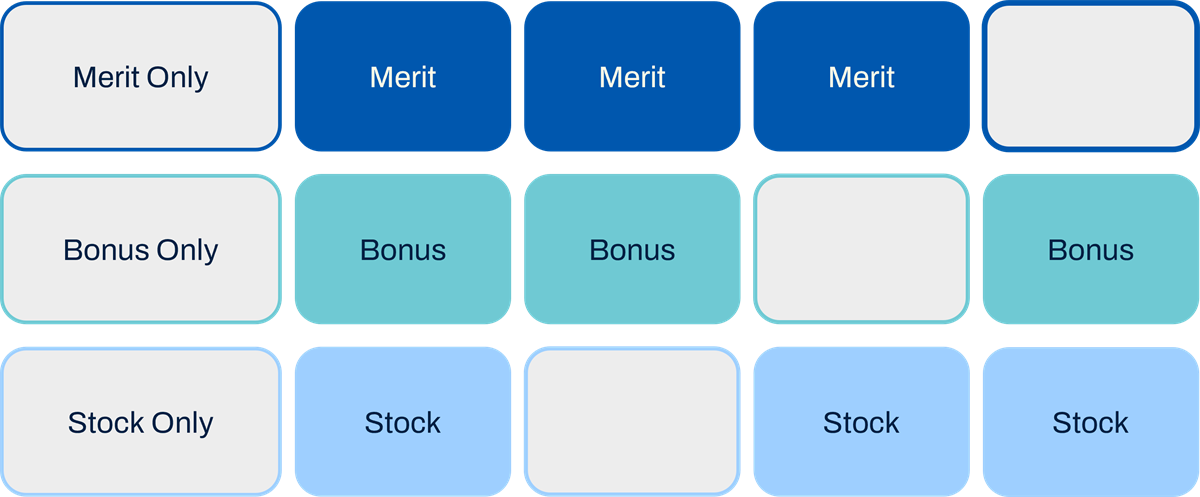
The compensation review process grants awards such as merit, bonus, or stock. You could run a process for only merit, merit and bonus, bonus and stock, or all three. The following image represents the different event options:
Roles and Responsibilities
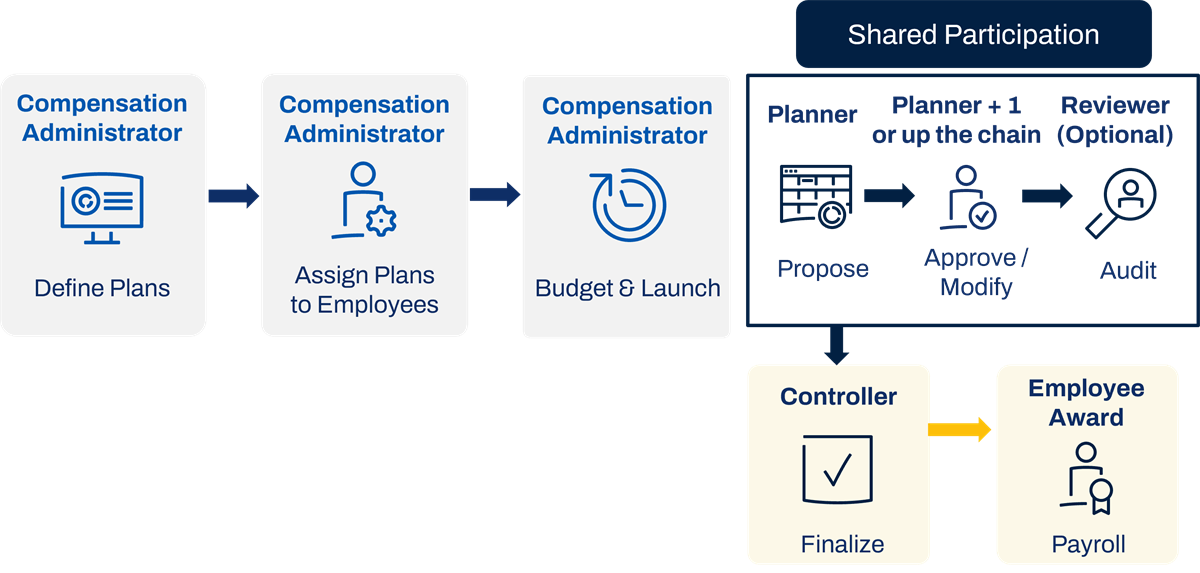
A compensation review has many key roles:
Role | Definition |
|---|---|
Compensation Administrator | This administrator defines plans, assigns plans to employees, and launches the compensation review process. |
Controller | The controller receives the Control Page in their Inbox. Typically a controller is a compensation administrator. The Control Page provides a complete view of the process at all times. Controllers are responsible for finalizing the compensation review. |
Planner | Planners only approve or modify awards. Typically a planner is a manager, compensation partner, or other security group. |
Reviewer | The individual reviewing the proposed awards. Typically, the reviewer is someone outside of the hierarchy responsible for planning. For example, if the manager of a supervisory organization completes planning, the reviewer could be the Cost Center Hierarchy Controller. |
Support | Individuals who access reports to view or modify awards for planners they support. |
These roles can overlap, be the same person, or belong to various team members.
Control Page Views
There are three primary control page views:
- Manager Proposal View
- Manager's Manager Proposal View
- Controller's View
Manager Summary View
Workday uses the planner and manager roles interchangeably in a compensation review. Depending on the roles and responsibilities of your organization, you may let managers propose awards, or you may have a designated planner such as a compensation partner. The grid for the manager and planner can be the same, or you can have configurable grid profiles to tailor the options and actions for each role.
Managers and planners have many actions and view options on the control page, including:
- Overview of pools and awards for the entire hierarchy they support.
- The planner proposes the awards for their direct reports in the configurable grid.
- A planner who manages multiple supervisory organizations can award employees in each individual supervisory organization or all of their direct reports at once.
Manager’s Manager Summary View
The manager's Summary View provides additional actions that include the option to send proposals back, complete proposals on behalf of subordinate managers, search employees, and view employees with errors or alert messages.
In the summary view, the pool and spend are based on the entire hierarchy within the manager's area of responsibility. This view provides the status of each organizations compensation review proposal. After a manager submits awards, the manager's manager can edit proposals and submit awards for their organization.
The manager's manager has another view called Organization Summary. This view provides status and information about their direct reports. This view also includes custom warnings and errors that automatically display.
Complete on Behalf
Managers can enter awards on behalf of managers they support by drilling into the Sub Orgs chart icon.
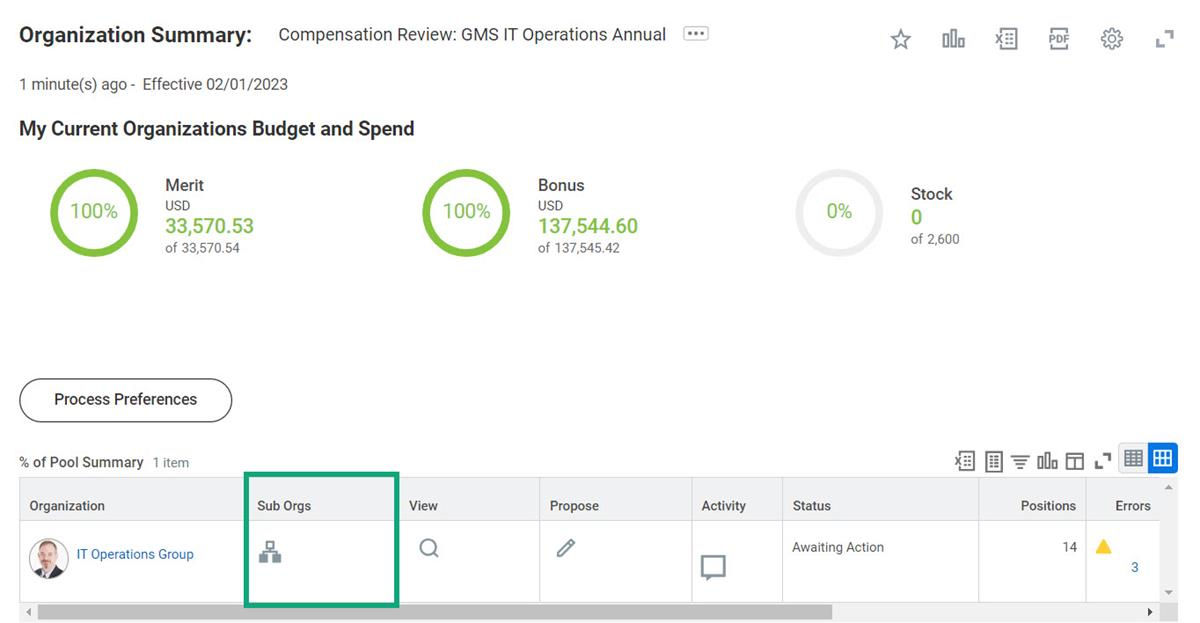
You should configure this action using the Process: Compensation Review Process Controls security domain. With correct permissions, they can review the Sub Orgs and use the Complete of Behalf option for a manager's manager.
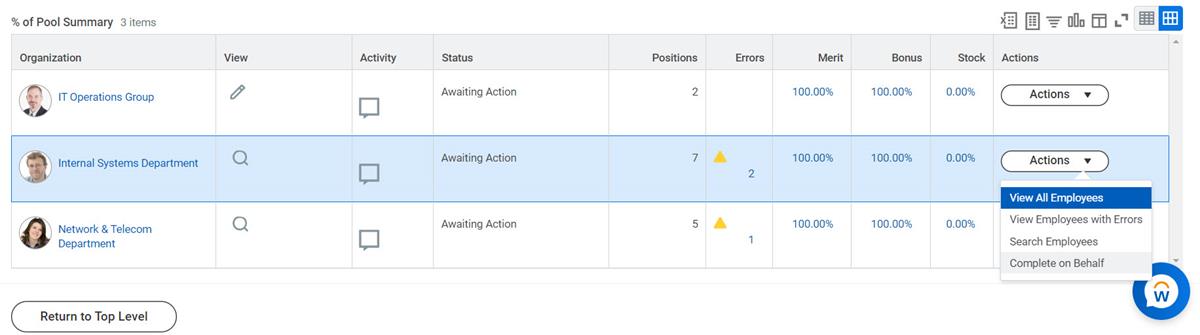
Once managers select Complete on Behalf and propose awards, the status changes to Manually Advanced. Managers cannot submit their organization until all of their direct reports awards are complete.
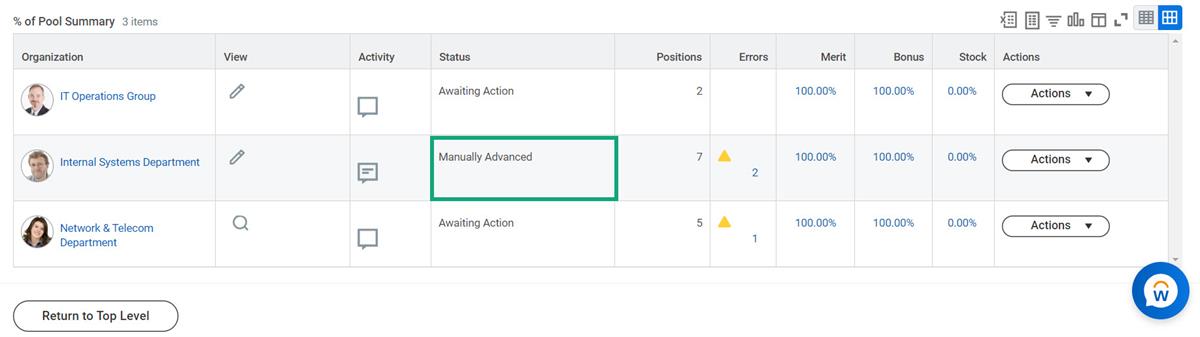
After managers submit their organization's reviews, or an organization manually advances using Complete on Behalf, a manager's manager, or controller, can send the reviews back.
Controller View
Typically, a compensation administrator assumes the role of controller. The Control Page provides an overview of available pools and how much remains in the budget. Controllers can drill into a planner's grid and manage the process. The controller can enter awards, send back to the top-level participant once the top-level manager submits the award, and finalize the compensation review process.
The three tabs in the view are:
- Process: Provides an overview of organizations that are in progress and successfully completed. In this view, the controller can search for employees and access the configurable grid for organizations. The controller can complete the process at any time by selecting the Finalize Compensation Review Process button.
- Details: Contains a summary of the process details and selected options to review.
- Employee Participation: Groups all options the controller has to manage employee participation in the process. Options include adding and removing employees from the process.
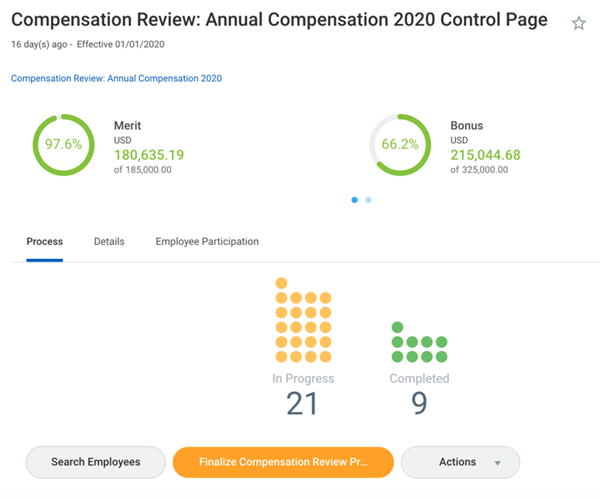
The Controller Page View also provides compensation process Controllers with analytics and actions.
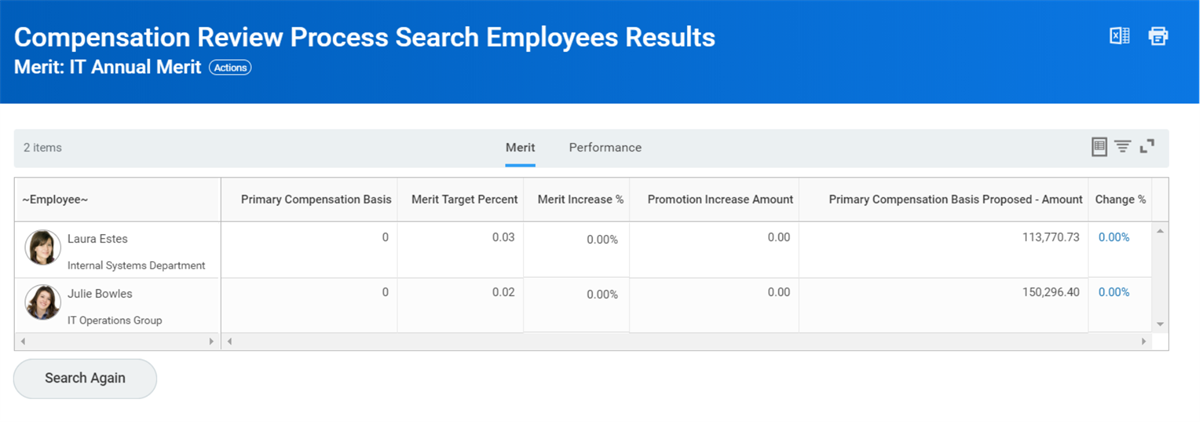
The controller can search for employees in the process, finalize the process, and take allowed actions. Search Employees allows you to search and select employees based on criteria such as manager, supervisory organization, location, or job profile. Then you can use the Review button to access the award page and enter the award for the employee.
You have the ability to hide or displays the pool and budget wheel graphics for target populations of compensation review users. For example, you may want the graphics to display for all directors and above, but do not want managers below director level to have visibility to the budget wheels when they plan in the compensation review.
To control the visibility of pool and budget wheels, configure the
View Compensation Review Pool Data
domain security policy in the Advanced Compensation functional area. Remove security groups from the security domain to hide the pool and budget graphics from those groups. This configuration will also hide the pool and budget data from the following areas:- Compensation Review Budget Pools report
- Compensation Review Status Report
- Compensation Review Status Report by Hierarchy
Support Role
A compensation review will require support, most likely from HR. A support role can also view or modify the awards for the employees they support. You can use the following dashboards, reports, and actions to support the compensation review:
- Compensation Reviewdashboard
- Compensation Review Search Employeesreport
- Compensation Review Process View Organizationreport, which allows participants to review exactly what the planners are seeing on their Inbox task.
- Add or modify proposals while managers have the proposal task or during a review step sent to HR.
- Move manager's proposal task one management level above or send proposals one level back.
- Indicator for Reviewing As to indicate which planner the participant is viewing in the organization.
- Compensation Review Process Search Employees (Default)report to manage and support workers in compensation review.
Actions on Compensation Review Business Process
The last step in compensation review is to finalize the process. For in progress awards, you have the option to cancel the process. For completed reviews, you cannot rescind the entire process. Instead, you must rescind individual award events for each impacted worker included in the process.
Chapter Summary
The primary advanced compensation components include merit, bonus, and stock plans. The
Initiate Compensation Review Process
drives compensation reviews. There are five primary roles in compensation review: compensation administrator, controller, planner, reviewer, and support. Compensation review uses many features that work together to make the compensation review process collaborative, transparent, and efficient.