
Data Ingestion
Overview
This chapter identifies the methods for ingesting data in Accounting Center. It also explores how base datasets or tables store imported data. This chapter demonstrates how Workday validates the data against the defined schemas. It also lists the Accounting Source stages. Lastly, this chapter defines the pipeline in Accounting Center.
Objectives
By the end of this chapter, you will be able to:
- Describe Accounting Center data input methods.
- Create a Prism table.
- List Prism table schema uses.
- Define Accounting Source function.
- List Accounting Source stages.
- Define Accounting Center Pipeline.
- Explain the difference between delivered and user-created datasets.
Data Ingestion into Accounting Center
The first phase in the data management workflow is to bring data into the Prism Analytics Data Catalog. You can bring in external data or Workday transactional data. The Data Catalog is where data analysts can review the data available to them.
The Accounting Source (the model created for Accounting Center) requires the data ingestion to be in a Prism Analytics table. A table is a Prism Analytics object that stores data and represents it in a tabular format. A table has a schema and contains data that is valid against the schema. A base dataset is a Prism Analytics object. The object controls some underlying data stored in one or more files, and describes processing logic to read the data in the files. A base dataset contains all of the information about the data in the files, plus a subset of example rows to help you understand the data values.
Prism Table, Dataset, and Derived Dataset
There are several ways to bring data into Prism:
- File Upload
- REST API
- sFTP Integration
- Workday Report
- Manual Input
- Existing Table or Dataset to define table schema
Create Prism Analytics Table
Tables can accept data from any type of source at any time, such as file upload, a dataset, or REST API. Create data change tasks to load data into and change data in a table. You can use a different source type for each data change task that works on the same target table
File Upload
You can create a table by uploading one or more delimited files. Workday uses the field information in the first file to define the table fields, and then it loads the data in the files into the table.
Steps:
- Access the Data Catalog report.
- Select Create > Table.
- Enter the Table Name.
- Select the Enable for Analysis checkbox (allows you to build reports for the table).
- On the Select Schema Source step, select File Upload.
- Select one or more delimited files to upload.
- On the Edit Parsing Options step, define how to parse the data in the file.
- On the Edit Schema step, review the fields Workday created based on the parsed file, and modify the fields if necessary.
Manual
You can create a table by manually defining each field in the table schema. When you create a table manually, the table is empty. You can load data that is compatible with the table schema into the table.
Steps:
- Access the Data Catalog report.
- Select Create > Table.
- Enter the Table Name.
- On the Select Schema Source step, select Manual Input. The Edit Schema step displays where you can define each field in the table schema.
- Select Add Field to add one or more fields
- In the inspector panel for the field, configure the field attributes.
Prism Table Schema
Once you have created the ingestion table, review the schema. All future ingestion files must be compliant with the table schema. For example, if you have a date field MM/DD/YYYY and ingest records with a date format of MM,DD,YYYY, the records will fail.
It is recommended you determine what the table schema should be before creating tables. For example determine what the field types should be (text, numeric, date, etc) and currency decimal precision like how many digits before and after the decimal place there should be for relevant fields.
There are impacts related to field types and decimal precision. For example you could not Join a Text field to Numeric field, the field types would need to match. You should know what currency decimal precision is necessary for currency fields used in the detailed accounting. The transaction and ledger amounts in detailed accounting must match the currency precision of the transaction and ledger currencies. There could be journal entry balancing issues if the decimal precision is not consistent with the currency type.
You can still change the table schema after a table has been created, but there are requirements and limitations. For example: You can add or remove fields at any time, but if you want to change the field type, the table must be empty (zero rows). Schema changes are destructive. Example: If you remove a field, you lose all data contained in the field.
Data Ingestion
Ingestion is the process of moving external transactions into a dataset from where you can access and analyze them. Before ingestion consider if you will be ingesting multiple records and including those records in a single transaction? If yes Use Transaction Grouping ID in enrichment validation stages and the Accounting Source Configuration to properly group records for:
- Error Management: Ensures that even if 1 record in the transaction has an error, all records in the transaction error out.
- Balancing at the transaction level: Ensures that the journal balances at the transaction level.
The transaction grouping ID is alpha-numeric and isn't case-sensitive.
When you create any table or a base dataset that uses an integration, Workday automatically creates extra fields in the table or dataset. These fields help you to uniquely identify rows in the table or dataset from different integration runs.
Field Name | Description |
|---|---|
WPA_LoadID | This field returns a value of type Text containing a unique identifier of the integration run or data load activity that imported the current row of data into the dataset or table. Workday adds this field to both tables and datasets. |
WPA_LoadTimestamp | This field returns a value of type Date (to the millisecond) containing the date and time of the integration run that imported the current row of data into the dataset or table. Workday adds this field to both tables and datasets. |
WPA_RowID | This field returns a value of type Text containing a unique row identifier for each row in a data load activity or integration run. Workday adds this field to tables. |
WPA_UpdateID | This field returns a value of type Text containing a unique identifier of the data load activity that updated the current row of data in the table. Workday adds this field to tables. |
WPA_UpdateTimestamp | This field returns a value of type Date (to the millisecond) containing the date and time of the data load activity that updated the current row of data in the table. Workday adds this field to tables. |
You can't modify or delete these fields, but you can hide them. Use these fields with the other fields to uniquely identify rows of data in the table or dataset from multiple integrations.
You can also use these fields to group data together from a single data load or integration. Example: you can create a Group By stage and group on the WPA_LoadID field and Count the number of rows from each integration run.
Pre-Batch Processing
Depending on the accounting center use case you may want to have Pre-Batch processing. This is not required.
You could have external data stored in a source table. You could keep the source table as is, do front end parsing, or create a derived dataset based on the source table to do formatting options like using a Manage Fields stage or adding new fields like a transaction grouping ID field. The derived dataset could then be used to update the Ingestion table for the Accounting Source.
Pre-Processing Steps:

When adding new external data/transactions they would be loaded into the Source Table.
The Source DDS can have fields added like Transaction Grouping IDs, currency decimal precision formatting and calculations, and field type modifications using a Prism Stage like Manage Fields. Additional fields can be added depending on the use case to ensure duplicate data is filtered out of the Ingested AC Table
The AC Table, also known as the Accounting Source Ingestion table can be updated based on the results of the DDS using a Data Change task that can be run on an ad hoc or scheduled basis.
- Create the 'Source Table' and load data. Data can be appended to this table in the future
- Create the 'Source DDS' dataset with the 'Source Table' as the Primary pipeline.
- Create the 'AC Table' from the schema of the 'Source DDS'. Use the "Existing Table or Dataset" option when creating the table.
- Use a data change task to update the AC Table with the data from the DDS.
Function of Accounting Source for Accounting Center
An accounting source is a Workday-configurable object that defines the steps, ingestion source, and rules for processing input rows in Accounting Center.
You can use an accounting source to:
- Bring external transactions into Workday batches using the data management hub of Workday Prism Analytics.
- Enrich transactions with worktag mapping and unique calculations, and create custom validations.
- Manage rules to generate accounting for high-volume transactions generated by non-Workday sources.
- Transform external operational transactions into accounting journals.
- Create, modify, and maintain custom accounting rules and custom account posting rules to generate detailed and summarized accounting.
- Post summarized journals to your ledger.
- Orchestrate and have visibility over the entire data transformation process, and view, resolve, and reprocess errors.
You must have a table of external transactions prepared for enrichment and accounting generation in Prism, called an ingestion table. You can use an ingestion table to build your enrichment and accounting rules, beginning with the
Create Accounting
Source
task.You can create an accounting source from the ingestion table. Workday creates the tables and datasets that are part of the accounting source for these four stages:
- Initiation
- Enrichment
- Detailed Accounting
- Summarization
Use the
Create Accounting Source
task.As you complete the
Create Accounting Source
task, consider the following:Field | Description |
|---|---|
Name | Enter a name for the accounting source. No special characters. Only letters, numbers, and spaces. |
Enrichment Steps | Select the number of enrichment steps you want to use for the accounting source. You cannot change the number of enrichment steps once you create the accounting source. The number of enrichment steps you select depends on:
Note: Any accounting source that uses a Validation stage that references the result of a Value-Mapping stage must have the Validation stage in a subsequent enrichment step. Example: When creating two enrichment steps, create the Validation stage on the last enrichment step. Workday recommends that you create separate enrichment steps for:
Workday also recommends that you configure the mapping stages before you expand your data. This configuration reduces the number of rows required for mapping. |
Ingestion Source | Select the ingestion table for your transactions that you want to use for accounting. You cannot use a data source for more than one accounting source. |
Data Change Task | (Optional) Select a Data Change Task to automatically load transformed data from the derived dataset to the ingestion source table when processing an accounting center batch. If you do not select the task, you must manually populate the ingestion source table with new data. |
Inactivate Accounting Source
You can inactivate an accounting source that is incomplete, wrongly configured or that you longer need. When you inactivate an Accounting Source, Workday automatically disables all tasks for editing a configuration or initiating a batch from the accounting source You can though still report on the inactivated accounting source and its transactional data.
Once you inactivate an accounting source, you cannot reactivate it.
Data Change
The
Data Change Task
is a Prism object that defines how to change the data in a Prism table using data from a specified source. A frequent use of a data change task with Accounting Center is to update an existing Prism table with a transaction grouping ID field (column) of data. A transaction grouping ID allows multiple rows of data in the table to be grouped together as one single transaction. For example, an ingested table may not have a Transaction Grouping ID associated with the data. A data change task can be created to update the table to be populated with a transaction grouping ID from a source dataset. Transaction Grouping IDs can also be used to expand one row of data into multiple rows of data for the transaction.Workday also enables you to persist source WPA_LoadId and WPA_RowId with mapping information, giving you an end-to-end audit trail from your source data to accounting journals.
There may be instances when the
Data Change Task
includes records from the Source table that have already been processed through Accounting Center. The accounting center process will not recognize these as already processed records since with the WPA IDs on the Source table differ from the WPA IDs on the Ingestion table. This is not an issue if your DCT is an Update only or if your DCT appends only new records.There are two ways to ensure that records are only processed once:
- When loading new data into the ingestion source table, use the target operationTruncate and Insert. Understand with this option that you will lose all previously ingested transactions.
- Configure the DDS for theData Change Taskwith logic that will return only transactions that have not been processed. This configuration will maintain the previously ingested transactions in the Accounting Source tables but only process the new transactions.
A data change task has a specific data operation type, such as Insert, Truncate and Insert, Delete, Update, and Upsert, that instructs how to use the data in the source to change the table rows. You can create 1 or more data change tasks per table.
You create, edit, and manage data change tasks from the Data Catalog. Access the
Data Change Tasks
tab on the Data Catalog
report to view all data change tasks you have permission on. To create, view, or edit a data change task for a specific table, you must have permission to modify data in that table.You can:
- Run a data change task on a schedule, or manually on an ad hoc basis.
- Edit the data change task, such as change the operation type or field mapping, before you run it.
- Delete the data change task.
- View the data change activities to see the number of rows affected by the data change task and to download any failed rows.
You can use data change tasks to define these components:
Component | Description |
|---|---|
Source | The object that contains the data that you want to load into the target table. Example: A delimited file that you upload or a Data Catalog object, such as a dataset. Depending on the source type, you might need to define additional source options, such as parsing options. |
Target table | The table with the data you want to change using the source data. You can only create a data change task using an existing table in the Data Catalog. |
Target operation | The data operation to perform on the target table using the source data. You can specify:
|
Mapping | The specifications for matching source fields to the target table fields. You can match a source field to 1 or more target table fields. |
Accounting Source
From the accounting source's
Related Actions
, select Accounting Source
> View Implementation
and confirm that the accounting source creates these datasets and tables for each stage:Stage Type | Dataset/Table |
|---|---|
Initiation | Input Dataset System Dataset Output Dataset |
Enrichment | Input Dataset System Dataset User Dataset Output Dataset |
Detailed Accounting | Input Table System Dataset Output Table Error Table |
Summarization | Input Table System Dataset Output Dataset Error Table Reporting Dataset Dismiss Table |
Pipelines in Accounting Center
Datasets contain one or more pipelines. A pipeline is a container of stages that models the flow of how data transforms. A pipeline consists of an ordered list of one or more stages. Each stage defines how to modify the data at that point in the pipeline.
Tables and base datasets contain one pipeline, and derived datasets can have multiple pipelines.
Pipelines allow you to bring the output of one dataset into another transformation stage.
The first stage in a pipeline brings in data from a source. Following stages take the output of the previous pipeline as the input to the current stage. In terms of ETL (Extract, Transform, Load) workflows, each stage is one step in a development pipeline. The last stage of any pipeline is the output for that pipeline. The output of the primary pipeline is the output of the entire dataset. Therefore, when you publish a dataset, the output of the primary pipeline materializes as the data in the Prism data source.
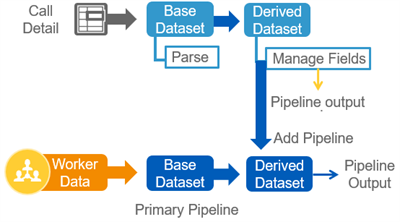
To add and define additional pipelines, select the Add Pipeline button in the pipeline panel. You can also define pipelines when you create a join stage. You can add additional fields to any pipeline defined in a dataset, not just the primary pipeline.
Dataset Lineage
As you create derived datasets to transform and blend imported data for a given use case, you must keep track of the data flow and lineage. Users can view the lineage of a given dataset to view all preceding datasets and tables flowing into that dataset. From the Data Catalog, right-click a dataset and select Lineage, or run the
View Dataset Lineage
report.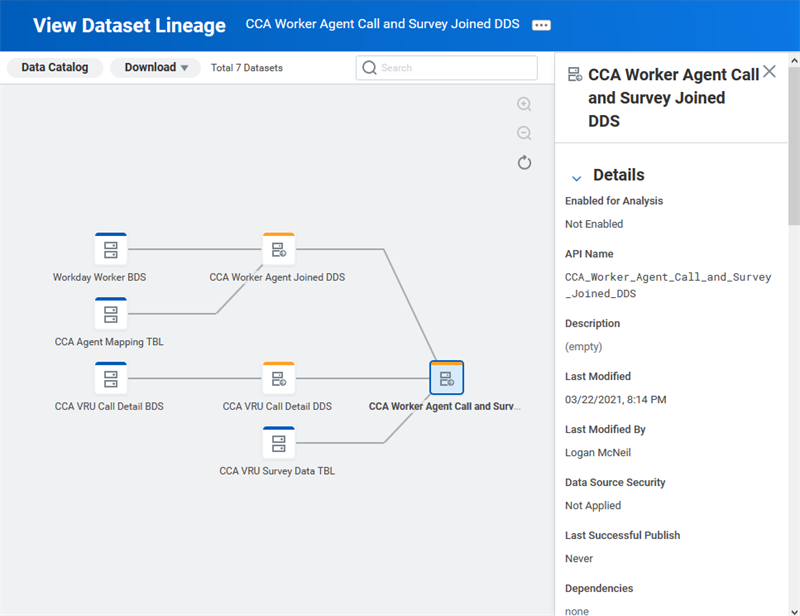
The dataset lineage displays, with tables and base datasets in blue, and derived datasets in orange. Select a dataset to view the details in the side panel. The Details section contains security and publishing information, as well as any datasets that import the current dataset. The Fields section lists the fields in the dataset with an icon indicating the field type. You can search for datasets in the lineage using the Search box. Right-click a dataset to perform Related Actions such as viewing and editing.