
Prism Analytics and Accounting Center Overview
Overview
This chapter introduces the Prism Analytics functions in Workday. It also explains the relationship between Prism and Accounting Center. This chapter outlines the flow of ingesting data into a table, transforming the data, and then publishing it to Workday reports. Lastly, this chapter defines key Prism and Accounting Center terminology.
Objectives
By the end of this chapter, you will be able to:
- Explain the relationship between Prism Analytics and Accounting Center.
- Explain the difference between Prism Analytics tables, datasets, and derived datasets.
- List the business processes in Prism Analytics as they relate to Accounting Center.
- Define key Prism Analytics and Accounting Center terminology.
Prism Analytics Overview
The Prism Analytics tool provides the ability to ingest, blend, and transform Workday data with external data and publish the output as a new Prism data source. Prism enables you to enrich and transform the data without exporting it into separate applications into Accounting Center journals and include them in your Workday ledger. You can securely distribute these insights to executives and managers using existing Workday report, dashboard, or scorecard functionality.
Create a Prism Analytics table to bring in your external accounting transactions.
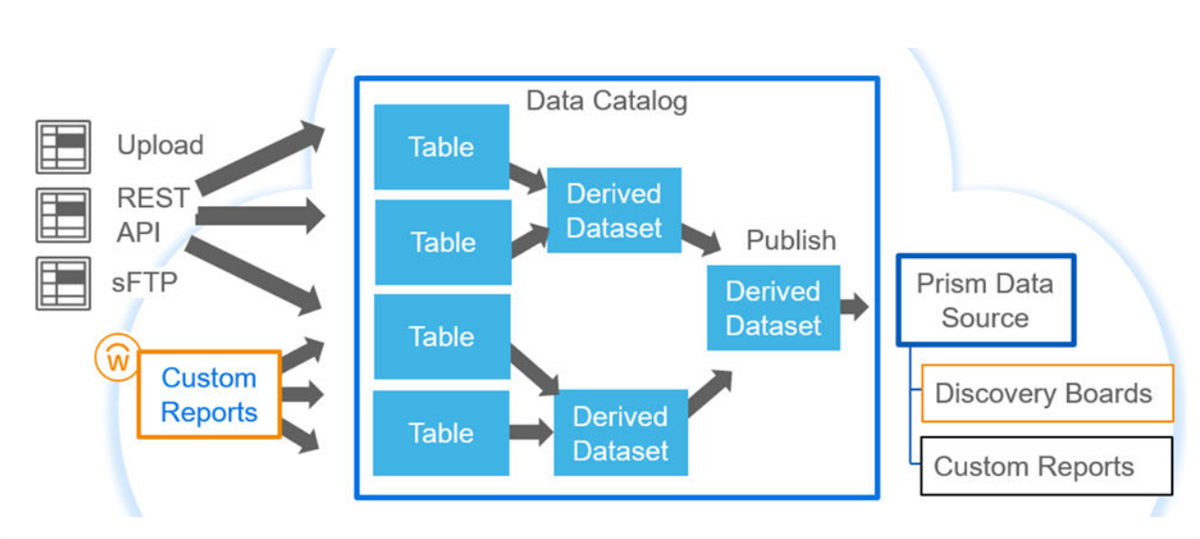
Accounting Center Overview
Workday Accounting Center, built on a Prism Analytics engine, ingests, enriches, and transforms operational transactions into accounting. Accounting Center then takes the select data, and through a Workday format, produces tailored, custom reports for each unique company.
With Accounting Center, you can:
- Import high-volume business events into Workday.
- Enrich the data with meaningful attributes and create accounting journal entries for those transactions.
- Report on and analyze the journal entries with detailed visibility into the source transactions.
Relationship Between Prism Analytics and Accounting Center
Workday applications use Prism Analytics to solve many reporting and analytics use cases. Accounting Center uses Prism Analytics to ingest, store, transform, and materialize data through the Accounting Center application.
By using Prism Analytics to bring external data into Workday, you can produce secure reports. You can distribute these reports via dashboards and scorecards to key decision-makers following the Workday reporting and security framework.
Workday Accounting Center manages rules to generate accounting for high volume transactions generated by non-Workday sources. To use Accounting Center, you can bring into Workday external transactions in batches using Workday Prism Analytics.
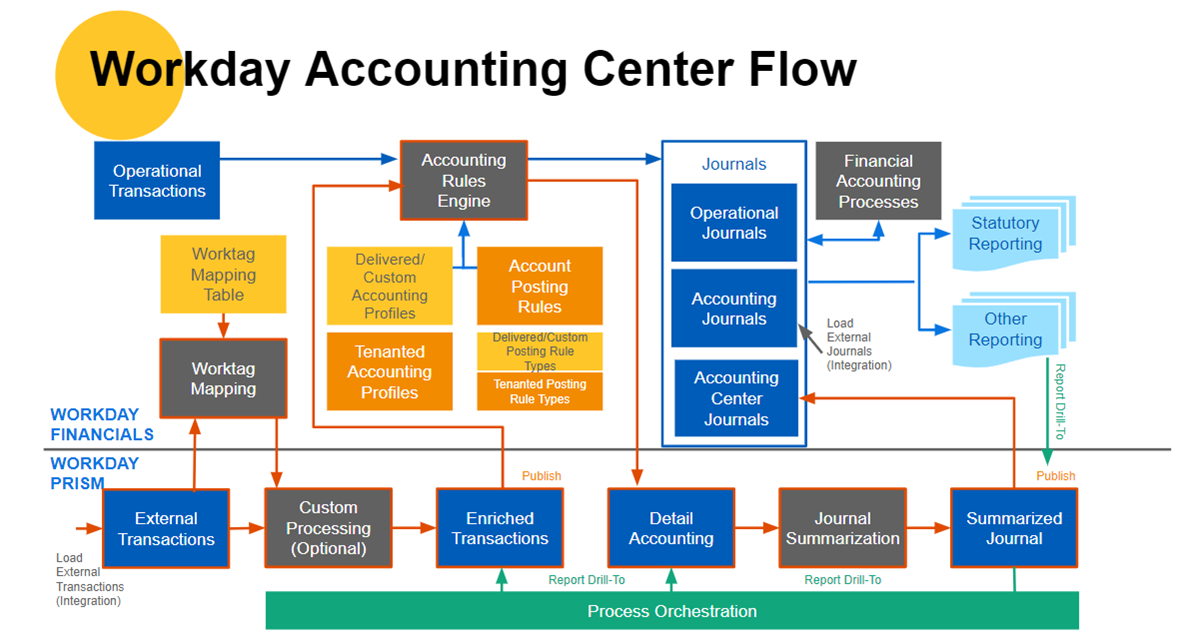
Workday Accounting Center Flow
Prism Analytics Table, Dataset, Derived Dataset, and Data Catalog
The following table summarizes the tasks you can use to work with Prism tables, base datasets, and derived datasets:
Edit | Copy | Delete | Share | |
|---|---|---|---|---|
Table | Edit the table schema. e.g., add field, delete field, rename. | No | Yes, if not imported by any dataset. | Yes |
Base Dataset | Configure single pipeline transformation stages and calculated fields. | No | Yes, if not imported by any dataset. | Yes |
Derived Dataset | Configure single and multipipeline transformation stages and calculated fields. | Yes | Yes, if not imported by any dataset. | Yes |
Note
: You can import a given table or dataset into different derived datasets.Tables vs. Base Datasets
A table is similar to a base dataset with important differences. The following table explains the differences in some important concepts between tables and base datasets.
Concept | Tables | Base Datasets |
|---|---|---|
Schema | You define the table schema before you load data into the table. Commonly referred to as schema-on-write. You can still change the table schema, but there are requirements and limitations. Example : You can add or remove fields at any time, but if you want to change the field type, the table must be empty (zero rows). Schema changes are destructive. Example : If you remove a field, you lose all data contained in the field. | Base datasets control underlying data stored in files. Dataset schemas describe how to read and later transform the data stored in those files. Commonly referred to as schema-on-read. Although you can change the dataset schema at any time, confirm the schema matches the data in the underlying files. If so, the schema recognizes the data correctly. If the schema does not match the file, then Prism sets value as NULL. |
Source Type | Tables can accept data from any type of source at any time, such as file upload or REST API. Currently, you can only load data into a table using the REST API. Example : You create a table and load data into it using file upload, and then later you load data into it using the REST API. | A base dataset only accepts data from the same source type you used when you created the dataset. That is, if you create a dataset using sFTP, it will only accept data from an sFTP server. |
Data Validation | When you load data into a table, Workday validates the data against the defined schema. If the value for a field does not match the field type or other field parameters (such as date format), Workday marks the entire row as invalid. Also, Workday does not include the row in the table. Instead, the row gets sent to an error file that you can download. | When you publish a dataset, Workday reads the data stored and validates it against the current schema of the base dataset. If the value for a field does not match the field type or other field parameters (such as date format), Workday marks that field value as NULL. Workday also includes the row in the published Prism data source. |
Null Handling | Every field allows NULL values. Workday distinguishes between NULL values and empty string values in Text fields when reading a delimited source file to load data into a table. If a delimited file contains:
| Every field allows NULL values. Workday does not distinguish between NULL values and empty string values in delimited files. |
Deleting Data | You can remove all rows (truncate) or some rows (delete) from a table. To delete some rows from a table, you delete all rows from a single load from the table. You might want to do this action when you append data to the table and need to remove the rows added from a particular load. | You can remove all rows (truncate) from a base dataset. You cannot delete a subset of rows. |
Make Prism Data Source | Use the Enable for Analysis option when you create or edit the table schema to create a Prism data source. | Publish the dataset to create a Prism data source. |
Row Count | Workday knows exactly how many rows of data exist in a table. Workday displays the number of rows in the Data Catalog and on the View Table report. | Workday does not know how many rows of data exist in a base dataset. |
Prism Analytics Table
A table is a Workday Prism Analytics object that stores data and represents it in a tabular format. A table has a user-defined schema and only contains data that is valid against the schema. A distributed columnar data store backs the data in tables.
You create tables to bring in data from multiple sources and store it in a central location, the Data Catalog (similar to a data warehouse). You can then join, transform, blend, and enrich table data using derived datasets based on the table. Use derived datasets to prepare data for analysis.
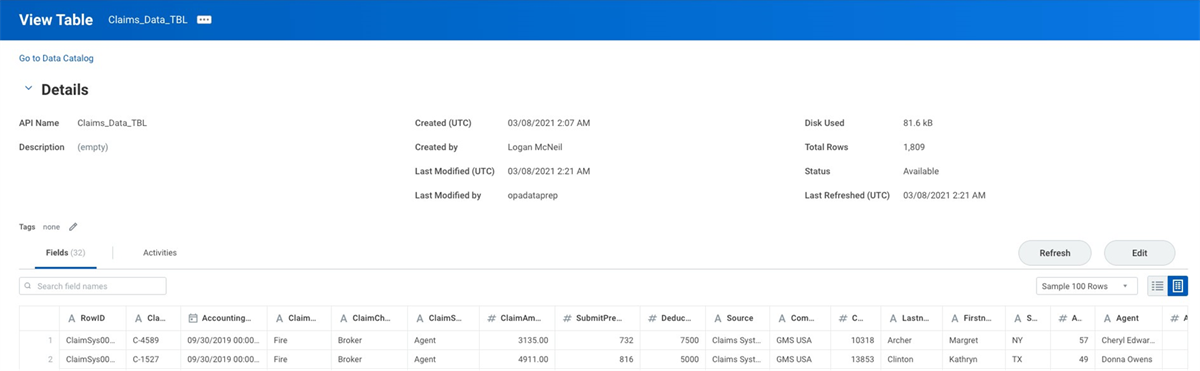
Parse External Data
When you load a delimited file into a table, you must define how Workday parses the data. You define the parsing options on the
Edit
Parsing Options step
when you load data into a table. Examples include creating a table by uploading a file, or when adding more rows to an existing table.As you complete this task, consider:
Option | Description |
|---|---|
Row Delimiter | Specifies the single character that separates rows (or records) in your source data files. In most delimited files, a new line separates rows, such as the line feed character, carriage return character, or carriage return plus line feed. Line feed is the standard new line representation on UNIX-like operating systems. Other operating systems (such as Windows) might use carriage return individually, or carriage return plus line feed. Selecting Any
New Line causes Workday to recognize any of these representations of a new line as the row delimiter. |
Field Delimiter | Specifies the single character that separates the fields (or columns) of a row in your source data files. Comma is the most common field delimiter. |
Field Names | Specifies the default name of each field. You can change the field names after you finish defining the parsing options. Field names must conform to the name validation rules. Workday automatically treats the first line in each source file as a header row instead of as a row of data. If you do not want to use the first line as names for your fields, clear Use values from first row . |
Escape Character | Specifies the single character used to escape the Quote Character or another instance of the Escape Character when a Quote Character is specified. Workday reads an escape character as data only if it is escaped with another escape character.If your data values contain quote characters as data, those characters must be escaped. Also enclose the entire field value with the Quote Character. If not, then Workday assumes that the quote character denotes a new field. |
Quote Character | The character that encloses a single field value, if any. Some delimited files use the quote character to enclose individual data values. The quote character is typically the double quote character ("). If a field value contains a field delimiter as data, then you must enclose the field value in the Quote Character. Otherwise, Workday assumes that the field delimiter denotes a new field.If a field value contains the quote character as data, then you must enclose the field value in the Quote Character. The field value also must be escaped, either by the Escape Character or another quote character.If a field value contains a row delimiter (such as a new line character) as data, then the field value must be enclosed in the Quote Character. Suppose that you have a row with these 3 data values:
If the field delimiter is a comma, the quote character is a double quote, and the escape character is a double quote, then a correctly formatted row in the source data appears as:
|
Comment Character | Specifies the character that represents a comment at the beginning of a line of text. Workday ignores every line in the external file that starts with the comment character. Example: Select # as the Comment Character to ignore lines that start with #. When the Comment Character is empty, Workday reads all lines as rows of data. |
Rows to ignore | Specifies the number of lines at the beginning of the file to ignore when reading the source file. To use along with the Use values from first row option, ensure that the line containing the field names is visible and is the first remaining line. |
Jagged Rows | Select these options when the schema of the source file is not an exact match of the table schema. Also, use when you want Workday to ignore any missing or extra fields at the end of the file schema. |
Field Options | These options control how to handle white-space characters in Text fields.
|
Dataset
A dataset is a Prism Analytics object that controls some underlying data and describes some processing logic to manipulate the data. A dataset is a description of the data, otherwise known as metadata. It contains all of the data about the data, plus a subset of example rows to help you understand the data values. You create datasets to prepare data for analysis.
A dataset can describe either Workday or external data. You might want to create a dataset using external data to blend, transform, and enrich it with Workday data. This feature enables you to analyze your Workday and non-Workday data together without having to export it into a separate electronic data warehouse and business intelligence (BI) application.
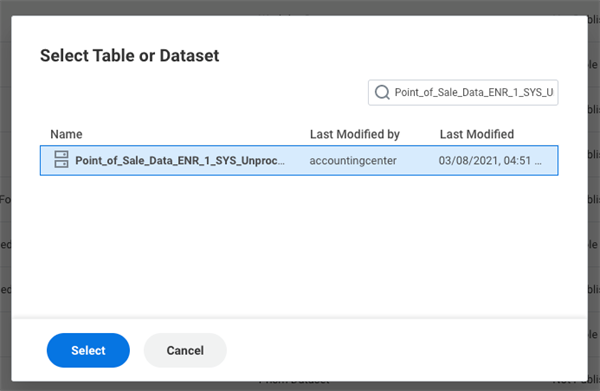
A dataset can also describe output data from another table or dataset, deriving the dataset from an existing table or dataset.
There are two types of datasets:
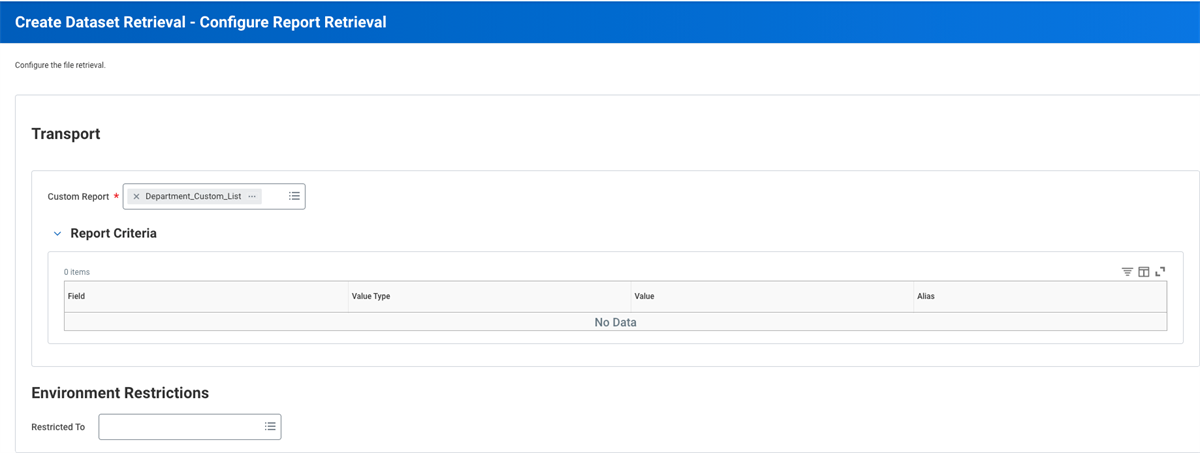
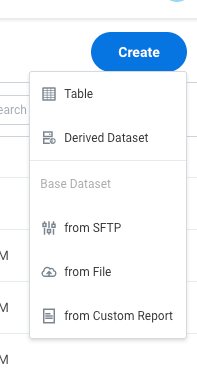
- Base dataset. A base dataset is a dataset that is based on one or more source files. The source files can come from external sources or from the output of a Workday custom report. You create a base dataset when you create a new dataset using these options:
- From File. This option creates a dataset with external data that you upload in the browser.
- From sFTP. This option creates a dataset with external data that Workday retrieves from an sSFTP server using an integration.
- From Custom Report. This option creates a dataset with Workday data.
- Derived dataset. A derived dataset is a dataset that is based on one or more existing tables or datasets. The source data of a derived dataset comes from the output of existing tables and datasets. You use derived datasets to blend data together from different sources, such as Workday data and non-Workday data. Some stage types, such as Join and Union, are only available to derived datasets. You create a derived dataset when you create a new dataset using the Derived Dataset option.
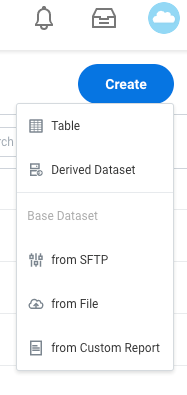
Derived Dataset
A derived dataset is a dataset that is based on one or more existing tables or datasets.
When you first create a derived dataset, Workday creates the Primary Pipeline. Import other datasets into the derived dataset so you can blend data together. You can add a stage to any pipeline in the dataset. However, you can only add some stages, such as the Join stage, to the Primary Pipeline.
Data Catalog
The
Data Catalog
report is your starting point for using Workday Prism Analytics. The report displays the data available to you. If you have permission to create datasets or tables, you can:- Bring in and store data from multiple sources.
- Create derived datasets to transform the data.
You can also:
- Create Data Change tasks.
- Customize your view of datasets by filtering them.
- View details, such as a description, tags, and fields associated with a dataset or table while remaining in the Data Catalog.
- Access details about publishing and Prism usage.
- Access documentation that supports your use of Prism Analytics.
Process Flow for Prism
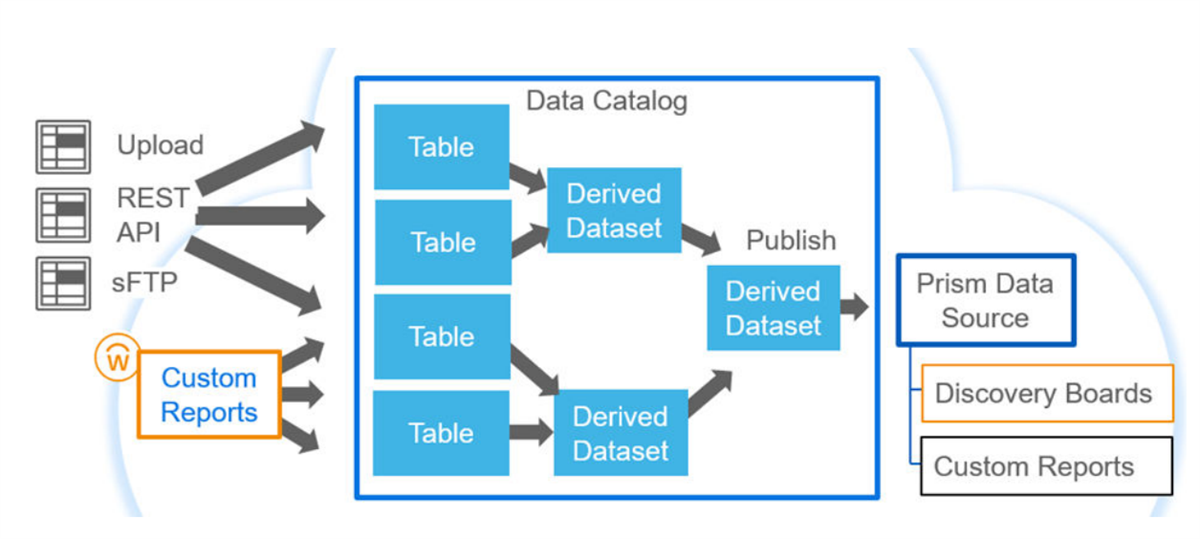
You can bring external data and Workday data into Prism Analytics as a base dataset. Import both datasets into a derived dataset, where you can merge the data by using a Join transformation. Configure additionally derived datasets to perform aggregations on the joined data. You may need to complete these processes multiple times. When you publish the datasets, they create a Prism Data Source in Report Writer to create Advanced, Matrix, and Composite reports from the combined data.
Note
: In Accounting Center, ultimately, a table is the primary ingestion source.These steps summarize the flow of ingesting data into Prism Analytics through publishing to Workday reports:
- Acquire data: Load external data via sFTP, REST API, file upload, or import Workday data from a custom report. You can schedule this step.
- Transform data: Add transformation stages to manage fields, filter data, blend data using joins or unions, and aggregate data. Add Prism calculated fields to perform functions.
- Publish data source: Configure domain security for the Prism Analytics data source and publish it for use in Workday reports.
- Report on Prism Analytics data: Create custom reports, dashboards, and discovery boards using the Prism Analytics data source.
Prism and Accounting Center Terminology
Term | Definition |
|---|---|
Accounting Source | Accounting Source is a Workday-configurable object that defines the steps, ingestion, source, and rules for processing input rows in Accounting Center. |
Calculated Field | A new field definition you create on a Workday business object. The field is a derivation of existing data based on calculation parameters. The system determines the field value at runtime. You can create a calculated field and add to a report using Report Writer for use in Prism-enabled advanced reports. |
Data Catalog | The data catalog is the central location where users can access and create Prism datasets. These datasets can include internal data from both Workday and external systems. |
Dataset | A dataset object associates with raw source data, the processing defined on the data, or both. There are two types of datasets:
|
Enrichment | You enrich data to enhance and refine your source data that you can use in detailed and summarized accounting. |
Ingestion | The first phase in the data management workflow is to bring data into the Prism Analytics data catalog. You store data in base datasets or tables. |
Lineage | The dataset lineage displays dataset dependencies, allowing you to trace a dataset's origin back to its base datasets or tables. |
Pipeline | A container of stages that models the flow of how data transforms. Base datasets contain one pipeline, and derived datasets can contain one or more pipelines. Every dataset has a primary pipeline. Within a derived dataset, you can use pipelines to transform multiple datasets together. |
Prism Calculated Field | A new field definition that you can create in a Prism dataset that is a derivation of existing data. Workday determines its value at the time you publish the dataset. |
Prism Data Source | A type of Workday data source you create from a published Prism dataset. Workday optimizes Prism data sources for scale and performance, and updates the data only when you republish it. |
Publish | The process to create or update a Prism data source (for reporting) from a Prism dataset. |
Report Data Source | Workday delivers data sources for reporting on business objects. Data sources can be standard or indexed and include real-time data. Data sources also represent the number of instances, starting selection, or filter view of instances coming into the report. |
Stage | A pipeline object that takes in data, transforms it in some way, and outputs modified data. A stage performs a single computational function, such as joining data with a Join transformation or parsing data from the dataset source with a parse stage. |
Table | A table stores and represents data in a tabular format. Tables have a user-defined schema and only contain data valid against that schema. |