
Leave of Absence
Overview
Workday Absence Management enables you to create leaves of absence for periods when a worker needs to be absent from work, excluding periods designated as time off. Typical leave reasons include the birth or adoption of a child, military duty, jury duty, disability, or other reasons.
Objectives
By the end of this chapter, you will be able to:
- Identify and describe the tasks to configure leaves of absence.
- Distinguish between leave types with and without balance tracking.
- Identify and describe leave type components.
- Create a leave type without balance tracking enabled.
- Create a leave type with balance tracking enabled.
- Create eligibility and validation rules.
- Configure leave type segment security.
- Associate supporting data with a leave type.
- Create calculated fields to support leave requirements.
- Configure coordinated leaves.
- Configure absence type groups.
Leaves of Absence
A leave of absence (LOA) is an excused time away from work for a specific reason - usually, for an extended period. During a leave, workers retain their employee status and related benefits.
In the USA, federal or state laws mandate certain leaves, such as:
- Family and Medical Leave Act (FMLA)
- Americans with Disabilities Act (ADA)
- Jury duty
- Military leave
- Other state-mandated leaves
In countries outside of the USA, government-mandated leaves may include:
- Parental leave
- Public duty leave (e.g., appear in court, serve as jury member or witness, vote, etc.)
- Marriage leave
- Other types of leave
Beyond legally required leaves, companies may offer leaves as a company benefit.
Leave of Absence Setup Components
Workday Absence Management includes setup components for leave of absence and time off because Workday makes a distinction between the two functions. Leave of absence setup components include the following:
- Leave Family
- Leave Type
Leave Families

Leave families group the types of leave you need to track. When you enter a leave request, Workday displays the leave family name as a category of leave types.
Example
: You might create a company-specific family for disability and bereavement leave, and a separate regulatory family for jury duty, family medical leave act (FMLA), and similar leaves.Use the
Maintain Leave Families
task to create leave families.Leave Type
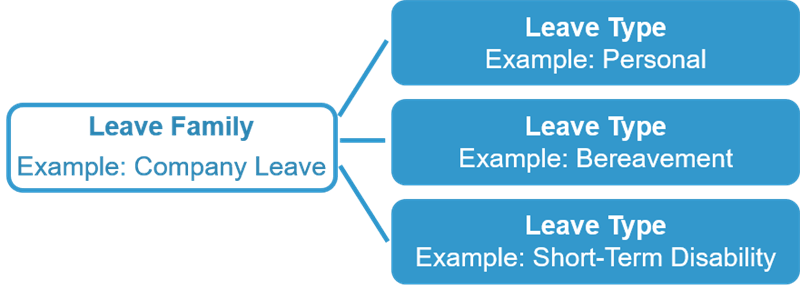
Leave of absence types define the set of rules that apply to a specific type of leave, such as personal, bereavement, or short-term disability.
When creating a leave type, select:
- The leave of absence family.
- The unit of time for leave of absence requests.
- Employee eligibility rules for requesting a leave.
- Validation rules for preventing invalid requests.
- The leave entitlement.
- Whether to track entitlement balances.
- Other options to meet the leave type requirements.
Leave Type Categories
Workday enables you to define two categories of leave types:
- Leave types that do not track balances
- Leave types that track balances
Leave Types Without Balance Tracking
Leave types without balance tracking:
- Provide simple leave request and approval functionality.
- Do not have fixed entitlements.
Bereavement and long-term disability are examples of leave types that you might configure without balance tracking.
Configuration for Leave Types without Balance Tracking
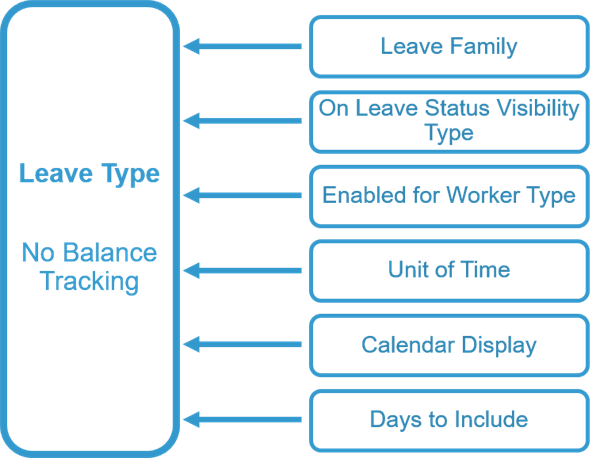
Leave types without balance tracking must include the following:
- Leave family
- Type of visibility when a worker is on leave
- Worker type eligibility
- Unit of time (days or hours) for requesting and displaying the leave amount
- Display option for the Absence Calendar or Time Off and Leave Calendar
- Days to include in a leave request
You can define eligibility for leave and some validation rules in leave types that do not track balances. However, you cannot define entitlement calculations.
Use the
Create/Edit Leave Type
task to define a leave type without balance tracking.Leave Types with Balance Tracking
Leave types with balance tracking enabled provide the same leave request and approval functionality as leave types without balance tracking enabled. However, when you enable balance tracking, you must also define balance calendar start and end dates, and entitlements. In addition, you can define other functions to meet leave of absence requirements.
Configuration for Leave Types with Balance Tracking
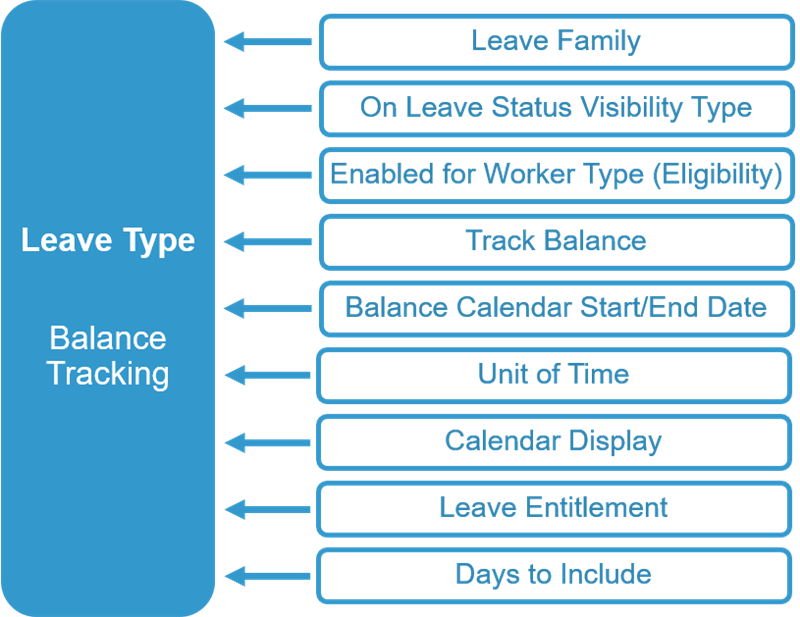
Leave types consist of components that enable you to meet varying requirements for requesting, tracking, and processing a leave of absence. Leave types that track balances must include the following components:
- Leave family
- Visibility type for on leave status
- Worker type eligible for the leave type
- Track balance enabled
- Balance calendar start and end date
- Unit of time (days or hours) for requesting and displaying the leave amount
- Display option for the Absence Calendar or Time Off and Leave Calendar
- Leave entitlement
- Days to include in the leave request
There are more components that you can include in a leave type definition. The exact combination of components depends on the requirements you need to meet.
Use the
Create/Edit Leave Type
task to define a leave type with balance tracking enabled. From this task, you can specify information in the following tabs to meet the requirements for the leave type:- Details
- Validations/Supporting Data
- Balance / Leave Taken
- Cascading Leave
- Additional Fields
Details Tab
Use the Details tab to specify details for the leave type. The following table lists the fields on this tab and their descriptions.
Field | Description |
|---|---|
Leave Family | Identifies the leave family to which the leave type belongs. |
Position Based | When selected, specifies whether to track leaves for workers by position. Workers or administrators must enter the position when requesting the leave type. The primary position will automatically default for workers without additional positions. |
Leave Payment Type | When Workday Payroll for the UK or France is in scope, this field links a tenanted leave type to a Workday delivered earning for a statutory pay type. Linking the tenanted leave type to a Workday earning ensures that Workday pays the leave type appropriately. Workday pays the leave type based on statutory rules for a specific statutory leave. When Payroll for the UK or France is in scope, coordinate closely with your payroll consultant on how to configure the leave payment type and leave types appropriately. |
On Leave Status Visibility Type | Provides the ability to control who can see the leave status of other employees. Options include:
|
Country/Country Region | Restricts the availability of the leave type to selected locations. The worker's work address on the first day of the leave must be in one of the selected locations. If empty, the leave type is available in all locations. |
Additional Criteria | Specifies leave of absence rules that define additional criteria workers must meet on the first day of the requested leave to be eligible for the leave. Workers must meet all additional criteria. |
Enabled for Worker Type | Specifies whether the leave type is available for employees, contingent workers, or all workers. |
Inactivate Worker | If selected, the employee becomes inactive in Workday while on leave. |
Payroll Effect | Determines whether the leave type will stop regular payroll processing for an employee. If you do not select the Effect checkbox, the leave type will affect regular payroll processing for the employee. If you select the Effect checkbox, the leave type stops regular payroll processing for the employee. However, processing continues if the run category configuration specifies to continue to resolve specific earnings or deductions when the employee is on leave. For example, you can have Workday Payroll continue to automatically calculate medical deductions while employees are on leave. Touchpoints:
|
Absence Accrual Effect | Indicates that the leave type affects time off accruals. You can set up time off eligibility criteria to exclude an employee from accruing additional time off while on a leave type with this effect. |
Benefit Effect | Indicates that the leave type affects benefits eligibility and might require a change to the employee's benefits. To change an employee's benefit elections, you must report a life event and update the benefit elections accordingly. |
Stock Vesting Effect | Indicates that the leave type affects stock vesting, which might require a change to the stock vesting schedule of any stock grants the employee holds. |
Continuous Service Accrual Effect | Indicates that the leave type affects an employee's service accrual and might require a manual change to the employee's continuous service date. |
Professional Leave Effect | Indicates whether the related leave type is a professional leave type (i.e., not for personal reasons). Professional leaves affect the timing of professional leave eligibility, which might require a manual change to a worker's professional leave records. |
Sabbatical Effect | Indicates whether this leave affects the timing of the sabbatical eligibility, which might require a manual change to the employee's sabbatical records. |
Tenure Effect | Indicates whether this leave affects the timing of tenure eligibility, which might require a manual change to the employee's tenure records. |
Talent Effect | Indicates that Workday will hide workers who are on this leave type on the Worker prompt on certain Performance and Talent tasks. |
Scheduling Effect | Indicates whether workers can still be scheduled to work while on the leave type. |
Validations / Supporting Data Tab
Use the Validations / Supporting Data tab to select the validation rules to apply to leave of absence requests. The following table lists the fields on this tab and their descriptions.
Field | Description |
|---|---|
Validations | Specifies the validation rules to apply to leave of absence requests. |
Supporting Data |
|
Balance / Leave Taken Tab
Use the Balance/Leave Taken tab to configure balance tracking options. The following table lists the fields on this tab and their descriptions.
Field | Description |
|---|---|
Track Balance | If selected, specifies to enable balance tracking. |
Balance Calendar Start Date Balance Calendar End Date | Specifies the calculated fields that define the start and end dates for the balance calendar. |
Unit of Time | Specifies the unit of time for recording, processing, and tracking leave. An employee can have both hour-based leave and day-based leave, but each leave type can use only one unit of time. Important : All entitlements, limits, and other calculation values associated with a leave type must use the same unit of time. Workday does not convert hourly values to daily values or daily values to hourly. |
Calendar Display | Specifies whether or not the entitlement balance of the leave type or leave family appears on the absence calendar. |
Entitlement Per Event | When selected, indicates that workers receive their entitlement for each event for this leave type (e.g. birth of a child, or maternity leave), regardless of the events' timing. |
Entitlement Units (Numeric) Entitlement Units (Calculation) Entitlement Units (None of the above) | Specifies the maximum number of days or hours available to workers for the leave type. You can indicate the maximum number of days by a numeric value or a calculated field that is based on the Worker or Position object. |
Leave Balance Deduction Override | Enables you to configure leave types to allow workers to take twice the amount of leave by deducting from the leave balance at half the rate. This helps you to allow workers to take their leave in accordance with local regulations. |
Days to Include | Specifies which days to count as days taken within each leave request, such as, weekdays, all days, or a particular configuration of days. Determines, for each day taken, the number of hours to count for leaves tracked in hours. The rule applies to this leave type only. The rule does not apply to other leaves in the same family or to time offs identified in the Intermittent Time Offs field. |
Coordinated Leaves and Time Off | Workday will reduce the balance for the leave type by units taken for the leave types and time offs you specify using the following fields:
Important : Configure any leave types you select in this field to reference the leave type you are currently defining.
If your Workday tenant's configuration supports multiple jobs, the following rules apply:
|
Prorate by Leave Percentage | Workday enables you to configure leave types to prorate leave units taken for workers when they request leave of absence, based on leave percentage that they enter on the request. |
Additional Information on the Balance Calendar
Balance calendars specify:
- The period over which to calculate leave balances (entitlement minus leave taken). Use the Calculated Field for Balance Calendar Start Date and Calculated Field for Balance Calendar End Date fields to configure these periods.
- Balance calendar start and end dates. Leave types that track balances require these dates.
The following table provides a few examples of calculated fields needed to build common balance calendars.
Balance Calendar | Start Date - Calculated Field | End Date - Calculated Field |
|---|---|---|
Anniversary-Based (Hire Date) | Hire Date (Month and Day) of Leave Event Year | Hire Date (Month and Day) of Leave Event Year plus 12 months |
Fixed Calendar (01-Jan to 31-Dec) | January 1 of Leave Event Year | December 31 of Leave Event Year |
Rolling-Backward (12-Month) Note : When configuring a "rolling backward" balance calendar, Workday recommends the use of calculated fields based on the CRF "Leave Balance Calendar Start Date." | Leave Balance Calendar - Effective Date (First Day of Leave) minus 12 months | Effective Date: First Day of Leave |
Rolling Forward (12-Month) Note : When configuring a "rolling forward" balance calendar, we recommend the use of calculated fields based on the CRF " First Day of Leave." | Leave Balance Calendar - Effective Date (First Day of Leave) | Leave Balance Calendar - Effective Date (First Day of Leave) plus 12 months |
Cascading Leave Tab
The Next Leave Type field on the Cascading Leave tab specifies the next leave type to trigger after a worker's leave request for the defined leave type.
Example
: For a short-term leave type that you want to cascade to a long-term leave type, select a long-term leave type in the Next Leave Type field.Workday generates a request to place the worker on the next leave type at the end of the current leave if:
- TheRequest Leave of Absencebusiness process configuration includes cascading leave.
- The employee meets the eligibility requirements for the next leave type.
Additional Fields Tab
The information on the Additional Fields tab specifies leave of absence rules for validations and supporting data. Using report fields, you can also create condition rules for leave request approval routing in the
Request Leave of Absence
business process based on the information in these fields.Leave Reasons
Use the Leave Reasons grid on the Additional Fields tab to define leave reasons for each leave type. You can indicate whether a reason is required when submitting a leave request.
Additional Fields
Use the Additional Fields grid on the Additional Fields tab to capture additional information when submitting a leave request. These fields appear on the request in a predefined order.
Examples of fields that you can use include:
|
|
Important
: If leave requests are pending approval or in a Save for Later status when you add a required field or make an optional field (that has no current value) required, reviewers must either:- Enter the missing data, and then approve or submit the requests.
- Cancel the requests.
Leave Type Segment Security
Configure leave type segment security to control the leave types available to security roles, such as manager and employee as self, when placing a worker on leave.
Configure leave type segment security by defining the following:
- Security policy for the business process
- Leave type security segment
- Segment-based security group
- Leave Type Segmented Setup Domain
Business Process Security Policy
The business process security policy defines the security groups who can initiate specific actions within the business process.
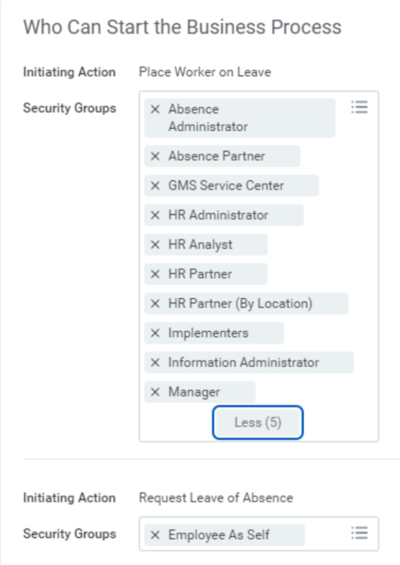
Business Process Security Policy - Request Leave of Absence - Who Can Start the Business Process
Use the
Edit Business Process Security Policy
task to define the security groups who can initiate actions within a business process.Leave Type Security Segment
A leave type security segment groups and defines the leave types that have unique security access.
Example
: Your company allows only managers to place employees on bereavement leave and jury duty. Your first step is to create a leave type security segment that includes these two leave types.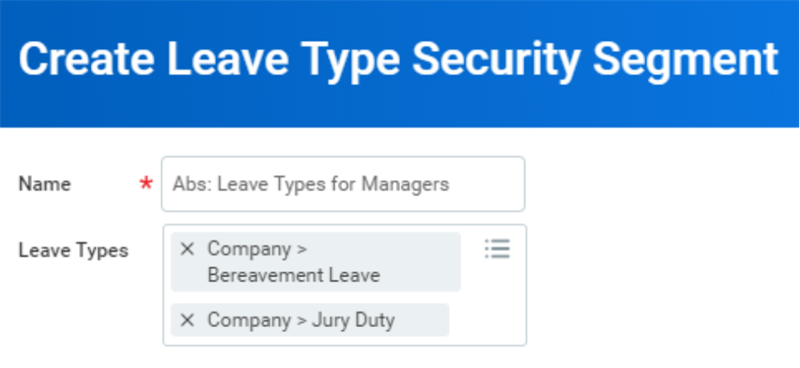
Create Leave Type Security Segment Task
Use the
Create/Edit Leave Type Security Segment
task to define a leave type security segment.Segment-Based Security Group
After you create a leave type security segment, define a segment-based security group to indicate which roles have access to the leave types included in that segment.
Example
: You created a leave type security segment named Manager - Leave Types for bereavement leave and jury duty. To allow managers to access the leave type segment, configure a segment-based security group such that the manager role has access to the segment.To define a segment-based security group:
- Access theCreate Security Grouptask.
- In the Type of Tenanted Security Group field, selectSegment-Based Security Group.
- In the Name field, enter the security group name, and then selectOK.
- In the Security Groups field, select the security groups who have access to the security segment.
- In the Access to Segments field, select the security segments to which the security group has access.
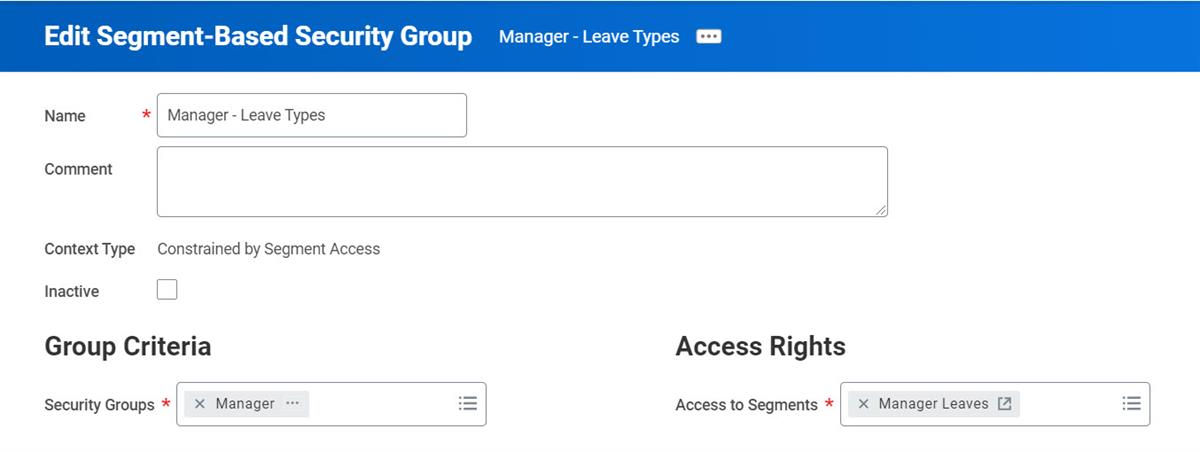 Edit Segment-Based Security Group Task
Leave Type Segmented Setup Domain
After defining a segment-based security group, add the group to the Leave Type Segmented Setup domain. Adding it to the domain ensures the security group has access privileges to the configured leave type.
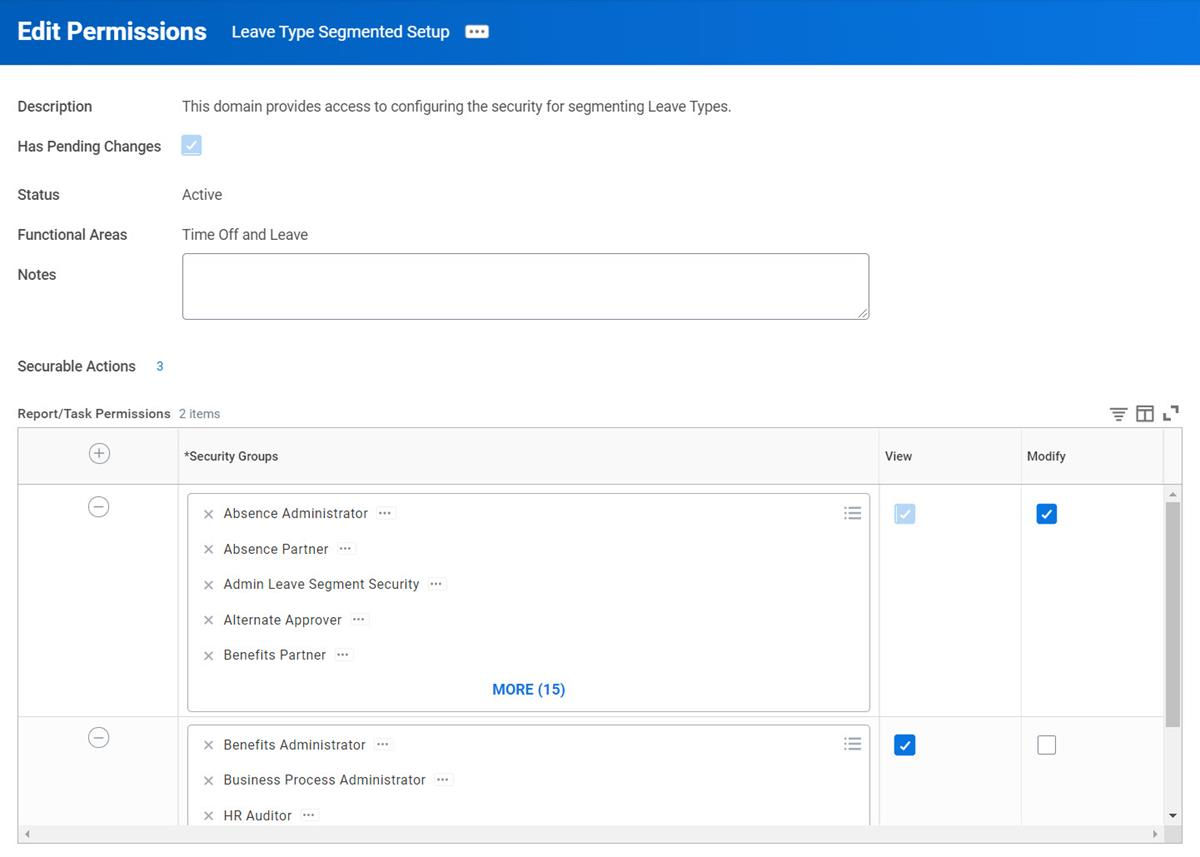
Edit Permissions in Leave Type Segmented Setup
To access the Leave Type Segmented Setup domain:
- In the Search field, enterDomain Security Policies for Functional Area.
- In the Functional Area field, selectTime and Leave.
- SelectLeave Type Segmented Setup, and then selectEdit Permissions.
- In the Report/Task grid, add the security group and/or update the permissions as needed.
Leave of Absence Rules
Create leave of absence rules to define:
- Eligibility Requirements: Eligibility requirements determine who can take leave.
- Validations: For employees who pass basic eligibility requirements, use validations to:
- Prevent invalid leave requests (hard error).
- Generate warning messages in response to an invalid request (soft error).
Example
: You can use bereavement leave rules as:- Eligibility rule: Build an eligibility rule to restrict bereavement leave to full-time employees in the USA and Canada.
- Validation rule: Use validation rules to prevent full-time employees in the USA or Canada from submitting leave requests that exceed their entitlement balance.
Use the
Create/Edit Leave of Absence Rule
task to configure leave of absence rules to define eligibility requirements and validations.Timing and Application of Leave Rules
When a leave of absence rule controls eligibility for a leave type, Workday applies the rule to the start date of the leave request. The leave type prompt displays only those leave types for which the employee is eligible.
When you use a leave of absence rule for validation, Workday applies the rule to each day of the requested leave upon submission of the request. Workday issues a warning or error when the worker submits the request. For a warning, the request continues through the business process. For an error, the request will not continue through the business process until the worker corrects the request.
Example
: A validation rule might check each day of an employee's requested leave to ensure the employee does not exceed the maximum number of days allowed each year. If the validation fails, Workday can issue a warning or error and set requests that are in error to a save for later status.Touchpoint
: If you also use Workday Time Tracking, being on leave will not automatically prevent an employee from entering worked time. However, you can build validations within Workday Time Tracking to prevent an employee from entering time when on certain leave types. You would simply reference those leaves within the validation rule.Creating Eligibility and Validation Rules
When creating leave of absence rules, use report fields delivered by Workday or create your own calculated fields. Fields available for selection are based on the following business objects:
- Worker
- Leave Request Event
- Leave Type
- Position
For eligibility rules, select fields based on the Worker or Position business object only. Workday applies rules based on the worker and position before it knows the leave type or event information.
Pay attention to the names and descriptions when you select class report fields and calculated fields. The terms Worker, Job, Primary Job, and Across Jobs indicate which fields resolve for a worker, a worker's primary job, all jobs, and so forth. In general:
- If a worker-based leave type calls a position-related field, the field will resolve based on the primary position.
- If a position-based leave type calls a field, the field will resolve based on the applicable position.
In general, do not build eligibility rules based on location (e.g., employee work location = USA) in the
Create/Edit Leave of Absence Rule
task. Workday predefines most of the location-based rules you will need. Use the Country/Country Region field on the Details tab to associate the predefined rules with a leave type.How to Associate a Leave of Absence Rule with a Specific Leave Type
After you define a leave of absence rule, associate it with a leave type in the
Create/Edit Leave Type
task. The rule functions as either an eligibility rule or as a validation rule depending on where you attach the leave of absence rule to the leave type.- If you use the Additional Criteria field on the Details tab to link the rule to the leave type, the rule functions as an eligibility rule.
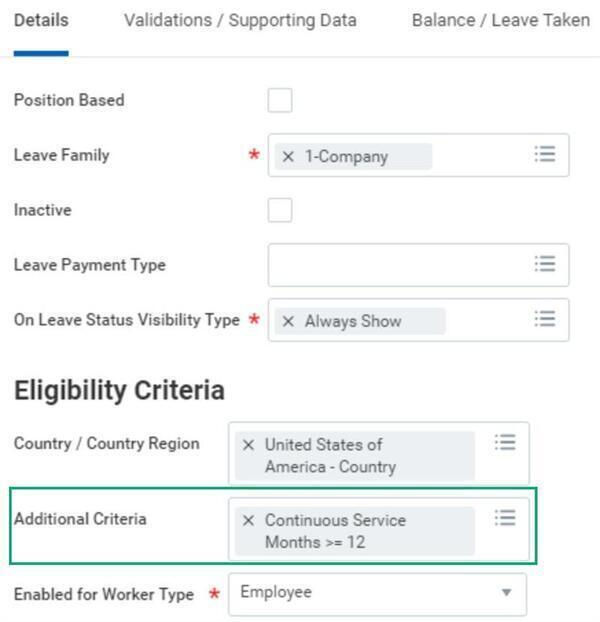
- If you link the rule to the leave type on the Validations/Supporting Elements tab, the rule functions as a validation rule.
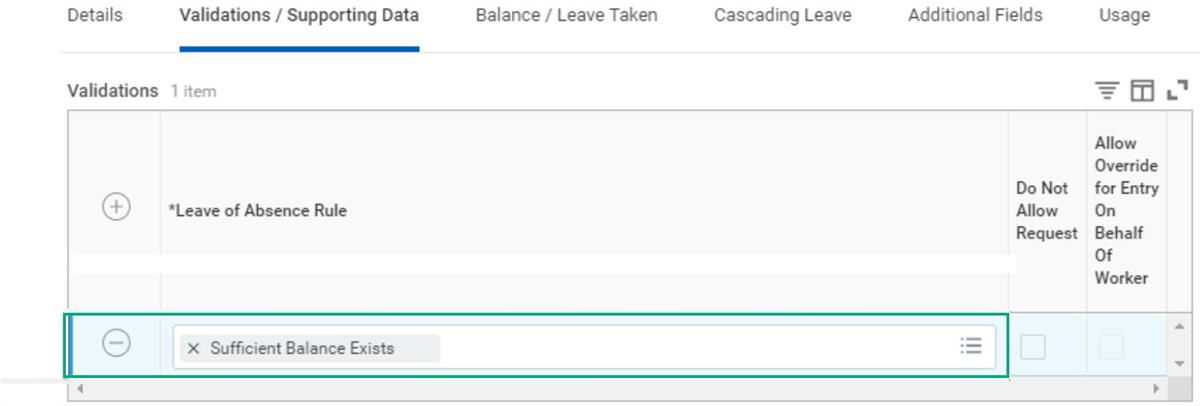
Workday allows you to associate the same rule with multiple leave types.
Validations: Hard and Soft Errors
During leave of absence validations, leave requests that do not meet validation requirements may generate either a hard or soft error.
- Hard error: Employees cannot submit the request. The employee must correct or cancel the request.
- Soft error: Employees receive a warning message but can submit the request. Workday routes requests with warnings for review. The approver can then accept or deny the request.
When defining validations, select the Do Not Allow Request checkbox in the
Create Leave Type
task to generate a hard error in response to an invalid leave request. Clear the Do Not Allow Request checkbox if you want to generate a soft error.
Allowing Administrative Overrides
When defining validations in the
Create Leave Type
task, select the Allow Override for Entry On Behalf Of Worker checkbox to allow managers and administrators to override validation rules. Managers can override validation rules when entering, revising, or correcting leave requests on behalf of employees.Based on this selection, managers and administrators:
- Receive a warning message when they enter leave requests that violate a validation rule.
- Can disregard the warning and can enter, revise, or correct the leave request.

Validation Errors and Warnings
When using a leave of absence rule to validate leave requests, Workday displays the rule's Description field as the error message when requests trigger an error or warning. You can define a different message to display instead. Your message can include static text and can dynamically display values from report fields and calculated fields.
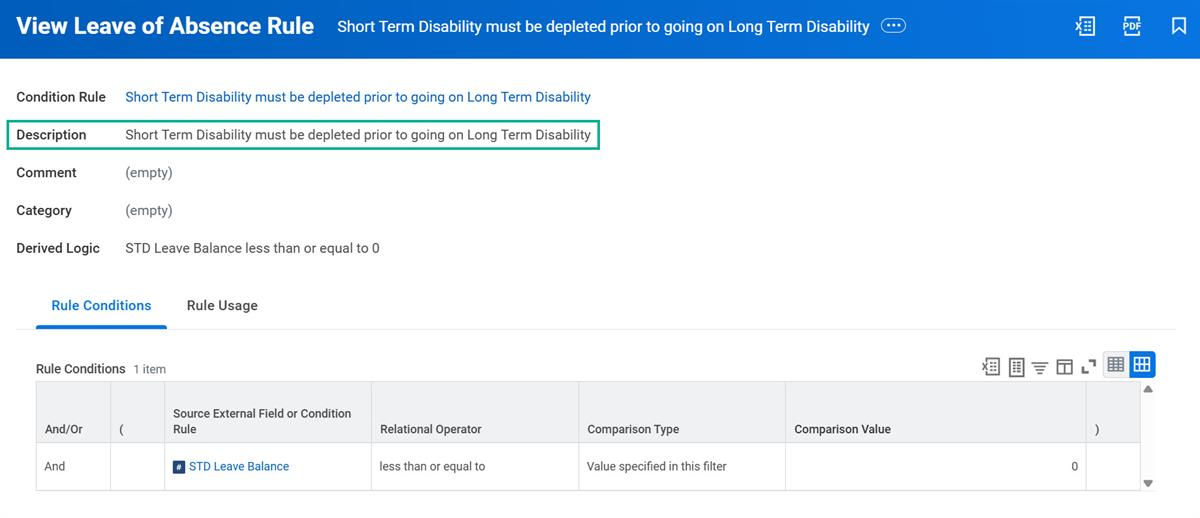
Supporting Data
Supporting data can provide information relevant to a leave request, such as:
- Months of service for the worker
- Actual hours worked
- Available leave balances as of the first day of the leave
The information can help the leave requester understand why a request generated a warning. It can also help reviewers determine reasons for approving or rejecting requests.
Defining Supporting Data
Use the Validations / Supporting Data tab in the
Create/Edit Leave Type
task to define supporting data for a leave type. You may use Workday provided report fields or create your own calculated fields when defining supporting data.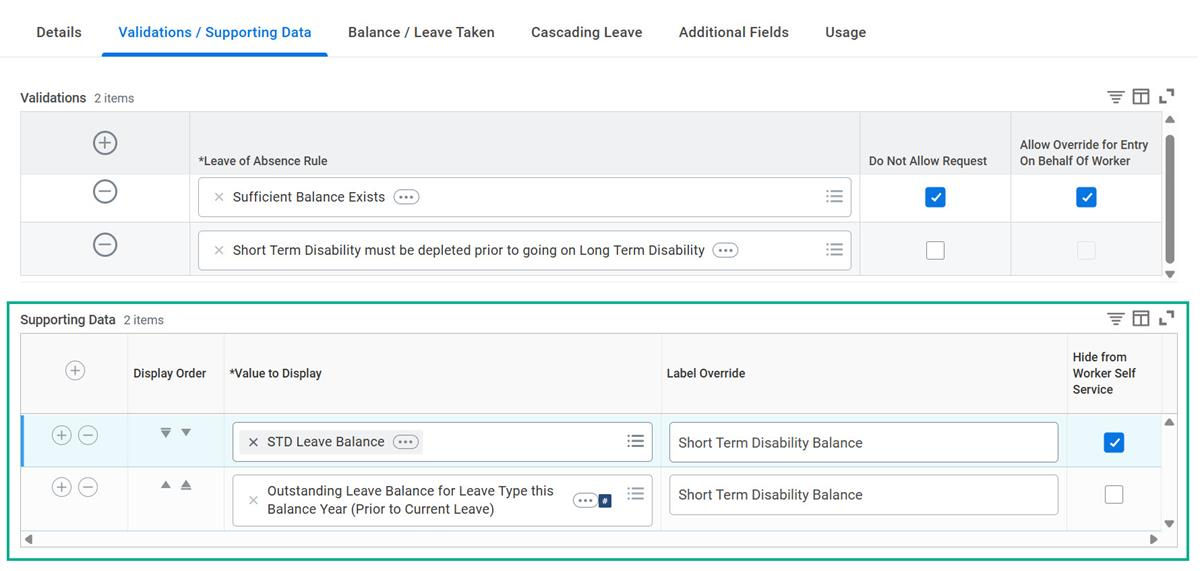
By default, Workday displays the name of the report field or calculated field as the label of the supporting data. To display different text, enter it in the Label Override field.
Guidelines for Defining Supporting Data
In general, define supporting data for a leave type so that it provides information relevant to a leave request and the alert generated by the validation.
Example
: You have defined a validation rule to issue a warning for leave requests that exceed an employee's entitlement balance. Provide supporting data that displays the employee's current leave balance and the amount of the current request.To prevent employees from viewing the supporting data when they enter leave requests through employee self-service, select the Hide from Employee Self Service checkbox. The supporting data will still be available to administrators.
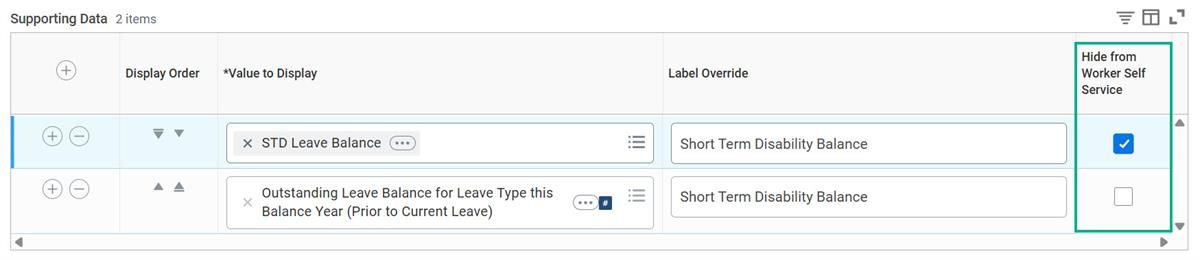
Calculated Fields Overview
You may create your own calculated fields to use within leave of absence. Keep in mind that calculated fields:
- Are calculated rather than stored.
- Are resolved at run time; values are generated on-the-fly, at the moment of use.
- Are based on existing, stored values.
- Are like calculations built using the calculation engine.
- Allow users to:
- Perform simple date calculations.
- Manipulate text.
- Create logical expressions.
- Retrieve related data.
- Perform transformations of existing data.
- Are associated with business objects. The business object controls the other available fields for creating the calculated field.
You may use calculated fields either:
- Directly:
- In supporting data.
- In entitlement calculations.
- Indirectly:
- In leave of absence rules used to define worker eligibility (Additional Criteria).
- In leave of absence rules used to define validations.
Note
: For eligibility rules, create fields based on the Worker or Position business object only because Workday applies these rules before knowing the leave type or event information.Most calculations in the Calculation Engine have similar Calculated Fields. The following table lists some of these similarities. NOTE: This is not a comprehensive list of all the calculations compared to calculated fields.
Calculation Engine | Calculated Field |
|---|---|
Instance Set Comparison Calculation Value Comparison Calculation Logic Calculation | True/False Condition |
Conditional Calculation | Evaluate Expression |
Arithmetic Calculation | Arithmetic Calculation |
Lookup Calculation | Lookup Range Band |
Build Date | Build Date |
Date Difference | Date Difference |
Constant Value | Numeric Constant |
Coordinated Leaves and Time Off
You can configure Workday to calculate balances for multiple leave type and time offs. Example: The balance for long-term disability can reflect days taken for short-term or long-term disability. Validation rules can check whether a worker has a sufficient balance across linked leave types and time offs for their request.
Workday deducts intermittent time off that's linked to a leave type for leave of absence from both the time off plan and the leave entitlement balance. A leave validation that checks whether sufficient balance exists can trigger for a time off request even though the time off plan has an available balance because Workday evaluates the time off and leave balances independently. You can also enable workers to take leave of absence without placing them on leave, by configuring a time off on a time off plan that doesn't track balance, and then selecting that time off as an intermittent time off on a leave type.
From the Create/Edit Leave Type task, use the fields in the Leave Taken group box to link related leave types and time offs to a source leave type:
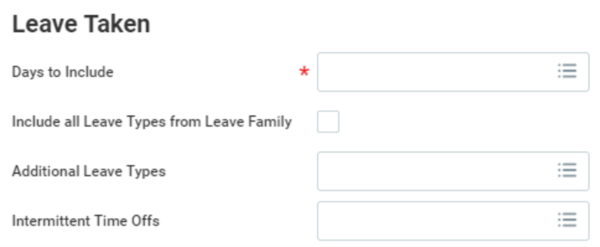
Create Leave Type Task - Leave Taken
Field | Use |
|---|---|
Include all Leave Types from Leave Family | Select to have units taken for all other leave types in the same family count as units taken for this leave type. Families are available for selection if all leave types in the family use the same unit of time as the leave type you are defining. |
Additional Leave Types | Select other leave types that are to count as units taken for this leave type. Or if you do not want to coordinate all leaves within the same leave family, select the specific leaves that you want to link together. Important : Configure any leave types you select in this field to reference the leave type you are currently defining. |
Intermittent Time Offs | Select any time offs that are to count as units taken for this leave type. You can associate time off with one leave type only. Eligibility and validation rules defined for the leave also apply to the time offs. |
The following conditions apply:
- Leave types and time offs must use the same unit of time.
- If using multiple jobs functionality, you can link leave types with other leave types and time offs, regardless of whether they have different position-based settings.
- You can associate a time off type with one leave type only.
- Time offs requests are subject to the eligibility and validation rules defined for the leave type in addition to the time off eligibility and validation rules.
- Workday applies the eligibility requirements defined for the time off first.
Calculating Leave Entitlement for Coordinated Leaves and Time Off
When calculating the entitlement balance for coordinated leaves and time offs, Workday:
- Calculates the entitlement for the requested leave type as of the leave start date (or as of date, if generating reports).
- Applies the Leave Days to Include as Taken rule defined for each individual leave type to count the number of days or hours taken. This rule does not affect time offs.
- Reduces the leave balance by the sum of the leave amount and time off taken.
Each coordinated leave could have a different entitlement. Workday does not combine the entitlement but will reduce each entitlement amount concurrently with the recording of the coordinated leave type.
Absence Type Grouping
Workday offers the ability to create absence type groups. Absence type groups allow workers to quickly select the correct absence type for their absence request. Without grouping, Workday presents absence types in an alphabetically sorted list. There is no distinction between time offs and leaves of absence. The lack of grouping could cause confusion and lead to workers choosing the incorrect absence type when absence types have similar names.
You can create absence type groups that include combinations of time offs, absence tables, and leaves of absence. Workday includes any ungrouped absence types in the Other Absence Types group. Workers will only see the absence type groups interface if they are eligible for at least one absence type that is part of a group. Workday displays groups in the employee and manager self-service type prompts.
Configuring Absence Type Groups
Use the
Configure Absence Type Groups
task to configure absence type groups.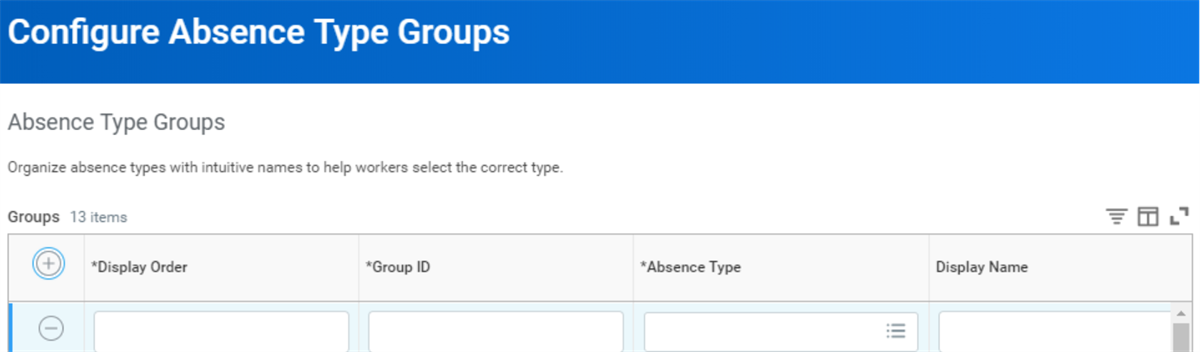
Configure Absence Type Groups Task
The following table identifies and describes the available fields in the
Configure Absence Type Groups
task.Field | Description |
|---|---|
Display Order | Indicates the order in which to display the group. |
Group ID | Enter a unique name for the group. Workday displays this name if you do not provide a Display Name. |
Absence Type | Select one or more absence types from the list. This list includes all absence tables, time offs, and leave types. Each absence type can belong to only one group. |
Display Name | An intuitive name that helps workers select the correct group of absence types. |
When users request an absence, they have a much shorter list of absence types from which to select. Users see the grouped interface only if they are eligible for at least one absence type that belongs to a group. Workday automatically creates a group called Other Absence Types for absence types that do not belong to a group.