
Calculations for Time Off Plans
Overview
The Workday Calculation Engine is a core system utility that enables you to define time off calculations and the business logic and rules governing time off. It provides flexible, intuitive configuration capabilities that allow you to define accruals, eligibility rules, carryover amounts, upper and lower limits, and other time off values to meet time off plan requirements.
Objectives
By the end of this chapter, you will be able to:
- Identify and describe the types of absence-related calculations.
- Configure common absence calculations to meet time off plan requirements.
- Create time off plans to meet specific requirements.
- Create an absence table.
What is a Calculation?
Calculations are the building blocks for Workday Absence Management and Workday Payroll. Calculations can be customer-owned or Workday-delivered. They return data values that can be numbers, dates, true or false statements, or other values. Each calculation performs a specific logical operation, such as arithmetic, aggregate, value comparison, or a data retrieval calculation. They may refer to or include other calculations.
You can use calculation values in:
- Accruals
- Upper and lower limits
- Validation rules
- Eligibility criteria
- Carryover limits
You can categorize calculations as Absence, Payroll, or Common. Regardless of how you categorize them, all calculations are available across absence and payroll.
Using the calculation engine, you can: | Examples |
|---|---|
Build aggregate, conditional, lookup, and other calculations to define accrual rules and values. | Use a conditional calculation to return accrual amounts based on years of service. |
Define eligibility criteria. |
|
Define scheduling logic. | Employees begin accruing vacation time off three months after their hire date. |
Define validation rules. |
|
Configure balance periods and balances for time off. | You can easily modify or add to the list of balance periods for tracking time off and leave. You do not need to define all balance calculations up front. You can create balances at any time to sum values over any accumulation period. |
What Types of Calculations Can I Define in Workday?
The calculation engine includes utilities for defining the following types of calculations:
- Numeric calculations
- Boolean calculations
- Date calculations
- Step-based calculations
Numeric Calculations
Numeric calculations return a numeric value. The following table lists and describes numeric calculations.
Numeric Calculation | Description |
|---|---|
Absence Balance | Returns the balance of an accrual, time off, or time off plan for a given period. Example : Return the PTO balance for the last month of the prior year. |
Aggregate Calculation | Returns the sum, average, minimum, or maximum of two or more values. Example : Calculate the sum of external hours worked to determine eligibility for FMLA.. |
Arithmetic Calculation | Adds, subtracts, divides, or multiplies two (and only two) values. Example : To calculate the lower balance limit, multiply -1 x Annual Accrual. Or to calculate FTE proration, multiply the worker's FTE x accrual rate. |
Conditional Calculation | Returns a value based on if statements. Example :If an employee is full-time:
|
Constant Value Calculation | Returns a constant value. Example : PTO accrues at a rate of 12 hours per month. Use a constant value calculation to define the accrual rate (12). |
Date Difference Calculation | Returns the number of days, months, or years (interval) between two dates. Example : For a time off plan, you need to determine the number of years between the period start date and the hire date to determine the time off accrual. |
Date Extract Calculation | Returns the specified value extracted from a date. Example : Extract the month of an employee's date of hire. |
Instance Value Calculation (Number) | Returns a numeric value. Example : Return the full-time equivalent for a worker's job.In addition to numeric values, IVCs also return currency, Boolean, and date attributes. |
Lookup Calculation | Look up and return a value from a table based on another value. Example : Look up and return time off accruals based on years of service.Workers accrue time off at the following rate based on years of service as of the first day of the period:
|
Boolean (True / False) Calculations
Boolean calculations return a value of true or false depending on whether conditions specified in the calculation are met. The following table lists and describes the Boolean calculations.
Boolean Calculation | Description |
|---|---|
Logic Calculation | Use to define simple AND or OR logic. Example : Define multiple conditions.
Note : You cannot combine AND and OR logic in the same logic calculation. |
Instance Set Comparison Calculation | Use to set up a comparison between a class report field (CRF) and a user-specified value by using a relational operator such as:
Example : Management Level (CRF) = Individual ContributorThis calculation differs from logic calculations in providing a range of relational operators in addition to the logical operators AND and OR. Enable you to set up comparisons using class report fields (CRFs) only. Note : CRFs enable you to reference worker, job, compensation, organization, and other data within time off calculations. |
Instance Value Calculation (Boolean) | Use to return a Boolean from a field. Example : Worker: Termination within Balance PeriodThis Workday-delivered calculation returns True if the worker has a termination event as of the balance period end date. It returns False if there is no termination event found within the balance period. |
Value Comparison Calculation | Use to set up a comparison between one operand and another using relational operators such as equal to, greater than, less than, not equal to, etc. Example : Carryover Balance > 0This calculation differs from instance set comparison calculations in allowing you to define relationships between absence values such as:
Example : Time Off Paid > 80 hoursIf you need to define comparisons based on worker, job, compensation, or other non-absence data contained in a CRF, create an Instance Set Comparison instead. |
Date Calculations
Date calculations return date values. The following table lists and describes date calculations.
Term | Definition |
|---|---|
Build Date Calculation | Returns a date - year, month, and day. Example : Define Floating Holiday eligibility by determining whether someone's hire date was before January 1 of the current year. |
Constant Date Calculation | Returns a specific date. Example : If you load and want to start accruing vacation balances as of 11/01/2025, create an eligibility rule stating the period start date must be >= 11/01/2025. |
Date Increment / Decrement Calculation | Starts with a date and adds or subtracts years, months, or days to return another date. Example : Calculate period end date - 90 days |
Instance Value Calculation (Date) | Returns a date. Example : Period: Period End DateThis Workday-delivered calculation returns the period end date (date value). |
Step-Based Calculations
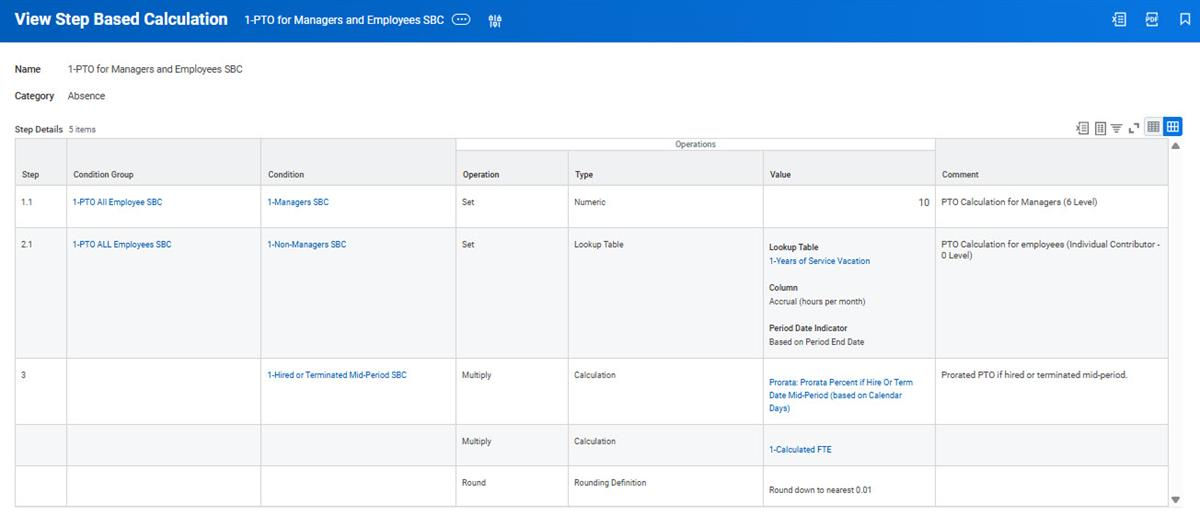
Step-based calculations simplify and streamline calculation development and maintenance by reducing the number of calculations required for complex logic such as nested calculation flows. With step-based calculations, you can:
- Perform multiple steps within one calculation. Each step in the calculation produces one numeric value that Workday then uses in the next step.
- Use conditions to control whether a step or operation resolves.
- Group steps together into substeps using condition groups.
Step-based calculations return a single numeric value. The final value produced is the result of the steps, conditions, and operations performed.
Resource
: For additional information on step-based calculations, search "Create a Step-Based Calculation" in Community.Advanced Lookup Tables in Lookup Calculations
Lookup calculations require a lookup table. Although you can create lookup calculations with basic lookup tables, Workday strongly recommends that you use advanced lookup tables. Advanced lookup tables can handle high volumes. In addition, they provide one place to update data for easy maintenance.
Advanced lookup tables allow you to:
- Create up to 10 columns. You can then use each column for a different calculation.
- Assign an effective date for search and return values.
- Define search criteria based on:
- Instance or text report fields.
- Numeric calculations.
When you access the
Create Lookup Table
task, you can select from the following options:Option | Description |
|---|---|
Advanced Lookup Table - Report Field Search Criteria | Returns values based on the results of a single-instance or multi-instance report field. Example : Create a lookup table that stores values based on different job profiles. To create the lookup table, select Job Profile (or Override if exists) as of Period End Date in the Report Field Search Criteria field. |
Advanced Lookup Table - Numeric Calculation Search Criteria | Returns values based on the results of numeric calculations. Example : Create a lookup table that stores values based on years of service as calculated from the continuous service date. To create the lookup table, select Worker Years of Service (based on Continuous Service Date) as of Period End Date in the Numeric Search Criteria field. |
Advanced Lookup Table - No Search Criteria (default value only) | Returns default values. Example : Create a lookup table for calculation parameters that change regularly. Use effective dating to manage the changes. |
Advanced Lookup Table - Text Report Field Search Criteria | Returns data based on the results of a text report field. Example : Create a lookup table that stores values for different cities. To create the lookup table, you would select Primary Work Address - City in the Report Field Search Criteria field. |
Note
: You can use the Put Advanced Lookup Table
web service to mass update lookup tables. You can update and edit, but not remove table items during a mass update.Calculations Used for Accruals
Remember:
- Accruals add to the employee's time off plan balance. Therefore, only plans that track balances use accruals.
- An accrual specifies the amount of time off an employee receives and when the employee can receive that time off amount.
The accrual amount can be:
- A constant value, such as 12 hours or 0.5 daysNote: These values are constant value calculations in Workday.
- A calculation based on a service rate lookup table, or any other type of calculation.
If using the accrual in a days-based plan, specify a daily unit of time, such as 0.5, not 4 (hours). If using the accrual in an hourly plan, enter an hourly unit of time, such as 4, not 0.5 (days). Workday does not automatically convert hours to days or days to hours.
You can base other types of accrual calculations on a worker's location, position, FTE rate, work shift, or other values.
Note
: Refer to the delivered report All Calculations
report > filter on Absence and Common > Workday Owned to see all delivered calculations before building a new one for your tenant.Proration
Workday delivers many calculations that you can use to prorate accruals when an employee is hired midperiod or their accrual is based on FTE. Below is a sample of these calculations. You can find a full list by running the
All Calculations
report.Calculation | Use |
|---|---|
Prorata: Prorata Percent if Hire Date Mid-Period (based on Calendar Days) Arithmetic Calculation | Returns numeric value representing the percentage of time worked during the period if hire date is midperiod. Example :
|
Prorata: Prorata Percent if Hire Or Term Date Mid-Period (based on Calendar Days) Conditional Calculation | Returns numeric prorata percent representing the number of calendar days worked within a period for a worker hired or terminated midperiod. Workday bases this number on straight calendar days (not actual "work" days). For a worker not hired or terminated during the period, this calculation will return a value of 1. Therefore, you can use this calculation to apply manual proration for a partial accrual given for a midperiod hire or termination (by multiplying a normal accrual by this percent). Note : For a worker hired and terminated in the same period, you will need to do a manual calculation to determine the correct percent. You may also need to do an input or adjustment accordingly. |
Prorata: Prorata Percent if Termination Date Mid-Period (based on Calendar Days) Arithmetic Calculation | Returns numeric value representing the percentage of time worked during the period if termination date is midperiod. Example:
|
Prorata: Prorata Percent including FTE (as of Period End Date) logic if Hire or Term Date Mid-Period (based on Calendar Days) Arithmetic Calculation | Returns numeric value representing the percentage of time worked during the period (including FTE as of Period End Date logic) if hire date or termination date is midperiod. Example :
|
Prorata: Prorata Percent including FTE (as of Period Start Date) logic if Hire or Term Date Mid-Period (based on Calendar Days) Arithmetic Calculation | Returns numeric value representing the percentage of time worked during the period (including FTE as of Period Start Date logic) if hire date or termination date is midperiod. Example :
|
Delivered Calculations and Report Fields for Building Proration Calculations
Workday delivers calculations that you can use to define your own proration logic for accruals. You can view a full list by running the
All Calculations
report in the Workday system.Calculation | Use |
|---|---|
Days of Leave Taken (with Absence Accrual Effect) by Job During Period Instance Value Calculation | Returns the number of calendar days of leave taken by the worker for the given job during the period where the leave had an effect on absence accruals. If the worker has not yet returned from leave, Workday ignores the estimated last day of leave. |
Days: # of Days in Period (Actual) Arithmetic Calculation | Returns # of Actual Days in Period. Example :
This calculation resolves to 31. |
Job: Calculated FTE (based on Period End Date) Instance Value Calculation | Returns FTE (full-time equivalent) for the job based on period end date. |
Job: Calculated FTE
(based on Period Start Date) Instance Value Calculation | Returns FTE (full-time equivalent) for the job based on period start date. |
Job: Scheduled Hours for Target Frequency (as of Period End Date) Instance Value Calculation | Returns weekly scheduled hours (numeric value) for the accrual or time off for the frequency factor for the period. Scheduled hours are as of period end date. |
Job: Scheduled Hours for Target Frequency (as of Period Start Date) Instance Value Calculation | Returns weekly scheduled hours (numeric value) for the accrual or time off for the frequency factor for the period. Scheduled hours are as of period start date. |
Job: Weekly Scheduled Hours (as of Period End Date) Instance Value Calculation | Returns weekly scheduled hours (numeric value) as of period end date for the job. |
Job: Weekly Scheduled Hours (as of Period Start Date) Instance Value Calculation | Returns weekly scheduled hours (numeric value) as of period start date for the job. |
Payroll Hours Related Result Lines for Period (Actual Hours) Report Field | Returns all the related "actual hours" result lines for completed results for the worker where:
|
Workday Payroll Related Result Line Amount (Actual Hours) Instance Value Calculation | Returns the amount of the Workday Payroll related result line. |
Worker: Scheduled Weekly Hours (across all jobs) as of Period End Date Instance Value Calculation | Return the sum of all scheduled hours, across all jobs, for the worker as of the period end date. |
Worker: Scheduled Weekly Hours (across all jobs) as of Period Start Date Instance Value Calculation | Return the sum of all scheduled hours, across all jobs, for the worker as of the period start date. |
Using Calculations for Eligibility and Scheduling
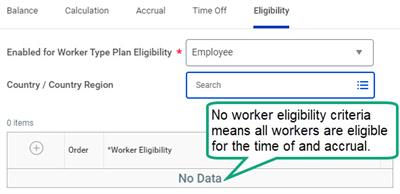
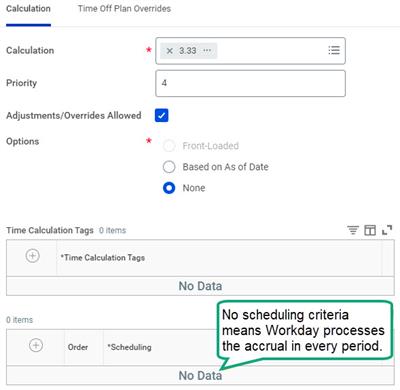
The Enabled for Worker Type and Country/Country Region fields at the time off plan level check initial eligibility for a time off plan. Then, by default, Workday calculates accruals for every eligible worker in every period unless you define either of the following:
- Eligibility criteria in the Edit Time Off Plan task
- Scheduling criteria in the Edit Accrual task
Using Calculations for Eligibility Rules
Use calculations in the Worker Eligibility grid in the Create/Edit Time Off Plan task to define rules to further specify who is eligible for the time off plan.
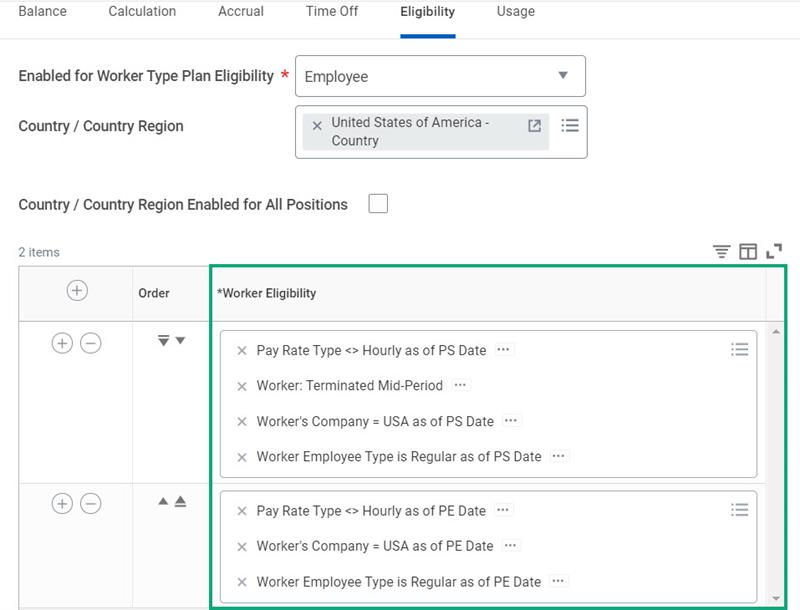
If time off or accrual eligibility differs from the plan's eligibility rules, use the Worker Eligibility grid on the Time Off Plan Overrides tab in the Create/Edit Time Off or Create/Edit Accrual task to define additional eligibility criteria. Workday then enforces the time off or accrual eligibility rules instead of the plan eligibility rules. However, the worker type and country criteria set at the plan level will always apply to the time off and accruals within the time off plan.
The following Boolean calculations are the most common types of calculations used in eligibility rules:
- Logic calculations
- Instance set comparison calculations
- Value comparison calculations
You will also use other calculation types to meet your organization's eligibility requirements. For example, to specify time off plan eligibility based on country, you would use a lookup calculation with an advanced lookup table.
Using Calculations for Scheduling Rules
Scheduling rules determine when Workday processes an accrual. In the Create/Define Accrual task, use the Scheduling grid to define scheduling rules.
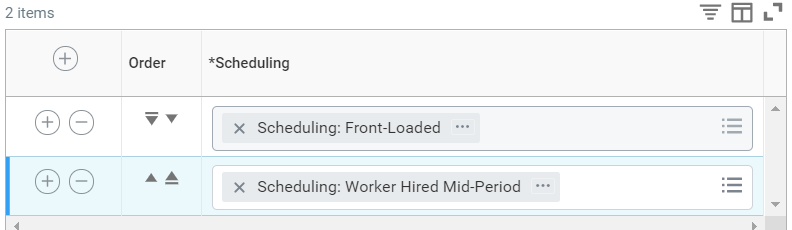
Accrual - Scheduling Rule
The most common types of calculations used in scheduling rules include:
- Boolean calculations
- Logic calculations
- Instance set comparison calculations
- Value comparison calculations
- Date calculations
- Constant date calculations
- Date increment/decrement calculation
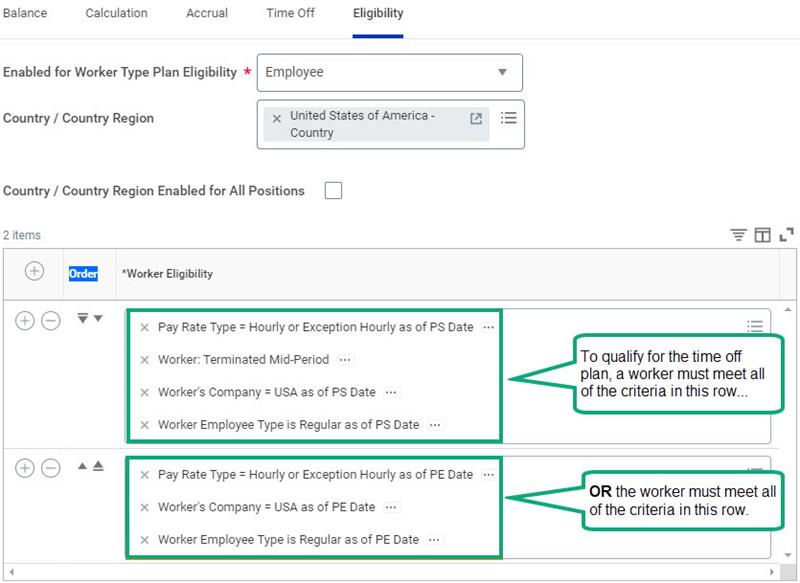
AND/OR Logic for Eligibility and Scheduling Rules
When defining time off plan eligibility and scheduling rules, keep in mind:
- AND logic applies to criteria in the same row.
- OR logic applies to criteria in different rows.
Example:
Creating Types of Time Off Plans
In addition to standard vacation and sick time off plans, you will often need to create plans to meet more specific requirements. The following topics and activities explain how to create some common types of time off plans, such as:
- Accrue-as-you-go plans
- Anniversary plans
- Time off plans using rolling period accruals
- Time off plans with front-loaded accruals
Accrue-as-You-Go Plans
An accrue-as-you-go (AAYG) plan allows an employee to accrue time to use as they need it. It is a self-referencing plan that takes the total amount of time off taken and adds it to the accrual.
Organizations often use an AAYG for events such as bereavement, jury duty, and unlimited PTO. AAYG plans may allow workers to take as much time off as needed or the plans may have a limit on how much time off workers can take.
Accrue-as-You-Go Plan: Time Off Plan Setup Considerations
Unlike plans such as vacation, holiday or sick, an AAYG plan does not have an earned balance. Therefore, employees should not be able to view the AAYG balance. To prevent employees from seeing the AAYG balance, an AAYG plan typically uses the balance visibility option of Never show balance. Selecting "Never show balance" ensures that Workday does not display the plan balance for anyone. Selecting a different balance visibility option, and then selecting the Hide From Worker Self Service option ensures the balance is not visible to employees. The Hide from Worker Self Service option allows:
- Users who can enter time off on behalf of the worker, such as managers and administrators, to view the balance while hiding it from the employee.
- Balance reports to display the plan and the amount accrued.
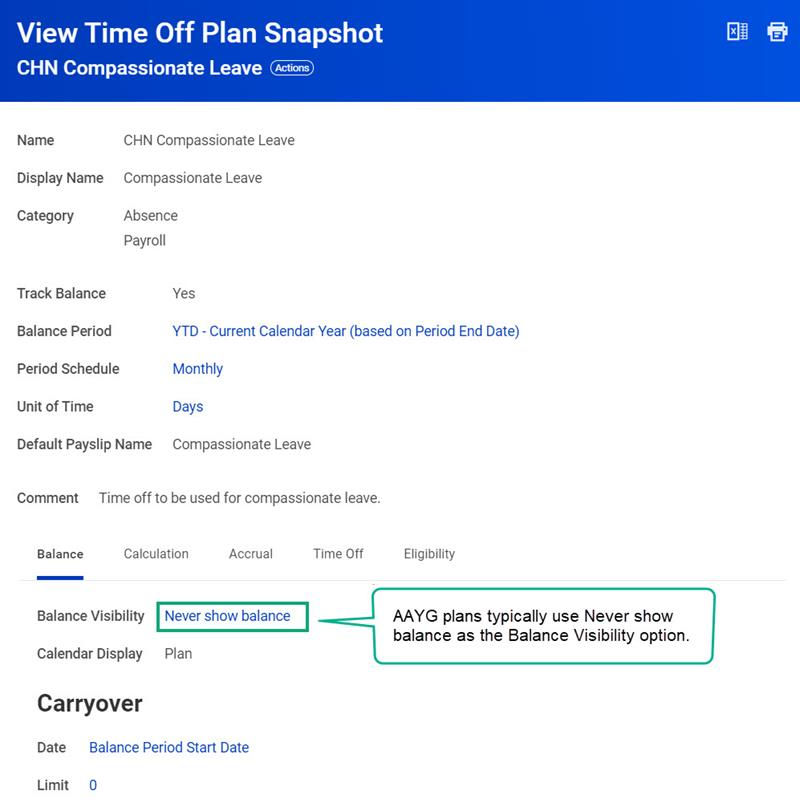
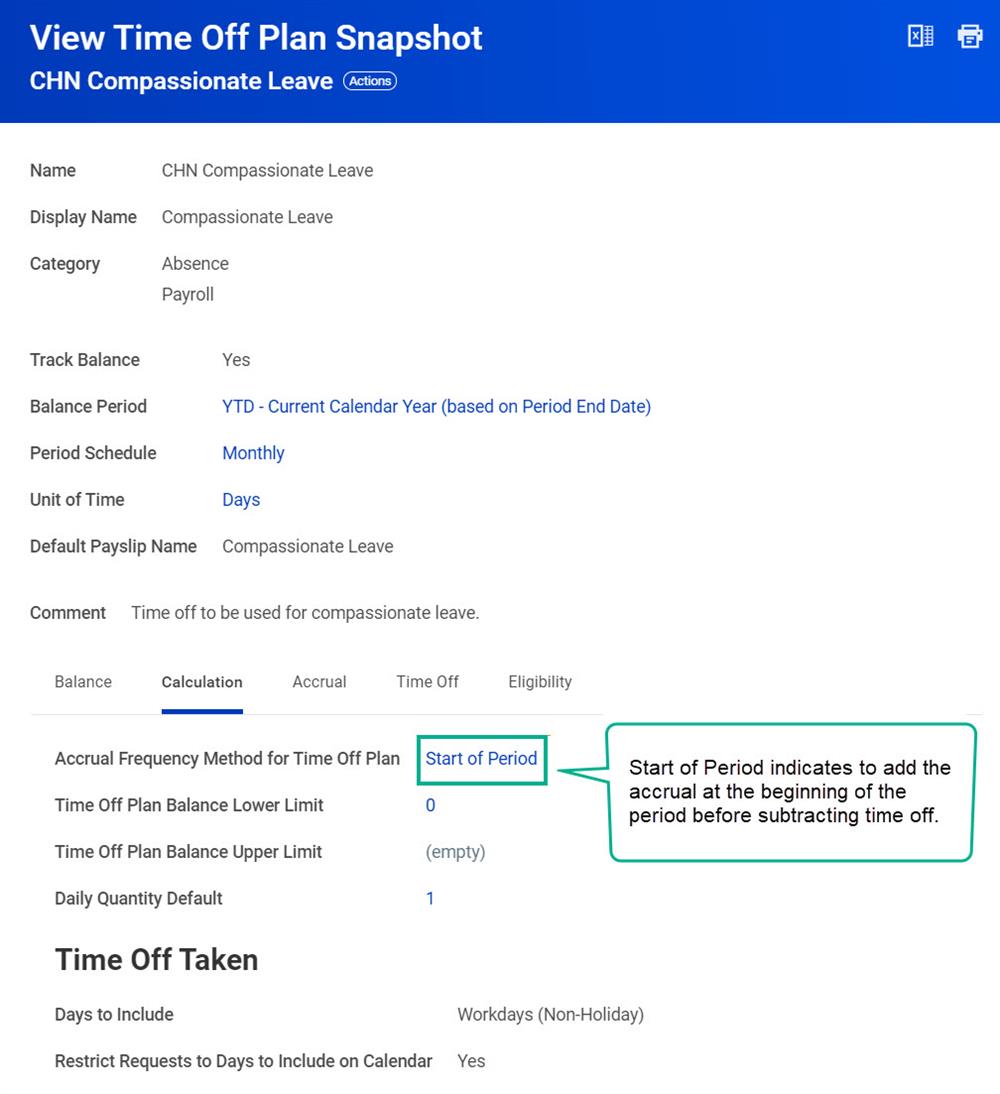
For an AAYG plan, set the Accrual Frequency Method for Time Off Plan field to Start of Period. Selecting Start of Period ensures that the employee accrues the time off at the time of use.
If you set a limit on the accrual, it is important to set up a lower limit on the time off plan. The lower limit specifies when time off becomes unpaid once an employee has reached the time off cap.
Accrue-as-You-Go Plan: Accrual Setup Considerations
When you attach the time off to the time off plan, Workday creates calculations called absence component-related calculations (ACRC). Payroll can use these calculations to determine unpaid or paid time off. Absence uses these calculations to determine the total amount of time off taken, which becomes the new accrual amount.
The following example uses the CHN Compassionate Leave Time Off - Time Off Total accrual calculation. This calculation captures the total amount of time off an employee has requested and becomes the amount accrued. For example, if an employee requests one day of CHN Compassionate Leave, the employee will then accrue one day. The employee can accrue the time at the same time requested.
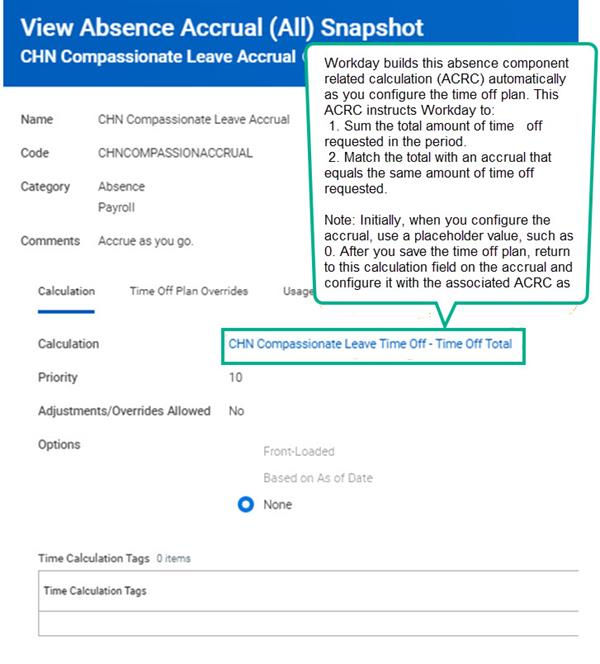
On the Time Off Plan Overrides tab, you can add a limit override. The limit override will add an upper limit or maximum amount the employee can accrue and take off. If there is a limit to how much time an employee can take in a year, the limit override enforces that limit. Base the limit override on the accrual itself and not the plan. Additionally, the plan should not have an upper limit. Instead, the plan must use the limit override on the accrual itself.
Accrue-as-You-Go Plan: Time Off Setup Considerations
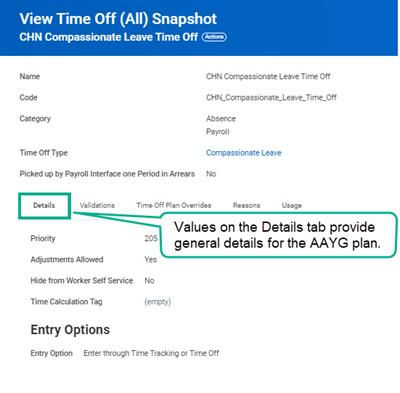
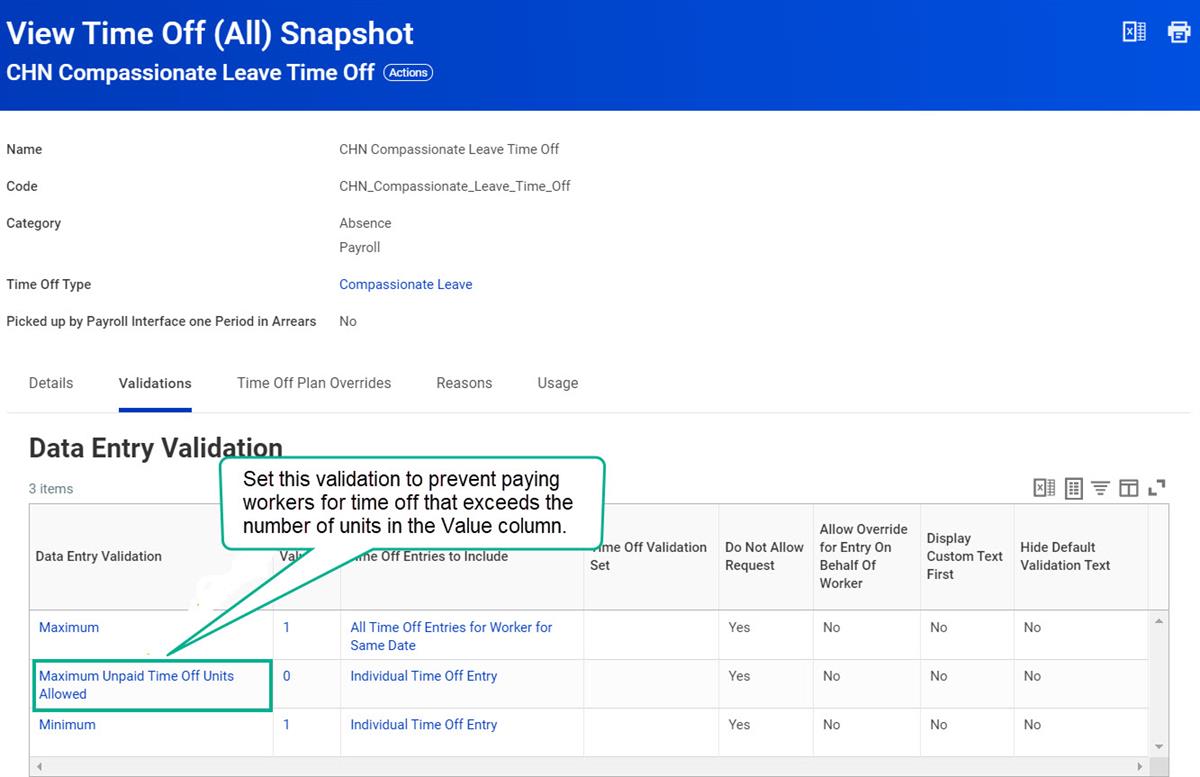
Note
: Consider using the Reasons tab to collect information as to the type of time off requested, such as funeral, caring for loved one, pet illness, and so forth.To prevent or limit the amount of unpaid time off requests, add the Maximum Unpaid Time Off Units Allowed validation.
Anniversary Plans
Anniversary Plans and the Custom Accrual Frequency Method
In the
Create Time Off Plan
task, on the Calculation tab, select the Custom Frequency option to add the accrual to the time off plan balance on a specific date, such as:- A worker's anniversary date of hire.
- A worker's birthdate.
When you use the custom accrual frequency method, Workday adds the accrual to the time off plan balance on:
- The date you define in the First Accrual Date field.
- The date you define in the Accrual Recurs Every field.
- The option you select in the Accrual Recurs Unit of Time field.
Use the fields in the
Create Time Off Plan
task on the Calculation tab to define a custom frequency for the accrual frequency method. The following table lists and describes those fields.Field | Description |
|---|---|
Accrual Frequency Method for Time Off Plan | Specifies when to add the accrual to a worker's plan balance. Options include:
Note : The Start of Period method typically results in workers reaching upper limits sooner and lower limits later than if you used the End of Period method to process accruals. |
Custom Frequency: Adds accrual on the dates you define in the following fields:
|
Time Off Plans with Custom Frequency Examples
Anniversary Plan with a Recurring Accrual Frequency
Anniversary plans with a recurring accrual frequency accrue with the same frequency pattern, such as yearly, every two years, every five years, etc. Following is an example of an anniversary plan that accrues every year on the employee's anniversary after the employee's first year. The plan uses an anniversary balance period so that the balance year aligns with the employee's anniversary. This balance period aids in carryover and reporting.
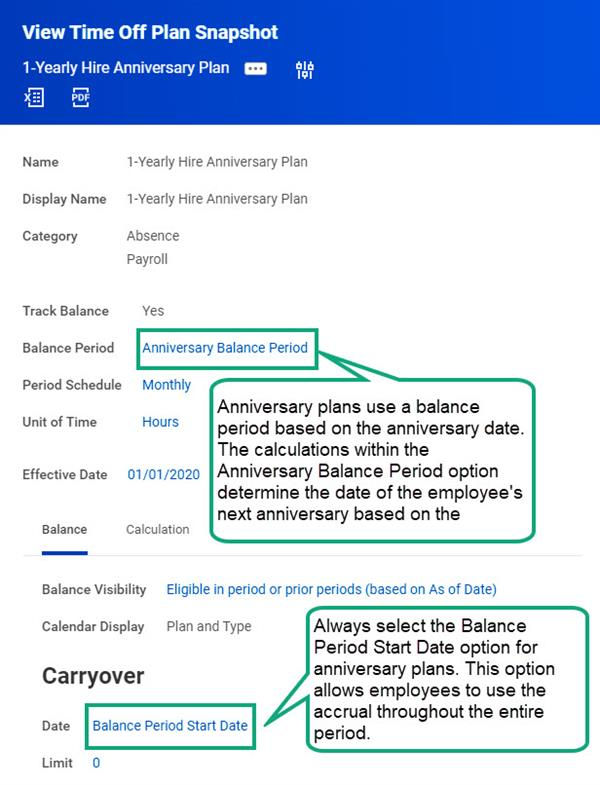
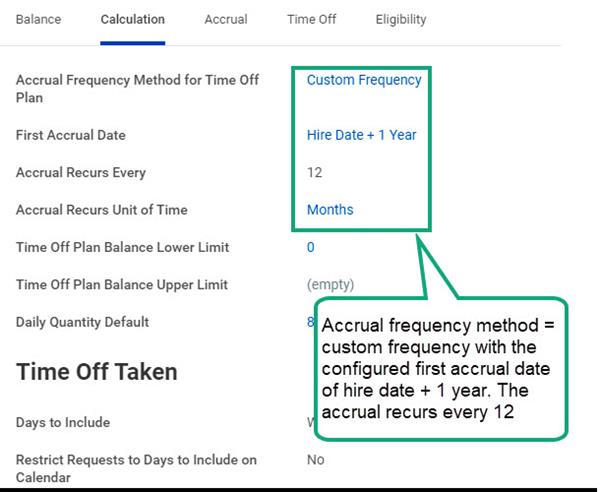
Time Off Plan: Calculation Tab
This hire anniversary plan uses a custom frequency for the accrual frequency method. Selecting Custom Frequency allows you to select the frequency when the first accrual occurs. For the first accrual date, Workday uses a calculation of hire date + year to give the accrual on the first anniversary. Then, Workday sets a recurrence to 12 months to give this same accrual every year on the employee's hire anniversary.
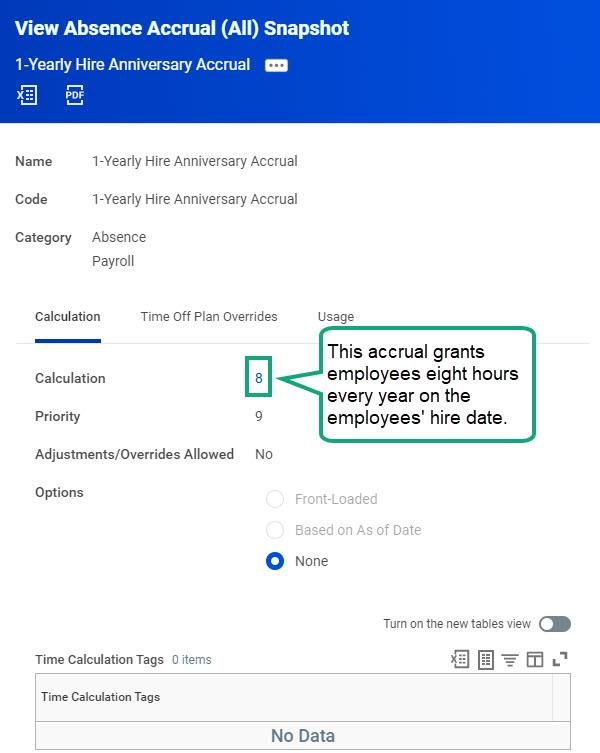
Accrual: Calculation Tab
The accrual uses a calculation that captures how much an employee should receive. You do not need to add scheduling because the plan uses a custom frequency setup as the accrual frequency method.
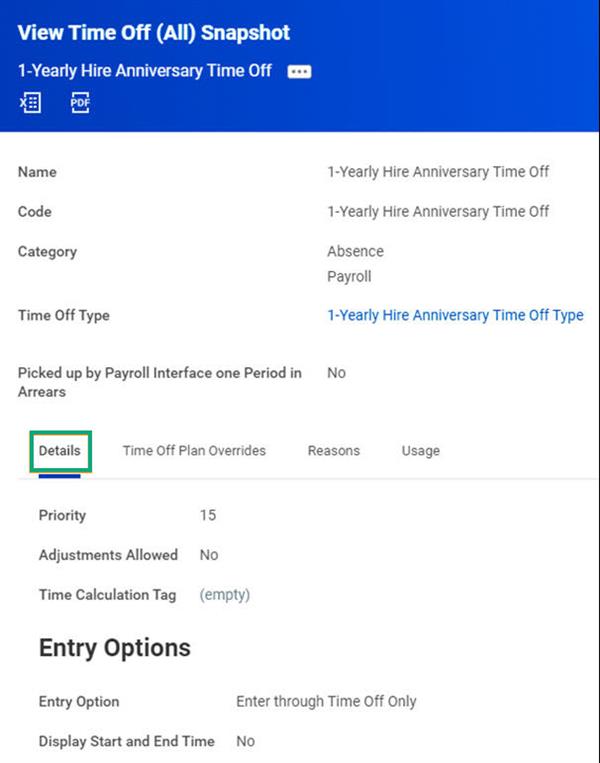
Time Off: Details Tab
The time off setup allows an employee to request time off as needed.
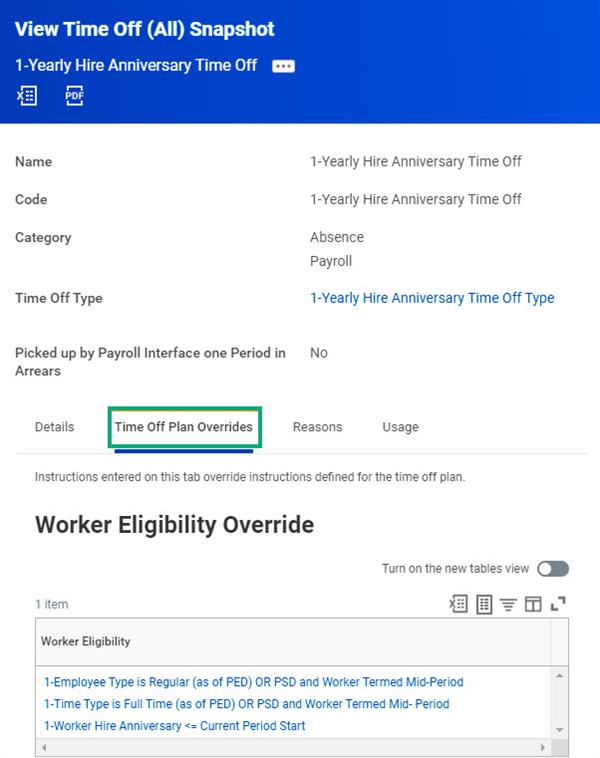
Time Off: Time Off Plan Overrides Tab
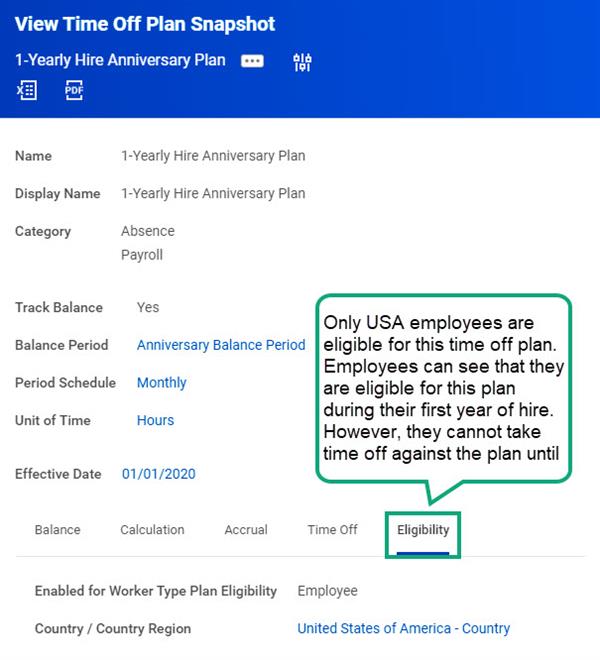
The Time Off Plan Overrides tab includes the eligibility that overrides the time off plan eligibility. Eligibility at the time off plan level for this plan is employee and United States. Therefore, all employees in the USA can see that they are eligible for the plan in the first year of hire. However, they cannot take time off until the completion of their first year of hire per the eligibility rule added to the time off as shown in the following example.
Following are the details of the 1-Worker Hire Anniversary <= Current Period Start calculation:
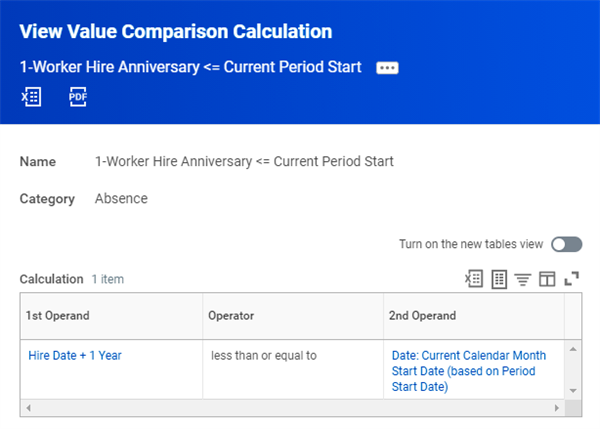
Value Comparison Calculation for 1-Worker Hire Anniversary <= Current Period Start
Time Off Plan: Eligibility Tab
The eligibility includes all employees who are eligible for this plan. The eligibility override on the time off will limit the employees' ability to request time off only after their first year. You can also add this eligibility at the plan level. When added at the plan level, an employee will not be able to view or receive the time off until the period they reach their first year.
Anniversary Plan with a Varying Accrual Frequency
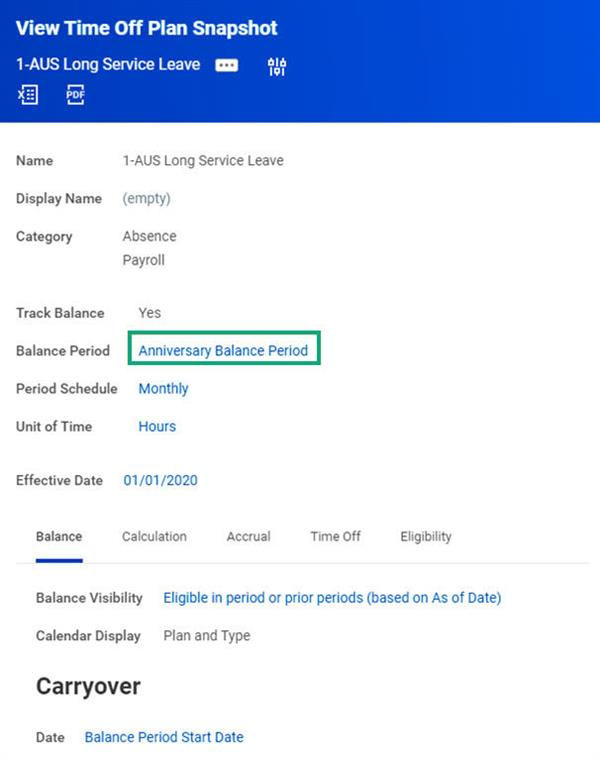
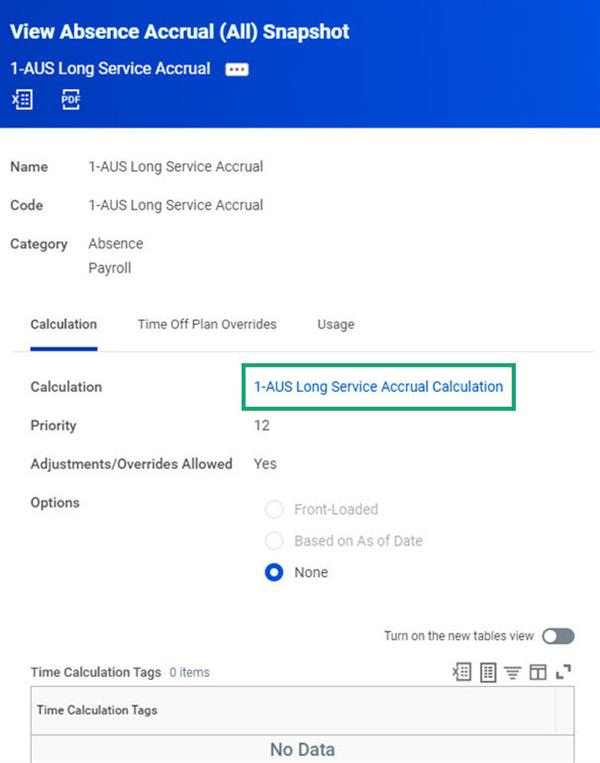
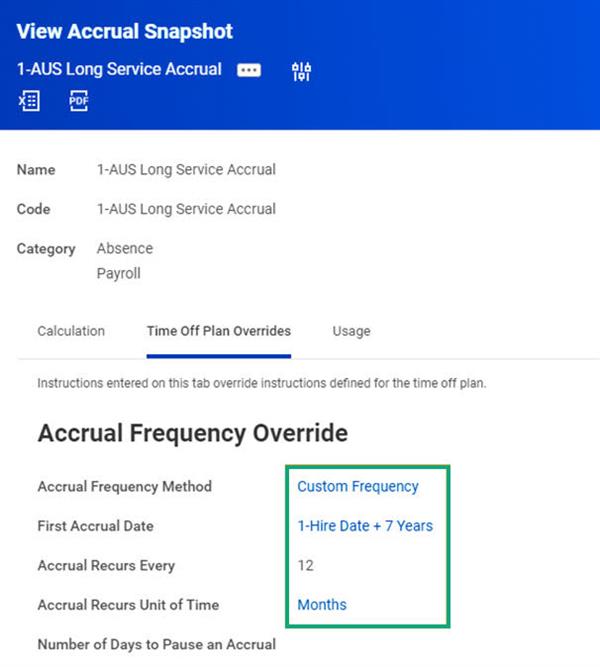
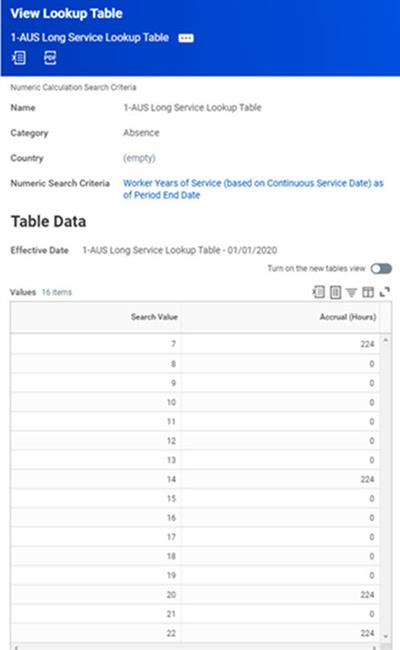
Anniversary plans with a varying accrual frequency accrue at different intervals, such as 1 year, 3 years, 5 years, 10 years, and 15 years. Following is an example of a time off plan that uses the balance period of Anniversary Balance Period. It uses an accrual based on years of service, such as for year 7, grant 24 hours; for year 14, grant 24 hours; and for year 20, grant 24 hours.
Time Off Plans Using Rolling Period Accruals
Typically, you use rolling period accruals in time off plans when absence balances do not have a start or end date. Rolling period accruals start on the current date and look back to the beginning of a defined number of days or months. As historic time off requests that workers have taken expire (after falling outside of the rollback period), Workday restores them to the time off plan balance.
Example
: You can configure a sick time off plan with a rolling period of 12 months. The rolling period begins with the first day of the absence and looks back 12 months to check for time off taken within that period.You can configure time off plans to apply rollback logic to accruals. The rollback logic includes definable conditions that accurately calculate absence balances that do not have a start or end date.
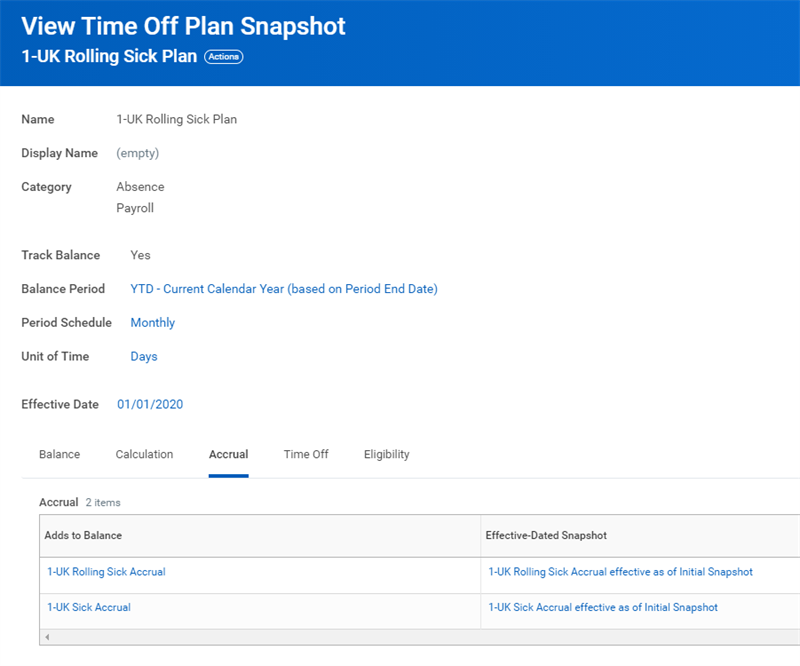
Usually, time off plans that include rolling periods have two accruals:
- The initial accrual that defines the amount of the accrual. For example, employees receive 10 days as their initial accrual amount.
- The rolling period accrual that:
- Specifies how far back to look for expired absences.
- Adds the time back into the balance after the specified time frame.
Accruals for a Time Off Planwith Rolling Period Accruals
Time Off Plans Using Front-Loaded Accruals
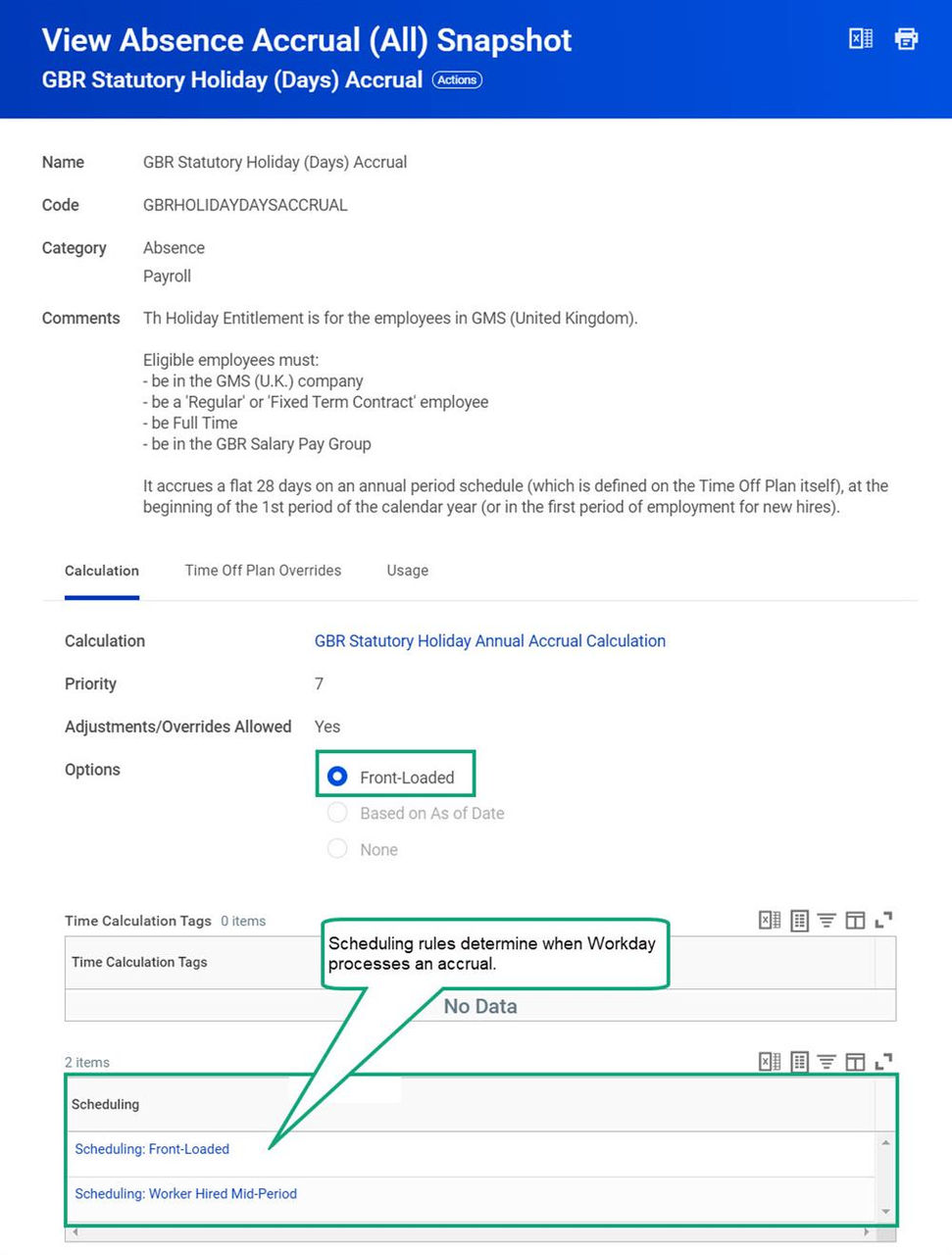
Create time off plans that use front-loaded accruals to allow workers to receive accruals all at once at the beginning of a balance period rather than in increments over time.
Schedule front-loaded accruals to occur in the beginning of a balance period by either:
- Adding the front-loaded accrual to a time off plan that accrues at the start of the first period of the balance period.
- Configuring scheduling criteria on the accrual itself.
Absence Tables
Absence tables enable you to manage time off requests that span multiple time off plans. The Absence Table object allows workers, managers, and administrators to request an absence that spans different time off plans. Workday automatically selects the appropriate time off for each portion of the absence based on predefined rules or priorities.
Use the
Create/Edit Absence Table
task to configure absence tables. From this task, you can define:- Absence table tiers
- Details
- Validations
- Reasons
Absence Table Tiers
Absence tier functionality allows for an employee time off request to cascade from one time off to another using multiple time off plan balances. Workday recommends using this functionality if you:
- Use multiple time off plans to manage one type of absence.
- Have a time off plan that workers can use only when they exhaust the balance of another time off plan.
- Use separate time off plans for different rates of pay.
Example
: A business may structure their annual leave such that there is a standard allowance per year, and an additional entitlement based on years of service.- Vacation Time Off is the standard allowance that has a carryover of three months into the next calendar year.
- Floating Holiday is a service-based allowance that workers cannot carry over to the next year. It expires at the end of the calendar year.
Absence tiers allow workers to automatically take the prioritized floating holiday first before vacation time off, all as one request.
Use the Absence Table Tiers tab in the
Create/Edit Absence Table
task to indicate the time off plans to include in the absence table.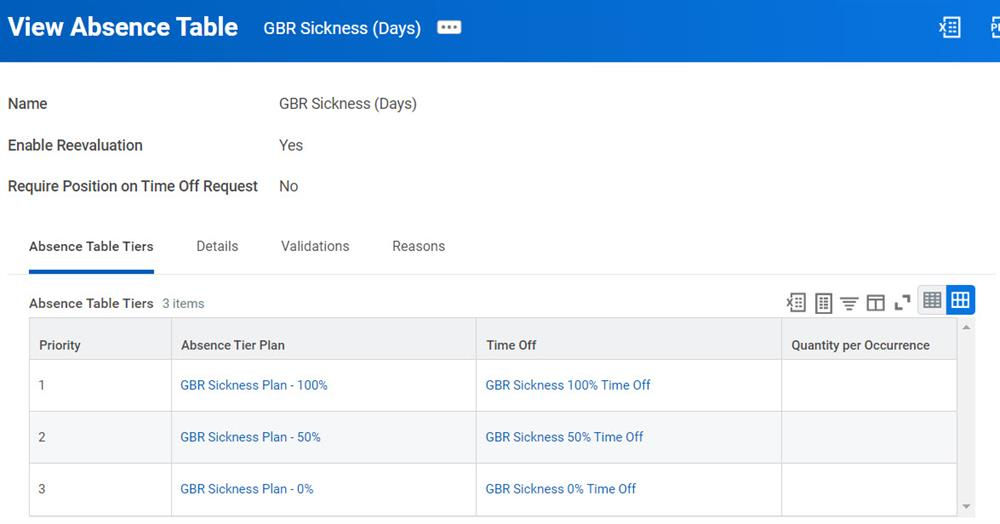
The following table lists and describes the available fields on the Absence Table Tiers tab.
Field | Description |
|---|---|
Priority | Specifies the order in which a worker should cascade from time off to time off. |
Absence Tier Plan | Specifies the time off plan used in an absence table's tier. You can select a single plan from existing plans in the system, or create a new plan. |
Time Off | Specifies the time off for the selected absence tier plan. Note : You can use the same time off plan in multiple tiers, but each tier must use a different time off. |
Quantity per Occurrence | Displays when you enable quantity per occurrence on absence table tiers on the Edit Tenant Setup - HCM task. You can do either of the following:
|
Each time off on the tiers must use the same time off entry option of Enter Through Time Off only.
Important
: Currently, Workday does not support the following with absence tiers:- Changes to units of time
- Deletion of time offs linked to the absence table
- Position-based time off plans
- Time offs with active reasons
- Adjustments and overrides for time offs and accruals
Absence Table Details
Use the Details tab to specify whether workers can enter time off against the absence table through Time Off in Workday Absence Management, Workday Time Tracking, or both.
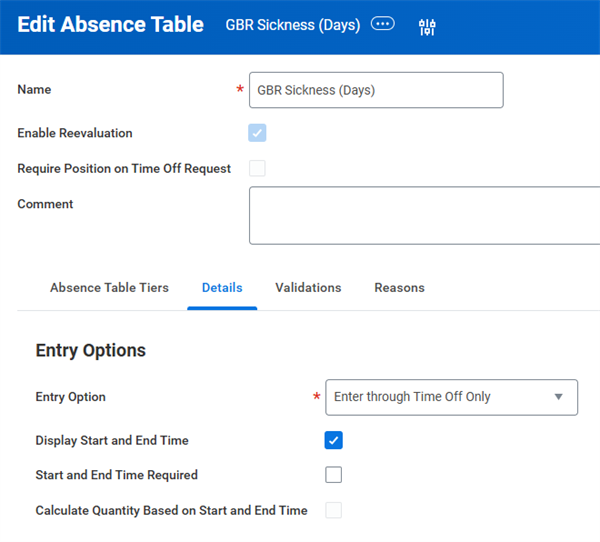
When selecting the
Entry Option
of Enter through Time Off Only,
there are additional options available. All tier plans in the Absence Table must be in hours or days unit of time.Field | Definition |
|---|---|
Display Start and End Time | Select to display an optional start and end time period. |
Start and End Time Required | Select to display a required start and end time. |
Calculate Quantity Based on Start and End Time | Select to ensure that the duration of time between start and end time equals the daily quantity. The unit of time on the tier plans in the absence table must be hours. This setting ignores any daily quantity default calculation value on the tier plans. |
Absence Table Validations
Use the Validations tab to validate absence table events.
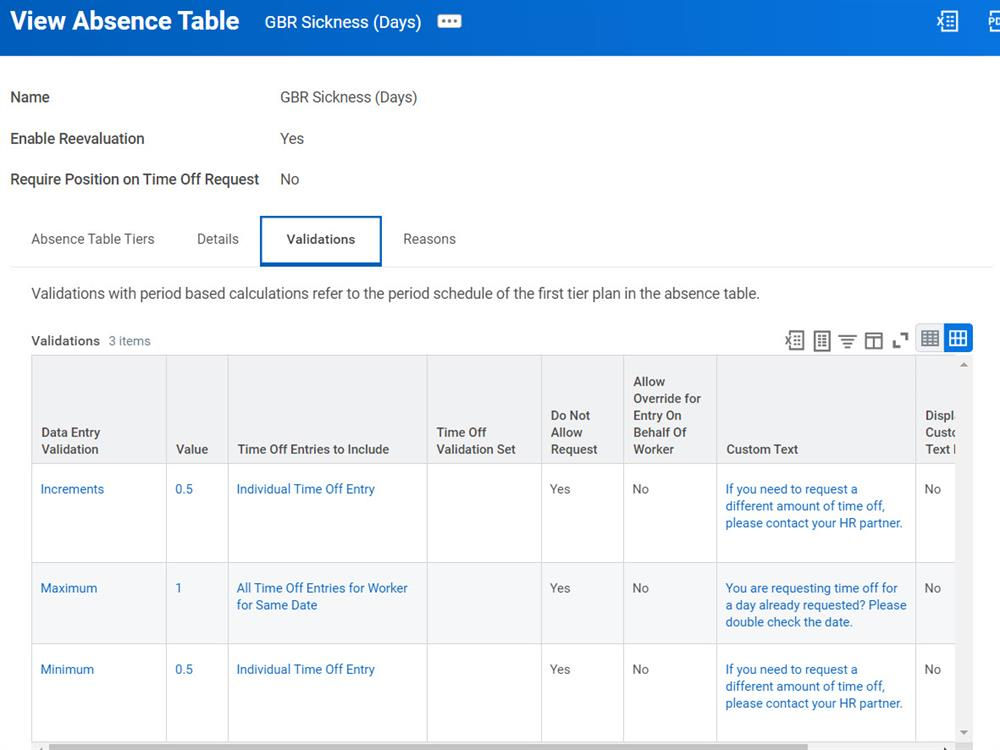
The following table lists and describes the available fields on the Validations tab.
Validation | Description |
|---|---|
Data Entry Validation | Use this field to select one of the following:
|
Value | Use this field to select the value to use for the data entry validation. |
Time Off Entries to Include | A single time off linked to the selected tier plan. Note : There can be multiple time offs on a time off plan, so a user must select which one to use for the table. |
Time Off Validation Set | If you select All Time Off Entries for Worker (for Time Off Validation Set) for Same Date in the Time Off Entries to Include column, use this field to specify the time offs to include. |
Do Not Allow Request | Displays an error message when a request fails the validation. |
Allow Override for Entry on Behalf Of Worker | Enables managers or administrators to override the validation rule when entering, revising, or correcting time off on behalf of workers. |
Absence Table Reasons
Use the Reasons tab to specify reasons for an absence, which requestors can select when submitting an absence request. You can make a reason selection required by selecting the Reason Required checkbox.
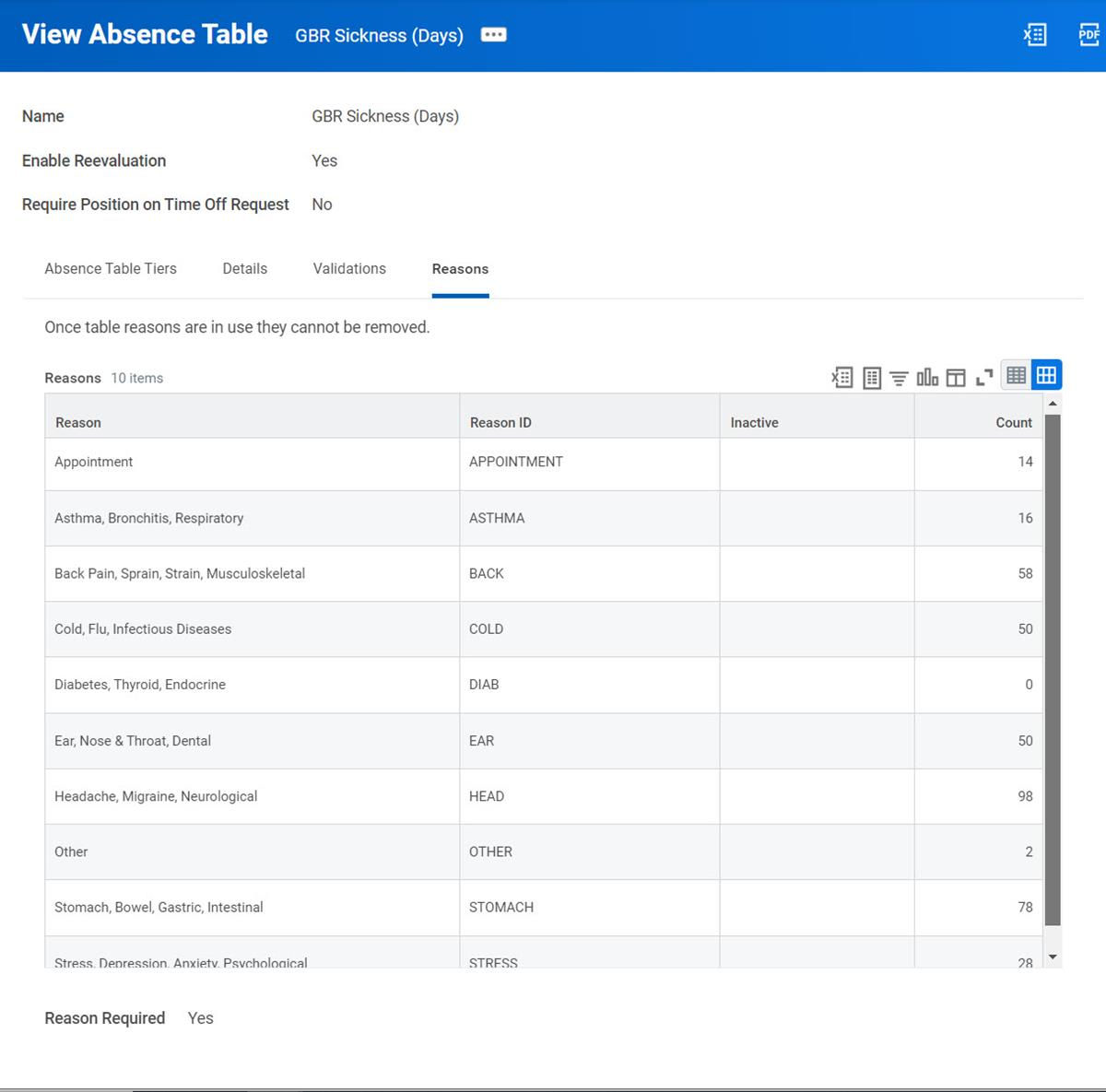
Re-Evaluation
Selecting the Enable Re-Evaluation checkbox on the
Create Absence Table
task allows Workday to automatically identify and correct absence table events. Completion of the Request/Enter Time Off
, Request/Enter Absence
, or Correct Time Off
business processes triggers the Re-Evaluation job. The job identifies events requiring re-evaluation and performs automatic corrections.Time off usages across all events against an absence table use the balances of tier time off plans in the same order as the prioritized absence table tiers.
The following cases trigger re-evaluation:
- Request against the absence table event where there is a future approved absence table event
- Correction of an absence table event where there is a future approved absence table event
- Correction against a standard time off event that is on an absence table where there is a future approved absence table event
- Cancellation of a request where there is a future approved absence table event
- Denial of request where there is a future approved absence table event
The
Absence Tier Time Off Entry Details
report provides information on absence tier events and their time off or tier usages per event for manual and re-evaluation events. This report assists with tracking the effect of the re-evaluation job.Position-Based Absence Tables
Selecting the Require Position on Time Off Request allows you to configure position-based absence tables. Position-based absence tables can include position-based time off plans and worker-based time off plans that require a position in the request. When requesting time off against position-based absence tables, workers must enter the position that they will be absent from. Just as with worker-based absence tables, for position-based tables, Workday automatically selects the appropriate time off for each unit of absence but also takes into account the position when evaluating the available balance at each tier in the request.
Absence Table Limitations
There are some limitations to using absence tables, including the following:
- You cannot add intermittent time offs to an absence table.
- Validations for an individual time off do not display when you use that time off in an absence table, except for theMaximum Unpaid Time Off Units Allowedvalidation.
- Period-based calculations are not available for validations on absence tables.
- You cannot use effective dates with absence tables.
- Workers cannot request an absence against a time off type after you add it to an absence table. Their subsequent time off requests are against the absence table.
- Workday does not support start and end times when entering time off using absence tables.