
Data Catalog
The
Data Catalog
report is your starting point for using Workday Prism Analytics. The report displays the data available to you. If you have the appropriate permissions, you can:
- Bring in and store data from multiple sources using tables.
- Create derived datasets and derived datasets (live) to transform the data.
- Create data change tasks to change data in a table using data from a source.
You can also:
- Customize your view of datasets and tables by filtering them.
- See details for a selected object, such as a description, tags, or dependencies.
- Access details about reportable rows and Prism usage.
- Access documentation that supports your use of Prism Analytics using theHelpbutton.
When you view the
Data Catalog
report, you see these components: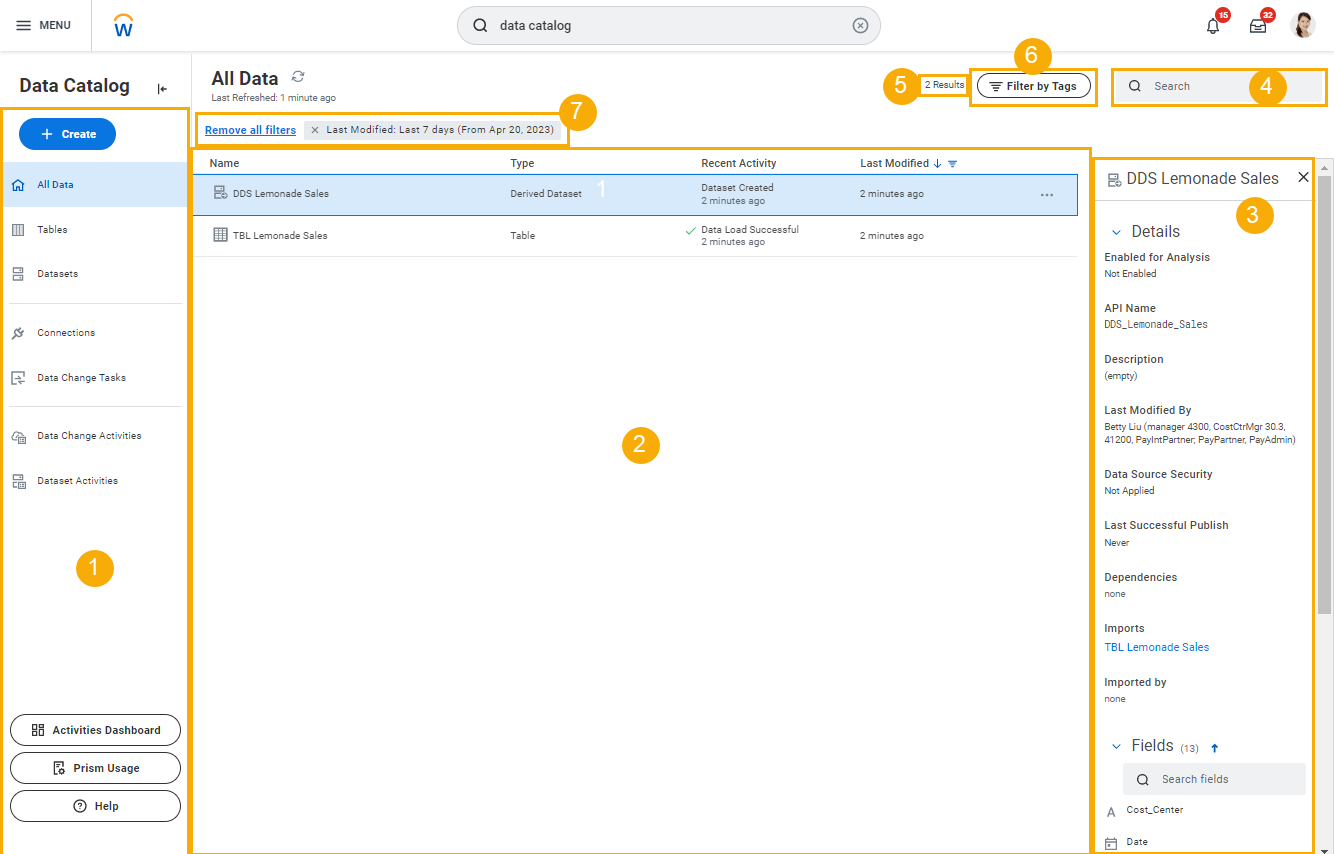
- Data Catalog details panel. From this panel, you can:
- Create datasets and tables.
- Create data change tasks.
- Create connections.
- View dataset publishing activities in theDataset Activitiestab.
- View all Prism-related activities in thePrism Management Console.
- View data change activities.
- View Prism usage details.
- Open the Prism Analytics Data Management User Guide in a new browser tab. The entire documentation is also available in the Workday Community if you have access to Community.
- Main Data Catalog view. This view displays all the data that you have permission to view. Right-clicking a dataset or table displays a list of actions that you can perform.
- Inspector panel. This panel displays when you select an object in the Data Catalog. You can hide this panel to increase the available space in the main Data Catalog view. This panel displays detailed information about the selected object, including:
- If a dataset isEnabled for Analysis. If enabled (published), you can create reports and visualizations with the dataset. If enabled and outdated, the dataset is published but has changed since it was last published.
- Tags assigned to a dataset or table form the inspector panel. Selecting a tag in the panel displays the datasets or tables filtered by the tag.
- Both upstream and downstream data change tasks associated with a table. Selecting a data change task will direct you to theView Data Change Taskpage for that task.
- Search for objects to filter the list of objects in the Data Catalog.
- The number of objects displayed.
- Filter by tags.You can add or edit tags to organize your data if you have editor permission when you:
- Create a derived dataset.
- Create a table.
- View a dataset or table.
- Edit a table.
Tags you create are visible to all.If you remove a tag from a dataset or table, the tag still displays in the tag menu if another dataset or table uses the tag.If you change browsers or laptops, the tag filters you select in theData Catalogreport won’t persist.Workday doesn’t store tag names but rather a randomly generated identifier for each tag. This is consistent with how Workday stores other filters in Data Catalog. - Filter theData Catalogreport based on when objects were last modified.Workday automatically applies aLast 7 daysfilter that you can edit or delete.If you delete the filter, Workday will reapply it when you change sessions.If you edit the filter without deleting it, Workday persists those changes to other sessions.
Workday provides the
Prism Datasets and Tables
data source to help you create reports and discovery boards about Prism Analytics tables and datasets. Although this is an indexed data source, none of the fields in it are indexed. As a result, it behaves like a standard data source.