
Example: Constant Currency Reporting with Virtual Versions
Exchange rates fluctuations can make analysis of data variances look better or worse based on favorable or unfavorable exchange rates rather than the actual performance metrics. In accounting terms,
constant currency
eliminates exchange rate fluctuations when comparing different sets of data to give you an accurate picture of your business's performance.Watch the video: 1m 50s
Basic Steps to Create Constant Currency Reports
- Choose the sets of data.
- Build a matrix report, comparing the variance between the virtual version and the exchange rate version. See Create Basic Matrix Reports.
The walk-through below offers a detailed step-by-step sample of how to create this report.
Constant Currency Walk-Through Sample
In the sample walk-through, you build a report that shows the variance between the 2016 budget data and 2016 actuals data, using virtual versions to keep the currency rates constant.
- Create the Virtual Version
- To report on variances with constant currency, always build the report with the new virtual version and the version you chose for the exchange rate of the new virtual version. The time spans you define in your report must relate to the time spans of the data sets. The table below explains how these rules work together:Variances to ReportVirtual Version BaseVirtual Version Exchange Rate VersionVersions in ReportTime Span in ReportCurrent Budget to Current Year ActualsCurrent Year ActualsCurrent BudgetVirtual Version and Current BudgetCurrent YearCurrent Year Actuals to Prior Year ActualsCurrent Year ActualsPrior Year Actuals (Offset Actuals 1 year backwards)Virtual Version and Prior Year ActualsCurrent and Prior Year
- Go toModeling>Model Management>Versions.
- Click anywhere in the plan section of the list.
- Click theCreate New Virtual Versionbutton from the toolbar.
- EnterActuals at Budget Ratesin theNamefield.
- From theBase Versiondropdown, selectActuals.
- Click theEditlink to the right of theExchangeRates.
- In the pop-up window, select the 2016 Budget (Current Budget) from the dropdown.
- Because the base version is an actuals version, keep theEnable Constant Currency Reportingcheck box cleared.For actuals versions, this option has no impact on the resulting values. When your base version is a plan version, select this option to apply the exchange rates of the plan version to the actuals overlay periods.
- ClickApplyand save.
You now have a virtual version of your actuals data with your budget's rates. - Build a Variance Report without Exchange Rate Fluctuations
- To report the variance between the actuals data and the current budget without exchange rates fluctuations:
- From the Reports Overview page, clickAdd Newand selectMatrix.
- From theElementslist, clickVersions,and drag and drop theActuals at Budget Ratesvirtual version into the column segment.
- Drag and drop the 2016 Budget (Current Budget) version (the version you used for the exchange rate of the virtual version) in the same column to right.
- ClickBack to Elementsand clickTime. Expand until you find 2016 (the time period that corresponds to the base you selected for the virtual version). Keep 2016 collapsed and drag and drop it into the column segment, above your versions. You can also expand it to see quarterly or monthly variances, or you can drag it into the Filters segment.
- ClickBack to Elementsand clickCalculations. Drag and drop theDifferenceelement to the left of the two versions in the column segment.
- Right-click on the difference element in the report grid and selectProperties.
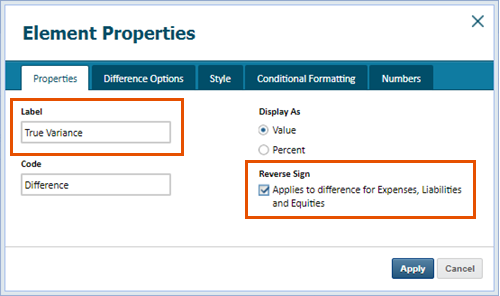
- EnterTrue Variancein theLabelfield and click theReverse Signcheckbox.
- Click theDifference Optionstab.
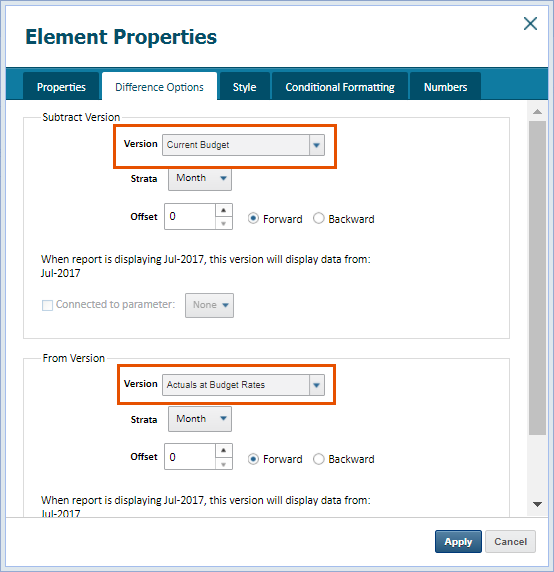
- In theSubtract Versionsection, choose the current budget from theVersiondropdown. In the FromVersionsection, chooseActuals at Budget Ratesfrom theVersiondropdown.
- ClickApply.
- ClickBack to Elementsand clickAccounts.
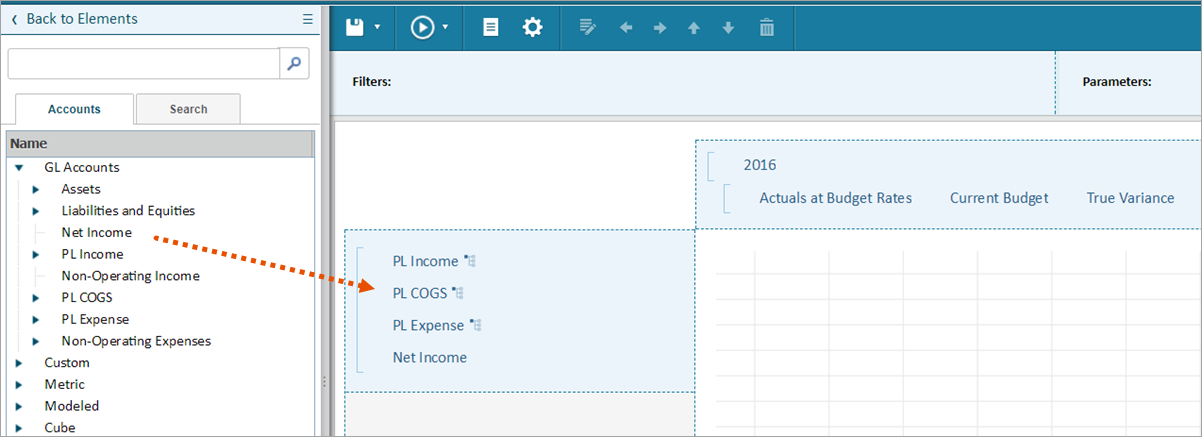
- Drag and dropPLIncome,PL COGS,PL ExpenseandNet Incomeinto the row segment. Your report should look like this:
- Save and run the report. The variance in the last column reports the difference without the effects of exchange rates.