
Advanced Grids
Overview
In this chapter, you will explore advanced grid features, including sorting, filtering, and pagination.
Objectives
By the end of this chapter, you will be able to:
- Allow users to sort and filter grid data.
- Use mock data to populate a grid.
- Implement grid paging for endpoints that return paginated data.
Review Grid Widget
You learned about grids in the Workday Extend introductory course. Key points to remember about grids include:
- Therowsbinding will usually reference anendPoint.
- TherowVariableNamebinding defines the iterator variable, which is the variable that points to the current row.
Here is a partial sample of a
grid
widget:{ "id": "expensesGridWidget", "type": "grid", "label": "Mobile Expenses", "rows": "<% expenseData.data %>", "rowVariableName": "apidata", "indexVariableName" : "rowNum", "columns": [ { "columnId": "widCol", "label": "WID", "type": "column", "required" : "false", "cellTemplate": { "type": "text", "value": "<% apidata.id %>" } }, ... ] }
Grid Sorting and Filtering
You can enable sorting and filtering only on non-paginated grid data. You can select the column title to view the sort and filter options. You can select the filter icon on the grid to create filters.
- Add"sortableAndFilterable": trueto any columns where you want sorting.
- The type of the widget in thecellTemplatedetermines how sorting will occur.Example: Numbers in atextwidget will be sorted astext, whilenumberin anumberorcurrencywidget will be sorted as anumber.
- Sorting and filtering is not possible with columns with complexcellTemplates, such ascellTemplateswithfieldSetsorsections.
Exporting a Grid to Excel
You can add the Export to Excel icon on a grid, enabling users to export a grid from a view page to an Excel spreadsheet. Users can download a grid and use Excel functionality to perform quick data analysis with your custom app.
To enable the Export to Excel icon on a grid, set the
excelExportEnabled
attribute to true
. For example:{ "type": "grid", "excelExportEnabled": true, "rows": "<% ... %>", "rowVariableName": "row", "columns": [ ... ] }
Each time a user clicks the Export to Excel icon, your app fetches the entire grid data and exports the columns into an Excel file.
The Excel filename uses the grid
label
. If the grid doesn't have a label
attribute, the filename falls back to the grid id
. If the grid doesn't have a label
or id
, the filename falls back to a default filename.Overriding Columns in Excel Export
By default, the grid exports the cell values of all columns. The grid exports number and currency values as numbers, date values as dates, and all other values as strings in Excel. If the cell tag specifies any format properties, the grid applies the specified format.
To override the default export or format of a column, add the
excel
attribute on the column. This attribute is an object containing configuration overrides to use for a column when exporting to Excel. For example:- enabled: To exclude a column from the grid export, set theenabledproperty tofalse.{"type": "column","label": "Email","columnId": "emailCol","excel": {"enabled": false}"cellTemplate": {"type": "text","value": "<% rowData.email %>"}}
- value: To customize the value to export for a column, specify thevalueproperty. You can reference the grid variablesrowVariableName,currentRowVariable,indexVariableNameto specify the appropriate value to export.{"type": "column","label": "Status","columnId": "statusCol","excel": {"value": "<% rowData.status.uppercase() %>",},"cellTemplate": {"type": "text","value": "<% rowData.status %>"}}
- valueType: To customize the value type to export for a column, specify thevalueTypeandvalueproperties. The data type ofvaluemust match the specifiedvalueType. Valid types:string(default),boolean,date,number.{"type": "column","label": "Vote","columnId": "voteColumn","excel": {"value": "<% bool:toBoolean(currentRow.childrenMap.voteColumn.value) %>","valueType": "boolean"},"cellTemplate": {"type": "text","value": "<% rowData.voteYesOrNo %>"}}
- valueFormat: To customize the Excel format applied to the exported value, specify thevalueFormatproperty.{"type": "column","label": "Reference Number","columnId": "refColumn","excel": {"value": "<% rowData.refNumber %>","valueType": "number","valueFormat": "<% '\\@\\_#0' %>"},"cellTemplate": {"type": "number","value": "<% rowData.refNumber %>"}}
Considerations and Limitations
The grid Export to Excel feature doesn't support:
- Grids on edit pages.
- Grids containing dynamic columns.
- Any sorting, filtering, and custom cell styling that a user has applied on the grid.
- Security policies configured on the Export to PDF and Excel domain.
- Mobile devices. The Workday mobile app doesn't support grid exports.
- The ability to cancel the export process after submitting the request, which has a 60-second time limit.
Note
: Depending on the number of columns, grids containing more than 4000 rows might cause timeouts and performance issues. In this case, use Reports-as-a-Service custom reports for exporting data.Note the following Excel limitations. Reference the Developer Documentation for more information.
- Excel supports numbers up to 15 digits, and replaces digits past the 15th digit with zeros.
- Excel obfuscates long numbers.
- Excel supports strings with up to 32,767 characters. We truncate a text longer than the maximum length.
Additional Grid Attributes
The grid widget supports other attributes, including the following. Refer to the Developer Documentation for the full set of supported attributes.
Attribute | Data Type
| Description |
|---|---|---|
doNotAdd | Boolean | If true, users can't add rows to the grid.
If false, the grid on an edit page displays a column with the plus icon, which enables users to add a row at the top of the grid. The default value is false.
Use only on edit pages. |
doNotRemove | Boolean | If true, users can't delete any row from the grid.
If false, the grid on an edit page displays a column with the minus icon for each row, which enables users to delete the row from the grid. The default value is false.
Use only on edit pages. |
showRowMover | Boolean | If true, the editable grid displays the Order column and adds the + icon on each row. The Order column enables users to move rows up or down. The + row icon enables users to add a row below a specific row.
Use only on edit pages. |
Implementing Grid Paging
At one end of the spectrum, you have seen that many of Workday's API calls limit the response data to 20 rows.
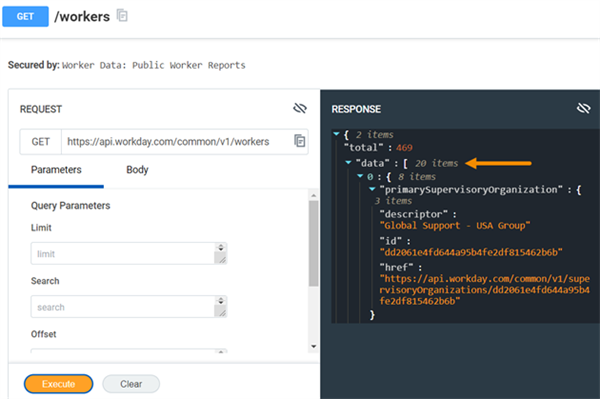
Most APIs Default to 20 Items
One way to get more data is by specifying the
limit
parameter to the API call. For example, passing in a limit
of 100 will return 100 rows of data (instead of the default 20 rows).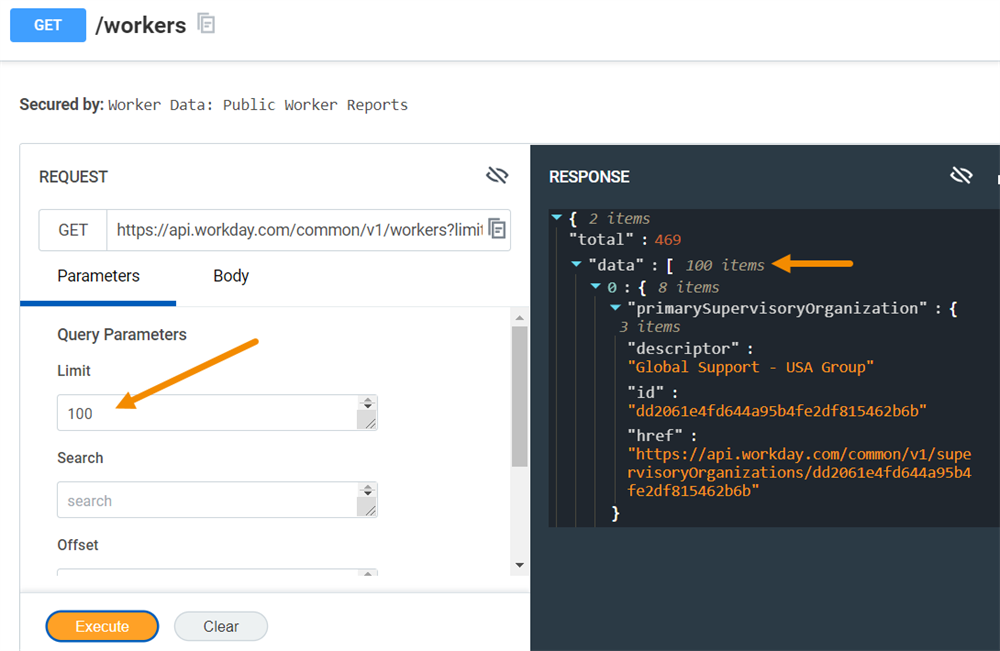
Increasing the Limit from 20 to 100 Workers
But what if you want to retrieve all available rows? With the limit parameter, you need to know precisely how many rows to request. But row counts will also change over time, as users add and remove data from your app.
We mentioned earlier that
endPoints
have an isCollection
attribute. When isCollection
is set to true, the endPoint
retrieves all
available data, not just 20 rows. Using this attribute is the opposite end of the spectrum. This option may return too much data, impacting page load performance.Enable paging to handle grids that need to display many rows. To implement data paging, you first need to configure the
endPoint
url
. In the code snippet below, the limit
parameter and the offset
parameter are set dynamically using PMD expressions. These expressions use an implicit variable provided by the platform— pagingVariables
. The expressions perform the following:- If thepagingVariables.limitis empty, set the endpointlimitto 100. Otherwise, use thepagingVariables.limit.
- If thepagingVariables.offsetis empty, set the endpointoffsetto 0. Otherwise, use thepagingVariables.offset.
{
  "name": "workers",
  "authType": "sso",
  "url": "<%
    var baseURL = 'https://api.workday.com/common/v1/workers?limit=';
    var limitScript = empty(pagingVariables.limit) ? 100 : pagingVariables.limit;
    var offsetScript = empty(pagingVariables.offset) ? 0 : pagingVariables.offset;
    var fullURL = baseURL + limitScript + '&offset=' + offsetScript;
    return fullURL;
  %>"
}
In addition, you add a
pagingInfo
object to your grid
. This object has a pointer to an endPoint
, which is workers in this case. Also, pagingInfo
contains an attribute that will hold the total number of workers from the API call."pagingInfo": { "endPoint": "<% endpoints.workers %>", "rowCount" : "<% workers.total %>", "data": "<% workers.data %>" },
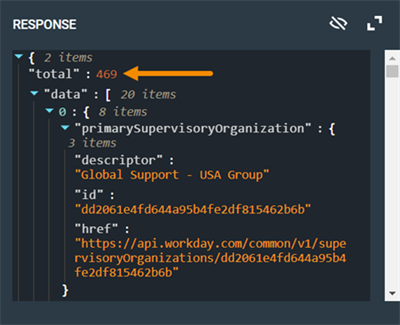
Total Workers in our Training Tenants
Note
: You can enable sorting and filtering only on nonpaginated grid data.