
Employee Review Template
Overview
Workday offers four, highly configurable employee review categories. Each category allows you to review, measure, assess, and compare your workers in an employee review event. As you configure templates, you must consider the sections you need for different employee review categories and how you plan to rate employees on their performance.
In this chapter, you will learn how to organize the structure and configuration of employee reviews in Workday to meet your business needs.
Objectives
By the end of this chapter, you will be able to:
- Define employee review categories.
- Maintain employee review types.
- Create an employee review template.
- Configure employee review template sections.
Employee Review Categories
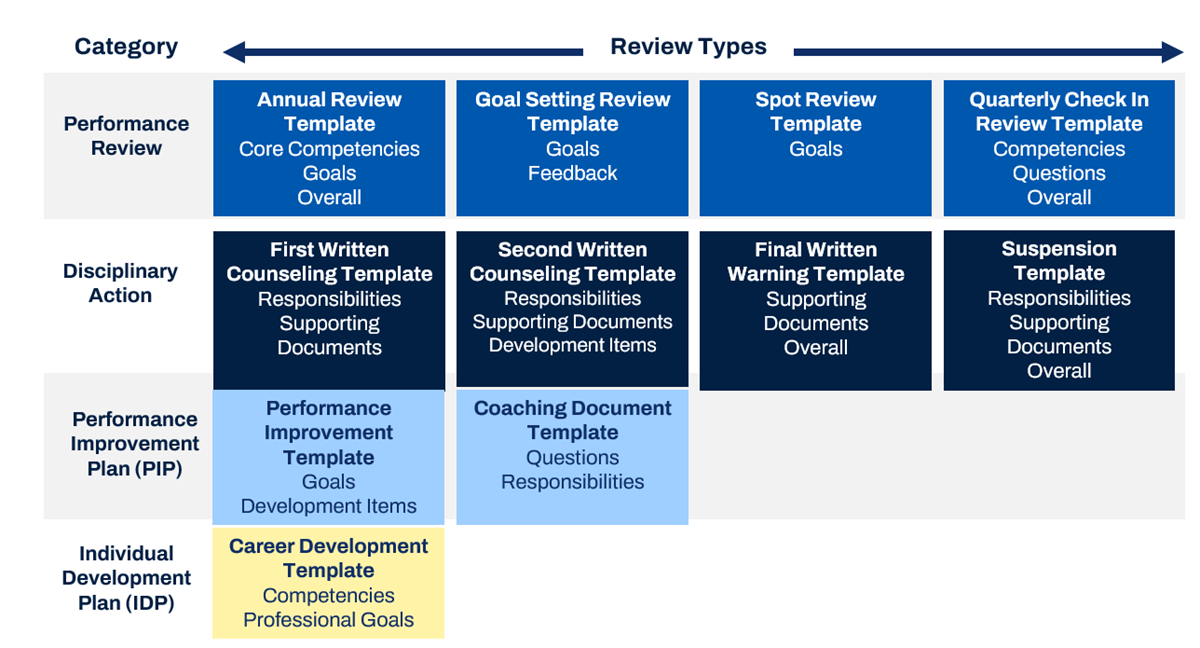
Workday provides four categories of employee reviews, which support employee evaluation and development. Each review category uses its own unique business process and templates, which are the primary difference between the four categories:
- Individual Development Plan
- Disciplinary Action
- Performance Improvement Plan
- Performance Review
To match your company culture and terminology, use the
Maintain Custom Labels
task to rename talent terms, including review categories.Note
: You may only generate employee reviews for the employee's primary job.Individual Development Plans
Workday provides three different options to track and measure employee's development items or plans:
- Use a dedicated Development Plan template for more complex and robust processes, which you can launch for individual employees, supervisory organizations, or as a self-service task launched by the employee themselves. Use theStart Development Plan for Employee,Start Development Plan for Organization¸ orStart My Development Plantasks.
- Embed development items in performance review templates to create a natural conversation touchpoint. Development items included in a Performance Review allows development items to become an extension of performance enablement rather than a standalone process.
- Use a combination of one of the methods above and update development items ad hoc in the employee's goal plan throughout the year, outside of a formal review process.
Development items are "lightweight" goals. There are different options to view and update them ad hoc.
- From the Worker Profile, navigate to the Career profile group, then theDevelopment Itemsreport.
- The employee's goal plan.
- From the employee's Related Actions, select theView Development Itemstask.
You can link each development item to a competency, job profile, or work experience. You can also assign a status to development items, if desired.
Access development items for yourself or your team using one of these methods:
- Use theMy Development ItemsorMy Team's Development Itemstasks.
- Select Talent > View Development Items from a worker's Related Actions.
- Select Career > Development Items from a worker, talent, or goal profile.
- Select Performance > Development Items from a worker profile.
- Select Career > Development Items from the Home landing page.
Disciplinary Actions
You can create disciplinary categories and reasons to provide a consistent list of actions for managers to use when initiating a disciplinary action for an employee. Use the
Maintain Disciplinary Action Reasons and Categories
task to create categories such as Attendance, Misconduct, or Theft. Use the same task to create reasons such as More than 30 Minutes Late, Missed Day, or Inappropriate Behavior.To initiate a disciplinary action, use the
Start Disciplinary Action for Employee
task, then select the employee, review template, reason, and period start and end date.Performance Improvement Plans
Use the
Start Performance Improvement Plan for Employee
task to initiate a performance improvement plan for an employee. From this task, select the targeted employee, configured review template, and period start and end dates.Performance Reviews
You can initiate performance reviews for individual employees or for an entire organization using the
Start Performance Review for Employee
or Start Performance Review for Organization
tasks. Performance reviews can also support calibrated performance ratings across your organization as part of your performance review business process.Employee Review Structure
Whether you use individual development plans, disciplinary actions, performance improvement plans, or performance reviews, there are prerequisites you need to complete before setting up a review template.
Review Types
Within each review category, you can create multiple review types. Review types are a grouping of related reviews that can help you organize review templates. You can define as many review types within a review category as you need.
All review types within a given category share that review category's business process. For example, under the Performance Review category, you can create performance review types specifically for goal setting, midyear reviews, quarterly check-ins, annual reviews, and ad hoc reviews. Each of these review types will all use the
Start Performance Review
business process.You can use review types to:
- Determine steps of theStart Performance Reviewbusiness process to include or exclude.
- Organize review templates.
- Define carryover and consolidate functionality.
- Drive pay for performance.
You can configure review templates to allow initiation for single employees or if an employee can self-initiate a review process.
You can use review types in condition rules set on the business process definition. Condition rules allow you to execute certain steps as applicable for a specific review type. For example, in the Performance Review category, you have a Mid-Year Review type and an Annual Review type. You may only want an HR Approval step for the Annual Review, but not for quarterly check-ins. You can use the Annual Review type as the criteria for a condition rule to drive the triggering of the HR approval step.
To create and manage review types, use the
Maintain Review Types
task .
Review Templates
Regardless of which review categories and types you plan to use, the elements you can configure on the templates are generally the same.
Review templates are configurable. They define the specific tabs and fields an employee or manager sees during a review. Configurations on the template will also drive what steps will execute and need to be complete as part of the overall business process.
You can define:
- The review start and end date period.
- The population of workers to receive the review.
- Who can contribute feedback during the review.
- If and how to measure rating and weighting for each performance data attribute.
- Whether you carry over or consolidate data from past reviews.
To create templates for each type of review, use the
Create Employee Review Template
task, and select the desired review type.Note
: Once you assign a template to a review type, you cannot delete the review type.Review Sections
Workday delivers the following 10 sections that you can include on a review template:
- Accomplishments (Awards and Activities)
- Career
- Development Items
- Feedback
- Responsibilities
- Competencies
- Questions
- Goals
- Overall
- Supporting Documents
When you add sections to a review template, it is important to remember the following:
- You can create up to 14 sections per template.
- There are no required sections.
- You can use a combination of sections within each template.
- You can only use each section, whether Workday-delivered or tenanted, once within a single review template.
- Workday-delivered sections available depend on the review category and review type selected.
- You can create tenanted sections of the same type for Accomplishments (Awards and Activities), Competencies, Responsibilities, Goals, and Questions.
Maintain Employee Review Section Types
In Workday, you have the flexibility to add multiple sections of the same type to your employee review templates. You can create additional sections for:
- Goals
- Competencies
- Accomplishments (Awards and Activities)
- Questions
- Responsibilities
For example, you may need to include two competency sections: one for measuring leadership competencies and one for measuring operational competencies. Alternatively, you may want to create one section to set individual goals and a second section to focus on professional goals that align to the overall organization goals.
You define these additional tenanted sections. To create tenanted sections, use the
Maintain Employee Review Section Types
task.Create or Edit Review Questions
When including questions for your employee reviews, you can begin by creating categories to organize your question inventory. Use the
Maintain Review Question Categories
task to create the different categories you will use.To create questions, access the
Maintain Review Questions
task, using at least one category to organize each question.Add questions to your employee review template by including a Questions section.
Performance Review Template
Once you have established the template prerequisites, the next step is to create a review template. Templates describe what the employee sees during the review process and how Workday will process the transaction. There are three steps to create a new employee review template:
- Create the template.
- Configure the template.
- Configure the template sections.
When creating an employee review template, use the
Create Employee Review Template
task .
Provide the following information:- Review Type: Select one of the review types you have established. The review type will determine which of the employee review initiation menus this template will use and which of the four business process definitions it will use.
- Name: Enter a name for the template. The template name is what managers or employees will select when they initiate the review.
- Sections: Select which of the delivered or tenanted section types to add to the review template. You may use each delivered section only once per template.
To reorder sections, use the arrows to move sections up and down in the list, which determines the order they will display in within a template. Your template can include any combination of the 10 Workday-delivered sections, as well as any of your tenanted sections. Workday does not require any sections within a template, and you can place sections in any order to meet your business requirements. However, you can only use each Workday-delivered or tenanted section once within a single review template.
Rather than creating a new review template, you can also copy an existing template, then edit where necessary. To copy a template, use the
Copy Employee Review Template
task.General Template Configuration Options
Once you create a review template, you can then define the general template configuration options in the header section of the template. The configurations include:
- A general template description
- Workers eligible to receive the review
- Period start and end dates
- Inactive checkbox
- Layout override
- Default editor options
- Other reviewer options
After saving the template details, you can choose to select the button Configure Help Text. From here you can configure help text for the following:
- Template Help Text: Including the Set Content step, Employee Evaluation, Manager Evaluation, Employee Acknowledgment, and Manager Acknowledgment.
- Section Help Text: Configured individually for each of the sections you include in the template.
Employee Review Rules
You can create employee review rules to target a specific employee, group of employees, organization, or subset of employees in an organization for a review process. First create the rule, then associate the rule to a specific employee review template using the Applied To field.
Use the
Create Employee Review Rule
task to create rules to meet your business requirements. You will build rules using the standard Workday condition rule logic and engine. The rule criteria will determine if a worker is eligible to receive the review template. You can base eligibility on characteristics of workers and positions, such as job profiles, geographic location, or years of service. For example, you can create a review rule that limits participation in a review to only hourly employees.If you leave the Applies To field blank, then all employees will be eligible for a review using this template.
Guided Experience Editor Option
Guided Experience allows you to configure separate help text for employees and managers. Workday displays a separate Acknowledgment section after the Summary or Review sections. Additionally, you can hide section ratings and weightings in the Accomplishments, Competencies, Goals, and Questions sections.
Resource
: To learn more about recent changes with employee review editors and Guided Experience in general, visit Workday Community.Review Period Start and End Dates
The date fields on a template are optional. However, you can enter a period start and end date if the dates will be the same for all employees you initiate the template for. For example, an annual performance review would have the same dates for all eligible employees. In this case, consider entering the dates into the template to allow them to autopopulate, which will help prevent potential manual data entry errors. However, performance improvement plans vary by employee, so you would not enter any dates allowing managers to enter the values in as appropriate.
It is important to note:
- The Carryover functionality requires dates. To determine which review to carry over content from, Workday looks for the most recently completed review with an end date less than the current review's begin date.
- The Consolidate functionality requires dates. To determine which reviews to consolidate content, Workday looks for reviews with dates that fall between the current reviews begin and end dates.
- A review does not automatically start or end on these dates. To initiate a review, you must use the start tasks that correspond to the type of review you are defining. The review process does not end until the business process is complete.
Help Text for Employee Reviews
You can provide help text for employee reviews in three places: at the template level, for a specific section, or for a specific field.
For your template help text, access Configure Employee Review Template, then Configure Help Text, and select the Template Help Text tab. Workday will display this template level help text when workers start or return to these steps of the employee review business process:
- Set Content
- Complete Self Evaluation
- Complete Manager Evaluation
- Employee Acknowledgment
- Manager Acknowledgment
Additionally, you can select the Section Help Text tab to configure specific help text for each section included in your template. This help text will display at the top of the page in Guided Experience.
By setting up Guided Tours, you can also configure help text for individual fields on employee reviews. The help text will display for any fields you configure for the employee review business process steps:
- Complete Additional Manager Evaluation
- Complete Manager Evaluation
- Complete Self Evaluation
- Set Content
Net Goal Attainment and Pay for Performance
In Workday, employees' overall performance ratings can feed directly into compensation events. You can then use the ratings as a factor in calculating the employee's compensation for that event.
Pay for Performance Rules
If you are using the pay for performance feature in Workday, below are three key factors to consider:
- You must have a performance review in Workday with dates that fall within the compensation period (e.g., a bonus period).
- You must have overall ratings.
- You can load ratings in via an Enterprise Interface Builder (EIB) (e.g., update a Workday-delivered employee review rating template).
Compensation Matrix
You can create and attach a compensation matrix to compensation events, such as merit processing, bonus processing, or stock processing events. You can create a compensation matrix through the
Create Compensation Matrix
task. In addition to performance ratings, you can also include other factors to build the matrix, such as potential ratings, pay grade segments, compa ratios, and retention ratings.When you process the plan, Workday uses the compensation matrix factors and associated plan targets to calculate the pool and provide managers with target ranges. This pool gives you the estimated cost of the proposed change. You can also assign the matrix to a merit plan as reference only. This option enables the employee targets to be based on the matrix but makes the process pool strictly calculated from the plan. To use an employee's overall performance ratings in bonus, merit, or stock processing calculations, they must have a completed performance review with a date that falls within the event's processing period.
Additional Training
: For more information on how to configure and use a compensation matrix, access the Compensation Matrix Learn On-Demand video in the Workday Learning Center.Proposing Awards
Although you can use a compensation matrix to calculate bonus, merit, and stock awards during the processing, those calculated awards are recommendations. You can override the recommendations. During the Propose Award step of bonus, merit, or stock processing events, you can display the employee's performance rating, along with the minimum and maximum award range from the matrix. Managers typically complete the Propose Award step. Workday will calculate the recommended award, which the manager can adjust.
Template Section Configuration Options
Once you define the general details for the template, you can then define various options and behaviors for each section.
There are many configuration options for employee review template sections. Options can vary depending on the section type. Common configuration options include:
- Overall employee review template
- Item content
- Rating and comments
- Weightings
Resource
: For a complete list of configuration options and template details, explore the Workday Community Administrator Guide.Search:
- Reference: Employee Review Template Details Fields
- Reference: Employee Review Template Section Configuration Fields
- Reference: Employee Review Template Item Content Fields
- Reference: Employee Review Template Ratings and Comments Fields
- Reference: Employee Review Template Weightings Fields
Field Labels and Section Labels
Some of the Workday-delivered labels may not be appropriate for your intended use of the template. When configuring each section, you can override the Field and Section labels, thus changing the title of the section and field labels within that section. For example, you could rename the Career section to Certifications. You could also change the field labels within this section so that they support the collection of certification data. Keep in mind that you can only update the field labels. You are not able to configure the type of fields within each section. For example, you would not be able to replace a rating scale with a text field.
You can change field labels using the
Maintain Employee Review Setup
task.Note
: It is important to note that all field label overrides are at the tenant level. For example, if you change the field label for Accomplishments (Awards and Activities) to Certifications, this change will impact all tenant-wide templates. In contrast, you can maintain section labels at the template level if the changes should only apply to individual templates.Section Comments and Item Comments
You can configure the employee review template with section and item comments. In the Section Configuration section of the template, when you select the Section Comments checkbox, Workday displays the Require Section Comments For field. This multiselect field allows you to require comments from the manager, employee, and additional Managers.
In the Ratings and Comments section, you can use the Item Comments option to control how the comments display for each item. Select who will enter comments from the options below. You can select one or multiple options.
- All Reviewers: Workday displays comment boxes for manager, employee, and additional reviewer as the default.
- Exclude Employee: No comment box displays for the employee.
- No Comments: Workday does not display comment boxes for the employee, manager, or the additional reviewer.
Use the Required Item Comments For field to require comments from the Manager, Employee, and Additional Managers. The field is a multiselect type.
Employee View Options
You can define employee view and modify access to specific content in an employee review template. This feature allows you to configure the system to hide sensitive content, such as private evaluations, and simplify the employee experience. Configurable view options include:
Option | Description |
|---|---|
View and Modify | Default viewing option. Allows employee to view and modify the section. |
View | Employee can only view the section (In Progress and Completed). |
View Only on Completed Review | Employee cannot view the section until the event is complete. |
Hide | Permanently hide section from the employee (In Progress and Completed). |
This feature is available for these sections:
- Accomplishments (Awards and Activities)
- Overall
- Questions
- Responsibility
- Supporting Docs
When you configure the Hide option, the employee cannot view the section entirely, and Workday will hide both employee and manager columns. Hiding content also secures employee-level report fields and the completed review printed document.
When you configure the View option, the employee cannot view their section during self-evaluation. In this case, the view becomes a one-column section, rather than a two-column section. Additionally, the employee can either view the manager content while it is in progress, or only when it is complete.
For the administrator, old templates will all display "View and Modify" for the five supported sections (conversion). New templates will use the "View and Modify" option by default, but you can override as needed.
Note that this feature does not keep the document entirely hidden. Also, contextual security will be in effect:
- Managers will print and view the manager version with hidden sections.
- Employees will print and view the employee version without hidden sections.
- Managers should not display and print for their employees unless they want to share hidden content.
Additionally, if using the
Bulk Print
task:- Bulk print (Schedule Print) will print the employee version.
- Employees will need to select 'Print' to view the employee version.
Load Relevant Goals
When adding a goals section to your employee review template, you have the option to select the checkbox to Load Relevant Goals. Selecting this option will enable automatic pull-in of all goals not already in a review for the employee. However, Load Relevant Goals does not pull-in goals marked with a Completion Status that maps to the Workday Status of Not-Applicable. This automatic pull-in will occur at two points in the review process, once at the beginning of the Set Content phase and once at the beginning of the Evaluation phase.
You can optionally filter goals by category or by template rule. Regardless of whether you filter goals, Workday doesn't load goals associated with a previous review. When you load goals but don't select a filter option, Workday loads goals that are:
- Created using the Add Goal to Employees task.
- Not already in this review or another review.
- The most current version (excluding in-progress changes) with any completion status except Not Applicable.
- Due during the employee review start and end dates.Note: If a goal has no due date, Workday adds goals created between the review start and end dates.
- Completed between the start and end dates of the employee review.
- Not archived.
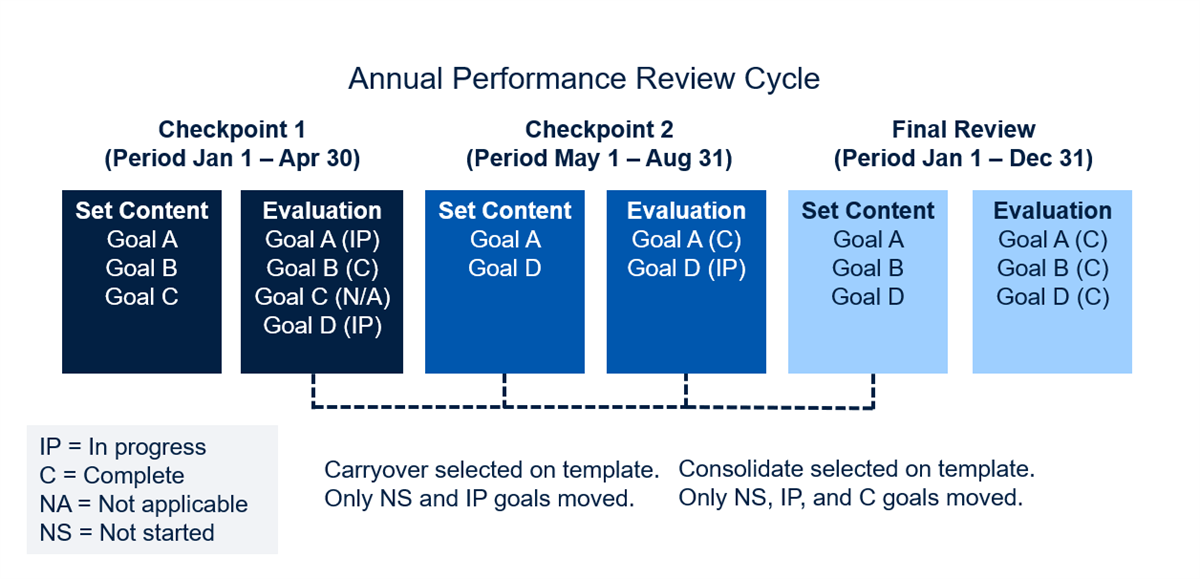
Moving Content From One Review to Another
Workday enables you to automatically move content from one review to another using two different methods: carryover and consolidate. You can use this functionality for content from the following sections:
- Accomplishments (Awards and Activities)
- Career
- Competencies
- Development Items
- Goals
- Questions
- Responsibilities
Carryover
The carryover option will carry forward all In Progress and Not Started items from the prior review of the same review category. Rules for moving carryover content are:
- Move content from the most recently completed manager's review that has the same review category as the review you want to move the content into.
- When you are moving content from one review to another, its end date must be earlier than the begin date of the review you are moving content to.
- When moving content for goals, the status of the content moving into the new review must be either Not Started (NS) or In Progress (IP).
- When moving content for goals, be sure to move the most current version of the content.
In addition to item carryover, you can carry over evaluation content to promote ongoing dialogue between employees and managers and to track progress and growth. All four review categories support carryover of evaluation content, which includes employee and manager ratings and comments. In template configuration, the following sections will allow a carryover with the following Item Evaluation Content options:
- Accomplishments (Awards and Activities)
- Competencies
- Goals
- Questions
- Responsibilities
Consolidate
The consolidate option allows you to consolidate items with a status of In Progress, Not Started, and Complete from the prior review of the same review category. Choose a date range when consolidating information. The rules for moving consolidate content are:
- Move content from all reviews that have the same review category as the review you want to move the content into.
- The beginning and end dates of the reviews that you want to pull content from must be equal to, or fall in between, the begin and end date of the review that you want to move the content into.
- When moving content for goals, the status of the content moving into the new review must be: Not Started (NS), In Progress (IP), or Complete (C).
- When moving content for goals, be sure to move the most current version of the content.
Ratings and Calculations
You can use rating scales to measure an employee's performance or level of proficiency. In Workday, you can assign a rating to:
- An individual item entered in the Accomplishments (Awards and Activities), Goals, Questions, Competencies, or Responsibilities sections of an employee review.
- An entire section, which summarizes all the individual items entered in the Accomplishments (Awards and Activities), Competencies, Goals, Questions, or Responsibilities sections.
- The entire employee review (Overall section), which summarizes all the section ratings.
Along with ratings, you can also assign a weight to individual items and sections. You can configure weights to ensure that:
- The total weight must equal 100.
- The total weight has no restriction.
Rating Scales
Workday will require a rating scale if you select either the Item Rated or Section Rated fields in the employee review template configuration.
Workday does not deliver rating scales, which allow you to choose and configure rating scales to meet the needs of your organization. Configure different types of rating scales, such as a 5-point rating scale, 3-point rating scale, yes or no scale, goal rating scale, and others.
You create rating scales at the tenant level and you can use them across all four review categories. Therefore, the values you use to create rating scales need to be applicable for all templates in each review category. If your business requires different scales of the same type for multiple categories, you can use prefixes when naming the scale, e.g., PR_5 point scale; DA_5 point scale; PIP_5 point scale.
You can inactivate a rating scale, but you cannot delete it.
Item Ratings
Item ratings are the values used when rating the individual items within a section during the evaluation phase of an employee review. You can only rate items within the following sections:
- Accomplishments (Awards and Activities)
- Competencies
- Goals
- Questions
- Responsibilities
When you choose to rate items within one of these sections, you must select which rating scale to use. You may choose from any rating scale you have previously created in your tenant. If you choose to rate items in the Competencies section, you may use either a proficiency scale or a rating scale. Workday will add up the ratings assigned to individual items, which then will calculate the section rating if you configure a section rating on the template.
You can configure sections that determine whether employees can enter ratings or not. Managers will always be able to enter item ratings if configured for items rated.
Section Ratings
If you would like to calculate an overall rating for a review, you must use section ratings. You can use section ratings with or without item ratings. You can configure your section ratings as Ratings with Overrides, Ratings with No Overrides
,
or use Prompt for Rating. Once you select a section rating option, Workday will activate a Section Weight field. During an employee review transaction, managers can update the section rating for an employee without needing to enter additional details.Workday supports section ratings for these sections:
- Accomplishments (Awards and Activities)
- Goals
- Responsibilities
- Competencies
- Questions
Calculating Section Ratings
If you use a section rating without item ratings, then the evaluators (employee or manager) need to select a rating value from the rating scale assigned to that section. The rating for each section selected by the manager will be the value used toward calculating the overall rating.
If you configure section ratings to calculate using item ratings, you will have the option to assign a weight to each item. If you do not weigh each item, Workday calculates the section rating by averaging the ratings given to each item using the rating scale associated with that section. If an item in a section does not have a rating value and is not bypassed in the calculation, then Workday will calculate it as a zero value.
Example: Section rating calculation without weighting, based on a five-point scale
Goals | Rating |
|---|---|
Goal #1 - Improve survey scores | 1 |
Goal #2 - Achieve 90% customer satisfaction | 5 |
Goal #3 - Increase sales by 2% | 5 |
Calculated Section Rating | 3.67 |
Overall Rating
In addition to rating items and sections, Workday also enables you to calculate or assign a rating to an overall review.
The Overall section of a review provides an overall numeric 'score' for the review. You can use this score to rate and compare workers for Pay for Performance, assessing talent, succession planning, and more. Both the employee and the manager can have the opportunity to enter an overall rating. However, it is important to note that Workday will only use the manager's overall rating when determining Pay for Performance or other talent reporting.
To enable a calculation on the Overall rating section, you must define section ratings.
Note
: During the Review process, the Overall ratings section only displays during employee self-evaluation and manager evaluation steps. Users will not see the Overall section in their template during the Set Content step of the business process.Below is a description of the Overall Rating Scale configuration options.
Rating Option | Must Use Section Rating | Description |
|---|---|---|
Ratings with no overrides | Yes | Calculates the overall rating based on the section ratings given to the other rated sections in the review. Workday calculates the overall rating using a weighted average of the normalized section ratings. You can determine whether you would like this rating calculation to be based on:
This option does not allow the employee or manager to override the calculated rating value. If you select this option and do not enable section ratings, an error message will display. |
Ratings with overrides | Yes | This option calculates the overall rating based on the section ratings given to the other rated sections in the review. The overall rating is calculated using a weighted average of the normalized section ratings. You can determine whether you would like this calculated rating to be based on:
This option allows the employee or manager to override the calculated rating by selecting from a prompt value. For example, the calculated rating generated based on the section ratings may be 3.0, but the manager may decide to change this rating to a 3.5 because she knows a big goal will be met within the next week or so. If you select this option and no section ratings were enabled, an error message displays. |
Prompt for Overall Rating | No | Select this option to provide employee and managers with a prompt to select their overall rating value. If using this option, you must select the rating scale you want used to populate the prompt field. |
Manual Entry | No | Select this option to require employees and managers to manually enter a rating value up to two decimal points. Workday will not provide a prompt field to select the rating values from. Note : When you select this option, you must select a rating scale that will provide guidelines for the rating value entered. For example, you would do this to prevent someone from entering 100 when you are looking for a 1-5 value. The rating scale you select must have begin and end ranges, or the employee or manager will receive an error and not be able to submit their evaluations. |
Not selecting any option | No | If you choose to include an Overall section within your template and do not wish to use any of the rating options listed above, you may instead select the Use Comments checkbox. The employee and manager can then add comments instead of using a numeric value. If using this option, the review will not be assigned a numeric score that can be used for comparative purposes. |
Overall Rating Scale Calculation Options
Workday allows you to choose between the following rating calculation methods:
Overall Rating Calculation | Description |
|---|---|
Section Rating Precision | This option will calculate the overall rating by using each section's calculated rating rather than mapped value. For example, if a section rating is calculated as 4.8, then this exact value is used in the overall calculation rather than the mapped value of 5. |
Section Rating Using Item Averaging | During overall calculation, this option will calculate each review item's rating with weights or without weights, rather than using the section ratings. If you select this option, any previous options in the other template sections regarding Item Weighting, Section Rating, and Section Weighting will be removed. |
Note
: It is recommended that you use only one rating scale in a template because multiple rating scales are challenging to reconcile. However, you can have different rating scales assigned to different sections within the same template. If Workday calculates an overall rating, it will normalize the different rating scales. You can also have rating values, such as Not Applicable, in a rating scale that can be excluded from a rating calculation.Additionally, you can decide the display options for the information in the Overall section. The options include:
Term | Definition |
|---|---|
Show Rating Description | Displays the rating description below the rating. |
Show Calculated Rating | Displays the Workday overall calculated rating. |
Show Default Rating | Displays the default rating when you select the Calculated Rating with Overrides option in the Rating Configuration field. Clear this check box to hide default ratings in employee reviews. |
Allow Employee Ratings | Enables employee ratings by employees. Clear this check box to exclude section ratings by employees in employee reviews. |
Calculations for Overall Ratings
If you use different rating scales in your template sections, then Workday must normalize the section summary ratings before it can calculate the overall rating. Workday will normalize the different section rating scales to the rating scale you define on the overall template section.
The formula to calculate is:
Normalized section rating = overall section's lowest rating scale value + ((Section summary's rating - section summary's lowest rating scale value) x (Overall section's highest rating scale value - overall section's lowest rating scale value) / (Section summary's highest rating scale value - section summary's lowest rating scale value))
If you have a template with three sections: Accomplishments (Awards and Activities), Goals, and Questions, each section can use section weighting and have a different rating scale. Using the following data, you would calculate the overall rating:
Section | Rating Scale | Section Weight | Mapped Rating |
|---|---|---|---|
Accomplishments (Awards and Activities) | Five-Point Scale | 40% | 4 |
Goals | Three-Point Scale | 40% | 3 |
Questions | Five-Point Scale | 20% | 2 |
Overall | Five Point Scale | N/A | ? |
The normalized rating for each section is:
Section | Calculation for Normalized Rating |
|---|---|
Accomplishments (Awards and Activities) | 1+((4-1)X(5-1)/(5-1))=4 |
Goals | 1+((3-1)X(5-1)/(3-1))=5 |
Questions | 1+((2-1)X(5-1)/(5-1))=2 |
In this example, Workday can use the standard formula to calculate the Overall Rating:
(4 X .4) + (5 X .4) + (2 X .2) = 4
Next, Workday maps the rating value "4" to the corresponding rating (shown below) on the Five-Point Scale, so the Overall Rating becomes 4 - Exceeds Expectations.
Rating Scales Used in the Above Calculation
Rating Scale Name | Rating Name | Rating Value | Begin Range | End Range |
|---|---|---|---|---|
Three-Point Scale | 1 - Does not meet expectations | 1 | 0 | 1.49 |
2 - Meets expectations | 2 | 1.5 | 2.49 | |
4 - Exceeds expectations | 3 | 2.5 | 3 | |
Five-Point Scale | 1 - Does not meet expectations | 1 | 0 | 1.49 |
2 - Needs improvement | 2 | 1.5 | 2.49 | |
3 - Meets expectations | 3 | 2.5 | 3.49 | |
4 - Exceeds expectations | 4 | 3.5 | 4.49 | |
5 - Company Maker | 5 | 4.5 | 5 |
Note
: These values are configurable for each customer and are tenant wide. You can use them in all four review categories, so the values should be applicable to all templates in the review categories. If you require different scales, use prefixes in the naming convention to help organize the rating scales. However, having multiple rating scales with the same values may lead to confusion when selecting values during a review process.Weighting
Workday allows you to assign a weight to items or sections. You can enable Items Weighted with or without Items Rated. However, you must enable Section Rated in order to enable Section Weight.
Item ratings and weightings are only applicable within the Accomplishments (Awards and Activities), Competencies, Goals, Questions, and Responsibilities sections of a review template.
Item Weighting
When you choose to weight items, Workday allows you to define the method for calculating weights. The options for calculating weightings are:
- Total weight must equal 100: When using this option, the total weight of all items in a section must equal 100. This option forces the employee and manager to enter weightings that total 100 within a given section. You set the specific weight given to each item when setting content in the review. The system will prevent the employee or manager from completing the task until the total item weighting equals 100.
- Weighting with no limits: This option does not force the employee or manager to enter any specific weight value for each item. The system will calculate the weighting as a percentage of the whole number.
Administrators determine whether item weightings must total 100% or not. Depending on this configuration, employees or managers will assign the specific weighting for each item during the review.
Workday enables you to configure your templates with varying weighting options. For example, some sections may require item weighting that equals 100, some sections may have no weighting restrictions, and some sections may not use item weighting at all.
In the example below, you may configure your template so that item weights within the Goals section must total 100. While setting content, the employee or manager will set the rating and weighting values. The employees or managers can edit specific item weights during the evaluation step of the business process.
Example: Section Rating Calculation with Weightings Using Total Weight Must Equal 100%
Term Goals | Rating | Weighting |
|---|---|---|
Goal #1 - Improve survey scores | 1 | 70% |
Goal #2 - Achieve 90% customer satisfaction | 5 | 20% |
Goal #3 - Increase sales by 2% | 5 | 10% |
Calculated Section Rating | 2.2 | 100% |
Section Weighting
Workday allows the administrator to determine the weighting value for each section during template configuration. You may configure your template so that some sections require weighting and others do not require weighting. Workday does not restrict the values that you assign to each section. In order to calculate an overall rating for the review, there must be a rating value on at least one section within the review template.
Section weighting does not have any bearing on section rating calculations. The section weights only apply when calculating the overall rating for the review.