
Academic Foundation Review
Overview
Before you begin learning about Workday Student Recruiting and Admissions, you need to understand Workday academic foundation features and concepts. This foundation determines the structure of your institution within Workday, as well as ownership and access to data elements within that structure.
In this chapter, you will begin by reviewing the academic foundation, and observe the configurations in your tenant.
Objectives
By the end of this chapter, you will be able to:
- Define academic units.
- Define academic levels.
- Define academic calendars, periods, and years.
- Define programs of study and program of study types.
- Define educational credentials.
Academic Foundation
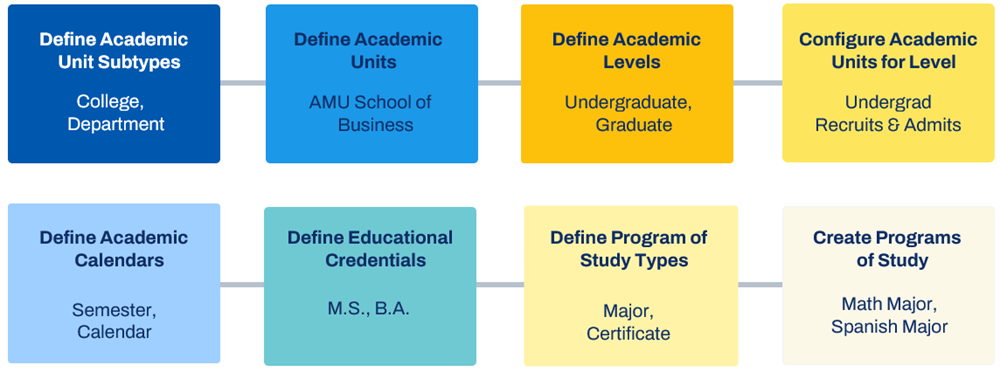
Academic structures are built from several components. As you build each piece, you combine them into a hierarchical structure that represents your institution. To define your academic foundation, configure the following:
- Academic Units
- Academic Unit Subtypes
- Academic Levels
- Academic Calendars
- Academic Periods
- Academic Years
- Program of Study Types
- Programs of Study
- Educational Credentials
The following image outlines the components that make up an academic structure.
Academic Units
Academic units are the foundation of Workday Student. They represent the colleges, schools, departments, and other units of your institution, such as School of Medicine or English department. Academic units drive ownership and access to data within your institution. Use academic units to:
- Assign appointments.
- Facilitate business process configuration and role assignments.
Specify which units can:
- Admit students
- Offer courses
- Offer programs of study
- Recruit students
Academic Unit Structure
You create an academic structure by building academic units to represent the various organizational units of your institution. After you have created an academic unit, use the Assign Superior task from its Related Actions to connect it to another academic unit. These superior-subordinate connections are a vital part of the structure of your institution. Once configured, these connections result in a single hierarchical structure that reflects your organization's actual academic structure.
Academic Unit Subtypes
Use academic unit subtypes to classify your academic units. Examples include school, department, institute, center, or college. You can then include the academic units you create in an academic unit hierarchy.
Academic Levels
Academic levels are the level of an educational objective that a student can achieve at your institution. Examples include undergraduate, graduate, professional, or associate. Use the
Maintain Academic Levels
task to define the academic levels that your institution uses.Each academic unit can have one or more academic levels associated with it, and you can configure each level to:
- Admit students: Create applicants and define admissions eligibility, requirements, assessments, and groupings for the academic unit and level.
- Offer courses: Offer courses for that academic unit and level.
- Offer programs of study: Create programs of study for the academic unit and level.
- Recruit students: Create student recruiting cycles, campaigns, events, and prospects for the academic unit and level.
Academic Calendars, Periods, and Years
Academic periods are the fixed date ranges, defined by your institution, that make up an academic year, such as semesters or quarters. You can define these fixed periods down to a specified date. You can then associate these academic periods to an academic year. An academic calendar serves as a template that defines the standard format for an academic year, for example, Fall, Spring, and Summer.
Standard periods serve as the reporting window or windows for your academic calendar and are usually the main periods, such as Fall, Spring, and Summer.
Nonstandard periods are fixed periods but are not the main periods of the year and may overlap other periods, e.g., intercessions or express periods. You can use the
Add Nonstandard Academic Periods to Calendar
task to add a nonstandard academic period to an existing academic calendar. You can add a nonstandard academic period to an existing academic calendar even if the academic calendar already has transactional data. This provides flexibility, letting you create additional nonstandard periods to accommodate short-term changes to your academic calendars without impacting your existing calendar policies or existing data.Programs of Study
Programs of study (POS) represent the educational objectives offered by your institution. For example, a POS could be a Biology major through which a student can achieve a Bachelor of Science degree or a Culinary Arts program that results in a certificate. Programs of study have wide-ranging implications across all of Workday Student. The programs your institution offers drive a student's academic experience and hopefully, results in a degree or credential.
Note
: When creating a Program of Study, you will need to identify the owning academic unit and the owning academic level. You can update the owning academic unit as long as the new academic unit has its own calendar policy. Access the Program of Study's Related Actions to edit.Programs of Study Type
Programs of study types classify the programs of study offered by your institution. They also control the configuration options available to programs of that type. You can configure a program of study type to standalone, grant credentials, and have concentrations. Examples include Certificate, Major, Program (often used at the graduate or professional level), or Non-Credit.
Program Areas
Program areas allow you to group programs of study that may belong to different academic units. For example, your institution may wish to group all science, technology, engineering, and mathematics (STEM) programs together. These programs may include programs in the College of Engineering and the College of Arts and Sciences.
Program Focus
You can indicate if a program of study has a concentration or focus with the
Maintain Program of Study Types
task.Program of Study Code
Creating a program of study requires identifying a program of study code. The code you select must be unique within your tenant. These user-defined codes can be numeric, alphabetic, or alphanumeric.
First and Last Entry Dates
When creating a program of study, indicate the first entry date. The first entry date is the earliest date that students can matriculate into the program and can affect your recruiting and admissions processes.
If you select a last entry date, it indicates the last date that students can matriculate into a discontinued program. This end date does not affect students currently enrolled in the program.
Program of Study Declarations
Workday provides a way to handle admissions of your continuing students into highly competitive programs of study by enabling you to configure a declaration requirement on them. Workday provides date controls to determine when student can declare their program of study. Students can declare multiple programs simultaneously, complete questionnaires and submit documents, and choose from multiple acceptances.You can review and take mass actions on program declarations. By providing a separate program declaration process, Workday enables you to keep students' current program of study records open for ongoing transactions.
Addable and Stackable Programs
Many higher education students pursue multiple programs of study during their academic careers. Students complete these programs either concurrently or in sequence. To account for these circumstances, one of the program configurations you can make is to indicate if a program is addable or stackable.
Addable programs are programs that students complete in the same time frame.
Stackable programs are programs that students can complete before or after they have completed their primary program of study.
Allowed Applicant Types
You can limit the programs of study that applicants can apply to, such as programs of study that are compatible with visa types for international students. Limiting the programs of study makes it easier for applicants to identify the programs of study they are eligible for. It also streamlines application processing by reducing applications from ineligible applicants.
To define which applicant types are valid for a program of study, use the Allowed Applicant Types field on the
Create Program of Study
task as shown in the following image.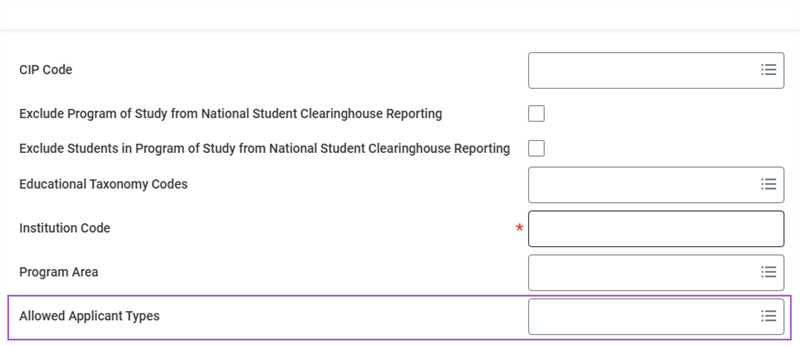
The Program of Study Type must be a standalone program, any program that Workday can admit the applicant to on its own. This includes Program of Study Types mapped to the following Categories: Official Programs, Formalized Joint Programs, Undeclared Program, or Non-Degree Program.
Use the
View Program of Study
report to view the defined applicant types by Program of Study where applicable.Educational Credentials
Education credentials are the credentials a student at your institution receives upon completing a program of study, such as a Master of Arts or a Heath Care certificate. When you create a program of study, you can specify which educational credential or credentials, if any, it can confer upon completion. For example, a student with a Biology major can choose to pursue a Bachelor of Arts or a Bachelor of Science degree. Workday offers several credential types.
Chapter 1 Tasks and Reports
Below are the commonly used tasks and reports for the topics covered in this chapter.
Tasks:
- Add Nonstandard Academic Periods to Calendar
- Configure Academic Unit for Level
- Create Academic Calendar
- Create Academic Unit
- Create Initial Academic Year
- Create Next Academic Year
- Create Program of Study
- Edit Academic Unit Level Configuration
- Maintain Academic Levels
- Maintain Academic Period Types
- Maintain Academic Unit Subtypes
- Maintain Educational Credentials
- Maintain Program Areas
- Maintain Program of Study Types
Reports:
- Find Academic Calendars
- Find Academic Levels
- Find Academic Periods
- Find Academic Unit Level Configuration
- Find Academic Years
- Find Programs of Study
- Find Program of Study Definitions
- View Academic Calendar
- View Academic Levels
- View Academic Period Types
- View Academic Unit
- View Academic Unit Level Configuration
- View Academic Unit Subtypes
Chapter 1 Summary
In this chapter, you reviewed Workday academic foundation features and concepts. Specifically, you explored academic units, academic unit subtypes, academic levels, and academic calendars, periods, and years. You also learned about programs of study and educational credentials.
Considerations
- How will you structure your institution's academic units?
- Which programs of study will your institution offer?
- Which educational credentials will you use?