
Job Requisition Components
Overview
In this chapter, you will learn how to create and manage job posting locations, questions and questionnaires, and job application templates. You will also learn how to configure a candidate grid. These components impact how you build and manage job requisitions.
Objectives
After completing this chapter, you should be able to:
- Edit a job profile.
- Create a job posting location.
- Create a job application template.
- Create questions and questionnaires.
Job Profiles
Workday uses job profiles as the foundation for positions and jobs. Job Profiles describe general characteristics of a position or a job and identify special skills, training, and other qualifications.
You can set up multiple fields on the job profile. For position management organizations, job profile details (e.g., summary, skills, and qualifications) default into positions. You can use a job profile for multiple positions.
Note
: If you create a job requisition using the position management staffing model, you must assign or create a position. If you create a job requisition for a job management staffing model, you cannot assign a position.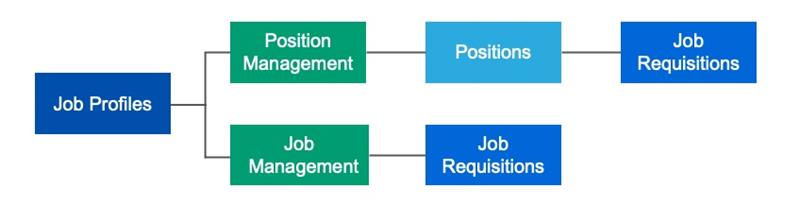
Flow of Job Profiles to Job Requisitions per Staffing Model
Required job profile fields:
- Job Profile Name
- Job Code
- Effective Date
Note
: When creating a requisition, only details from the primary job profile default. You must enter details manually from additional job profiles.Job Profiles and Compensation Grades
You may have a one-to-one relationship between job profiles and compensation grades. You can add the compensation grade and compensation grade profile to a job profile you create. The Impacted Eligibility Rules field lists eligibility rules that include the job profile.
Workday also allows for the compensation grade range to display on job postings. You must have the compensation grade, compensation grade profile, and eligibility rules (as applicable) associated with a job requisition's primary and additional job profiles. The compensation grade range will only be visible on the job posting if you associate the compensation grade profile with a job profile.
Locations and Recruiting
Candidates use locations to search for jobs. Use the
Create Location
task to add new locations and connect them to job requisitions. When you create new locations, use Business Site and Job Posting as location usages.Business Site usage indicates a location for the supervisory organization. For recruiters, the Business Site is the physical location of where workers work.
Job Posting usage indicates the location for the job posting. Use this option when posting jobs that are not at a business site. You can also use this option to consolidate multiple business sites into one posting. For example, if you have three locations in New York City, you can display the job posting location as "New York, NY" instead of each specific location (e.g., "New York City - Manhattan - Site 1").
Primary Location and Additional Locations:
- Identifies the specific building or location for the job.
- Uses the Business Site location.
Primary Job Posting Location and Additional Job Posting Locations:
- Displays to candidates when they apply for jobs.
- Uses the Business Site or Job Posting location.
Remote Job Requisitions
Workday allows you to create custom remote values to create remote job requisitions. You can increase efficiency by using this option (if configured) to post remote requisitions to career sites. To configure the Remote Type field on the job requisition, use the
Configure Optional Fields
task for the following Functional Areas:- Job Requisition
- Job Requisition Change
You have the option to configure the Remote Type field as hidden for all, required for all, or for specific security groups. If you want the Remote Type to display as optional, remove the Remote Type row from the Configure Optional Fields grid.
Use the
Maintain Job Requisition Remote Types
task to create Remote Types. Use View Job Requisition Remote Types
task to view Remote Types.Prospects can search for remote job requisitions (if configured) on career sites. Add Remote Types to search fields and facets in career site configuration.
Workday also delivers report fields for remote jobs to use in custom reports and condition rules.
Job Application Templates
Workday allows you to control the information asked of external candidates on the job application. Job application templates allow you to use multiple templates in the recruiting process. You can use these templates to help with local compliance laws (e.g., you cannot ask for education dates in certain countries or states.).
Use the
Create Job Application Template
task to configure these sections:- Certifications
- Education
- Languages
- Resume/Cover Letter
- Resume Parsing
- Skills
- Websites
- Work Experience
You can configure section headers for up to 100 characters and add instructional text for up to 500 characters. This section label override feature overrides the Workday-delivered labels on the Candidate My Experience page.
You can also use the following configuration options:
- Hide for All
- Require for All
- Hide or Require for Security Groups
Tip
: Selecting Require for All impacts creating an application on a candidate's behalf. If you want to require only external candidates to complete the requested information, use the Security Groups option. You will select Security Group and then for the Require for field, select External Candidates.If you require a section on the template, you must enter one row of data. Workday uses condition rules to determine which template to use on a job requisition. The
Create Job Requisition Condition Rule
task allows you to build rules using report fields from the requisition.The
Maintain Job Application Template
task allows you to assign rules to the templates. You must assign a default template. When you create an evergreen or job requisition, Workday evaluates the rules in the order they display. When a rule is met, Workday assigns that template to the requisition. When no rule is met, Workday assigns the default template.You can review the assigned templates by including the review job application template step in the
Create Job Requisition
business process. You can also change the template if needed. You must configure this step after the completion step but before the post job step.The assigned Job Application Template displays on the Details tab of the Job Requisition. Use the
Edit Job Requisition
business process to update or change the template assigned to a requisition.Note
: The job application template logic also applies to evergreen requisitions. Add the same steps to the Create Evergreen Requisition
and Edit
Evergreen Requisition
business processes, if applicable.Questionnaires and Questions
You can configure questionnaires with the following criteria:
- An external or internal candidate completes a questionnaire when they apply for a job from an external or internal career site.
- An external candidate with a registered Candidate Home account completes one or more questionnaires at any stage in the recruiting process.
- An internal worker completes one or more questionnaires at any stage in the recruiting process.
Note
: If configured, candidates can complete questionnaires at any stage.Steps to create a questionnaire:
- Create questions.
- Create a questionnaire.
- Assign questionnaires to evergreen or job requisitions.
- Use theMaintain Job Requisition Questionnaire Defaultstask to define rules that allow questionnaires to default onto requisitions.
Questions
You can generate questions with tags to easily organize your questionnaire content. You can include a maximum of 50 questions per questionnaire, excluding branching questions.
Use the
Create Questions
task to create new questions. Each question includes:- Name
- Question body
- Question type
- Possible answers for multiple choice questions
- Optional question tag
You can create these question types:
- Date
- Multiple choice (multi- or single-select)
- Number
- Text
- Upload attachment
Use the
Edit Questions
task to edit questions. You cannot change the question type if you edit questions. You can delete questions that do not have results and are not in use.Branching Questions
You can ask follow-up questions to gather more information from your respondent. Branching questions can be any question type. However, you must configure the branching questions in relation to a parent Multiple Choice - Single Select question. The length of the questionnaire can vary, depending on the answers selected by the respondent. From the parent question, you can configure up to six levels of branching questions if the answer option is from a Multiple Choice - Single Select question type. This functionality applies to questionnaires that are not in use.
Auto-Generating Calculated Class Report Fields (CRFs)
You can automatically generate a calculated Class Report Field (CRF) by selecting the question's Related Actions and selecting the
Create Report Field
task. Creating the CRF allows you to use it in reporting, condition rules, and in mass action filters.You can use calculated CRFs with questionnaires to create disqualification functionality in the
Job Application
business process.Questionnaires
You can attach questionnaires to job requisitions on the Job tab. You can attach different questionnaires for internal and external career sites. This feature allows you to gather responses from external candidates that you would not ask of internal candidates.
If you need more than one questionnaire for the initial application, populate the secondary questionnaire fields. The primary, secondary, and supplementary questionnaires (if configured) are part of the candidate's initial application.
Workday defaults questionnaires onto requisitions using configurable rules. The
Create Job Requisition Event Condition Rule
task allows you to create a rule that defines which questionnaires default when the condition returns true. For example, you may have specific questions for candidates in London who are applying to the HR Manager job profile.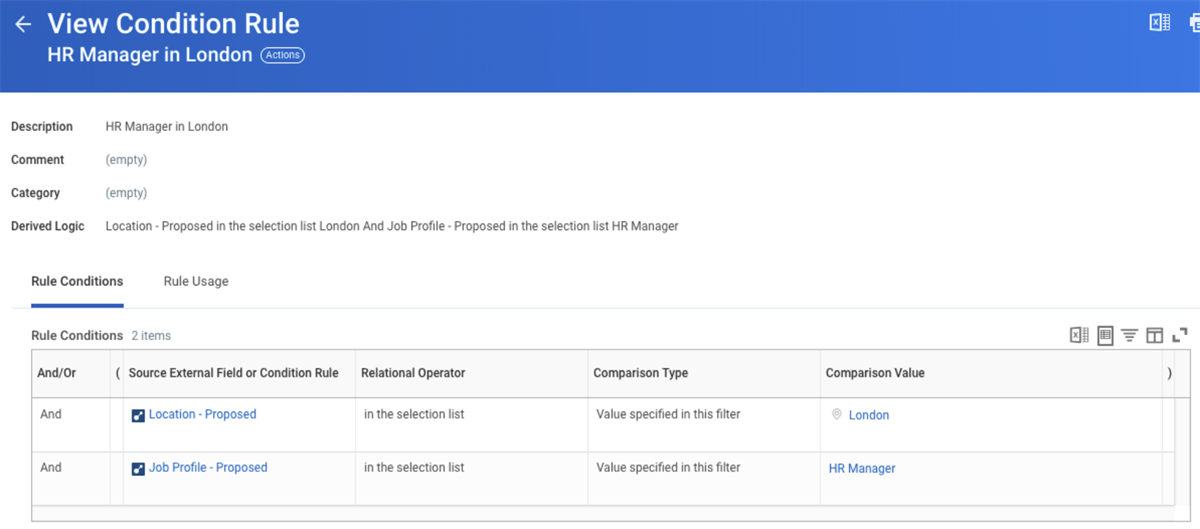
Recruiting Fundamentals - Condition rule page
You can add this rule to the
Maintain Job Requisition Questionnaire Defaults
task and define the questionnaires that default onto requisitions. You can manually change the questionnaires on the requisition.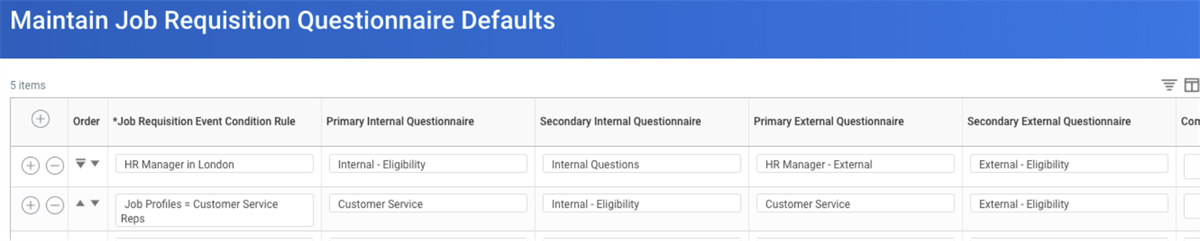
Recruiting Fundamentals - Maintain Job Requisition Questionnaire Defaults page
To provide instructions to external candidates, use the
Maintain External Recruiting Instruction
task. If you select the Don't Send to Recruiting System checkbox, Workday does not send the recruiting instructions to:- External recruiting companies.
- Third-party vendors.
Security Note
: To perform this task, you need access to the Pre-Hire Process functional area for the Pre-Hire Process
domain.Primary and Secondary Questionnaires
You can use questionnaires for pre-screening questions and filtering candidates. You can also associate questionnaires with requisitions that allow Workday to present configured questions to candidates. You can use the same questionnaire for multiple requisitions.
When you create a questionnaire for a Candidate to answer as part of their job application, you must indicate the questionnaire type as Recruiting. By indicating the questionnaire type, you can attach the questionnaire to the job application. You can also include instructional text and use formatting on the questionnaire.
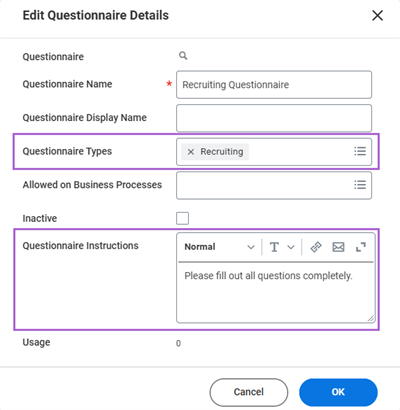
Recruiting Fundamentals - Questionnaire types and instructions
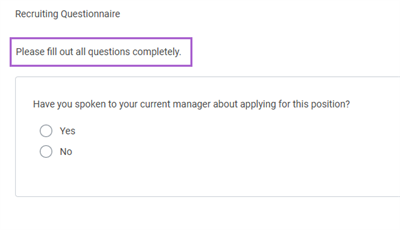
Recruiting Fundamentals - Question on a recruiting questionnaire
You can assign primary and secondary questionnaires to requisitions from the following tasks:
- Create Job Requisition
- Create Evergreen Requisition
- Edit Job Requisition
- Edit Evergreen Requisition
You can create one primary and one secondary questionnaire per requisition for career sites. The primary questionnaire may present candidates with standard company questions. Alternately, a secondary questionnaire may include more job-specific questions.
Branching questions are also an option when creating primary and secondary questionnaires. You can configure up to six levels of branching questions for each initial answer choice of a multiple choice - single select question.
You can add a score for each possible answer for multiple choice questions in the questionnaire. You can use positive or negative numbers. Workday calculates the total score for a completed questionnaire. Negative scores can indicate that a candidate answered a question unfavorably. The total score for a candidate displays on the candidate's record. You can configure your tenant to have the total score also display on the candidate grid on a job requisition. Results from a questionnaire display on the Questionnaire Results profile group of a candidate's profile.
Supplementary Questionnaires
You can configure supplementary questionnaires and questions to enable recruiters to create questions and questionnaires while creating job requisitions. You can create internal and external supplementary questionnaires for requisitions. Branching questions are also an option when creating supplementary questionnaires. You can configure up to six levels of branching questions for each initial answer choice of a multiple choice - single select question.
You can assign supplementary questionnaires to requisitions from the following tasks:
- Create Job Requisition
- Create Evergreen Requisition
- Edit Job Requisition
- Edit Evergreen Requisition
Once posted, candidates can answer the questions on the supplementary questionnaire during their job application. To inactivate a supplementary questionnaire, use the
Maintain Questionnaires
task.Additional Questionnaires
You can associate questionnaires with steps in the
Job Application
business process.
When you configure an additional questionnaire, you must specify the allowed business process type.
You can add the Complete Questionnaire action as a step to any subprocess on the Job Application
business process. Workday recommends you add this step before the decision step.
If you want to send a questionnaire to a candidate, enter Candidate-as-Self as the security group. External candidates must have a registered Candidate Home account.
You can configure condition rules on the Complete Questionnaire step to ensure questionnaires route to the designated security group under the appropriate circumstances.Questions and Questionnaires Tasks
This table lists tasks and notes for questions and questionnaires.
You want to… | Task Name | Notes |
|---|---|---|
Create a question | Create Questions | The default setting of a question is Active. You can set it to Inactive. |
Edit a question | Edit Questions | You can replace edited questions with the latest version. |
Delete a question | Delete Questions (Question's Related Actions) | You cannot delete a question if results exist. If you use a question in a questionnaire, you cannot delete it. |
View a question | Find Questions | A report used to find questions. |
Display
what question tags are used | View Question Tags | |
Add or remove a question tag | Maintain Question Tags | |
Create a questionnaire | Configure Questionnaire | Questionnaires can contain no more than 50 questions excluding branching questions. |
Review a questionnaire before publishing it | You can preview a questionnaire using the Preview button on the Create Questionnaire page. |
Edit a questionnaire | Configure Questionnaire | Once a candidate applies to a requisition that has a questionnaire, you cannot edit that questionnaire. |
Delete a questionnaire | Delete Questionnaire (Questionnaire's Related Actions) | You cannot delete a questionnaire if results exist. If you use a questionnaire on a requisition that has candidates, you cannot delete it. |
View a questionnaire | View Questionnaire | |
Copy a questionnaire | Configure Questionnaire | |
Display a list of questionnaires, their usage, and whether they are active or inactive | Maintain Questionnaires |
Map Job Application Questions
You can include Workday-delivered eligibility-type questions in candidate questionnaires. Workday delivers 12 Class Report Fields. To use these fields, you must first create a custom question with your preferred language. Then, you can map the question to the corresponding Workday field using the
Map Job Application Questions
task.
By mapping tenanted questions to Workday-delivered fields, you can use indexed CRFs. In addition to using these CRFs as disqualification questions, you can include them as facets in the My Candidates
reports . You can also include CRFs in the candidate configurable grid on the job requisition.Mapped Job Application Questions and their Associated Calculated Fields
You can use the calculated fields connected to the mapped questions in condition rules or on the candidate grid. Below is a list of the questions and the calculated fields:
Question | Calculated Field | Question Type |
|---|---|---|
Are you at least 18 years of age? Or if under age 18, can you provide work permits? | Age_Eligibility | Multiple Choice - Single Select |
Are you legally eligible to work in the country to which you are applying? | Legal_Eligibility | Multiple Choice - Single Select |
Have you been previously employed by our company? | Previously_Employed_Here | Multiple Choice - Single Select |
Do you have relatives who work for our company? | Relatives_Employed_Here | Multiple Choice - Single Select |
Do you require sponsorship? | Require_sponsorship | Multiple Choice - Single Select |
Have you ever been convicted of a felony? | Felony_Conviction | Multiple Choice - Single Select |
What is your minimum annual salary requirement? | Required_Annual_Salary | Number |
What is your current annual salary?
| Current_Annual_Salary | Number |
May we contact you at your current place of employment? | May_Contact_at_Place_of_Employment | Multiple Choice - Single Select |
Are you willing to relocate if required by the position?
| Willing_To_Relocate | Multiple Choice - Single Select |
When are you available to start? | Availability | Date |
What is the notice period you need to give? Your current employer? | Notice Period | Number |
Tip
: The Age Eligibility CRF has two possible responses:- Yes (Age Minimum)
- No (Age Minimum)
Assessments
You can attach assessments to job requisitions on the Job tab. Workday can trigger inline assessment tests during the initial application of the candidate. This action requires additional configuration and an integration with an assessment vendor.
Resource
: Search for "inline assessment integration" in the Workday Community Administrator Guide for more information and instructions.During the application process on the external career site, Workday takes the candidate to the third-party vendor assessment site during the application process. Once the candidate completes the assessment, they return to the external career site to complete the application. Workday assigns default assessment tests to a candidate when they move to the Assessment stage. You can then enter statuses and scores.
In addition to manually assigning default assessment tests to a job requisition, assessments can default onto requisitions using configurable rules. The
Create Job Requisition Event Condition Rule
task allows you to create a rule that defines which assessment tests should default when the condition returns true.You can then add this rule to the
Maintain Job Requisition Assessment Defaults
task and define the assessments that will default onto requisitions. Recruiting users can manually change the questionnaires on the requisition.