
Introduction to Workday Recruiting
Overview
In this chapter, you will learn about Workday Recruiting through discussions, demonstrations, and activities.
Objectives
After completing this chapter, you should be able to:
- Describe Workday Recruiting features, functionality, and benefits.
- Define common Workday Recruiting terminology.
- Navigate the Recruiting Hub.
- Describe and configure tenant-level settings for Workday Recruiting.
Introduction to Workday Recruiting
Workday Recruiting provides visibility into your talent pipeline by bringing internal and external talent into one place. Access the full workforce lifecycle and get a bigger picture of the available talent.
Workday Recruiting Terminology
The recruiting industry has specific terminology and different phases of recruiting. Review the common terms in the tables below.
Sourcing Terms
Term | Definition |
|---|---|
Candidate Funnel | A candidate funnel takes candidates through the recruiting process.
First, a candidate submits a job application into Workday. Next, a recruiter reviews the candidate's skills, experience, and qualifications as well as related subprocesses (e.g., screen) to further narrow the funnel. |
Passive Candidate | Passive candidates are qualified candidates who are not necessarily looking for work but may be interested if the right job comes along.
Candidate Engagement, an additional feature of Workday Recruiting, allows for customizable recruiting campaigns and landing pages to attract passive candidates. |
Pipeline | A pipeline is a group of candidates to pursue when a job opening becomes available that fits a certain skillset.
In Workday, you can save qualified prospects and create candidate pools to use as a pipeline for current and future job requisitions. |
Job Application | Job applications are candidate information specific to a job or evergreen requisition. In Workday, the requisition number or name displays next to the candidate's name when viewing their job application. |
Referrals | Hiring teams can track referred candidates. |
Posting Terms
Term | Definition |
|---|---|
Applicant Tracking System (ATS) | An applicant tracking system is a software application that enables the electronic handling of recruitment needs. |
OFCCP | The Office of the Federal Contract Compliance Programs (OFCCP) is an agency with the U.S. Department of Labor that enforces affirmative action and equal employment opportunity compliance guidelines. |
Post | When you post a job or evergreen requisition, you can publish it to internal or external websites. You can also publish to agencies and third-party vendors. Workday delivers post and unpost business process steps to ensure your requisitions post appropriately. |
Source of Hire | Source of hire is the job posting or recruiting effort that resulted in a hire (e.g., Twitter, college recruiting, external corporate website). In Workday, you can track sources of hire for all candidates. |
Screening Terms
Term | Definition |
|---|---|
Disqualification Questions | Disqualification questions are designed to funnel candidates who fit the job requisition. If a candidate's answer meets the rules for disqualification, Workday will decline candidates automatically (if configured). |
Ranking | You can rank candidates higher, lower, or equal to each other based on selected criteria (i.e., job-related qualifications as appropriate and legally permissible) from candidates' job applications. From the job requisition Candidates tab, use the Rank Candidates button to rank all active candidates.
Regarding questionnaires and interview feedback, Workday ranks candidates' answers and submitted interview feedback. |
Candidate Dispositioning | Candidate Dispositioning is the reason for declining a candidate. |
Other Terms
Term | Definition |
|---|---|
e-signature | An electronic signature is an indication of intent to agree to or approve the contents of a document.
You can use Workday-delivered e-signature or integrations with third-party vendors, such as Adobe Acrobat Sign and DocuSign, to capture electronic signatures in Workday. |
Job Requisition | Both position and job management staffing models use a job requisition.
For position management, a job requisition is a formal request to create a new position or hire into an existing position.
For job management, a job requisition is flexible in managing positions. |
Evergreen Requisition | Evergreen requisitions are job requisitions for high-volume, seasonal, or hard-to-fill positions.
You can create evergreen requisitions in Workday to continually source candidates for job openings. |
Offer Letters | Offer letters are job proposals to candidates. Offer letters can include starting salary, hiring bonus, stock grant, benefits, dates, and other components. |
Candidate List | A candidate list displays individuals on job or evergreen requisitions. You can perform recruiting actions on one or more candidates. |
Competency | Competencies are the ability of an individual to perform a task or do a job properly.
You can include configured competencies from Workday Talent Management as qualifications on job requisitions. You can use competencies in the interview process. |
Workday Recruiting Capabilities
Workday Recruiting has these capabilities:
- Mobile
- Unified
- Collaborative
The table below describes additional capabilities.
Capability | Description |
|---|---|
Candidate Home | External applicants are required to set up an ID and password. Applicants can also search for jobs, apply and track applications, view tasks, update contact information, and edit account settings. |
Candidate Experience | Simple and engaging candidate experience for external applicants and internal employees, designed for mobile and desktop devices. |
Simple Sourcing | Workday Recruiting delivers reports to search prospects, active candidates, candidate pools, and workers. |
Candidate Workflow | Simple candidate workflow management for managers, recruiters, and hiring teams. |
Interview Management | Collaborative interview management to capture feedback in real time and allow greater communication among the hiring team. |
Agency Management | Recruiting agencies can submit qualified candidates into Workday Recruiting. |
Offer Management | Unified interaction with Workday HCM for offer management and communication about compensation and benefits. |
Reporting and Analytics | Unified with Workday HCM, Workday Recruiting provides various recruiting reports and analytics. Additionally, Workday designed interactive analytics for electronic devices. |
Onboarding | Unified with Workday HCM, Workday Recruiting completes the planning, job requisitioning, recruiting, hiring, and onboarding cycles. |
Compliance | Workday Recruiting supports data compliance and configurable rules (e.g., OFCCP and EEO requirements in the U.S.). |
Connectors | Connectors are for online and web job postings, social sourcing, and background check processes. |
Workday Mobile - Recruiting
Workday Recruiting offers most actions and access to data on both desktop and mobile devices. Recruiters can use their electronic devices to take candidates through the recruiting process.
Mobile External Career Site
External applicants can search and apply for jobs via their mobile devices. They can use keywords and the search facet filter to narrow results. Individuals can use their Candidate Home account or apply without signing in. When applying to jobs, individuals can:
- Complete demographic details.
- Identify skills.
- Attach resumes and cover letters.
- Respond to questionnaires and legal agreements.
If individuals create a Candidate Home account, they can:
- Receive additional tasks and requests for information.
- Check the status of an application.
Third-Party Integrations
Workday Integration Platform-as-a-Service allows integrations to operate in the Workday Cloud. Workday hosts these integrations. There are three ways to access the web services:
- Delivered, configurable integrations (e.g., Cloud Connect)
- Integration tools (e.g., Enterprise Interface Builder and Workday Studio)
- Your existing middleware
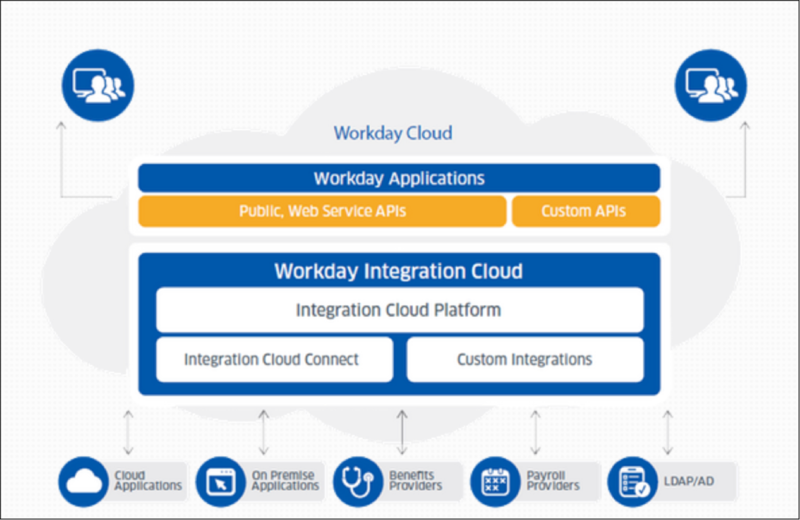
For more information regarding integrations, reference the resource below:
Services Consultant Resource | Customer Resource |
|---|---|
Search for "Recruiting Integrations Implementation Guide" on Workday Community for more information about vendor integrations. | Search for "Connector Catalog" on Workday Community for more information about vendor integrations. |
The Recruiting Hub
The Recruiting Hub provides a centralized location where recruiting users can:
- Take action on candidates.
- View candidates across job requisitions.
- Access common tasks and reports.
Unconstrained role-based security groups (e.g., primary recruiter) can access the Recruiting Hub through the security domain of the same name.
Note
: Review the Workday Recruiting Security chapter for more information about security groups and domains.The Recruiting Hub includes a collapsible navigation pane. This feature provides easy access to commonly used tasks and reports. Recruiting users can configure their own shortcuts to display in the toolbar.
Icon | Description |
|---|---|

| Recruiting - Opens the Recruiting Hub. Users can customize their view with cards. |

| Job Requisitions - Opens the Job Requisition Workspace. A centralized place to view and take action on all requisitions. |

| Candidates - Opens the Candidate Job Applications report. An actionable report that displays the recruiting user's active candidates. |

| Dashboard - Directs users to the Workday-delivered Recruiting Dashboard by default. |

| Shortcuts - Gives recruiters access to common recruiting tasks, reports, or external links. |

| Personalize - Allows recruiting users to customize the 10 shortcuts in the toolbar. |
Use the
Maintain Hubs
task to configure Announcements and the displayed cards on the Recruiting Hub. You can display 10 cards or fewer, and each card displays five items with an option to expand the list.Security Note
: To perform this task, you will need access in the System functional area of the Set Up: Tenant Setup - General
domain.The Recruiting Dashboard
The Workday-delivered
Recruiting
dashboard displays worklets that provide recruiters and managers with at-a-glance metrics. It simplifies navigation by placing key management information and actionable items in one location. You can add the Recruiting
dashboard as an application on the Home page.The delivered dashboard includes specific worklets. You can copy and modify worklets with your unique requirements. You can also create additional custom worklets using Workday Report Writer to add to the dashboard.
Use the
Maintain Dashboards
task to view the list of enabled dashboards, configure them, and change their descriptions. Workday secures each dashboard to its own domain.Resource
: Search for "dashboards" in the Workday Community Administrator Guide for more information on dashboards.Tenant Setup
You can use the
Edit Tenant Setup
tasks to configure the Workday Recruiting functionality for your tenant.Edit Tenant Setup - System
Enable Collaboration
Recruiting users can use the activity stream to collaborate with others involved in the hiring process. The activity stream includes:
- Comments from users
- History of actions taken on the business object.
To enable the activity stream, navigate to the
Edit Tenant Setup - System
task. Locate the Activity Stream Settings section. In the Selected Objects for Activity Stream field, add the following:- Job Application Activity Stream
- Prospect
Note:
If a candidate is in process for multiple job applications, they will have different activity streams for each job application.Edit Tenant Setup – HCM
Override Position Restrictions
You can override hiring restrictions at the point of hire. Use the
Edit Tenant Setup - HCM
task > Allow Override of Restrictions on Staffing Events.Note
: Enabling Allow Override of Restrictions on Staffing Events allows that functionality for all hiring-related events in Workday, not just recruiting events.Configure Job Requisitions
You can enable and configure job requisitions. Use the
Edit Tenant Setup - HCM
task, and locate the Job Requisitions section.Enable Organization Defaults on Create Job Requisition
You can default organization data (e.g., company and cost center) from the supervisory organization linked to the requisition. Use
Edit Tenant Setup - HCM
> Job Requisitions. Select the Enable Organization Defaults on Create Job Requisitions checkbox.Position Management Staffing Models
If you create job requisitions for supervisory organizations using the position management staffing model, select the
Edit Tenant Setup - HCM
task > Enable Job Requisitions Position Management > select one of the following three options:- Require Job Requisitions for all Position Management staffing events
- Enable Job Requisitions for Position Management based on rules
- None of the above
Job Management Staffing Models
If you create job requisitions for supervisory organizations using the job management staffing model, select the
Edit Tenant - HCM
task > Enable Job Requisitions for Job Management checkbox.Configure Defaulting Behavior
For position management organizations, when you use the
Create Job Requisition
task, you can configure how the following hiring restrictions default (there is only one value per field):- Job Profile
- Primary Location
- Time Type
- Worker Type
- Worker Sub-Type
Using the
Edit Tenant Setup - HCM
task, you can enable Defaulting Behavior for Position Management Job Requisitions. There are two options to select from:- Default from most recent filled position on Create Job Requisition
- Default from Position Restriction on Create Job Requisition
Default Job Description and Job Description Summary from Job Profile
When you create a job requisition for an existing position, you can enable the job description and job description summary to default from the job profile. From the
Edit Tenant Setup - HCM
task, select the Default Job Description and Job Description Summary from Job Profile checkbox.Enable Questionnaire Removal or Replacement on Evergreen and Job Requisitions
You can change or remove the questionnaire on an evergreen or job requisition, even after the candidate applies. Use
Edit Tenant Setup - HCM
> Enable Primary and Secondary Questionnaire Removal or Replacement on Evergreen and Job Requisitions checkbox.Sync Scheduled Weekly Hours
You can define Scheduled Weekly Hours on a position and also allow the Scheduled Weekly Hours to sync between job requisitions and position restrictions. Use
Edit Tenant - HCM
task > Enable FTE on Position Restriction checkbox.Edit Tenant Setup - Recruiting
Use the
Edit Tenant Setup - Recruiting
task to view additional functionality options specific to Workday Recruiting. Common configuration options include:- Recruiter Overload Count
- Require Candidate Home Account
- Copy Personal Information from Job Application on Initiate Hire
- Copy Personal Information when Copying Job Applications
- Job Application Stage Order
Recruiter Overload Count
The Recruiter Overload Count configuration option determines the number of assigned job requisitions that indicates recruiter overload. You can use this number as an analytic indicator flag on the
Manage Recruiter Workload
report.Require Candidate Home Account
The Require Candidate Home Account option allows you to require candidates to create an account before they can submit a job application from an external career site.
Copy Personal Information from Job Application on Initiate Hire
The Copy Personal Information from Job Application on Initiate Hire option allows you to copy the latest personal information from the job application to the worker record. This option allows Workday to copy the information for new workers and previously terminated and contingent workers.
Copy Personal Information when Copying Job Applications
The Copy Personal Information when Copying Job Applications option allows you to copy a candidate's personal information when you copy the job application. This option eliminates the need to manually re-enter data.
Job Application Stage Order
The Job Application Stage Order allows you to order the recruiting stages that display in the Workday Recruiting Hub and on the recruiting funnel, which is on the job requisition. The specific stage will display only in the Recruiting Hub if the
Job Application
business process uses it. Note
: The Review stage must be first and the Hire stage must be last.Resource
: Search for "Edit Tenant Setup - Recruiting" in the Workday Community Administrator Guide for a detailed list of recruiting configuration options and descriptions.