
Publish and Report on Prism Data
Overview
Once you transform a dataset to meet your requirements, publish it to a Prism data source to make it available for use in Workday reporting. You can use the Prism data source in reports, scorecards, and dashboards just like any other data source. You can use Prism data sources to create Discovery Boards for visual analytics and ad hoc analysis.
Objectives
By the end of this chapter, you should be able to:
- Publish a Prism data source for use in Workday reports and Discovery Boards.
- Identify the options for reporting on Prism Analytics data in Workday.
- Edit data source security to configure access to the Prism data source including row and field-level requirements.
- Identify the requirements for unpublishing and deleting a Prism dataset.
- Demonstrate the end-to-end process of republishing after making data changes.
Dataset Publishing
When you publish a dataset, you create a Prism data source. A Prism data source populates with data transformed according to the dataset's lineage, applying defined transformation stages and calculated fields to the latest imported data. Publish the Prism data source on a schedule that accounts for data import schedules to ensure you publish the latest imported data.
Key points:
- You can publish any dataset' but you cannot publish tables.
- Publishing kicks off a background process that writes all rows and field values in the dataset to a Prism data source.
- The rows and field values populate as of the latest imported data and latest transformations at the time of publishing.
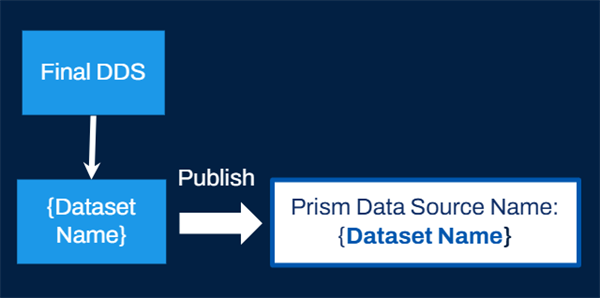
- The name of the Prism data source sources from the dataset display name.
Workday recommends you create a derived dataset labeled "PDS" to easily indicate that it is a published dataset. This derived dataset for publishing should not have any additional transformations. It should just import the pipeline of data you wish to publish. This dataset name also determines the name of the Prism data source used in Workday reports and visualizations. So, if needed, you can edit this published dataset. You can change the imported pipeline to publish updated information without impacting the Prism data source name, and dependent reports and visualizations.
Steps to Publish
To manually publish a dataset, access the
View Dataset
report and perform the following steps:- Navigate to the Quick Actions and select the Publish button.
- Select Submit.
- The Publishing Activities tab displays details such as the status, date, and time elapsed.
- Select Refresh to refresh the progress bar.Note: You can also use the Process Monitor to view the status of the publish request using Process Type: Publish Dataset.
Publishing a dataset can take anywhere from a few minutes to several hours. The time to publish depends on the size of input data (both width and depth), as well as the transformation logic defined in the dataset's lineage. Join conditions can be especially time consuming if they generate many additional rows. A publish times out and fails if it reaches the 24-hour limit. Contact Workday Customer Support for help with determining adjustments that you can make to reduce this time.
Prism Default to Dataset Access and Contextual Publishing
If you do not configure a security domain before publishing a Prism dataset, Workday applies the Prism: Default to Dataset Access domain to the Prism data source. This domain gives access to the published Prism data source based on role assignment to the underlying dataset. You cannot edit the security policy for this domain because it is not Workday-delivered.
We commonly use the default domain to allow for contextual publishing. Contextual publishing enables dataset users to publish a dataset based on their dataset permission, such as Dataset Owner or Dataset Editor. Doing so allows users to test the published data in reports and visualizations without requiring access to the Prism Datasets: Publish domain. This way, dataset users can test their work without giving them unconstrained access to publish all datasets.
Resource
: For steps to enable contextual publishing allowing dataset users to test their work without unconstrained access to publish all datasets, search "Enable Contextual Publishing for Datasets" on Workday Community.Other Publishing Options
Rather than publishing a Derived Dataset to create a Prism Data Source, any table enabled for analysis will also create a Prism Data Source for reporting options. When you enable a table for analysis, the Prism Data Source updates automatically. In doing so, it accounts for any changes that have reached the table, without needing to republish for the changes to reflect in the Prism Data Source.
The Enable for Analysis option on the Create Table and Edit Table tasks enables you to create a Prism data source using the data in the table. When you select this option, Workday:
- Creates a Prism data source immediately.
- Populates the Prism data source with the data in the table.
- Keeps the data in sync.
Limitation: If the table has more than 2B rows and is enabled for analysis, you cannot use the Prism data source in a discovery board viz or in a Report Writer worklet on a dashboard.
If you choose to Enable a Table for Analysis rather than publishing your final DDS, you can route your intended DDS to a table. You would do so by using the DDS data catalog item as the source connection. When you enable the table for analysis, Workday updates the data in the Prism data source concurrently as you update data in the table. This enables immediate incremental updates to the data source.
Tables enabled for analysis count toward your number of reportable rows.
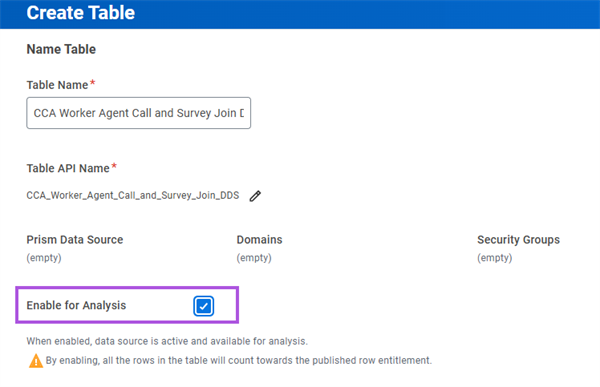
Enable for analysis checkbox
Options for Reporting on Prism Data
You can use Prism data sources like any other Workday data source and build reports using the Report Writer or Discovery Board tools. Using the Report Writer tool, you can create simple, advanced, transposed, and matrix report types using Prism data sources. You then can use Matrix reports in composite reports. You can enable reports as worklets and configure them on dashboards, using the Workday reporting framework for users. You can also create Discovery board visualizations using Prism data sources. There are many visualization types, such as Heat Maps, Pivot Tables, and Line charts. You can export certain visualization types as Report Writer report definitions allowing for more flexibility to use reports across the two tools.
You can also create Workday calculated fields on the Prism business object, but it does not support all calculated field functions. For example, you cannot use the Lookup Related Value calculated field function. Lastly, you cannot enable a report for Prism for importing into a Prism base dataset if the report itself uses a Prism data source.
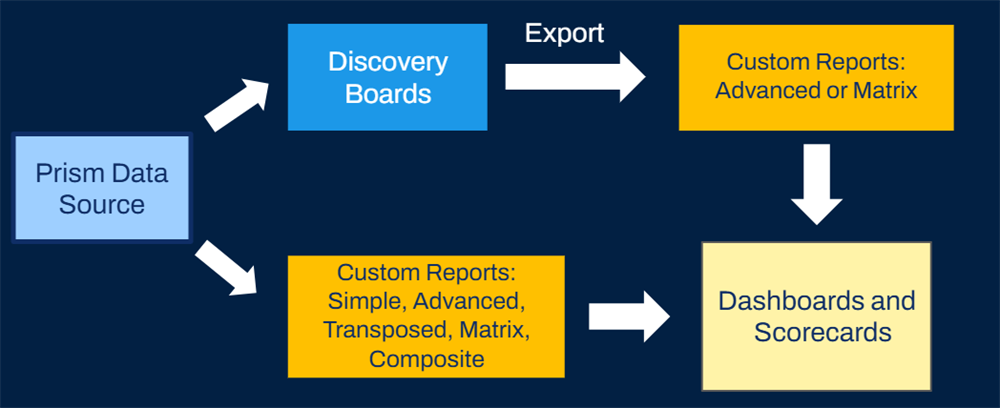
Prism Reporting Guidelines
As you design your Prism data flow and end Prism data source requirements, consider the following high-level reporting guidelines:
- Allow for flexible report development by:
- Limiting Group By stages and aggregations in the published dataset to allow different matrix reports to group as needed.
- Including detailed rows and fields in the published dataset to allow for drilling to details as needed.
- Improve report performance by using Prism to create calculated fields where possible. This ensures processing time occurs during dataset publishing rather than report runtime. In some cases, you must perform calculations outside of Prism. Use Workday Report Writer calculated fields and matrix report summary calculations for the following cases:
- To calculate percentage
- For non-aggregatable metrics
- To provide more filtering options in the report
- For lookup date format and rollup date fields
Prism supports the following Workday Report Writer calculated field functions when building off a Prism Business Object.
- Arithmetic Calculation
- Build Date
- Concatenate Text
- Convert Text to Number
- Date Constant
- Date Difference
- Evaluate Expression
- Format Date
- Format Number
- Format Text
- Increment Decrement Date
- Lookup Date Rollup
- Numeric Constant
- Substring Text
- Text Constant
- Text Length
- True/False Condition
Prism Data Source Security
Workday recommends that the security configurator determines who can access the Prism data source and fields. Once you publish the data source, users with View permission to the domains securing the Prism data source can use it in custom reports. They can also view shared reports using the Prism data. Users with permission to the domains securing the fields can view and use the fields in custom reports. Optionally, you can also apply row-level security to constrain access based on a securing entity.
Security Note:
The Prism: Manage Data Source domain secures the Edit Data Source Security
task. You can configure this domain to allow limited security groups to configure security, such as the Security Configurator. You can also configure role-based constrained security groups on this domain. For example, you can allow a dataset viewer to view data source security for their own datasets.Steps to Configure Data Source Security
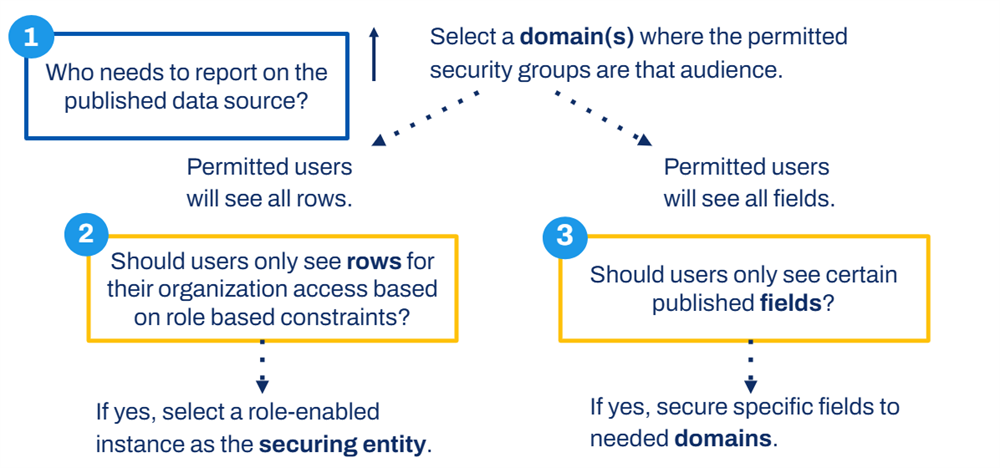
Steps to configure data source security
From the
View Dataset
report, select the dataset's Related Actions and select Security
, then Edit Data
Source Security
.- Secure Prism data source to domains
- Select one or more domains in the Domains field to determine who can access the Prism data source.
- If you do not specify domains, Prism secures it to the default domainPrism: Default to Dataset Access, allowing only those with access to the Prism dataset to view the data source.
- Apply Row-level security
- You can also apply row-level security to your Prism data source by selecting one or more role-enabled instance fields in the Securing Entities field.
- The Securing Entities field determines which rows from the Prism data source are available to a user when they access custom reports via role-based constrained security permissions.Resource: You can find more information on finding business objects that support securing entity fields in Workday Community by searching for "Edit Prism Data Source Security" in the Administrator Guide. Alternatively, theView Assignable Rolesdelivered report can help you understand what securing entity belongs to a role.
- Apply Field-level security
- By default, Prism secures all the fields in your published data source to theDomain: Public Reporting Items, allowing any user to access any field. You can override this configuration by selecting one or more domains in the Default Domains for Dataset Fields field to apply different domain security for fields in the data source.
- You can also select different domain security at a field-by-field level. Prism secures any field without a specific domain configuration by the default domain for dataset fields.
- In addition, any securing entities applied work in combination with the field domains to determine the field-value access for a user.
- Review security exceptions
- Depending on the domains you chose to secure your data source and/or fields, you can view aSecurity Configuration Auditreport to uncover any issues with your configuration.
- For example, a given domain may have a permitted security group type not supported for Prism data sources.
- Confirm security configuration
- SelectApply Security
- Then, selectSubmit.
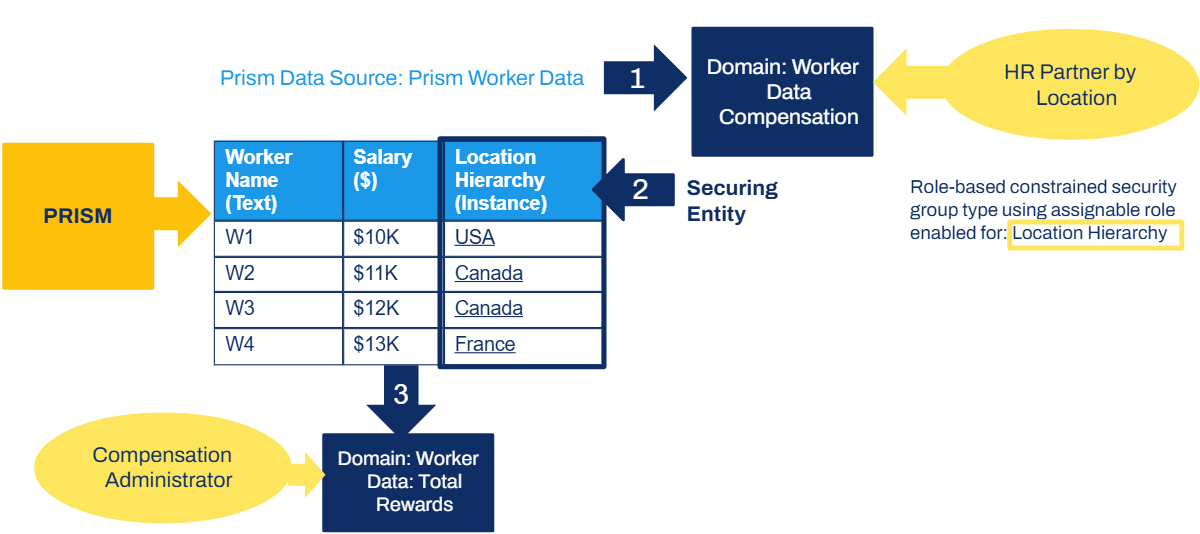
In the following example, we secure the Prism Data Source to the
Domain: Worker Data Compensation
, choose the Location Hierarchy
instance field as the securing entity, and secure the Salary field to the Domain: Worker Data: Total Rewards
. Now, members of the HR Partner by Location security group can:- Run reports using this data source.
- Display only the rows for the location hierarchy they are constrained to display.
- Not display the Salary field if they do not have access to the domain securing the field.
Limitations
Workday restricts user access to data in a Prism data source for these security groups:
- All unconstrained
- Role-based constrained
- Aggregation when role-based
- Intersection when role-based
Prism does not support restricting access to rows, fields, or field values for the following security group types:
- Miscellaneous organization-based security groups
- Segment-based security groups
- Job-based security groups
- Manager's Manager security group
Note
: Changing data source security after publishing requires republishing.Create Import and Publish Schedules
You can schedule your imports and publish activities on a recurring frequency. You can use dependent scheduling to ensure that the import completes before the publish activity to stagger the process.
To configure a schedule for your imports, view the
Data Change
Task
and select Create Schedule
from the Related Actions.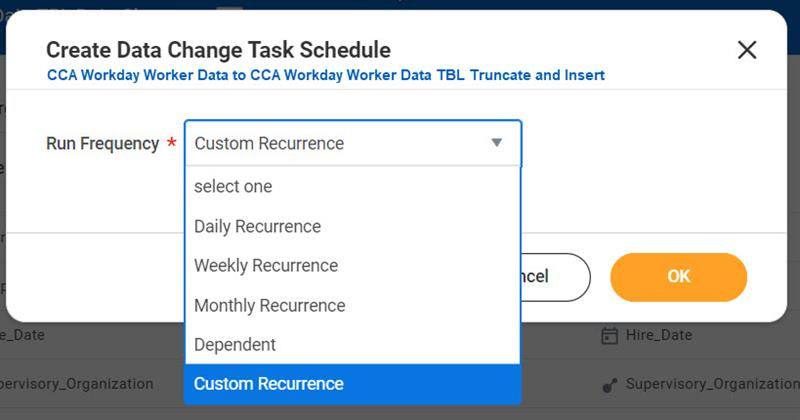
Configure import schedule
To configure a schedule for your publishing, view the dataset to publish and using the Related Actions, select
Publishing
. Then, select Create Schedule
.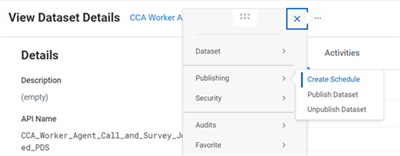
Configure publishing schedule
Below is an example of a dependent publish schedule. The publishing of this PDS will not launch until the dependency has completed plus a delay of 8 hours.
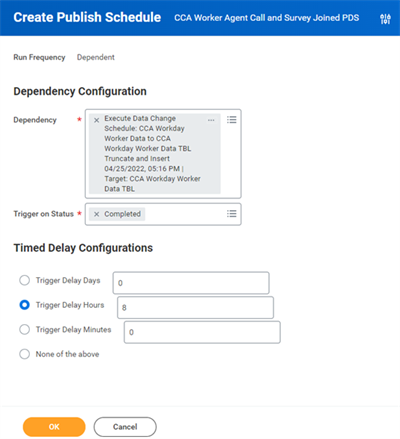
Example of a dependent publish schedule
Once scheduled, you can run the
Scheduled Future Processes
report for the process types of Prism Execute Data Change and Publish Dataset and edit schedule details as needed.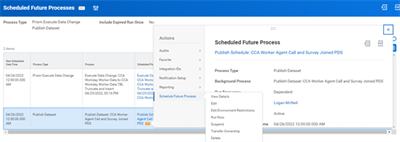
Scheduled Future Processes report
Security Note
: Only users with access to the domain - Prism Datasets: Publish
can publish or create publish schedules.Also, once you define schedules, you can run the
Scheduled Future Processes
report to transfer ownership of a scheduled process for publishing a dataset.Data Change Activities and Dataset Publish Notifications
Workday automatically delivers email and Workday Inbox notifications when a scheduled publish completed. You can choose which notification settings to receive for manually launched requests. Or, you can receive scheduled requests by configuring settings from the new Prism Analytics parent notification type on the
Edit Tenant Setup - Notifications
task.You can receive both UI and email notifications when a data change task finishes in one of these states: Aborted, Canceled, Failed, Success, Timed out, Warning.
Resource
: For more information on options to set up and manage Prism Notifications, search Workday Community for the contributed solution "Prism Notification Setup."Prism Data Usage
You can view how much Prism data your organization uses in your tenant. Regarding Prism usage, you can ingest as many rows as you would like. However, there is a limitation on the number of rows and fields published. Each data source can have up to 1,000 published fields, and the number of rows published is limited based on your contractual agreement with Workday. You might want to view your Prism data usage to ensure you comply with your purchase agreement with Workday.
From the Data Catalog, select the
Prism Usage
button to run the Prism Usage Details
report. The information displaying includes reportable rows, disk used, created by, and published by for each dataset. (You can also run the Prism Usage Details
report from the search box.)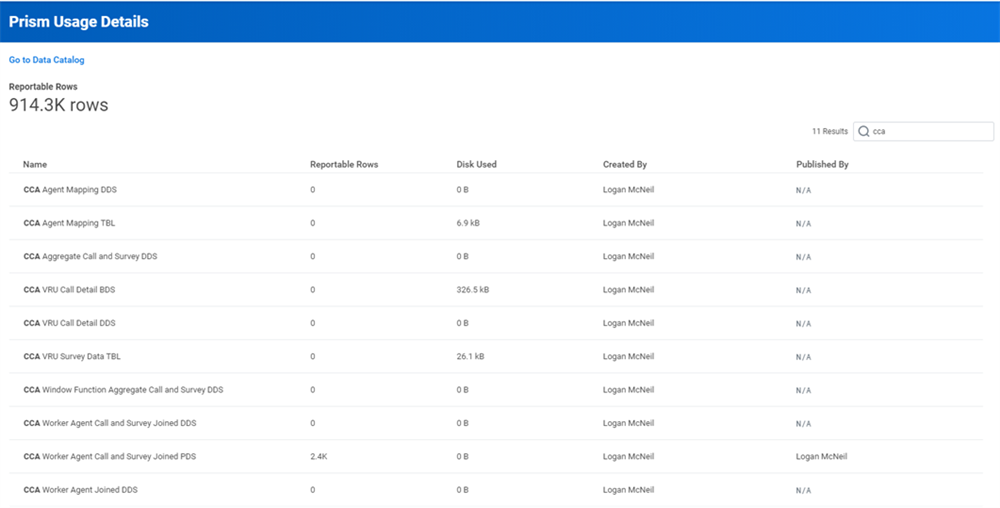
Prism Usage Details
Workday also delivers a
Prism Usage Summary
report. This summary report shows the total number of reportable rows per month and week for the last 12 months allowing you to analyze usage trends over time.Prism Data Management
Deleting Prism Data
These tasks allow you to delete published Prism data:
Task | Definition | Requirements |
|---|---|---|
Delete Published Rows | Inactivates the Prism data source and removes all data within. Dependent reports remain intact but you cannot run them due to an inactive data source. Republish the dataset to restore the Prism data source to active status. | None |
Unpublish Dataset | Deletes the Prism data source and the data within. Use when you do not need a dataset and dependent reports. Note : You can republish the dataset, but you need to recreate the custom reports. | No custom reports or discovery board visualizations use the Prism data source. |
Prism Activities Monitor Report
The
Prism Activities Monitor
report captures dataset publishing activities, data change task activities and wbucket activities all in one report. The processes that Workday displays in the report depend on the security domains you have access to. For example, if you have access to the Prism Datasets: Manage and Prism: Tables Manage domains, but do not have access to the Prism Datasets: Publish domain, the Prism Activities Monitor
report will display all Wbucket and Prism Execute Data Change processes, but will not show Publish Dataset processes given your permissions.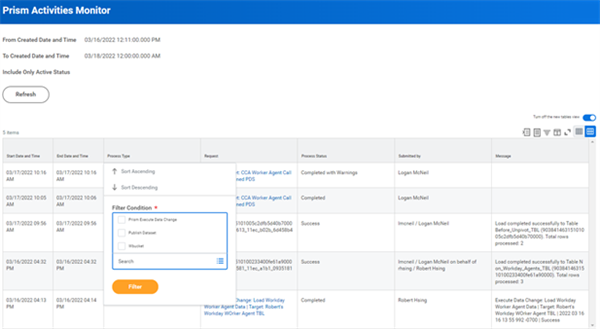
Prism Activities Monitor report
Prism Management Console
The Prism Management Console enables you to view and monitor all Prism-related activities in a single location.
Access the console by selecting the Management Console button on the data catalog, or by searching for Prism Management Console in the global search. You can specify the time range of activities, up to 180 days. Workday displays activities from the previous seven days by default.
Prism Management Console button
The Overview tab displays high-level information about Prism activities in several charts:
- Daily Activity Tracker
- Successfully Completed Activities
- Longest Job Run Time
- Longest Job Wait Time
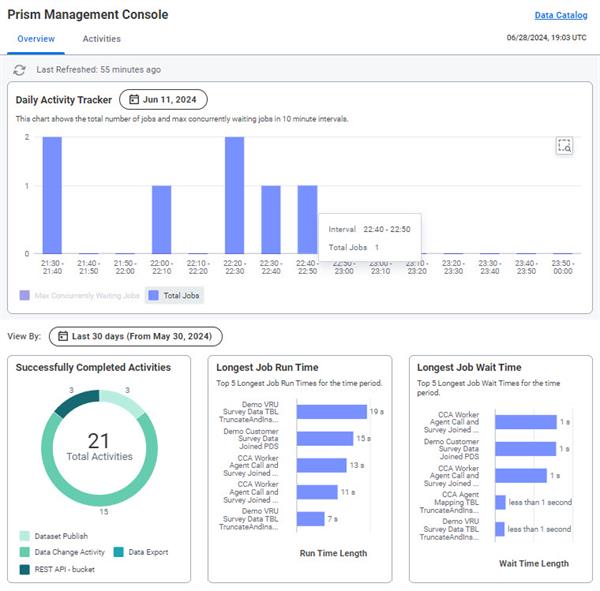
The Prism Management Console: Overview tab
The Activities tab displays:
- A count of activities by status, such as success, canceled, and in progress.
- A row for each activity, such as data change activities or dataset publish.
You can also filter the activities by tags. Select an activity to view the inspector panel displaying more details about the activity.
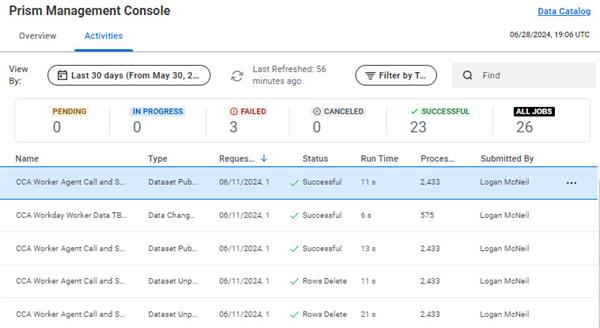
The Prism Management Console: Activities tab
Schema or Security Changes
Once you define your Prism process flow and establish the import and publish schedules for your use case, you may face changing requirements. These may include additional fields needed or additional security requirements for the end Prism data source access.
Consider the following high-level steps when field requirements and security requirements change.
Field Requirement Changes
- Modify the schema in Prism Tables and reload data.
- Edit the table schema to add or remove fields.
- Edit the Data Change Tasks to map fields to the new schema and load data accordingly.
- Modify downstream dataset transformation stages to account for the changed fields.
- Edit downstream stages such as Manage Fields and Join stages to select the new field so that it flows through to the published dataset.
- Run theView Dataset Lineagereport for your published dataset to verify that the removal of a field has not caused errors in any stages.
Security Requirement Changes
- Run theEdit Data Source Securitytask to update any security requirements.
- Republish
- Your new fields should now be available in user reports and visualizations based on your security configurations.
- Any deleted fields still referenced in end reports will cause the reports to error.
- Edit the reports to remove references to fields no longer published.
- Modify the data source security as needed.
- Republish.
Prism Audit Report
Workday provides auditing capabilities through the
Prism Audit
report. From this report, you can view any modifications made to any dataset or table in the data catalog.Each report record represents a different edit to the published dataset or one of its upstream artifacts. The report captures the change types outlined in the table below.
Data | Description |
|---|---|
Data Operations | Includes activities that add, remove, or update data, such as truncate table operations or dataset publish activities. |
Documentation | Includes changes to the Prism artifact that describe or document an aspect of the artifact, such as field name or description. |
Summary | Summarizes how other changes can affect the Prism artifact, such as the final list of all output fields or the final order of dataset changes. |
Transformation | Includes changes to the Prism artifact that can transform existing data, such as a Prism calculated field or a dataset Join stage. |
Security | Includes changes to the Prism artifact that affect the secure access to data, such as dataset or table sharing, or data in the Prism data source. |
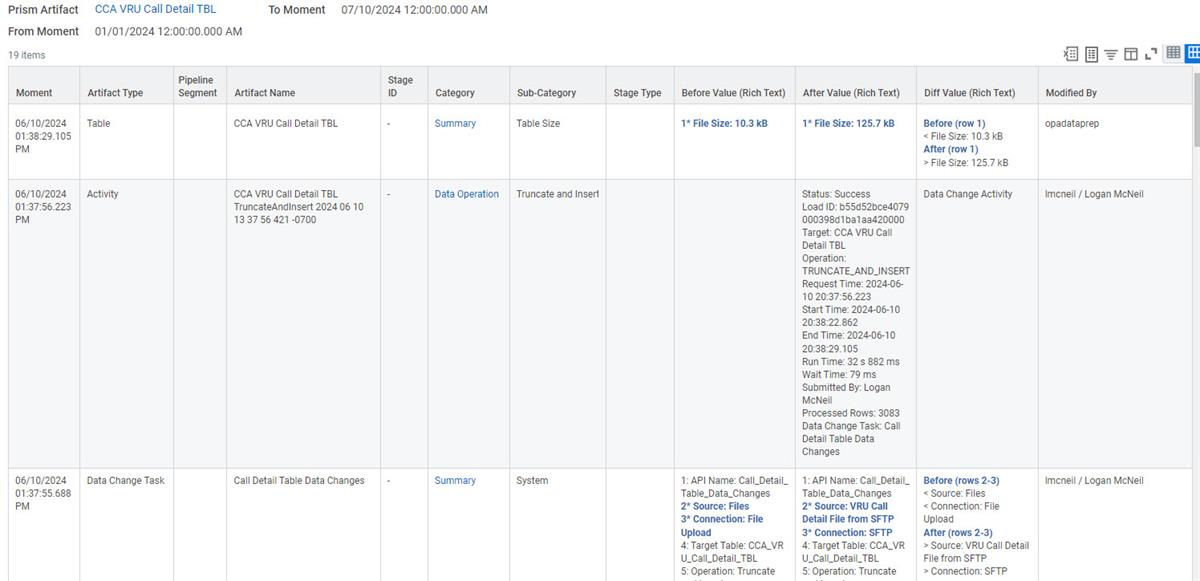
Prism Audit Report
Implementation Considerations
Tenant Setup Considerations
You can apply Prism to all tenants but there is a limit of two implementation tenants including Preview (optional), plus Production and Sandbox.
If you intend to copy Prism data from your source tenant to your target tenant, there is a requirement for the target tenant. It needs to be Prism-enabled before the refresh. Failure to do so will require another refresh after the Prism enablement.
Resource
: From Workday Community, search for "Setup Feature Tenant Request."Object Transporter Support
You can use Object Transporter to migrate the following Prism Analytics configurations between tenants:
- Prism Data Sources (also referred to as Analytic Data Sources)
- Discovery Boards
- Prism Access Security Groups
- Prism Analytic Datasets and Table Definitions
- Prism Dataset and Table Sharing Permissions and Role Assignments
- Prism Data Change Tasks
Resource
: From Workday Community, a ccess the " Prism Analytics Community Guide" for continued news, updates, events, and forums. Also, you may want to join the Prism Analytics Customer Group.Chapter Summary
- After the transformation phase is complete, create a separate published dataset for publishing use only.
- The published Prism data source is available for use in Workday reports for members of security groups with View permissions to the domain.
- The data for a Prism data source is available once published and will not update until the next import and publish. You can schedule publishing.
- You can only delete datasets if they are not in use in other datasets or published as data sources in custom reports.
- You can use Prism data sources with Discovery Boards to create visual analytics for ad hoc analysis.
- After schema changes, edit all downstream datasets to accommodate the change, then reapply data source security, and republish.