
Payroll Overview
Overview
In this chapter, you explore the general sequence of steps in the payroll process and identify sources of payroll data. You review pay components and complete activities to process payroll from start to finish.
Objectives
After completing this chapter, you should be able to:
- List the elements of the payroll processing framework.
- Describe how the elements of the framework impact payroll processing.
- List the steps in the payroll process.
- Identify payroll calculation statuses and options.
- Identify sources of payroll data.
- Define pay components.
- Process payroll.
Payroll Processing Framework
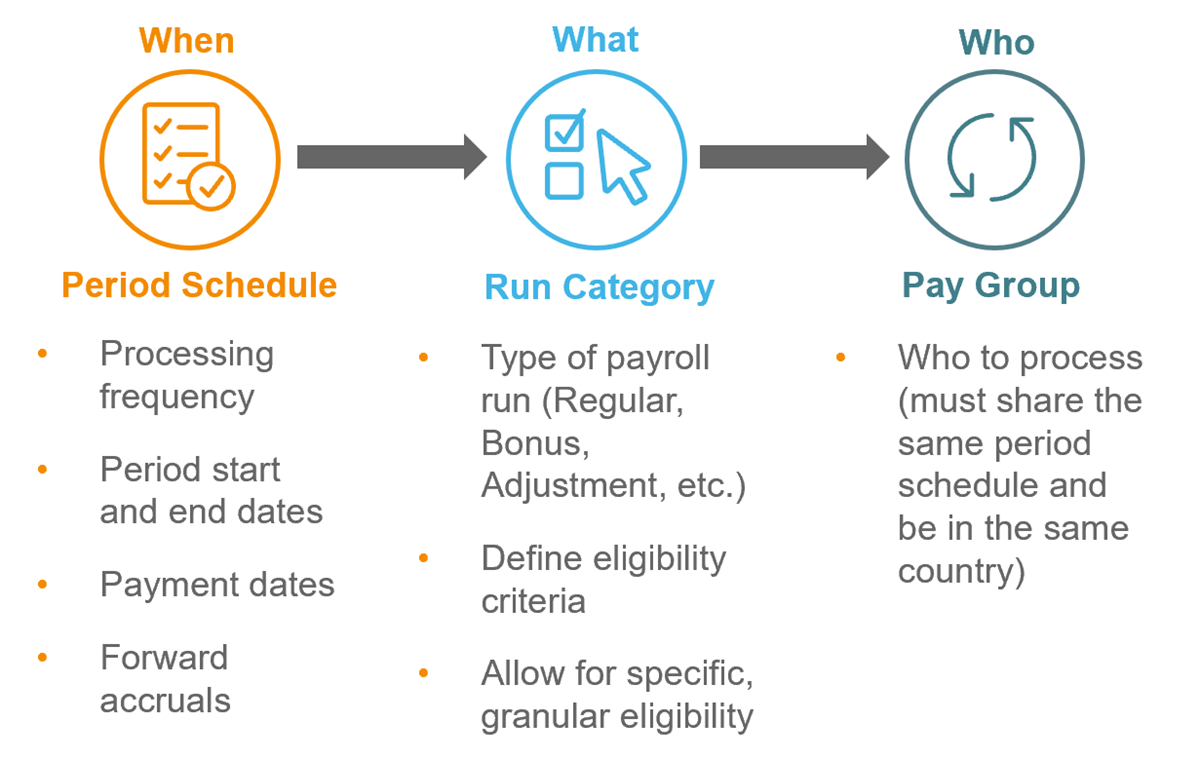
The payroll processing framework includes period schedules, run categories, and pay groups. The association between these three elements identifies when to process payroll, what to process, and who to process.
Payroll Processing Steps
Workday Payroll processing consists of the steps shown here.
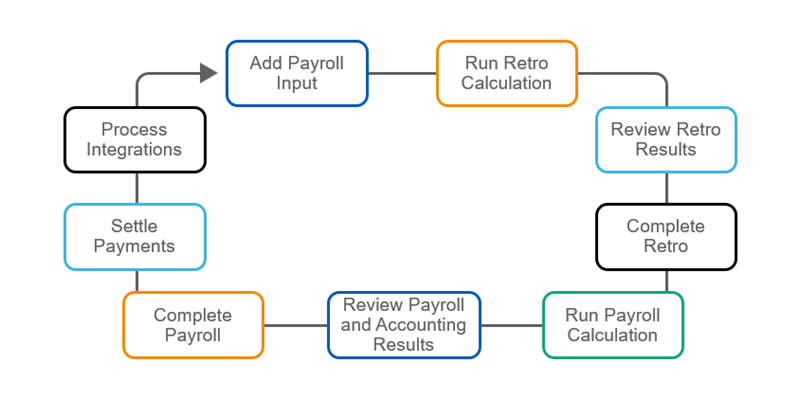
The steps that you complete each pay period will vary depending on what is happening in the process. You may repeat some steps, such as adding payroll input and calculating payroll. You will practice these steps as you go through the course.
Step | Description |
|---|---|
Add Payroll Input | Although payroll input appears as the first step, this input can occur throughout the payroll process. There are multiple ways to add payroll input:
|
Run Retro Calculation | In Workday, a retro is any change that affects a completed pay result. Retroactive changes can come from benefits, compensation, time, and other payroll touchpoints. Run the Run Retro Pay Calculation task to calculate retroactive results for workers. |
Review Retro Results | Review your retroactive results, so that you can complete the retro and move on with the current payroll processing steps. |
Complete Retro | Run the Run Retro Pay Complete task. Complete your retro processing before you can complete your regular processing. |
Run Payroll Calculation | You can run a pay calculation using the Run Pay Calculation task and review the calculation results at any point during your payroll processing. The payroll has a status of In Progress when at least one worker has gross-to-net results. Running a pay calculation creates both gross-to-net and accounting results. |
Review Payroll And Accounting Results | You can review payroll results throughout the process. However, before you complete the payroll, do a final check of payroll and accounting results. Use delivered reports to review gross-to-net results. Workday automatically generates accounting entries when you calculate on-cycle and off-cycle payrolls. It generates entries for accruals and accrual reversals as part of typical, on-cycle runs based on the accrual dates specified on the period schedule. |
Complete Payroll | You can complete payroll results for all In Progress results using the Run Pay Complete task. Any results that are in the Requires ReCalculation, Pending Completion, On Hold, or In Error statuses will not complete.Note : Some changes that affect payroll results will not update the payee status to Requires ReCalculation. |
Settle Payments | When you create a settlement run using the Create Settlement Run task, Workday launches the Settlement Run Event business process to settle its unpaid open items and pending payments as a single unit. Once you approve and complete the subprocesses (if applicable), Workday updates the settlement run status to Complete. The settlement process also generates the accounting entries associated with each payment and sends them to financial accounting. |
Process Integrations | After the settlement business process completes, integrations will run (including ACH files to the bank, any positive pay files, the check print task, etc.). Use a tax filing integration to send periodic, quarterly, and annual tax information from Workday Payroll to a third-party service provider. Workday hosts and maintains tax-filing integrations to ADP, MasterTax, and Ceridian. Workday supports integrations with third-party vendors that provide withholding order payment services, such as Ceridian. |
Payroll Calculation Statuses
Payroll calculation statuses help you track the progression of workers through the payroll process.
Status | Description |
|---|---|
In Progress | A payroll result exists for the worker, but it is not complete. |
Waiting | There are in progress retro results not included in the pay result. You need to recalculate the pay result and complete retro before you can complete payroll. |
Requires ReCalculation | After a change to the payroll, you must recalculate it before completing it. |
Pending Completion | The payroll process cannot continue until you complete other in-progress results. |
In Error | You cannot calculate payments if there is missing or invalid data. An In Error status commonly occurs if a worker's net pay falls below zero. |
On Hold | You can put a worker's payroll results on hold, so that Workday does not pay them. The result is held until you reverse the status. |
Completed | The pay calculation, payroll accounting, and payroll complete tasks have run for the result. |
When you calculate payroll for one or more pay groups, the Calculation Status grid displays the number of workers in each status.

Calculation Status Grid
Pay Calculation Options
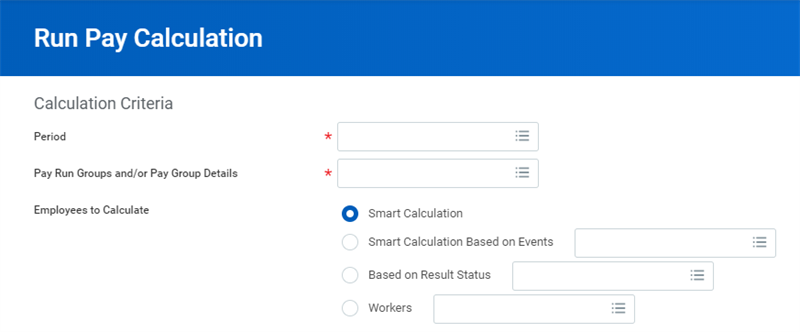
When running a pay calculation, select the workers to calculate from the options below:
- Smart Calculation:Workday processes workers who have yet to be calculated in the period and workers who need to be recalculated based on changes to their data.Note: This option does not pick up configuration changes, such as changes to pay components. The smart calculation is looking for worker changes.
- Smart Calculation Based on Events:Select specific events to calculate.Note: You can configure the events listed using theConfigure Smart Calculation Event Processingtask.
- Based on Result Status: Select one or more result statuses to calculate. For instance, you may recalculate workers with an Error status to verify resolution to the error.Note: When you need to pick up configuration changes, select workers based on status.
- Workers: Select specific workers in the pay period and pay group whose pay results are not on hold or completed.Note: You cannot select workers with pay result statuses Not Yet Started when the pay group calculation status is Complete with Exceptions.
Selecting the appropriate Employees to Calculate option streamlines the process and ensures that you are picking up all required changes in the calculation.
Pay Calculation Options
Tip
: You can preview the events that Workday has detected in a smart calculation by running the Preview Smart Calculation Run
report.Another option when running a pay calculation is the
Limit Accounting Population Based on Calculation Criteria
option. This option is selected by default when using one of the smart calculation options.Select this checkbox to optimize calculation times by only processing accounting results that meet your calculation criteria.
Schedule a Payroll Calculation
To schedule pay calculations, select the
Schedule a Pay Calculation
button on the Run Pay Calculation
task. The scheduler allows you to use the smart calculation criteria. For example, you can schedule a calculation to run weekly that picks up time and payroll input.Continuous Payroll Calculation
You can enable the continuous payroll calculation option in your tenant to calculate regular, on-cycle payroll results automatically as payroll-impacting events occur. Enabling this feature reduces time spent calculating payroll, and results in faster smart calculations when manually run.
To enable the continuous payroll calculation option, access the
Edit Tenant Setup - Payroll
task.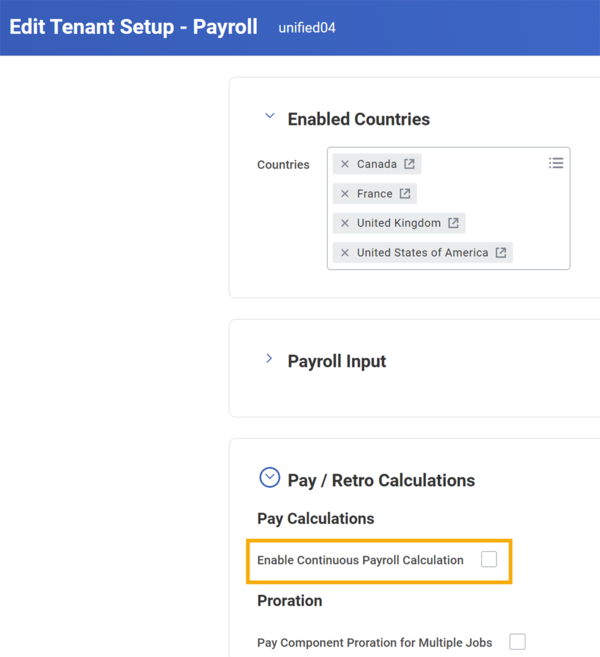
Sources of Payroll Data
When you run a pay calculation, Workday Payroll pulls data from several sources. All the following data have the potential to affect payroll results.
Data Source | Examples |
|---|---|
Basic Biographical | Home and work addresses, government issued IDs |
Worker and Job | Pay rate type, employee type, time type |
Compensation | Compensation plans, allowance plans, bonus, merit |
Benefit Elections | Rates per elected plans |
Absence | Leave and time off taken |
Time Worked | Time entry from Time Tracking |
Withholding Orders | Recorded orders |
Payroll Tax Withholding Elections | Self-service elections for federal, state, province, local |
Payment Elections | Self-service elections |
Work Schedules | Pay per schedule |
Payroll Input | Adjustments or overrides |
Pay Components
In Workday, we refer to earnings, deductions, and associated calculations generically as pay components. Pay components include earnings, deductions, taxes, and withholding orders; in general, anything that affects an employee's pay.

Pay Component Groups
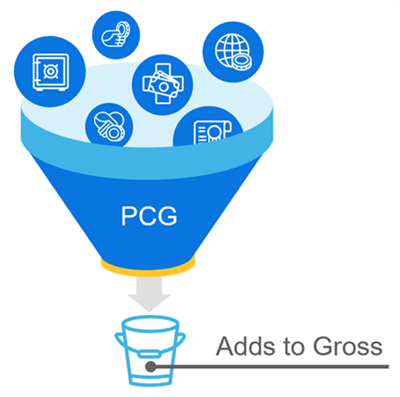
Workday calls a group of pay components a pay component group, or PCG. Use PCGs to combine items that you use together. For example, Adds to Gross is a PCG that includes all pay components that make up gross pay. Each group sums the values of the earnings, deductions, and calculations that it contains. Aggregating them this way can be convenient for payslips and other reports.
For a list of all pay component groups, including tenanted PCGs and those PCGs delivered by Workday, run the
All Pay Component Groups
report.