
Security
Overview
Workday provides a security framework that enables you to configure what a given user can access and do in the system. Through security group configurations, a user can navigate and access Workday-delivered items, such as reports and tasks, and participate in business process transactions.
Through a series of demonstrations and hands-on activities, this chapter will introduce you to the fundamentals of security configuration.
Objectives
By the end of this chapter, you will be able to:
- Copy a security group.
Security Policies
As you deploy Workday, you will configure security policies to ensure the appropriate security groups have the appropriate permissions. This chapter covers security groups, domains, and business processes.
Security Groups
- Security Configurator: This user-based security group configures domain and business process security policies regardless of organization. This security group can also assign workers to security groups, but does not have any approval authority.
- Security Administrator: This user-based security group manages all security-related information, regardless of organization. Examples of tasks for this role include creating and maintaining Workday accounts, establishing password rules, managing feature permissions, viewing security reports, and viewing role reports. This security group generally has approval authority for organization and system business processes.
Domains
Topic | Functional Area | Domain |
|---|---|---|
Security | System | Security Configuration |
Configurable Security Framework
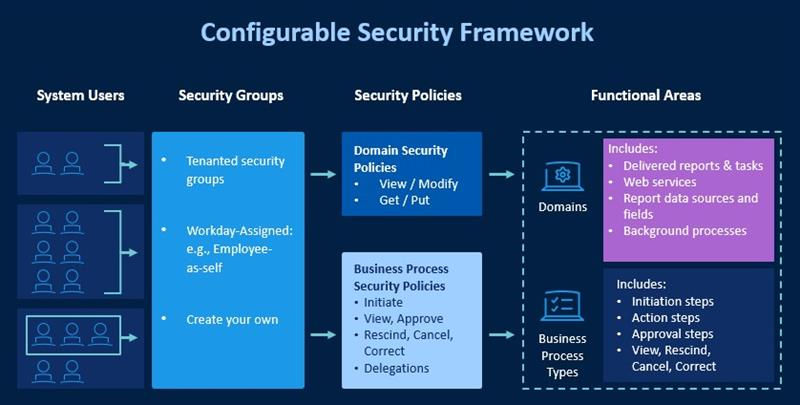
Configurable security allows you to provide Workday system users with access to reports, tasks, and business process steps. Users gain access to these securable items via membership in security groups that are given permissions to domain and business process security policies. This image summarizes the components of the configurable security framework.
Security Policy Actions
Domain Security Policy - High Level | Business Process Security Policy - Granular |
|---|---|
View View and Modify Get Get and Put | Initiate View Approve Rescind Cancel Correct Delegations |
Functional Areas
The Workday application contains several functional areas. Some examples of functional areas are: Staffing, Benefits, Core Compensation, Financial Accounting, and Procurement. Each functional area contains domains and business process types. Workday delivers functional areas. You cannot change them. Depending on the scope of your Workday deployment, you may not have access to some functional areas. Use the
Maintain Functional Areas
task to enable or disable functional areas.Resource/Glossary
: Use the Functional Areas report to find a top-down view of the Workday-delivered functional areas and domains and business process types in each.Domains and Business Process Types
Domains
Domains are collections of items that share the same security. These items can include tasks, delivered reports, report data sources, and web service operations. Workday determines the secured items within each domain. You cannot change which delivered items are in each domain. Note that a given item may be in more than one domain. Use the
Secured Items in Multiple Domains
report to find which items you secured to more than one domain.Business Process Types
Business process types represent the automated Workday events or transactions within the Workday business process framework. Workday determines the available business process types. You configure required business process definition steps to complete a transaction type, including such steps as approvals and actions. Workday routes steps in a business process definition to security groups, not individual users. Configurable security allows you to control which security groups can participate in each type of business process.
Security Groups
A security group is a collection of system users employed to grant access to Workday. Workday groups users explicitly (user-based) or from other information about the user. Other sources can include user's role assignment, job profile, or organization membership.
When configuring security in Workday, you must first identify users via a security group. Then add or remove the security group from the desired domain or business process security policy to grant or deny access to an area of Workday.
Security Policies
When you link a security group to a domain through the domain's security policy, you also specify whether the security group has View or Modify access to the domain. (Get or Put permissions govern domain access for integrations.) Some secured items exist in more than one domain security policy. Workers granted all levels of access permission in multiple domains will have the most access to the system.
Security Group Types
Your security group dictates what you can view and tasks you can perform. Workday delivers security group types. Security group types describe how users are assigned security. Create new security groups using the Workday-delivered security group types.
Security Group Types
Type | Purpose | Assigned To | Example |
|---|---|---|---|
User-based | Perform administrative or setup tasks. | User directly | Report Writer; Finance Administrator |
Role-based | Access is specific to one or more organizations. | Position | Controller; Accounting Manager; Receivables Specialist |
Service Center-based | Allow third-party users limited access. | Service Center Representative | Third-Party Help Desk |
Job-based | Auto-population security based on user's job criteria. | Job-related criteria, e.g., Job Profile, Job Family | CFO |
Integration System | Access to run integration systems. | System accounts | Credit Card System |
Segment-based | Access to selected components (a segment) of the secured item. | Securable items for expense items, customers, business processes | Users can access only certain customers. |
Location Membership | Auto-populated security based on a user's location. | One or more locations | Users in Building X, Users in USA |
Organization Membership | Auto-populated security based on organizations to which they belong. | One or more organizations of any type, such as company, cost center, or hierarchies | Users in Company A, Users in Financial Planning cost center |
Aggregate | Users must meet specifications of ANY security groups included. | Multiple security groups | Users in location USA or Company A |
Intersection | Users must meet specifications of ALL security groups included. | Multiple security groups | Users in location USA and Company A |
Level-based | Users at one level can access users at other levels. | Leveled structures, such as management level or compensation grade hierarchies | Senior-level management can view talent data for workers in lower levels. |
What Does Configurable Security Provide?
Configurable security acts as a bridge between Workday-owned metadata and customer-owned tenanted access to functionality. By configuring domain or business process security policies with needed security groups, you can configure the bridge between the Workday "what" and customers' "who."
You can configure access to securable items by adding security groups to domain security policies. You can configure access to workflow steps by configuring business process security policies with security groups. You can create security groups. | You cannot change what delivered items are in a domain. You cannot add new business process types. |
Note
: You cannot create new domains nor move delivered items between domains. However, Workday provides several custom domains in the System functional area that allow you to configure security permissions for custom items like dashboards and custom objects.Secured Items
Security policies secure each item in Workday. To access a secured item, a user must be a member of a security group with permissions to the domain or security policy containing the item.
For example, to determine whether Workday allows a user to run a given task, consider the following:
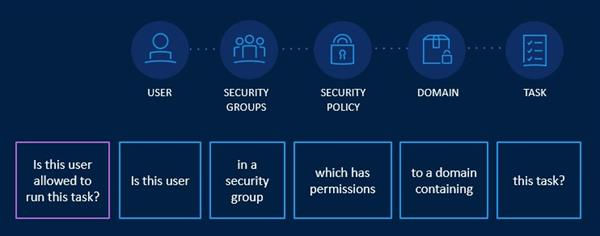
Domain permissions provide the user with either view or modify access to the items in the domain. Grant business process type permissions to various components of the business process, such as the ability to initiate, approve, or cancel the event.
Resource
: To determine which domain an item is in, use the View Security for Securable Item
report. To find out which security group provides a specific user access to a task, use the Security Analysis for Action
report.Steps for Configuring Security
In order gain access in Workday, you must include the user in a security group with permissions to security policies. You can use delivered security groups or create your own using the
Create Security Group
task. You control which domain or business process security policies each security group can access.When you make changes to a security policy, Workday saves those changes. These changes are in a pending status until you access the
Activate Pending Security Policy Changes
task. Workday secures this task to the Security Activation domain, separating duties between individuals who can edit security policies and individuals who can approve and activate the changes. Once you activate those changes, be sure to test access thoroughly. If you add a user to a security group who already has security policy permissions, you do not need to activate changes.The steps for configuring access are as follows:
Step | Description |
|---|---|
Identify Users | Plan what access users will need based on individual needs, positions, etc. |
Create Security Groups | Identify an existing security group or create a new one. |
Edit Security Policies | Grant view/modify permission to domains. Grant business process permissions. |
Activate Pending Changes | Activate changes in order for them to take effect. |
Test Changes | Verify that the changes made provide the expected access. |
Security Policy Changes
You can edit a security policy, for example, by adding or removing a security group, or changing view only permissions to include modify permissions. Workday then displays a message indicating that you have saved your changes, but will not take effect until you activate them. Until you activate the pending changes, anyone viewing the domain or business process security policy will notice the current active configuration in the tenant.
Security Note
: Workday secures tasks to configure security, such as Create Security Group
, to the Security Configuration domain.Run the
Domain Security Policies for Functional Area
report for the System functional area and review the security-related domains, such as Security Administration, Security Configuration, and Security Activation. View the secured items in these domains and the permitted security groups.Configuring Role-Based Security
While Workday delivers some initial roles and role-based security groups, you may need to create your own. You will first need to define the role.
Maintain Assignable Roles
Use the
Maintain Assignable Roles
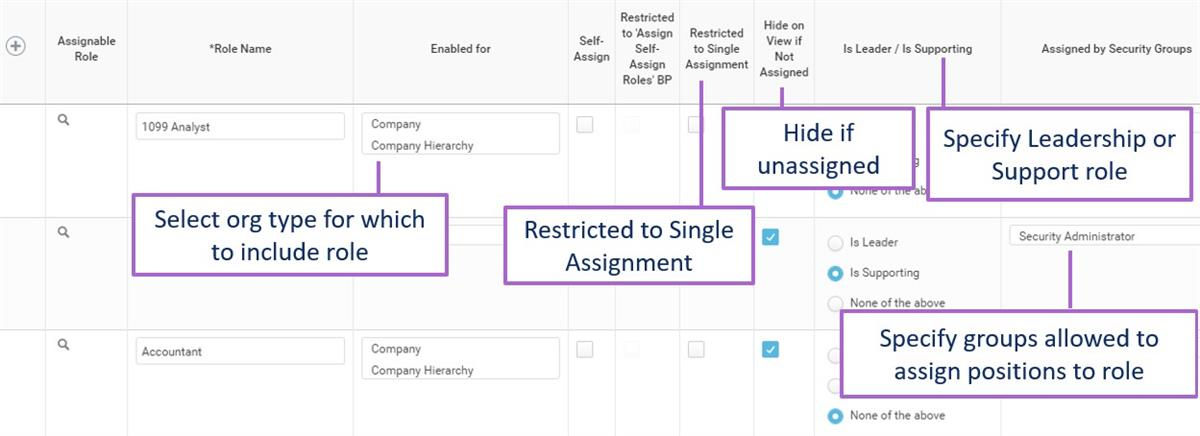
task to add, remove, and maintain assignable roles in the tenant. There are many fields available when configuring a role.The required elements are the Role Name, the organization Enabled for, and Assigned by Security Groups.
Maintain Assignable Roles
The available fields are:
Field | Definition |
|---|---|
Role Name | Provide a name for your role. Common names include the terms "partner," "manager," or "analyst." |
Workday Role (Optional) | There are certain Workday-provided roles (e.g., manager or partner) that Workday uses for nonsecurity purposes, such as populating applications or generating reports. Only the roles that appear in the prompt are available to map, and once they are, they no longer appear in the prompt list. |
Enabled for | Select the types of organizations for which you want to maintain and assign this role. Note : Workday discourages configuring a single role for multiple organization types because it can be difficult to determine how a specific user is able to access each secured item. The exception is for organization types where there is role inheritance between a hierarchy and its included organizations, such as cost center hierarchy and cost center. |
Default Role | Unassigned roles can inherit role assignments from a superior organization. This field allows you to select another role as the default assignment. Available default roles are other roles that are valid for the same organization type. |
Self-Assign | Select this option to default the role assignment to the organization creator's primary position. If you select Self-Assign and want additional approvals, then also select the Restricted to Assign Self-Assign Roles BP checkbox. |
Restricted to Single Assignment | Restrict the role assignment to one position. Do not select this option for the Workday Manager role if you want to assign multiple managers to a supervisory organization. |
Hide on Organization View if Not Assigned | When viewing an organization, you can find the roles enabled for that organization type and the assignments. With this option, you can choose to hide unassigned roles. The Unassigned Roles Audit report does not return roles for which you select "Hide on Organization View if Not Assigned." Do not hide roles used in your business process routings. |
Is Leader / Is Supporting | Select the Is Leader checkbox for roles whose assignees should display in the organization chart and organization preview as leaders. Workers assigned to an Is Leader role will display in the supervisory or matrix organization name when you select the organization's Include Manager Name checkbox. These options also drive the delivered My Leadership Roles and My Support Roles reports. |
Show inherited assignees for Security Groups | All inherited role assignments will display for the selected security group when viewing the Support Roles page of the worker profile and the Roles tab of the organization. |
Role Assignees Restricted to | Restrict a given role to members of a defined security group. When assigning the role, only members of the specified security group will be available. |
Assigned by Security Groups | Specify all security groups whose members you want to allow permission to approve role assignments for this role. Workday automatically assigns members of this designation to the Role Maintainer security group for the given role. |
Access Rights to Organizations
For constrained role-based security groups, there are four options for configuring access rights to organizations. You can constrain members to targets in organizations to which you assigned them the role and subordinate organizations.
The following is a summary of the options:
Access Rights | Definition | |
|---|---|---|
Current Organization Only (COO) | Constrains members to target instances in the organization that you assigned them to in that role. | 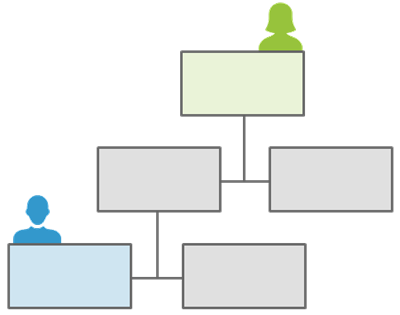
|
Current Organization and Unassigned Subordinates (COUS) | Constrains members to target instances in the organization you assigned them to and any subordinate organizations that do not have someone directly assigned to the role. | 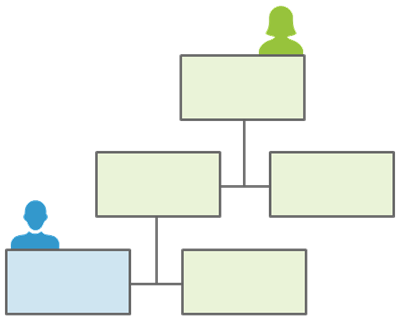
|
Current Organization and All Subordinates (COAS) | Constrains members to target instances in the organization you assigned them to and all subordinate organizations, regardless of whether you assigned others in that role in subordinate organizations. | 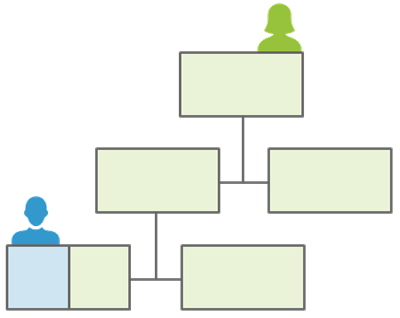
|
Current Organization and Subordinates to Level | Constrains members to target instances in the organization you assigned them to and subordinate organizations down to a number of levels in the hierarchy. | 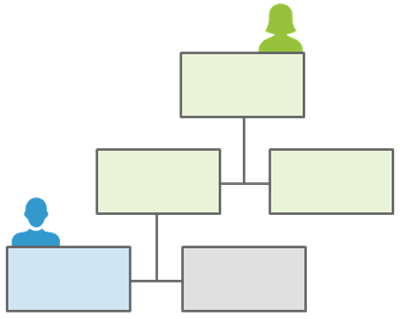
|
Modify Security Groups
In addition to creating security groups, you can view, edit, copy, and delete or inactivate security groups. The
Edit Security Group
task allows you to change the name of the security group and modify its configuration details. You cannot modify security group permissions using this task. The Copy Security Group
task allows you to optionally copy the security permissions and user assignments of a security group (if assigned manually).If you need to make multiple changes to a security group's domain security policy permissions, you can use the
Maintain Permissions for Security Group
task. Workday secured this task to the Security Configuration domain and allows permitted users to add or remove a security group from multiple domain security policies. Activate pending security policy changes after modifying permissions using this task.The
Delete Security Group
task only allows you to delete security groups that you have never activated for use in any domain or business process security policies.Domain Security Policies
Every domain has its own domain security policy where you configure which security groups have access to the items in the domain. Configure access at the domain level, not item-by-item. Users with access to a domain will have access to all items secured in that domain.
View vs. Modify Permission
Domains contain securable items that require either view or modify permissions to access the item. Workday grants a security group either view-only or view and modify permissions to a given domain security policy.
- View-only access grants users permission to only the domain items designated with "View" as the permission required. These items are typically reports and reporting item such as data sources and report fields. Security groups with view-only permissions cannot access any domain items that require modify permissions.
- Modify permissions grant users access to the "Modify" permission items as well as the "View" permission items. Security groups with modify permissions, therefore, have access to all the domain items.
Example
: If there are 10 items in a domain, where two items require modify permissions and the remaining eight only require view permissions, you can configure permissions so that a given security group only has view-only permissions to that domain, therefore only having access to eight of the items.Components
When viewing a domain security policy, you can find domain items as securable actions, reporting items, and integrations. Securable actions include items such as delivered reports and tasks. Reporting items include items such as data sources, data source filters, and report fields. Integrations include web service operations secured in the given domain. You configure access to integration permissions separately from report and task permissions. Security groups configured with Get permissions only, will only have access to the securable integrations that require Get permissions. Security groups configured with Put permissions, will have access to all the securable integrations in the domain (Get and Put).
Note
: Some domain actions and reporting items will show a permission of View Get. This permission indicates that security groups with Get permissions will also have access to that report/task item in the user interface (UI).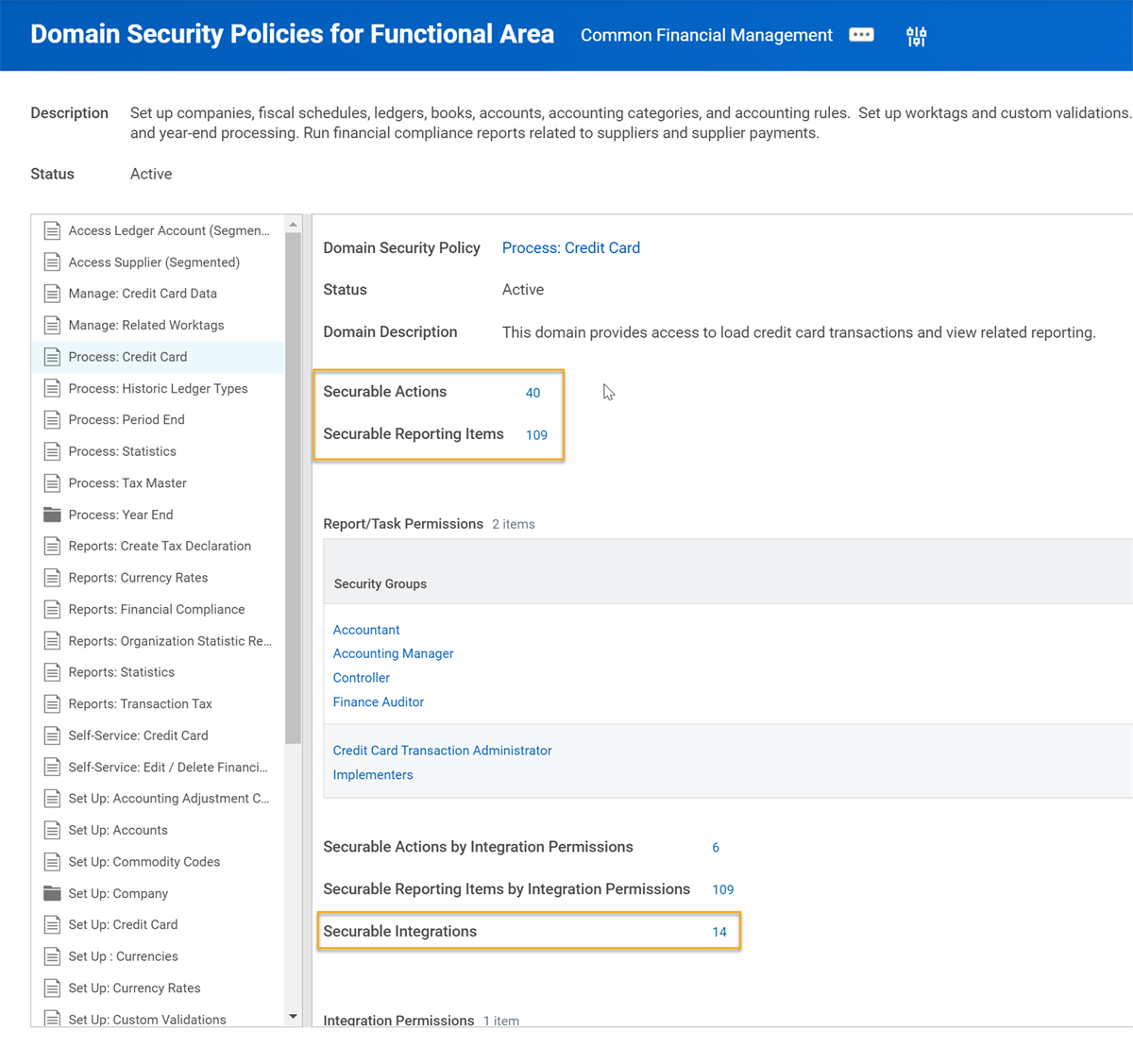
Domain Security Policies for Functional Area
By selecting the count of the securable items, you can find the details of each, and what permission level the item requires for you to access it.
Inheritance
Some domains have a hierarchical relationship in which there is a parent domain (or super domain) and a child domain (or subdomain). Workday determines these parent-child relationships and uses them when common security access is likely.
By having domain and subdomain relationships, you can configure the security in a parent domain security policy. Then, if the child policy requires the same security permissions as the parent, you can choose to inherit the parent policy permissions. If the child policy requires different permissions, you can override the parent permissions. The option to inherit vs. override can ease the setup and maintenance of security permissions.
Whether a child security policy is currently inheriting permissions from its parent displays in the Status field, under the Security Policy title. If it is inheriting, the status says "Active - Inheriting parent permissions." If it is not inheriting, the status shows Active.
Example
: The Setup: Financial Accounting domain contains many subdomains. The Setup: Configure the Accounting Rules child domain to inherit parent permission. Instead, you could select the Override Parent Permissions button to edit the security groups specified or adjust their access to view vs. modify.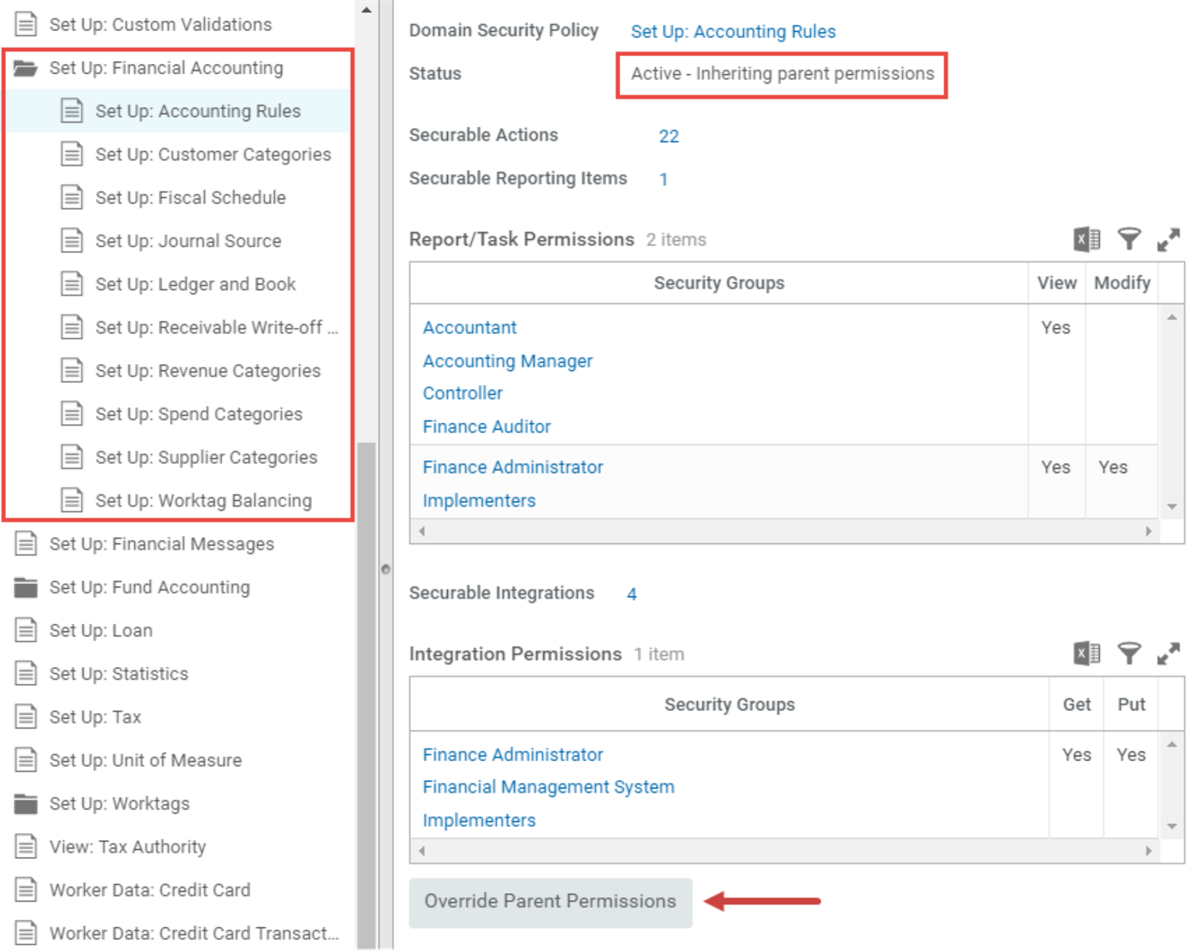
set up financial accounting screen shot
Security-Related Reporting
Report On Securable Item
Workday enables you to:
- Report on the securable items that are accessible to a specific security group using theAction Summary for Security Groupreport.
- Report on the security of securable items in a security policy using theView Security for Securable Itemreport.
- Report on the potential conflicts for various security groups using theSegregation of Duties - Potential Conflictsreport.
Action Summary for Security Group
This report allows you to view all domain security policies and business process security policies that use the specified security group. It enables you to notice all the policies that grant access to the security group, their functional areas, and the details for the securable items. Select a security group from the Security Group prompt. This report lists the domain security policies and business process policies on separate tabs. In the Secured Items column, select the number beside each type of secured item to view detailed information for each secured item of that type.
View Security for Securable Item
This report allows you to view what security groups grant access to the specified securable item. It also enables you to troubleshoot incorrect security access. Select a securable item from the Domain Items prompt. Workday displays a Domain Security tab if you secure your secured item through a domain security policy. Workday displays a Business Process Security tab if you secure your secured item through a business process security policy. Select any entry to view detailed information about that object, or use the Related Actions menu to perform actions on that object.
Segregation of Duties – Potential Conflicts
These reports allow you to identify potential conflicts for various security groups. For example, the
Segregation of Duties - Potential Customer Conflicts
report shows potential conflicts in security groups that can:- Create or edit a customer.
- Initiate a customer refund.
- Create a settlement run.
Other reports include
Segregation of Duties - Potential Supplier Conflicts
and Segregation of Duties - Potential Payroll Conflicts
, which provide similar information.