
Business Process Overview
Overview
The Workday business process framework is a powerful set of tools that enable you to automate business processes.
Through a series of demonstrations and hands-on activities, this chapter will introduce you to the fundamentals of business process configuration and administration to.
Objectives
- Modify a security policy to enable a new security group to complete actions in the business process.
- Modify a business process definition.
Security Policies
As you deploy Workday, you will configure security policies to ensure the appropriate security groups have the appropriate permissions. We will cover the following security groups, domains, and business processes in this chapter.
Security Groups
- Security Configurator: This user-based security group configures domain and business process security policies regardless of organization. This security group can also assign workers to security groups, but does not have any approval.
- Business Process Administrator: This user-based security group can create and maintain all business process setup data, including business process definitions, steps, condition rules, notifications, checklists, and to-dos. It provides visibility into all business process events.
Domains
Topic | Functional Area | Domain |
|---|---|---|
Business Process | System | Business Process Administration |
Benefits of Workday Business Process Framework
Workday is process driven and thus builds its applications on top of the business process framework. The benefits include:
- Integration with our system of record information, security, and organizational structures.
- Application consistency.
- Centralized audit trails.
One System of Record
Process | Definition |
|---|---|
Initiate | Who can initiate is determined by Workday configurable security. |
Business Process Event | Trackable throughout life of process and when completed. |
Process Definition | Configurable definition, approvals, reviews, checklists, and integrations. |
Security and Roles | BP steps sent to workers based on security |
Notifications | Users informed of tasks to be performed. Update users on what has been completed. |
Data and Reporting | Fields related to process updated report on process event and fields. |
Business Process Overview
A business process consists of process definitions and process events or instances created when you put these processes into motion. The business process definition defines the steps, tasks, actions, or sub processes that security groups need to execute and when for the process to complete.
Power of the Business Process
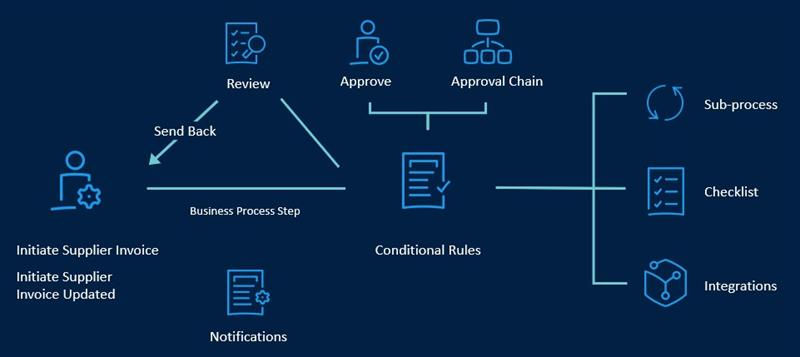
Business Process Terminology
To better understand the components of a business process and how they interact, it helps to know the relationships between organizations, security, and business processes.
- First, the initiator kicks off the business process of a certain type.
- Next, Workday determines which business process definition to use based on the target object.
- The task steps configured in the definition are sent to process users based on contextual security.
- The business process event is created.
- The target object is updated when the event is complete.
Term | Definition |
|---|---|
Business Process Type | A Workday-delivered business process that you automate using a workflow (i.e., Supplier, Supplier Invoice, Accounting Journal Event). |
Business Process Definition | The list of steps (tasks) that comprise the business process and the security groups responsible for completing them. |
Business Process Instance | Initiating a business process creates an event (instance). |
Task | A business process step that a user must complete. |
Initiator | The user who initiates the business process instance. Security drives who can initiate a business process. |
Security Group | A group of users with specific responsibilities and permissions. |
Target | The object that the business process affects. For example, for business processes that deal with an employee record, the target is the employee. For business processes that deal with a financial object, such as a supplier invoice, the supplier invoice is the target. The target controls which business process definition Workday uses. |
Business Process Event | A transaction for a worker when a business process starts (e.g., Accounting Journal, Supplier Invoice). |
The Business Process Definition
Business process definitions are configurable, so it is important to know how to locate the business process and the header section of a business process definition.
Report
: To access a list of all the business process definitions in the tenant, run the Business Process Definitions
report.To retrieve a specific business process definition, use the following shortcut in the search bar: "bp: name of the type of bp." For example, to find the definition for the
Expense
business process, search for "bp: expense."Consider the following header information:
Effective Date | Prior to configuring, an effective date is selected for when the new process should be used. |
Security Group Restrictions | Who is allowed to initiate the business process. |
View Diagram | Visual representation of the process flow. |
View Business Process Tabs
Tab | Definition |
|---|---|
Business Process Steps | Configured steps or tasks. You can order the steps in a specific sequence or in parallel. |
Notifications | Configured notifications sent to specified participants on entry or exit of step. |
Allowed Actions by Role | List of actions allowed in this business process type. |
Allowed Services | List of services allowed in the business process. Workday generates these services. |
Allowed Sub-Processes | List of business processes where you can add the current business process as a subprocess. |
Related Links | Links to external web pages. |
Business Process Columns
Column | Definition |
|---|---|
Step | The Related Actions icon appears in the left column and contains the available actions for a specific step of the business process. |
Order | Determines the order of execution for the steps within a business process. We recommend using letters.
|
If | A condition rule included as part of the business process to check specified values with logical comparison operators testing whether some action should run or continue. It consists of one or more logical statements, separated by the logical operators AND or OR. |
Type | Identifies step type. For example: Action, Service, or To Do (reference the Business Process Step Types chart in the next section of this manual). |
Specify | Further defines type of step. For example: Type = Action; Specify = Review Supplier Invoice |
Optional | An optional step you do not have to complete. The notification message on this step contains a link that the recipient can select to skip the step. The next step does not begin until the recipient either chooses to skip it or completes it. |
Group | Specify one or more security groups responsible for this step. Workday limits the available security groups to groups allowed by the security policy. This step automatically appears in everyone's My Tasks in the specified security group. Workday removes the step once someone completes the step. |
Routing Modifier | You can optionally define routing restrictions and alternate routings for certain business process step types You cannot reroute Initiation and Checklist step types. |
All | If you selected the All checkbox, everyone in the assigned group must complete the step. If you have not selected the All checkbox, as soon as one worker in the assigned group approves the request, the notification disappears from everyone else's My Tasks, and the business process continues. |
Run As User | Identifies the user for a Batch or Integration step type. |
Due Date | This column is the elapsed time from when the process begins until the process concludes. Business process administrators can configure business processes with due dates and step delays that include business days only, rather than purely consecutive calendar dates. Organizations in different locations can have different holidays. Thus, you can associate a condition rule with a calendar and use condition rules to determine which calendars Workday uses when you initiate a business process. |
Due Date Based on Effective Date | This column refers to the effective date that the initiator specifies when starting an instance of the business process. |
Complete | When a completion step finishes, the status of the business process changes to Successfully Completed, even if there are more steps to perform. Completion makes the data for this business process available to other systems like Payroll or General Ledger. If there is no completion step, you can consider the business process complete when the last step finishes. |
Business Process Step Types
Workday provides a variety of configuration step types. Available step types will vary based on the business process.
Report
: The Business Process Configuration Options
report displays the step types available for that business process type.Step Type | Definition |
|---|---|
Initiation | The initiation step defines who can start the business process. It is always the first step in a business process. You cannot remove the initiation step. |
Action | Action steps are either review steps or steps to initiate a subprocess. Examples include: An Action step of Review Employee Hire within the Hire business process, or to initiate the Review Tax subprocess if the Expense Report includes a VAT. |
Approval | Gives the designated approver the opportunity to approve, send back, or deny the entire business process. Note : Approval steps are not editable. |
Approval Chain | A sequence of approvals that starts with an individual, then goes up the management chain until it gets to the top or until you meet an exit condition. Use the Group column to set the security group that starts the chain. Like an approval step, an approval chain also approves the entire business process. |
Batch/Job | You can run a batch process as a business process step. Use this step type and specify the batch process to use. |
Checklist | A collection of To Do steps. Select one of the checklists available for this organization. |
Complete Questionnaire | Distribute questionnaires as a part of a business process to gather relevant information for making data-driven decisions. Not all business process definitions can include questionnaires. |
Consolidated Approval | Combine multiple approvals for the same worker into a single approval task notification. On the approval page, the approvers have simplified information for each step, but with a link to more information if they need further detail. As with a single approval, if the approver denies the approval, Workday denies the entire business process. |
Consolidated Approval Chain | This step combines the properties of an approval chain with the properties of a consolidated approval. |
Edit Additional Data | Used to edit custom fields within the context of a business process. Note : Business process validation rules do not apply to this step. |
Integration | An integration step is a Workday system operation that transfers data to or from an external application. An integration step also initiates a separate processing thread. |
Report | To help inform your users' business decisions, you can run a Workday report as a business process step. Workday automatically sends the output to the users' W: drive. You can create a To Do step within the business process that consolidates one or more links to one or more reports within a single To Do step. |
Report Group | The same as the Report step, but for a report group, which allow multiple reports (e.g., financial reports) to run as a single unit. |
Review Documents | Uses a business process to distribute documents to workers. These documents can include custom or standard reports and can also require electronic signatures. |
Service | Kicks off a separate processing thread (e.g., creation of a Workday user account). |
To Do | An activity that the responsible worker must do inside or outside the Workday system. |
Mass Approval | Provides a dashboard for multiple approvals from a single process. Mass approval is only available for processes that deal with multiple organizations, like bonus, merit, and salary actions. |
Shared Participation Step | When a shared participation step launches, participants receive a notification of their involvement in the business process. Depending on each participant's role, they may need to perform specific actions. Each of these actions is a participant detail event. |
Business Process Visualization
The business process visualization tool helps users understand how and to whom Workday routes steps. To engage this tool, select the View Diagram button from the View Business Process Definition page.
The "swim lanes" represent the various security groups that will participate in the process along with step types and any configured condition rules.
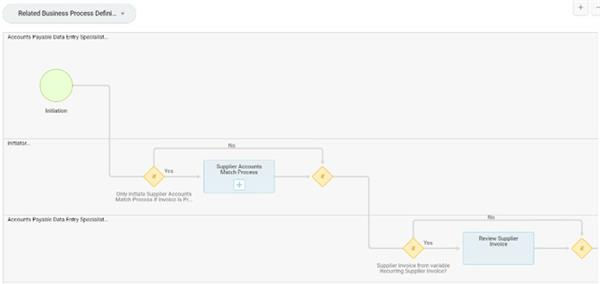
BP definition for visualization screen shot
Step conditions, step delays, routing restrictions (including alternate routing groups), and the completion step display as annotations on the diagram. If more than one role can perform the steps in a lane, you can view a list of all roles that perform these steps. By hovering over the displayed role. Similarly, if you define multiple alternate routing groups on a business process step, you can view a list of all roles that perform the steps by hovering over the step annotation. Doing so allows you to access all of the alternate routing groups defined on that step.
Select any step in a business process to view more information about that step. If you configure notifications on that step, select the step to view the entry and exit notifications.
Organization Process Hierarchy
The Workday-recommended approach is to use a default business process definition for your global organization, including any necessary condition rules, to determine the flow of execution. However, in some situations where the execution of the steps varies greatly, it is preferable to create separate definitions for different organizations.
The chart below compares the pros and cons of using the default business processes across your organization compared to creating organization-specific business processes.
Default Business Process | |
Pros | Recommended Approach
Ease of Maintenance |
Cons | Complex conditional rules can slow processing time |
Organization-Specific Business Process | |
Pros | Cleaner, easier to analyze
Better performance if complex rules are otherwise necessary |
Cons | Maintenance: If common steps are needed across all copies
Testing: Ensuring the right business process is being used. |
When you configure organization-specific business process definitions, Workday uses a process hierarchy to determine which business process to use. First, Workday checks if there is a business process associated with the target organization. If there is a specific business process, then Workday will use that one. Otherwise, Workday will check if the superior organization has an associated business process definition and will use that one.
If there is still no business process associated with any superior organization along the hierarchical chain, then Workday will use the default business process.
To determine which business process definition an object uses, navigate to the business object and select Business Process, and then Business Process Definitions for Business Object.
Editing Business Processes
You can configure business processes to meet the needs of your organization. Configurations start with a baseline business process, and from there, you can add, change, reorder, or delete steps. You can specify the security groups involved in the steps, configure features like condition rules, help text, notifications, and step labels.
Report
: The Business Process Configuration Options
report contains descriptions of configuration options for each business process.Define security groups first in the business process security policy before defining them in your business process. The functions available and individuals involved drive the business process definition.
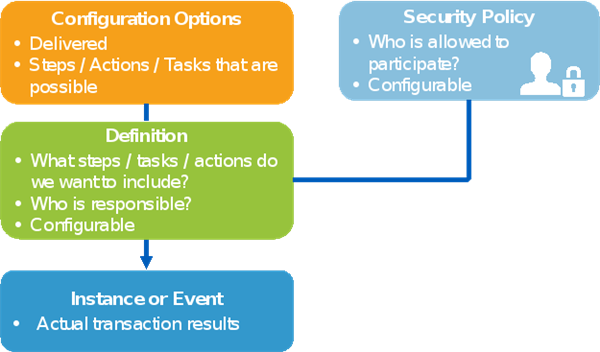
Edit and View Mode Overview
When working with business process configuration, we will be working in two modes to do our configurations - Edit and View. Refer to this chart if you need guidance as to which modes dictate which configuration options. To edit the business process, from the business process's Related Actions, select Business Process, and then Edit Definition.
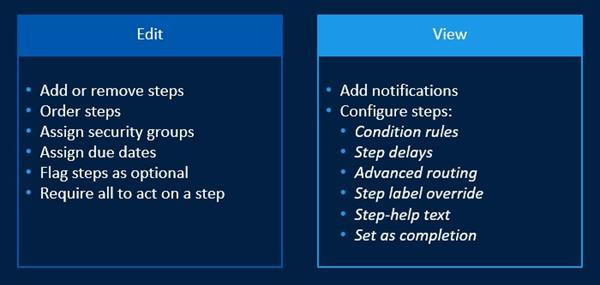
Step Configurations in View Mode
You will use View mode to make some of the step configurations. The chart below outlines what function each of the menu options provides:
Menu Option | Function |
|---|---|
Create Condition Rule | Create a condition rule saved to a library of rules. Note: This option just creates the rule. It does not add the condition to the step. |
Maintain Step Conditions | Select and add an existing condition rule to the step. You can also create a condition rule using an intratask in this option. |
Maintain Step Delay | Create a time delay before Workday executes the next sequential step. |
Maintain Advanced Routing | Prevent an approval on one's own behalf because they are the initiator, prior approver, or the subject of the event. |
Maintain Step Label Override | Define or override the label of the step as it appears in the user's My Tasks. |
Maintain Step-Help Text | Configure instructional text to guide users through that step in the business process. |
Set as Completion | Indicate the completion step in the business process. Every business process has a completion step. |
Basic Step Types
You can create new steps in Edit mode of the business process. We will explore the basic step types, what they drive in the business process, and give examples of how to use the steps. The process selections vary, depending on the business process you are editing. Only actions that make sense are available. The action you specify here must complete before the next step can start.
Action
Action steps are either review steps, or they are steps to initiate a subprocess. Review steps are like approvals, but they allow the user to edit the business process data.
Example
:- In theExpense Reportbusiness process, you might have an Action for the Expense Partner to review or audit every fifth expense report. Another action might be for the Tax Manager to review the tax if the expense report includes a VAT.
- In theCustomer Invoice Email Eventbusiness process, you might have an Action for the Accounts Receivable Specialist to review the customer invoices before emailing them.
To Do
A To Do is a reminder or activity that the responsible worker must perform within or outside of the Workday system. You can group to-dos grouped into checklists.
Example
:- In thePeriod Close Eventbusiness process, the accounting manager has a To Do step to close ledgers for operational transactions. The controller has a To Do step to publish reports.
When configuring a To Do step, you may also create a static link to an external site URL or a SAML single sign-on (SSO) link. Additionally, you can associate tasks with the To Do. When you associate a Workday task, everyone who receives the To Do from a business process receives a link to the task in their My Tasks.
Note
: You can associate To Do steps with any active security groups in the tenant. Workday does not tie To Do steps to restrictions in the business process security policy like tasks and actions are when added to a business process definition. You can also use a mass action to cancel To Do steps.Tip
: Run the To-dos
report to access a list of the To Do steps used throughout the business processes. You can also find helpful information such as how often you use To Do steps (Event Usage Count) and in which specific business processes.Service
A Service step is a Workday-owned automated process you can include in the business process. Like an Action step, a Service step kicks off a separate processing thread.
Example
:- The Create Workday Account service step automatically creates a user account from the User Name Rule and emails a temporary password to the new user.
- The Document Delivery service step transports an integration output file to an external server.
Setting the Completion Step
The Completion step indicates when the business process is successfully complete, even if there are more steps to perform. This means it does not have to be the last step in the process. Completion makes the data for this business process available to other Workday products, like Payroll or Financial Accounting.
Example
: You can consider a supplier invoice complete with accounting generated and still have additional steps after the completion step. Completion can also trigger other processes, such as notifications.Note
:- All Approval and Review Action steps must come before the Completion step.
- There cannot be more than one Completion step in a business process; however, other subprocesses called with an Action step can each have their own Completion step.
- If there is no Completion step, the business process completes when the last step finishes.
To set the Completion step, in View mode, use the chosen business process step's Related Actions and select Set As Completion. Indicate the effective date and time zone of the change.
- If you enter the current date in the specified time zone, the changes take effect immediately. Users in other time zones notice the changes immediately.
- If you enter a future date in the specified time zone, the changes take effect at midnight on the specified date in the specified time zone. Users in other time zones will notice the changes at the corresponding date and time in their time zones.
- If you enter a past date in the specified time zone, the changes take effect at 11:59:59 PM on the specified date in the specified time zone. Users in other time zones notice the changes at the corresponding date and time in their time zones.
Order of Execution
You can specify the order in which certain items occur within a business process, including:
- The order of business process steps.
- The order of rules in a condition.
Order is set by entering one or more alphanumeric characters in the Order column. We recommend using letters, because Workday sorts numbers sequentially, not numerically; 10 sorts before 2.
Order the steps in the business process using lowercase letters.
- In business processes, the Initiation step is always a lowercase "a." Use only character strings in the Order fields, for example, starting with b through z (upper- or lowercase). Using an uppercase A (or any numbers or special characters) generates a warning that the Initiation step must be the only first step.
- If you add an item with two letters, such as ca, it runs after step c. You can use as many letters as you want to insert separate steps. Use this method to insert a step without having to change the order designation of subsequent steps, e.g., a, b, c, ca, cb, cc, d.
- You can skip letters. For example, having order designations of a, b, c, d, f is fine.
- Lowercase letters appear below their uppercase versions.
Parallel Steps
You may want to execute some steps in parallel. To do so, use the same letter for each of the steps you want to complete in parallel. You can complete parallel steps in any order, but all must be complete before the next step starts.
Condition Rules
A condition rule is a method of checking specified values with logical comparison operators to test whether some action should begin or continue. It consists of one or more logical statements, separated by the logical operators AND or OR. Once created, this new rule can appear on the list of delegation, alert, or condition rules, and you can reuse it. For instance, you can place a condition rule on a step to specify when to run the step or to specify when to exit a step.
The chart below provides more descriptive definitions of the different types of condition rules available:
Conditions | Definition |
|---|---|
Validation Conditions | Initiation and action steps can have a validation condition. If any condition is true, Workday blocks the step from exiting. If all conditions are false, the step will exit and the process will continue. Note : Workday built the ability to revise the associated business process into the business process so that validation conditions are available on initiation steps. You need this ability in order to send the step back to the user's My Tasks when a validation condition occurs. |
Entry Conditions | Used to specify when to run a step. If the condition is true, the step runs. Workday does not require the step if the condition is false. All step types can have an entry condition, except initiation steps. Note : Some business process definition Action steps have Workday-supplied entry conditions that you cannot edit. However, you can specify additional entry conditions for these steps. Workday evaluates both the Workday conditions and your conditions when the business process runs. Workday skips any step that does not satisfy all entry conditions. |
While Running Conditions | Only an Approval Chain step can have a While-Running condition. This condition works like an entry condition for each approver in the chain. It compares the next approver to some value, and if the condition is true, the step routes to that approver. If the condition is false, it skips the current approver and moves on to evaluate the next approver in the chain. |
Exit Condition | Used to specify a condition when a step should exit. Only an Approval Chain or Integration step can have an exit condition. For approval chains, this condition evaluates the approver who just completed this level of the chain, and if the condition is true, the approval chain step exits. Like the While Running condition, an Exit condition is also working while the chain is running. The difference is that when the transaction meets the condition, the Exit condition exits the step. For an Integration step, the exit condition tests for a response from the external service before the step can exit. |
Create or Maintain Step Conditions
You can add or change the condition associated with a business process step. From View mode of the business process definition, from the step's Related Actions, select Business Process, and then Maintain Step Conditions.
Rule Condition Column Definitions
When creating a condition rule, reference the table below for column definitions:
Column | Definition |
|---|---|
And/Or | Logic between conditions |
Source External Field or Condition Rule | Single field or select an existing rule |
Relational Operator | Changes dynamically based on field or rule selected. |
Comparison Type | Leave default unless comparing one field to another. |
Comparison Value | Select eligible or ineligible values rule - Yes/No |
Troubleshooting
Unassigned Tasks
An unassigned task is one for which the specified security group does not point to or contain a worker. You also can have an unassigned task if you deactivate the Workday account, or if it is expired or locked. If the worker has no user ID and password, they cannot access Workday to receive their notification or complete their assigned step. The
Unassigned Tasks
report also shows steps where this is the problem. This is not the same problem as a worker going on vacation and needing to temporarily reassign their tasks to other workers. For vacations or other temporary needs, you can reassign a task.