
Financial Accounting Setup
Overview
Workday provides the financial accounting capabilities necessary to satisfy the information requirements of investors, creditors, and regulatory authorities in the post Sarbanes-Oxley business environment. Workday delivers financial records and reports with speed, accuracy, and a complete audit trail. With financial accounting, the foundation for Workday Financial Management, you can manage all your accounting activity and report on that activity at any time.
Objectives
By the end of this chapter, you will be able to:
- Identify the required security groups for financial accounting setup.
- Configure the mandatory company accounting details.
- Apply the concept of the recommended approach to account set setup.
- Create an Actuals ledger for your new company.
- Create the Ledger and Fiscal year and period.
- Maintain ledger period status.
Financial Accounting Setup
Before you can begin creating and posting financial transactions, you need to set up financial accounting details for each company. Financial accounting requires you to:
- Edit company accounting details
- Create a ledger
- Create ledger year and ledger periods
- Maintain ledger periods
Security Policies
As you deploy Workday, you will configure security policies to ensure the appropriate security groups have the right permissions. This chapter covers the following security groups, domains, and business processes.
Security Groups
- Finance Administrator: This user-based security group can create and maintain all financial setup data, regardless of organization. Examples include financial institutions, financial accounting data, ledgers, journal sources, account control rules, and fiscal schedules.
- Accounting Manager:This role-based security group can view reports and create transactions related to accounting journals, and open and close ledger periods and years for assigned organizations.
Domains
Topic | Functional Area | Domain |
|---|---|---|
Accounting Setup | Common Financial Management | Set Up: Accounting Rules Set Up: Accounts Set Up: Company Accounting Set Up: Financial Accounting Set Up: Fiscal Schedule |
Ledger Setup | Common Financial Management | Set Up: Ledger and Book |
Business Processes
None.
Financial Transaction Flow
There are two types of journals in Workday:
- Accounting Journals: The journals that accountants create manually for accounting purposes not tied to transactions.
- Operational Journals: The journals that Workday creates automatically for operational transactions that you enter through the various Workday transaction tasks.
Company Accounting Details
The first step is setting up the company accounting details. Company accounting details include:
- Currency*
- Fiscal Schedule*
- Account Set*
- Account Control Rule Set**
- Account Posting Rule Set**
- Account Translation Rule Set
- Default Reporting Book
- Procurement Tax Option
- Journal Reversal Option*
Note
: *Accounting details requiring configuration. **Accounting details with recommended configuration as part of the Workday recommended approach methodology.Configure the accounting details individually and then associate them with the company through the
Edit Company Accounting Details
task.Once you create a financial transaction, you cannot change the currency, fiscal schedule, or account set for a company.
Before you can associate each accounting detail with a company, you must first define the available values for each one. Once you set up your company accounting details, you can:
- Create a ledger year and ledger periods.
- Route journals that exceed account thresholds to approvers.
- Post journal entries to specific accounts according to posting rules.
- Use translation to translate financial reports from a base currency to a reporting currency.
Tip
: If you deployed Workday Expenses, Workday Payroll, or Workday Procurement before Workday Financial Management, the company accounting details are already complete.Currency
Select the base currency in which to perform accounting for the company. Having a base company currency enables you to use multiple currencies across your Workday deployment.
Workday uses the base currency for all financial transactions within that company by default, such as with supplier invoices, customer invoices, or expense reports.
Workday converts any foreign currency to a company's base currency for accounting purposes. First establish conversion rates from other currencies to the company's base currency.
Note
: You cannot change a company base currency if you have:- Created a journal for the company (and therefore have accounting activity).
- Associated an account control rule set to the company (as the set includes a currency as part of its definition and must match the company currency).
Fiscal Schedule
Fiscal schedules are the calendars that businesses use and can share for financial accounting and reporting purposes. They are distinct from calendar years; though you can choose to have the two coincide. In Workday, you use fiscal schedules as the building blocks to create fiscal years and their periods. Fiscal schedules themselves do not contain specific years.
A fiscal schedule contains posting intervals, the chronological periods into which you divide the calendar. Each interval represents a period within a fiscal year. Two common fiscal schedules are: a standard schedule that uses one interval for each month of the year, and a 4-4-5 schedule, which divides a year into four quarters. Each quarter has 13 weeks, which Workday groups into two four-week periods and one five-week period.
Because financial transactions and events have an associated date, you can use your fiscal schedule and fiscal years to control accounting and reporting.
- Use theCreate/Edit Fiscal Scheduletask to create a new fiscal schedule. Typically, you only need one fiscal schedule to share across all your businesses. If you need more than one, include a distinguishing characteristic in each name for easy identification.
- Complete theMaintain Fiscal Schedule Posting Intervalstask to define the posting intervals to apply to any fiscal year that you create for the fiscal schedule.
Fiscal Year
Workday creates fiscal years only within fiscal schedules. Each year within the schedule must share the same posting intervals - what differs is the end date from one year to the next. For example, in a 4-4-5 fiscal schedule, the end date of period 1 might be January 23 for fiscal year 2010 and January 25 for fiscal year 2011. Both years share January as period 1.
After you create the initial fiscal year, the posting intervals are in use and you cannot add, delete, or change the order of them. You can only rename.
You can create the initial fiscal year through iLoad or using the
Create Initial Fiscal Year
task.Fiscal Schedule Summary Intervals
You can also combine several posting intervals of a fiscal schedule into consolidated reporting units, such as quarters or half years.
You can add, change, or delete summary intervals anytime.
Account Sets
Ledger Accounts
A ledger account is an account or record used to sort and store balance sheet and income statement transactions. Ledger accounts include a ledger account identifier, usually a number, account name, and ledger account type.
Identifier | Account Name | Ledger Account Type |
|---|---|---|
1000 | Cash | Asset |
In Workday, you build your ledger accounts and their hierarchical relationship to each other. This establishes your Chart of Accounts (COA), as well as a collection of accounts that you can use for financial reporting purposes.
There are four main components to building ledger accounts: account types, account sets, ledger accounts, and account summaries.
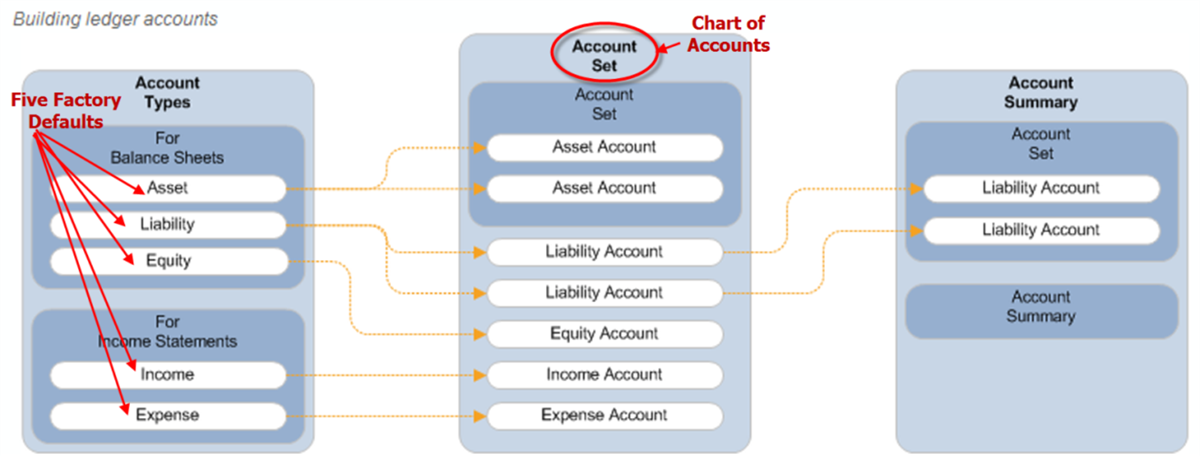
chart of accounts diagram
Account Types
Account types define the types of accounts that are available for financial statements. You can define unique types for balance sheets and for income statements. When you build account sets, you associate an account type with every account. You can also use account types to build financial statement conditional rules for use in financial statement composite reports.
Account Sets
Account sets define a group of ledger accounts for a company. You can set up an account set as a COA or not. Within an account set, you can include accounts directly or by linking the account set to another set.
Important
: Once you tie an account set to a company and post transactions, you cannot remove it.Account Set – Recommended Setup
The recommended setup approach is to create a parent account set and use it as a shell Chart of Accounts (COA). The parent would contain no account values; however, it would include a child account set containing all of the detail values. This would allow you to switch out an entire set of accounts if necessary, such as an acquisition.
Detailed below are the Standard/Workday parent child account sets. Add new accounts to the Workday account set.
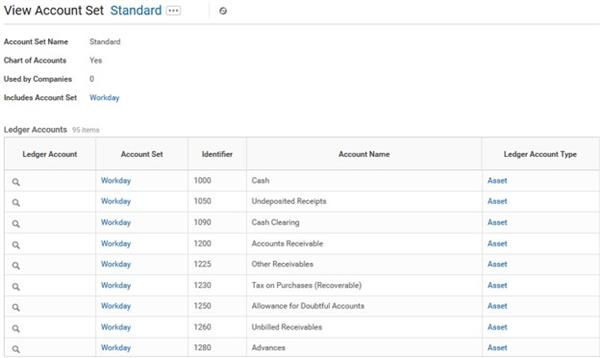
parent with COA selected screen shot
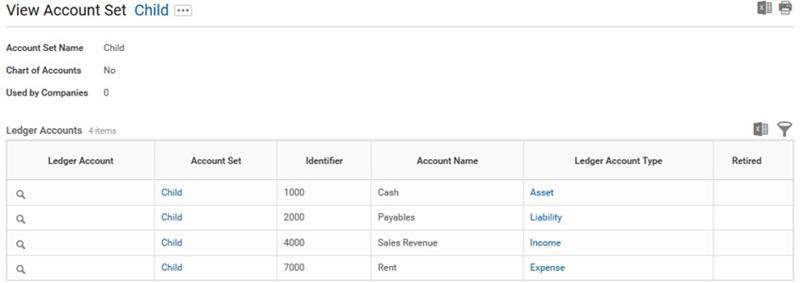
edit account set screen shot
Account Set | COA | Details | Summaries | Include Account Set |
|---|---|---|---|---|
Parent | Checked | None | Yes | Child |
Child | Unchecked | Accounts | No | Empty |
Alternate Account Sets
Legal entities operating in certain countries must file financial information to the local authorities or federal regulators. Alternate Account Sets in Workday allow you to define mapping rules between a corporate account set and an alternate account set for local statutory reporting. For example, a US-based company may need to record transactions to a specified account number, which complies with French regulations for chart of account rules.
Retiring Ledger Accounts
You can retire ledger accounts you posted past transactions to if you no longer want the account to be available for use. The account still appears in reports where you have used it. For historical purposes, you cannot delete accounts that you have used.
You cannot retire a ledger account while it is in use in an account posting rule.
If you have used the account to accumulate or report on, you can retire the account, but not delete it. This includes accounts used for financial statement reports, definition of an allocation source, or elimination rules for "used by" accounts.
Account Summaries
Account summaries roll up select accounts from a given account set into a group for financial statement reporting. You can also embed account summaries within other account summaries, creating more levels of hierarchy. Create any number of account summaries with accounts grouped differently for different reasons. You can use account summaries to aggregate accounts into a single line on a balance sheet or income statement when you define them. You can also use account summaries in allocations to group accounts when defining a source or basis.
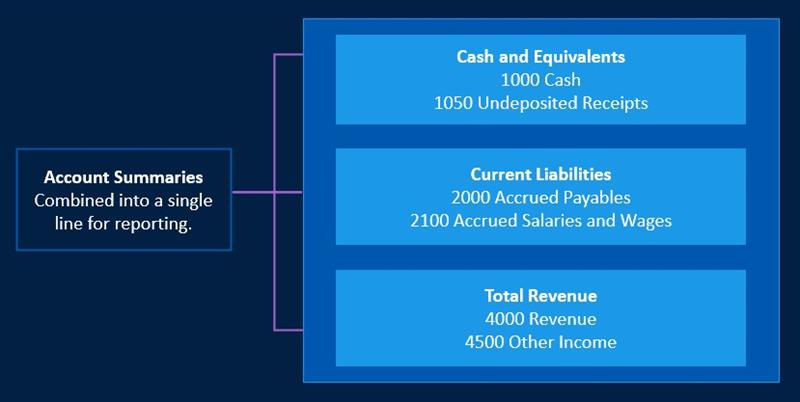
Account Control Rule Set
Account control rules enable you to manage basic approval thresholds at the account level for your companies. Whenever there is a ledger account number on an accounting journal exceeding the account control rule set threshold, route the journal for approval per the business process rules. As you add additional accounts, you add thresholds for them in an account control rule set without having to modify your business process definitions.
In this example, there is a new control rule set called Standard Account Control Rule Set that applies to the Standard account set. In this case, a rule specifies that if the 1000: Cash ledger account occurs on an accounting journal line in an amount above $500, the journal requires approval. This will then run the
Accounting Journal Event
business process and route for the appropriate approval.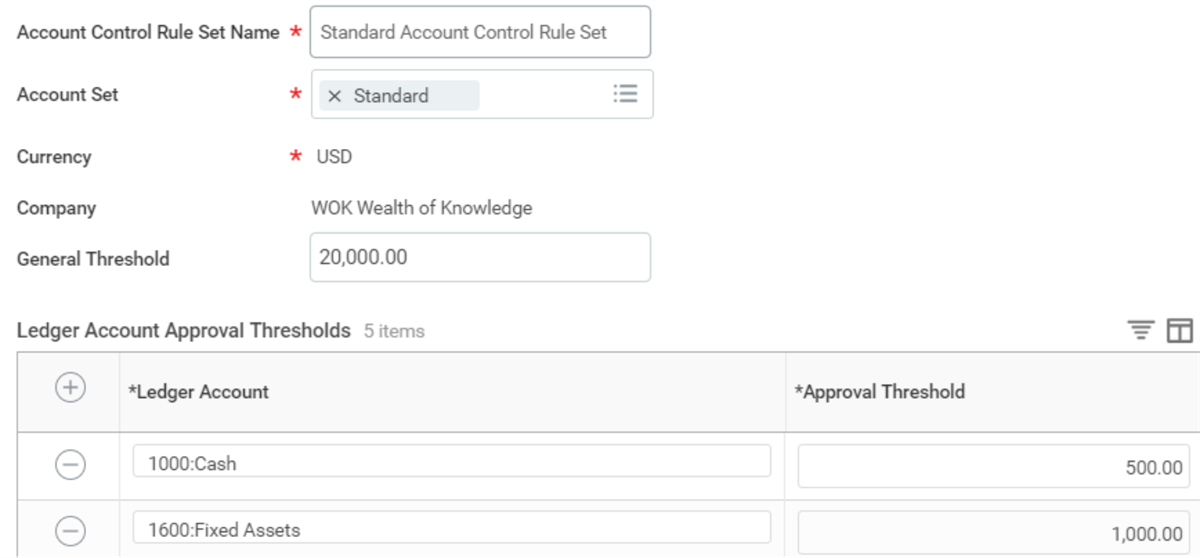
account control rule set screen shot
This is an optional step that is only available for chart of account (COA) types of account sets. Note that if you want to define account approval thresholds to be more granular (per person), you must build that into the business process framework.
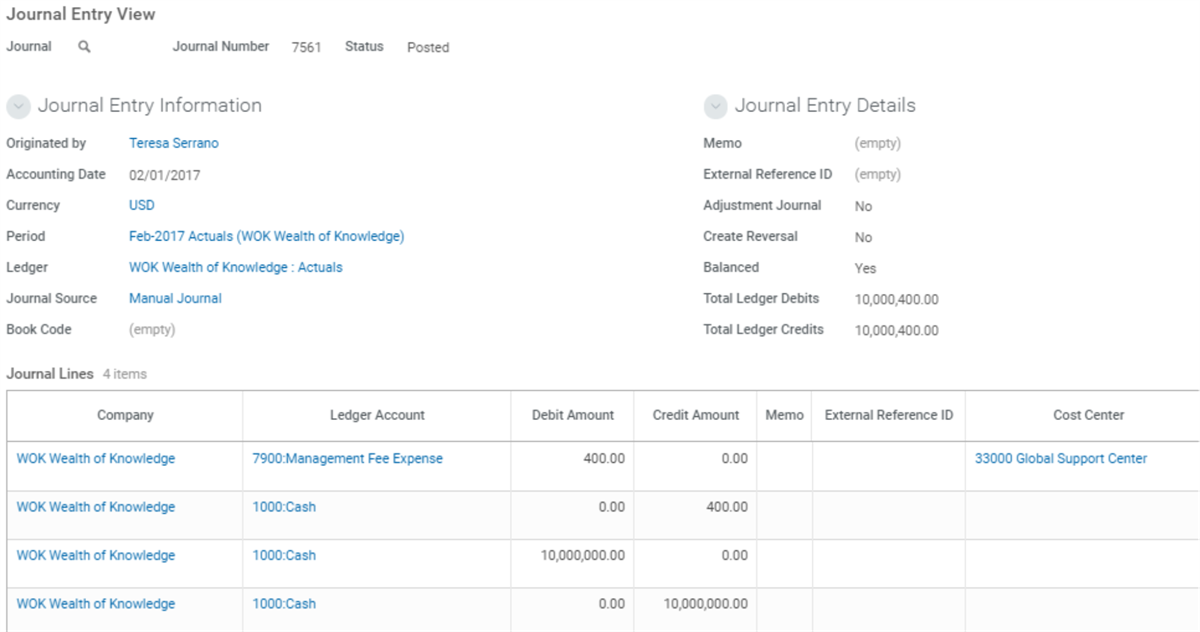
For example, this journal does not need approval because the net change to the 1000: Cash account is only $400, which is below the approval threshold:
journal entry view WOK screen shot
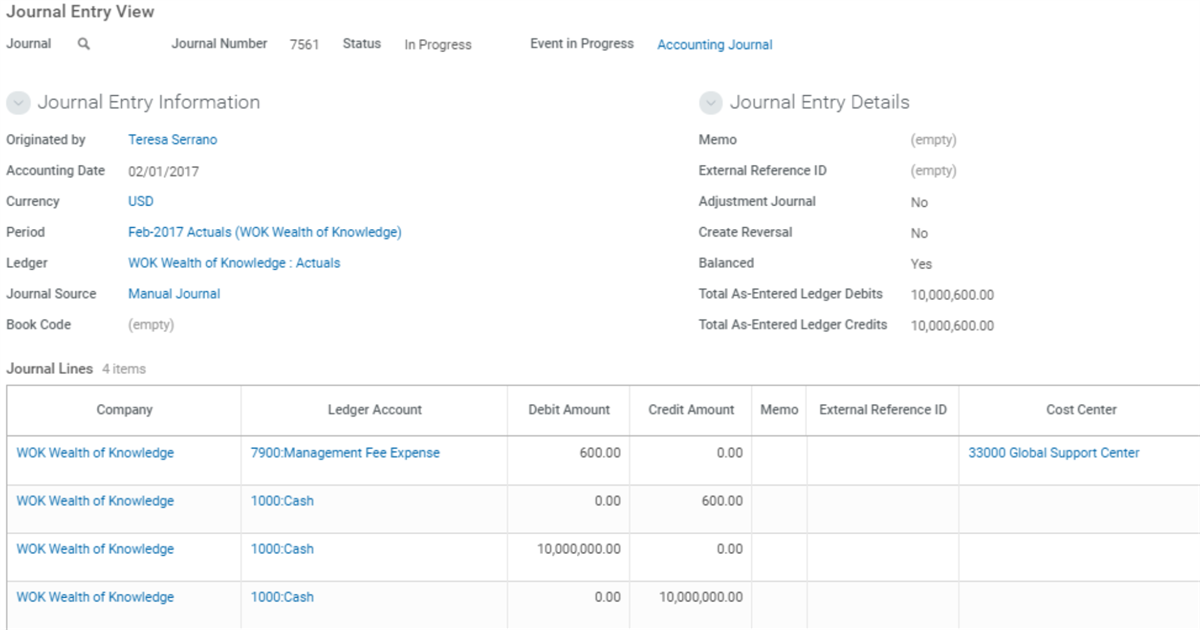
However, the journal needs approval because the specific ledger account, 1000: Cash, has an approval threshold of $500 and the net change to that account is $600.
journal entry view screen shot
Account Posting Rule Set
Workday automates the accounting resulting from business operations. Workday creates journals behind the scenes for operational transactions, and uses posting rules to interpret the business events into debits, credits, and accounts. Operational journals use account posting rules to determine which ledger account to use for a specific operational journal. Each posting rule is for a specific operational transaction. Edit these rules to specify the conditions and edit the ledger accounts to instruct Workday where to post debits and credits.
Account Translation Rule Set
Assign a value to default the translation rule set when you run translated financial reporting for the company. Select from the account translation rule sets that share the same account set as the company. You can assign the same rule set to more than one company. Use the
Create Account Translation Rule Set
task to define values.Default Reporting Book
Select a default reporting book for your tenant. Workday displays this default in the Book field for reports where book is a selection parameter. You can also control this default book from the Tenant Default checkbox in the
Maintain Books
task.You can also define a default book for a company hierarchy (using the
Edit Consolidation Details
task) or company (using the Edit Company Accounting Details
task). Each supersedes the tenant-level default.Note
: If you defined more than one book but you did not set a default book, you will need to select a book when you run a financial report. Otherwise, the report returns results for all books and you risk double counting. Workday strongly recommends that you define a tenant default reporting book.Procurement Tax Option
Select how you want to record tax for the transaction. This setting defaults from the company accounting details to the transaction.
Journal Reversal
You can generate reversal journals in Workday when you change or cancel an approved operational transaction or when you reverse a posted accounting journal. The reversal journals provide a complete audit trail of the journal entries. They enable you to comply with legal requirements in countries where you cannot modify or cancel a posted journal. Workday creates reversals of accounting or operational journals when you select one of the following options using the
Edit Tenant Setup - Financials
task journal reversal options:Option | Description |
|---|---|
Always Reverse Operational Journal | Workday always creates a reversal journal when you cancel an operational journal. |
Always Reverse Accounting Journals | Workday always creates a reversal journal when you unpost an accounting journal. |
If you do not select an option, Workday will change the status from posted to canceled for operational journals and from posted to unposted for accounting journals. Workday does not create a reversal journal.
Journal Reversal Option
Choose how you want to record reversals. Select whether to reverse the debit and credit or to keep the debit and credit and reverse their plus (+) and minus (-) signs. You can change your selection at any time. Your changes take effect going forward; with no history changes.
Ledger Setup
Create Ledger
Workday stores accounting results from your original journal entries in ledgers. Your company must set up an actuals ledger and, optionally, a commitment ledger and obligation ledger. For both the commitment and obligation ledger types, select whether to enable the creation of commitments and obligations for procurement and payroll transactions (payroll and fringe benefits).
Note
: Before you can create ledgers, ledger years, and ledger periods, you must:- Define the company for which you want to create the ledger.
- Establish the fiscal schedule and its fiscal years.
Create Ledger Year and Ledger Periods
When you set up your fiscal schedule, you set up posting intervals, which are the chronological periods into which you divide the calendar. Financial transactions and events have an associated date that controls which period the transaction posts to. Before you begin posting, you must create the year and periods based on the fiscal schedule that you defined earlier.
Workday assigns the created status for the ledger year and ledger period, but not available to post because by default they are in a "created" status. Workday does not create an additional period for adjustments.
Tip
: If you deploy Workday Expenses, Workday Payroll, or Workday Procurement before a full Workday Financial Management deployment, then an actuals ledger will have been associated with the company.Journal Sequencing
You can enable journal sequencing for a company and define the rules that Workday uses to create sequence ID generators for unique, sequential, and gapless journal sequence numbers. Workday derives the sequence ID generators based on the journal's source and accounting period.
To enable journal sequencing, the journal sequence Start Period and all subsequent periods:
- Must be in Created, Closed, or Not Available ledger period status.
- Have no posted journals from the specified Start Period.
You can only disable journal sequencing for a company if:
- You have not used sequence ID generators to assign a sequence number to any journals.
- You have deleted all sequence ID generators.
Ledger Period Status
Period statuses control what you can post in your accounting period and by which source. This configuration is especially useful since it prevents incremental posting coming from the operation while leaving the ledger open for accountants to perform period-end adjustment journals.
You can set up different statuses for ledger periods that will affect the activities that you can perform during that period.
Period Status | Accept Operational Journal | Accept External Feeds | Permit Payroll Activity | Permit Accounting Journals, Depreciation, and Receipt Accruals | Permit Journal Adjustment Activity |
|---|---|---|---|---|---|
Not Available | No | No | No | No | No |
Created | No | No | No | No | No |
Open | Yes | Yes | Yes | Yes | Yes |
Close in Progress | Yes* | No | Yes* | Yes | Yes |
Adjustments Only | No | No | No | No | Yes |
Closed | No | No | No | No | No |
* Depends on the activity group chosen.
Close in Progress
Workday provides configurable period close activity groups that categorize operational transactions and accounting activity. Configurable period close activity groups provide greater control over the close process by allowing you to close these groups independently when updating ledger period status.
By classifying operational and accounting transactions in period close activity groups, you have the flexibility to select which groups to close while leaving others open for activity. You can then select the period close activity group from the Closed Activity field.
The
View Period Close Activity Groups
report lists the period close activity groups and displays their associated operational transaction and accounting journal sources. The Maintain Period Close Activity Groups
task allows you to configure the operational transaction types in each close activity group.The Workday delivered activity groups include:
- Assets
- Banking
- Customer Accounts
- Expenses
- Equity Pickup
- Journals
- Operational Accounting
- Payroll
- Procurement
- Student Accounts
Note
: If you have journals and pending transactions that you have not completely processed, understand what the accounting impact is going to be before closing the period. When using a close checklist within Workday, you can include each of these status updates as part of your business process steps.Review: Financial Accounting Setup
Field Name | Entry Value |
|---|---|
Field Name | Entry Value |
|---|---|
Field Name | Entry Value |
|---|---|
Company Accounting Details | Currency
Fiscal schedule
Account set
Account control rule set
Account posting rule set
Journal reversal options |
Ledger | Actuals
Commitment
Obligations |
Ledger Year and Periods | Company
Fiscal year |
Maintain Ledger Period | Created
Open
Closed
Close in progress
Adjustments only |
Close and Consolidation Hub
Workday delivers the Close and Consolidation hub which centralizes key close and consolidation reports and tasks. The hub provides users visibility over the close and consolidation process and reduces navigation to individual tasks and reports. The Close and Consolidation hub delivers the following sections:
Section | Field Description | Report or Task Name |
|---|---|---|
Overview | Ledger Period Status Note: You can configure more cards to be displayed from Maintain Hubs | Ledger Period Status Close in Progress - Activity Group Status Consolidation Data |
Close Tasks | Intercompany Reconciliation Journal
Allocations
Revaluation
Equity Pickup
Noncontrolling Interest
Account Certification | Intercompany Elimination Out of Balance Report
Create Journal
Schedule Allocation Run
Run Revaluation
Equity Pickup
Run Noncontrolling Interest
Run Account Certification Sets |
Period Close | Update Ledger Status
Schedule Ledger Update
Ledger Period Close Status
Ledger Period Journal Status | Mass Update Ledger Period Status
Schedule Mass Update Ledger Period Status
Ledger Period Close Status - Time Period
Ledger Period Journal Status |
Financial Reports | Consolidated Trial Balance
Income Statement
Balance Sheet - Consolidated
Balance Sheet - Not Consolidated
Quarterly Cash Flow Statement
Balance Sheet Retained Earnings Reconciliation
Income Statement Retained Earnings Reconciliation | Consolidated Trial Balance
Income Statement
Balance Sheet - Consolidated
Balance Sheet - Non Consolidated
Quarterly Cash Flow Statement
Balance Sheet Retained Earnings Reconciliation
Income Statement Retained
Earnings Reconciliation |
Balancing Reports | Consolidated Investment Analysis
Equity Analysis
Cash Flow Support
Cash Flow Support - Repeat | Consolidated Investment Analysis
Consolidated Equity Analysis
Quarterly Cash Flow Statement
Cash Flow Support - Repeat by Company |
Reports | Find Journals Find Journal Lines Year End Roll Forward Company Accounting CTA Analysis Company Ownership Details Consolidated Trial Balance | Find Journals
Find Journal Lines
Beginning Balance vs. Prior Year Ending Balances
Company Accounting Details
CTA Flux & Constant Currency Report - Quarter over Quarter
Company Ownership Details
Consolidated Trial Balance (by Company) |
Dashboards | Account Certification
Operational Analysis
Revenue Billing
Close Dashboard | Account Certification
Operational Analysis
Billing Reporting
Consolidate and Close |
Rules and Configuration | Provides navigation to setup and maintenance tasks for close and consolidation configurations. | Consolidations
Translation Rules and Currency Rates
Consolidation Data Mapping
Allocations
Transaction Matching
Account Certification and Reconciliation |
Suggested Links | Displays external links, tasks, reports, and dashboards configured for specific security groups or condition rules. |
Period Close Event
You can create optional close checklists to manage period, quarter, and year-end closes directly in Workday through a business process workflow. These checklists can help you gain insight into these close processes for future improvement. Managing these processes effectively is key to a timely and complete close.
With your close checklist built into a business process definition, define your close checklist tasks in a logical order. Indicate who is responsible for each step. At the appropriate moment during the close, Workday sends the responsible worker a notification that they need to complete a task. When they complete the task, Workday notifies the next worker responsible for completing the following step.
By using this tool, you can also monitor close progress. You can analyze key close metrics and also send notifications about the close to any worker at any time.
A typical checklist might include the following:
- Tasks within Workday to complete:
- Run reconciliation reports for accounts payable.
- Approve pending transactions, such as expense reports.
- Update ledger period statuses.
- Review year-end closing rules.
- Run the year-end close process.
- Tasks outside of Workday that you need to complete (e.g., collect on customer accounts).
- Workers responsible for the completion of each step.
- Review steps.
- Approval steps.
- When someone needs a notification regarding the close.
Period Close
You can use the
Ledger Period Journal Status
report, Update Ledger Period Status
task, or Mass Update Ledger Period Status
task to review ledger periods.Before you close ledger periods, verify that:
- You have posted everything that requires posting.
- Everything that is in progress is in the correct status.
- Everything you need to finalize is in its final state.
- If you have work in progress that you need to finalize, drill down to determine what action to take.
Roll Forward Year End Balance
Roll forward year-end balances on accounts to the beginning balances for the next ledger year. Doing so enables you to report on the new year using beginning balances rolled over from the last year. Any reporting for the new year uses the beginning balance for the year plus activity for the year. You might do this process if you have lots of activities in the beginning of the year, before the year close, that you want to report on. You can roll balances forward as little or as much as necessary before you close the current year.
The process creates or replaces the beginning balances for the next fiscal year. The process gives you the most current numbers in your next fiscal year as you make adjustments and work toward close.
Maintain Year-End Closing Rules
Workday, by default, rolls account balances forward to the same account during processing. If you have year-end closing rules, Workday applies these rules so that you can move prior year balances to a separate account. Doing so allows you to start with a blank account for the new year. You might have such rules, for example, for retained earnings.
Close Ledger Year
After you close a ledger year, it is no longer available for processing, but remains available for reporting.
To make changes to one of its ledger periods, you must reopen a ledger year using the
Reopen Ledger Year
task. You can then reopen the ledger period.Use the
Ledger Year Beginning Balances
report for the closed year. This report enables you to view all ledger accounts that have beginning balances for a company's ledger year. Details include the debits, credits, and net amounts for each account, as well as ledger year totals across all accounts. You can drill into net amounts to review the journal activity that comprised the balance. You can also drill into ledger accounts to review usage details.