
Allocations
Overview
Workday Financial Accounting includes allocation functionality that automates the distribution of ledger activity based on an organization's requirements from one dimension to another dimension. For example, you can collect costs in one cost center during the month. At the end of the month, allocate the costs to other cost centers using a basis of square footage. In Workday, run, review, rerun (as required), and finalize allocations. Once you have completed allocation processing for the period, you can produce financial statements inclusive of final allocations in the results. You can also produce financial statements with Pro Forma allocations before finalizing the allocation.
Objectives
By the end of this chapter, you will be able to:
- Compare three allocation models and explain when to use each.
- Create an allocation definition to distribute costs from one to several cost centers.
- Create an allocation group set to run allocations.
- Run allocation processing to achieve the distribution of costs.
- Run allocation processing steps for intercompany costs.
Security Policies
As you deploy Workday, you will configure security policies to ensure the appropriate security groups have the right permissions. This chapter covers the following security groups, domains, and business processes.
Security Groups
- Finance Administrator: This user-based security group creates and maintains all financial setup data, regardless of organization. Examples include financial institutions, financial accounting data, ledgers, journal sources, account control rules, fiscal schedules, items, and taxes. No approval authority.
- Accountant: This role-based security group performs accounting functions for assigned organizations. Views reports and transactions related to accounting journals for analysis and reporting. Assign this role to the company or company hierarchy level.
- Accounting Manager: This role-based security group can view reports and create transactions related to accounting journals for analysis and reporting and can open/close ledger periods and years for assigned organizations.
- Accounts Payable Data Entry Specialist: This role-based security group performs the majority of the transactions performed within Workday Supplier Management, including supplier invoices and supplier invoice adjustments.
Domains
Topic | Functional Area | Domain |
|---|---|---|
Allocations
| Common Financial Management Financial Accounting | Setup: Accounts Setup: Allocations Process: Allocations Setup: Statistics Process: Statistics |
Business Processes
- Allocation Run Event
- Allocation Finalize Event
Allocations Overview
Use allocations to distribute ledger amounts, usually costs, from one organization to another organization on a predefined basis. Allocations in Workday allow for flexible configuration so that expenses can be:
- Booked centrally, to a single cost center for example.
- Distributed by a predefined metric, by square footage for example.
- And allow for cost allocation to occur at the end of a period rather than on every invoice.
You may allocate costs between: companies, cost centers, business units, regions, etc. For companies, you can either allocate costs within the same company or between companies.
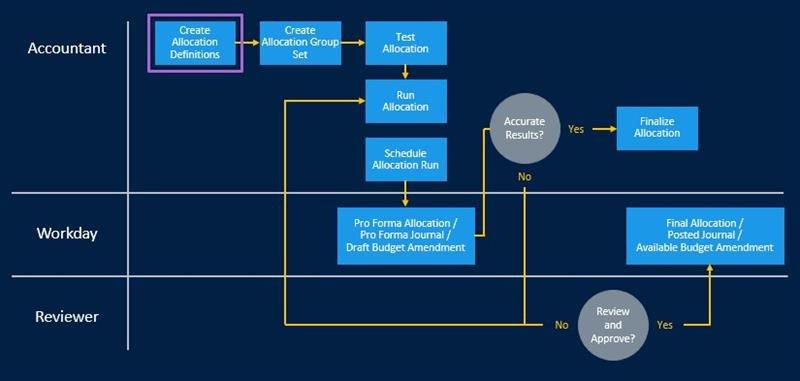
Figure A: Allocation Process Flow
Allocation Processing
Build allocation definitions in Workday to define the many allocation scenarios within an organization. Configure and test definitions to ensure you use the correct allocation methods. Ensure results are correct before deploying across the organization. Define any statistics used in processing allocations, Square Footage, or Headcount, for example, in the tenant. Organize allocation definitions into an allocation group set for processing. Group sets allow you to run allocation definitions sequentially as there may be interdependencies between each allocation definition.
You can run allocations either by a system user or schedule the system to run them. Allocation processing generates operational journals in a Pro Forma status to allow for verification of results during the period close process. Business processes allow for the configuration of approval steps during verification. Once finalized, the allocation run generates operational journals with a status of Posted.
You can run allocations for actuals, commitment, or obligation ledgers or for budget (plan) structures. For budgets, you can perform the following actions:
- Allocations within budget structure
- Allocations from budget structure to actual
- Allocations from actual to budget structure
You cannot perform allocations from one budget structure to another budget structure.
Allocation Definition
In Workday, an allocation definition consists of the components below which use the Workday allocation engine to calculate allocations appropriately according to the scenario in the definition.
Component | Definition |
|---|---|
Source: | The ledger amount you allocate from a company. The source can also be a fixed allocation amount or rate. |
Basis: | The methodology you use to distribute the allocated amounts. |
Target: | Where the allocation will book entries. |
Offset: | Where the allocation will book the offset side of the entries. |
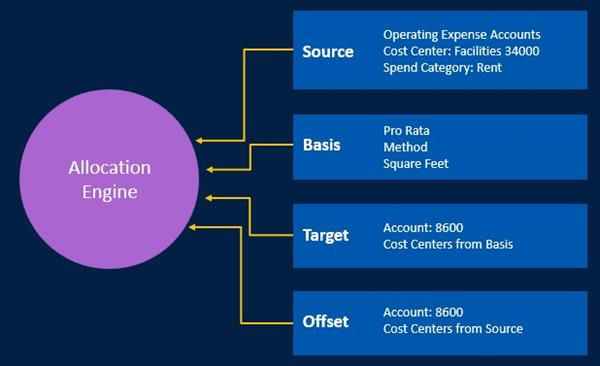
Figure A: Allocation components
Filtering in Allocation Definitions
You can create reusable filter conditions for use in allocation definitions. You can apply filters to the Source or Basis section of the allocation definition. Conditions allow for flexibility to add or filter out any ledger accounts or worktag values, which should not be part of an allocation.
Example:
You can use the Total Expenses summary ledger account with a source filter condition to exclude two ledger accounts which rollup to Corporate: Total Expenses from the allocation source. This exclusion will reduce the amount you allocate.Allocation Definition: Source
Source defines the pool of what you must allocate. The source comes from a single company, which Workday determines when you run allocations. Workday determines the pool amount by the following:
Field | Description |
|---|---|
Source Type | Ledger/Plan Structure: Allocates ledger or plan amounts.Fixed Source Amount: Uses a fixed amount and allocates that amount by the basis. Example: Allocating $10,000 as a fixed amount across cost centers based on headcount.Fixed Rate Amount: Uses a fixed rate amount and allocates based on a calculation. Example: Rate x headcount = Allocation amount.Note : Only use Fixed Source Amount or Fixed Rate Amount if the source companies have the same company currency. |
Currency | Only use base currency in the allocation processing (ignore transaction currencies); however, you can select the translation rate type. |
Allocation Percent | You can use 100% (+/-) of the source in the allocation with two decimal places. |
Ledger Account/Ledger Account Summary Accounts (Source Filter Conditions) | Defines what ledger accounts or summaries Workday uses in determining the source or pool ledger amount. You can use retired accounts in the Source, but you cannot define retired accounts for the Target or Offset.You can use either income statement or balance sheet accounts, the allocation process will only take activity. Workday summarizes activity for multiple periods for the source amount when you include the allocation definition in an allocation group set for a summary period. |
Worktags (Source Filter Conditions) | Use worktags or worktag hierarchies to further filter the ledger amount used as the allocation source. The worktag field has an implied AND when populated with different worktag types. The worktag field has an implied OR for when populated with the same worktag types. Example : Region: Headquarters - Corporate AND Cost Center: 34000 Facilities.Example : Cost Center 34000 Facilities OR Cost Center 36000 Professional Services. |
Note
: You can also configure Condition Rules to apply to your source in an allocation allowing significant flexibility in pulling only the desired data. Example: You can create a condition based on the journal source to only pull activity from a ledger account with Customer Invoice as the journal source. Doing so will leave all manual entries in the account unallocated.Allocation Definition: Basis
The basis defines how Workday allocates the pool. Three allocation methods exist in Workday:
- Fixed Percent
- Pro-Rata
- Spread Even
The allocation method controls the Basis Type field. Depending on which allocation method you select, additional fields become available for selection. Each basis type allows you to create Basis Filter Conditions for specific ledger accounts, companies, and worktags.
Fixed Percent
The fixed percentage allocation method uses predefined percentages as a statistic and sum to 100%. In some cases, cost centers might agree to split costs by an agreed percentage, e.g., 50/50.
Field | Description |
|---|---|
Statistic Definition | Where Workday defines and stores the percentage. |
Dimension | The worktag or value for which you use the fixed percentage. The worktag could be a cost center, region, or any other worktag or worktag combination that exists on the statistic definition. |
Pro-Rata
The pro-rata allocation method uses a basis type of either headcount, ledger accounts, or statistic values. Workday calculates each dimension's percentage of the total and uses the percentage to prorate the source amount.
Basis Type | Required Fields |
|---|---|
Headcount | Definition : Examples include Active, Inactive, or Contingent Workers.Dimension : The worktag or value for which Workday calculates the proration percentage, e.g., cost center, region. |
Ledger Accounts | Activity : Based on the time frame defined in the Allocation Group Set, the period activity or summation of multiple periods used in the proration.Balance : Workday uses beginning balance and activity for period or summation of multiple periods in the proration.Dimension : The worktag or worktag combination for which Workday calculates the proration percentage. |
Ledger Account (Multiple Companies) | (Reference Ledger Accounts) Prorate the Actuals ledger balances from multiple companies or from a company that is not the source company. Note : Add additional companies on the Basis Filter Conditions. You can set the translation currency for the basis to ensure the companies are using the same currency. You can assign an account translation rule set to ensure the translation occurs using the correct rate type. If the allocation basis uses multiple currencies, you must define a translation rule set. |
Statistic Values | Workday requires you to configure the Statistical Definition. |
Spread Even
The spread even allocation method will sum the number of values in the dimension provided and distribute equally.
Basis Type | Required Fields to Enter |
|---|---|
(empty) | Dimension : The worktag or value for which Workday will calculate the proration percentage, e.g., cost center, region. |
Statistical Values
Workday uses statistical values with fixed and pro-rata basis types. They require statistical definitions. Statistic definitions require the following:
Field | Description |
|---|---|
Statistic Type | Activity : Used for storing statistics that change from period to period, such as new customers or number of units produced. The statistic amount used is either the period activity or the summation for multiple periods. Workday does not include zero value for the statistic in a period.Balance : Used for storing statistics that are less variable, such as the example statistic of square footage. Statistical amounts for a period represent the period end balance. Workday uses the last period with a balance for basis calculations.Percent : Used for fixed percentages. |
Fiscal Schedule | The Fiscal Schedule from which to obtain the required statistics. |
Required Dimensions | The worktag or worktag combination for which the proration percentage is to be. This field is multiselect. |
Ledger/Budget Structure | The Ledger or Budget Structure where the statistic values exist. |
Tip
: To facilitate maintenance of statistics, you can use Workday Put_Statistic web service or Enterprise Interface Builder (EIB) to load statistics into Workday through an inbound integration.After you have loaded statistics into Workday, you can view them by running the View Statistic report.
Allocation Definition: Target
The target defines where to record the allocated amounts through an accounting entry.
Company
You can provide the Company from either the Source, Basis, or User Specified:
Field | Description |
|---|---|
Source | Uses the same company as defined from the Source section of the allocation definition. The source of any allocation can only come from a single company. |
Basis | The target company used is the same as the company in the Basis of the allocation definition. |
User Specified | Users define the target company. Workday limits the companies you can use to companies based on the intercompany profile. |
Note
: If the target company is not from the source, the allocation process generates an intercompany accounting journal.Ledger Account
Workday obtains the ledger account from the Source or User Specified.
Field | Description |
|---|---|
Source | Uses the same ledger accounts specified in the Source section of the allocation definition. |
User Specified | Specifying a single ledger account, the allocated amounts summarize into the specified Target account. |
Worktag Mapping
Worktag mapping provides a method of including worktags in the allocation entry and defining values from either the Source, Basis, or User Specified sections of the allocation definition.
Field | Description |
|---|---|
Source | Uses the same worktag values as used in the Source. |
Basis | The target company used is the same as the company in the Basis of the allocation definition. |
User Specified | Specify the target's worktag value. |
Consider any worktags required for reporting to include here.
Reminder:
If the target company is not from the source, the allocation process generates an intercompany accounting journal.Statistical Ledger Accounts
In Workday, you can use ledger accounts for statistical values. You can use statistical ledger accounts as the basis for an allocation.
First, create a new ledger account type using the Maintain Ledger Account Types task. Then add in new statistical accounts to the account set. You can load statistics as a journal entry, including Import Accounting Journal web service. Use a unique book code to separate statists from general ledger reporting. To balance the journal entry, you can:
- Load-balancing debits and credits to the same statistical account. Under this approach, do not include the same worktag values on both lines.
- Create a separate offset account for statistical journal loads.
There are several benefits to using ledger accounts for statistics under certain requirements:
- You can track statistical values daily.
- You can design a workflow for statistic loads.
- You can include statistical values in the journal and plan lines data sources, which may simplify reporting.
Allocation Definition: Offset
The offset is the balancing side of the accounting entry used to relieve the source of the amounts allocated.
Workday does not define the company in the offset since the offset is always the same as the source company.
Ledger Account
Workday provides the ledger account from either the Source or User Specified:
Field | Description |
|---|---|
Source | Uses the same ledger Accounts specified in the source section of the allocation definition. |
User Specified | Specify a single ledger account. The allocated amounts summarize into the specified account. |
Worktag Mapping
Worktag mapping defines whether worktags, in the allocation offset entry, come from the Source or are User Specified:
Field | Description |
|---|---|
Source | Uses the same worktag values as used in the Source. Doing so would result in the allocation offset with the same Cost Center, used by the allocation source or pool. |
User Specified | Specify the target's worktag value as desired. |
Note
: For the offsetting journal entry and budget amendment, the allocation process always uses the same company as the source. Set in the Used By
field in the allocation definition header.Allocation Group Set
The purpose of an allocation group set is to organize allocation definitions that run for a company and time frame (monthly, quarterly, annually). You can add allocation definitions in a sequence if you require dependencies.
Example:
Allocate rent expenses to the company IT cost center before you allocate IT expenses out to other cost centers. This scenario requires two allocations, the second dependent on the first.You can run a single group set for multiple companies. Each would have a separate result per company since Workday creates the journals from the results. If the target company is not the same as the source, Workday generates an intercompany accounting journal.
The time frame drives the activity period from the source and basis of the allocation definition. In addition, the time frame determines the pending allocations in the update ledger period status. The benefit of the allocation group is to monitor the allocations and define interdependencies between allocations within the group. If a dependent allocation fails, you can resolve the issue before you run the downstream allocations.
Note
: Include Allocation Definitions in an Allocation Group Set for processing.Allocation Test
After adding the allocation to an allocation group set, test the allocation by viewing the allocation, selecting the allocation definition's Related Actions icon, then selecting Test Allocation. The allocation test will process the allocation and will be in Draft status. You can repeat the test multiple times. Running an allocation test does not generate any accounting.
Allocation Processing Steps
An overview of the allocation processing steps includes: Run Allocations - Pro Forma Journals > Rerun or Cancel Allocations (if necessary) > Finalize Allocations/Mass Allocations > Approval Final Allocation (optional step).
Run Allocations
Once you create allocation definitions and map dependencies in the allocation group set, use the
Schedule Allocation Run
task to run allocations for immediate processing. You can schedule allocations to run the process in the future. The allocation run will create operational journals in a pro forma status for review. Allocations can be rerun or canceled as necessary.Finalize Allocations
If you have reviewed and completed the allocation results, the next step is to finalize the allocations. Once you finalize the allocations, the only additional action you can take is to cancel them. During finalization, the existing operational journal's status changes from a status of Pro Forma to Posted.
To finalize an allocation:
- It must be in a Pro Forma status.
- If there is another allocation, which you should run prior (dependent) that allocation must be in a status of Final.
- TheAllocation Finalize Eventbusiness processes must be complete. The status in the business process will be Finalize in Progress until approved.
Approve Final Allocation (Optional)
You have the option to use a business process definition of Allocation Finalize Event, to require an approval of the allocations and intercompany allocations before you finalize them.
Allocation Work Area
To view a summary of the allocations that will run and to monitor the overall processing of allocations, use the
Allocation Work Area
report. The allocations you need to run display by company and Groups Sets, along with a percentage complete monitor for a quick visual representation of the allocations processing status.Example
: Global Modern Services, Inc. (USA) processes many allocations. The controller can use the Allocation Work Area report to review and finalize all allocations in preparation for month-end closing.Allocation Group Set Status
Status | Description |
|---|---|
Allocations to Run | Indicates the number of allocations that you run for the period based on the allocations and the time frames defined in the Allocation Group Sets. |
Not Run Yet | Indicates the number of remaining allocations that you have not run. |
Draft | Indicates the number of allocations that have never had journals created for the associated Allocation Definition. |
Requires Rerun | Indicates the number of downstream (dependent) allocations that need to be rerun due to a change in an upstream allocation. |
Pro forma | Indicates the number of allocations that you ran but are currently in pro-forma status (not finalized). |
Final | Indicates the number of allocations that you ran and marked as Final. |
Error | Indicates the number of allocations that have allocation journals in error, and you cannot post. |
Canceled | Indicates the number of allocations you have canceled. |
Intercompany Allocations
Creates Intercompany allocations if target amounts of an allocation are for a company other than the allocation's source company. Additionally, the basis of an allocation may also include multiple companies, and thus create allocated amounts to a company other than the source company. Finally, you can specify a company other than the source company in the target definition that would also generate an intercompany allocation.
Once you run the allocation, Workday generates an operational journal for each company included in the target and offset. The journals will include the intercompany accounting on the target, and offset entries that Workday uses in the Consolidations and Intercompany Settlements functionality.
Note
: For the elimination of intercompany allocations in consolidated reporting (as defined in the elimination rules), the appropriate intercompany affiliate worktags must exist on the target and offset.Note
: When allocating revenue/expenses between companies with different base currencies, define a currency rate type on the allocation definition to match the rate type used when translating financial reports. Doing so ensures that allocations will fully eliminate when reporting consolidated results.Allocation Chapter Summary
Use allocations to distribute ledger amounts, usually costs, from one organization to another organization on a predefined basis. Allocations in Workday allow for flexible configuration so that expenses can be:
- Booked centrally, to a single cost center for example.
- Distributed by a predefined metric, by square footage for example.
- And allow for cost allocation to occur at the end of a period rather than on every invoice.
An allocation definition has the following components: Source, Basis, Target, and Offset. These components use the Workday allocation engine to calculate allocations appropriately according to the scenario in the definition. Three allocation methods exist in Workday, which you can add as the basis (defines how Workday will allocate amounts) in an allocation definition:
- Fixed Percent,which uses predefined percentages as a statistic and sum to 100.
- Pro-Rata,which uses a basis type of either headcount, ledger amounts, or statistical values.
- Spread Even,which will sum the number of values in the dimension provided and distribute equally.
Organize allocation definitions into allocation group sets to outline how and when you run allocations for a company and time frame (monthly, quarterly, annually). Add allocation definitions in a sequence if you require dependencies.