
Accounting Journals
Overview
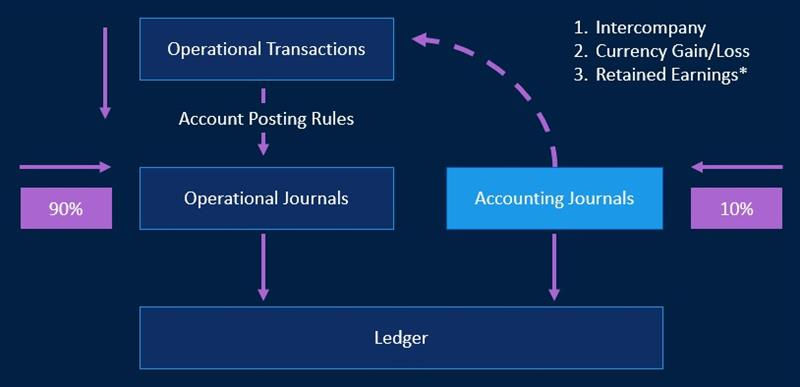
Workday automatically generates accounting for operational transactions, intercompany, allocation, depreciation, accruals, and reversals. Accounting is based on accounting policies and rules defined by your accounting and control team. Workday also accepts accounting generated in third-party systems-or spreadsheet uploads-and through an intuitive journal user interface.
Workday creates journals behind the scenes for operational transactions using posting rules to interpret the business events into debits and credits, and accounts. Workday posts journal entries to a ledger defined for each company.
Objectives
By the end of this chapter, you will be able to:
- Understand and configure the account control rule set.
- Configure requirements for suspense accounting.
- Create an enterprise interface builder (EIB) and populate the template.
- Create an accounting adjustment for operational transactions.
Security Policies
As you deploy Workday, you will configure security policies to ensure the appropriate security groups have the right permissions. This chapter covers the following security groups, domains, and business processes.
Security Groups
- Finance Administrator: This user-based security group creates and maintains all financial setup data, regardless of organization. Examples include financial institutions, financial accounting data, ledgers, journal sources, account control rules, fiscal schedules, items, and taxes. No approval authority.
- Finance Integration Administrator: This user-based security group can create and check the status of financial integrations regardless of organization. Cannot launch EIB integrations. No approval authority.
- Controller:This role-based security group can view all financial & spend management setup and operational data for assigned organizations. Approval authority for financial and compensation business processes.
- Accountant: This role-based security group performs accounting functions for assigned organizations. Views reports and transactions related to accounting journals for analysis and reporting. Assign this role to the company or company hierarchy level.
Domains
Topic | Functional Area | Domain |
|---|---|---|
Accounting Journals
| Common Financial Management Integration | Set Up: Company Accounting Set Up: Accounting Rules Set Up: Journal Source Integration Build |
Business Processes
- Accounting Journal Event
Suspense Account Rules
You can configure suspense account rules for the Import Accounting Journal web service, i.e., when uploading journals via an EIB. Workday will post to the suspense account when the journal is:
- Unbalanced
- Missing Ledger Accounts
- Missing Balancing or required worktags
Each account set can have one suspense account rule. The suspense account rule must include a ledger account to use as the suspense account. Additionally, you can configure the suspense account rule to include the following if appropriate:
Option | Description |
|---|---|
Balancing Worktag | The default required balancing worktag type that you want to use on journal entries. Configure the required balancing worktag type on the Maintain
Worktag Balancing Configuration task. |
Optional Balancing Worktags | The default optional balancing worktag types that you want to use on suspense journal entries. Configure up to 5 optional balancing worktag types on the Maintain
Worktag Balancing Configuration task . |
Required Worktags | Use worktags as keywords to better classify and find transactions. Configure the allowed worktag types on the Maintain Worktag Usage task. When you select a worktag type that has related worktags, Workday automatically populates transactions with the related worktag values. |
Journal Sources for Suspense Account Rules
Use a journal source configured to allow suspense accounting. Use the
Maintain Journal Sources
task to Enable Suspense Processing and a Suspense Threshold Percent. The suspense threshold percent determines the number of lines in error that are acceptable. For example, a journal source configured with a 50% threshold will allow up to half of the lines on the journal entry to be incorrect. The journal will still load. If the journal has five lines and three of them are missing a ledger account, the journal will not load because the number of lines in error exceed the 50% threshold.EIB - Upload a Journal Entry
Use the Enterprise Interface Builder (EIB) to build simple inbound and outbound integrations between Workday and external endpoints. EIB gives you a framework to build your own integrations based on your unique business needs.
Integration Type | Description | Examples |
|---|---|---|
Inbound (import data) | Upload data into Workday by using:
A file transfer from an external SFTP, FTP/SSL, or FTP endpoint. | Import accounting journals into Workday from an Excel spreadsheet that you provide as an attachment. Import data into Workday from an Excel spreadsheet to perform a bulk business process. Import transactions for expense credit cards from a card issuer. You can then process the transactions in Workday Expenses. |
Outbound (export data) | Export data from Workday in various formats, such as:
Then send the data to an external endpoint by using various protocols, such as:
| Export all active employees from Workday in XML format and send it to an external endpoint with SFTP. Export employee hours and billing rates from Workday in CSV format and send it to an external endpoint with SFTP. Export employee headcount and contribution data from Workday in CSV format and send it to a life insurance provider by email. Note : Outbound EIBs cannot export data in Microsoft Excel format. Export data in CSV format, then open the CSV file using Microsoft Excel. |
Workday represents the integration as an enterprise interface, which you build and configure before the integration is ready to launch. You can design an enterprise interface by using a wizard design method. Create simple inbound or outbound integrations in a few steps with the wizard, which guides your setup with appropriate options based on the data flow.
EIB Components
An EIB has three components:
Component | Description |
|---|---|
Get Data | This component can indicate:
|
Transform | This component converts the data into a format that Workday or the receiving external endpoint can understand. Workday provides some delivered transformations, but you can also create your own transformations. |
Delivery | This component defines how Workday imports data from or exports data to an external endpoint, e.g., email, sFTP, and web services. |
Import Accounting Journal
Use EIB to upload accounting journal data from a spreadsheet. When successfully completed, the upload automatically triggers the
Accounting Journal Event
business process. To automatically complete approvals, bypass reviews and To Do tasks, then skip notifications in the Accounting Journal Event
business process. Also, set the Automatically Complete field to Y when you prepare the spreadsheet.Note
: You need to specify object's Reference IDs while populating the EIB spreadsheet. Running the Integration IDs
report can quickly display all reference IDs for a specific object.Modify Spreadsheet Template
To meet specific objectives and make it easier for others to prepare a spreadsheet, you can modify the template model's worksheets, areas, and columns.
You can create multiple versions of a template model for the same data source type, but each version requires its own EIB definition. However, if you populate multiple spreadsheets based on the same template model, you can use the same EIB for each upload. You can also generate the template already populated with existing data from your tenant.
Select Template Model > View as a Related Action on the integration system.
To hide a worksheet or area, expand the sheet, and select the sheet or area. Then select Template Model Sheet > Hide or Template Model Area > Hide from the Related Actions menu on the sheet or section. Workday determines if it hides other sheets or areas and asks you to confirm your selection.
To insert columns for fields that accept multiple values (such as worktags), select Template Model Column > Maintain Additional Columns from the Related Actions menu of a column. Then define each new worktag in the grid.
EIB Steps
- Setup Step 1: Create the EIB - set up the EIB upload process.
- Setup Step 2: Generate a spreadsheet template for the upload.
- Ongoing Step: Populate the spreadsheet with data.
- Ongoing Step: Launch the upload and verify the results.
EIB Errors
If your integration has a
Completed with Errors
status, you can use the Number of Errors information to view the error messages.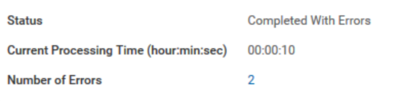
completed with errors screen shot
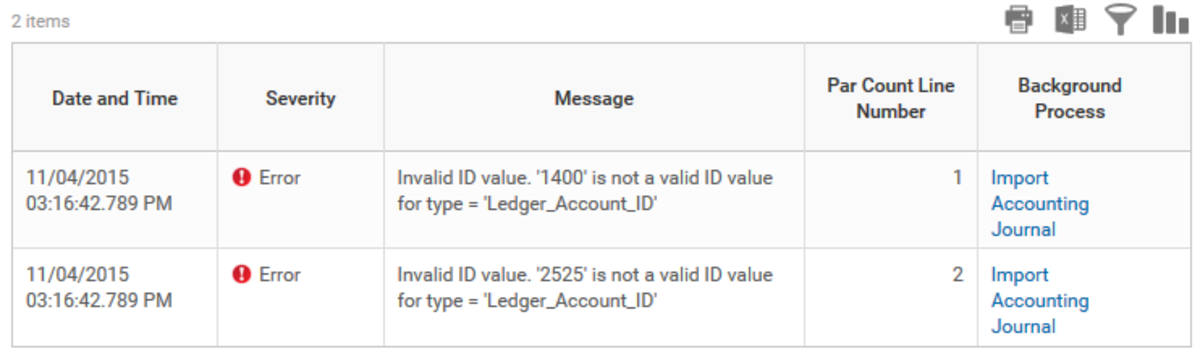
Two error messages
If you had errors, open the spreadsheet, resolve the errors, and repeat the launch integration steps to bring the corrected spreadsheet into the Workday system.
The following two cases show the different errors you may encounter for the Company_Ref in the EIB errors. Each error refers to a different issue.
Case 1: "Invalid ID Value. "WOK is not a valid ID value for type = "Company_reference_ID." This message means the company reference ID is not correct. The data entered in the company reference ID column of the spreadsheet does not match the REFERENCE ID of a company in Workday.

Error Message - invalid ID value
To correct this error:
- Check the reference ID for your company.
- Check the spelling of the company ref ID in your import sheet.
This case shows you the invalid ID as well as saying
Company_Reference_
ID
in the error.Case 2: "The entered information does not meet the restrictions defined for this field. (Company_Reference)."
In this case, the user that launched the EIB does not have the security necessary to create the transaction in the company referenced in the excel sheet.

Error Message
To correct the error:
- Check your sign-in name when launching the integration (For accounting journals the name should normally be the accountant).
- Try creating a manual journal as the person you logged in as. The company you are trying to upload against will not be available to select.
- If you logged in as your accountant, then check that you have assigned the Accountant role to that company.
This error does not tell you an incorrect value, and it does NOT say ID after Company_Reference.
Accounting Adjustments for Operational Transactions
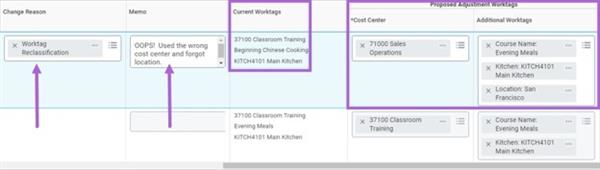
Workday allows users to make accounting adjustments to correct worktags on paid supplier invoices, supplier invoice adjustments, expense reports, projects, payroll transactions, and procurement card transactions. Workday users can perform accounting adjustments by selecting the Related Actions icon on the completed transaction, and then choosing new worktags for the applicable line item. Workday requires a
Change Reason
and an accounting adjustment date for all adjustments. Processing an accounting adjustment will initiate the Accounting Adjustment Event
business process. Once the business process is complete, Workday will post a new journal to move cost from the original worktags to the new worktags. Workday also provides a memo field to provide additional details on each line of an accounting adjustment.The following is an example for a supplier invoice.
Select
Adjust Accounting
from the Related Action of the paid supplier invoice.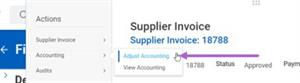
accounting journals adjustment adjust accounting screen shot
Enter a Change Reason, Memo (optional), and the new worktags. Select
Submit
.
accounting journals adjustment screen shot
View approved accounting adjustments using the report
Find Accounting Adjustments
. Workday will also post an Accounting Adjustment journal type that you can view using Find Journals
.This functionality does NOT allow the user to adjust the amount for one of these transactions. To adjust the amount, edit or adjust the underlying operational transaction via the typical process for each operational transaction.
Journal Connector
You can create an integration that imports accounting journal data files into Workday from an external SFTP endpoint. You must define each external endpoint as a source in Workday. Then create the worktag mapping for the integration defining the external code to the corresponding ledger account and worktags. You can schedule this integration to retrieve files from the SFTP source.
Import Budget EIB
Use the Import Budget Web Service to import one or multiple budgets. Modify the template to include worktag detail needed for budget lines. The Import Budget template will have two tabs. The first tab, Import Budget High Volume, relates to the header level of the budget. If you are only loading data for one budget, there will only be one row of data populated on this tab. Use the
Import Mode
column to define what changes you are making to the budget:Plan Import Mode | Description |
|---|---|
Replace All | Replaces the budget with the information in the EIB input file. |
Incremental Add Only | Add new or update existing entries. |
Incremental Add With Delete | Delete existing plan lines by specifying an amount of zero. |
Replace All By Period | Replace all plan lines in a single budget period. |
The Budget Lines Data tab is where you will define each unique line of the budget. The budget will go through the
Plan Event
business process unless you set the auto complete column to "1" or "true" on the Import Budget tab.Journal Insights
The Journal Insights feature continually monitors accounting entries as Workday posts them to detect and flag anomalies. It also provides a recommended correction whenever possible. This feature enables accountants and controllers to identify and correct potential reconciliation issues as they occur, rather than during the high-pressure month-end close.
Journal Insights flags debit and credit amounts as anomalous if they are significantly higher or lower than journal lines with similar attributes. Similar journal lines will likely share the same ledger account and most of the same worktags. Journal insights strictly considers the most mathematically anomalous amounts based on similar journal lines regardless of the seasonality of posted journals to ensure that it does not miss an important high or low journal line that could be a true error.
Journal Line Anomaly
If a journal line debit or credit amount is abnormally high or low based on historical patterns, Workday flags the journal line as an anomaly. You can then correct, confirm, or dismiss the anomaly. To efficiently find true errors, use the prompt filters on the Journal Insights report to filter out general ledger accounts or time periods that seem less relevant.
When viewing the
Correct and Dismiss Journal Line Anomalies
task for a ledger account, use the sort and filter options to narrow down your review of anomalies. If a journal line anomaly is not a true error and you do not want to review that type of anomaly for the next 3 months, select the Dismiss Anomalies
button. If a journal line anomaly is not a true error but you want to review that type of anomaly prioritized in the next 3 months, select the Confirm Anomalies
button.Note
: You must subscribe to Innovation Services to use this feature. Contact your Customer Success Manager to request the Innovation Services Addendum (ISA) or see Workday Innovation Services in the Workday Community for more information.