
Scaling Integrations
Overview
Whether retrieving or updating data, web service calls are the most-time consuming operations of a Workday integration event. In most cases, it is ideal to access all relevant data with the fewest web service requests possible.
For outbound integrations, Workday web service operations have an upper limit on the amount of data that you can retrieve per request. The PagedGet common component makes extracting all pages of Workday data for an operation easy and scalable.
For inbound operations, most "submit" requests only create or update a single object at a time and so are necessarily iterative. However, you can improve performance by initializing validation and lookup documents in Workday Studio before processing incoming records, avoiding multiple web service requests per record. Some inbound operations also have an "import" version, allowing for a high volume of Workday updates from a single request.
Objectives
By the end of this chapter, you will be able to:
- Retrieve all data from an outbound WWS operation using PagedGet.
- Leverage paged data for data lookup and duplicate validation on an inbound integration.
Implement Workday Web Services Paging
All Get Workday web service operations return data in pages with a configurable count. A single page may have from one to 999 records, and all outbound operations allow the request to specify the number of items to return within that range.
Reminder
: You should try to retrieve as much data as possible per request to reduce overall processing time. However, WWS responses have a maximum size. You may need to reduce the page count if you are requesting many records with several selected response groups, and max memory usage becomes a problem.A single execution of the workday-out-soap component is valid if you will only ever retrieve a single record. In this case, build a WWS request that uses the Request References section to specify unique objects by integration ID. If you know for a fact that the number of returned items will always be small (e.g., marital status types by country) then workday-out-soap might also be safe.
If the number of records is unknown, there is a risk that the result scope could grow past the 999 limit per page. In this case, you should employ the PagedGet common component early in your development. This applies even if the total number or records returned lies well within the Workday page count limit. Using a PagedGet component ensures that the integration scales as your data grows and has no performance implication when the data set is small.
Important
: PageGet can only extract data from Workday. Use workday-out-soap for any operation that updates the tenant.Retrieve Multiple Pages Using PagedGet
The PagedGet component handles the paged invocation of a Workday Get web service operation, starting at the first page of records and finishing on the last page. The component has some common properties that must be defined, but also a few optional parameters to set based on how you want to process each page.
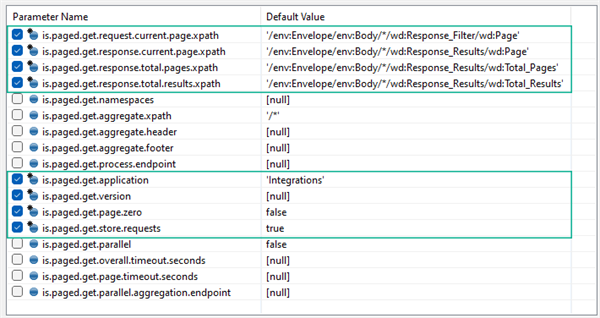
The common required properties are already selected and tell PagedGet how to loop and execute page requests:
Parameter Name | Function |
|---|---|
is.paged.get.request.current.page.xpath | Location of the request wd:Page element that needs to be incremented (to get page 2, page 3, ...) |
is.paged.get.response.current.page.xpath | The current page returned from the request |
is.paged.get.response.total.pages.xpath | The total number of pages for all results |
is.paged.get.response.total.results.xpath | The total number of results (used to set an out parameter) |
is.paged.get.application | Sets the Application property of the internal workday-out-soap |
is.paged.get.version | Sets the Version property of the internal workday-out-soap |
is.paged.get.page.zero | Lets you determine whether you want to continue forward in the assembly if PagedGet retrieved no data (default: false means rewind) |
is.paged.get.store.requests | Stores each page request in an ESB location only accessible by Workday Support and should be set to false unless they direct you otherwise |
Note
: The first four required xpath parameters use a wildcard (*) to represent the web service operation in the SOAP XML. The default paths will work for all WWS Get operations and do not need to be changed.Additional, optional parameters may affect performance:
Parameter Name | Function |
|---|---|
is.paged.get.parallel | Allows for parallel execution of page requests; an almost free performance boost that should be set to true unless data order is crucial or you encounter unexpected results |
is.paged.get.overall.timeout.seconds | Sets the overall timeout of the PagedGet (default is longer than a Studio event can run) |
is.paged.get.page.timeout.seconds | Sets the timeout of each page request (default is longer than a Studio event can run) |
is.paged.get.parallel.aggregation.endpoint | Used when is.paged.get.parallel is true and you want to send each page to an endpoint |
PagedGet derives output parameters based on the xpath results from each response page. These can be useful for controlling components like aggregators or for log and summary messages:
Out Parameter | Description |
|---|---|
is.paged.get.last.page | Returns true when the final page is retrieved (current page = total pages) |
is.paged.get.current.page | Current page number |
is.paged.get.total.pages | Total number of pages to be retrieved |
is.paged.get.total.results | Total number of records across all pages |
The optional parameters you select next depend on how you want to handle the processing and aggregation of the page data. This is a critical decision that affects the scalability of your integration. There are two approaches:
- Pre-processing(recommended): the PagedGet component aggregates all the pages internally.
- Post-processing: PagedGet sends each page to a sub-assembly for processing and possibly aggregation.
Apply PagedGet Aggregation (Pre-Processing)
If your goal is to form a single output document, multiple response pages need to be collated. PagedGet has a built-in aggregator that is recommended for speed and efficiency. The way to apply this aggregation is by entering a few parameters:
Parameter Name | Function |
|---|---|
is.paged.get.namespaces | Only needed if the next parameter uses prefixes other than wd and env |
is.paged.get.aggregate.xpath | Path to the data from each page you want to include; useful to skip the SOAP and request structure to drill down to the actual business data you need (default: entire page is collated) |
is.paged.get.aggregate.header | The opening tag of the new root element to wrap around all the page data |
is.paged.get.aggregate.footer | The closing tag of the new root element to wrap around all the page data |
Reminder
: These parameters are filling in an xml-message-content-collater in an aggregator internal to the PagedGet component.Once you have finished the PagedGet configuration, you just need to route it to the next assembly component to process the aggregated results, like a mediation with an xslt-plus step.
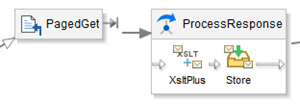
This is the simplest PagedGet setup with the best performance and a side-benefit of simplifying the XML structure for a following transformation. There is the risk that you have no way of preventing extremely large aggregated data sets from running out of cloud runtime memory. However, PagedGet can make use of ESB disc space, so that risk tends to be low for most integration scenarios.
Apply PagedGet Page Processing (Post-Processing)
You might encounter scenarios where you need more flexibility in page processing. By passing each page into a sub-assembly, you can:
- avoid the risk of running out of run time memory
- transform and transfer individual pages to a target system that has a small record limit per file
- further split the page if you absolutely need to perform per-record processing (such as single-object http-out requests)
For this design pattern, the only optional PagedGet parameter you need to is "is.paged.get.process.endpoint". Set its value to the vm:// URL of a sub-assembly (local-in), just as you would for a local-out.

Important
: Be sure to only set the is.paged.get.process.endpoint parameter to the page-processing sub-assembly. The Endpoint field on the PagedGet Common tab is always "vm://wcc/PagedGet". That is the location of the PagedGet common component itself.Since the PagedGet component immediately calls the sub-assembly endpoint for each page, the XML structure includes the entire SOAP envelope, just as it would for a workday-out-soap call. This means you might not need to change the XPaths in an existing transformation when converting from workday-out-soap to PagedGet.
If you still intend on producing a single output from all processed pages, you would likely use the size-batch strategy with a value of -1 to produce a single output (each page is considered a message for that batch count). You will need to configure your own aggregator in the subassembly with an appropriate collater for the type of data being generated. (Take advantage of the XPath field of the collater to skip the transformed page root structure and drill down to just the records you want to include in the aggregated batch.)
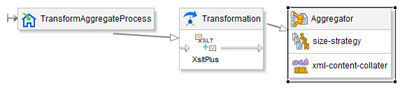
The Force Batch on Last Message property is sufficient to control the aggregator when using a PagedGet on its own. If you are applying additional splitting or looping with aggregation, you can combine the props['is.paged.get.last.page'] out parameter with other criteria (such as util.isLastMessageInBatch() that returns true when a splitter is complete). This kind of pattern is complicated, iterative, and slow, and therefore not recommended.
Measure Assembly Performance
Before applying best practices in scalability and optimization to your integrations, it is important to evaluate the performance of your assembly logic. Workday provides performance metrics for each integration event. The Consolidated Report Viewer is a tool designed to help visualize that data.
The Consolidated Report Viewer allows you to:
- Review the execution order of assembly components with their timings.
- Annotate the assembly diagram components with total and average times and memory usage.
- Replay an integration on an assembly itself to visualize the flow and duration of assembly components.
The Profile Log of the report shows more detailed metrics:
- Performance information such as number of calls, and average and total time per web service or step.
- The request and response sizes of web service and sub-assembly calls.
- The overall memory usage at each step of the integration.
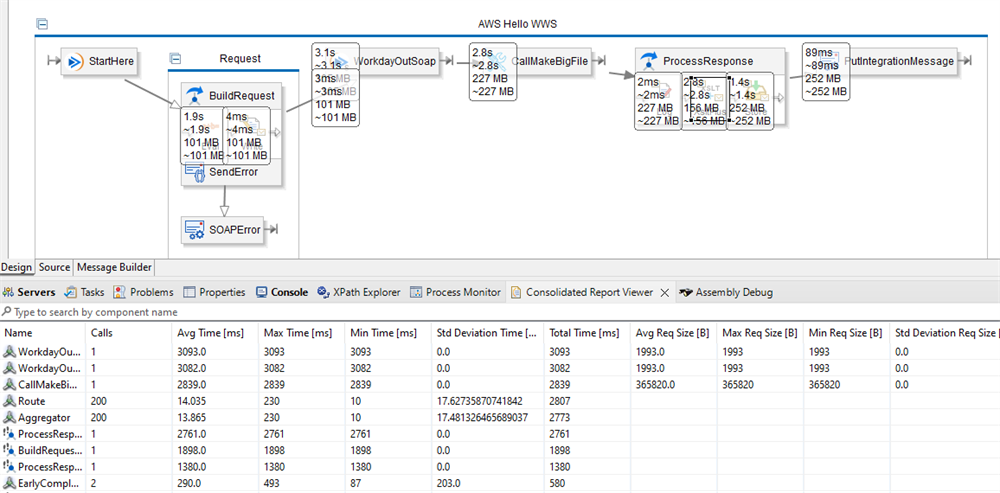
You can view the consolidated report for any event run in Workday Studio, as well as load consolidated reports from integration events in the tenant. This allows you to evaluate performance issues in environments to which you do not have access, such as production integration events.
Scale Effectively
Workday Studio integrations should always use scalable design patterns. Scalability is more than just making the integration run quickly. A truly scalable integration will run efficiently over a wide variety of data volumes.
Note
: A scalable integration may actually run slower at smaller data volumes than a non-scalable design pattern.The most common data source processed by Workday Studio is an XML document. XML, unlike traditional relational database tables, is not an indexed data construct. In database terms, the only way to search XML is to use a table scan. So, as we increase the data volume, we increase not just the number of operations, but the amount of time each operation takes. There are two factors slowing us down in this case, and thus, we have what is called an n-squared problem.
Stream Data
One strategy is to deal with a large file one small piece at a time. This approach is called streaming. As we are only reading the file through once and doing all processing on a limited section at a time, it can be extremely fast. The trade-off is that it is a less flexible design pattern.
Streaming is very effective at dealing with large lists of data, as we frequently do in Workday. Most of the time it is not that the items themselves are large, it is the number of them that is problematic. For example, budgets are often large, but not because any of the individual line items are big: there are often millions of line items. Streaming is a very effective way of managing this sort of data.
In this case, we would stream in a single line item, do whatever processing we need on it, and then move on to the next line item. Because we no longer need the allocated memory space after processing each item, we reduce the overall memory footprint required as well. We only need to use enough memory to process one row at a time.
One of the rules that must be conformed to with streaming is that each element may only be read once. This presents a challenge in that we must work our way through the file from top to bottom in sequence and cannot look back upstream or forward to other records. This can make some algorithms, which access parts of the file in random order, difficult to implement.
Stream With XSLT
Workday Studio supports XSLT 3.0, which includes streaming transformation. To mitigate the challenges of streaming, the XSLT 3.0 specification also introduced several features including iterate and accumulators.
Iterate is a looping structure that lets you pass values from one record to another, while accumulators allow you to aggregate values (such as sums and counts) by accumulating data in an XSLT variable. Both of these methods allow you to retain and accumulate information, even as the XSLT processor moves through the file, removing records from memory after processing them.
Other Workday Studio components also stream but don't give the level of dynamic template matching, conditional processing, and XPath function library support of XSLT. As such, it is not uncommon to have assemblies centered around (if not purely based on) a single XSLT step for data processing.
Apply Streaming to Existing XSLT
The basic rule of streaming is that you cannot refer to data that you processed previously (because it is no longer in memory) and you don't have access to data further down the file (because that would involve reading further and losing what you are still processing).
One way to be certain not to violate this rule is to stream in and process a single element at a time. This is called "guaranteed streaming" and has the smallest memory footprint and fastest processing times. However, it comes at a cost:
- It is quite difficult to code: you need separate templates (or complex selector logic) for each element to be processed.
- It is inflexible: The simple act of concatenating first name and last name is impossible because you can't guarantee their order in the file.
Windowed streaming (also known as burst mode) is a good compromise in that it streams in a record at a time as opposed to an element at a time. You lose some memory efficiency in that an entire copy of the record is stored in memory instead of just one field. However, it is still orders of magnitude faster than trying to process a full file using non-streaming methods. You also gain several benefits:
- It is easy to code: With just a few adjustments, your XSLT code can process each record as it normally would with non-streaming XSLT.
- It is more permissive: Since the entire record is copied as a static XSLT variable or object, you can freely refer to elements within it, including concatenating fields and calculating line totals.
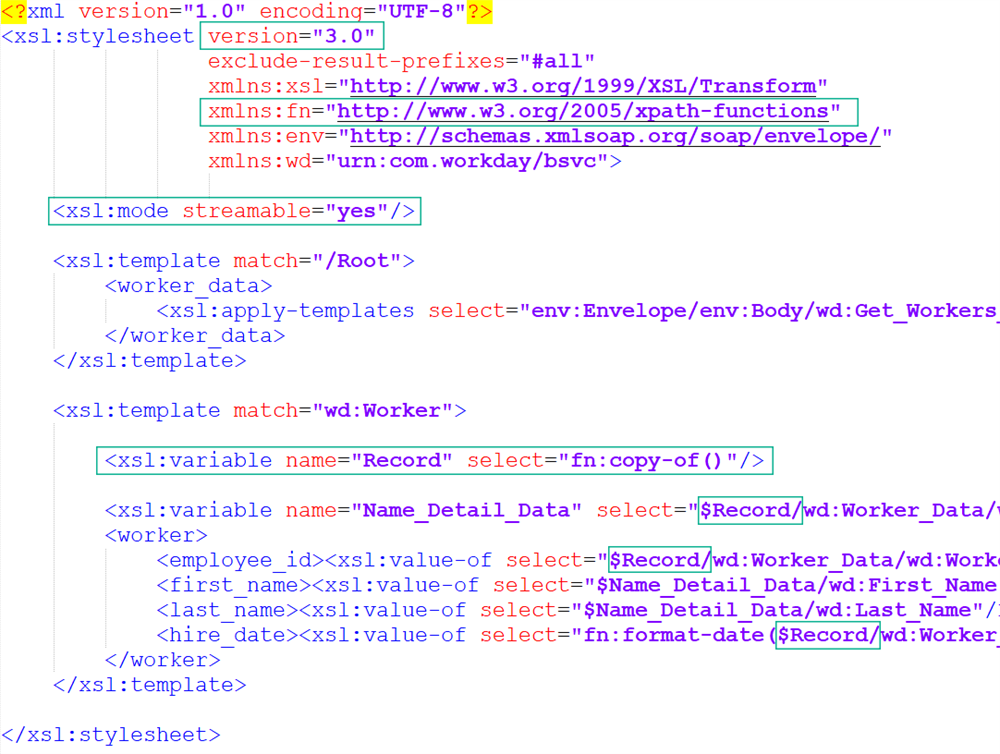
Here is a simple method convert an existing XSLT 2.0 stylesheet to implement XSLT 3.0 windowed streaming:
- Set the stylesheet version to 3.0.
- Set the mode to streamable.
- Use the copy-to() XPath function to copy each record into a variable you name.
- Use that variable (prefixed with $) before any XPath expression that would otherwise tell the XSLT processor to change location in the file.
Note
: The current Workday Studio XSLT validator doesn't always recognize XSLT 3.0 functions. A good practice is to declare the XPath functions namespace and to prefix any function (e.g., format-date(), copy-of() ) with that prefix.
In the xsl:stylesheet tag:
xmlns:fn="http://www.w3.org/2005/xpath-functions"
Before any XPath function:
select="fn:copy-of()"
select="fn:format-date(...)"
Validate and Map Data
Workday Studio includes validation steps that can apply custom business rules to your data and raise exceptions if they fail the tests. We can also configure integration maps in the tenant and apply them using MVEL to data to translate internal Workday values to external codes, or vice versa. However, these steps and methods are limited in how much data they can process at a time. This has meant that we traditionally performed validation and data translation at the record level by passing files through a splitter first. With streaming XSLT and Workday transformation extensions, there are faster, memory-efficient alternatives.
Apply Validation and Maps With ETV
After configuring an integration map in the tenant, the next step is to apply this to the data being processed.
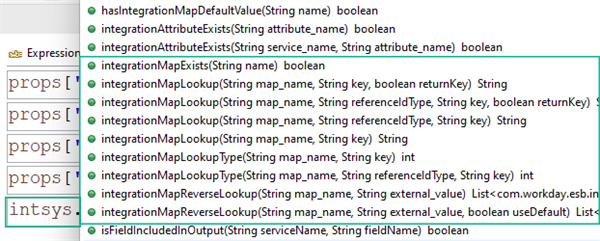
The intsys MVEL helper object has several methods to perform outbound or inbound map lookup that you should only consider if you are already splitting data into records (usually for individual inbound updates of Workday).
Element Transformation and Validation (ETV) and XML-to-Text (XTT) are Workday-developed extensions that can apply integration maps and other integration system settings, formatting rules, simple arithmetic, and rudimentary validation to entire XML files.
Tip
: ETV and XTT support the same attributes. Use ETV if you want the result to be XML and XTT if you want to produce fixed format or delimited files. They both require the input file to be XML.ETV and XTT support attributes that perform the following types of functions:
- Arithmetic
- Comma-separated value (CSV)
- Date/time
- Fixed-length formatting
- Integration value
- Number formatting
- Text insertion and removal
- Truncation
- Validation
The integration value attributes are particularly useful. These expose integration system and launch parameter properties that you would find difficult to access in XSLT directly. Some examples:
ETV/XTT Attribute | Functionality |
|---|---|
attribute | Workday replaces the element value with the value from the named integration attribute. |
launchParameter | Workday replaces the element value with the value from the named launch parameter. |
sequencedValue | Workday replaces the element value with the value from the named sequenced value. |
map | Workday replaces the element value with the equivalent value as specified in the named integration map. |
direction | The direction that the integration map is applied in (out or in) |
ETV and XTT attributes can also perform required field checking and report on truncations, as well as provide custom messages. Together with the conditional processing of XSLT, much of your validation rules can take place as stylesheet logic instead of MVEL expressions.
Resource
: Refer to the Document Transformation Connector reference in the Integrations administration guide for the full documentation of ETV/XTT attributes and their usage.Apply ETV in Assembly
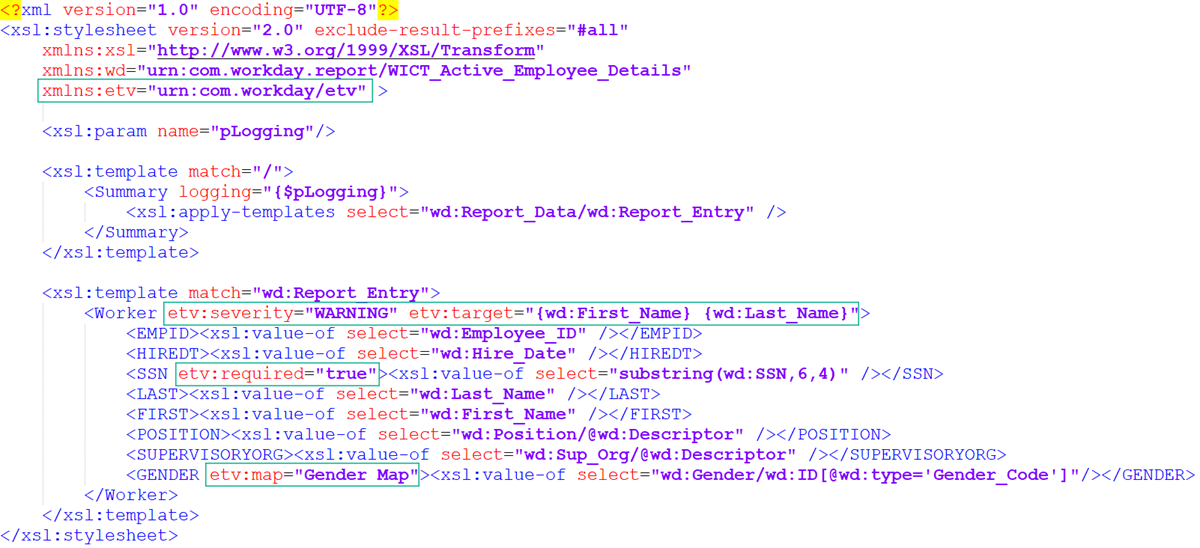
You typically add ETV or XTT attributes to XSLT stylesheets. Start by declaring the appropriate namespaces in the xsl:stylesheet element:
- For ETV:xmlns:etv="urn:com.workday/etv"
- For XTT:xmlns:xtt="urn:com.workday/xtt"
Then add your etv/xtt attributes to the rest of the stylesheet.
Tip
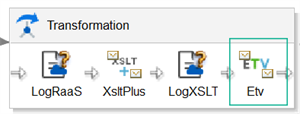
: You can pass any property from the props object into XSLT by declaring an xsl:param with the prop name. Use this only for simple values, as props with large file structures can result in excessive memory usage when parsed in XSLT.Add an ETV or XTT step in the mediation component to interpret those attributes after the xslt-plus step completes.
ETV and XTT steps have a required Message Property field on the Advanced tab. This defines the name of a props object that collects any validation messages from that step.
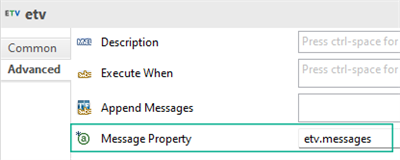
The code to iterate through that props object is complex. The Studio Starter Kit includes logic that automatically logs ETV/XTT messages. The Studio Examples page has an XTT Demo with a shared library that includes an ETV/XTT reporting subassembly.
Tip
: The ReportETVXTTMessages subassembly expects a property named "etv.messages" by default, which is why we suggest using that for both ETV and XTT step Message Property fields.As separate steps, xslt-plus and etv/xtt perform a multi-step transformation:
1. In the xslt-plus step, the XSLT processor executes the xsl statements in the stylesheet and produces an XML result. Because Saxon does not recognize the ETV/XTT instructions, it leaves those attributes intact on the XML tags.
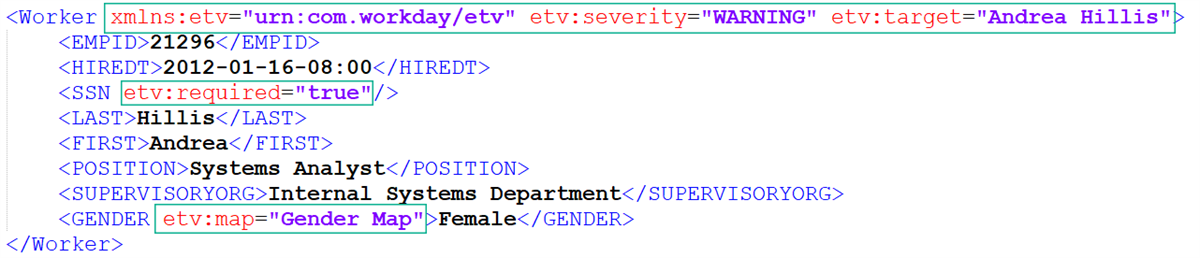
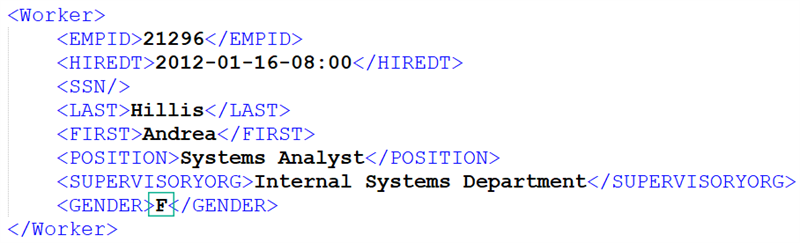
2. In the following etv/xtt step, Workday-specific code interprets the ETV/XTT attributes and produces a new output (either XML or text, depending on the step) based on those instructions.
Note
: etv and xtt steps are streaming components. Even though they run through the message in a separate pass, they are fast and memory-efficient.