Introduction to Workday Orchestrate for Integrations
Overview
Workday Orchestrate for integrations empowers organizations to build, manage, and deploy seamless integrations between Workday and external systems. It automates workflows, optimizes data exchanges, and streamlines business processes to meet diverse operational needs.
With Workday Orchestrate, you can develop integrations easily using a secure, scalable, and flexible architecture. Its intuitive Orchestration Builder allows users to design efficient integrations writing minimal code.
Objectives
By the end of this chapter, you will be able to:
- Demonstrate where Orchestrate fits into the Workday integrations landscape.
- Understand that there are differences between Extend and Integration orchestrations.
- Navigate the Workday Developer Site.
Workday Integration Systems Overview
Workday Orchestrate is a comprehensive solution that enables organizations to create and execute automated processes, known as orchestrations, within the Workday ecosystem. Businesses streamline operations by automating repetitive tasks, optimizing workflows, and ensuring seamless integration between Workday and external systems using these orchestrations.
Orchestrations operate as event-driven workflows or as scheduled batch processes. Specific actions trigger these workflows, such as new employee onboarding or updates to payroll data. With Workday Orchestrate, you can design these workflows using a drag-and-drop interface in the Orchestration Builder, reducing the need for extensive coding expertise.
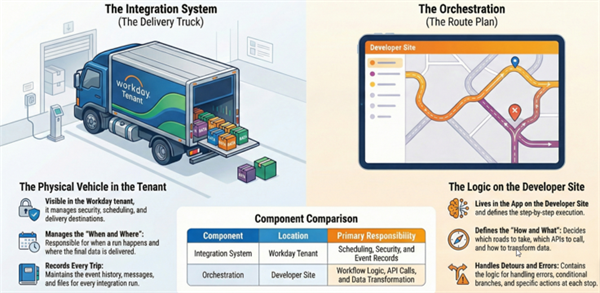
Integration Systems vs. Orchestrations
Integration systems are foundational entities in Workday that facilitate data exchange between Workday and external systems. They serve as the backbone of integrations by leveraging various tools and attributes.
Integration systems allow you to:
- Utilize core connectors for extracting, refining, and loading data.
- Support static data flows for predictable tasks like employee updates or payroll processing.
- Enable complex transformations with tools like Workday Studio.
When you think about the Workday integrations landscape, we want you to focus on Orchestrate.
Visualize Workday Orchestrate as the larger player in the integrations toolset. With Orchestrate you can create custom transformations, perform batch integrations, interact with more APIs than you have been able to before, and provide for real-time data exchange.
You can still use Workday connectors but only if transformations aren't required. You will learn how to configure a connector to send its data to an orchestration where it can be evaluated and/or transformed.
Workday Studio remains a tool to use but only when you are dealing with complex or a small subset of specialized requirements.
Orchestrations are workflows built using the Workday Orchestrate Builder. They enhance integration systems by introducing dynamic, decision-driven processes.
Orchestrations allow you to:
- Have dynamic interaction with data and APIs.
- Support decision logic with components like global functions, conditional outputs, and error handlers.
- Use outputs from integration systems like Core Connectors, RaaS, or DIS to drive decisions.
There are two Orchestrate products:
- Orchestrate for Integrations
- Orchestrate for Extend
Note
:
This course focuses on Orchestrate for Integrations.Orchestrate for Integrations adds these components not found in Orchestrate for Extend:
- Send Workday RaaS Request (Reports as a Service).
- Trigger Business Process.
- Trigger Integration.
- Trigger PDF Generation.
- Store Documents (attaching them to the integration event).
- Log to File.
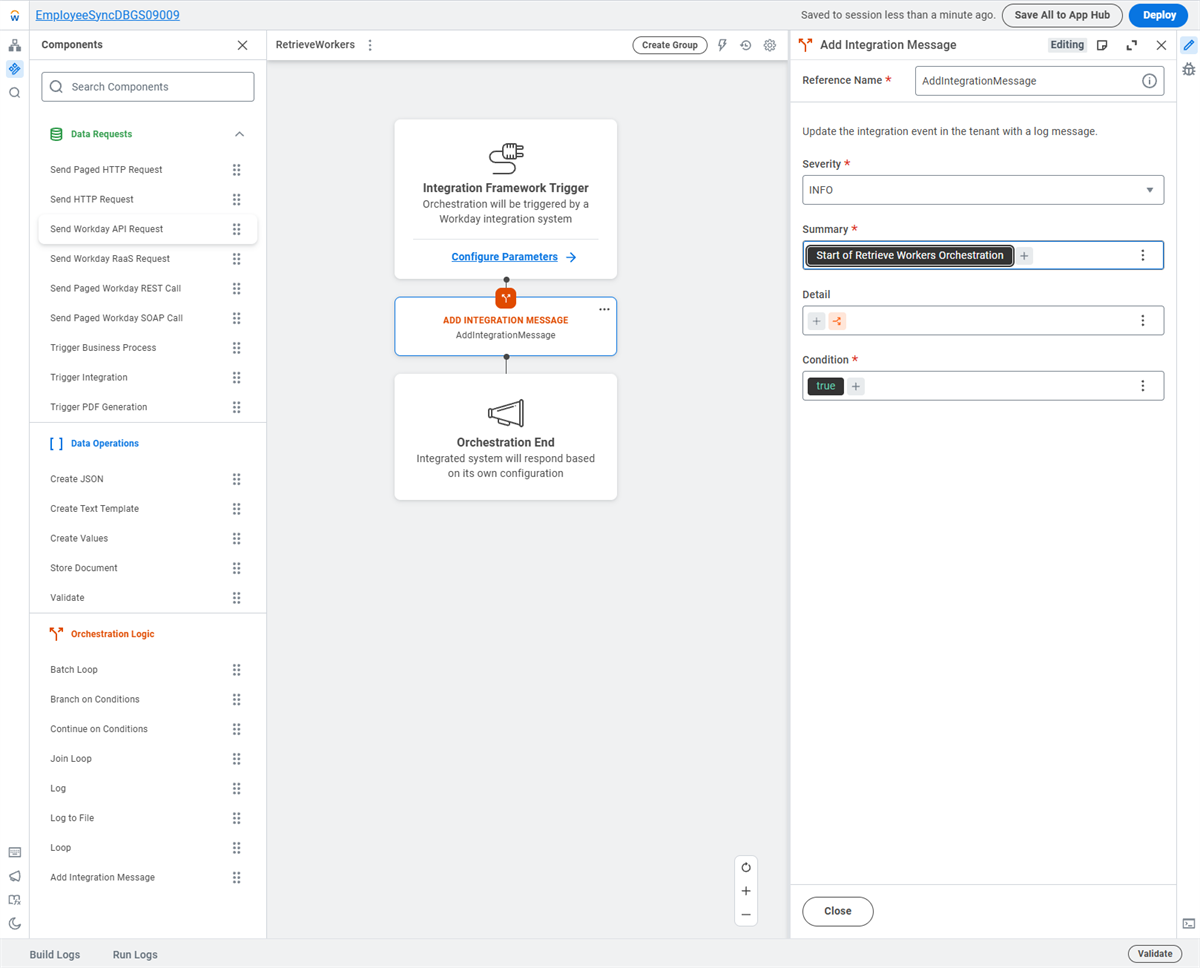
- Add Integration Message.
Orchestrate for Extend allows both synchronous and asynchronous integrations. It also has several Amazon Web Services (AWS) components that are not available for integrations use.
Comparing Workday Orchestrate to Workday Studio
While Workday offers several tools for integration development, Workday Orchestrate stands out for its unique capabilities and focus on event-driven workflows. The table below displays a brief comparison with Workday Studio integration solutions:
Integration Solution
| Best For | Key Strengths
| Limitations
|
|---|---|---|---|
Orchestrate for Integrations
| Real-time, transactional workflows requiring automation. | Drag-and-drop interface, modular design, and integration with broader Workday ecosystem. | Supports transactional processing but is not suitable for large batch data jobs. |
Workday Studio
| Highly customized and complex integrations that require advanced logic. | Provides full control over integration logic, supports Java programming, and allows for highly tailored solutions. | Involves steep learning curve and longer development times compared to Orchestrate. |
Navigating the Workday Developer Site
The Workday Developer Site serves as a hub for building and managing orchestrations and Extend apps. This platform provides access to tools, documentation, and resources to develop integrations within the Workday ecosystem. When you sign in to the Developer Site, use the main menu on the home page to manage your apps, tenants, and documentation.
Note
:
The Workday Developer Site can be found at https://developer.workday.com.Understanding the Developer Site Structure
The Developer Site organizes its features into sections that streamline development tasks. Key areas include:
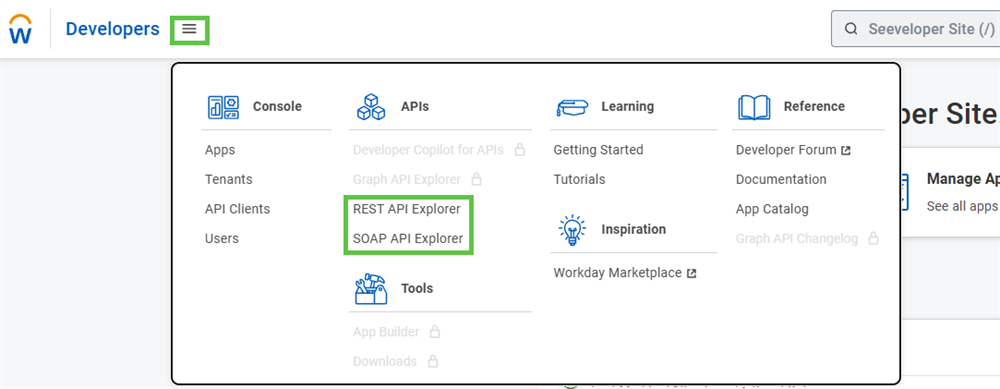
- Console:The console is your primary workspace for managing orchestrations. Here, you can create, edit, deploy, and monitor orchestrations. This course focuses on the Apps section within the console, which is critical for managing Workday Orchestrate projects.
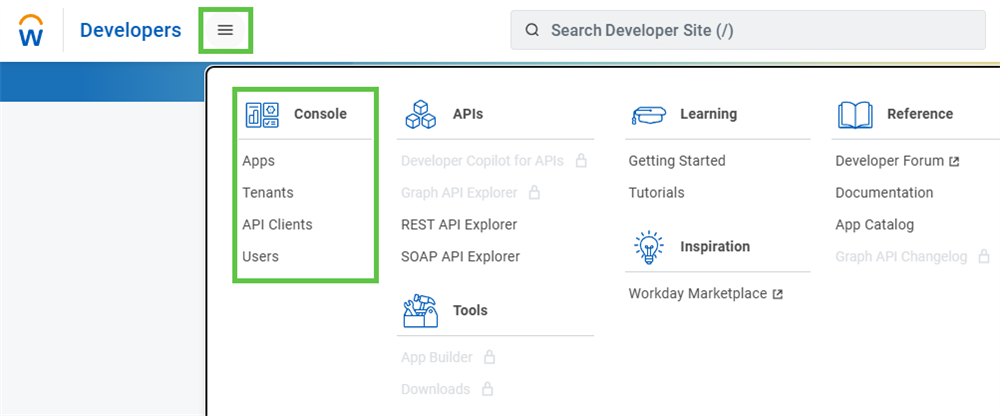 Note:Items shown above that are disabled only work with the Extend license.
 - APIs:Workday provides APIs that grant access to Workday data and functionality. Tools like the REST API Explorer and SOAP API Explorer enable you to query API endpoints and validate payloads directly within the Developer Site.
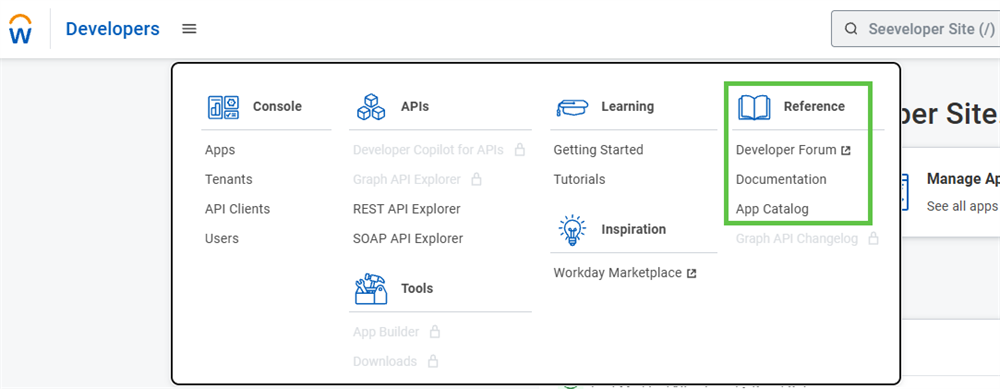
- Reference:This section consists of comprehensive documentation and collaboration tools to support your development journey. The Developer Forum and App Catalog connect you with the Workday Community and prebuilt solutions.
In the Workday Developer Site, companies are groupings of users associated with the same organization. Users within a company share access to:
- App definitions.
- Workday tenant resources.
- API clients (for Extend customers).
- Workday-provided AWS accounts (for Extend Professional customers).
Workday provides specific roles within companies that determine the actions users can perform. These include:
- Company Administrator:Full control over user management and app development.
- Developer:Ability to develop and promote apps.
- Specialist:Limited promotion permissions (not to Production tenants).
- Member:View-only access to company resources.
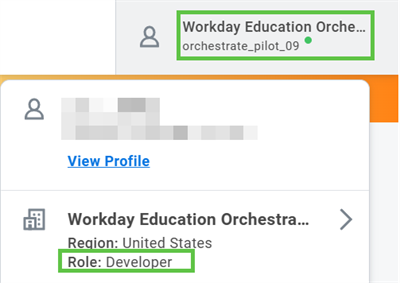
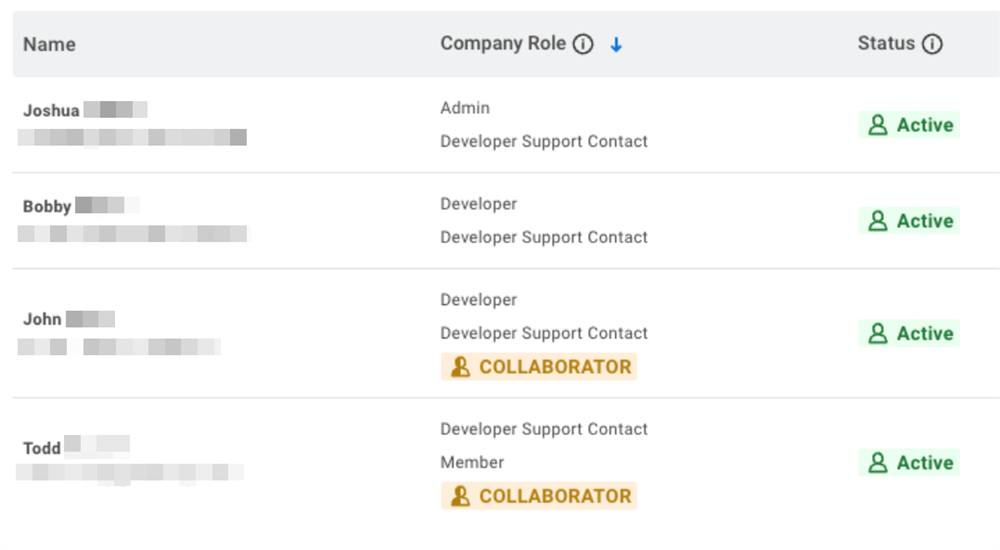
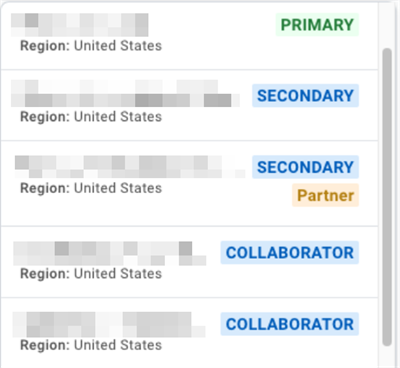
Any Developer Site user can be assigned to one or more companies. To ensure that you are working in the correct company, check the current company name that displays in the top navigation bar of the Developer Site, next to your user profile. If you belong to multiple companies (e.g., for a Workday event or Education class), use the pull-down menu in the top navigation bar to select a different company. One company will be designated as your primary while others will be secondary. If you are a collaborator, that designation will appear when you are switching between companies on the Developer Site.
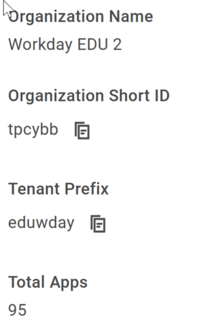
Every company is assigned an organization Short ID on the Developer Site. This Short ID is created when your company completes the purchase of their Orchestrate license. This randomly generated identifier becomes the suffix on all of your company's applications. Since all companies save their apps to the App Hub, this identifier is what stops one company from seeing another company's apps.

Consultants often need to be added as Collaborators to contribute to projects within a company. To gain access, a consultant must:
- Be certified as a Workday Extend Consultant or Workday Orchestrate for Integrations Consultant.
- Have an active Developer Site account.
- Be listed on the customer's Deployment Scorecard.
For a consultant who meets those requirements, company administrators or engagement managers must submit a request through Customer Care > Account > Extend Collaborator Access to grant access.
Note:
Collaborators can create, update, and promote apps, but cannot manage users or tenants.Any developer can be assigned to one or more roles. Here, John and Todd are both assigned the collaborator role.