Open Enrollment
Overview
Most companies administer an Open Enrollment event at least once a year. Open Enrollment includes updates to benefit rates, the addition of new benefit plans, and the elimination of old plans. The Open Enrollment event in Workday includes three steps: initiating the event, closing, and finalizing. Additionally, you must manage and coordinate eligibility changes. These changes are due to new hires, newly eligible employees, or due to a loss of eligibility.
Objectives
By the end of this chapter, you will be able to:
- Initiate an Open Enrollment event.
- Discuss mobile enrollment setup.
- Explain and use theOpen Enrollment Status Report.
- Explain coordination of events for Open Enrollment.
- Close and finalize the Open Enrollment process.
Open Enrollment Process
Workday uses Open Enrollment Events Types during the
Change Benefits for Open Enrollment
business process. The employee, benefits partner, or benefits administrator enters changes and submits elections. You can divide tasks between the benefits partner and the benefits administrator as follows:Benefits Partner:
- Enters or corrects benefit elections.
- Views theOpen Enrollment Statusreport.
Benefits Administrator:
- Initiates Open Enrollment.
- Views theOpen Enrollment Statusreport.
- Sends enrollment notification emails using theSend Reminder Emailstask.
- Extends Open Enrollment window if needed.
- Uses theClose Open Enrollmenttask to close Open Enrollment for all employees.
- Completes election corrections or adjustments after closing Open Enrollment.
- Uses the Finalize Open Enrollment task to finalize and activate employee elections.
- Cancels Open Enrollment.
Setting Up Open Enrollment
The same requirements for setting up and processing a benefit event apply to setting up and processing an open enrollment event. The requirements include:
Field | Description |
|---|---|
Benefit Event Type (for Open Enrollment) | Create an Open Enrollment event when running open enrollment for a specific benefit group. Include all coverage types in the Plan Year definition for Open Enrollment so elections roll over from one plan year to the next. |
Enrollment Event Rules | Defines all the rules of the open enrollment event. Rules determine the coverage begin date, changes allowed for each coverage type, and designates defaults. |
Benefit Group | Benefit group membership is based on eligibility rules. Defines participating employees in the open enrollment processing. Each benefit group can process separately and use different Open Enrollment event types. However, if benefit groups use the same event type, event date, and end date, you can select multiple benefit groups when initiating open enrollment. |
Benefit Plans | All existing benefit plans may need to be updated periodically with changes, including benefit rates. |
Dependencies | For new plans, review cross plan dependencies to confirm if changes are required. |
Benefit Plan Year Definition | Although you can run open enrollment anytime throughout the year, Open Enrollment requires a benefit plan year definition. Create a benefit plan year definition based on when your current plan year definition ends. Include all offered benefit plans in the new plan year, regardless of benefit group. When you run Open Enrollment, Workday will bring in all the benefits plans that fall within the event date that you select during the initiaton process. |
Period Schedules | Load payroll period schedules for the new year/plan year. This determines number of pay periods for each employee for FSA and HSA requirements. |
Open Enrollment Event Type
Open enrollment events have a few key differences from benefits events:
- Initiated by running a process.
- Days to Enroll section is not included. Enter the number of days open enrollment is available when you initiate OE. However, use Days to Enroll to coordinate other events.
- The Worker Selectable and Route to Benefit Partner checkboxes are not available on open enrollment event types. Workers can never initiate an open enrollment event. If you need to route different open enrollment event types to different security groups, you can control that by creating condition rules that designate the specific open enrollment event types.
Initiate Open Enrollment
To initiate Open Enrollment, select the benefit groups you will be processing and the open enrollment event type for that benefit group. Then, enter the Open Until date, which is the end of the Open Enrollment election period. Lastly, select the Event Date, which is the date the new elections take effect. The Plan Year Definition(s) will automatically populate based on the Event Date entered.
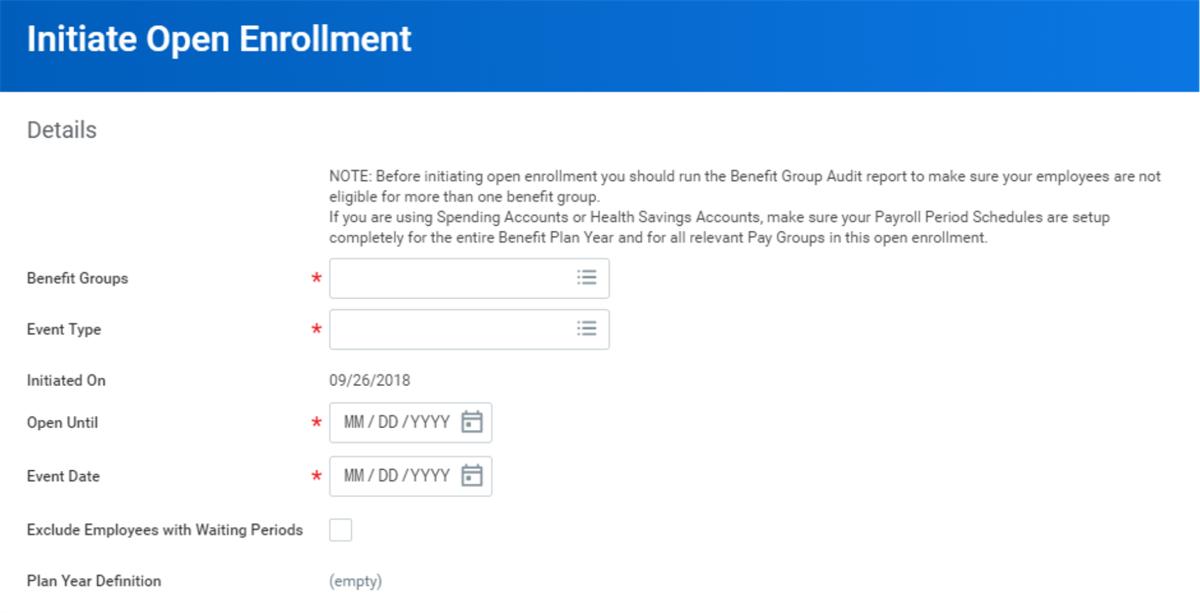
Workday enables you to schedule when you initiate and close the Open Enrollment process. You can schedule to initiate open enrollment for one or multiple benefit groups in one schedule. You can also initiate multiple open enrollment events in separate schedules. You can close open enrollment by scheduling to run once in the future or on a recurring basis.
Resource/Glossary
: Refer to Administrator Documentation on Workday Community for additional information on how to set up and schedule initiating and closing enrollment event processes.Mobile Open Enrollment
Mobile open enrollment allows employees to start, save for later, and submit open enrollment elections from the Workday application. Mobile enrollment is available on iOS and Android devices.
Note
: Mobile functionality for Workday Benefits support life events and open enrollment events.To set up open enrollment on mobile, select the Enable Mobile Benefits checkbox in the
Edit Tenant Setup - HCM
task.In the
Maintain Benefit Coverage Types
task, map Workday-delivered icons to coverage types. These icons will display during mobile enrollment.Additional Training
: Mobile Open Enrollment (Free) Learn-On Demand video.Open Enrollment Elections
Open enrollment will be open for the amount of time specified by your company. Based on configuration, both employees and benefit partners or administrators can enter elections. The following diagram illustrates the steps in the
Open Enrollment
business process: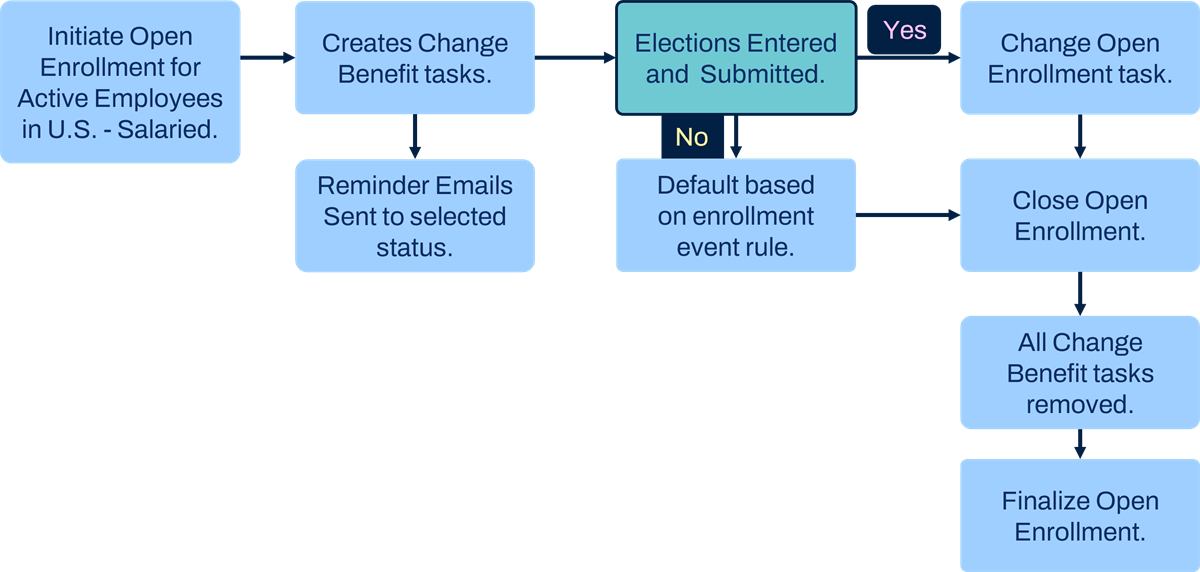
Employee Enters Elections
You can configure
Open Enrollment
to allow employees to enter their own open enrollment changes from their Inbox. The task will remain in their Inbox until they either submit elections or open enrollment closes.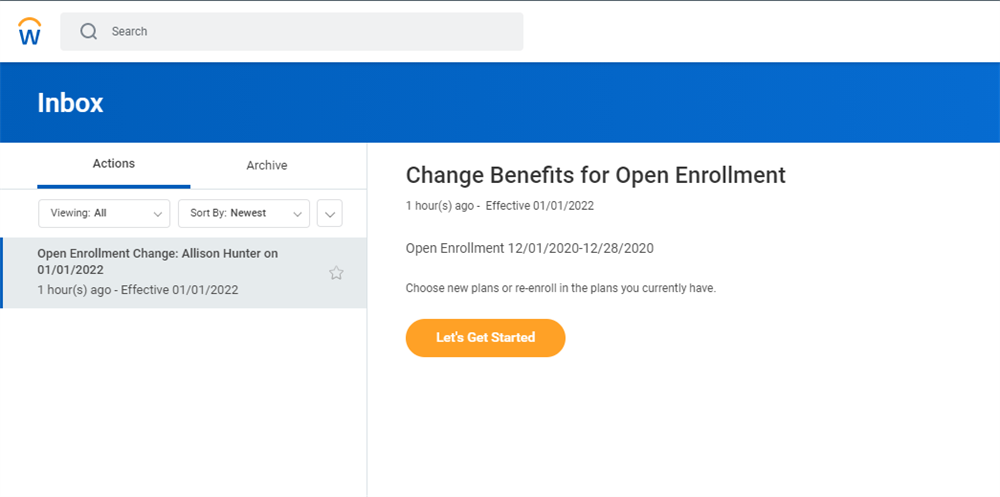
An employee can select Save for Later instead of Submit and the task will remain in their Inbox to complete later. Once submitted, Workday removes the task from the Inbox and the employee can use the
Change Open Enrollment
task to make any changes. This task will remain available until the Open Enrollment event closes. Regardless of whether the enrollment task routes to the employee, the benefit partner and administrator maintain access to the event using the Open Enrollment Status Report
.Benefit Partner or Administrator Enters Elections
If you configure the business process to allow the employee to enter elections, the task routes to the employee's Inbox. If an employee does not have a Workday account, the task routes to the benefits partner supporting the employee. This could happen when a Workday account is not created for a new hire. Once created, the benefits partner can request reassignment to send it back to the employee.
The benefit partner or administrator can use the
Open Enrollment Status Report
to enter elections. By selecting the status numbers, such as the Total, you can drill down and view all employees with Open Enrollment events.If the employees have not started or submitted elections, the task will show to the benefits partner. If the elections are submitted, there will be a
Change Open Enrollment
task available.Open Enrollment Status Report
The benefits partner can view the
Open Enrollment Status Report
and the total number of employees participating in an Open Enrollment event. Additionally, the report includes the number of started, in progress, submitted, on-hold, closed, and canceled events. Benefits partners can use the Detail View button of the report, although they only have view access. The benefits administrator has modify access to certain tasks, such as closing and finalizing open enrollment and sending reminder emails.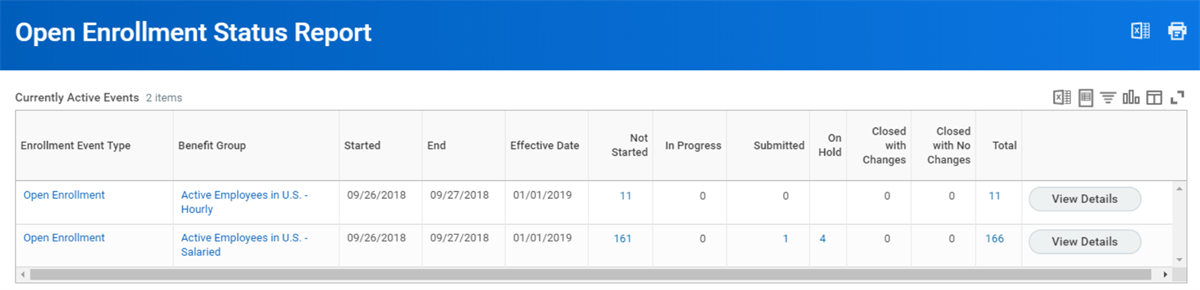
The Open Enrollment Details View gives the benefits administrator easy access to the
Send Reminder Emails
task, as well as the Close Open Enrollment
task.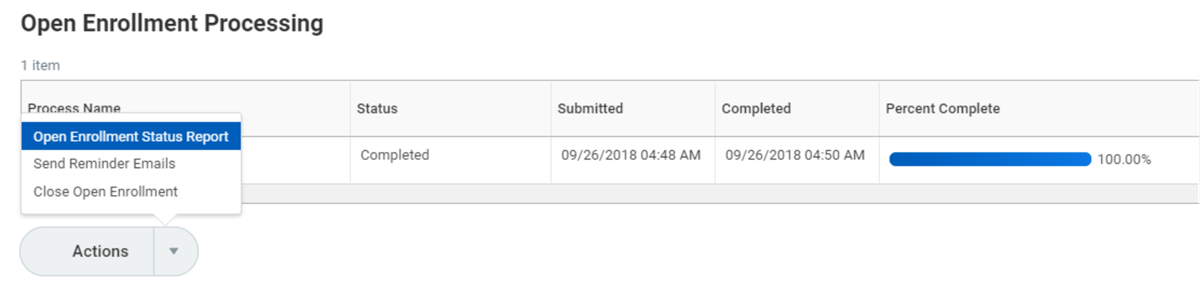
Send Reminder Email
Select one of more of the event statuses to send an email reminder or notification. For example, you could send reminders to employees whose events are in progress or not started. Employees who lost eligibility could receive an email informing them that their enrollment event is canceled or rescinded.
Adding and Removing Employees From Open Enrollment
If an employee becomes eligible for an open enrollment event after it has started or closed, the system automatically creates an open enrollment event for the employee once the hire or job change event that created the eligibility change closes. You can force the event creation sooner by running the
Eligible Workers with no Open Enrollment
report.You can select any open enrollment event, including previous years, to view a list of employees who are eligible but do not have an open enrollment event. After reviewing the list, select the
Add Workers
task to create an event for selected workers.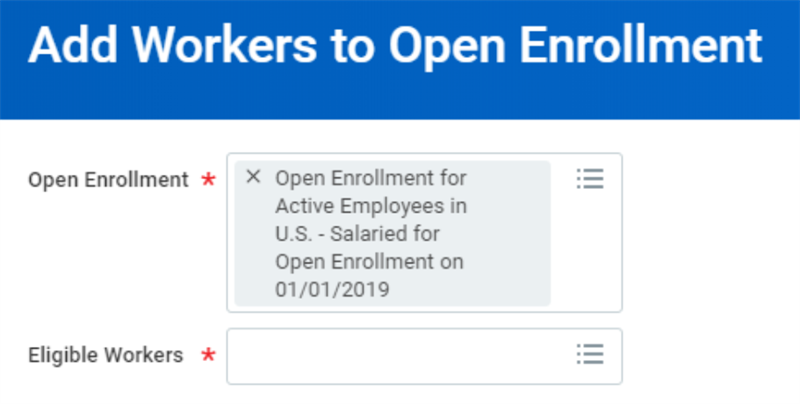
Once the workers are selected, a task will display that allows you to enter a Submit Elections By date. This date defaults to the Submit Elections By date entered when you initiated the Open Enrollment event. Edit the date, if necessary, so you can close this event separately from the mass
Close Open Enrollment
process.Use the
Workers no longer eligible for Open Enrollment
report to find employees originally included in open enrollment who have since lost eligibility. The report identifies events that require cancellation. This is only needed if you are not using the benefit event automation and coordination of events. If the Terminate Employee
business process is correctly linked to a benefit event, any termination with an event date before the open enrollment event date will automatically close, finalize, and benefits will terminate. The open enrollment event will then be reprocessed and canceled since the employee is no longer eligible for elections.Closing Open Enrollment
Closing Open Enrollment ensures that employees can no longer make enrollment changes. Open Enrollment notifications disappear from employees' My Tasks and the Enroll in Benefits button no longer displays on their Benefits and Pay Hub. However, an administrator can make edits to an employee's enrollments anytime until the Open Enrollment event is finalized. After closing open enrollment and before finalizing the process, it is common to use this time to audit or clean up before sending your first dataset to the provider.
An Open Enrollment event does not close automatically on the specified closing date. You must manually close it or schedule it to close. Use the
Open Enrollment Status Report
to monitor and manage currently active open enrollment events. From the Open Enrollment Processing section, you can use event's Actions menu to select from two options:- Close Open Enrollment Now
- Close Open Enrollment by Schedule
If you close by schedule, then in the Schedule tab, select the Run Frequency and enter scheduling details.
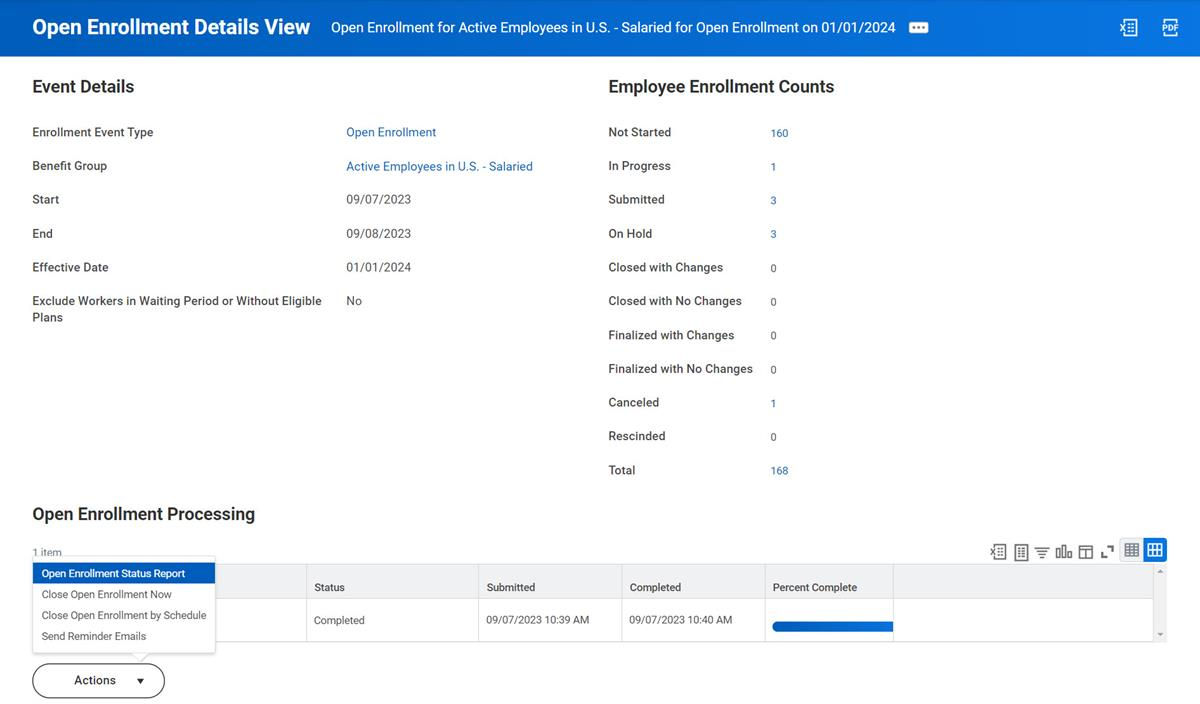
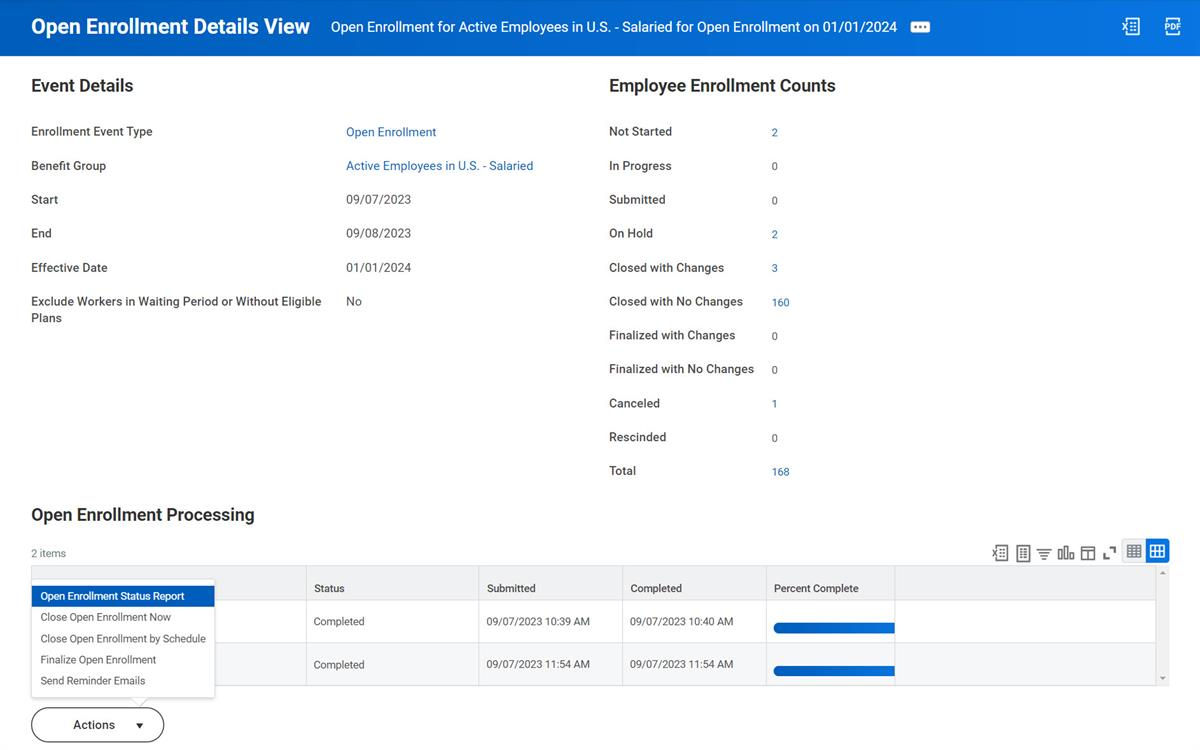
Depending on the status of the Open Enrollment when you close it, Workday applies different default election values. For example, employee enrollment events may display a staus of Closed with Changes or Closed with No Changes. Employee enrollment changes that were not submitted are ignored and the employee's current elections will be waived or continue based on the Enrollment Event Rule and Default Rule configuration. The image below displays an example of the Open Enrollment Details View, which includes the options that you can select from the Actions menu as well as the employee enrollment status counts.
The screenshot below displays the Open Enrollment Details View report for the Active Employees in U.S. - Salaried benefit group on 01/01/2024.
Employees may be added to the open enrollment event later in the process. The Close Employees with Enrollments Open Until date field will allow you to close open enrollment events for most employees while leaving the recently added open enrollment events open. The End Date controls what open enrollment events will close. You might need to close and finalize open enrollment multiple times. Repeat this process until all open enrollment events are closed and finalized.
Finalizing Open Enrollment
You can also finalize open enrollment immediately after it is scheduled to close by selecting the Finalize Events After Closing checkbox in the Open Enrollment Details tab at the same time as scheduling the event to close. By selecting this option, Workday finalizes open enrollment immediately after closing it. You are not able to schedule the finalize job separately from the close job. If you do not select the Finalize Events After Closing checkbox, then you must manually finalize open enrollment.
You can view the events scheduled to be finalized from the Finalize Events After Closing column in the Active Schedules: Close Open Enrollment tab of the
Open Enrollment Status Report
.
Corrections
Once you finalize open enrollment, all additional changes require a correction. Although you do have the option to cancel an open enrollment event, that is not recommended. Use the
Open Enrollment Status Report
to locate and drill down on the employee enrollments using the Finalized with Changes and Finalized with no Changes actionable numbers. Instead of the Change Elections button, you will use the Correct button.Reopen Open Enrollment
Workday enables adminsitrators and employees to reopen open enrollment events for individual employees. You can configure the business process security policy and default definition for the
Reopen Open Enrollment
business process, which enables the ability to reopen closed or finalized open enrollment events based on a configurable time frame.This process provides an additional opportunity for employees to make or change benefit elections and upload any required documentation. Employees can reopen their open enrollment event without the need of a benefits administrators. An administrator can also reopen a employee's open enrollment event. You can configure an approval step on the
Reopen Open Enrollment
business process to route to your benefits adminstrators for review.To make an open enrollment event eligible to reopen, you must select the Enable Reopen of Open Enrollment Event checkbox on the
Create Open Enrollment Event Type
task. By enabling this, workers can access the Reopen My Open Enrollment task from the Tasks and Reports section of the Benefits and Pay Hub. Additionally, when you select the Enable Reopen of Open Enrollment Event checkbox, two additional fields display:- Days in Reopen Period: Defines the number of days in which an employee can reopen their open enrollment event, after the last day of the open enrollment period.
- Days to Enroll: Defines the number of days in which an employee can enroll in elections after the event is reopened. This value impacts the Submit Elections By Date field.
The
Reopen Open Enrollment
business process rescinds the employee's previous open enrollment event and generates a new one. The new event maintains the elections the employee choose in their previous event.Printing Benefit Statements
Employees have a confirmation page immediately after submitting elections. The confirmation page displays all plans and coverage levels elected, any waived plans, and beneficiary information.
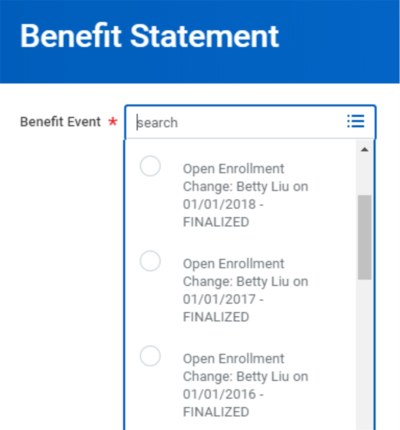
Employees can print the confirmation page. If the employee leaves the page without printing, they can print a benefit statement for open enrollment or any past benefit event. To find the benefit statement, use the employee's Related Actions icon, select the Benefits action and the
View Benefit Statement
task.