
Time Off Plans and Components
Overview
Time off is time taken away from work for such needs as vacation, sick, floating holiday, and bereavement time. A time off plan and its components provide a way to define and manage worker time off.
Objectives
By the end of this chapter, you will be able to:
- Identify and describe the time off related absence setup tasks and components.
- Distinguish between time off plans with balance tracking enabled and time off plans without balance tracking enabled.
- Create a period schedule.
- Create and test a time off plan with no balance tracking.
- Create, edit, and test a time off plan with balance tracking enabled.
- Explain how Workday processes carryover limits and balances, and upper and lower limits.
- Explain how Workday uses the accrual frequency method.
- Describe approaches for creating time off plans to meet an organization's accrual and time off requirements.
Absence Setup Components for Time Off
Absence Management includes setup components for time off and for leave of absence because Workday makes a distinction between the two functions. Time off-related absence setup components include the following:
- Time off type
- Time off
- Accrual
- Time off plan
Effective-Dated Absence Setup Components
To help facilitate compliance with evolving regulatory, company policy, and union or collective bargaining agreement requirements, the following absence setup components are effective dated:
- Time off
- Accrual
- Time off plan
When you create a time off, accrual, or time off plan, Workday creates an initial snapshot. When you edit these absence setup components, you must select one of the following:
- Update Existing Effective Date
- Add New Effective Date
The setting in the Time Off section of the
Edit Tenant Setup - HCM
task, determines the snapshot dates you can update or add.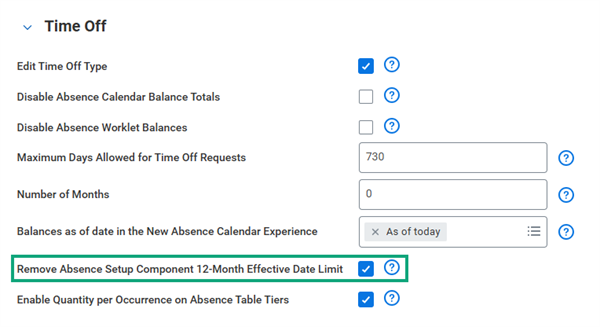
When the Remove Absence Setup Component 12-Month Effective Date Limit checkbox is cleared, you cannot update or add snapshots for dates older than one year from the period start date of the current period.
Example
: If today is January 2, 2025, and you are editing a time off plan with a monthly period schedule, you will be unable to edit a snapshot dated before January 1, 2024.Note
: To aid in tenant performance, Workday recommends leveraging effective-dated changes to time off plans only as far back as 12 months. For time off plans, the period schedule identified in the time off plan determines the available snapshot dates. For time offs and accruals attached to a time off plan, the period schedule of the time off plan determines the snapshot dates. If the time off or accrual is not attached to a time off plan, there are no available snapshot dates.
Resource
: For additional information on effective dating for absence setup components, visit Workday Community.Time Off Type
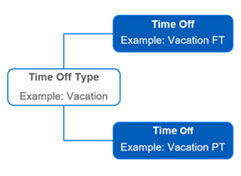
Time off types are categories of time off. A time off type is the name that users see in the prompts when they enter or view time off requests. For example, you might define a time off type called Vacation. The Vacation time off type may include Vacation Full Time and Vacation Part Time. Vacation is the name that all users see.
Use the
Maintain Time Off Types
task to define a time off type.Time Off
Time offs define the time away from work. They subtract from the time off plan balance.
You must associate all time offs with a time off type. You can associate one or more time offs with a time off type to accommodate different worker groups.
In the following example, the Vacation time off type includes two time offs: Vacation Full Time and Vacation Part Time.
Important
: If you associate more than one time off with a time off type:- Select only time offs that are associated with time off plans that use the same unit of time (hours or days).
- Ensure that workers are eligible for only one time off at a time. Otherwise, workers will be able to make duplicate requests against a time off plan and potentially reduce their time off plan balance twice.
Time Off Configuration
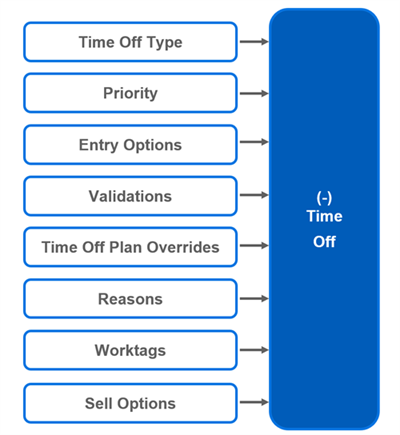
A time off specifies:
- The time off type.
- The processing priority.
- Whether to allow entry through Time Off, Time Tracking, or both.
- Validation rules.
- Overrides to eligibility rules and lower limits that differ from the rules defined in the time off plan.
- Reasons for the time off.
- Other options to meet time off requirements.
Use the
Create/Edit Time Off
task to configure a time off. When you configure a time off, you will define the following:- General information about the time off
- Time off details
- Data entry validation rules
- Time off plan overrides if you want to override the eligibility rule, limits, or daily quantity default
- Time off reasons if you want to allow or require entry of reasons for the time off request
- Sell options if employees are allowed to sell time off
General Information
The top section of the
Create/Edit Time Off
task includes general information about the time off, including the name and code for the time off. The following table describes the other fields and options that provide general information about the time off.Field/Option | Description |
|---|---|
Require Position on Time Off Request | Selecting this checkbox requires workers on a worker-based time off plan to enter their position when they request time off. |
Time Off Type | Indicates the time off type. |
Allow to Sell Time Off | Selecting this checkbox allows workers to sell available time off. When you select this checkbox:
|
Picked Up by Payroll Interface one Period in Arrears | Controls the period for which the Workday Payroll Interface pulls time off.
|
Visible for Team Absence | Selecting this checkbox displays the time off on the Team Absence calendar for security groups that have access to the Team Absence calendar.
Note : You can also use the Configure Team Absence task to select the time offs to display on the Team Absence calendar. Workday automatically carries over the selection you make for Visible for Team Absence in the Create/Edit Time Off task to the Configure Team Absence task for the same time off. Any selection you make for Visible for Team Absence for a time off in the Configure Team Absence task, Workday carries over to the View/Edit Time Off task for the same time off. |
Time Off Details
Use the Details tab to define time off details. The following table describes the fields and options on the Details tab.
Field/Option | Description |
|---|---|
Priority | Indicates the priority for processing the time off when both of the following occurs:
Note : The priority combined with a lower time off limit and the timing of accrual processing (defined by the time off plan) can affect paid and unpaid time off. |
Adjustments Allowed | When selected, allows adjustments to employee time off. To enter a time off adjustment, use the Maintain Accrual and Time Off Adjustments/Overrides task. |
Hide from Worker Self Service | When selected, hides the time off in employee self-service to prevent employees from requesting this time off.
Note : If you have opted in to Segmented Security for Time Off, Workday does not display this checkbox. The segment-based security groups and time off security segments control who can access specific time offs. |
Time Calculation Tag | Specifies time calculation tags to assign to time off units.
Workday Time Tracking uses time calculation tags to identify time off units for use in time calculations and totals. For example, you may want to display time off totals to workers when they enter time. |
Entry Option | Specifies how users can enter requests for the time off.
|
Data Entry Validation Rules
Use the Validations tab to define rules that prevent the entry of invalid time off requests or that generate warning messages in response to an invalid request. The following table describes the options in the Data Entry Validation column.
Option | Description |
|---|---|
Consecutive Day Maximum | Defines the maximum number of consecutive days a worker can take time off. |
Consecutive Day Minimum | Defines the minimum number of consecutive days workers must enter in a single request. |
Increments | Requires employees to enter time off in fixed increments, such as 0.5 days or 4 hours. |
Maximum | Defines the maximum amount of time off employees can enter in a single request or across multiple requests for all or a subset of time offs. |
Maximum Unpaid Time Off Units Allowed | Defines the maximum amount of unpaid time off allowed for a given time off to prevent employees from requesting unpaid time off. This validation rule type applies only to time off plans that track balances. Tip : To prevent unpaid time off, select 0 (zero) as the maximum number of unpaid units allowed. |
Minimum | Defines the minimum amount of time off employees can enter in a single request. |
Multiple Time Off Requests Not Allowed for Same Date | Prevents the entry of multiple time off requests for the same date across all or a subset of time offs. |
Time Off Date Before Maximum Override Balance Date Not Allowed | If you have overridden the time off plan balance using the Maintain Time Off Override Balance task, this option will prevent the entry of time off requests for any date prior to the override date. This validation rule type applies only to time off plans that track balances.Example : If you enter an override for the time off plan balance on January 1, 2025, employees cannot enter time off requests for dates before January 1, 2025. |
Time Off Plan Overrides
Use the Time Off Plan Overrides tab to provide instructions that override the eligibility rules, limit, and daily quantity default defined for the time off plan. The following table lists the sections on the Time Off Plan Overrides tab and their descriptions.
Section | Description |
|---|---|
Worker Eligibility Override | This section provides worker eligibility rules that override eligibility rules defined at the time off plan level. Define worker eligibility overrides for a time off only if the rules differ from the plan's eligibility rules. Workday enforces the rules defined for the time off, instead of the plan eligibility rules. When you define time off plan overrides:
All employees are eligible for the time off if you do not define eligibility criteria for the plan or the time off. Important : Requests for intermittent time off must pass the validation rules for both the time off and the related leave of absence. Workday applies eligibility and validation rules in the following order:
|
Limit Override | This section overrides the lower time off limit defined for the time off plan. The lower limit controls how much time off to pay when employees exceed their available balance. The Limit Override fields include:
Workday considers time off units that reduce the balance below the limit as unpaid. Important : To indicate not to pay for time off when workers reduce their time off balance to zero, enter 0 (zero). To allow workers to receive paid time off when their balance falls below zero, enter a negative value.
|
Time Off Reasons
Use the Reasons tab to define reasons for a time off (e.g., Immediate Family vs. Extended Family for Bereavement Time Off). These options will be selectable when an employee requests or is placed on the time off. Select the Reasons Required checkbox if you require a reason for a time off request.
Worktags
Worktags can be configured on time offs. This will allow eligible workers to include worktag values when reporting time off (e.g., A worker can select a specific worktag type to report time off against a cost center or project). This increases efficiency and enhances compliance by enabling you to report and allocate these units appropriately.
Sell Options
If you selected the Allow to Sell Time Off checkbox, use the Sell Options tab to define when workers can sell their time off and how much time off they can sell. The following table describes the fields and options on the Sell Options tab.
Term | Definition |
|---|---|
Available to Sell During | Specifies whether workers can sell their time off during:
|
Sell Schedule | If you select Fixed Period in the Available to Sell During field, you can select a schedule (created using the Create or Edit Schedule for Selling Time Off tasks) or create a new schedule. The Sell Schedule defines time frames when workers can sell their time off. |
Maximum Limit to Sell | Specifies the maximum limit of time off a worker can sell. You can select a Workday-delivered or custom numeric calculation |
Maximum Limit Applies to | If you define the Maximum Limit to Sell, you must specify either:
|
Sell Increments | Specifies the multiples in which you want workers to sell time off. You can select a Workday-delivered or custom numeric calculation. |
Accrual
Accruals add to the employee's time off plan balance. Therefore, only plans that track balances use accruals.
An accrual specifies the amount of time off an employee receives and when the employee can receive that time off amount.
Accrual Configuration
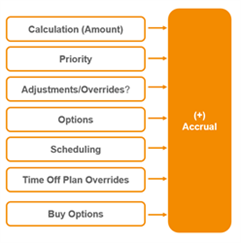
An accrual definition specifies:
- The accrual amount.
- The processing priority.
- Whether to allow adjustments or overrides.
- When workers receive the accrual.
- Time off plan overrides, including:
- Accrual frequency
- Eligibility requirements
- Accrual limit
- Buy Options, including:
- Buy Schedule
- Maximum Limits
- Allowable Increments
Use the
Create/Edit Accrual
task to configure an accrual. When you configure an accrual, you will define the following:- General information about the accrual
- How to calculate the accrual
- Time off plan overrides if you want to override the accrual frequency, eligibility rules, and limit
General Information
The top section of the
Create/Edit Time Accrual
task includes general information about the accrual, including:- The name and code for the accrual
- The effective date for existing accruals
Calculation Information
Use the Calculation tab to define how to calculate the accrual. The following table lists and describes the primary fields on the Calculation tab.
Field | Description |
|---|---|
Calculation (Accrual Amount) | Defines the accrual amount. The amount can be:
Example : If using the accrual in a day-based plan, specify a daily unit of time, such as 0.5, not 4 (hours). If using the accrual in an hourly plan, enter an hourly unit of time, such as 4, not 0.5 (days). Workday does not automatically convert hours to days or days to hours. |
Priority | Specifies a priority for processing the accrual when multiple accruals contribute to the same time off plan balance. Example : If a Vacation accrual has a priority of 10 and a Sick Time accrual has a priority of 20, Workday adds the Vacation accrual to the time off plan balance first. |
Adjustments/Overrides Allowed | Allows adjustments and overrides to employees' absence accruals. To enter an accrual adjustment or override an accrual, use the Maintain Accrual and Time Off Adjustments/Overrides task. |
Options | Specifies one of the following:
|
Time Calculation Tags | Specifies the time calculation tags that time blocks must have so that the accrual calculation can reference them. If using Workday Time Tracking, you can create an accrual calculation that is based on the time that workers enter in that application. This feature is useful for calculating accrual for compensatory time off. |
Rounding | Select a rounding definition to apply to front-loaded or as-of-date accrual calculations. Workday applies the rounding as part of the Automated Accrual Adjustment step on the Change Job business process. Example : Round to the nearest 0.1.By selecting a rounding definition, you can eliminate the need to further adjust the accrual results. |
Scheduling | Specifies the scheduling rule that determines when employees receive the accrual. Example : You might select a rule that makes floating holiday hours accrue only in the first month of the year.Note : You can combine multiple scheduling rules in the same row or insert a separate row for each rule. An employee must meet all criteria specified in the same row. If you define criteria in separate rows, an employee must satisfy the criteria in at least one row. |
Note
: The accrual frequency method (defined by the accrual priority), accrual limits, and the timing of accrual processing (defined by the time off plan), can impact employee accruals.Time Off Plan Overrides
Use the Time Off Plan Overrides tab to provide instructions for overriding the accrual frequency, worker eligibility, or limit defined on the time off plan. The following table describes the fields on the Time Off Plan Overrides tab.
Field | Description |
|---|---|
Accrual Frequency Override | Specifies when to add the accrual to a worker's plan balance. Options include:
Note : The Start of Period method typically results in workers reaching upper limits sooner and lower limits later than if processing accruals using the End of Period method. |
First Accrual Date | If Custom Frequency is the accrual frequency, this date indicates the calculation that returns the first date of the accrual, such as Worker: Hire Date, Worker: Time Off Service Date, or a date calculation to return this date. Example : Create a date increment/decrement calculation that returns an employee's hire date plus 30 days. (If the hire date falls on the 31st day of the month, the accrual will happen on the last day of the month in months with less than 31 days.Note : Workers must still meet scheduling criteria for the accrual to occur on this date.You can pause annual time off accruals by selecting Accrual Date Pause if Worker is Absent, an instance value calculation, in the First Accrual Date field. Workday delays annual time off accruals to the next available working day for workers with absences that include the day of their annual accrual and the day before. Workers accrue their annual time off balance only when they return from absence. |
Accrual Recurs Every | If Custom Frequency is the accrual frequency, this field specifies the number of recurring units of time (days or months) after the first accrual date when the accrual is to occur. Example : Enter 1 if the accrual is to occur every month on the anniversary of the first accrual date. |
Accrual Recurs Unit of Time | Specifies whether the recurrence interval represents days or months. |
Number of Days to Pause an Accrual | This field is available only if you select Pause Accrual for Related Time Off Events in the First Accrual Date field. The number in this field indicates the number of days to pause an accrual when a worker is absent on the scheduled accrual date. |
Worker Eligibility Override | The fields in the Worker Eligibility Override section override eligibility rules defined at the time off plan level. If you do not define eligibility rules here, the accrual automatically inherits the eligibility rules associated with the time off plan.
|
Upper Limit Override | The information in the fields in the Limit Overrides section overrides the upper time off accrual limit defined for the time off plan.
Workday displays the time off plan balance period when you associate the accrual with a time off plan. Workday will automatically reduce the accrual for any calculation period by the balance amount that exceeds the limit. This amount appears as forfeited accrual hours or days on Workday pages and reports. |
Expiration Override | The expiration override section can be configured so that time off can expire relative to the date it was accrued.
|
Buy Options
Use the Buy Options tab to define the options for workers to buy time off. The following table lists and describes the primary fields on this optional tab.
Option | Description |
|---|---|
Available to Buy During | Select when workers can buy time off:
|
Balance Updated in Period | Select when the balance is updated:
|
Maximum Limit to Buy | Select a calculation to define the limit of time offs that a worker can buy. |
Maximum Limit Applies to | Consider whether you want workers to buy time off at any time or multiple times throughout the year based on the buy schedule.
|
Allowable Increments to Buy | Select a calculation to define the increments or multiples of time offs that workers can buy. |
Pay Rate for Adjustments | Select the pay rate to be used for the payroll adjustments.
|
Time Off Plan
A time off plan defines rules for entering and tracking one or more related time offs. When you set up time off plans, workers and managers can enter time off requests, correct requests, and track the status of requests through self-service pages and reports. Administrators can track, adjust, and manage accrual, time off, and time off plan balances.
Period Schedule
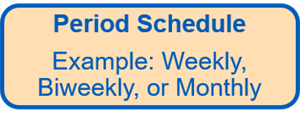
All time off plans must include a period schedule. Period schedules determine:
- The accrual frequency for a time off plan.Example: If the period schedule is weekly, Workday processes accruals once each week unless you override the accrual frequency, use a custom frequency, or front-load your accruals.
- The start and end dates of the periods that retrieve and process time off.Example: If the period schedule is monthly, time off reports display time off balances and transactions on a month-to-month basis.
- Eligibility for a time off plan, time off, or accrual when eligibility rules reference the period schedule.Example: You can define an eligibility rule requiring employees to be full-time as of the current period start date.
- The dates available in:
- The Effective Date field when you create a new time off plan.
- The Add New Effective Date field when you edit a time off plan or the time offs and accruals attached to the time off plan.
Touchpoint
: Workday Absence Management, Workday Payroll, and Workday Time Tracking can share period schedules. The Usage field on the period schedule indicates where the period schedule is in use.Set up a Period Schedule
To specify a period schedule in a time off plan, the period schedule must exist in Workday. You can use the
Create Period Schedule
task to manually set up period schedules or use the Put Period Schedule
web service. The web service uses the Workday Enterprise Interface Builder (EIB), which assists you with bulk data loads and saves time.Generate Periods for Period Schedules
For existing period schedules, you can use the
Generate Period Schedule Periods
task to automatically extend the periods for up to two years out. You can use this task to add periods for schedules with the following frequencies:- Annual
- Bi-weekly
- Monthly
- Semi-monthly
- Weekly
Time Off Plan Categories
In Workday, there are two categories of time off plans:
- Time off plans with no balance tracking (basic time off plans)
- Time off plans with balance tracking
Time Off Plans with No Balance Tracking
Time off plans that do not track balances are basic time off plans. Basic time off plans support simple time off entry and approval. They enable you to define time off types such as vacation, sick, and personal time. Employees can enter time off requests against these times off types. The system then automatically routes the requests to the appropriate manager for review and approval. Employees and managers can track the status of time off requests in delivered reports and queries.
Configuration for Time Off Plans with No Balance Tracking
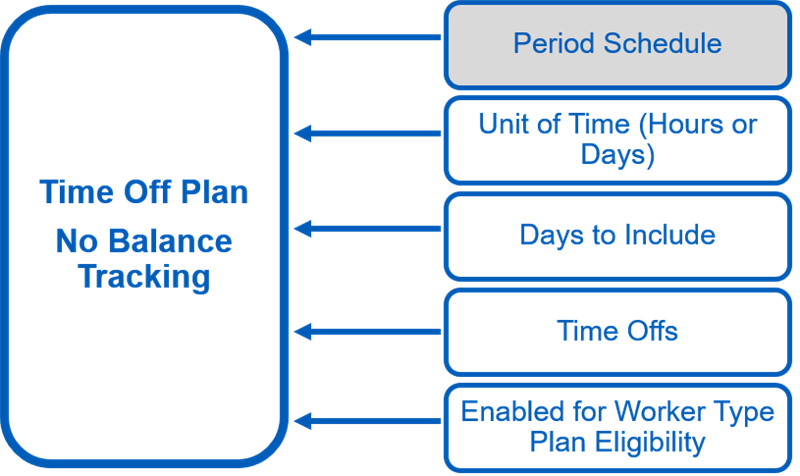
Basic time off plans that do not track balances must include the following components:
- Period schedule
- Unit of time for recording and processing time off requests
- Days to include
- One or more time offs
- Default eligibility rules for taking time off
Use the
Create/Edit Time Off Plan
task to configure a basic time off plan.Time Off Plans with Balance Tracking
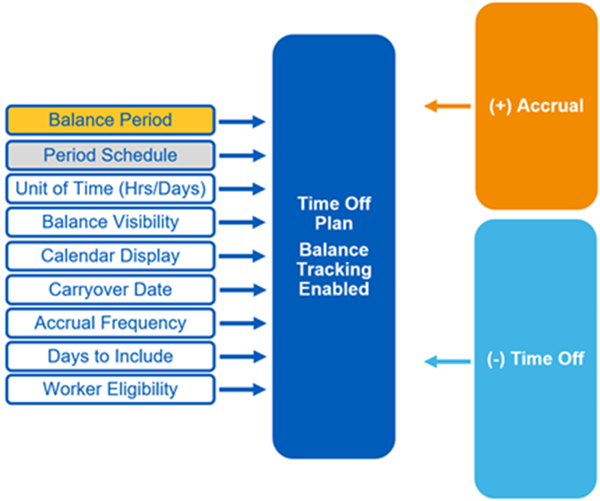
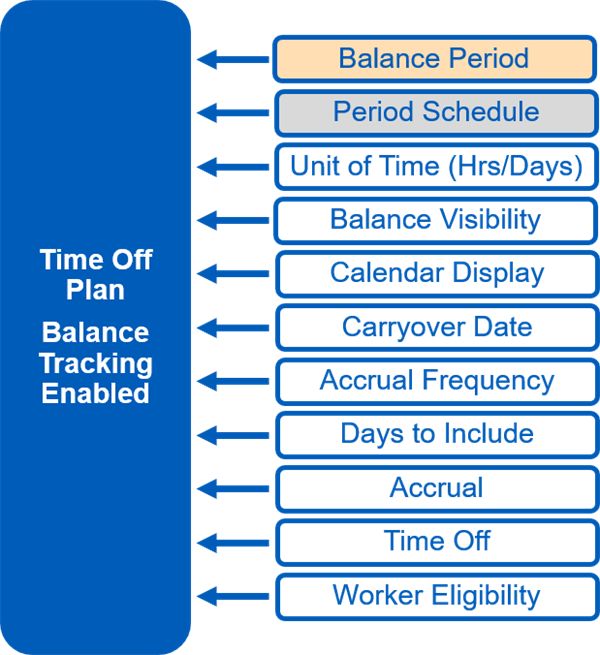
Time off plans with balance tracking enabled bring together the accrual and time off, and include advanced functions not available in basic time off plans. The simplest time off plan with balance tracking must include:
- A balance period, which defines the start and end date of a time off plan. The balance period also tells Workday over which period to calculate and sum time off plan balances.
- A period schedule, which defines the accrual frequency, such as biweekly or monthly, for a time off plan. The period schedule also defines the processing period for time off entries and accruals.
- The balance visibility type.
- The calendar display.
- Days to include in the time off request.
- The unit of time to use for time off requests and accruals.
- Accruals that add to the plan balance.
- Time offs that subtract from the balance.
- Eligibility rules workers must meet to accrue and take time off.
The time off plan can:
- Specify a carryover limit.
- Pass time off to Workday Payroll or Workday Payroll Interface for use in payroll calculations.
Time off plans that track balances provide the same time off entry and approval functionality as basic time off plans.
Configuration for Time Off Plans with Balance Tracking Enabled
Use the
Create/Edit Time Off Plan
task to configure a time off plan. When you configure a time off plan, define the following:- General information about the time off plan
- Balance information
- Calculation for the accrual frequency method and balances
- Accruals that add to the balance
- Time offs that subtract from the balance
- Eligibility rules for the time off plan
General Information
The top section of the
Create/Edit Time Off Plan
task includes general information about the time off plan. The following table describes some of the fields and options in this section.Field | Description |
|---|---|
Display Name | Specifies the name to be displayed in self-service for users when they enter time off requests. If left blank, self-service displays the name entered in the Plan Name field. |
Position Based |
|
Track Balance | When selected, enables balance tracking. |
Balance Period | Specifies the period over which to calculate accrual, time off, and time off plan balances. Balance periods are one of the four main time off plan components. |
Period Schedule | Defines accrual frequencies (except for accruals with a custom frequency) and reporting periods for the plan. Plan eligibility rules that refer to period start or end dates also use the period schedule. Example : Select Monthly to calculate accruals monthly and to process and track time off requests and adjustments monthly. |
Unit of Time | Specifies the unit of time for recording, processing, and tracking time off for the plan. An employee can have both hour-based plans and day-based plans, but each plan can use only one unit of time. Important : All time off, accruals, limits, and other calculation values associated with a time off plan must use the same unit of time. Workday does not convert hourly values to daily values or daily values to hourly. |
Default Payslip Name | Identifies the name of the time off plan that appears on payslips. If this field is empty, Workday uses the time off plan name. |
Balance Information
Use the Balance tab to provide information about whether and when to display balances and other balance-related information. The following table describes the fields on the Balance tab.
Field/Options | Description |
|---|---|
Balance Visibility | Specifies whether employees, managers, and administrators can view time off balances, and if so, for how long after an employee loses eligibility for the plan. Options include:
|
Hide Balance from Worker Self Service | When selected, balances do not appear for workers. Note : If you select the Hide from Worker Self Service checkbox, Workday hides time off balances on:
If you want the time off balances to display on the Absence and Time Off Calendars, but not on the Absence and Time Off worklets, do the following:
|
Calendar Display | Specifies whether the time off plan or time off type details display to workers in the Balance Per Plan section of the Absence Calendar. Note : To hide the Total field in the Balances sidebar of the calendar, select the Disable Absence Calendar Balance Totals checkbox in the Edit Tenant Setup - HCM task (Time Off section). Hiding the Total field can help improve performance and clarify the information in the Absence Calendar. |
Overrides Allowed | When selected, enables balance override for the start date of any period for which the worker is eligible. To override time off plan balances, use the Maintain Time Off Plan Override Balances task. |
Balance Transfer Defaults | Specifies time off plans that automatically populate on the Maintain Time Off Plan Transfer Balances task when a worker loses plan eligibility due to a job change. |
Carryover: Date | Specifies the date to reset year-to-date balances for time offs and accruals, and carry over remaining time off plan balances. Options include:
|
Carryover: Limit |
|
Carryover: Amount of Time Before Expiration | Indicates the numeric amount of time after which carryover hours or days expire. |
Carryover: Unit of Time for Expiration | Specifies the unit of time in which Workday calculates carryover expiration. |
Carryover: Include Carryover in Time Off Plan Balance Upper Limit Calculation | When selected, the time off plan's upper limit calculation includes carryover units. |
Carryover: Use Time Off Accrual before Carryover Balance | When selected, Workday deducts the current year accrual first for a time off request, rather than the carryover. Carryover must have an expiration. |
Calculation Information
Use the Calculation tab to provide instructions on:
- The accrual frequency method for the time off plan.
- Time off plan lower and upper limits.
- Other information used to calculate time off plan balances.
The following table describes the fields on the Calculation tab.
Field | Description |
|---|---|
Accrual Frequency Method for Time Off Plan | Specifies when to add the accrual to a worker's plan balance. Options include:
Note : The Start of Period method typically results in workers reaching upper limits sooner and lower limits later than if you use the End of Period method to process accruals.
|
Time Off Plan Balance Lower Limit | Specifies a constant value or the calculation that defines the amount. Enter a "0" (zero) in this field to indicate that workers receive no pay for time off when they reduce their time off balance to zero. Enter a negative value in this field to allow workers to receive paid time off when their balance falls below zero. Time off units that reduce the balance below the limit are unpaid. For example, a vacation plan has a lower limit of -16 hours. Sunil uses all his vacation time (balance = 0), and then takes 10 more hours. Workday pays all 10 hours because they fall within the lower limit. However, if Sunil requests an additional 10 hours, he is paid only 6 of them. Workday tracks the rest as unpaid time. Note : You can use time off validation rules to prevent employees from requesting unpaid time off. |
Time Off Plan Balance Upper Limit | Specifies the maximum number of hours or days employees can accumulate in their time off plan balance or select a calculation to return the amount. The balance amount that exceeds the limit appears as a Forfeited accrual on reports. |
Daily Quantity Default | Specifies the daily default quantity for time off requests entered through the calendar, such as eight hours or an employee's scheduled number of hours. If you define the default quantity with a conditional calculation, Workday bases the default quantity on the first day of a request. Example : If Sean requests three days off, and he is scheduled to work four hours the first day, the default quantity for each day is four hours. |
Days to Include | Specifies which days to include when employees select a range of dates for a time off request. The selection only controls the defaulting of dates. Employees can still enter requests for any date unless you select the Restrict Request to Days to Include on Calendar checkbox. Example : Tran enters a time off request that spans from Friday through Tuesday. After Friday, he is next scheduled to work on Monday for 10 hours. Monday is an 8-hour public holiday.
Important : Options that reference workdays require a holiday calendar and a work schedule calendar. |
Use Scheduling Shifts | Use this checkbox to enable Workday to consider published scheduled hours when workers request time off. This prevents requests for planned time off when workers are scheduled to work. This configuration requires the use of Workday Scheduling. |
Restrict Requests to Days to Include on Calendar | For the Request Absence task and Manage Absence report, selecting this checkbox restricts absence requests to the days specified by the option selected in the Days to Include field. When you leave the checkbox cleared, workers can enter an absence for any day. |
Accrual Information
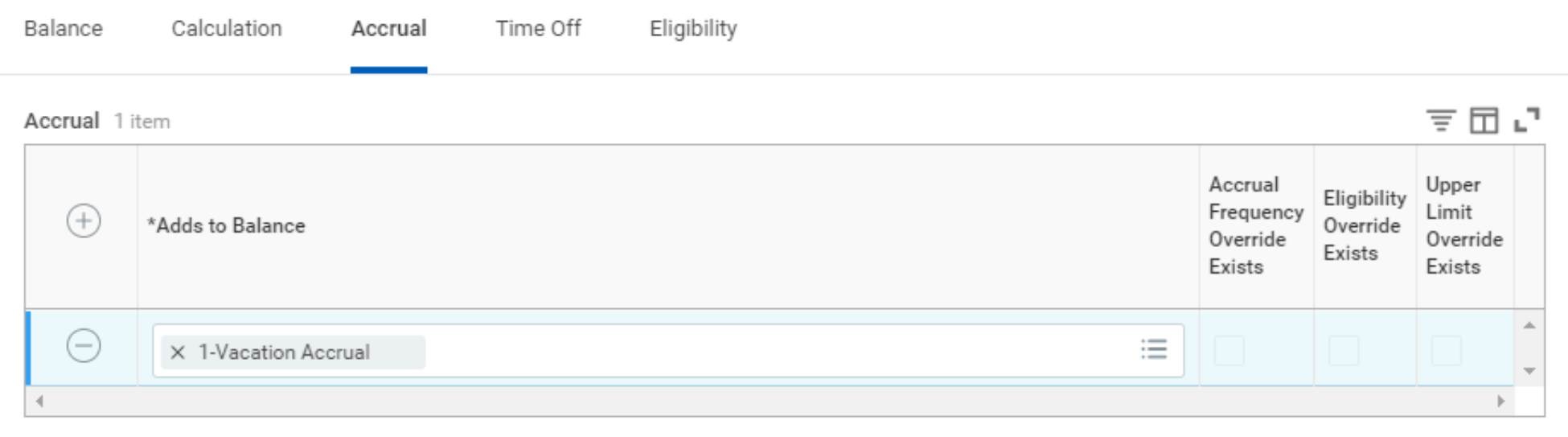
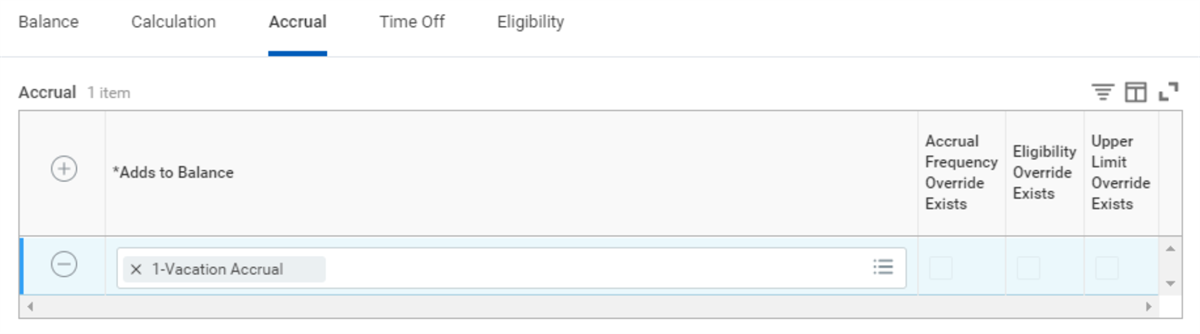
Use the Accrual tab to select the accruals that add to the time off plan balance. The Accrual grid identifies whether the selected accruals have an accrual frequency, eligibility rule, or upper limit that overrides the plan rules.
Time Off Information
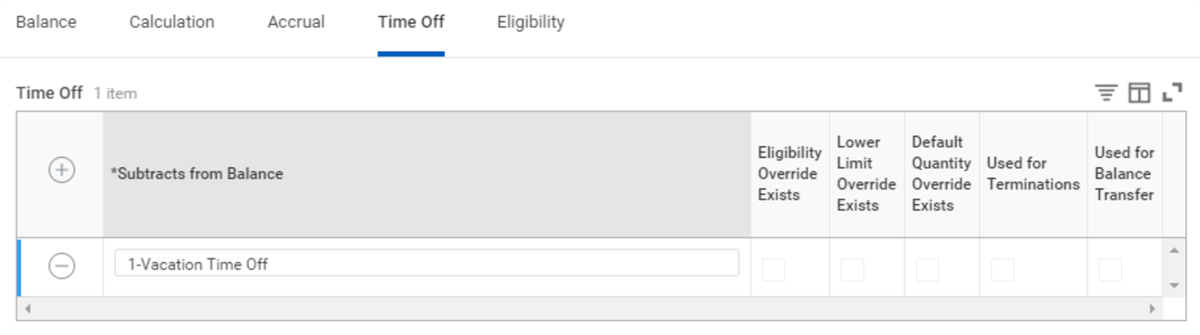
Use the Time Off tab to select time offs that subtract from the time off plan balance. The Time Off grid identifies whether the selected time offs have an eligibility rule, lower limit, or quantity default that overrides the plan rules.
Eligibility Information
Use the Eligibility tab to define eligibility for the time off plan. The following table describes the fields on the Eligibility tab.
Field | Description |
|---|---|
Enabled for Worker Type | Specifies whether the time off plan is available for employees, contingent workers, or all workers. |
Country/Country Region | Specifies the countries or country regions in which the time off plan applies. This setting filters time off plans by country or country region before evaluating other eligibility criteria. The filtering limits the number of eligibility rules that Workday must evaluate for a worker. |
Country/Country Region Enabled for All Positions | If selected, enables workers on international assignment to select the time off plans for their current assignment. |
Worker Eligibility | Specifies additional eligibility criteria for the time off plan. These eligibility rules apply to all time offs associated with the plan, unless additional rules exist for a specific time off. |
Balance Period
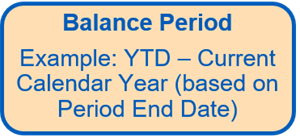
Balance periods are central to all balance calculations included in time off plans. A balance period specifies the period over which to calculate accrual, time off, and time off plan balances. The following table describes the types of balances included in time off plans.
Balance Type | Description |
|---|---|
Accrual Balances | Calculate accrued time off over a specified period. |
Time Off Balances | Calculate time off taken over a specified period. |
Carryover Balances | Store the number of hours or days workers can carry from one time off plan period to the next. |
Workday automatically creates accrual and time off balances when you associate the accrual and time off calculations with the time off plan. You do not need to perform a separate task to define these balances.
Workday uses the balance period for a time off plan as the balance period for:
- The accrual calculations that add to the plan balance.
- The time off calculations that subtract from the plan balance.
Time Off Plan - Accrual
Time Off Plan - Time Off
Example
: If the balance period for a vacation plan balance is year-to-date, the balance period for the vacation accrual and time off is also year-to-dateWorkday calculates and tracks accruals minus time off over the specified balance period.
Workday predefines most of the balance periods needed to build time off plans.
Example
:- YTD - Current Calendar Year (based on Period End Date)
- Anniversary Balance Period (based on Hire Date)
Carryover Limits and Balances
Carryover Limits
Carryover limits define the maximum amount of time off that workers can carry from one balance period to the next. You can define carryover limits as a flat amount or as a calculation that returns an amount.
Example
:- A constant value of 100 hours or 10 days.
- A calculation that returns 50% of last year's balance.
When Workday Applies Carryover Limits
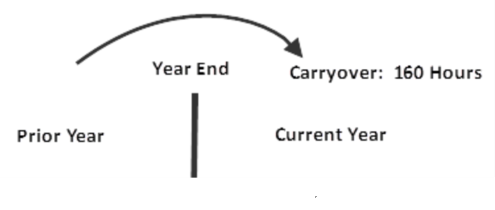
Workday applies the carryover limit based on your configuration. Carryover may occur on the first day of a period within a balance period, such as January 1, or on the balance period start date for an anniversary plan.
Additionally, you can add an expiration time frame to the carryover configuration.
Example
:- 3 months
- 100 days
The option to include the carryover amount in the upper limit is available. This option sums the two amounts and restricts the accrual to the upper limit.
Carryover Balances
As with other balances, Workday calculates carryover balance values dynamically when you access a report or page.
To view carryover balances, access the following reports:
- Carryover Balances for Organization (by Worker)
- Carryover Balances for Organization (By Carryover Date)
Important
: Workday does not recommend running the Carryover Balances for Organization (By Carryover Date)
report for anniversary plans due to processing time.Effective Dating Impact on Carryover Limits and Balances
When you update or add a new effective-dated snapshot for a time off plan, keep in mind the following:
- Carryover is always calculated using time off plan configuration as of the carryover date.
- Mid-balance-period carryover configuration changes will not take effect until next carryover date.
- Carryover amounts and expirations are "locked-in" for each carryover amount based on the configuration corresponding to the carryover date.
- Changes to and from "0" as the amount of time before carryover expiration are not supported. Workday recommends you use "0" as the carryover amount or create a new time off plan.
Upper Limits
Define upper limits to specify the maximum number of hours or days employees can accumulate in their time off plan balance.
When processing accruals, Workday compares the Time Off Plan balance to the upper limit. If the Time Off Plan balance exceeds the limit, Workday:
- Automatically reduces the accrual by the number of hours or days over the limit.
- Displays the balance amount that exceeds the limit as Forfeited accrual hours or days in Time Off reports.
Example
:Scenario
- The upper limit for Bob's vacation plan = 120 hours.
- Bob's current vacation balance = 114 hours.
- Bob accrues 12 hours in the current period.
- 114 (current balance) + 12 (current period accrual) = 126 hours.
- 126 is 6 hours over the upper limit.
Result
- Workday reduces Bob's current period accrual by the amount that exceeds the upper limit.
- 12 (standard vacation accrual) - 6 (hours over maximum) = 6 accrued.
- Bob forfeits 6 hours.
In general, you should define the upper limit for accruals on the
Create Time Off Plan
page; however, you can override the limit for a specific accrual that adds to the plan balance by defining the limit directly on the Create Accrual
page.Lower Limits
Define lower limits to control how much time off to pay when employees deplete their available balance.
When processing time off, Workday compares the balance of the time off plan to the lower limit:
- Workday processes time off up to and including the lower limit as paid time off.
- Any hours or days that exceed the limit are unpaid.
Example
:Scenario
- The lower limit for Bob's vacation plan = -16 hours.
- Bob's current vacation balance = -8 hours.
- Bob takes 16 hours of vacation time off in current period.
- -8 (current balance) - 16 (current time off request) = -24 hours.
- -24 is 8 hours below the lower limit.
Result
- Workday reduces the amount of paid time off by the amount that exceeds the lower limit.
- Paid Hours: 16 (current vacation request) - 8 (hours over the limit) = 8 Paid.
- Unpaid Hours: 8
In general, you should define the lower limit for time off in the
Create Time Off Plan
task. However, you can override the limit for a specific time off that subtracts from the plan balance by defining the limit directly in the Create Time Off
task.Note
: Use the Maximum Unpaid Time Off Units Allowed validation rule to prevent employees from requesting unpaid time off.Accrual Frequency Method
In the
Create Time Off Plan
task, use the Accrual Frequency Method field to specify when Workday adds current period accruals to a worker's plan balance. The following table lists the periods you can select and the resulting Workday action.Period Selected | Workday Action |
|---|---|
Start of Period
Note : This option is valid for front-loaded and based-on-as-of-date accruals. |
|
End of Period Note : This option is valid for based-on-as-of-date accruals. |
|
Custom Frequency |
|
Note
: All accrual amounts may include adjustments and overrides and all time off amounts may include adjustments.Important
: When a time off and an accrual occur on the same day, Workday adds the accrual to the balance before deducting time off. Workday processes carryover that occurs the same day first.How the Accrual Frequency Method Affects an Employee's Accrual
Selecting Start of Period for the accrual frequency method typically results in workers reaching upper limits sooner than they would if you selected End of Period. Consequently, workers may forfeit some or all time off accrued in a period in which the time off plan balance is at or close to the upper limit.
The following scenarios show how the accrual frequency method can affect a worker's accrual.
Scenario 1
- The accrual frequency method is Start of Period.
- The upper limit for a vacation plan is 120 hours.
- Workers who are eligible for the plan accrue 12 vacation hours per month.
- The worker has an initial balance of 110 hours and enters a time off request for 8 hours.
Result
Order | Calculation | Result |
|---|---|---|
1 | Add current period accrual to existing time off plan balance to calculate new balance. | 110 + 12 = 122 |
2 | Apply limit rule to new balance. | 122 - 120 = 2 The balance amount exceeds the upper limit. |
3 | Reduce accrual by balance amount that exceeds the limit. | 12 - 2 = 10 The employee receives only 10 of the 12 standard accrual hours. |
4 | Reduce balance by time off taken for the period (down to Lower Limit). | 110 + 10 - 8 = 112 |
In this example, Workday adds 12 hours to the initial balance of 110 hours for a total of 122 hours. It then applies the limit rule before subtracting time off. Because 122 exceeds the balance limit (120) by 2 hours, Workday reduces the vacation accrual for the period to 10 (12-2). It then reduces the overall balance by 8, resulting in a final balance of 112 (110 + 10 - 8).
Scenario 2
If the system processed time off before accruals, the same worker would receive the full accrual for the period (12 hours).
Result
Order | Calculation | Result |
|---|---|---|
1 | Subtract time off for current period from existing balance. | 110 - 8 = 102 |
2 | Add current period accrual to calculate new balance. | 102 + 12 = 114 |
3 | Apply limit rule to the new balance. | 114 is under the limit. |
4 | Reduce accrual by balance amount that exceeds the limit. | No accrual reduction. |
How the Accrual Frequency Method Affects an Employee's Paid Time Off
Selecting End of Period as the accrual frequency method typically results in workers reaching lower limits sooner than they would if you selected Start of Period. Consequently, workers could lose paid time off in a period in which the time off plan balance is at or close to the lower limit.
The next scenarios show what happens when you select End of Period as the accrual frequency method.
Scenario 1
- The accrual frequency method is end of period.
- The lower limit for a vacation plan is -8 hours.
- Workers who are eligible for the plan accrue 12 vacation hours per month.
- The worker has a balance of -4 hours and enters a time off request for 8 hours.
Result
Order | Calculation | Result |
|---|---|---|
1 | Reduce existing balance by approved time off. | - 4 - 8 = -12 |
2 | Apply limit rule to new balance. | -12 exceeds the lower limit (-8) by 4 hours |
3 | Reduce paid time off by balance amount that exceeds the limit. | 8 - 4 = 4 (Workday reduces paid time off for the period to 4 hours) |
4 | Add current period accruals to existing time off plan balance to calculate the new balance. | -8 + 12 = 4 |
In this example, Workday first reduces the -4 hours in the plan balance by 8, resulting in a balance of -12 hours. Because -12 hours exceeds the lower limit (-8) by 4 hours, Workday reduces paid time off for the period to 4 hours (8 - 4 over limit). The worker loses four hours of paid time off. To calculate the new balance, Workday adds the worker's current period accrual to the balance, resulting in a final balance of 4 (-8 + 12). .
Scenario 2
If you set up the system to process accruals before time off instead of after, the same employee would not forfeit any paid time off.
Result
Order | Calculation | Result |
|---|---|---|
1 | Add current period accrual to existing time off plan balance to calculate new balance. | - 4 + 12 = 8 |
2 | Reduce balance by approved time off. | 8 - 8 = 0 |
3 | Apply limit rule to new balance. | 0 is above the limit |
4 | Reduce paid time off by the amount that exceeds the limit. | Entire vacation request is processed as paid time off. |
Time Off Plan Architecture
Single Plan: Two Accruals and Two Time Offs
When you have a single time off plan with two accruals and two time offs, accruals form a common pool of hours or days. Workers can take the time off as either vacation or sick time off.
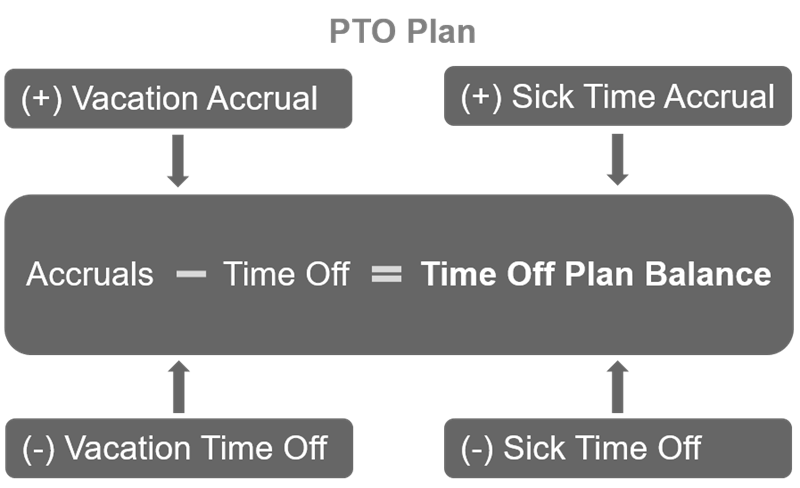
Here are some considerations for a single time off plan with multiple accruals and time offs:
- Creating a single plan with multiple accruals and time offs means that you have fewer plans to maintain.
- Workday converts any accrual to any time off associated with the plan.
- It may be difficult to control the number of hours that workers can take as sick time off vs. vacation time off.
- You must define worker eligibility and limit overrides to differentiate between the accruals and between the time offs
Two Separate Plans: One Accrual and One Time Off in Each Plan
Two separate plans with one accrual and one time off in each plan allows you to determine how and when workers can use accrued hours.
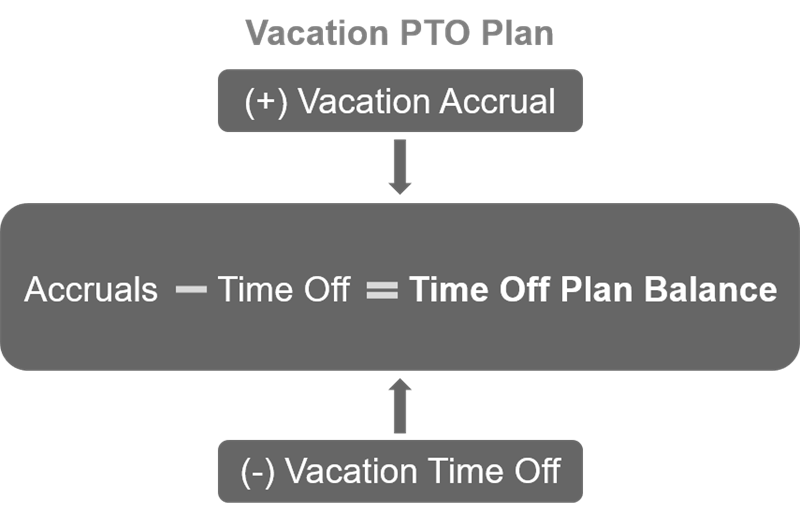
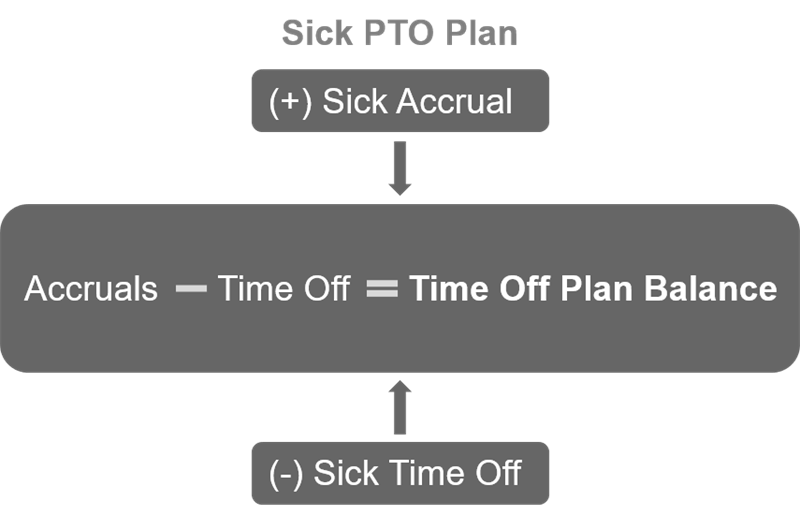
Here are some considerations for two separate plans
- There is no common pool of hours from which to take time off.
- To differentiate between one accrual or time off and another, you do not need to define worker eligibility and limit overrides.
- You can report on separate accruals and time offs.
Options to Meet Time Off Plan Requirements
Depending on your time off plan requirements, your time off plan architecture may include several options. For example, your time off plan requirements are as follows:
- All regular, full-time employees accrue eight hours of vacation.
- Managers accrue an additional four hours of vacation.
Your options are:
- Conditional calculations within a single accrual
- Two accruals within a single time off plan
- Two time off plans
Conditional Calculations within a Single Accrual
The following calculation returns a different amount of time off for each employee based on the same factors (management level, position, or years of service).
Conditional Calculation within a Single Accrual
You could define a conditional calculation that returns an amount for managers and a different amount for regular, full-time employees. With this setup, you cannot view or report on each component of the overall accrual.
One Plan: Two Accruals
You could define one plan with two accruals to meet the time off plan requirements for managers and regular, full-time employees.
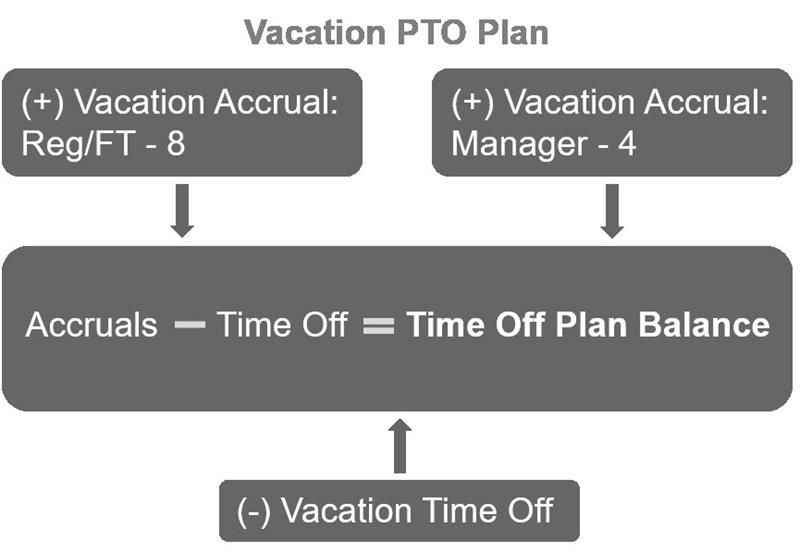
Each accrual would add a separate amount to the balance total based on factors such as the employee's management level, position, or years service.
Here are some considerations for defining a single plan with multiple accruals:
- You can view and report on each component of the accrual: eight hours for everyone, extra four hours for managers.
- There is a much larger number of accruals to maintain.
- Reports become more difficult to read when they contain multiple accruals.
Multiple Plans: One Accrual and One Time Off in Each Plan
If you use multiple plans to meet the time off plan requirements, each accrual adds a separate amount to the balance total based on factors such as the employee's management level, position, or years of service.
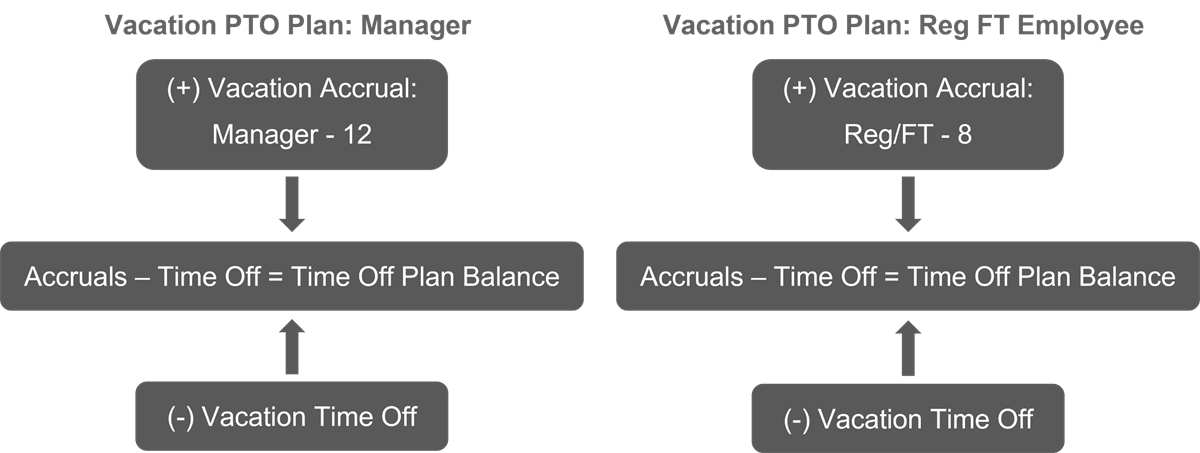
When you create multiple plans of the same type such as sick or vacation, you lose the advantages of generating and tracking all of the employee's accruals and time off using a single balance. You will need to define and implement a strategy for paying out or adjusting unused time off when an employee moves from one plan to another.
When is it necessary to build multiple plans of the same type?
You will need to build multiple plans of the same type when there are different:
- Units of time
- Period schedules
- Balance periods
Accrual and Time Off Priorities
Accrual Priorities
In Workday, you must define a priority for processing accruals when multiple accruals contribute to the same time off plan balance.
Example
: If Vacation has a priority of 10 and Sick Time has a priority of 20, Workday adds the Vacation accrual to the balance first.Depending on the priorities assigned to two or more accruals linked to a time off plan, workers may forfeit a larger number of accrued hours for one time off than another.
Consider the following example:
Assume that the following accruals contribute to the same Paid Time Off (PTO) plan:
- Vacation Accrual
- Sick Time Accrual
These accruals are associated with the following rates and limits:
Accrual | Accrual Rate | Upper Limit |
|---|---|---|
Vacation | 10 hours/month | 120 (from time off plan) |
Sick Time | 6 hours/month | 120 (from time off plan) |
If an employee's current paid time off balance is 106 hours, the employee loses two hours of sick time, but no vacation time when Workday processes accruals in this order:
Priority Order | Current Balance | Accrual Amount | Balance + Accrual | Upper Limit | Amount Forfeited |
|---|---|---|---|---|---|
10 - Vacation | 106 | 10 | 106 + 10 = 116 | 120 | 0 hours lost 116 < 120 Nothing forfeited |
20 - Sick | 116 (Balance + Accrual) | 6 | 116 + 6 = 122 | 120 | 2 hours lost 122 > 120 Forfeit 2 hours (122 - 120) |
By contrast, the employee forfeits 2 hours of vacation time when you reverse the processing order.
Priority Order | Current Balance | Accrual Amount | Balance + Accrual | Upper Limit | Amount Forfeited |
|---|---|---|---|---|---|
10 - Sick | 106 | 6 | 106 + 6 = 112 | 120 | 0 hours lost 112 < 120 Nothing forfeited |
20 - Vacation | 112 (Balance + Accrual) | 10 | 112 + 10 = 122 | 120 | 2 hours lost 122 > 120 Forfeit 2 hours (122 - 120) |
Time Off Priorities
Define priorities for processing time off when:
- Multiple time offs subtract from the same time off plan balance.
- An employee takes more than one time off during the same period.
Example
: If Vacation Time Off has a priority of 10 and Sick Time Off has a priority of 20; Workday subtracts the Vacation Time Off from the balance first.Depending on the priorities assigned to two or more time offs, Workday may track a larger number of time off hours as paid time for one of the time offs. For example, assume that the following time offs belong to the same paid time off (PTO) plan:
- Vacation Time Off
- Sick Time Off
These time offs have the following priorities and lower limits:
Priority | Lower Limit |
|---|---|
10 - Vacation Time Off | -8 |
20 - Sick Time Off | 0 |
Assume that an employee has a balance of 8 hours in his Paid Time Off plan. He takes 16 hours of Vacation Time Off plus an additional 8 hours of Sick Time Off. Workday processes vacation hours first, reducing his available balance to -8. Because he does not exceed the lower limit, Workday processes his vacation days as paid time off. However, no hours remain in the plan balance to cover his sick time. Therefore, the 8 hours of sick time are unpaid.
Priority | Current Plan Balance | Time Off Taken | Balance - Time Off | Lower Limit | Hours Paid |
|---|---|---|---|---|---|
10 - Vacation Time Off | 8 | 16 hours | 8 - 16 = -8 | -8 | 16 All 16 hours are paid; none fall below lower limit. |
20 - Sick Time Off | -8 | 8 hours | -8 - 8 = -16 | 0 | 0 All 8 hours are unpaid; all 8 hours are below the lower limit. |
By contrast, 8 hours of vacation are unpaid if you reverse the priority as follows:
Priority | Current Plan Balance | Time Off Taken | Balance - Time Off | Lower Limit | Hours Paid |
|---|---|---|---|---|---|
10 - Sick Time Off | 8 | 8 | 8 - 8 = 0 | 0 | 8 No hours fall below the lower limit; all 8 hours are paid. |
20 - Vacation Time Off | 0 | 16 | 0 - 16 = -16 | - 8 | 8 -16 is 8 hours below the lower limit, so 8 hours are unpaid. |
Important Information about Effective-Dated Absence Setup Components
As you create and edit effective-dated absence setup components, there are several important facts to keep in mind about:
- Effective-dated fields in each of the setup components
- Time off plan edits
Effective-Dated Fields
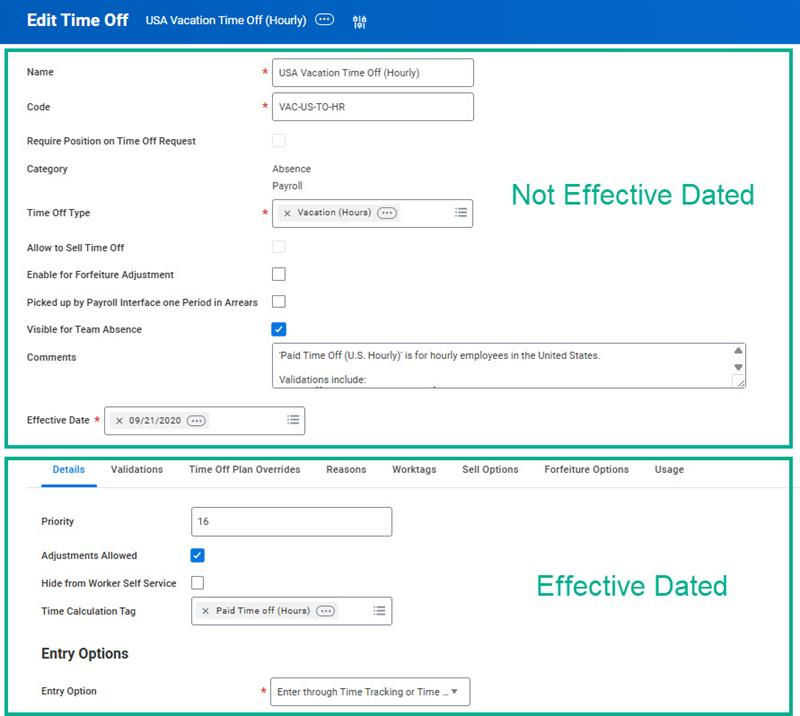
When creating and editing time offs, accruals, and time off plans, keep in mind:
- Fields above the tabbed area are not effective dated.
- Fields within each tab are effective dated.
Time Off Plan Edits
After you create and save a time off plan, you cannot do the following:
- Edit the following fields:
- Track Balance
- Period Schedule
- Unit of Time
- Remove time offs or accruals from a time off plan once you submit a time off request against the time off plan.
- Attach a time off or an accrual to more than one plan.
If there is only one time off plan snapshot and you delete a time off or an accrual in the time off plan, the system will permanently delete the time off or accrual.
Update or Add New?
When you edit an absence setup component and need to decide whether to update an existing effective date or to add a new effective date, consider the following:
- If there is a change to the component, such as a revision to the validation rules on a time off when the plan is in use, then add a new effective date.
- If you add a feature incorrectly or omit a feature when creating a new component, then you may want to update the existing effective date.