
Absence Management Reports, Dashboards, and Calendars
Overview
Workday Absence Management enables clear, instructive, and dynamic tracking of time away from work for both employees and employers.
Objectives
By the end of this chapter, you will be able to:
- Identify and describe the standard time off and leave reports.
- Identify and describe data sources used to build custom time off and leave reports.
- Create a report-based alert.
- Use manager and employee self-service dashboards and calendars to view and manage time off information.
- Describe and access the following:
- Holiday Calendar
- Time Off and Leave Calendar
- Team Absence Calendar
- Work Schedules and Work Schedule Calendars
- Enable visibility of absences and their related requests on the Team Absence calendar for employees and managers.
Time Off Reports
Standard Reports
Workday provides standard reports for viewing, tracking, and analyzing employee time off information. Some time off reports apply to all time off plans, regardless of whether a plan tracks time off balances. Other reports are only available for time off plans that track balances.
The following table lists and describes the available standard time off reports. It also provides the navigation to access the reports.
Report/Description | Navigation |
|---|---|
Accrual and Time Off Adjustments/Overrides Displays:
| In the Search box, enter the report name. |
Accrual and Time Off Adjustments/Overrides by Batch ID Displays:
| In the Search box, enter the report name. |
Approved Time Off
| In the Search box, enter the report name. |
All Worker Time Off
| In the Search box, enter the report name. |
Calculated Balances for Organization (by Worker)
Balances and accruals with no change since the last calculated balances run are not returned in this report and will not generate any data. This report does not support intersection security groups at this time. | In the Search box, enter the report name. |
Carryover Balances for Organization (by Carryover Date)
| In the Search box, enter the report name. |
Carryover Balances for Organization (by Worker)
| In the Search box, enter the report name. |
Time Off Balances and Liability by Organization Displays:
|
|
Time Off for Payroll Interface
| In the Search box, enter the report name. |
Time Off Results Detail
| Do one of the following:
|
Time Off Results Summary
| Do one of the following:
|
View Time Off
| From the worker's Related Action, select Time and Absence > View Time Off. |
View Time Off Balance
Note : In time off plans, accruals may occur at the beginning or end of the period. Depending on the as of date, this report may or may not record all the accruals for an absence period. | Do one of the following:
|
View Time Off Results by Period
| Do one of the following:
|
View Override Balances for Organization Displays all workers in an organization with a time off plan balance override. The report uses the Calculated Balances for Organization (by Worker) report data source. | In the Search box, enter the report name. |
Worker Time Off Balances Details Displays details of time off balances for worker, or the primary position if the worker has multiple positions, including what the projected forfeited balances will be by the end of the balance period/year based on the effective date. | In the Search box, enter the report name. |
Custom Reports
Use the
Create Custom Report
task to create custom reports.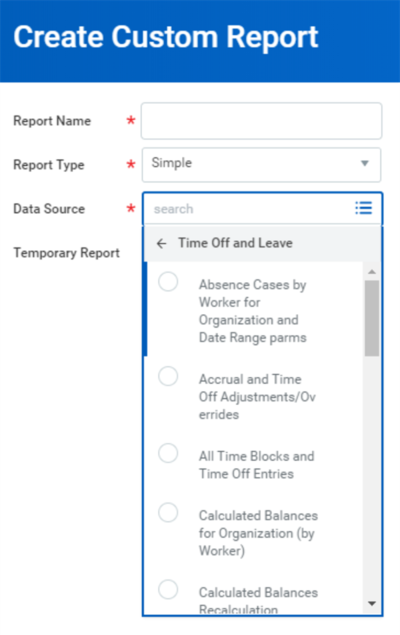
Create Custom Report - Time Off and Leave Data Sources
The following table lists and describes the available data sources for creating custom reports.
Data Source | Primary Object Accessed | Primary Object Return Results | Prompts/Report Results |
|---|---|---|---|
Absence Cases by Worker for Organization and Date Range parms | Absence Case Event | Returns one row per worker case. | Prompts the user at run-time for Organization, Include Subordinate and Date Ranges to automatically filter the report results.
Results include all worker absence cases for organizations which the user manages or supports. |
Absence Occurrences for Workers (Indexed) | Absence Occurrence | Returns one row per occurrence. | Includes all Worker absence occurrences for your organizations excluding any occurrences marked for deletion. |
Accrual and Time Off Adjustments/Overrides | Absence Input | Returns one row per accrual adjustment/override or time off adjustment for the employee. | Results include all absence input and associated input lines for employees in organizations that the user manages or supports. Note : Optional parameters that you can use to filter the data returned include Subordinate Organizations and Date Range. |
All Time Blocks and Time Off Entries | Time Block (Coordinated) | Time and Time Off Entries displayed by Worker. | Results include time and time off entries displayed by Worker. |
Calculated Balances for Organization (by Worker) | Time Off Plan Balance | Returns all workers for the organization who have:
| For each worker, results include:
Balances and accruals with no change since the last calculated balances run are not returned in this report and will not generate any data. |
Calculated Balances Recalculation Changes | Time Off Plan Balance | Returns all calculated balance that have had units values change between the prompted effective/entry date and the calculated balance recalculation date and time. | Prompts the user at run-time for Calculated Balance Recalculation Date and Time. |
Time Off - All Statuses for Active and Terminated Employees (Indexed) | Time Off Entry | Returns one row per time off line item an employee has requested and corrected. | Prompts the user at run-time for:
Results include all time offs (approved, not submitted, sent back, cancel, submitted, and denied) for employee in organizations which the user manages or supports. Includes time offs for active and terminated employees. |
Time Off by Date Approved | Time Off Entry | Returns one row per paid time off request line item approved for an employee. Includes all approved time offs for employees in organizations that the user manages or supports. | Prompts the user at run-time for Organization, Include Subordinate, and Date Range on time off date approved to automatically filter the report results. |
Time Off by Date Taken | Time Off Entry | Returns one row per time off line item an employee has requested. Includes all time off (including approved, pending, and denied) for employees in organizations that the user manages or supports. | Prompts the user at run-time for Organization, Include Subordinate, and Date Range on paid time date taken to automatically filter the report results. |
Time Off by Pay Period | Time Off Entry | Returns one row per time off line item an employee has requested. Includes all time off (including requests where the max of time off date or approve date is within the date range) for employees in organizations that the user managers or supports. | Prompts the user at run-time for Organization, Include Subordinate, and Date Ranges to automatically filter the report results. |
Time Off for Direct Reports | Time Off Entry | Returns one row per time off line item an employee has requested. Includes all time off (including approved or pending) for employees in organizations that the user manages or support. | Prompts the user at run-time for Organization, Include Subordinate, and Date Range on paid time date taken to automatically filter the report results. |
Time Off Plan Calculated and Override Balances for Worker | Time Off Plan Balance | Returns all the time off plan calculated and override balances that exist in the system for a worker. | |
Workers for Organizations Parm for Time Off Balance Reporting | Worker | Returns one row per worker. Only includes:
| Prompts the user at run-time for one or more organizations and whether to include the subordinate organizations in the results. The organization prompt only includes supervisory organizations the user manages or supports. |
Leave of Absence Reports
Standard Reports
Workday delivers the following reports for tracking and managing leaves of absence:
Report | Description |
|---|---|
View Worker Leave of Absence Eligibility by Organization | Displays all eligible leave types for active workers within the selected organizations as of the current day. |
Workers on Leave | Displays:
Tip : Leave one or both dates blank to perform an open-ended search.Notes :
|
Workers Returned from Leave | Displays:
Tip : Leave one or both dates blank to perform an open-ended search. |
Workers Returning from Leave | Displays:
Tip : Leave one or both dates blank to perform an open-ended search. |
Leave Results for Organization |
|
Leave Results for Worker |
|
Custom Reports
Use the
Create Custom Report
task to create custom leave reports.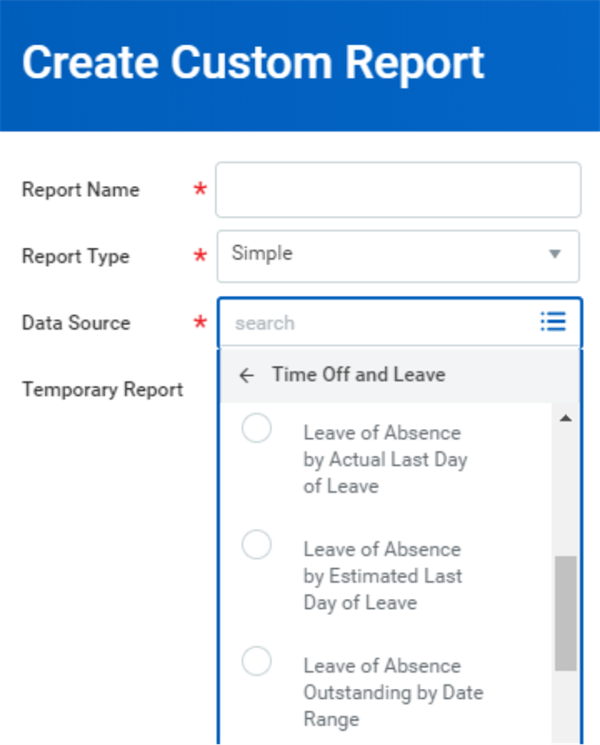
Create Custom Report Task - Time Off and Leave Data Sources
When you create a custom report, you must include a data source.
The following table lists and describes the available data sources for creating custom leave reports.
Data Source | Primary Object Accessed | Primary Object Return Results | Report Results/Prompts |
|---|---|---|---|
Leave of Absence by Actual Last Day of Leave | Leave Request Event | Returns one row per employee leave. Includes all approved and pending (if Include Pending Events is true) employee leave requests where the actual last day of leave is in the date range for organizations that the user manages or supports. | Prompts the user at run-time for Organization, Include Subordinate, Include Pending Events, and Date Ranges to automatically filter the report results. |
Leave of Absence by Estimated Last Day of Leave | Leave Request Event | Returns one row per employee leave. Includes all approved and pending (if Include Pending Events is true) employee leave requests where the estimated last day of leave is in the date range for organizations that the user manages or supports. | Prompts the user at run-time for Organization, Include Subordinate, Include Pending Events, and Date Ranges to automatically filter the report results. |
Leave of Absence Outstanding by Date Range | Leave Request Event | Returns one row per employee leave. Includes all approved and pending (if Include Pending Events is true) employee leave requests where the actual last day of leave is not in the date range and the first day of leave is before the end date for organizations that the user manages or supports. On returned leave requests, if you select the Include Employees Returned from Leave checkbox, Workday also includes leave requests where the first day of leave is within the date range. However, it does not consider the actual last day of leave. | Prompts the user at run-time for Organization, Include Subordinate, Include Pending Events, Date Ranges, and Include Employees Returned from Leave to automatically filter the report results. |
Time and Absence Dashboard
Workday delivers a Time and Absence dashboard for managers to easily access and consume information about their employees work hours and absences in a clear, concise manner.
This dashboard can include delivered reports such as:
- My Team's Upcoming Time Off
- Workers Currently on Leave
- Workers Returning from Leave this Week
Managers can use the Time and Absence dashboard to view time off and leave requests for their direct reports and themselves. Workday displays one week at a time. Managers can scroll forward and backward to view other weeks.
From the Home page, managers can also use the Team Time Off application to view:
- Submitted requests, approved requests, and corrections. For corrections, Workday displays both the original and current request.
- The employee's name and the type of time off or leave.
- Requests for all of a worker's positions, if the worker has multiple positions.
Time Off and Leave Calendar
Managers can use the Time Off and Leave Calendar to view time off and leave requests for their direct reports and themselves. Workday displays one week at a time. Managers can scroll forward and backward to display other weeks.
The report shows:
- Submitted requests, approved requests, and corrections. For corrections, Workday displays both the original and current request.
- The employee's name and the type of time off or leave.
- Requests for all of a worker's positions if the worker has multiple positions.
Depending upon the configuration, you can display time offs, leaves, or both on the calendar. The following domains control visibility the following domains:
- Worker Data: Time Off (Time Off Manager View)
- Worker Data: Leave Of Absence (Leave Of Absence Manager View)
Managers can access the Time Off and Leave Calendar by:
- Entering the name in the Workday Search box.
- Selecting the link in the Time Off Worklet.
Third-Party Calendar Integration
When your organization has third-party calendar integration set up, approved time off requests entered in Workday are automatically sent to user accounts in corporate calendar applications. Workers can view their own approved time off events and managers can view their direct reports' time off in their external calendars, improving scheduling visibility among teams.
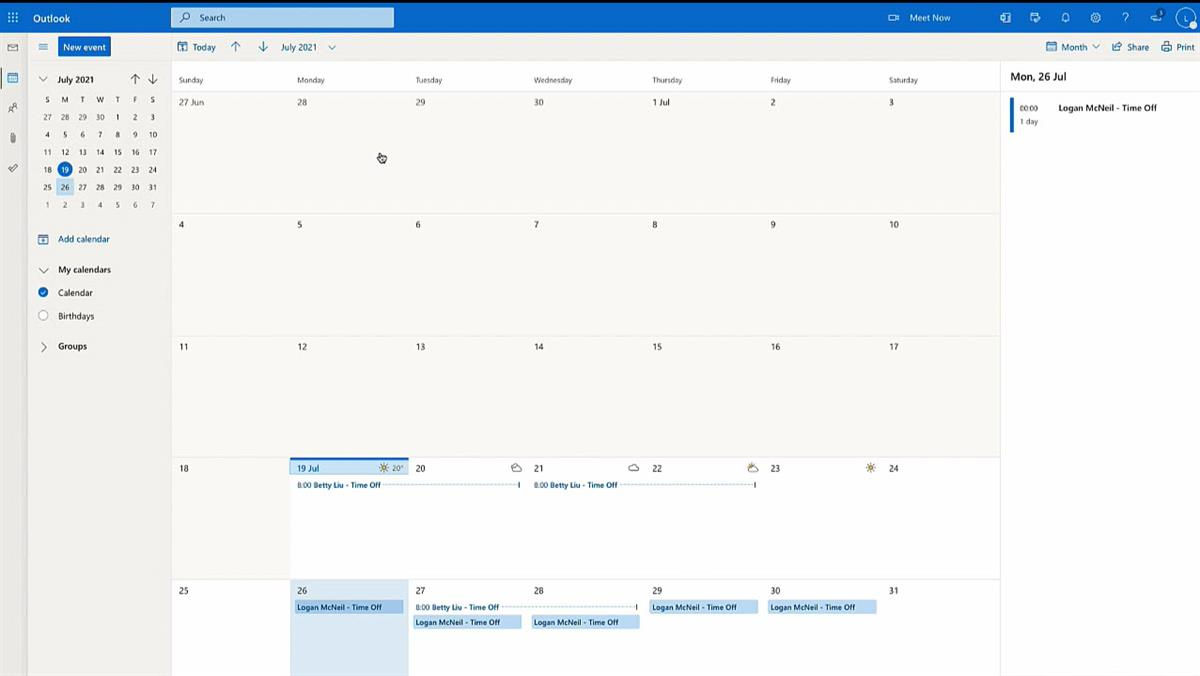
Third-party calendar integration:
- Can support either Google or Microsoft Outlook calendars, or a combination of both.
- Supports time off entries from all Workday Absence Management and Time Tracking entry points, including desktop web browser, mobile, web services, and REST.
- Runs on scheduled basis. To avoid a buildup of backlog retries and calendars becoming out of date, Workday recommends running the integration every two hours, which is the minimum run frequency.
- Is a one-way integration. Integrations only go from Workday to the external source. Changes made to an absence event in the external source do not feed back into Workday.
- Enables end users to opt out or opt in to receiving their events on their external calendars.
Team Absence
The Team Absence feature allows managers and workers to view the time off and leave requests of their teams and extended organization. The feature also allows support roles, such as absence partners and administrative assistants, to view the time off and leave requests of teams they support.
Managers and support roles can access the Team Absence feature by accessing the
Team Absence Calendar
report. The report shows all events and statuses for the selected workers.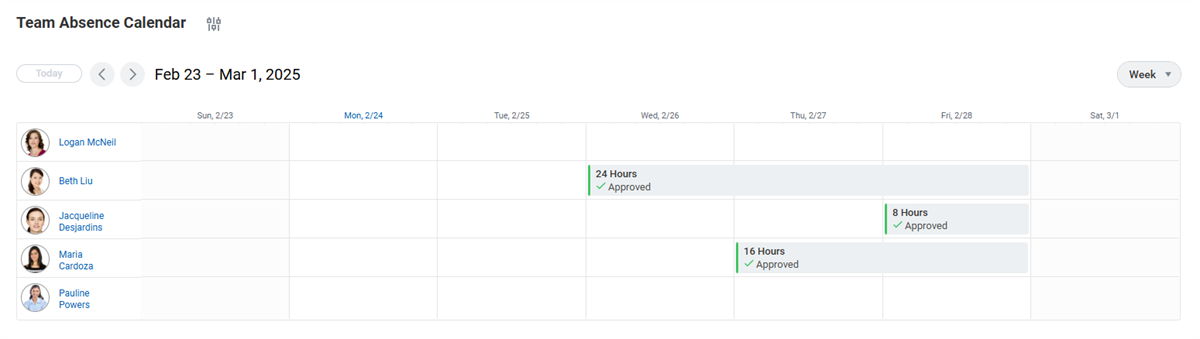
When you have configured Team Absence, Workday displays a dot under the dates for approved current and future events for teams in the Request Absence micro calendar.
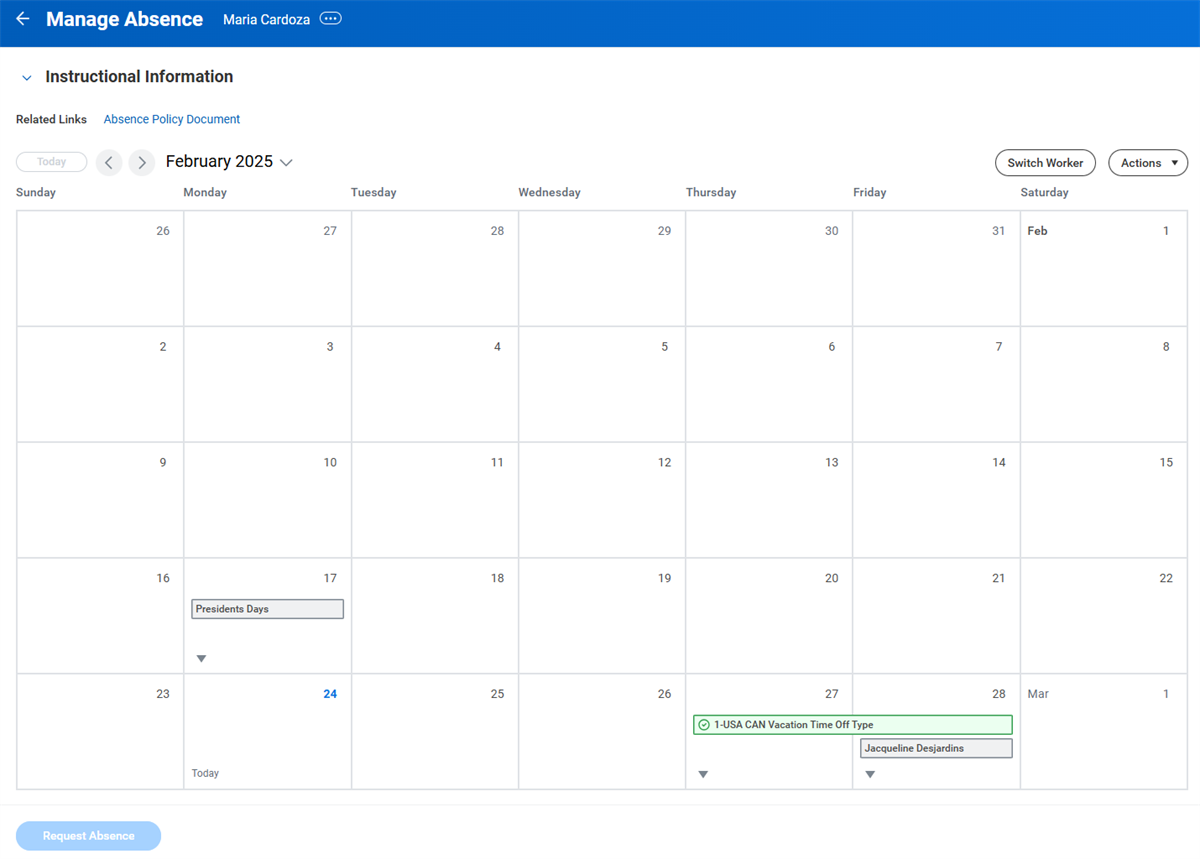
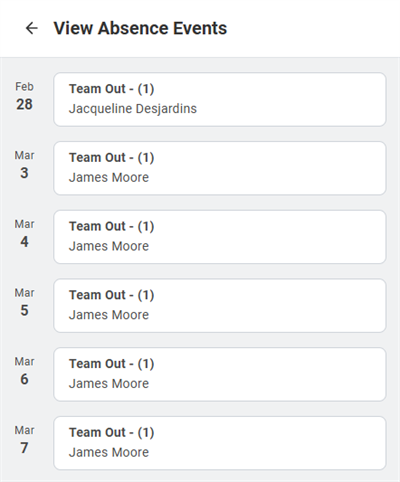
To display the team members associated with the absence requests, select the View Teams link.
Team Absence Configuration
Use the
Configure Team Absence
task to configure Team Absence functionality for Manager Self Service (MSS) and Employee Self Service (ESS). With this task, you can create access groups to provide various roles access to employees from different organizations. You can also indicate the time offs and leave types to make visible.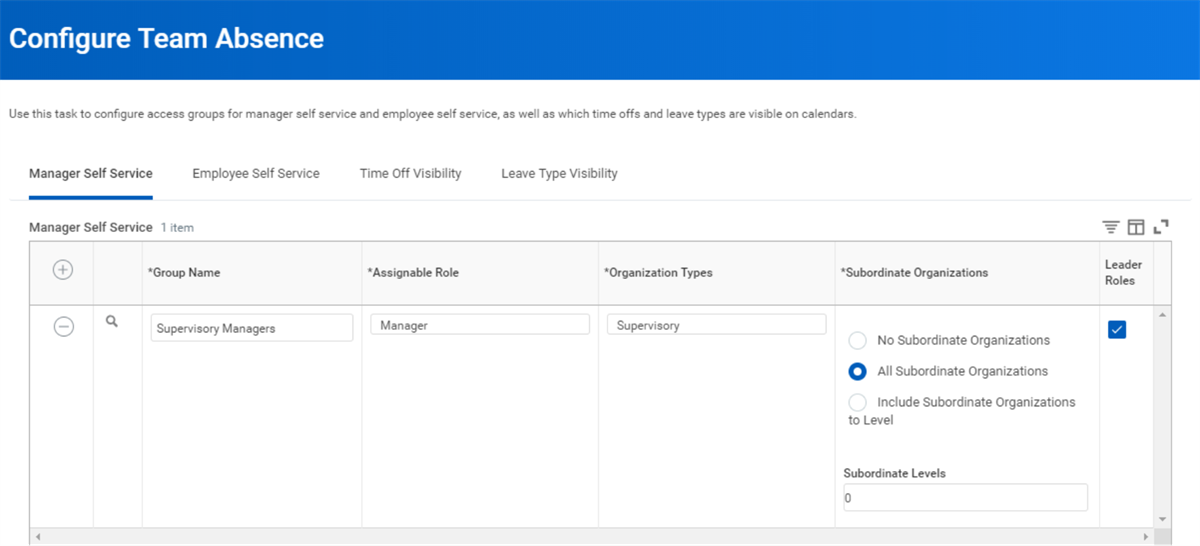
Configure Team Absence Task - Manager Self Service Tab
On the Employee Self Service tab, select the Always Display Workers on Calendar checkbox to automatically display current and future absences in the unified absence calendar.
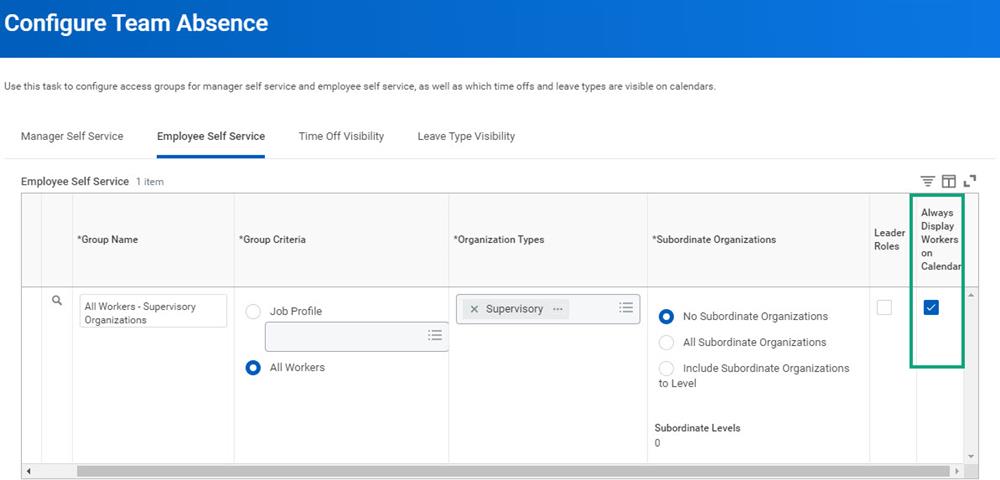
On the Time Off Visibility and Leave Type Visibility tabs, indicate the time offs and leave types to make visible.
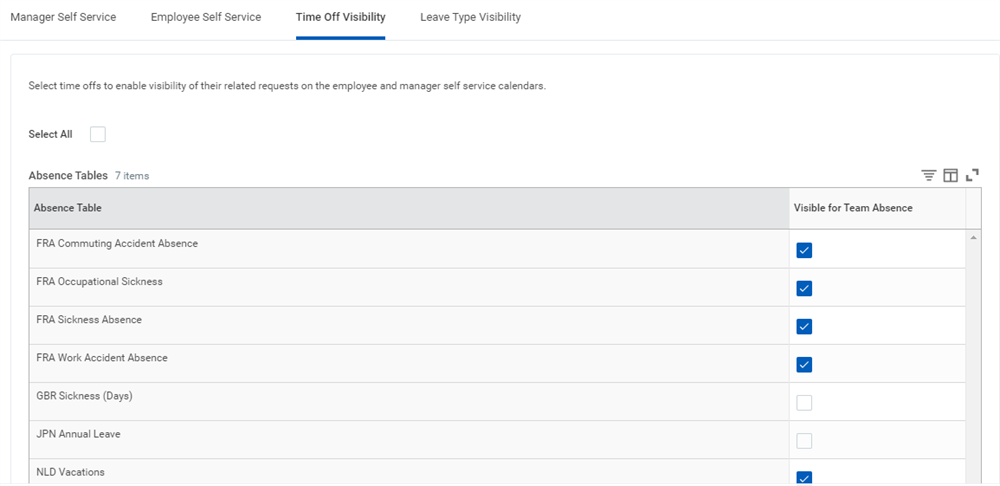
Configure Team Absence Task - Time Off Visibility Tab
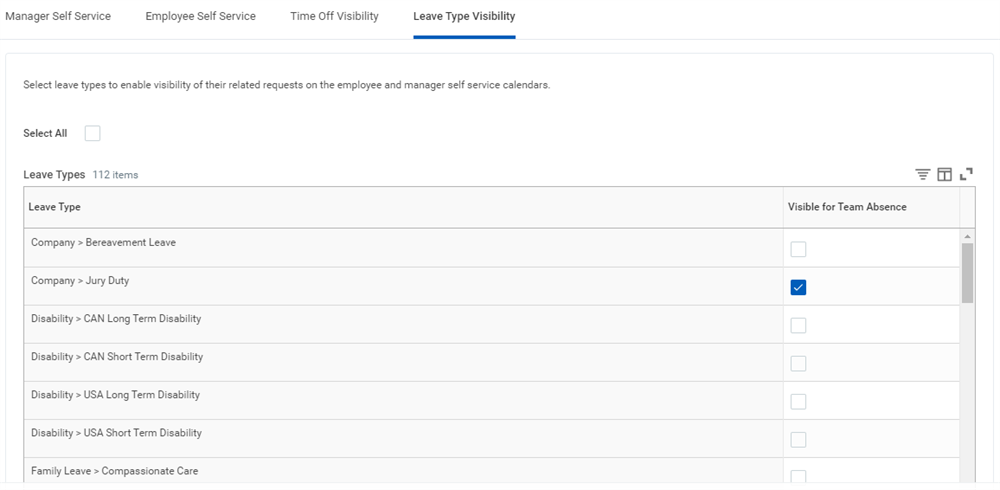
Configure Team Absence Task - Leave Type Visibility Tab
After you configure Team Absence, you must:
- Grant managers and support roles task access to theTeam Absence Calendarreport, which is how these roles access the Team Absence calendar in MSS.
- Grant workers task access to the View Teams button, which is how workers access the Team Absence calendar in ESS.
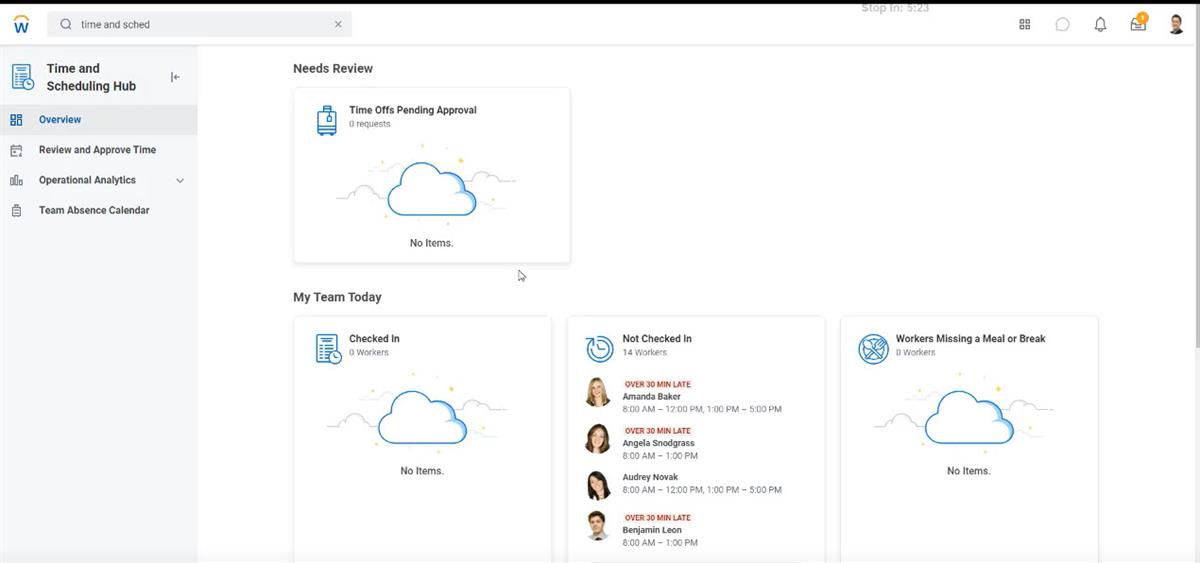
Time and Scheduling Hub
The Time and Scheduling Hub allows frontline managers to quickly access critical time management tasks and reports. To access the hub an administrator will need to:
- Add the appropriate security groups to the Manager: Time and Scheduling Manager Hub domain.
- On the Maintain Hubs task, select the Configure button for Time and Scheduling Hub.
- On the Content tab, select the Customize Sections and Cards option to configure the cards to use in the hub. The card configuration controls what appears in the Overview section of the Time and Scheduling Hub.
Managers can use the Time and Scheduling Hub task to view their workers' time and scheduling information. Managers must be secured to the Team Absence Calendar to have access to that tab on the Time and Scheduling Hub.
Holiday and Worker Calendars
Holiday calendars allow you to list the days your offices are legally closed and employees have mandatory days off. The time off calendar will then reflect these days on the appropriate date when an employee accesses it. For example, if your company offers a paid holiday on Christmas, the employee's time off calendar will display December 25 as shaded to indicate a legal holiday.
In Workday, work schedule calendars define the days and hours of the week that workers are scheduled to work. The creation and maintenance of the schedule itself is an administrative task, executed via the
Create Work Schedule Calendar
and Edit Work Schedule Calendar
tasks. Work schedules can be basic (e.g., Monday through Friday, 9 AM to 5 PM). They can also be complex to accommodate schedules that you must track to the minute, are different on different days, have rotating shifts, etc.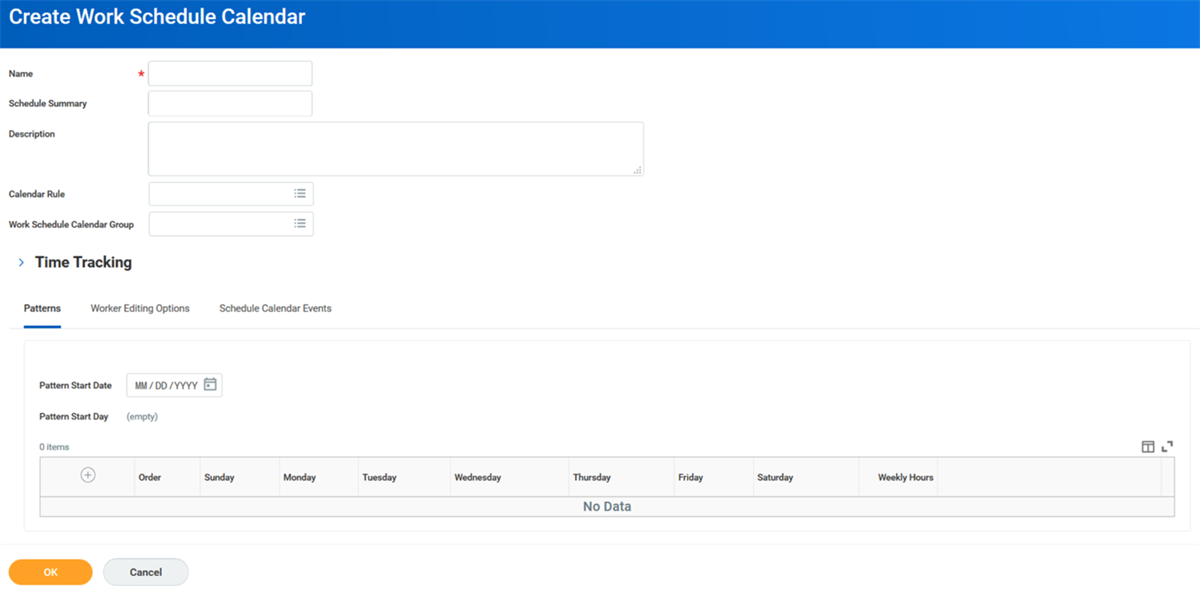
Create Work Schedule Calendar Task
You can use the following options when configuring a work schedule calendar:
Field | Description |
|---|---|
Calendar Rule | An optional eligibility rule that defines the population that works according to this schedule. |
Work Schedule Calendar Group | Select an existing schedule group for the work schedule calendar or create a new one. |
Patterns | Schedule patterns are recurring sets of start, end, and meal times that occur over a seven-day period. Use schedule patterns instead of calendar events if you want workers to be able to edit their own schedules. Patterns extend up to 53 weeks. |
Worker Editing Options | Allows granular control over the worker's editing abilities to a calendar that uses schedule patterns. |
Schedule Calendar Events | Displays any calendar events. You can only add calendar events to existing work schedule calendars that do not use schedule patterns. If the work schedule calendar does not use schedule patterns, add calendar events. |
Note
: Work schedule calendars can contain either schedule patterns or calendar events. Calendar events can support multiple sets of start and end times, and multiple meals, per day. However, self-service workers cannot edit work schedule calendars that use calendar events.Work schedule calendar groups make it easy to group and filter work schedules in Workday. Use the
Create/Edit/View Work Schedule Calendar
group task to create, edit, and view schedule groups and define the schedules that belong to the groups.Typically, Workday uses calendar rules to automatically assign work schedule calendars to workers. The
Assign Work Schedule
task allows you to override the calendar rules and manually assign work schedule calendars to individual workers. This feature allows assignment of a work schedule calendar as of a specific start date, with an optional end date. If you do not enter an end date and you make a new assignment, the most recent assignment will take precedence. Workday recommends using the end date whenever possible.Example
: Kevin Turner works the night shift. As of July 6, he has a new work schedule calendar assignment for the day shift with no end date. Then, on August 3, his manager has assigned him the evening shift. This new entry will take precedence, as it is the most recent.The
My Schedule
task allows workers to view their own work schedule. You can use the My Team's Schedule
report to view and edit all of your direct reports' schedule blocks. You can view their schedule blocks in a daily or weekly calendar view on an ad hoc basis.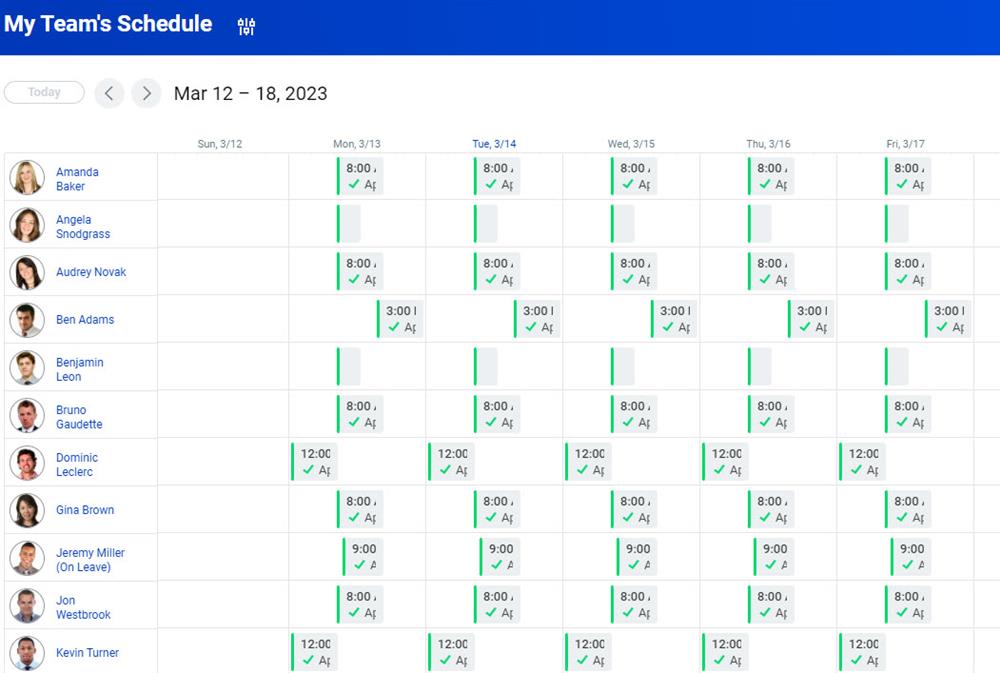
The
View Schedule for Worker
report allows users with the appropriate security to view another worker's work schedule.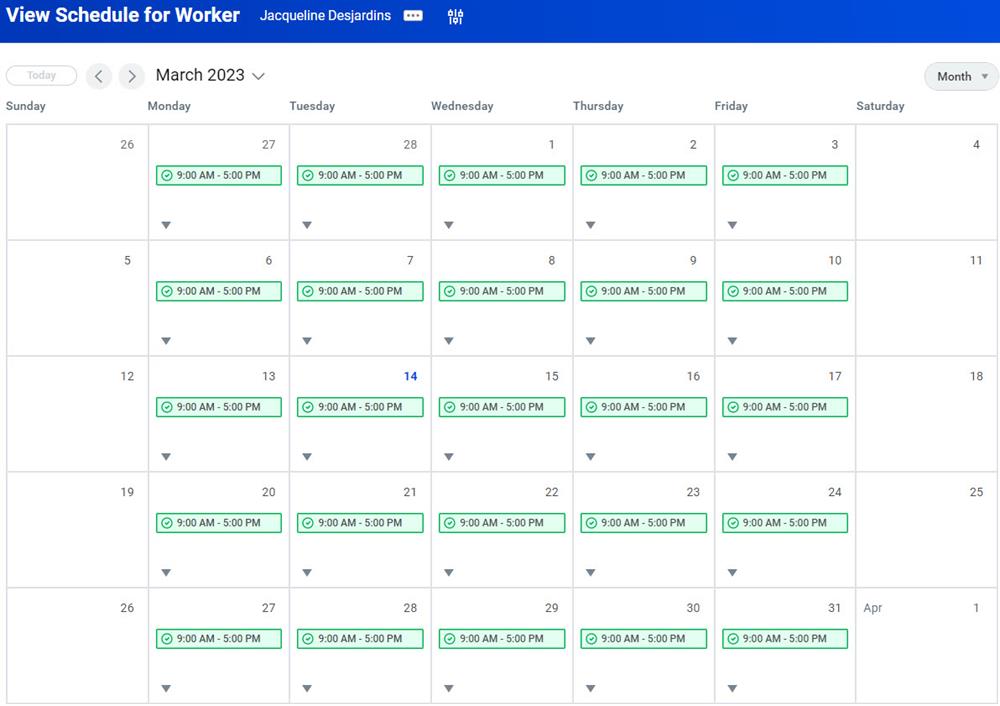
The
View Worker Calendars
report displays the calendars assigned to a worker.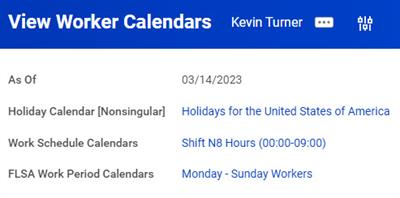
Touchpoint
: Applications including Workday Time Tracking, Workday Absence Management, and Workday Payroll can refer to calendars for holiday and work schedule information. Work schedule calendar configuration complexity depends on customer requirements for both time tracking and absence management.Most customers who roll out complex work schedule calendar configuration for an Absence Management deployment have Workday Time Tracking. If a customer deploys Workday Time Tracking after Absence Management deployment, you may need to take some additional steps. If the Workday Time Tracking deployment requires more complex work schedule calendar configuration, you will need to re-evaluate and reconfigure the existing work schedule configuration. Then, you should review and possibly reconfigure existing time off and leave configuration as it relates to work schedule calendars (if applicable).