Concept: Creating Reports to Insert into Workbooks
You can add data from one or more Workday reports into a workbook. Adhere to these requirements and best practices for any reports that you want to add data from.
The Workday report must:
- Be an advanced, matrix, or composite report. Worksheets doesn't support inserting other report types, such as Simple, Standard, or Xpresso.
- Be enabled for Worksheets. SelectEnable for Worksheetsin the Advanced tab of the custom report. Enabling a report causes it to display in the list of available reports, when you start the Data Wizard in a workbook.
- Be enabled as a web service (required only for advanced reports). SelectEnable as Web Servicein the Advanced tab of the custom report.
- Include fields from the primary business object and any necessary related business objects. If you use related business objects, your report must contain group column headings.
- Use these field types: Boolean, Numeric (integers only), Text, Date, Date Time, Multi-Instance, or Single Instance. Worksheets doesn't support other types (Currency, DateTimeZone, Time).
- Not contain duplicate column labels (Column Heading Override) or XML aliases.
- Not contain fields that use theDo Not Prompt at Runtimeprompt option.
For optimal performance as the report runs and Worksheets inserts the data into the workbook:
- Use indexed calculated fields whenever possible.
- Select report data sources (RDSs) that are efficient with data:
- Use indexed RDSs whenever they're available.
- Use RDSs that provide the smallest set of data that meets your needs. Example: To report on compensation-related transactions, use employee compensation events instead of all business process transactions.
- Use RDSs with the prompts you need built in. Example: To report on workers by organization, use theWorkers by OrganizationRDS instead of using the All Workers RDS and then using filters to select organizations.
- Limit your use of calculated fields.
- Limit your use of filter conditions.
- When using more than 1 filter, first use the 1 that reduces the most instances.
Keep in mind that your report's efficiency affects how Worksheets performs when adding your report to a workbook. To ensure that a report is efficient, you can test the report by creating multiple versions of it using different RDSs and options and then comparing performance data using the
View Report Performance Logs
report.Considerations for Workday Reports and the Worksheets Data Wizard
Report Type | Notes |
|---|---|
Advanced | Advanced reports that Workday runs for Worksheets have a timeout value of 30 minutes. If the report times out before it can finish calculating, then the Data Wizard can't insert the data into the workbook, and you see an #ERROR indicator along with a message that it wasn't possible to do a SELECT. If you see an error and you think you might have an overly large report, we recommend that you use the Limit number of rows inserted option in the Data Wizard to test whether a report timeout issue exists. This limitation doesn't apply to matrix or composite reports. |
Matrix and Composite | After you complete the Data Wizard, Worksheets runs the report in the background before inserting the data into the workbook; this allows you to continue working on other activities while the report runs. For advanced reports, you need to wait while the report runs; a spinner icon lets you know that it's being processed. |
Composite | By default the associated workbooks display only 1 level of the outline hierarchy. To include all levels, in the report definition Advanced tab, select the Enable Export Expansion Hierarchy to Excel option. |
The Data Wizard doesn't support:
- Analytic indicators.
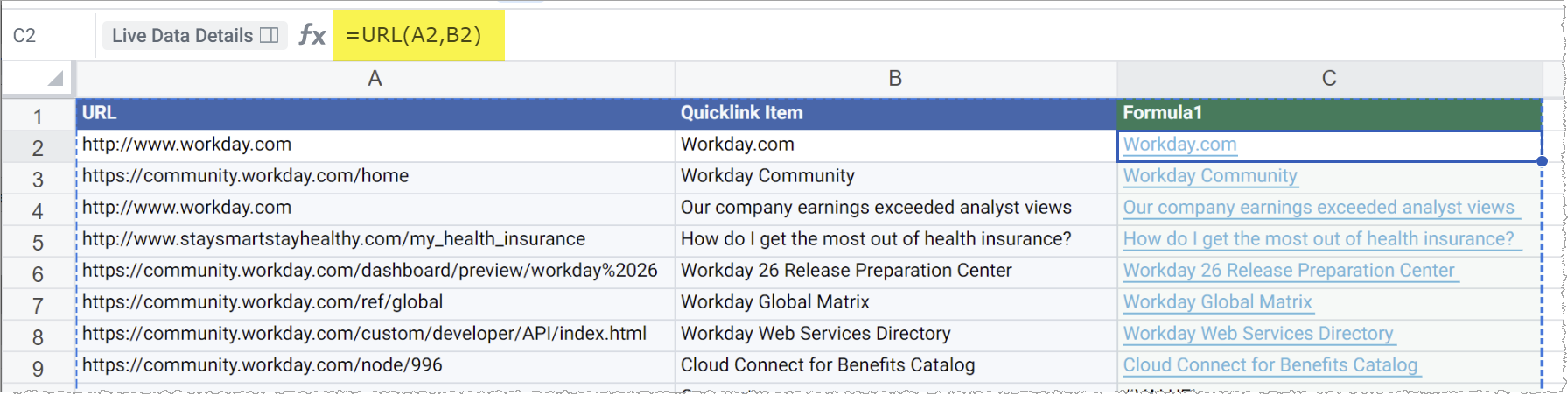
- Including Quicklinks in live data. Quicklinks from the report definition will display in the workbook but the link isn't functional. To enable clicking in a workbook cell to open Quicklink URLs:
- In the Workday report definition, for theQuicklink Assignmentbusiness object, include the fieldsURLandQuicklink Item.
- In the workbook live data, add a formula column and use the URL or HYPERLINK function to display a clickable link. (To add a formula column, right-click in the header cell of a live data column and selectInsert Formula Column.)
Example: With theURLfield in column A andQuicklink Itemfield in column B of your workbook live data, adding the formula=URL(A2,B2)in cell C2 provides clickable links in that column.