
Example: Set Up Teams and Channels on MS Teams
These instructions are for customers who are implementing the Unified Experience version of HMTAC. For the legacy experience, see Example: Set Up Teams, Channels, and Tabs on MS Teams.
- How to configure general team and channel settings for the Hiring Manager Talent Advisor Collaborator (also known as HMTAC or the HM-TA Collaborator) functionality in Microsoft Teams.
- The impact of this configuration.
Your organization uses the HMTAC functionality to facilitate team communication about specific requisitions. You want to customize MS Teams elements such as the HMTAC team name, the team members, and the members and owners of the shared requisition channel.
- Your implementer must complete the steps to configure and authenticate the HiredScore MS Teams integration.
Changes submitted on this tab impact your HMTAC configuration in MS Teams, and existing configurations (including custom rules or filters) are overridden. Changes can take up to 30 minutes to display in MS Teams. In some cases, this may take longer.
- Access theHiredScore Tenant Setuptask in Workday.
- On theHM <> TA Collaboratortab, select theMS Teams and Channelssub-tab.
- ClickEdit.
- In theTeamsection, enter theTeam’s Name.This is typicallyMy Reqs – [Persona Name], which appends the persona’s first and last name. The persona is usually the recruiter who owns the requisitions.
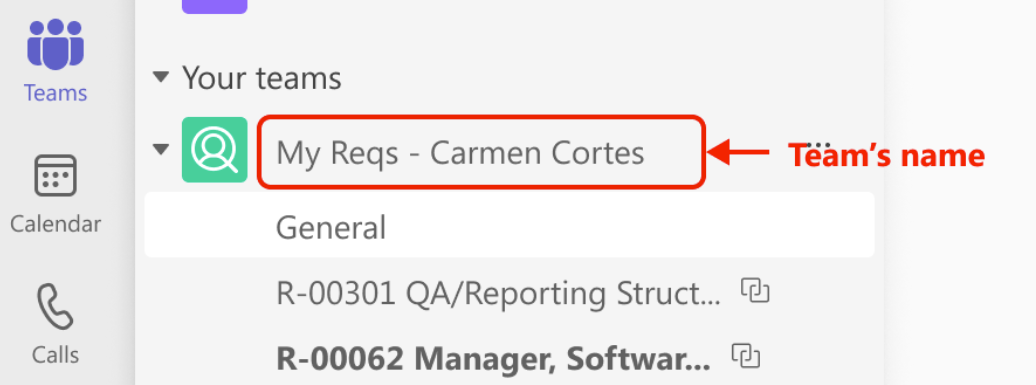
- In theChannelsection, enter theChannel's Identifier.Specify a channel identifier using a maximum of 5 characters. This is a prefix that displays in the label for each HMTAC job requisition channel. The prefix is followed by the job requisition ID, job requisition title, and the hiring manager’s name. In the following example, theChannel's IdentifierisPX.

- Specify channelOwner(s)andMember(s)to add to the shared channel.
- TheOwner(s)value in thisChannelsection must include theOwnervalue in theTeamsection.
- You must specify either:
- At least 1 owner and 1 member (they can’t be the same user)
- 2 owners
- ClickOKandDone.