
Example: Set Up a HiredScore Open Tasks Template
These instructions are for customers who are implementing the Unified Experience version of HMTAC. For the legacy experience, see Example: Set Up a HiredScore Open Tasks Template.
- How to configure the template for the Open Tasks message that is triggered by the Hiring Manager Talent Advisor Collaborator (also known as HMTAC or the HM-TA Collaborator) functionality in Microsoft Teams.
- The impact of this configuration in MS Teams.
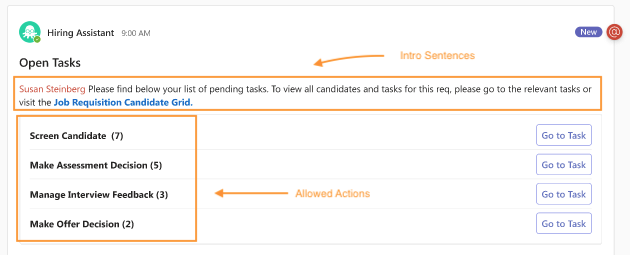
Your organization uses the HMTAC functionality to facilitate team communication about specific requisitions. It triggers the sending of messages in MS Teams at various stages throughout the process. You want to customize the Open Tasks message template, which prompts the hiring manager to review their open tasks across different hiring phases, such as new candidates to screen, assessments to review, or candidates awaiting interview.
The Open Tasks message retrieves allowed action data from your organization’s business process definitions to compile a list of remaining tasks for each requisition the hiring manager owns.
Customization needs to include:
- A schedule that triggers the message according to preferences. Example: Every Monday and Wednesday at 09:00AM.
- An introductory sentence.
Your business process definition configuration determines the allowed actions associated with business process steps, and the roles that are assigned to them.
After configuration is complete, the message should display as follows in MS Teams:
- Your administrator must configure theScheduled Process Managementdomain so that authorized security groups can use theCreate ScheduleandEdit Schedulefeatures.
- Configure inherent permissions:
- Access theScheduled Process Managementdomain.
- From the related actions menu, clickDomain>Edit Inherent Permissions.
- ForViewandModify, add the security groups that manage HMTAC message templates. Example:Implementers.
- ForGetandPut, add the same security groups.
- ClickOK.
- Activate pending security policy changes:
- Access theActivate Pending Security Policy Changestask.
- Enter aComment.
- ClickConfirmandOK.
- Your implementer must complete the steps to configure and authenticate the HiredScore MS Teams integration.
- Access theHiredScore Tenant Setuptask in Workday.
- On theHM <> TA Collaboratortab, select theOpen Tasks Templatesub-tab.
- ClickEdit.
- Select theEnable in HM-TA Collaboratorcheck box to ensure that any changes you make on this task are effective in MS Teams after submitting them in Workday.
- In eligible tenants, you can click theEdit Schedulebutton to launch either of these tasks:
- Create HMTA Scheduletask if no schedule exists.
- Edit Scheduled Future Processtask to modify an existing schedule.
If this button isn’t available, enter and select the desired values, for example:FieldValueScheduleMondayThursdayTime (In UTC)9:00 AMIntro SentenceHere are your open tasks. To view all candidates and tasks for this req please visit the Candidate Grid. - ClickOK.
- ClickDone.
- (Optional) You can add translations for supported languages by selectingAdd Translationin theTranslationssection.
- Select the language you want to add and provide the translated text for both theMessage TitleandMessage Bodyfields.
- Verify that any dynamic parameters in the original message are maintained in all translations.
- After you add translations, verify that the message renders correctly in the Adaptive Cards Designer and that all parameters and links are correct.
Hiring managers receive the message illustrated in the screengrab every Monday and Thursday at 09:00AM.