
Example: Set Up a HiredScore First Candidate to Review Template
These instructions are for customers who are implementing the Unified Experience version of HMTAC. For the legacy experience, see Example: Set Up a HiredScore First Candidate to Review Template.
- How to configure the template for the First Candidate to Review message that is triggered by the Hiring Manager Talent Advisor Collaborator (also known as HMTAC or the HM-TA Collaborator) functionality in Microsoft Teams.
- The impact of this configuration in MS Teams.
Your organization uses the HMTAC functionality to facilitate team communication about specific requisitions. It triggers the sending of messages in MS Teams at various stages throughout the process. You want to customize the First Candidate to Review message template, which notifies the hiring manager that candidates are ready for review and provides best-practice guidance on how to screen candidates effectively. The hiring manager receives this message only when the first candidate for a job requisition is shared by the recruiter, and is in the relevant step related to hiring manager screen (as configured by your organization). They don’t receive it for subsequent applicants on the requisition. Customization needs to include:
- A specific message title.
- A tag that mentions and notifies the manager that handles the requisition.
- A specific message body.
- A link to the Workday job requisition candidate list grid.
After configuration is complete, the message should display as follows in MS Teams: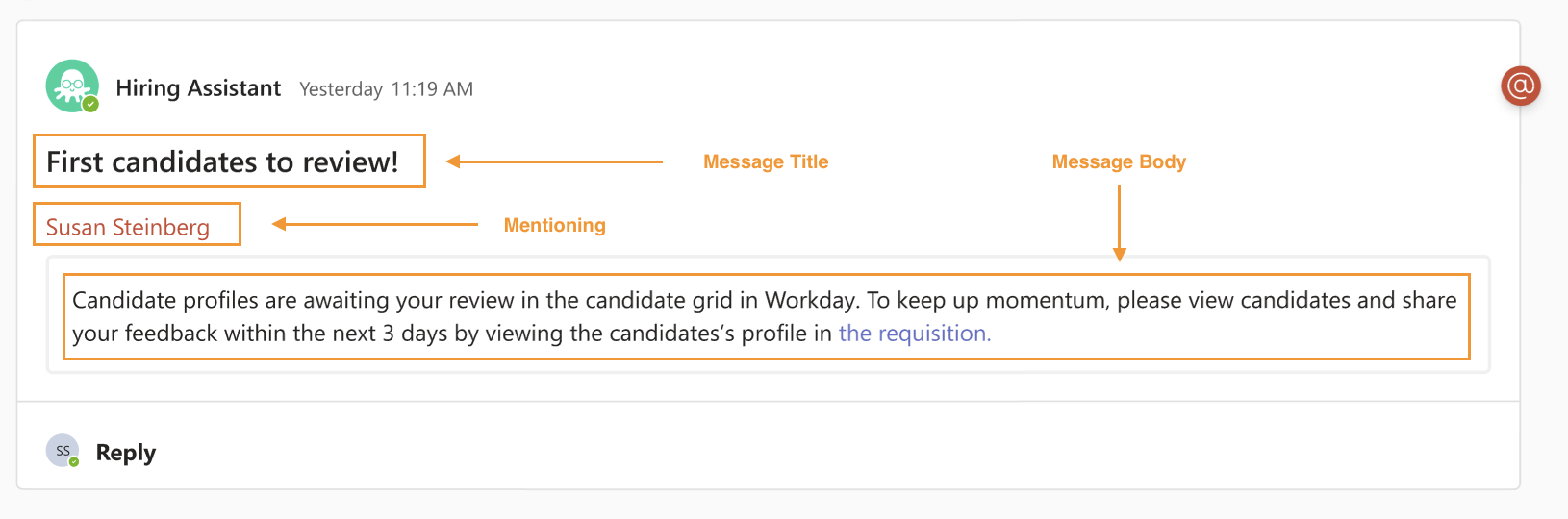
Your implementer must complete the steps to configure and authenticate the HiredScore MS Teams integration.
Changes submitted on this tab impact your HMTAC configuration in MS Teams, and existing configurations (including custom rules or filters) are overridden. Changes can take up to 30 minutes to display in MS Teams. In some cases, this may take longer.
- Access theHiredScore Tenant Setuptask in Workday.
- On theHM <> TA Collaboratortab, select theFirst Candidate to Reviewsub-tab.
- ClickEdit.
- Select theEnable in HM-TA Collaboratorcheck box to ensure that any changes you make on this task are effective in MS Teams after submitting them in Workday.
- In theTriggered Bysection, select theJob Application Stepsthat must:
- Indicate when a candidate is ready for the hiring manager’s review.
- Trigger the HMTAC to send the message.
- Enter and select these values:FieldValueMessage TitleFirst candidates to review!MentioningManager
- Customize the template’sMessage Body.
- Copy the default text in theMessage Bodyfield.This field is automatically populated with a default message in JSON format.
- Access the Microsoft Adaptive Cards Designer at https://adaptivecards.microsoft.com/designer.
- In the Adaptive Cards Designer, replace any existing content in theCard Payload Editorwith the JSON text that you copied in step a.The card preview updates in real time to display how the message card is currently configured.
- In theCard Payload Editor, you can customize the message using the parameters listed in theAvailable Paramssection in Workday, as well as custom links (see stepg).For the purpose of this example, include this parameter that links to the Workday candidate list grid:
- ${link_to_WD_req_candidate_grid}
The resulting JSON text in theWorkday recommends that you don’t remove this link.Card Payload Editoris:{ "type": "AdaptiveCard", "$schema": "http://adaptivecards.io/schemas/adaptive-card.json", "version": "1", "body": [ { "type": "TextBlock", "wrap": true, "text": "Candidate profiles are awaiting your review in the candidate grid in Workday. To keep up momentum, please view candidates and share your feedback within the next 3 days by viewing the candidate's profile in the requisition${link_to_WD_req_candidate_grid}." } ] }TheversionJSON key is for internal reference purposes only and doesn’t impact JSON behaviour. - ClickCopy Card Payloadand return to theHiredScore Tenant Setuptask in Workday.
- Paste the copied JSON text into theMessage Bodyfield to replace the existing content.
- (Optional) In theCustom Linkssection, you can create links that you can also insert in the message.
- Enter a URL (such as the URL of a Help article) in theLinksfield.
- Copy and paste the corresponding parameter (Example:${first_candidate_to_review_1}) into the message template. Example:Click [Hiring Manager Toolkit.](${first_candidate_to_review_1})
Verify that the JSON syntax is correct to avoid JSON errors.
- ClickOK.
- ClickDone.
- (Optional) You can add translations for supported languages by selectingAdd Translationin theTranslationssection.
- Select the language you want to add and provide the translated text for both theMessage TitleandMessage Bodyfields.
- Verify that any dynamic parameters in the original message are maintained in all translations.
- After you add translations, verify that the message renders correctly in the Adaptive Cards Designer and that all parameters and links are correct.
When the first candidate for a job requisition is shared by the recruiter and the hiring manager receives the automated First Candidate to Review message, it should display as illustrated in the screengrab:
Any users selected in the
Mentioning
field receive an MS Teams notification.