
Example: Set Up a HiredScore Recruiter Job Requisition Progress Template
This example illustrates:
- How to configure the template for the Recruiter Job Requisition Progress message that is triggered by the Hiring Manager Talent Advisor Collaborator (also known as HMTAC or the HM-TA Collaborator) functionality in Microsoft Teams.
- The impact of this configuration in MS Teams.
Your organization uses the HMTAC functionality to facilitate team communication about specific requisitions. It triggers the sending of messages in MS Teams at various stages throughout the process. You want to customize the Recruiter Job Requisition Progress template, which helps recruiters to review all active candidates across their requisitions and decide on next actions, such as progressing candidates or following up with the hiring manager. Depending on how it’s configured, recruiters receive this notification according to a schedule you specify, or is continuously updated based on integration changes. Customization needs to include:
- A specific message title.
- A tag that mentions and notifies the recruiter that handles the requisition.
- A specific message introduction.
- AMessage to Hiring Managerlink that appears when a req reaches specific steps in Hiring Manager phases. Clicking this link allows you to send a message to the hiring manager in the shared requisition channel.
- A link to theReqs Progresstab.
- A schedule that triggers the message according to preferences. Example: Every Monday, Wednesday, and Friday at 09:00AM.
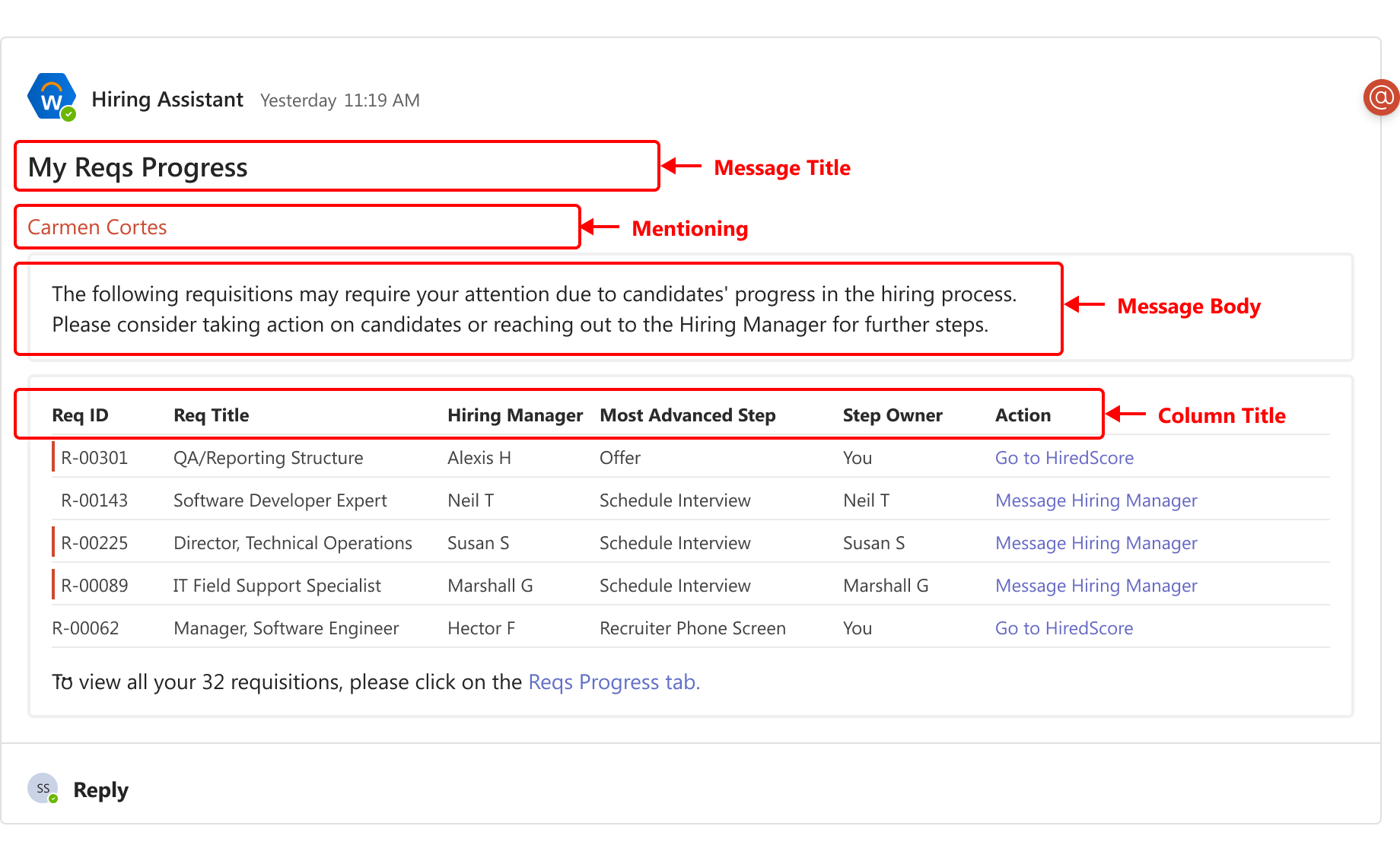
After configuration is complete, the message should display as follows in MS Teams:
Your implementer must complete the steps to configure and authenticate the HiredScore and MS Teams integrations in Workday.
Changes submitted on this tab impact your account's configuration in HiredScore and existing configurations (including custom rules or filters) are overridden. Changes can take up to 30 minutes to display in the HiredScore UI. In some cases, this may take longer.
- Access theHiredScore Tenant Setuptask in Workday.
- On theHM <> TA Collaboratortab, select theRecruiter Job Requisition Progress Templatesub-tab.
- ClickEdit.
- Select theEnable in HM-TA Collaboratorcheck box to ensure that any changes you make on this task are effective in MS Teams after submitting them in Workday.
- Select theJob Application Stepsfor the Hiring Manager Dashboard phases to determine the hiring manager steps that trigger theMessage to Hiring Manageraction.
- Enter and select relevant values for these fields. For the purposes of this example, the values are:FieldValueScheduleMondayWednesdayFridayTime (In UTC)9:00 AMMessage TitleMy Reqs ProgressMentioningRecruiterIntro SentenceThe following requisitions may require your attention due to candidates' progress in the hiring process. Please consider taking action on candidates or reaching out to the Hiring Manager for further steps.
- To customize the table label headers in the message, enter these these values in theColumn Titlessection:FieldValueJob Requisition IDReq IDJob Requisition TitleReq TitleHiring ManagerHiring ManagerMost Advanced StepMost Advanced StepStep OwnerStep OwnerActionAction
- ClickOK.
- ClickDone.
- (Optional) You can add translations for supported languages by selectingAdd Translationin theTranslationssection.
- Select the language you want to add and provide the translated text for both theMessage TitleandMessage Bodyfields.
- Verify that any dynamic parameters in the original message are maintained in all translations.
- After you add translations, verify that the message renders correctly in the Adaptive Cards Designer and that all parameters and links are correct.
Recruiters receive the message illustrated in the screengrab every Monday, Wednesday, and Friday at 09:00AM in this example.
Any users selected in the
Mentioning
field receive an MS Teams notification.