
Concept: Excel Interface for Planning Interface Tour
Planning Tab, Planning Pane and Grid
- Connect toAdaptive Planning.
- UseAdaptive Planningfunctions in Excel.
- Refresh data and submit your updates.
- Notice that you also have all the typical Excel tabs available in the ribbon, which include all Excel's functionality.
- Choose instances (if you have access to multi-instances), sheets, and levels to display data on the Excel sheet.
- Hide, undock and move this pane.
- Review cell formulas when applicable.
- Filter by dimensions and attributes and modify column and row data for cube sheets only.
Excel sheet and Planning grid
- Review data (learn about cell colors and notations) and formulas.
- Enter data and formulas using either Excel orAdaptive Planningfunctions.
- Drill down to cell details.
Hide, Move or Show the Planning Pane
Watch the video
(00m 55s): To hide or show the
Planning
pane, either toggle the Show Planning Pane
preference or click the x
in the upper right corner of the Planning pane. 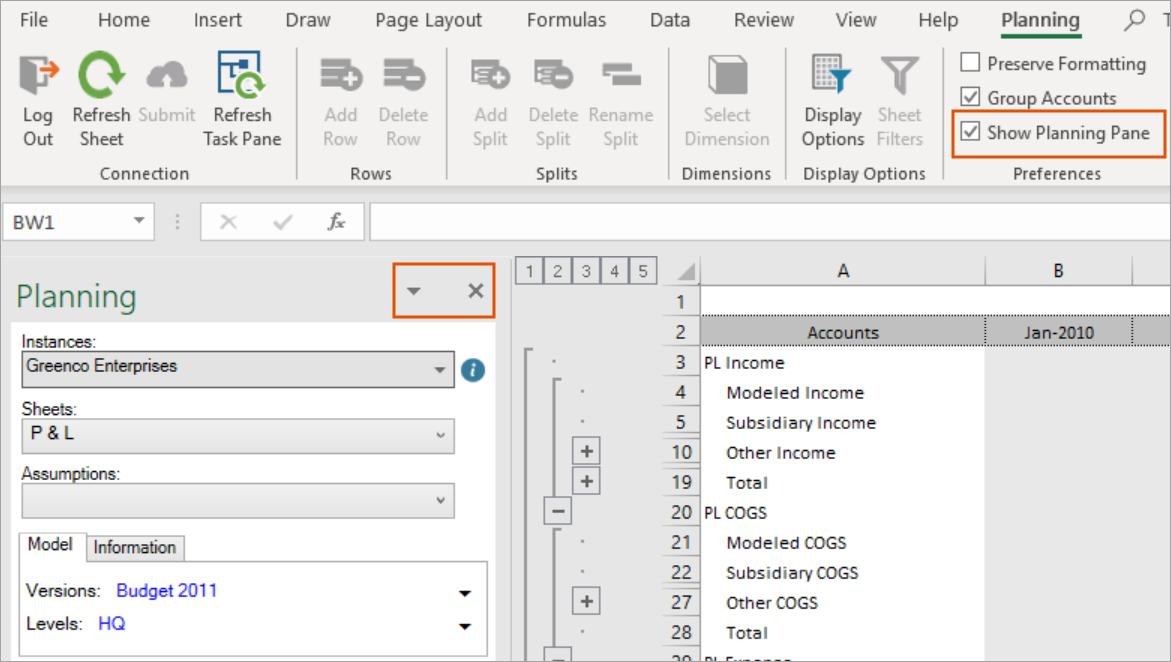
To undock the Planning pane, click  on upper right corner of the Planning pane and select
on upper right corner of the Planning pane and select Move
. Click and drag the pane when the move icon appears. You can either keep it disconnected by dropping it anywhere on your screen, or you can hover at the top, bottom, left or right of the grid until it docks. Can't find your undocked Planning pane? Just click the
Show Planning Pane
toggle in preferences again (even if it is already checked). Your Planning pane will appear. The Adaptive Planning and Excel Grids
Adaptive Planning
and Excel GridsWhen you select a sheet from the
Planning
pane, the sheet columns, rows, formulas and data load into the grid to the right of the pane.While updating the cells of the grid, be mindful of where you are adding data. The data you update within the
Adaptive Planning
grid can be submitted to Adaptive Planning
. The data you enter or update in the Excel grid, the areas outside the data loaded from Adaptive Planning
, are not submitted to Adaptive Planning
.
Updates you make outside of the
Adaptive Planning
grid cannot be submitted and saved to the cloud.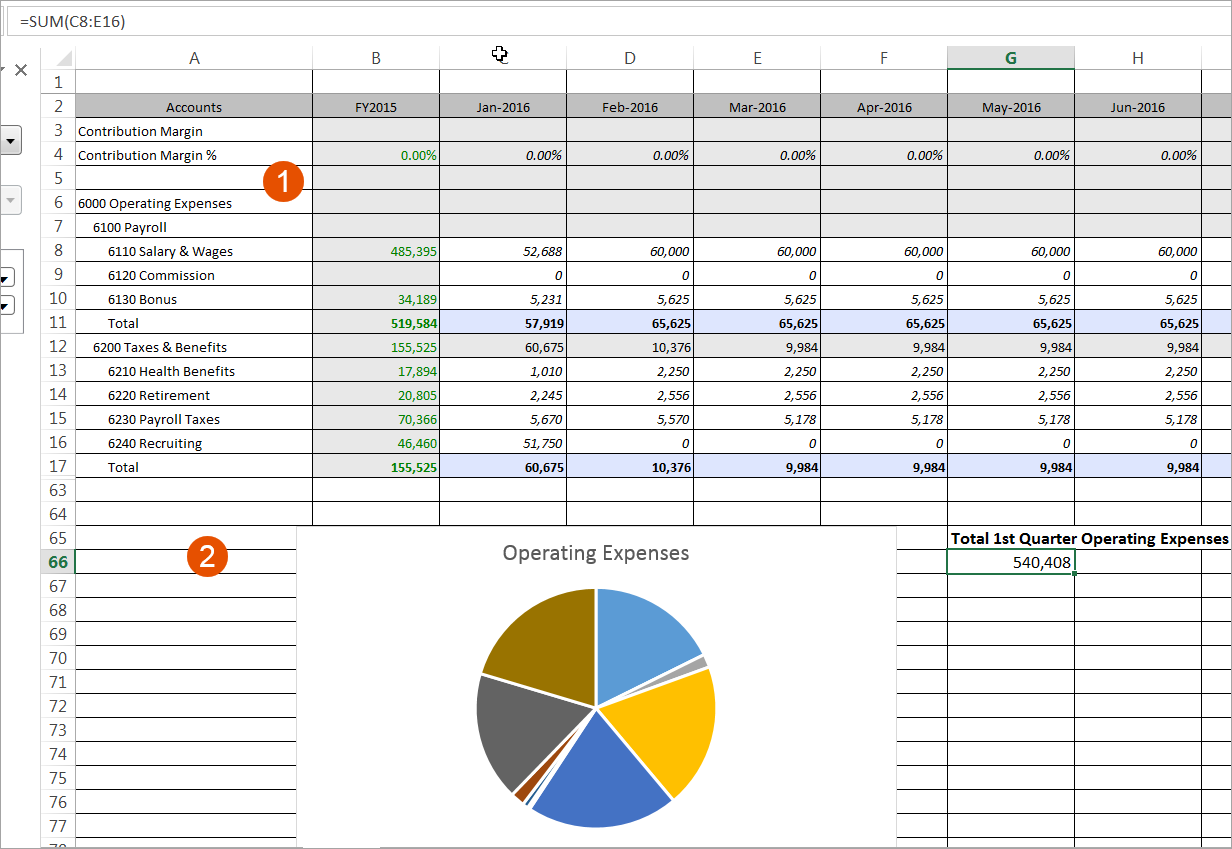
1
Adaptive Planning
grid: Changes made here are synched to the online sheets:When you right-click on cells within the
Adaptive Planning
grid, click Planning
from the menu to view and choose context-specific actions. 2
Excel grid: Data here is outside the parameters of the Adaptive Planning
sheet. Changes made here can be saved in Excel but will not be synched to the online sheet. When you right-click on the Excel grid, you'll see all the options you normally see when using Excel.
Notice in this example that the user created an Excel chart and an Excel calculation (in the Excel grid) based on
Adaptive Planning
data (check out the cell formula displayed at the top.) Learn more about how Excel and
Adaptive Planning
functions in Excel Interface for Planning
.