
Reference: Cell Colors and Notations Legend
For a table of contents with links to all
Excel Interface for Planning
articles, go to Using Excel Interface for Planning
. For information about cell colors and notations on web sheets, go to Using Sheets, which is slightly different.Cells and the data in cells have different background and text colors, font styles, and triangle notations. This provides quick at-a-glance information about the data.
What You See | What It Means |
|---|---|
 White background with any text color | Change data if there is text of any color or if it is blank. |
 Gray background with any text color | Locked. The color or style of the text may indicate why. |
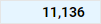 Blue background with any text color | Rollups (totals) for accounts, time, custom dimensions, and splits. You can't edit these cells in Excel Interface for Planning , but you can edit the cells that roll up to this cell. |
 Blue text with white or blue background | Unsaved data. |
 Green text with any background color | Actuals data. The background color tells you more about the data. |
 Bold text with any background color | Totals. |
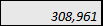 Italicized text with any background color | Has a formula. The background tells you if you can change or replace the formula. |
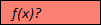 Red background with f(x)? for text. | Has a formula error. Or is missing data in the cells of a required column in modeled sheets. Adaptive Planning instance online and click Sheets from the nav menu. |
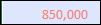 Red text with any background color. | The formula, although correct, is referencing a cell with an error. Adaptive Planning instance online and click Sheets from the nav menu. |
 Red triangle in the corner of cell with any color text or background | Has a note. |