
Concept: Sheets Quick Tour
Sheets and Assumptions Overview
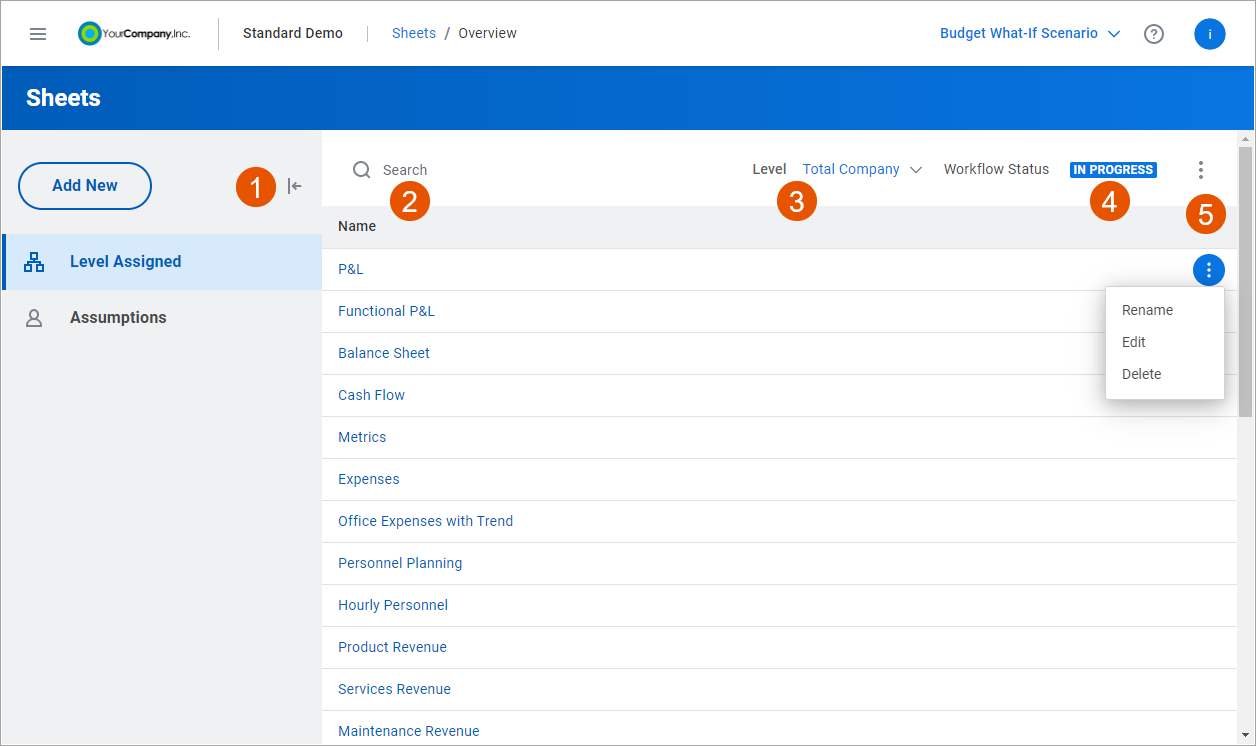
Option | Description |
|---|---|
1 | You can:
|
2 | Start typing the name of a sheet to find it in the list. |
3 | The Level prompt displays when you're looking at level-assigned sheets only. The drop-down list contains all levels you can access. The sheet list changes to display sheets assigned to the level you select. |
4 | If you have Workflow, you can click the workflow status button to review workflow notes and update the status. |
5 | You can use the More icon in the toolbar to:
You can use the More Actions icon in the list to:
More Actions in the list is only visible if you have the Model includes: sheets, accounts, dimensions, and formulas permission. |
Individual Sheets
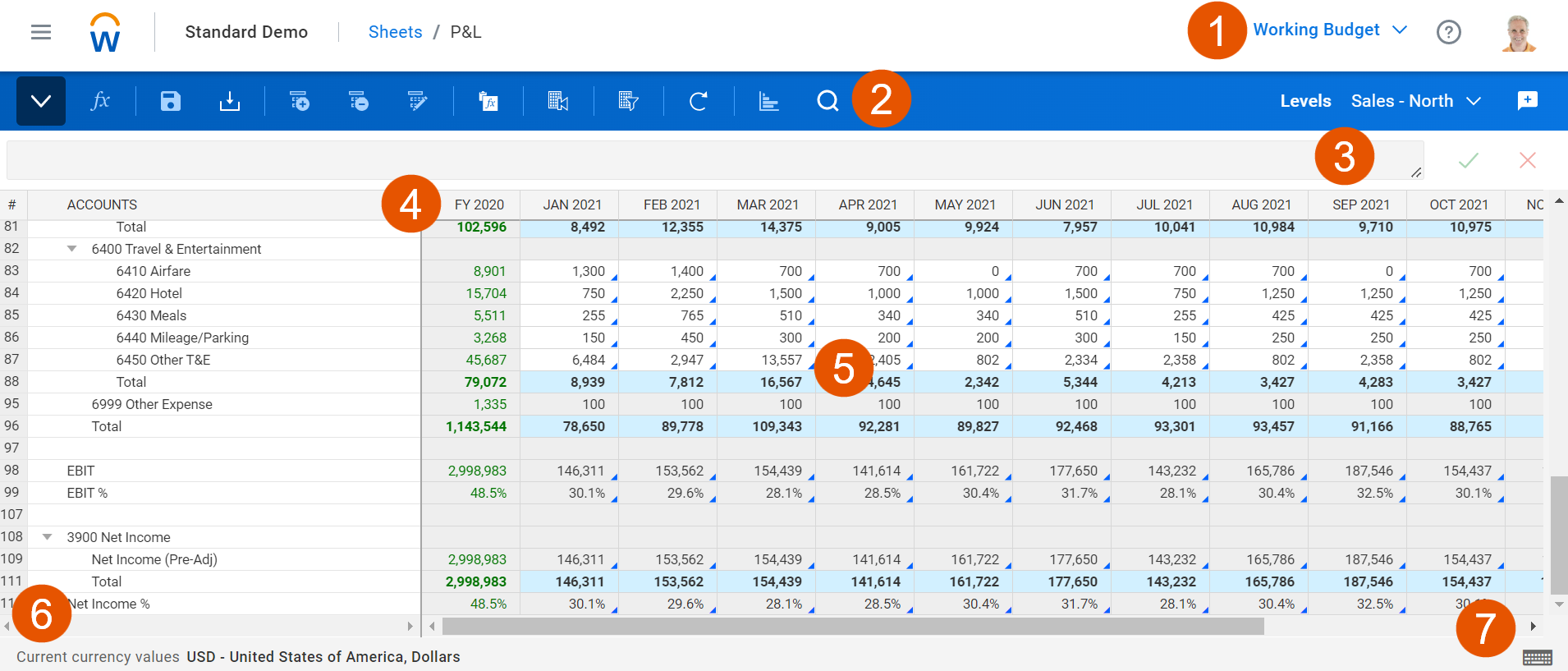
Option | Description |
|---|---|
1 | The version drop-down list contains all versions that you can access. You can also create scenario versions if you have the Create Scenarios permission. |
2 | In the toolbar, you can use the buttons to help you complete tasks. The toolbar changes for each sheet type. |
3 | If accounts use formulas, they display in the formula bar. You can also enter data or formulas into the field for a cell. |
4 | You can expand and collapse hierarchical rows and drag column dividers to resize them. |
5 | You can enter data directly into cells or right-click for additional actions. |
6 | The currency used for the data of a selected cell. Data you enter is in the currency of the level set by your admin. When levels aren't in the rows, sheets display the currency of the:
|
7 | List of keyboard shortcuts. |